buttons RAM 1500 2021 Owner's Manual
[x] Cancel search | Manufacturer: RAM, Model Year: 2021, Model line: 1500, Model: RAM 1500 2021Pages: 496, PDF Size: 20.89 MB
Page 185 of 496

STARTING AND OPERATING183
To Turn Off
The system will turn off and clear the set speed
in memory if:
The Adaptive Cruise Control (ACC) on/off
button is pushed
The Fixed Speed Cruise Control on/off button
is pushed
The ignition is placed in the OFF position
4WD Low is engaged
To Resume
If there is a set speed in memory, push the RES
(resume) button and then remove your foot
from the accelerator pedal. The instrument
cluster display will display the last set speed.
Resume can be used at any speed above
20 mph (32 km/h) when only Fixed Speed
Cruise Control is being used.
Resume can be used at any speed above 0 mph
(0 km/h) when ACC is active. NOTE:
While in ACC mode when the vehicle comes
to a complete stop longer than two seconds,
the system will cancel. The driver will have to
apply the brakes to keep the vehicle at a
standstill.
ACC cannot be resumed if there is a
stationary vehicle in front of your vehicle in
close proximity.
To Vary The Speed Setting
To Increase Or Decrease The Set Speed
After setting a speed, you can increase the set
speed by pushing the SET
(+) button, or
decrease speed by pushing the SET (-) button. U.S. Speed (mph)
Pushing the SET
(+), or SET (-) button once
will result in a 1 mph speed adjustment. Each
subsequent tap of the button results in an
adjustment of 1 mph.
If the button is continually pushed, the set
speed will continue to adjust in 5 mph incre -
ments until the button is released. The new
set speed is reflected in the instrument
cluster display.
Metric Speed (km/h)
Pushing the SET (+), or SET (-) button once
will result in a 1 km/h speed adjustment.
Each subsequent tap of the button results in
an adjustment of 1 km/h.
If the button is continually pushed, the set
speed will continue to adjust in 10 km/h
increments until the button is released. The
new set speed is reflected in the instrument
cluster display.
NOTE:
When you override and push the SET (+) button
or SET (-) buttons, the new set speed will be the
current speed of the vehicle.
WARNING!
The Resume function should only be used if
traffic and road conditions permit. Resuming
a set speed that is too high or too low for
prevailing traffic and road conditions could
cause the vehicle to accelerate or decelerate
too sharply for safe operation. Failure to
follow these warnings can result in a collision
and death or serious personal injury.
4
21_DT_OM_EN_USC_t.book Page 183
Page 206 of 496

204STARTING AND OPERATING
AUX CAMERA — IF EQUIPPED
Your vehicle may be equipped with one or two
AUX Cameras, which display rearview and side
view images from the trailer on the
touchscreen.
Activation
The AUX Camera is activated by first pressing
the Backup Camera or Surround View Camera
(if equipped) button on the touchscreen,
followed by the AUX button located in the upper
left corner of the rearview display. The AUX
camera can also be activated when the vehicle
is in REVERSE by pressing the AUX button.
If equipped with two AUX Cameras, you can
switch between each camera by pressing the
AUX1 or AUX2 buttons on the Trailer Camera
display.
AUX1 Camera Button
AUX2 Camera Button Deactivation
The AUX Camera is deactivated by pressing the
“X” in the upper right corner of the touchscreen.
This will return the display back to the
previously displayed screen.
NOTE:
If the AUX button is pressed and no AUX
Camera is connected, the touchscreen will
display a blue screen along with the message
“Camera System Unavailable.” The screen
can be exited out by pressing the “X” in the
upper right hand corner. This will return the
display back to the previously displayed
screen.
Zoom View is not available with the AUX
Camera feature.
The display will always default to the Trailer
Camera display (AUX 1).
SURROUND VIEW CAMERA SYSTEM — IF
EQUIPPED
The Surround View Camera system allows you
to see an on-screen image of the surroundings
and the Top View of your vehicle. This occurs
whenever the gear selector is in REVERSE or when enabled through the Uconnect system.
The Top View of the vehicle will also show if any
doors are open. The image will be displayed on
the touchscreen along with a caution note
“Check Entire Surroundings”. After five
seconds, this note will disappear. The Surround
View Camera system is comprised of four
cameras located in the front grille, rear tailgate
and side mirrors.
NOTE:
The Surround View Camera system has
programmable settings that may be selected
through the Uconnect system Ú
page 237.
Press this button on the touchscreen
to enter the Surround View Camera
menu in the Uconnect system.
When the vehicle is shifted into REVERSE, the
Rear View and Top View is the default view of
the system.
If the camera delay is turned on, the camera
image will display for up to 10 seconds after
shifting out of REVERSE. The camera image will
not display for 10 seconds if the vehicle speed
exceeds 8 mph (13 km/h), the vehicle is shifted
into PARK, or the ignition is placed in the OFF
position. The “X” button on the touchscreen
disables the display of the camera image.
21_DT_OM_EN_USC_t.book Page 204
Page 210 of 496
208STARTING AND OPERATING
AUX CAMERA — IF EQUIPPED
Your vehicle may be equipped with one or two
AUX Cameras, which display images from the
trailer on the touchscreen.
Activation
The AUX Camera is activated any of the
following ways:
By first pressing the Backup Camera or
Surround View Camera (if equipped) button
on the touchscreen, followed by the AUX
button located in the upper left corner of the
rearview display
Pressing the AUX button in the Apps menu
Pressing the AUX button when the vehicle is
in REVERSE
If equipped with two AUX Cameras, you can
switch between each camera by pressing the
AUX1 or AUX2 buttons on the Trailer Camera
display. AUX1 Camera Button
AUX2 Camera Button
Deactivation
The AUX Camera is deactivated when the
following situations occur:
The “X” in the upper right corner of the touch -
screen is pressed. This will return the display
back to the previously displayed screen.
The vehicle speed exceeds 8 mph (13 km/h)
for 10 seconds.
The vehicle is shifted into PARK.
The ignition is placed in the OFF position. NOTE:
If the AUX button is pressed and no AUX
Camera is connected, the touchscreen will
display a blue screen along with the message
“Camera System Unavailable.” The screen
can be exited out by pressing the “X” in the
upper right hand corner. This will return the
display back to the previously displayed
screen.
Zoom View is not available with the AUX
Camera feature.
The display will always default to the Trailer
Camera display (AUX 1).
REFUELING THE VEHICLE — GASOLINE
ENGINE
The capless fuel filler is located on the left side
of the vehicle.
The capless system is sealed by two flapper
doors.
CAUTION!
To avoid vehicle damage, Surround View
should only be used as a parking aid. The
Surround View camera is unable to view
every obstacle or object in your drive path.
To avoid vehicle damage, the vehicle must
be driven slowly when using Surround View
to be able to stop in time when an obstacle
is seen. It is recommended that the driver
look frequently over his/her shoulder when
using Surround View.
21_DT_OM_EN_USC_t.book Page 208
Page 225 of 496
STARTING AND OPERATING223
Integrated Trailer Brake Module — If
Equipped
Your vehicle may have an Integrated Trailer
Brake Module (ITBM) for Electric and Electric
Over Hydraulic (EOH) trailer brakes.
NOTE:
This module has been designed and verified
with electric trailer brakes and new EOH
systems. Some previous EOH systems may not
be compatible with ITBM.
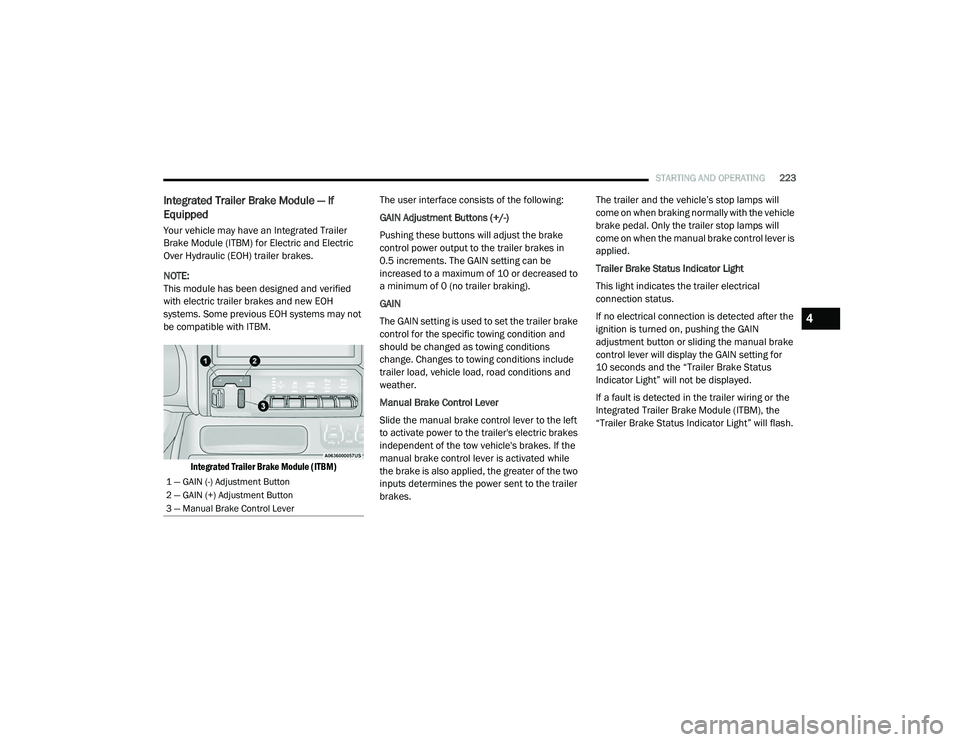
Integrated Trailer Brake Module (ITBM)
The user interface consists of the following:
GAIN Adjustment Buttons (+/-)
Pushing these buttons will adjust the brake
control power output to the trailer brakes in
0.5 increments. The GAIN setting can be
increased to a maximum of 10 or decreased to
a minimum of 0 (no trailer braking).
GAIN
The GAIN setting is used to set the trailer brake
control for the specific towing condition and
should be changed as towing conditions
change. Changes to towing conditions include
trailer load, vehicle load, road conditions and
weather.
Manual Brake Control Lever
Slide the manual brake control lever to the left
to activate power to the trailer's electric brakes
independent of the tow vehicle's brakes. If the
manual brake control lever is activated while
the brake is also applied, the greater of the two
inputs determines the power sent to the trailer
brakes. The trailer and the vehicle’s stop lamps will
come on when braking normally with the vehicle
brake pedal. Only the trailer stop lamps will
come on when the manual brake control lever is
applied.
Trailer Brake Status Indicator Light
This light indicates the trailer electrical
connection status.
If no electrical connection is detected after the
ignition is turned on, pushing the GAIN
adjustment button or sliding the manual brake
control lever will display the GAIN setting for
10 seconds and the “Trailer Brake Status
Indicator Light” will not be displayed.
If a fault is detected in the trailer wiring or the
Integrated Trailer Brake Module (ITBM), the
“Trailer Brake Status Indicator Light” will flash.
1 — GAIN (-) Adjustment Button
2 — GAIN (+) Adjustment Button
3 — Manual Brake Control Lever
4
21_DT_OM_EN_USC_t.book Page 223
Page 226 of 496

224STARTING AND OPERATING
Adjusting GAIN
NOTE:
This should only be performed in a traffic free
environment at speeds of approximately
20–25 mph (30–40 km/h).
1. Make sure the trailer brakes are in good
working condition, functioning normally
and properly adjusted. See your trailer
dealer if necessary.
2. Hook up the trailer and make the electrical connections according to the trailer
manufacturer's instructions.
3. When a trailer is plugged in with electric or EOH brakes, the trailer connected message
should appear in the instrument cluster
display (if the connection is not recognized by the ITBM, braking functions will not be
available), the GAIN setting will illuminate
and the correct type of trailer must be
selected from the instrument cluster display
options.
4. Push the UP or DOWN button on the steering wheel until “TRAILER TOW”
appears on the screen.
5. Push the RIGHT arrow on the steering wheel to enter “TRAILER TOW”.
6. Push the UP or DOWN buttons until the Trailer Brake Type appears on the screen.
7. Push the RIGHT arrow and then push the UP or DOWN buttons until the proper Trailer
Brake Type appears on the screen. 8. In a traffic-free environment, tow the trailer
on a dry, level surface at a speed of
20–25 mph (30–40 km/h) and squeeze
the manual brake control lever completely.
9. If the trailer wheels lockup (indicated by squealing tires), reduce the GAIN setting; if
the trailer wheels turn freely, increase the
GAIN setting.
Repeat steps 8 and 9 until the GAIN setting is at
a point just below trailer wheel lockup. If towing
a heavier trailer, trailer wheel lockup may not be
attainable even with the maximum GAIN setting
of 10.
*The suggested selection may change depending on the customer preferences for braking performance. Condition of the trailer brakes, driving and road state may also affect the
selection.
Light Electric Heavy Electric Light EOHHeavy EOH
Type of Trailer Brakes Electric Trailer Brakes Electric Trailer Brakes Electric over Hydraulic
Trailer BrakesElectric over Hydraulic
Trailer Brakes
Load *Under 10,000 lbs *Above 10,000 lbs *Under 10,000 lbs *Above 10,000 lbs
21_DT_OM_EN_USC_t.book Page 224
Page 239 of 496
MULTIMEDIA237
UCONNECT SETTINGS
The Uconnect system uses a combination of
buttons on the touchscreen and buttons on the
faceplate located on the center of the
instrument panel. These buttons allow you to
access and change the Customer
Programmable Features. Many features can
vary by vehicle.
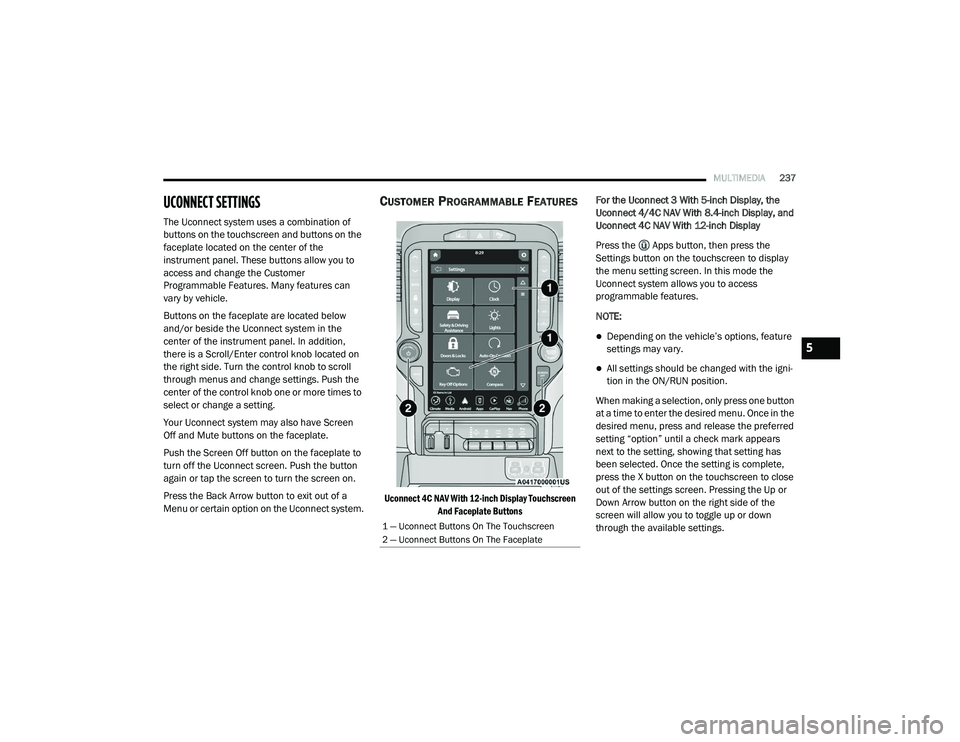
Buttons on the faceplate are located below
and/or beside the Uconnect system in the
center of the instrument panel. In addition,
there is a Scroll/Enter control knob located on
the right side. Turn the control knob to scroll
through menus and change settings. Push the
center of the control knob one or more times to
select or change a setting.
Your Uconnect system may also have Screen
Off and Mute buttons on the faceplate.
Push the Screen Off button on the faceplate to
turn off the Uconnect screen. Push the button
again or tap the screen to turn the screen on.
Press the Back Arrow button to exit out of a
Menu or certain option on the Uconnect system.
CUSTOMER PROGRAMMABLE FEATURES
Uconnect 4C NAV With 12-inch Display Touchscreen
And Faceplate Buttons
For the Uconnect 3 With 5-inch Display, the
Uconnect 4/4C NAV With 8.4-inch Display, and
Uconnect 4C NAV With 12-inch Display
Press the Apps button, then press the
Settings button on the touchscreen to display
the menu setting screen. In this mode the
Uconnect system allows you to access
programmable features.
NOTE:
Depending on the vehicle’s options, feature
settings may vary.
All settings should be changed with the igni
-
tion in the ON/RUN position.
When making a selection, only press one button
at a time to enter the desired menu. Once in the
desired menu, press and release the preferred
setting “option” until a check mark appears
next to the setting, showing that setting has
been selected. Once the setting is complete,
press the X button on the touchscreen to close
out of the settings screen. Pressing the Up or
Down Arrow button on the right side of the
screen will allow you to toggle up or down
through the available settings.
1 — Uconnect Buttons On The Touchscreen
2 — Uconnect Buttons On The Faceplate
5
21_DT_OM_EN_USC_t.book Page 237
Page 256 of 496
254MULTIMEDIA
HEAD-UP DISPLAY (HUD)
The Head-Up Display layout on the instrument
cluster can be customized through the
Uconnect touchscreen. Each customized layout
can be saved to the Driver Profiles that are
created by the different drivers.
This feature is only accessed through the
instrument cluster display once the “Custom”
option is selected through the “Content &
Layout” tab. To begin customizing the HUD
layout through the instrument cluster display,
follow these steps:
1. Through the instrument cluster display,
using the Up and Down Arrow buttons on
the steering wheel, select the Content &
Layout option by pressing the OK button on
the steering wheel.
NOTE:
This option will not be available if the vehicle is
going more than 5 mph (8 km/h). 2. Select the Custom option by pushing the
Right Arrow button on the steering wheel.
NOTE:
A message will appear on the instrument cluster
display stating “Set Custom Layout in Radio”.
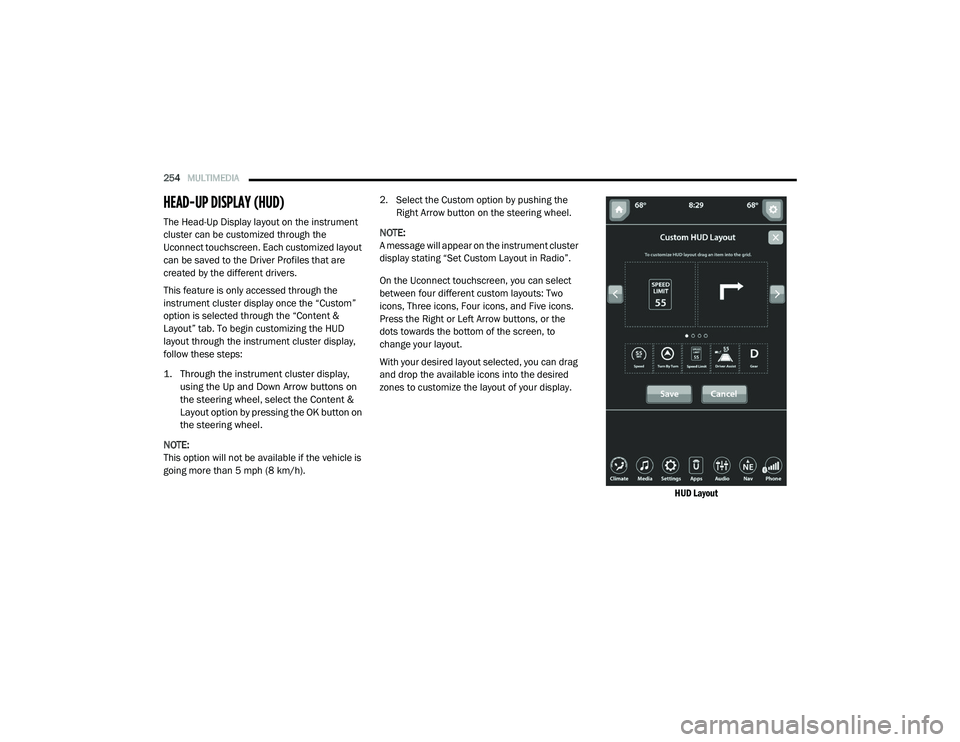
On the Uconnect touchscreen, you can select
between four different custom layouts: Two
icons, Three icons, Four icons, and Five icons.
Press the Right or Left Arrow buttons, or the
dots towards the bottom of the screen, to
change your layout.
With your desired layout selected, you can drag
and drop the available icons into the desired
zones to customize the layout of your display.
HUD Layout
21_DT_OM_EN_USC_t.book Page 254
Page 262 of 496
260MULTIMEDIA
The radio is equipped with the following modes:
AM
FM
SiriusXM® Satellite Radio (if equipped)
Press the Radio button on the touchscreen to
enter the Radio Mode. The different tuner
modes, AM, FM, and SXM, can then be selected
by pressing the corresponding buttons in Radio
Mode.
Volume & On/Off Control
Push the Volume & On/Off control knob to turn
on and off the Uconnect system.
The electronic volume control turns
continuously (360 degrees) in either direction,
without stopping. Turning the Volume & On/Off
control knob clockwise increases the volume,
and counterclockwise decreases it.
When the audio system is turned on, the sound
will be set at the same volume level as last
played.
Mute Button
Push the Mute button to mute or unmute the
system. Tune/Scroll Control
Turn the rotary Tune/Scroll control knob
clockwise to increase or counterclockwise to
decrease the radio station frequency. Push the
Enter/Browse button to choose a selection.
Seek
The Seek Up and Down functions are activated
by pressing the double arrow buttons on the
touchscreen to the right and left of the radio
station display or by pressing the left steering
wheel audio control button up or down.
Seek Up
and Seek Down
Press and release the Seek Up or Seek
Down button to tune the radio to the next
available station or channel. During a Seek Up/
Down function, if the radio reaches the starting
station after passing through the entire band
two times, the radio will stop at the station
where it began.
Fast Seek Up and Fast Seek Down
Press, hold, and then release the Seek Up or
Seek Down button to advance the radio
through the available stations or channels at a
faster rate. The radio stops at the next available station or channel when the button on the
touchscreen is released.
NOTE:
Pressing and holding either the Seek Up or
Seek Down button will scan the different
frequency bands at a slower rate.
Info — If Equipped
Press the Info button to display information
related to the currently playing song and radio
station.
Direct Tune
Press the Tune button located at the bottom of
the radio screen to directly tune to a desired
radio station or channel.
Press the available number button on the
touchscreen to begin selecting a desired
station. Once a number has been entered, any
numbers that are no longer possible (stations
that cannot be reached) will become
deactivated/grayed out.
Undo
You can backspace an entry by pressing the
Back button on the touchscreen.
21_DT_OM_EN_USC_t.book Page 260
Page 264 of 496
262MULTIMEDIA
No Subscription
Radios equipped with a Satellite receiver
require a subscription to the SiriusXM® Service.
When the Radio does not have the necessary
subscription, the Radio is able to receive the
Preview channel only.
Acquiring SiriusXM® Subscription
To activate the SiriusXM® Satellite Radio
subscription, US visit siriusxm.com/
getallaccess or call: 1-800-643-2112
Canada visit https://www.siriusxm.ca/ or call:
1-800-465-2001 (English) or 1-800-387-9983
(French).
NOTE:
You will need to provide the SiriusXM® ID (RID)
located at the bottom of the Channel 0 screen.
The Satellite Mode is activated by a press of the
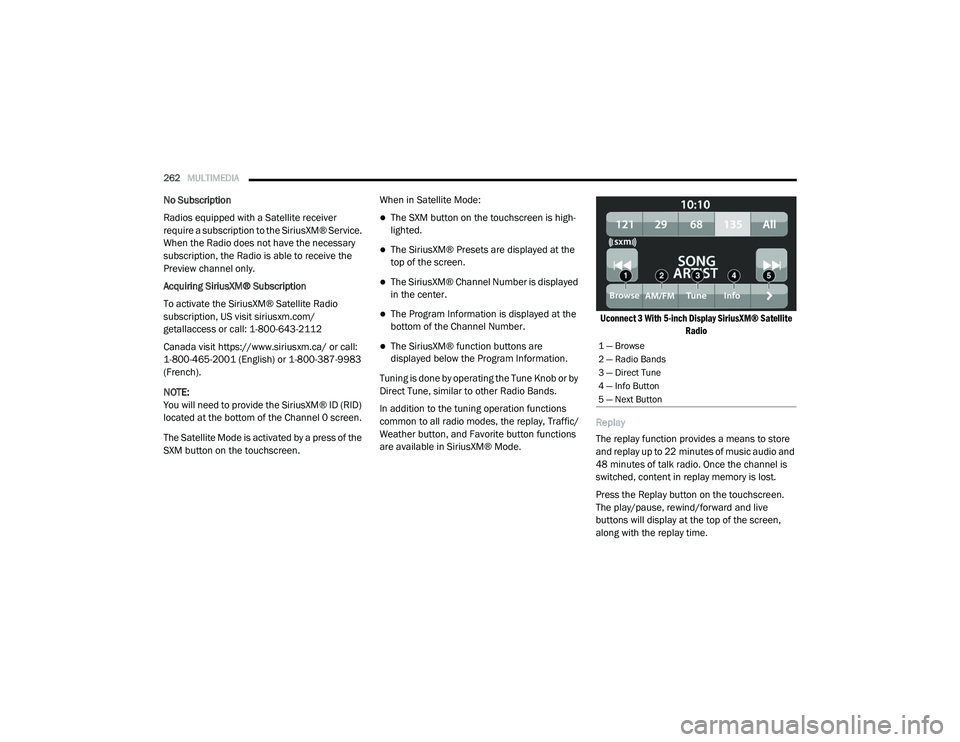
SXM button on the touchscreen. When in Satellite Mode:
The SXM button on the touchscreen is high
-
lighted.
The SiriusXM® Presets are displayed at the
top of the screen.
The SiriusXM® Channel Number is displayed
in the center.
The Program Information is displayed at the
bottom of the Channel Number.
The SiriusXM® function buttons are
displayed below the Program Information.
Tuning is done by operating the Tune Knob or by
Direct Tune, similar to other Radio Bands.
In addition to the tuning operation functions
common to all radio modes, the replay, Traffic/
Weather button, and Favorite button functions
are available in SiriusXM® Mode.
Uconnect 3 With 5-inch Display SiriusXM® Satellite
Radio
Replay
The replay function provides a means to store
and replay up to 22 minutes of music audio and
48 minutes of talk radio. Once the channel is
switched, content in replay memory is lost.
Press the Replay button on the touchscreen.
The play/pause, rewind/forward and live
buttons will display at the top of the screen,
along with the replay time.1 — Browse
2 — Radio Bands
3 — Direct Tune
4 — Info Button
5 — Next Button
21_DT_OM_EN_USC_t.book Page 262
Page 267 of 496
MULTIMEDIA265
Game Zone
Press the Game Zone button, located at the left
of the Browse screen. This feature provides you
with the ability to select teams, edit the
selection, and set alerts.
On Air
Press the On-Air tab at the top of the screen. The
On-Air list provides a list of Channels currently
airing any of the items in the Selections list, and
pressing any of the items in the list tunes the
radio to that channel.
Add/Delete — If Equipped
Press the Add/Delete button on the
touchscreen to activate the League Scroll list.
Press the chosen league and a scroll list of all
teams within the league will appear, then you
can select a team by pressing the
corresponding box. A check mark appears for all
teams that are chosen.
Remove Selection/Trash Can Icon
Press the Remove Selection tab at the top of the
screen. Press the Delete All button on the
touchscreen to delete all of the selections or
press the Trash Can icon next to the selection to
be deleted. Alert Settings
Press the Alert Setting tab at the top of the
screen. The Alert Settings menu allows you to
choose from “Alert me to on-air games upon
start” or “Alert upon score update” or both when
one or more of your selections is airing on any
of the SiriusXM® channels.
Tune Start
Tune Start begins playing the current song from
the beginning when you tune to a music
channel using one of the 12 presets. This
feature occurs the first time the preset is
selected during that current song.
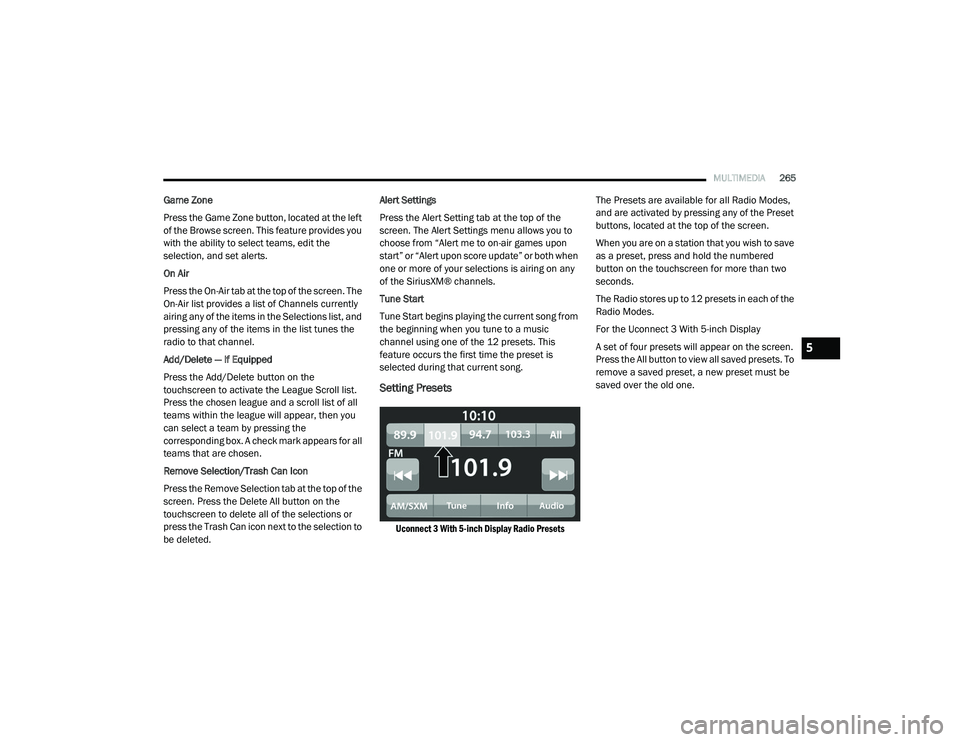
Setting Presets
Uconnect 3 With 5-inch Display Radio Presets
The Presets are available for all Radio Modes,
and are activated by pressing any of the Preset
buttons, located at the top of the screen.
When you are on a station that you wish to save
as a preset, press and hold the numbered
button on the touchscreen for more than two
seconds.
The Radio stores up to 12 presets in each of the
Radio Modes.
For the Uconnect 3 With 5-inch Display
A set of four presets will appear on the screen.
Press the All button to view all saved presets. To
remove a saved preset, a new preset must be
saved over the old one.
5
21_DT_OM_EN_USC_t.book Page 265