buttons RAM 1500 2021 Owner's Guide
[x] Cancel search | Manufacturer: RAM, Model Year: 2021, Model line: 1500, Model: RAM 1500 2021Pages: 496, PDF Size: 20.89 MB
Page 269 of 496
MULTIMEDIA267
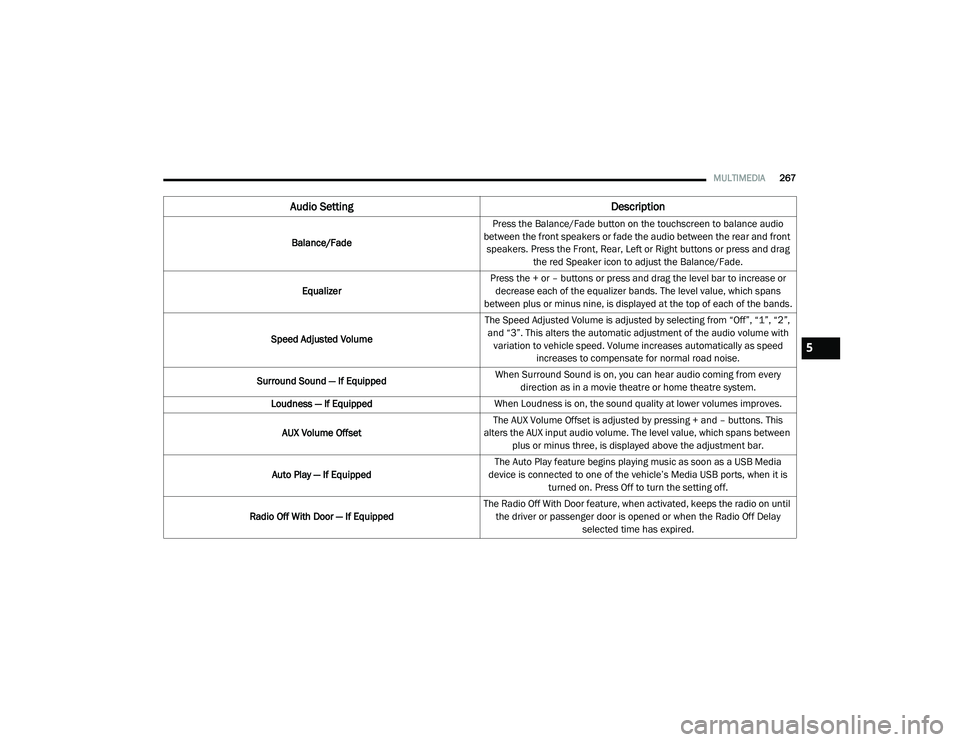
Audio Setting Description
Balance/FadePress the Balance/Fade button on the touchscreen to balance audio
between the front speakers or fade the audio between the rear and front speakers. Press the Front, Rear, Left or Right buttons or press and drag the red Speaker icon to adjust the Balance/Fade.
Equalizer Press the + or – buttons or press and drag the level bar to increase or
decrease each of the equalizer bands. The level value, which spans
between plus or minus nine, is displayed at the top of each of the bands.
Speed Adjusted Volume The Speed Adjusted Volume is adjusted by selecting from “Off”, “1”, “2”,
and “3”. This alters the automatic adjustment of the audio volume with variation to vehicle speed. Volume increases automatically as speed increases to compensate for normal road noise.
Surround Sound — If Equipped When Surround Sound is on, you can hear audio coming from every
direction as in a movie theatre or home theatre system.
Loudness — If Equipped When Loudness is on, the sound quality at lower volumes improves.
AUX Volume Offset The AUX Volume Offset is adjusted by pressing + and – buttons. This
alters the AUX input audio volume. The level value, which spans between plus or minus three, is displayed above the adjustment bar.
Auto Play — If Equipped The Auto Play feature begins playing music as soon as a USB Media
device is connected to one of the vehicle’s Media USB ports, when it is turned on. Press Off to turn the setting off.
Radio Off With Door — If Equipped The Radio Off With Door feature, when activated, keeps the radio on until
the driver or passenger door is opened or when the Radio Off Delay selected time has expired.
5
21_DT_OM_EN_USC_t.book Page 267
Page 271 of 496

MULTIMEDIA269
AUX Mode
Overview
Auxiliary Mode (AUX) is entered by inserting an
AUX device using a cable with a 3.5 mm audio
jack into the AUX port or pushing the Media
button on the faceplate and then selecting the
Source button and then the AUX button.
To insert an Auxiliary device, gently insert the
Auxiliary device cable into the AUX Port. If you
insert an Auxiliary device with the ignition and
the radio on, the unit will switch to AUX Mode
and begin to play.
Controlling The Auxiliary Device
The control of the Auxiliary device (e.g.,
selecting playlists, play, fast forward, etc.)
cannot be provided by the radio; use the device
controls instead. Adjust the volume with the
Volume button, Volume/Mute rotary knob, or
the On/Off rotary knob, or with the volume of
the attached device.
NOTE:
The radio unit is acting as the amplifier for audio
output from the Auxiliary device. Therefore, if
the volume control on the Auxiliary device is set
too low, there will be insufficient audio signal for
the radio unit to play the music on the device. Seek Up
/ Seek Down
In USB Mode, press the Seek Up button on the
touchscreen for the next selection on the USB
device. Press and release the Seek Down
button on the touchscreen to return to the
beginning of the current selection, or to return
to the beginning of the previous selection if the
USB device is within the first three seconds of
the current selection.
In Bluetooth® Mode, press and release the
Seek Up button on the touchscreen for the next
selection on the Bluetooth® device. Press and
release the Seek Down button on the
touchscreen to return to the beginning of the
current selection, or return to the beginning of
the previous selection if the Bluetooth® device
is within the first second of the current
selection.
Browse
In USB Mode, press the Browse button on the
touchscreen to display the browse window. In
USB Mode, the left side of the browse window
displays a list of ways you can browse through
the contents of the USB device. If supported by
the device, you can browse by Folder, Artist,
Playlist, Album, Song, etc. Press the desired button on the touchscreen on the left side of the
screen. The center of the browse window shows
items and its sub-functions, which can be
scrolled through by pressing the Up and Down
buttons to the right. The Tune/Scroll knob can
also be used to scroll.
On the Uconnect 3 With 5-inch Display, rotate
the Browse button on the touchscreen to scroll
through and select a desired track on the
device. Press the Exit button on the
touchscreen if you wish to cancel the Browse
function.
Media Mode
In USB Mode, press the Media button on the
touchscreen to select the desired audio source:
USB.
In Bluetooth® Mode, press the Media button on
the touchscreen to select the desired audio
source: Bluetooth®.
In AUX Mode, press the Media button on the
touchscreen to select the desired audio source:
AUX.
5
21_DT_OM_EN_USC_t.book Page 269
Page 277 of 496
MULTIMEDIA275
tooth® connection. If this happens, simply
repeat the pairing process. However, first make
sure to delete the device from the list of phones
on your Uconnect system. Next, be sure to
remove Uconnect from the list of devices in your
phone’s Bluetooth® settings.
Connecting To A Particular Mobile Phone Or
Audio Device After Pairing
Uconnect Phone will automatically connect to
the highest priority paired phone and/or Audio
Device within range. If you need to choose a
particular phone or audio device follow these
steps:
1. Press the
Settings
button on the
touchscreen.
2. Press the Paired Phones/Audio Sources buttons.
3. Press to select the particular phone or the particular audio device. A pop-up menu will
appear; press “Connect Phone”.
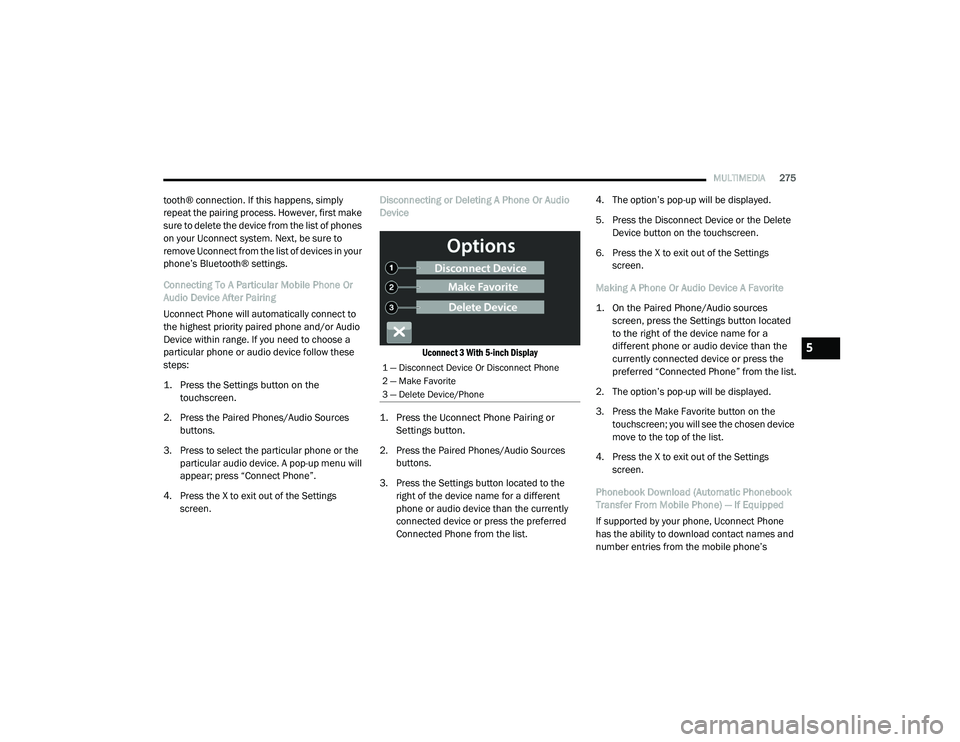
4. Press the X to exit out of the Settings screen. Disconnecting or Deleting A Phone Or Audio
Device
Uconnect 3 With 5-inch Display
1. Press the Uconnect Phone Pairing or Settings button.
2. Press the Paired Phones/Audio Sources buttons.
3. Press the Settings button located to the right of the device name for a different
phone or audio device than the currently
connected device or press the preferred
Connected Phone from the list. 4. The option’s pop-up will be displayed.
5. Press the Disconnect Device or the Delete
Device button on the touchscreen.
6. Press the X to exit out of the Settings screen.
Making A Phone Or Audio Device A Favorite
1. On the Paired Phone/Audio sources screen, press the Settings button located
to the right of the device name for a
different phone or audio device than the
currently connected device or press the
preferred “Connected Phone” from the list.
2. The option’s pop-up will be displayed.
3. Press the Make Favorite button on the touchscreen; you will see the chosen device
move to the top of the list.
4. Press the X to exit out of the Settings screen.
Phonebook Download (Automatic Phonebook
Transfer From Mobile Phone) — If Equipped
If supported by your phone, Uconnect Phone
has the ability to download contact names and
number entries from the mobile phone’s
1 — Disconnect Device Or Disconnect Phone
2 — Make Favorite
3 — Delete Device/Phone
5
21_DT_OM_EN_USC_t.book Page 275
Page 278 of 496
276MULTIMEDIA
phonebook. Specific Bluetooth® Phones with
Phonebook Access Profile may support this
feature. Your mobile phone may receive a
pop-up asking for permission for the Uconnect
system to access your messages and contacts.
Selecting “Ok” or “Allow” will sync your contacts
with the Uconnect system.
See the Uconnect website,
UconnectPhone.com, for supported phones.
To call a name from a downloaded mobile
phonebook, follow the procedure in the
“Voice Command” in this section.
Automatic download and update of a phone -
book, if supported, begins as soon as the
Bluetooth® wireless phone connection is
made to the Uconnect Phone, for example,
after you start the vehicle.
A maximum of 5,000 contact names with
four numbers per contact will be downloaded
and updated every time a phone is
connected to the Uconnect Phone.
Depending on the maximum number of entries
downloaded, there may be a short delay before
the latest downloaded names can be used.
Until then, if available, the previously down -
loaded phonebook is available for use.
Only the phonebook of the currently
connected mobile phone is accessible.
This downloaded phonebook cannot be
edited or deleted on the Uconnect Phone.
These can only be edited on the mobile
phone. The changes are transferred and
updated to Uconnect Phone on the next
phone connection.
Managing Your Favorites — If Equipped
There are two ways you can add an entry to your
favorites:
1. After loading the mobile phonebook, press the Favorites button on the touchscreen,
and then press one of the +Add Favorite
Contact buttons that appears on the list.
2. After loading the mobile phonebook, select “Contacts” from the Phone main screen,
and then select the appropriate number.
Press the Down Arrow button next to the
selected number to display the option’s
pop-up. In the pop-up, select “Add to
Favorites”.
NOTE:
If the Favorites list is full, you will be asked to
remove an existing favorite. To Remove A Favorite — If Equipped
1. To remove a Favorite, select “Favorites”
from the Phone main screen.
2. Next, select the Down Arrow icon next to the contact you want to remove from your
favorites. This will bring up the options for
that Favorite contact.
3. Deselect the Star icon to delete the Favorite.
Phone Call Features
The following features can be accessed through
the Uconnect Phone if the feature(s) are
available and supported by Bluetooth® on your
mobile service plan. For example, if your mobile
service plan provides three-way calling, this
feature can be accessed through the Uconnect
Phone. Check with your mobile service provider
for the features that you have.
Listed below are the phone options with
Uconnect:
Redial
Dial by pressing in the number
21_DT_OM_EN_USC_t.book Page 276
Page 279 of 496
MULTIMEDIA277
Voice Commands (Dial by Saying a Name,
Call by Saying a Phonebook Name, Redial or
Call Back)
Favorites
Mobile Phonebook
Recent Call Log
SMS Message Viewer
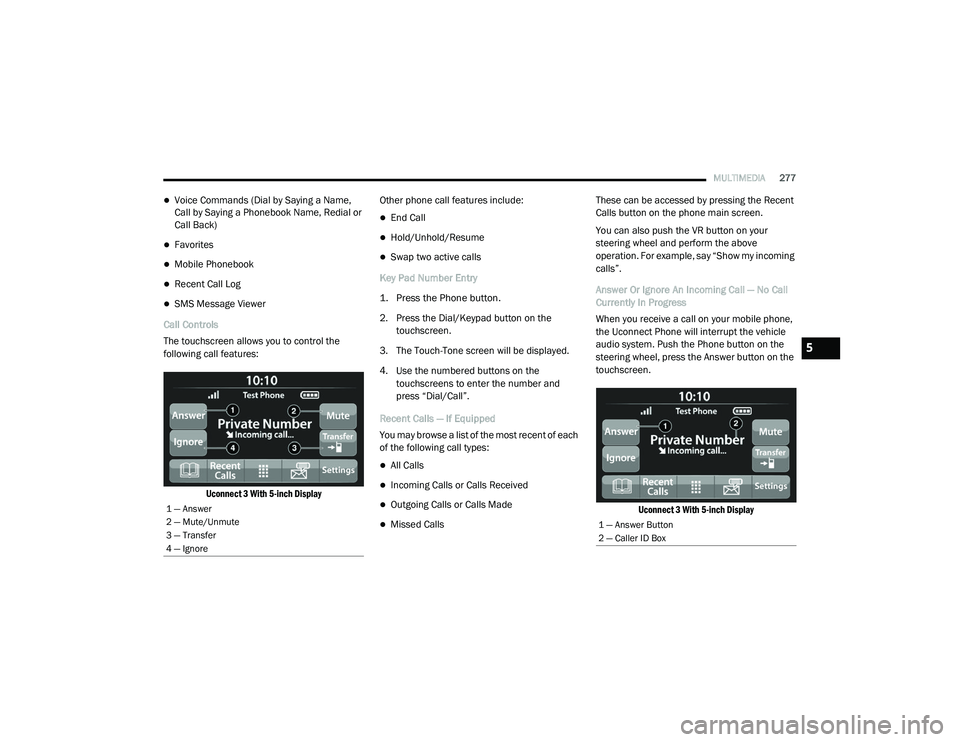
Call Controls
The touchscreen allows you to control the
following call features:
Uconnect 3 With 5-inch Display
Other phone call features include:
End Call
Hold/Unhold/Resume
Swap two active calls
Key Pad Number Entry
1. Press the Phone button.
2. Press the Dial/Keypad button on the touchscreen.
3. The Touch-Tone screen will be displayed.
4. Use the numbered buttons on the touchscreens to enter the number and
press “Dial/Call”.
Recent Calls — If Equipped
You may browse a list of the most recent of each
of the following call types:
All Calls
Incoming Calls or Calls Received
Outgoing Calls or Calls Made
Missed Calls These can be accessed by pressing the Recent
Calls button on the phone main screen.
You can also push the VR button on your
steering wheel and perform the above
operation. For example, say “Show my incoming
calls”.
Answer Or Ignore An Incoming Call — No Call
Currently In Progress
When you receive a call on your mobile phone,
the Uconnect Phone will interrupt the vehicle
audio system. Push the Phone button on the
steering wheel, press the Answer button on the
touchscreen.
Uconnect 3 With 5-inch Display
1 — Answer
2 — Mute/Unmute
3 — Transfer
4 — Ignore
1 — Answer Button
2 — Caller ID Box
5
21_DT_OM_EN_USC_t.book Page 277
Page 284 of 496
282MULTIMEDIA
CONNECTED VEHICLE SERVICES — IF
EQUIPPED
IS MY VEHICLE CONNECTED?
Vehicles with an Assist and an SOS button are
connected vehicles. These buttons will be
located on either the rearview mirror or
overhead console, depending on the vehicle. If
these buttons are present in your vehicle, you
have a connected radio and can take
advantage of the many connected vehicle
features.
For further information about the ASSIST and
SOS buttons Ú page 373.
INTRODUCTION TO CONNECTED VEHICLE
S
ERVICES
One of the many benefits of your vehicle’s
Uconnect system is that you can now take
advantage of SiriusXM Guardian™ connected
vehicle services. To unlock the full potential of
SiriusXM Guardian™ in your vehicle, you first
need to activate SiriusXM Guardian™ services. NOTE:
SiriusXM Guardian™ involves the collection,
transmission and use of data from your vehicle
Ú
page 306.
SiriusXM Guardian™ Contact Information
And Business Hours
SiriusXM Guardian™/Care
US residents visit: https://www.driveucon -
nect.com/sirius-xm-guardian.html or call
1-844-796-4827
Canadian residents visit: https://www.siri -
usxm.ca/guardian-v1/ or call
1-877-324-9091 Uconnect Phone Customer Support
UconnectPhone.com or for US residents call:
1-877-855-8400.
Canadian residents call: 1-800-465-2001
(English) or call: 1-800-387-9983 (French).
Business Hours
Central Time
Monday through Friday – 7:00 am to 10:00 pm
Saturday – 8:00 am to 9:00 pm
What Is SiriusXM Guardian™?
SiriusXM Guardian™ uses an embedded device
in the Uconnect system installed in your vehicle,
which receives GPS signals and communicates
with the SiriusXM Guardian™ Customer Care
center via wireless and landline
communications networks. Depending on the
type of device in your vehicle, some SiriusXM
Guardian™ services require an operable LTE
(voice/data) or 3G or 4G (data) network
compatible with your device. SiriusXM
Guardian™ is available only on equipped
vehicles purchased within the continental
United States, Alaska, Hawaii, Puerto Rico and
Canada.
WARNING!
ALWAYS obey traffic laws and pay attention to
the road. ALWAYS drive safely with your hands
on the steering wheel. You have full
responsibility and assume all risks related to
the use of the features and applications in
this vehicle. Only use the features and
applications when it is safe to do so. Failure
to comply may result in an accident involving
serious injury or death.
21_DT_OM_EN_USC_t.book Page 282
Page 285 of 496
MULTIMEDIA283
NOTE:
Certain SiriusXM Guardian™ services are
dependent upon an operative telematics
device, a cellular connection, navigation map
data, and GPS satellite signal reception, which
can limit the ability to reach the response
center or reach emergency support.
Not all features of SiriusXM Guardian™ are
available everywhere at all times, particularly
in remote or enclosed areas.
Other factors outside the control of SiriusXM
Guardian™ that may limit or prevent service
delivery are hills, structures, buildings,
tunnels, weather, damage to the electrical
system or other important parts of your
vehicle, network congestion, civil distur-
bances, actions of third parties or the govern -
ment, Internet failure, and/or the physical
location of your vehicle, such as in an under -
ground parking structure or under a bridge.
Not all SiriusXM Guardian™ features are
available for all models.
SiriusXM Guardian™ provides:
The ability to remotely lock/unlock and remote
start your vehicle from virtually anywhere by
using the Uconnect App or your computer.
Send & Go capability with the Uconnect App.
Use the Uconnect App to easily search, map
and send your locations directly to your
Uconnect Navigation.
The ability to locate your vehicle, when you
forget where you parked, using the Vehicle
Finder function of the Uconnect App.
Before you drive, familiarize yourself with the
easy-to-use Uconnect system and SiriusXM
Guardian™ services.
The ASSIST and SOS Call Buttons On Your
Rearview Mirror Or Overhead Console
The ASSIST Button is used for contacting
Roadside Assistance, Vehicle Care, Uconnect
Care, and SiriusXM Guardian™ Customer Care.
The SOS Call button connects you directly to
SiriusXM Guardian™ Customer Care for
assistance in an emergency.
Activation
To unlock the full potential of SiriusXM
Guardian™ in your vehicle, you must activate
your SiriusXM Guardian™ services.
1. Press the Apps icon on the bottom of your in-vehicle touchscreen.
2. Select the Activate Services icon from your
list of apps.
3. For customers in the United States , select
“Customer Care” to speak with a SiriusXM
Guardian™ Customer Care agent who will
activate services in your vehicle, or select
“Enter Email” to activate on the web.
For customers in Canada , enter your email
address to activate services in your vehicle.
Included Trial Period For New Vehicles
Your new vehicle may come with an included
trial period for use of the SiriusXM Guardian™
services starting on the date of vehicle
purchase. To get started with your trial,
enrollment in SiriusXM Guardian™ is required.
The Uconnect 4C/4C NAV includes a trial* of
SiriusXM Guardian™ services from your date of
purchase.
* Included trial applies to new vehicles only.
Features And Packages
After the trial period, you must purchase a
subscription to continue your services by calling
a SiriusXM Guardian™ Customer Care agent.
5
21_DT_OM_EN_USC_t.book Page 283
Page 308 of 496
306MULTIMEDIA
13.How do I find out how much longer I have on
my subscription? Contact SiriusXM
Guardian™ Customer Care.
You also can visit your Owner’s Site and
choose a subscription to view its expiration
date. When your subscription is about to ex -
pire, you will receive an email or letter of no -
tification.
14. Can I get a refund if I have not used the
entire subscription? Prorated refunds are
provided from the date of cancellation for
annual plans or longer. Please see the
Uconnect and SiriusXM Guardian™ Terms &
Conditions for refunds related to billing
plans of other lengths and other circum -
stances.
15. Can I cancel a subscription before it
expires? Yes. If you have an annual
subscription, your subscription will be
canceled the day you cancel. If you have a
monthly subscription, your subscription will
be canceled on the last day of the month in
which you choose to cancel. 16.
What should I do if I want to sell my vehicle?
Before your vehicle is sold to a new owner,
you’ll want to remove your account
information. This process removes all
personal information, returns the Uconnect
system to its original factory settings,
removes all SiriusXM Guardian™ services
and account information. To remove your
account information from the Uconnect
system, contact SiriusXM Guardian™
Customer Care.
17. What if I forgot to remove my account
information before I returned my lease
vehicle or sold it? Contact SiriusXM
Guardian™ Customer Care.
18. What will happen if an operable LTE (voice/
data), 4G (data), or 5G (data) network
connection compatible with my device is
temporarily unavailable? The SOS Call and
ASSIST buttons will NOT function if you are
not connected to an operable LTE (voice/
data) or 3G, 4G (data), 5G (data) network.
Services that required your smartphone
only direct calls to Roadside Assistance Call
may be functioning if you have an operable
network.DATA COLLECTION & PRIVACY
The Uconnect system collects and transmits
data which may include information about your
vehicle, your vehicle’s health and performance,
your vehicle’s location, your utilization of the
features in your vehicle, and other data. The
collection, use and sharing of this information is
required to provide the SiriusXM Guardian™
services and is further described by the
Uconnect Privacy Policy, which can be found at
www.driveuconnect.com/connectedservices/
privacy (US Residents) or
www.driveuconnect.ca (Canadian Residents).
This information may be collected by SiriusXM®
Connected Vehicle Services Inc. and shared
with FCA US LLC for the purposes stated in the
Uconnect Privacy Policy. Vehicle health and
diagnostic information including location data
may be used by Uconnect to provide a Vehicle
Health Report to you.
Even if you cancel your SiriusXM Guardian™
subscription, this vehicle diagnostic health
information, including location data, may still be
transmitted from your vehicle and you may still
have a Vehicle Health Report sent to you.
21_DT_OM_EN_USC_t.book Page 306
Page 375 of 496
373
IN CASE OF EMERGENCY
HAZARD WARNING FLASHERS
Hazard Warning Flashers Switch
The Hazard Warning Flashers switch is located
on the upper switch bank just below the radio.
NOTE:
If your vehicle is equipped with a 12–inch
Uconnect display, the Hazard Warning Flashers
switch is located above the display. Push the switch to turn on the Hazard Warning
Flashers. When the switch is activated, all
directional turn signals will flash on and off to
warn oncoming traffic of an emergency. Push
the switch a second time to turn off the Hazard
Warning Flashers.
This is an emergency warning system and it
should not be used when the vehicle is in
motion. Use it when your vehicle is disabled and
it is creating a safety hazard for other motorists.
When leaving the vehicle to seek assistance,
the Hazard Warning Flashers will continue to
operate even though the ignition is placed in the
OFF position.
NOTE:
With extended use the Hazard Warning
Flashers may wear down your battery.
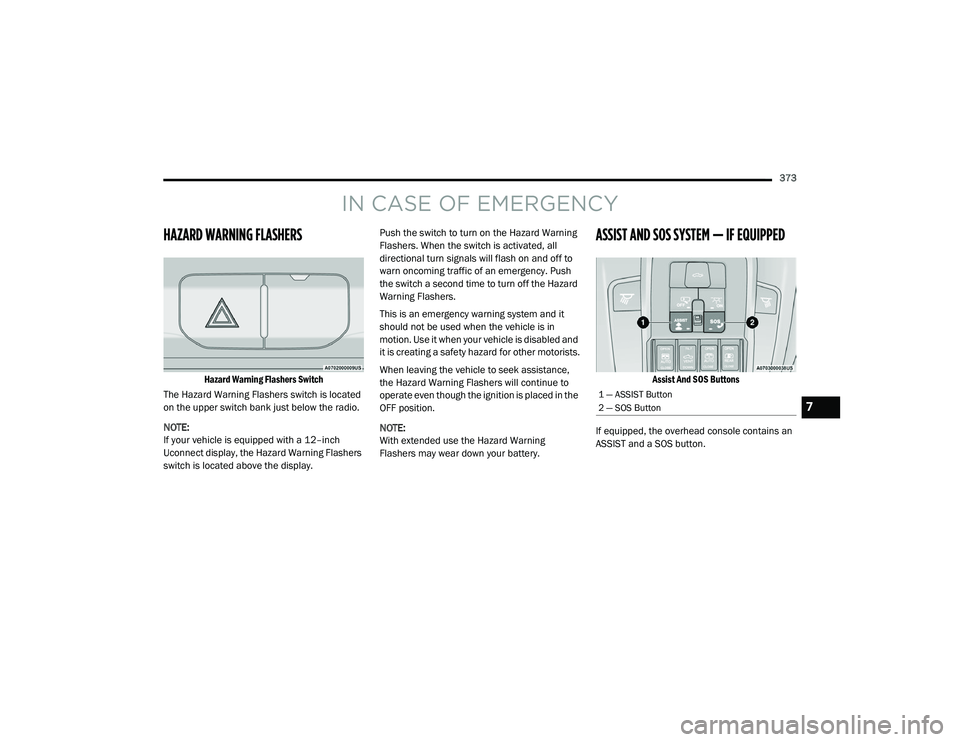
ASSIST AND SOS SYSTEM — IF EQUIPPED
Assist And SOS Buttons
If equipped, the overhead console contains an
ASSIST and a SOS button.
1 — ASSIST Button
2 — SOS Button
7
21_DT_OM_EN_USC_t.book Page 373
Page 376 of 496
374IN CASE OF EMERGENCY
NOTE:
Your vehicle may be transmitting data as
authorized by the subscriber Ú page 482.
The ASSIST and SOS buttons will only func -
tion if you are connected to an operable LTE
(voice/data) or 4G (data) network, which
comes as a built in function. Other Uconnect
services will only be operable if your SiriusXM
Guardian™ service is active and connected
to an operable LTE (voice/data) or 4G (data)
network. ASSIST Call
The ASSIST Button is used to automatically
connect you to any one of the following support
centers:
Roadside Assistance – If you get a flat tire, or
need a tow, just push the ASSIST button and
you’ll be connected to someone who can
help. Roadside Assistance will know what
vehicle you’re driving and its location. Addi
-
tional fees may apply for roadside assis -
tance.
SiriusXM Guardian™ Customer Care –
In-vehicle support for SiriusXM Guardian™.
Vehicle Customer Care – Total support for all
other vehicle issues.
SOS Call
1. Push the SOS Call button on the overhead console.
NOTE:
In case the SOS Call button is pushed in error,
there will be a ten second delay before the SOS
Call system initiates a call to a SOS operator. To
cancel the SOS Call connection, push the SOS
call button on the overhead console or press the cancellation button on the Device Screen.
Termination of the SOS Call will turn off the
green LED light on the overhead console.
2. The LED lights located within the ASSIST
and SOS buttons on the overhead console
will turn green once a connection to a SOS
operator has been made.
3. Once a connection between the vehicle and a SOS operator is made, the SOS Call
system may transmit the following
important vehicle information to a SOS
operator:
Indication that the occupant placed a
SOS Call
The vehicle brand
The last known GPS coordinates of the
vehicle
4. You should be able to speak with the SOS operator through the vehicle audio system
to determine if additional help is needed.
WARNING!
ALWAYS obey traffic laws and pay attention to
the road. ALWAYS drive safely with your hands
on the steering wheel. You have full
responsibility and assume all risks related to
the use of the features and applications in
this vehicle. Only use the features and
applications when it is safe to do so. Failure
to do so may result in an accident involving
serious injury or death.
21_DT_OM_EN_USC_t.book Page 374