ad blue RAM 1500 2021 Owners Manual
[x] Cancel search | Manufacturer: RAM, Model Year: 2021, Model line: 1500, Model: RAM 1500 2021Pages: 496, PDF Size: 20.89 MB
Page 6 of 496
4
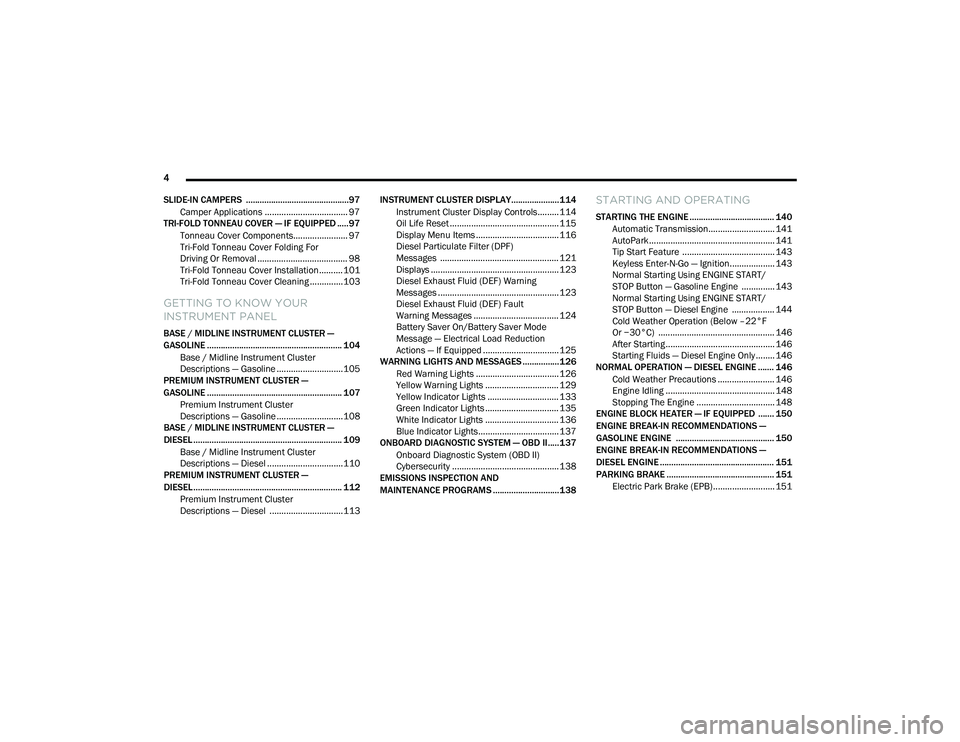
SLIDE-IN CAMPERS .............................................97 Camper Applications ................................... 97
TRI-FOLD TONNEAU COVER — IF EQUIPPED .....97
Tonneau Cover Components....................... 97
Tri-Fold Tonneau Cover Folding For
Driving Or Removal ...................................... 98 Tri-Fold Tonneau Cover Installation ..........101
Tri-Fold Tonneau Cover Cleaning ..............103
GETTING TO KNOW YOUR
INSTRUMENT PANEL
BASE / MIDLINE INSTRUMENT CLUSTER —
GASOLINE ........................................................... 104
Base / Midline Instrument Cluster
Descriptions — Gasoline ............................105
PREMIUM INSTRUMENT CLUSTER —
GASOLINE ........................................................... 107
Premium Instrument Cluster
Descriptions — Gasoline ............................108
BASE / MIDLINE INSTRUMENT CLUSTER —
DIESEL ................................................................. 109
Base / Midline Instrument Cluster
Descriptions — Diesel ................................110
PREMIUM INSTRUMENT CLUSTER —
DIESEL ................................................................. 112
Premium Instrument Cluster
Descriptions — Diesel ...............................113 INSTRUMENT CLUSTER DISPLAY..................... 114
Instrument Cluster Display Controls......... 114
Oil Life Reset .............................................. 115
Display Menu Items ................................... 116
Diesel Particulate Filter (DPF)
Messages .................................................. 121 Displays ...................................................... 123
Diesel Exhaust Fluid (DEF) Warning
Messages ................................................... 123 Diesel Exhaust Fluid (DEF) Fault
Warning Messages .................................... 124 Battery Saver On/Battery Saver Mode
Message — Electrical Load Reduction
Actions — If Equipped ................................ 125
WARNING LIGHTS AND MESSAGES ................126
Red Warning Lights ................................... 126
Yellow Warning Lights ............................... 129Yellow Indicator Lights .............................. 133
Green Indicator Lights ............................... 135White Indicator Lights ............................... 136Blue Indicator Lights.................................. 137
ONBOARD DIAGNOSTIC SYSTEM — OBD II..... 137
Onboard Diagnostic System (OBD II)
Cybersecurity ............................................. 138
EMISSIONS INSPECTION AND
MAINTENANCE PROGRAMS .............................138
STARTING AND OPERATING
STARTING THE ENGINE ..................................... 140
Automatic Transmission............................ 141AutoPark ..................................................... 141
Tip Start Feature ....................................... 143
Keyless Enter-N-Go — Ignition................... 143
Normal Starting Using ENGINE START/
STOP Button — Gasoline Engine .............. 143 Normal Starting Using ENGINE START/
STOP Button — Diesel Engine .................. 144 Cold Weather Operation (Below –22°F
Or −30°C) ................................................. 146 After Starting .............................................. 146Starting Fluids — Diesel Engine Only ........ 146
NORMAL OPERATION — DIESEL ENGINE ....... 146
Cold Weather Precautions ........................ 146
Engine Idling .............................................. 148Stopping The Engine ................................. 148
ENGINE BLOCK HEATER — IF EQUIPPED ....... 150
ENGINE BREAK-IN RECOMMENDATIONS —
GASOLINE ENGINE ........................................... 150
ENGINE BREAK-IN RECOMMENDATIONS —
DIESEL ENGINE .................................................. 151
PARKING BRAKE ............................................... 151 Electric Park Brake (EPB) .......................... 151
21_DT_OM_EN_USC_t.book Page 4
Page 18 of 496

16
Turn Signal Indicator Lights Úpage 136
Cruise Control SET Indicator Light — If Equipped With A Premium Instrument Cluster
Úpage 136
Stop/Start Active Indicator Light Úpage 136
4WD AUTO Indicator Light — If Equipped Úpage 136
White Indicator Lights
Adaptive Cruise Control (ACC) Ready Light — If
Equipped
Ú page 136
Cruise Control Ready Indicator Úpage 136
Speed Control SET Indicator Light — If Equipped With Base/Midline Instrument Cluster Display
Úpage 136
Green Indicator Lights
Hill Descent Control (HDC) Indicator Light — If
Equipped
Ú page 137
LaneSense Indicator Light — If Equipped Úpage 137
Blue Indicator Lights
High Beam Indicator Light
Úpage 137
White Indicator Lights
21_DT_OM_EN_USC_t.book Page 16
Page 64 of 496

62GETTING TO KNOW YOUR VEHICLE
Driver And Passenger Temperature Up And
Down Buttons
These buttons provide the driver and passenger
with independent temperature control.
Push the red button (or rotate knob if
equipped) on the faceplate or
touchscreen, or press and slide the
temperature bar towards the red
arrow button on the touchscreen for warmer
temperature settings.
Push the blue button (or rotate knob if
equipped) on the faceplate or
touchscreen, or press and slide the
temperature bar towards the blue
arrow button on the touchscreen for cooler
temperature settings.
NOTE:
The numbers within the temperature display
will only appear if the system is equipped
with an automatic climate control system.
Up and down buttons are only available on
vehicles equipped with a 12-inch display.
SYNC Button
Press the SYNC button on the
touchscreen to toggle the SYNC
feature on/off. The SYNC indicator
illuminates when SYNC is on. SYNC
synchronizes the passenger temperature
setting with the driver temperature setting.
Changing the passenger’s temperature setting
while in SYNC will automatically exit this
feature.
NOTE:
The SYNC button is only available on the touch -
screen.
Blower Control
Blower Control regulates the amount
of air forced through the climate
control system. There are seven
blower speeds available. Adjusting
the blower will cause automatic mode to switch
to manual operation. The speeds can be
selected using either the blower control knob on
the faceplate or the buttons on the
touchscreen. Faceplate
The blower speed increases as you turn the
blower control knob clockwise from the lowest
blower setting. The blower speed decreases as
you turn the blower control knob
counterclockwise.
Touchscreen
Use the small blower icon to reduce the blower
setting and the large blower icon to increase the
blower setting. Blower can also be selected by
pressing the blower bar area between the icons.
Mode Control
Select Mode by pressing one of the
Mode buttons on the touchscreen, or
pushing the Mode button on the
faceplate, to change the airflow
distribution mode. The airflow distribution mode
can be adjusted so air comes from the
instrument panel outlets, floor outlets, defrost
outlets, and demist outlets.
21_DT_OM_EN_USC_t.book Page 62
Page 139 of 496
GETTING TO KNOW YOUR INSTRUMENT PANEL137
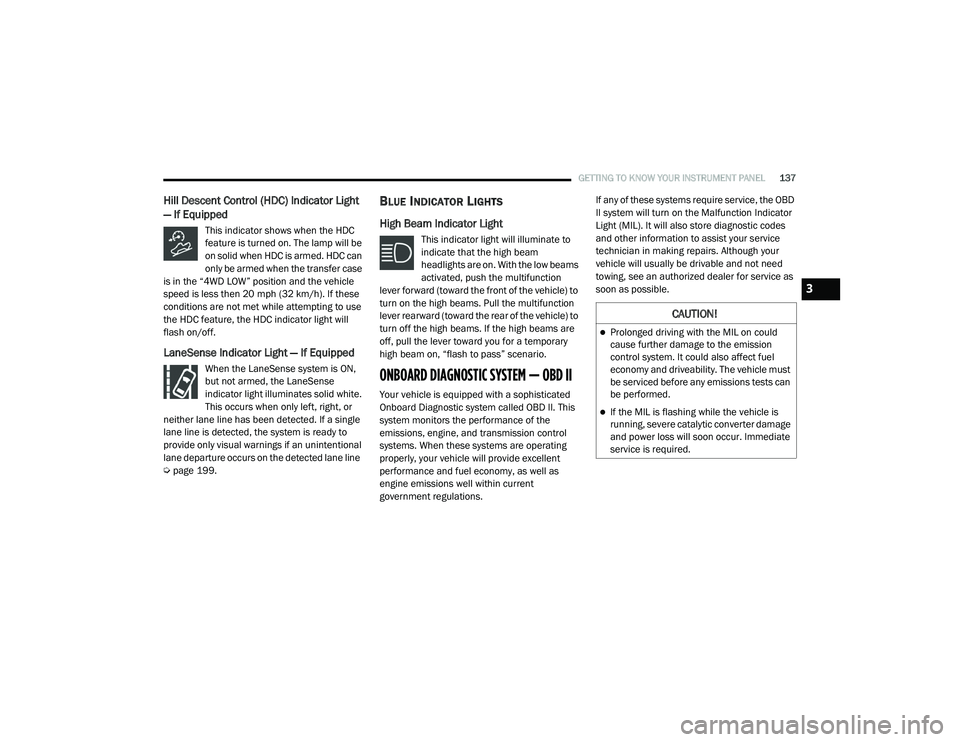
Hill Descent Control (HDC) Indicator Light
— If Equipped
This indicator shows when the HDC
feature is turned on. The lamp will be
on solid when HDC is armed. HDC can
only be armed when the transfer case
is in the “4WD LOW” position and the vehicle
speed is less then 20 mph (32 km/h). If these
conditions are not met while attempting to use
the HDC feature, the HDC indicator light will
flash on/off.
LaneSense Indicator Light — If Equipped
When the LaneSense system is ON,
but not armed, the LaneSense
indicator light illuminates solid white.
This occurs when only left, right, or
neither lane line has been detected. If a single
lane line is detected, the system is ready to
provide only visual warnings if an unintentional
lane departure occurs on the detected lane line
Ú page 199.
BLUE INDICATOR LIGHTS
High Beam Indicator Light
This indicator light will illuminate to
indicate that the high beam
headlights are on. With the low beams
activated, push the multifunction
lever forward (toward the front of the vehicle) to
turn on the high beams. Pull the multifunction
lever rearward (toward the rear of the vehicle) to
turn off the high beams. If the high beams are
off, pull the lever toward you for a temporary
high beam on, “flash to pass” scenario.
ONBOARD DIAGNOSTIC SYSTEM — OBD II
Your vehicle is equipped with a sophisticated
Onboard Diagnostic system called OBD II. This
system monitors the performance of the
emissions, engine, and transmission control
systems. When these systems are operating
properly, your vehicle will provide excellent
performance and fuel economy, as well as
engine emissions well within current
government regulations. If any of these systems require service, the OBD
II system will turn on the Malfunction Indicator
Light (MIL). It will also store diagnostic codes
and other information to assist your service
technician in making repairs. Although your
vehicle will usually be drivable and not need
towing, see an authorized dealer for service as
soon as possible.
CAUTION!
Prolonged driving with the MIL on could
cause further damage to the emission
control system. It could also affect fuel
economy and driveability. The vehicle must
be serviced before any emissions tests can
be performed.
If the MIL is flashing while the vehicle is
running, severe catalytic converter damage
and power loss will soon occur. Immediate
service is required.
3
21_DT_OM_EN_USC_t.book Page 137
Page 206 of 496

204STARTING AND OPERATING
AUX CAMERA — IF EQUIPPED
Your vehicle may be equipped with one or two
AUX Cameras, which display rearview and side
view images from the trailer on the
touchscreen.
Activation
The AUX Camera is activated by first pressing
the Backup Camera or Surround View Camera
(if equipped) button on the touchscreen,
followed by the AUX button located in the upper
left corner of the rearview display. The AUX
camera can also be activated when the vehicle
is in REVERSE by pressing the AUX button.
If equipped with two AUX Cameras, you can
switch between each camera by pressing the
AUX1 or AUX2 buttons on the Trailer Camera
display.
AUX1 Camera Button
AUX2 Camera Button Deactivation
The AUX Camera is deactivated by pressing the
“X” in the upper right corner of the touchscreen.
This will return the display back to the
previously displayed screen.
NOTE:
If the AUX button is pressed and no AUX
Camera is connected, the touchscreen will
display a blue screen along with the message
“Camera System Unavailable.” The screen
can be exited out by pressing the “X” in the
upper right hand corner. This will return the
display back to the previously displayed
screen.
Zoom View is not available with the AUX
Camera feature.
The display will always default to the Trailer
Camera display (AUX 1).
SURROUND VIEW CAMERA SYSTEM — IF
EQUIPPED
The Surround View Camera system allows you
to see an on-screen image of the surroundings
and the Top View of your vehicle. This occurs
whenever the gear selector is in REVERSE or when enabled through the Uconnect system.
The Top View of the vehicle will also show if any
doors are open. The image will be displayed on
the touchscreen along with a caution note
“Check Entire Surroundings”. After five
seconds, this note will disappear. The Surround
View Camera system is comprised of four
cameras located in the front grille, rear tailgate
and side mirrors.
NOTE:
The Surround View Camera system has
programmable settings that may be selected
through the Uconnect system Ú
page 237.
Press this button on the touchscreen
to enter the Surround View Camera
menu in the Uconnect system.
When the vehicle is shifted into REVERSE, the
Rear View and Top View is the default view of
the system.
If the camera delay is turned on, the camera
image will display for up to 10 seconds after
shifting out of REVERSE. The camera image will
not display for 10 seconds if the vehicle speed
exceeds 8 mph (13 km/h), the vehicle is shifted
into PARK, or the ignition is placed in the OFF
position. The “X” button on the touchscreen
disables the display of the camera image.
21_DT_OM_EN_USC_t.book Page 204
Page 210 of 496
208STARTING AND OPERATING
AUX CAMERA — IF EQUIPPED
Your vehicle may be equipped with one or two
AUX Cameras, which display images from the
trailer on the touchscreen.
Activation
The AUX Camera is activated any of the
following ways:
By first pressing the Backup Camera or
Surround View Camera (if equipped) button
on the touchscreen, followed by the AUX
button located in the upper left corner of the
rearview display
Pressing the AUX button in the Apps menu
Pressing the AUX button when the vehicle is
in REVERSE
If equipped with two AUX Cameras, you can
switch between each camera by pressing the
AUX1 or AUX2 buttons on the Trailer Camera
display. AUX1 Camera Button
AUX2 Camera Button
Deactivation
The AUX Camera is deactivated when the
following situations occur:
The “X” in the upper right corner of the touch -
screen is pressed. This will return the display
back to the previously displayed screen.
The vehicle speed exceeds 8 mph (13 km/h)
for 10 seconds.
The vehicle is shifted into PARK.
The ignition is placed in the OFF position. NOTE:
If the AUX button is pressed and no AUX
Camera is connected, the touchscreen will
display a blue screen along with the message
“Camera System Unavailable.” The screen
can be exited out by pressing the “X” in the
upper right hand corner. This will return the
display back to the previously displayed
screen.
Zoom View is not available with the AUX
Camera feature.
The display will always default to the Trailer
Camera display (AUX 1).
REFUELING THE VEHICLE — GASOLINE
ENGINE
The capless fuel filler is located on the left side
of the vehicle.
The capless system is sealed by two flapper
doors.
CAUTION!
To avoid vehicle damage, Surround View
should only be used as a parking aid. The
Surround View camera is unable to view
every obstacle or object in your drive path.
To avoid vehicle damage, the vehicle must
be driven slowly when using Surround View
to be able to stop in time when an obstacle
is seen. It is recommended that the driver
look frequently over his/her shoulder when
using Surround View.
21_DT_OM_EN_USC_t.book Page 208
Page 254 of 496

252MULTIMEDIA
Phone/Bluetooth®
When the Phone/Bluetooth® button is pressed on the touchscreen, the system displays the options related to Bluetooth® connectivity from an external
audio device or smartphone. The list of paired audio devices or smartphones can be accessed from this menu.Speed Adjusted Volume
This setting will adjust audio volume as speeds increase. At a higher
setting, the volume will increase more as the vehicle speeds up. The
available setting are “Off”, “1”, “2”, and “3”.
Surround Sound — If Equipped This setting will turn the Surround Sound system on or off.
AUX Volume Offset This setting will tune the audio levels from a device connected through
the AUX port. The available settings are “+” and “-”.
Auto Play This setting will automatically begin playing audio from a connected
device.
Loudness This setting will improve audio quality at lower volumes.
Setting NameDescription
Setting NameDescription
Phone Pop-Ups Displayed In Cluster This setting will activate phone message pop-ups in the instrument
cluster display.
Do Not Disturb This setting will open the “Do Not Disturb” settings menu. The settings
are Auto Reply (both, text, call), Auto Reply Message (custom, default),
and Custom Auto Reply Message (create message).
Paired Phones This setting will show the list of paired phones.
Paired Audio Sources This setting will show the list of paired audio sources.
Paired Phones And Audio Devices This setting will show the list of paired phones and audio devices.
21_DT_OM_EN_USC_t.book Page 252
Page 255 of 496

MULTIMEDIA253
SiriusXM® Setup
NOTE:
A subscription to SiriusXM® satellite radio is required for these settings to be functional.
When the SiriusXM® Setup button is pressed on the touchscreen, the system displays options related to SiriusXM® satellite radio. These settings can
be used to skip specific radio channels and restart favorite songs from the beginning.
Reset/Restore Settings To Default
When the Reset/Restore Settings To Default button is pressed on the touchscreen, the system displays the options related to resetting the Uconnect
system back to its default settings. These settings can clear personal data and reset selected settings from other menus.
Setting Name Selectable Options
Tune Start This setting will play the current song from the beginning when you tune
to a music channel using one of the 12 presets.
Channel Skip This setting allows you to set channels that you wish to skip. A channel
list will display of the skipped channels.
Subscription Information This menu provides SiriusXM® subscription information. SiriusXM®
Travel Link is a separate subscription.
Setting Name
Description
Restore Settings This setting will return all the previously changed settings to their factory
default.
Reset App Drawer This setting will reset the app drawer to its factory default layout.
Clear Personal Data This setting will display a pop-up that gives you the option to clear all
personal data from the system, including Bluetooth® devices and
presets.
5
21_DT_OM_EN_USC_t.book Page 253
Page 261 of 496

MULTIMEDIA259
UCONNECT MODES
STEERING WHEEL AUDIO CONTROLS
The remote sound system controls are located
on the rear surface of the steering wheel at the
three and nine o’clock positions.
Remote Sound System Controls
The right-hand control is a rocker-type switch
with a push button in the center and controls
the volume and mode of the sound system.
Pushing the top of the rocker switch will
increase the volume, and pushing the bottom of
the rocker switch will decrease the volume.
Pushing the center button will make the radio
switch between the various modes available
(AM/FM/SXM or Media, etc.). The left-hand control is a rocker-type switch with
a push button in the center. The function of the
left-hand control is different depending on
which mode you are in.
The following describes the left-hand control
operation in each mode:
Radio Operation
Pushing the top of the switch will Seek Up for
the next available station and pushing the
bottom of the switch will Seek Down for the next
available station.
The button located in the center of the left-hand
control will tune to the next preset station that
you have programmed in the radio presets.
Media Mode
Pushing the top of the switch skips to the next
track on the selected media (AUX/USB/
Bluetooth®). Pushing the switch up twice will go
forward two tracks. Pushing the bottom switch
goes to the beginning of the current track, or the
beginning of the previous track if it is within
eight seconds after the current track begins to
play. Double pressing the bottom button switch
will skip to the previous track if it is after eight
seconds into the current track.
RADIO MODE
Radio Controls
Uconnect 3 With 5-inch Display
1 — Preset Radio Stations
2 — All Preset Radio Stations
3 — Seek Up
4 — Audio Settings
5 — Station Info
6 — Tune
7 — Radio Band (AM/FM)
8 — Seek Down
5
21_DT_OM_EN_USC_t.book Page 259
Page 270 of 496

268MULTIMEDIA
MEDIA MODE
Operating Media Mode
Uconnect 3 With 5-inch Display Operating Media Mode
Media Mode is entered by pushing the MEDIA
button located on the faceplate.
Audio Source Selection
Once in Media Mode, press the Source or
Source Select button on the touchscreen and the desired mode button on the touchscreen.
USB, AUX, and Bluetooth® are the Media
sources available. When available, you can
select the Browse button on the touchscreen to
be given these options:
Now Playing
Artists
Albums
Genres
Songs
Playlists
Folders
For the Uconnect 3 With 5-inch Display, Media
Mode is entered by pushing the Media button
located on the faceplate.
Types of Media Modes
USB Mode
Overview
USB Mode is entered by either inserting a USB
device into the USB Port, or by pressing the
Media button on the faceplate and then
selecting the USB button. On the Uconnect 3 with 5-inch Display, if you
insert a USB device with the ignition ON, the unit
will switch to USB Mode and begin to play. The
display will show the track number and index
time in minutes and seconds. Play will begin at
the start of track 1.
Bluetooth® Mode
Overview
Bluetooth® Streaming Audio or Bluetooth®
Mode is entered by pairing a Bluetooth®
device, containing music, to the Uconnect
system.
Before proceeding, the Bluetooth® device must
be paired to the Uconnect Phone to
communicate with the Uconnect system.
On the Uconnect 3 with 5-inch Display, push the
Media button located on the faceplate. Once in
Media Mode, press the Source button on the
touchscreen and select the Bluetooth® button
Ú
page 271.
To access Bluetooth® Mode, press the
Bluetooth® button on the left side of the
touchscreen or under the Source Select/Select
Source button (if equipped).
1 — Seek Down
2 — Seek Up
3 — Additional Functions
4 — Info
5 — Pause/Play
6 — Source
7 — Browse
21_DT_OM_EN_USC_t.book Page 268