pairing phone RAM 1500 2021 Owners Manual
[x] Cancel search | Manufacturer: RAM, Model Year: 2021, Model line: 1500, Model: RAM 1500 2021Pages: 496, PDF Size: 20.89 MB
Page 270 of 496

268MULTIMEDIA
MEDIA MODE
Operating Media Mode
Uconnect 3 With 5-inch Display Operating Media Mode
Media Mode is entered by pushing the MEDIA
button located on the faceplate.
Audio Source Selection
Once in Media Mode, press the Source or
Source Select button on the touchscreen and the desired mode button on the touchscreen.
USB, AUX, and Bluetooth® are the Media
sources available. When available, you can
select the Browse button on the touchscreen to
be given these options:
Now Playing
Artists
Albums
Genres
Songs
Playlists
Folders
For the Uconnect 3 With 5-inch Display, Media
Mode is entered by pushing the Media button
located on the faceplate.
Types of Media Modes
USB Mode
Overview
USB Mode is entered by either inserting a USB
device into the USB Port, or by pressing the
Media button on the faceplate and then
selecting the USB button. On the Uconnect 3 with 5-inch Display, if you
insert a USB device with the ignition ON, the unit
will switch to USB Mode and begin to play. The
display will show the track number and index
time in minutes and seconds. Play will begin at
the start of track 1.
Bluetooth® Mode
Overview
Bluetooth® Streaming Audio or Bluetooth®
Mode is entered by pairing a Bluetooth®
device, containing music, to the Uconnect
system.
Before proceeding, the Bluetooth® device must
be paired to the Uconnect Phone to
communicate with the Uconnect system.
On the Uconnect 3 with 5-inch Display, push the
Media button located on the faceplate. Once in
Media Mode, press the Source button on the
touchscreen and select the Bluetooth® button
Ú
page 271.
To access Bluetooth® Mode, press the
Bluetooth® button on the left side of the
touchscreen or under the Source Select/Select
Source button (if equipped).
1 — Seek Down
2 — Seek Up
3 — Additional Functions
4 — Info
5 — Pause/Play
6 — Source
7 — Browse
21_DT_OM_EN_USC_t.book Page 268
Page 273 of 496

MULTIMEDIA271
PHONE MODE
Overview
Uconnect Phone is a voice-activated,
hands-free, in-vehicle communications system.
It allows you to dial a phone number with your
mobile phone.
The feature supports the following:
Voice Activated Features
Hands-Free dialing via Voice (“Call John
Smith Mobile” or “Dial 248-555-1212”).
Hands-Free text-to-speech listening of your
incoming SMS messages.
Hands-Free Text Message Replying: Forward
one of 18 predefined SMS messages to
incoming calls/text messages.
Redialing last dialed numbers (“Redial”).
Calling Back the last incoming call number
(“Call Back”).
Viewing call logs on screen (“Show Incoming
Calls,” “Show Outgoing Calls,” “Show Missed
Calls,” or “Show Recent Calls”).
Searching Contacts phone number (“Search
for John Smith Mobile”). Screen Activated Features
Dialing via Keypad using touchscreen.
Viewing and Calling contacts from Phone -
books displayed on the touchscreen.
Setting Favorite Contact phone numbers so
they are easily accessible on the Main Phone
screen.
Viewing and Calling contacts from Recent
Call logs.
Reviewing your recent Incoming SMS
Messages.
Pairing up to 10 phones/audio devices for
easy access to connect to them quickly.
NOTE:
Your phone must be capable of SMS messaging
via Bluetooth® for messaging features to work
properly.
Your mobile phone’s audio is transmitted
through your vehicle’s audio system; the system
will automatically mute your radio when using
the Uconnect Phone. For Uconnect customer support:
US visit UconnectPhone.com or call
877-855-8400
Canada visit UconnectPhone.com or call
800-465-2001 (English) or (French) call
800-387-9983
Uconnect Phone allows you to transfer calls
between the system and your mobile phone as
you enter or exit your vehicle and enables you to
mute the system's microphone for private
conversation.
The Phone feature is driven through your
Bluetooth® “Hands-Free Profile” mobile phone.
Uconnect features Bluetooth® technology — the
global standard that enables different
electronic devices to connect to each other
WARNING!
ALWAYS drive safely with your hands on the
steering wheel. You have full responsibility
and assume all risks related to the use of the
Uconnect features and applications in this
vehicle. Only use Uconnect when it is safe to
do so. Failure to do so may result in an
accident involving serious injury or death.
5
21_DT_OM_EN_USC_t.book Page 271
Page 275 of 496

MULTIMEDIA273
The system handles multiple inputs in the same
phrase or sentence such as “make a phone
call” and “to Kelly Smith”. For multiple inputs in
the same phrase or sentence, the system
identifies the topic or context and provides the
associated follow-up prompt such as “Who do
you want to call?” in the case where a phone
call was requested but the specific name was
not recognized.
The system utilizes continuous dialog. When the
system requires more information from the
user, it will ask a question to which the user can
respond without pushing the Voice Command
button on the steering wheel.
Help Command
If you need assistance at any prompt, or if you
want to know your options at any prompt, say
“Help” following the beep.
To activate the Uconnect Phone from idle,
simply push the Phone button (if active) on your
steering wheel and say a command or say
“Help”. All Phone sessions begin with a push of
the VR button or Phone button on the radio
faceplate. Cancel Command
At any prompt, after the beep, you can say
“Cancel” and you will be returned to the main
menu.
You can also push the VR button or Phone
button on your steering wheel when the system
is listening for a command and be returned to
the main or previous menu.
Pair (Link) Uconnect Phone To A Mobile Phone
To begin using your Uconnect Phone, you must
pair your compatible Bluetooth®-enabled
mobile phone. Mobile phone pairing is the
process of establishing a wireless connection
between a cellular phone and the Uconnect
system.
To complete the pairing process, you will need
to reference your mobile phone’s manual.
Please visit UconnectPhone.com for complete
mobile phone compatibility information.
Uconnect 3 With 5-inch Display
NOTE:
You must have Bluetooth® enabled on your
phone to complete this procedure.
The vehicle must be in PARK or at a standstill.
Follow the steps below to pair your phone:
1. Place the ignition in the ACC or ON/RUN position.
2. Press the Phone button.
5
21_DT_OM_EN_USC_t.book Page 273
Page 276 of 496

274MULTIMEDIA
NOTE:
If there are no phones currently connected
with the system, a pop-up will appear asking
if you would like to pair a mobile phone.
This pop-up only appears when the user
enters Phone Mode and no other device(s)
have previously been paired. If the system
has a phone previously paired, even if no
phone is currently connected with the
system, this pop-up will not appear.
3. Select “Yes” to begin the pairing process.
4. Search for available devices on your Bluetooth®-enabled mobile phone.
Press the Settings button on your mobile
phone.
Select “Bluetooth®” and ensure it is
enabled. Once enabled, the mobile
phone will begin to search for Bluetooth®
connections.
NOTE:
During the pairing procedure, you may receive a
pop-up on your touchscreen asking you to make
sure the PIN on the touchscreen matches the
PIN from the pop-up on your mobile phone. 5. If “No” is selected, and you still would like to
pair a mobile phone, press the Pairing or
Settings button from the Uconnect Phone
main screen.
Press the Paired Phones button.
Search for available devices on your
Bluetooth®-enabled mobile phone (see
below). When prompted on the phone,
select “Uconnect” and accept the
connection request.
6. Uconnect Phone will display an in-progress screen while the system is connecting.
7. When your mobile phone finds the Uconnect system, select “Uconnect.”
8. When prompted on the mobile phone, accept the connection request from
Uconnect.
9. When the pairing process has successfully completed, the system will prompt you to
choose whether or not this is your favorite
phone. Selecting “Yes” will make this phone
the highest priority. This phone will take
precedence over other paired phones within
range and will connect to the Uconnect
system automatically when entering the vehicle. Only one mobile phone and/or one
Bluetooth® audio device can be connected
to the Uconnect system at a time. If “No” is
selected, simply select “Uconnect” from the
mobile phone/audio device Bluetooth®
screen, and the Uconnect system will
reconnect to the Bluetooth® device.
NOTE:
For phones which are not made a favorite, the
phone priority is determined by the order in
which it was paired. The most recent phone
paired will have the higher priority.
NOTE:
During the pairing procedure, you may receive a
pop-up on your mobile phone for the Uconnect
system to access your “messages” and
“contacts”. Selecting “Ok” or “Allow” will sync
your contacts with the Uconnect system.
You can also use the following VR command to
bring up the Paired Phone screen from any
screen on the radio:
“Show Paired Phones”
NOTE:
Software updates on your phone or the
Uconnect system may interfere with the Blue -
21_DT_OM_EN_USC_t.book Page 274
Page 277 of 496
MULTIMEDIA275
tooth® connection. If this happens, simply
repeat the pairing process. However, first make
sure to delete the device from the list of phones
on your Uconnect system. Next, be sure to
remove Uconnect from the list of devices in your
phone’s Bluetooth® settings.
Connecting To A Particular Mobile Phone Or
Audio Device After Pairing
Uconnect Phone will automatically connect to
the highest priority paired phone and/or Audio
Device within range. If you need to choose a
particular phone or audio device follow these
steps:
1. Press the
Settings
button on the
touchscreen.
2. Press the Paired Phones/Audio Sources buttons.
3. Press to select the particular phone or the particular audio device. A pop-up menu will
appear; press “Connect Phone”.
4. Press the X to exit out of the Settings screen. Disconnecting or Deleting A Phone Or Audio
Device
Uconnect 3 With 5-inch Display
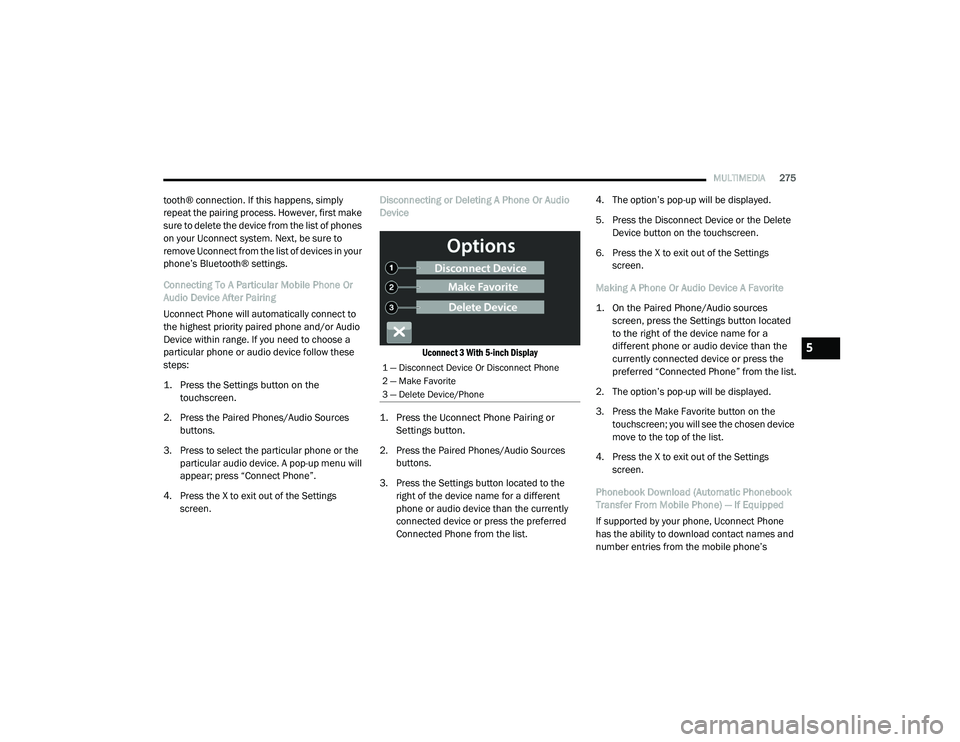
1. Press the Uconnect Phone Pairing or Settings button.
2. Press the Paired Phones/Audio Sources buttons.
3. Press the Settings button located to the right of the device name for a different
phone or audio device than the currently
connected device or press the preferred
Connected Phone from the list. 4. The option’s pop-up will be displayed.
5. Press the Disconnect Device or the Delete
Device button on the touchscreen.
6. Press the X to exit out of the Settings screen.
Making A Phone Or Audio Device A Favorite
1. On the Paired Phone/Audio sources screen, press the Settings button located
to the right of the device name for a
different phone or audio device than the
currently connected device or press the
preferred “Connected Phone” from the list.
2. The option’s pop-up will be displayed.
3. Press the Make Favorite button on the touchscreen; you will see the chosen device
move to the top of the list.
4. Press the X to exit out of the Settings screen.
Phonebook Download (Automatic Phonebook
Transfer From Mobile Phone) — If Equipped
If supported by your phone, Uconnect Phone
has the ability to download contact names and
number entries from the mobile phone’s
1 — Disconnect Device Or Disconnect Phone
2 — Make Favorite
3 — Delete Device/Phone
5
21_DT_OM_EN_USC_t.book Page 275
Page 282 of 496
280MULTIMEDIA
NOTE:
It is recommended that you do not store names
in your Favorites phonebook while the vehicle is
in motion.
Number and name recognition rate is optimized
when the entries are not similar. You can say
“O” (letter “O”) for “0” (zero).
Even though international dialing for most
number combinations is supported, some
shortcut dialing number combinations may not
be supported.
Audio Performance
Audio quality is maximized under:
Low-To-Medium Blower Setting
Low-To-Medium Vehicle Speed
Low Road Noise
Smooth Road Surface
Fully Closed Windows
Dry Weather Conditions
Operation From The Driver's Seat Performance such as audio clarity, echo, and
loudness to a large degree rely on the phone
and network, and not the Uconnect Phone.
Echo at the far end can sometimes be reduced
by lowering the in-vehicle audio volume.
Phone Voice Commands
Making and answering hands-free phone calls
is easy with Uconnect. When the Phonebook
button is illuminated on your touchscreen, your
system is ready. Check UconnectPhone.com for
mobile phone compatibility and pairing
instructions.
Push the Phone button and wait for the beep
to say a command. See some examples below:
“ Call John Smith”
“Dial 123 456 7890”
“Redial ” (call previous outgoing phone
number)
“ Call back ” (call previously answered
incoming phone number) Did You Know:
When providing a Voice
Command, push the Phone button and say
“ Call ”, then pronounce the name exactly as it
appears in your phone book. When a contact
has multiple phone numbers, you can say “ Call
John Smith work”.
Voice Text Reply — If Equipped
Uconnect can announce incoming text
messages. Push the VR button or Phone
button and say:
1. “
Listen
” to have the system read an
incoming text message. (Must have
compatible mobile phone paired to
Uconnect system.)
2. “ Reply ” after an incoming text message has
been read.
Listen to the Uconnect prompts. After the
beep, repeat one of the predefined messag -
es and follow the system prompts.
21_DT_OM_EN_USC_t.book Page 280
Page 486 of 496
484
Blind Spot Monitoring
.................................... 318Bluetooth Connecting To A Particular Mobile PhoneOr Audio Device After Pairing
................275Body Builders Guide........................................ 11Body Mechanism Lubrication........................ 418B-Pillar Location............................................. 447Brake Assist System...................................... 311Brake Control System.................................... 311Brake Fluid.......................................... 425, 478Brake System...................................... 425, 467Fluid Check............................................... 425Master Cylinder......................................... 425Parking...................................................... 151Warning Light............................................ 126Brake/Transmission Interlock....................... 155Bulb Replacement......................................... 437Bulbs, Light.......................................... 371, 437
C
Camera.......................................................... 202Camera, AUX........................................ 204, 208Camera, Rear...................................... 202, 204Camper............................................................ 97Capacities, Fuel............................................. 474Caps, FillerOil (Engine)................................................ 404Radiator (Coolant Pressure)...................... 423Car Washes................................................... 462
Carbon Monoxide Warning................... 371, 372Cargo Light....................................................... 56CD................................................................. 268Cellular Phone.............................................. 309Center High Mounted Stop Light................... 442Center Seat Storage Compartment.................. 68Charge Air Cooler.......................................... 424Chart, Tire Sizing........................................... 444Check Engine Light (Malfunction Indicator
Light)............................................................. 138Checking Your Vehicle For Safety................. 369Checks, Safety.............................................. 369Child Restraint.............................................. 355Child RestraintsBooster Seats........................................... 358Child Seat Installation..................... 364, 365How To Stow An unused ALR Seat Belt.... 363Infant And Child Restraints....................... 357Locating The LATCH Anchorages.............. 362Lower Anchors And Tethers For Children.. 360Older Children And Child Restraints......... 357Seating Positions...................................... 359Clean Air Gasoline......................................... 469CleaningWheels..................................................... 456Climate Control................................................ 60Automatic.................................................... 60Manual........................................................ 63Cold Weather Operation............................... 146
Compact Spare Tire...................................... 455Connected Services...................................... 282Connected Services FAQ............................... 301Connected Services Features....................... 286Connected Services, Getting Started............ 284Connected Services, Introduction................. 282Contract, Service........................................... 480Controls........................................................ 259Cooling Pressure Cap (Radiator Cap)............ 423Cooling System............................................. 421Adding Coolant (Antifreeze)...................... 422Coolant Level................................... 421, 423Cooling Capacity....................................... 474Disposal Of Used Coolant......................... 423Drain, Flush, And Refill............................. 422Inspection................................................. 423Points To Remember................................ 424Pressure Cap............................................ 423Radiator Cap............................................. 423Selection Of Coolant (Antifreeze)......................... 422, 474, 475Corrosion Protection..................................... 461Cruise ControlAccel/Decel.............................................. 178Cancel....................................................... 179Resume.................................................... 179Cruise Control (Speed Control)............. 177, 179Cruise Light................................................... 136Customer Assistance.................................... 479Cybersecurity................................................ 236
21_DT_OM_EN_USC_t.book Page 484
Page 493 of 496
491
Tires
................................... 371, 449, 455, 460Aging (Life Of Tires)................................... 452Air Pressure............................................... 449Chains....................................................... 458Compact Spare......................................... 455Dual........................................................... 467General Information........................ 449, 455High Speed................................................ 451Inflation Pressure...................................... 450Life Of Tires............................................... 452Load Capacity............................................ 447Pressure Monitoring System (TPMS)........................................ 131, 327Quality Grading.......................................... 460Radial........................................................ 451Replacement............................................. 453Rotation.................................................... 460Safety.............................................. 443, 449Sizes.......................................................... 444Snow Tires................................................. 454Spare Tires...................................... 455, 456Spinning.................................................... 452Trailer Towing............................................ 222Tread Wear Indicators............................... 452Wheel Nut Torque..................................... 467To Open Hood.................................................. 84Tongue Weight/Trailer Weight....................... 219Tonneau Cover....................................... 97, 462Tonneau Cover Cleaning................................ 462
Towing................................................. 214, 392Disabled Vehicle....................................... 392Guide........................................................ 218Recreational............................................. 230Weight...................................................... 218Towing Behind A Motorhome........................ 230Traction......................................................... 234Traction Control............................................ 318Trailer Reverse Steering Control................... 219Trailer Sway Control (TSC)............................. 318Trailer Towing............................................... 214Hitches..................................................... 218Minimum Requirements........................... 221Mirrors......................................................... 48Tips........................................................... 227Trailer And Tongue Weight........................ 219Wiring....................................................... 225Trailer Towing Guide..................................... 218Trailer Weight................................................ 218Transfer Case............................................... 427Electronically Shifted....................... 161, 163Fluid......................................................... 478Transmission................................................ 156Automatic........................................ 156, 426Fluid......................................................... 478Maintenance............................................ 426Shifting..................................................... 154Transporting Pets.......................................... 369Tread Wear Indicators.................................. 452Turn Signals......................... 55, 136, 439, 441
U
UconnectPhone Call Features
................................. 276Things You Should Know About Your Uconnect Phone................................... 279Uconnect App................................................ 284Uconnect Phone................................... 272, 273Answer Or Ignore An Incoming Call — Call Currently In Progress..................... 278Answer Or Ignore An Incoming Call — No Call Currently In Progress................ 277Bluetooth Communication Link................ 281Call Continuation...................................... 279Call Controls............................................. 277Call Termination....................................... 279Cancel Command..................................... 273Connecting To A Particular Mobile Phone Or Audio Device After Pairing................ 275Help Command......................................... 273Join Calls.................................................. 279Making A Phone Or Audio Device AFavorite................................................ 275Making A Second Call While Current Call Is In Progress........................................ 278Managing Your Favorites.......................... 276Natural Speech......................................... 272Operation.................................................. 272Overview................................................... 27111
21_DT_OM_EN_USC_t.book Page 491