phone RAM 1500 2022 User Guide
[x] Cancel search | Manufacturer: RAM, Model Year: 2022, Model line: 1500, Model: RAM 1500 2022Pages: 496, PDF Size: 18.03 MB
Page 78 of 496
76GETTING TO KNOW YOUR VEHICLE
(Continued)
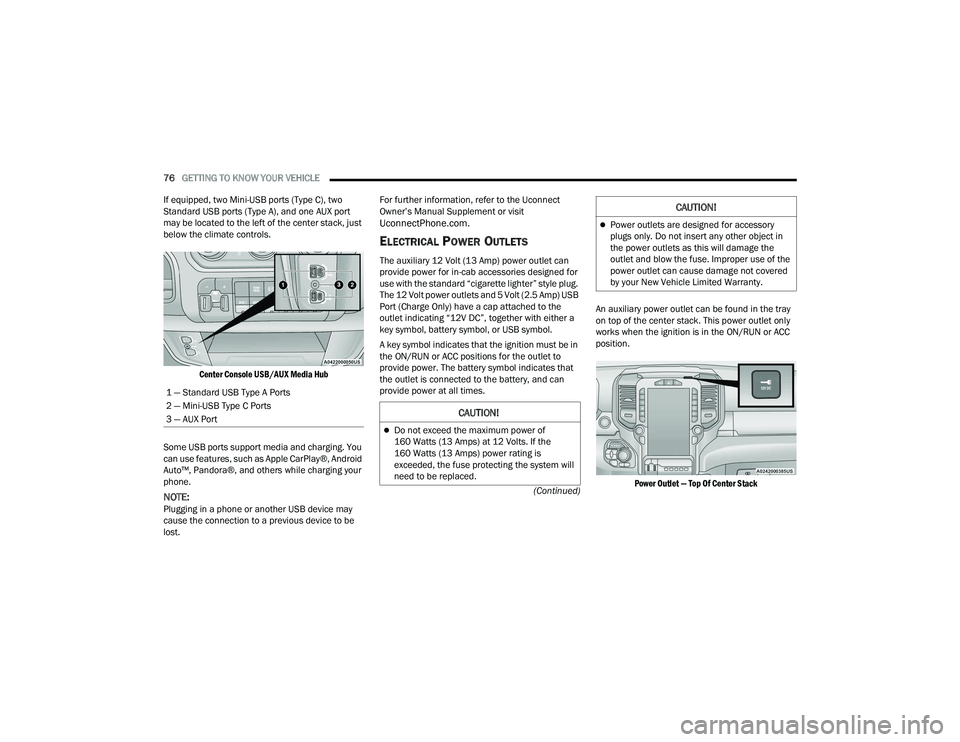
If equipped, two Mini-USB ports (Type C), two
Standard USB ports (Type A), and one AUX port
may be located to the left of the center stack, just
below the climate controls.
Center Console USB/AUX Media Hub
Some USB ports support media and charging. You
can use features, such as Apple CarPlay®, Android
Auto™, Pandora®, and others while charging your
phone.
NOTE:Plugging in a phone or another USB device may
cause the connection to a previous device to be
lost. For further information, refer to the Uconnect
Owner’s Manual Supplement or visit
UconnectPhone.com.
ELECTRICAL POWER OUTLETS
The auxiliary 12 Volt (13 Amp) power outlet can
provide power for in-cab accessories designed for
use with the standard “cigarette lighter” style plug.
The 12 Volt power outlets and 5 Volt (2.5 Amp) USB
Port (Charge Only) have a cap attached to the
outlet indicating “12V DC”, together with either a
key symbol, battery symbol, or USB symbol.
A key symbol indicates that the ignition must be in
the ON/RUN or ACC positions for the outlet to
provide power. The battery symbol indicates that
the outlet is connected to the battery, and can
provide power at all times.
An auxiliary power outlet can be found in the tray
on top of the center stack. This power outlet only
works when the ignition is in the ON/RUN or ACC
position.
Power Outlet — Top Of Center Stack
1 — Standard USB Type A Ports
2 — Mini-USB Type C Ports
3 — AUX Port
CAUTION!
Do not exceed the maximum power of
160 Watts (13 Amps) at 12 Volts. If the
160 Watts (13 Amps) power rating is
exceeded, the fuse protecting the system will
need to be replaced.
Power outlets are designed for accessory
plugs only. Do not insert any other object in
the power outlets as this will damage the
outlet and blow the fuse. Improper use of the
power outlet can cause damage not covered
by your New Vehicle Limited Warranty.
CAUTION!
22_DT_OM_EN_USC_t.book Page 76
Page 79 of 496

GETTING TO KNOW YOUR VEHICLE77
(Continued)
The auxiliary power outlet can be changed to battery
powered at all times by switching the power outlet
fuses in the Internal Power Distribution Center
located under the driver’s side instrument panel.
Power Outlet Fuse Locations
When the vehicle is turned off, be sure to unplug
any equipment as to not drain the battery of the
vehicle. All accessories connected to the outlet(s)
should be removed or turned off when the vehicle
is not in use to protect the battery against
discharge.
POWER INVERTER — IF EQUIPPED
A 115 Volt (400 Watts Maximum) inverter may be
located inside the center console towards the right
hand side. This inverter can power cellular phones,
electronics and other low power devices requiring
power up to 400 Watts. Certain video game
consoles exceed this power limit, as will most
power tools.
Center Console Power Inverter Outlet
1 — F54 Fuse 20 A Yellow Power Outlet Battery
Fed Position
2 — F54 Fuse 20 A Yellow Power Outlet Ignition
Fed Position
3 — F48 Fuse 10 A Red Port Power or Rear USB
(Charge Only)
WARNING!
To avoid serious injury or death:
Only devices designed for use in this type of
outlet should be inserted into any 12 Volt
outlet.
Do not touch with wet hands.
Close the lid when not in use and while driving
the vehicle.
If this outlet is mishandled, it may cause an
electric shock and failure.
CAUTION!
Many accessories that can be plugged in draw
power from the vehicle's battery, even when
not in use (i.e., cellular phones, etc.). Eventu
-
ally, if plugged in long enough, the vehicle's
battery will discharge sufficiently to degrade
battery life and/or prevent the engine from
starting.
Accessories that draw higher power
(i.e., coolers, vacuum cleaners, lights, etc.),
will discharge the battery even more quickly.
Only use these intermittently and with greater
caution.
After the use of high power draw accessories,
or long periods of the vehicle not being started
(with accessories still plugged in), the vehicle
must be driven a sufficient length of time to
allow the generator to recharge the vehicle's
battery.
CAUTION!
2
22_DT_OM_EN_USC_t.book Page 77
Page 80 of 496
78GETTING TO KNOW YOUR VEHICLE
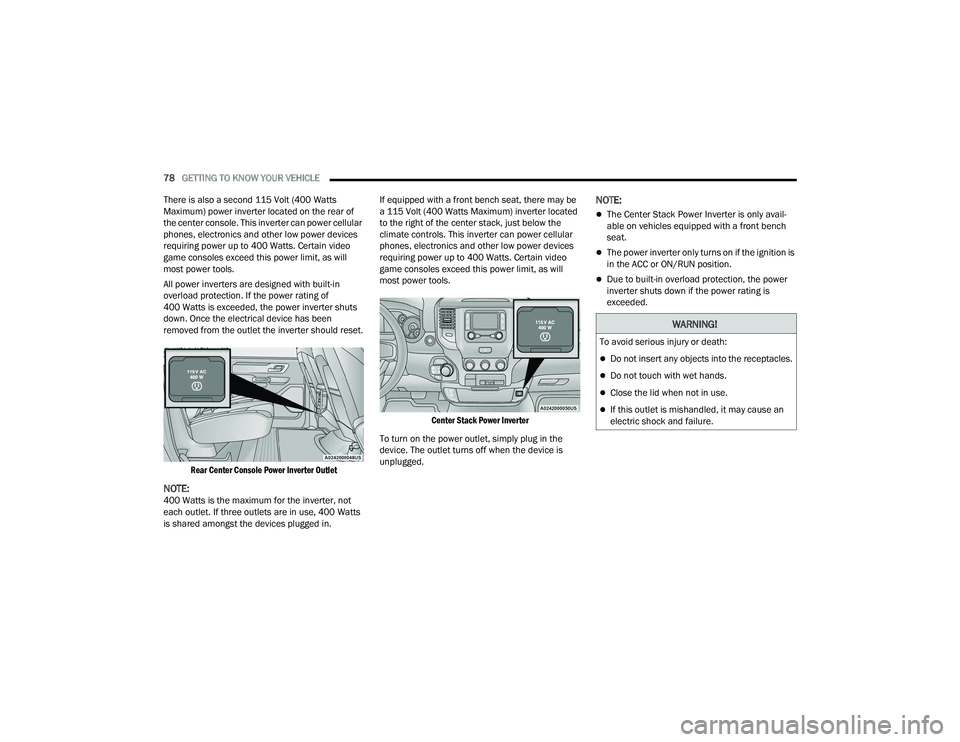
There is also a second 115 Volt (400 Watts
Maximum) power inverter located on the rear of
the center console. This inverter can power cellular
phones, electronics and other low power devices
requiring power up to 400 Watts. Certain video
game consoles exceed this power limit, as will
most power tools.
All power inverters are designed with built-in
overload protection. If the power rating of
400 Watts is exceeded, the power inverter shuts
down. Once the electrical device has been
removed from the outlet the inverter should reset.
Rear Center Console Power Inverter Outlet
NOTE:400 Watts is the maximum for the inverter, not
each outlet. If three outlets are in use, 400 Watts
is shared amongst the devices plugged in. If equipped with a front bench seat, there may be
a 115 Volt (400 Watts Maximum) inverter located
to the right of the center stack, just below the
climate controls. This inverter can power cellular
phones, electronics and other low power devices
requiring power up to 400 Watts. Certain video
game consoles exceed this power limit, as will
most power tools.
Center Stack Power Inverter
To turn on the power outlet, simply plug in the
device. The outlet turns off when the device is
unplugged.
NOTE:
The Center Stack Power Inverter is only avail -
able on vehicles equipped with a front bench
seat.
The power inverter only turns on if the ignition is
in the ACC or ON/RUN position.
Due to built-in overload protection, the power
inverter shuts down if the power rating is
exceeded.
WARNING!
To avoid serious injury or death:
Do not insert any objects into the receptacles.
Do not touch with wet hands.
Close the lid when not in use.
If this outlet is mishandled, it may cause an
electric shock and failure.
22_DT_OM_EN_USC_t.book Page 78
Page 81 of 496
GETTING TO KNOW YOUR VEHICLE79
WIRELESS CHARGING PAD —
I
F EQUIPPED
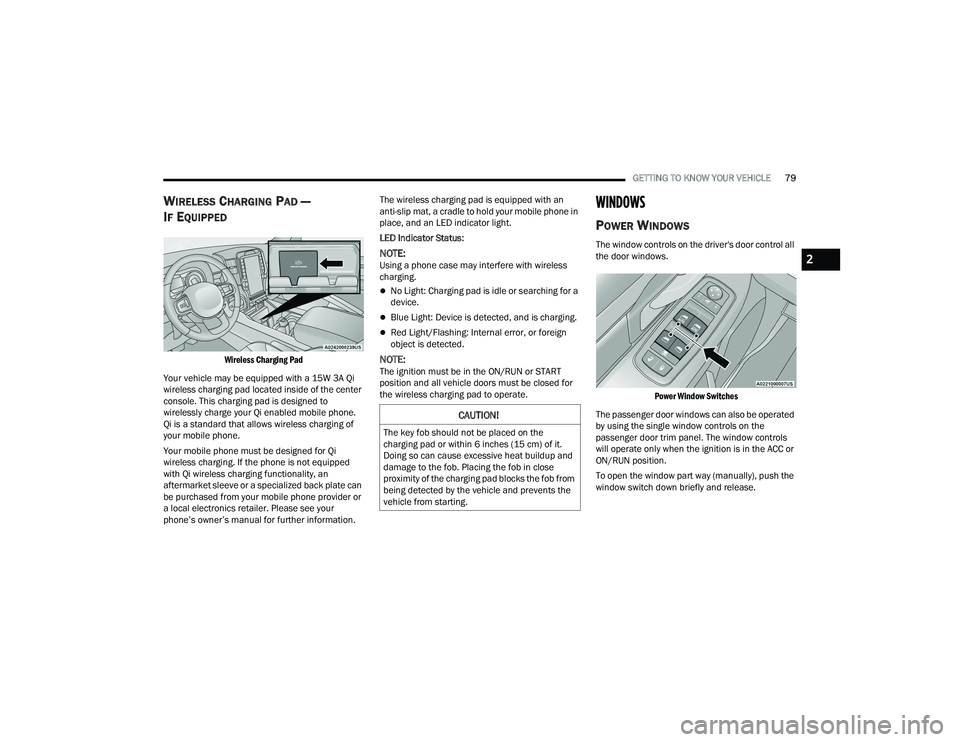
Wireless Charging Pad
Your vehicle may be equipped with a 15W 3A Qi
wireless charging pad located inside of the center
console. This charging pad is designed to
wirelessly charge your Qi enabled mobile phone.
Qi is a standard that allows wireless charging of
your mobile phone.
Your mobile phone must be designed for Qi
wireless charging. If the phone is not equipped
with Qi wireless charging functionality, an
aftermarket sleeve or a specialized back plate can
be purchased from your mobile phone provider or
a local electronics retailer. Please see your
phone’s owner’s manual for further information. The wireless charging pad is equipped with an
anti-slip mat, a cradle to hold your mobile phone in
place, and an LED indicator light.
LED Indicator Status:
NOTE:Using a phone case may interfere with wireless
charging.
No Light: Charging pad is idle or searching for a
device.
Blue Light: Device is detected, and is charging.
Red Light/Flashing: Internal error, or foreign
object is detected.
NOTE:The ignition must be in the ON/RUN or START
position and all vehicle doors must be closed for
the wireless charging pad to operate.
WINDOWS
POWER WINDOWS
The window controls on the driver's door control all
the door windows.
Power Window Switches
The passenger door windows can also be operated
by using the single window controls on the
passenger door trim panel. The window controls
will operate only when the ignition is in the ACC or
ON/RUN position.
To open the window part way (manually), push the
window switch down briefly and release.
CAUTION!
The key fob should not be placed on the
charging pad or within 6 inches (15 cm) of it.
Doing so can cause excessive heat buildup and
damage to the fob. Placing the fob in close
proximity of the charging pad blocks the fob from
being detected by the vehicle and prevents the
vehicle from starting.
2
22_DT_OM_EN_USC_t.book Page 79
Page 98 of 496
96GETTING TO KNOW YOUR VEHICLE
(Continued)
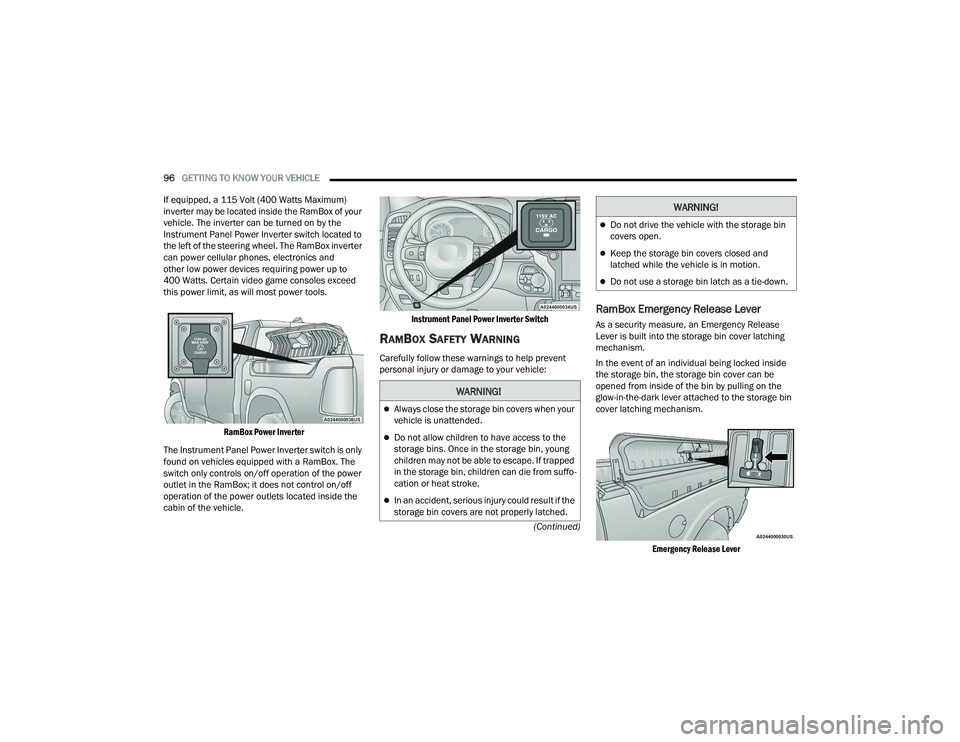
If equipped, a 115 Volt (400 Watts Maximum)
inverter may be located inside the RamBox of your
vehicle. The inverter can be turned on by the
Instrument Panel Power Inverter switch located to
the left of the steering wheel. The RamBox inverter
can power cellular phones, electronics and
other low power devices requiring power up to
400 Watts. Certain video game consoles exceed
this power limit, as will most power tools.
RamBox Power Inverter
The Instrument Panel Power Inverter switch is only
found on vehicles equipped with a RamBox. The
switch only controls on/off operation of the power
outlet in the RamBox; it does not control on/off
operation of the power outlets located inside the
cabin of the vehicle.
Instrument Panel Power Inverter Switch
RAMBOX SAFETY WARNING
Carefully follow these warnings to help prevent
personal injury or damage to your vehicle:
RamBox Emergency Release Lever
As a security measure, an Emergency Release
Lever is built into the storage bin cover latching
mechanism.
In the event of an individual being locked inside
the storage bin, the storage bin cover can be
opened from inside of the bin by pulling on the
glow-in-the-dark lever attached to the storage bin
cover latching mechanism.
Emergency Release Lever
WARNING!
Always close the storage bin covers when your
vehicle is unattended.
Do not allow children to have access to the
storage bins. Once in the storage bin, young
children may not be able to escape. If trapped
in the storage bin, children can die from suffo -
cation or heat stroke.
In an accident, serious injury could result if the
storage bin covers are not properly latched.
Do not drive the vehicle with the storage bin
covers open.
Keep the storage bin covers closed and
latched while the vehicle is in motion.
Do not use a storage bin latch as a tie-down.
WARNING!
22_DT_OM_EN_USC_t.book Page 96
Page 123 of 496

GETTING TO KNOW YOUR INSTRUMENT PANEL121
Trailer Tow — If Equipped
Push and release the up or down arrow
button until the Trailer Tow menu item is
highlighted in the instrument cluster display. Push
and release the right or left arrow button to
cycle through the following trailer tow information:
Trip (trailer specific) Distance: Push and hold
the OK button to reset the distance.
Integrated Trailer Brake Module (ITBM):
Braking Output
Trailer Type
ITBM Gain
Trailer Light Check: Push and hold the OK
button to begin the Trailer Light Test sequence
Ú page 223.
Trailer Tire Pressure Monitoring: The Instrument
Cluster Display will display the Trailer Tire Pres -
sure for a connected trailer with sensors that
match the active trailer profile. When a low tire
is present, the low tire value will be displayed in
red, and the affected low tire will have a red
glow. “Trailer Tire Low“ will be displayed on the
center bottom of the Instrument Cluster Display
screen.
Audio
Push and release the up or down arrow
button until the Audio Menu icon/title is
highlighted in the instrument cluster display. This
menu will display the audio source information,
including the Song name, Artist name, and audio
source with an accompanying graphic.
Phone Call Status
When a call is incoming, a Phone Call Status
pop-up will display on the screen. The pop-up will
remain until the phone is answered or ignored.
NOTE:The call status will temporarily replace the
previous media source information displayed on
the screen. When the pop-up is no longer
displayed, the display will return to the last used
screen.
Stored Messages
Push and release the up or down arrow
button until the Messages Menu item is
highlighted. This feature shows the number of
stored warning messages. Push and release the
right or left arrow button to cycle through
stored messages.
Settings
Head-Up Display (HUD) – If Equipped
NOTE:The HUD feature Settings are available at any
vehicle speed Úpage 122.
Screen Setup Driver Selectable Items
Push and release the up or down arrow
button until the Settings Menu Icon/Title is
highlighted in the instrument cluster display. Push
and release the OK button to enter the submenus
and follow the prompts on the screen as needed.
The Settings feature allows you to change what
information is displayed in the instrument cluster
as well as the location that information is
displayed.
NOTE:The Settings feature is only available when the
vehicle speed is less than 5 mph.
3
22_DT_OM_EN_USC_t.book Page 121
Page 236 of 496
234MULTIMEDIA
NOTE:
FCA US LLC or your dealer may contact you
directly regarding software updates.
To help further improve vehicle security and
minimize the potential risk of a security breach,
vehicle owners should:
Routinely check www.driveuconnect.com
(US Residents) or www.driveuconnect.ca
(Canadian Residents) to learn about avail -
able Uconnect software updates.
Only connect and use trusted media
devices (e.g. personal mobile phones,
USBs, CDs).
Privacy of any wireless and wired communications
cannot be assured. Third parties may unlawfully
intercept information and private communications
without your consent Ú page 138.
UCONNECT SETTINGS
The Uconnect system uses a combination of
buttons on the touchscreen and buttons on the
faceplate located on the center of the instrument
panel. These buttons allow you to access and
change the Customer Programmable Features.
Many features can vary by vehicle.
Buttons on the faceplate are located below and/or
beside the Uconnect system in the center of the
instrument panel. In addition, there is a Scroll/
Enter control knob located on the right side. Turn
the control knob to scroll through menus and
change settings. Push the center of the control
knob one or more times to select or change a
setting. Your Uconnect system may also have Screen Off
and Mute buttons on the faceplate.
Push the Screen Off button on the faceplate to turn
off the Uconnect screen. Push the button again or
tap the screen to turn the screen on.
Press the Back Arrow button to exit out of a Menu
or certain option on the Uconnect system.
For the Uconnect 5 systems, push and hold the
Power button on the radio’s faceplate for a
minimum of 15 seconds to reset the radio.
22_DT_OM_EN_USC_t.book Page 234
Page 239 of 496
MULTIMEDIA237
Navigation Next Turn Pop-ups Displayed in Cluster This setting will display navigation prompts in the Instrument Cluster Display.
Phone Pop-ups Displayed In Cluster This setting will display smartphone notifications and messages in the
Instrument Cluster Display.
Time Format This setting will allow you to set the time format (AM/PM). Sync Time With GPS
must be “Off” for this setting to be available. The “12 hrs” setting will set the
time to a 12-hour format. The “24 hrs” setting will set the time to a 24-hour
format.
Voice Options This setting will allow you to change the voice options for the radio to “Male”
or “Female”.
Wake Up Word This setting will allow you to set the system “Wake Up” word. The available
options are “Off”, “Hey, Uconnect”, and “Hey, Ram”.
Voice Barge-in This setting will allow Voice Barge-in to be turned on or off.
Show Command List This setting will allow the Command List to be shown. The options are “On”
and “Off”.
Navigation Settings This setting will redirect to the list of Navigation settings. Refer to the Owner’s
Manual Supplement for further information.
Auto-On Driver Heated/Ventilated Seat & Heated Steering Wheel This setting will activate the vehicle’s comfort system and heated seats or
heated steering wheel when the vehicle is remote started or ignition is
started. The “Off” setting will not activate the comfort systems. The “Remote
Start” setting will only activate the comfort systems when using Remote Start.
The “All Start” setting will activate the comfort systems whenever the vehicle
is started.
Radio Power Off This setting will keep certain electrical features running after the engine is
turned off. When any door is opened, the electronics will deactivate. The
available settings are “0 sec”, “45 sec”, “5 min”, and “10 min”.
Setting Name
Description
5
22_DT_OM_EN_USC_t.book Page 237
Page 242 of 496

240MULTIMEDIA
Display Brightness With Headlights OFF/Brightness This setting will allow you to set the brightness when the headlights are off. To
access this setting, Display Mode must be set to Manual. The “+” setting will
increase the brightness; the “-” will decrease the brightness.
Set Theme This setting will allow you to change the display theme.
Units This setting will allow you to change the units. The available options are
“Speed” (MPH or km/h), “Distance” (mi or km), “Fuel Consumption” (MPG
[US], MPG [UK], L/100 km, or km/L), “Pressure” (psi, kPa, or bar),
“Temperature” (°C or °F), Power” (HP [US], Gal HP [UK], or kW), and “Torque”
(lb-ft or Nm) units of measurement independently.
Touchscreen Beep This setting will allow you to turn the touchscreen beep on or off.
Control Screen Timeout This setting allows you to set the Control Screen to turn off automatically after
five seconds or stay open until manually closed.
Navigation Next Turn Pop-ups Displayed in Cluster This setting will display navigation prompts in the Instrument Cluster Display.
Phone Pop-ups Displayed In Cluster This setting will display smartphone notifications and messages in the
Instrument Cluster Display.
Fuel Saver Display This setting will enable fuel saver mode in the Instrument Cluster Display.
Ready To Drive Pop-ups This setting will enable the Ready To Drive Pop-ups in the Instrument Cluster
Display.
Setting Name
Description
22_DT_OM_EN_USC_t.book Page 240
Page 246 of 496

244MULTIMEDIA
Phone/Bluetooth®
When the Phone/Bluetooth® button is pressed on the touchscreen, the system displays the options related to Bluetooth® connectivity from an external audio
device or smartphone. The list of paired audio devices or smartphones can be accessed from this menu.
NOTE:Depending on the vehicle’s options, feature settings may vary.
Setting Name
Description
Device Manager This setting will open the Device Manager main screen.
Do Not Disturb All This setting will open the Do Not Disturb settings menu. The available options
are “On” and “Off”.
Enable Two Active Phones This setting will enable or disable two active phones within the vehicle. The
setting options are “On” and “Off”.
Phone Pop-Ups Displayed In Cluster This setting will activate phone message pop-ups in the Instrument Cluster
Display.
22_DT_OM_EN_USC_t.book Page 244