warning RAM 1500 2023 Owners Manual
[x] Cancel search | Manufacturer: RAM, Model Year: 2023, Model line: 1500, Model: RAM 1500 2023Pages: 416, PDF Size: 20.59 MB
Page 211 of 416
MULTIMEDIA209
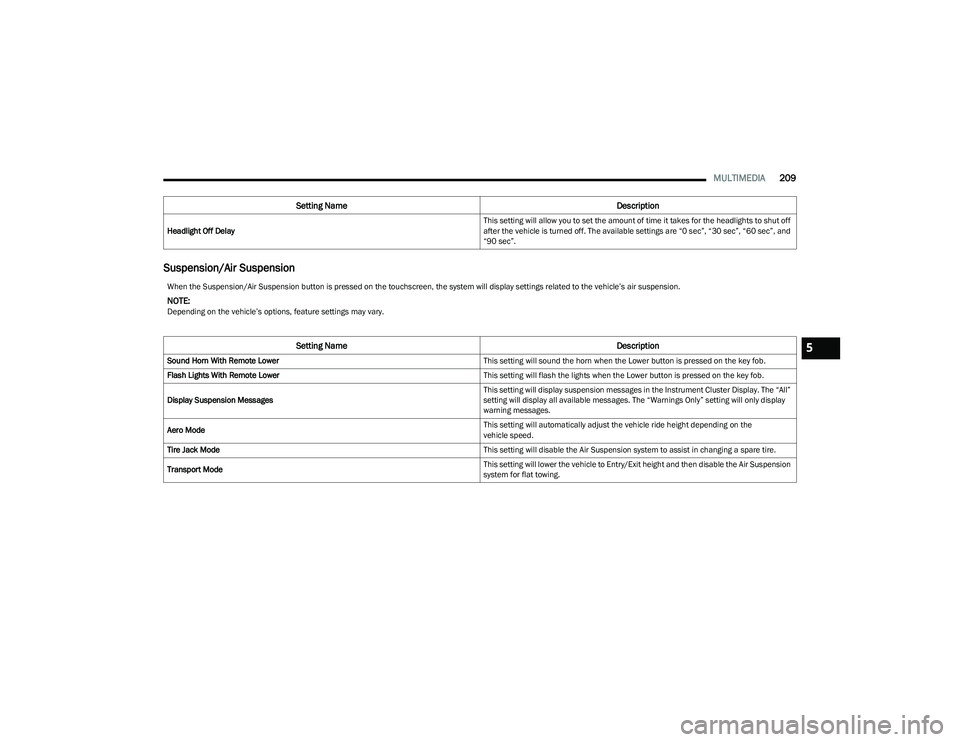
Suspension/Air Suspension
Headlight Off Delay This setting will allow you to set the amount of time it takes for the headlights to shut off
after the vehicle is turned off. The available settings are “0 sec”, “30 sec”, “60 sec”, and
“90 sec”.
Setting Name
Description
When the Suspension/Air Suspension button is pressed on the touchscreen, the system will display settings related to the vehicle’s air suspension.
NOTE:Depending on the vehicle’s options, feature settings may vary.
Setting NameDescription
Sound Horn With Remote Lower This setting will sound the horn when the Lower button is pressed on the key fob.
Flash Lights With Remote Lower This setting will flash the lights when the Lower button is pressed on the key fob.
Display Suspension Messages This setting will display suspension messages in the Instrument Cluster Display. The “All”
setting will display all available messages. The “Warnings Only” setting will only display
warning messages.
Aero Mode This setting will automatically adjust the vehicle ride height depending on the
vehicle speed.
Tire Jack Mode This setting will disable the Air Suspension system to assist in changing a spare tire.
Transport Mode This setting will lower the vehicle to Entry/Exit height and then disable the Air Suspension
system for flat towing.5
23_DT_OM_EN_USC_t.book Page 209
Page 219 of 416
MULTIMEDIA217
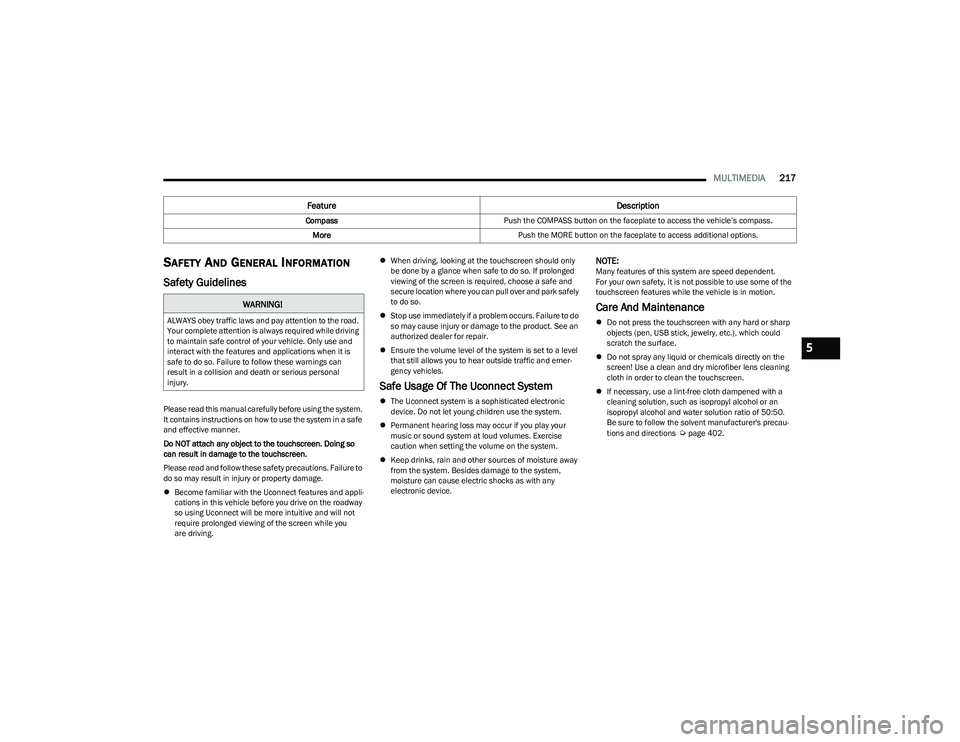
SAFETY AND GENERAL INFORMATION
Safety Guidelines
Please read this manual carefully before using the system.
It contains instructions on how to use the system in a safe
and effective manner.
Do NOT attach any object to the touchscreen. Doing so
can result in damage to the touchscreen.
Please read and follow these safety precautions. Failure to
do so may result in injury or property damage.
Become familiar with the Uconnect features and appli -
cations in this vehicle before you drive on the roadway
so using Uconnect will be more intuitive and will not
require prolonged viewing of the screen while you
are driving.
When driving, looking at the touchscreen should only
be done by a glance when safe to do so. If prolonged
viewing of the screen is required, choose a safe and
secure location where you can pull over and park safely
to do so.
Stop use immediately if a problem occurs. Failure to do
so may cause injury or damage to the product. See an
authorized dealer for repair.
Ensure the volume level of the system is set to a level
that still allows you to hear outside traffic and emer -
gency vehicles.
Safe Usage Of The Uconnect System
The Uconnect system is a sophisticated electronic
device. Do not let young children use the system.
Permanent hearing loss may occur if you play your
music or sound system at loud volumes. Exercise
caution when setting the volume on the system.
Keep drinks, rain and other sources of moisture away
from the system. Besides damage to the system,
moisture can cause electric shocks as with any
electronic device.
NOTE:Many features of this system are speed dependent.
For your own safety, it is not possible to use some of the
touchscreen features while the vehicle is in motion.
Care And Maintenance
Do not press the touchscreen with any hard or sharp
objects (pen, USB stick, jewelry, etc.), which could
scratch the surface.
Do not spray any liquid or chemicals directly on the
screen! Use a clean and dry microfiber lens cleaning
cloth in order to clean the touchscreen.
If necessary, use a lint-free cloth dampened with a
cleaning solution, such as isopropyl alcohol or an
isopropyl alcohol and water solution ratio of 50:50.
Be sure to follow the solvent manufacturer's precau -
tions and directions
Úpage 402.
Feature Description
CompassPush the COMPASS button on the faceplate to access the vehicle’s compass.
More Push the MORE button on the faceplate to access additional options.
WARNING!
ALWAYS obey traffic laws and pay attention to the road.
Your complete attention is always required while driving
to maintain safe control of your vehicle. Only use and
interact with the features and applications when it is
safe to do so. Failure to follow these warnings can
result in a collision and death or serious personal
injury.
5
23_DT_OM_EN_USC_t.book Page 217
Page 231 of 416

MULTIMEDIA229
The Phone feature is driven through your Bluetooth®
“Hands-Free Profile” mobile phone. Uconnect features
Bluetooth® technology — the global standard that enables
different electronic devices to connect to each other
without wires or a docking station. Ensure you phone is
turned on with Bluetooth® active and has been paired to
the Uconnect system. Up to 10 mobile phones or audio
devices are allowed to be linked to the system. Only one
linked (or paired) mobile phone and one audio device can
be used with the system at a time.
Phone Button
The Phone button on your steering wheel is
used to get into the Phone Mode and make
calls, show recent, incoming or outgoing calls,
view phonebook, etc. When you push the
button you will hear a BEEP. The BEEP is your signal to give
a command.
Voice Command Button
The Voice Command button on your steering
wheel is only used for “barge in” and when you
are already in a call or want to make another
call. The button on your steering wheel is also used to access
the Voice Commands for the Uconnect Voice Command
features if your vehicle is equipped.
Phone Operation
OPERATION
Voice commands can be used to operate the Uconnect
Phone and to navigate its menu structure. Voice
commands are required after most Uconnect Phone
prompts. There are two general methods for how Voice
Command works:
1. Say compound commands like “Call John Smith
mobile”.
2. Say the individual commands and allow the system to guide you to complete the task.
You will be prompted for a specific command and then
guided through the available options.
Prior to giving a voice command, one must wait for the
beep, which follows the “Listen” prompt or another
prompt.
For certain operations, compound commands can be
used. For example, instead of saying “Call” and then
“John Smith” and then “mobile”, the following
compound command can be said: “Call John Smith
mobile.”
For each feature explanation in this section, only the
compound command form of the voice command is
given. You can also break the commands into parts
and say each part of the command when you are asked
for it. For example, you can use the compound command
form voice command “Search for John Smith,” or you
can break the compound command form into two voice
commands: “Search Contacts” and when asked, “John
Smith.” Please remember, the Uconnect Phone works
best when you talk in a normal conversational tone, as
if speaking to someone sitting a few feet/meters away
from you.
NATURAL SPEECH
Your Uconnect Phone Voice system uses a Natural
Language Voice Recognition (VR) engine.
Natural speech allows the user to speak commands in
phrases or complete sentences. The system filters out
certain non-word utterances and sounds such as “ah”
and “eh.” The system handles fill-in words such as
“I would like to”.
The system handles multiple inputs in the same phrase or
sentence such as “make a phone call” and “to Kelly
Smith”. For multiple inputs in the same phrase or
sentence, the system identifies the topic or context and
provides the associated follow-up prompt such as “Who
do you want to call?” in the case where a phone call was
requested but the specific name was not recognized.
The system utilizes continuous dialog. When the system
requires more information from the user, it will ask a
question to which the user can respond without pushing
the Voice Command button on the steering wheel.
WARNING!
ALWAYS drive safely with your hands on the steering
wheel. You have full responsibility and assume all risks
related to the use of the Uconnect features and
applications in this vehicle. Only use Uconnect when it
is safe to do so. Failure to do so may result in an
accident involving serious injury or death.
5
23_DT_OM_EN_USC_t.book Page 229
Page 237 of 416
MULTIMEDIA235
Advanced Phone Connectivity
TRANSFER CALL TO AND FROM MOBILE
PHONE
The Uconnect Phone allows ongoing calls to be
transferred from your mobile phone without terminating
the call. To transfer an ongoing call from your connected
mobile phone to the Uconnect Phone or vice versa, press
the Transfer button on the Phone main screen.
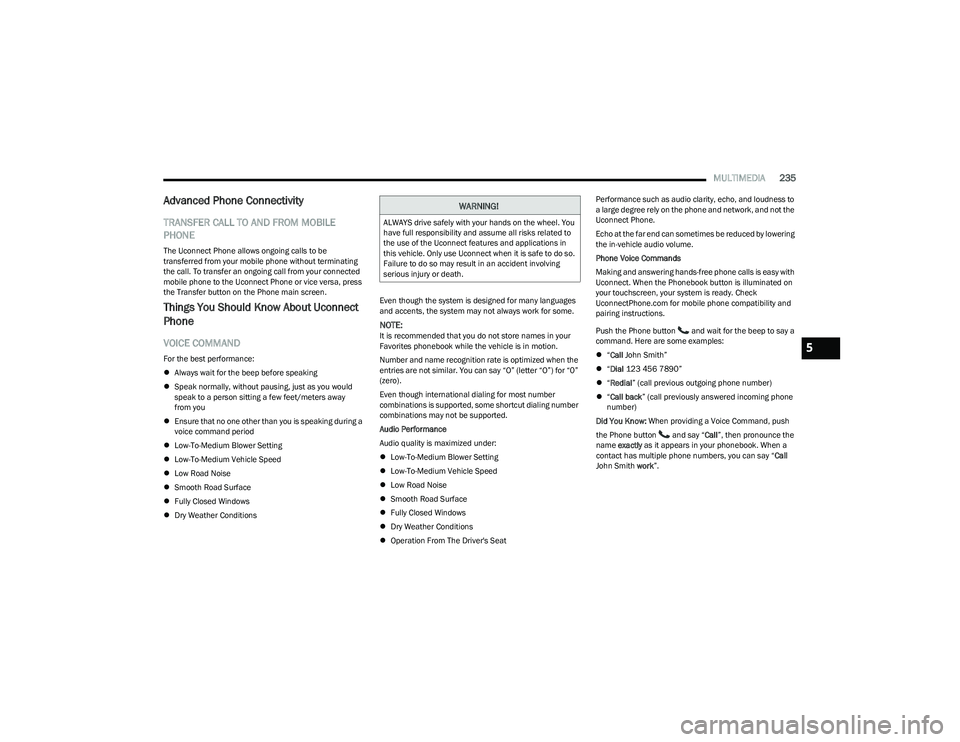
Things You Should Know About Uconnect
Phone
VOICE COMMAND
For the best performance:
Always wait for the beep before speaking
Speak normally, without pausing, just as you would
speak to a person sitting a few feet/meters away
from you
Ensure that no one other than you is speaking during a
voice command period
Low-To-Medium Blower Setting
Low-To-Medium Vehicle Speed
Low Road Noise
Smooth Road Surface
Fully Closed Windows
Dry Weather Conditions Even though the system is designed for many languages
and accents, the system may not always work for some.
NOTE:It is recommended that you do not store names in your
Favorites phonebook while the vehicle is in motion.
Number and name recognition rate is optimized when the
entries are not similar. You can say “O” (letter “O”) for “0”
(zero).
Even though international dialing for most number
combinations is supported, some shortcut dialing number
combinations may not be supported.
Audio Performance
Audio quality is maximized under:
Low-To-Medium Blower Setting
Low-To-Medium Vehicle Speed
Low Road Noise
Smooth Road Surface
Fully Closed Windows
Dry Weather Conditions
Operation From The Driver's Seat Performance such as audio clarity, echo, and loudness to
a large degree rely on the phone and network, and not the
Uconnect Phone.
Echo at the far end can sometimes be reduced by lowering
the in-vehicle audio volume.
Phone Voice Commands
Making and answering hands-free phone calls is easy with
Uconnect. When the Phonebook button is illuminated on
your touchscreen, your system is ready. Check
UconnectPhone.com for mobile phone compatibility and
pairing instructions.
Push the Phone button and wait for the beep to say a
command. Here are some examples:
“Call John Smith”
“Dial 123 456 7890”
“Redial ” (call previous outgoing phone number)
“Call back ” (call previously answered incoming phone
number)
Did You Know: When providing a Voice Command, push
the Phone button and say “ Call”, then pronounce the
name exactly as it appears in your phonebook. When a
contact has multiple phone numbers, you can say “ Call
John Smith work”.
WARNING!
ALWAYS drive safely with your hands on the wheel. You
have full responsibility and assume all risks related to
the use of the Uconnect features and applications in
this vehicle. Only use Uconnect when it is safe to do so.
Failure to do so may result in an accident involving
serious injury or death.
5
23_DT_OM_EN_USC_t.book Page 235
Page 239 of 416
MULTIMEDIA237
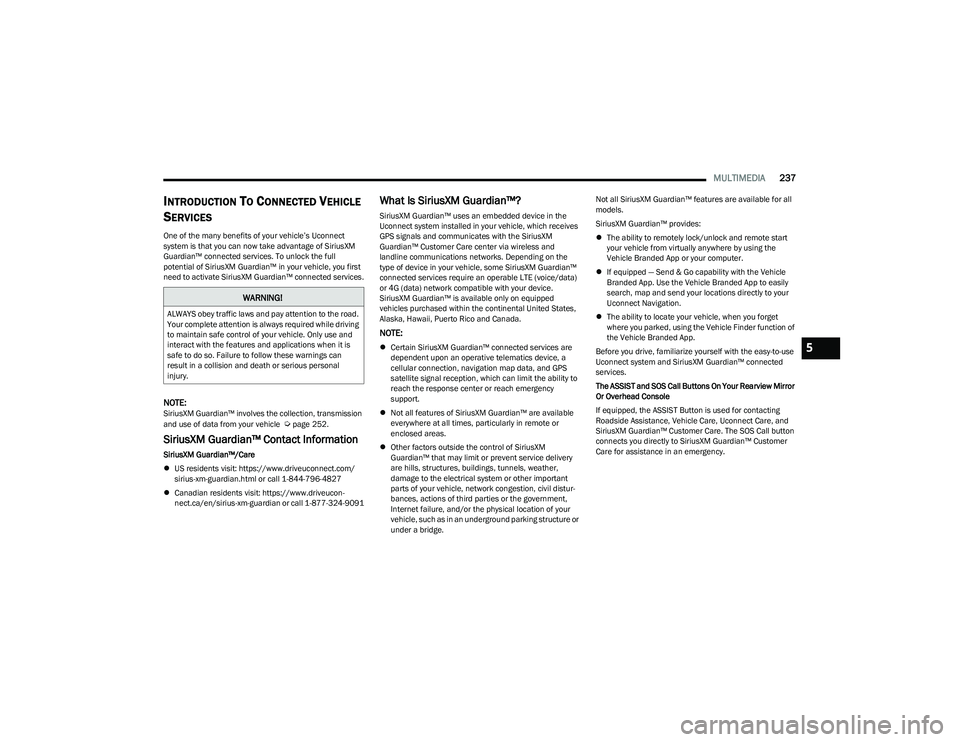
INTRODUCTION TO CONNECTED VEHICLE
S
ERVICES
One of the many benefits of your vehicle’s Uconnect
system is that you can now take advantage of SiriusXM
Guardian™ connected services. To unlock the full
potential of SiriusXM Guardian™ in your vehicle, you first
need to activate SiriusXM Guardian™ connected services.
NOTE:SiriusXM Guardian™ involves the collection, transmission
and use of data from your vehicle Úpage 252.
SiriusXM Guardian™ Contact Information
SiriusXM Guardian™/Care
US residents visit: https://www.driveuconnect.com/
sirius-xm-guardian.html or call 1-844-796-4827
Canadian residents visit: https://www.driveucon -
nect.ca/en/sirius-xm-guardian or call 1-877-324-9091
What Is SiriusXM Guardian™?
SiriusXM Guardian™ uses an embedded device in the
Uconnect system installed in your vehicle, which receives
GPS signals and communicates with the SiriusXM
Guardian™ Customer Care center via wireless and
landline communications networks. Depending on the
type of device in your vehicle, some SiriusXM Guardian™
connected services require an operable LTE (voice/data)
or 4G (data) network compatible with your device.
SiriusXM Guardian™ is available only on equipped
vehicles purchased within the continental United States,
Alaska, Hawaii, Puerto Rico and Canada.
NOTE:
Certain SiriusXM Guardian™ connected services are
dependent upon an operative telematics device, a
cellular connection, navigation map data, and GPS
satellite signal reception, which can limit the ability to
reach the response center or reach emergency
support.
Not all features of SiriusXM Guardian™ are available
everywhere at all times, particularly in remote or
enclosed areas.
Other factors outside the control of SiriusXM
Guardian™ that may limit or prevent service delivery
are hills, structures, buildings, tunnels, weather,
damage to the electrical system or other important
parts of your vehicle, network congestion, civil distur -
bances, actions of third parties or the government,
Internet failure, and/or the physical location of your
vehicle, such as in an underground parking structure or
under a bridge. Not all SiriusXM Guardian™ features are available for all
models.
SiriusXM Guardian™ provides:
The ability to remotely lock/unlock and remote start
your vehicle from virtually anywhere by using the
Vehicle Branded App or your computer.
If equipped — Send & Go capability with the Vehicle
Branded App. Use the Vehicle Branded App to easily
search, map and send your locations directly to your
Uconnect Navigation.
The ability to locate your vehicle, when you forget
where you parked, using the Vehicle Finder function of
the Vehicle Branded App.
Before you drive, familiarize yourself with the easy-to-use
Uconnect system and SiriusXM Guardian™ connected
services.
The ASSIST and SOS Call Buttons On Your Rearview Mirror
Or Overhead Console
If equipped, the ASSIST Button is used for contacting
Roadside Assistance, Vehicle Care, Uconnect Care, and
SiriusXM Guardian™ Customer Care. The SOS Call button
connects you directly to SiriusXM Guardian™ Customer
Care for assistance in an emergency.
WARNING!
ALWAYS obey traffic laws and pay attention to the road.
Your complete attention is always required while driving
to maintain safe control of your vehicle. Only use and
interact with the features and applications when it is
safe to do so. Failure to follow these warnings can
result in a collision and death or serious personal
injury.
5
23_DT_OM_EN_USC_t.book Page 237
Page 241 of 416

MULTIMEDIA239
Using Your Owner’s Site
Your Owner’s Site website https://www.mopar.com/
en-us.html (US Residents), or www.mopar.ca (Canadian
Residents) provides you with all the information you need,
all in one place. You can track your service history, find
recommended accessories for your vehicle, watch videos
about your vehicle's features, and easily access your
manuals. It is also where you can manage your SiriusXM
Guardian™ account. This section will familiarize you with
the key elements of the website that will help you get the
most of your SiriusXM Guardian™ connected services.
For customers in the United States, press the Sign
In/Register button and enter your email address and
password.
For customers in Canada, press the My Vehicle button.
Select from “Dashboard”, “Vehicle Health Report”, and
“Recalls”. The website will then prompt you to log in using
your email address and password.
Edit/Edit Profile:
To manage the details of your SiriusXM Guardian™
account, such as your contact information, password
and SiriusXM Guardian™ PIN, click on the Edit/Edit
Profile button to access the details of your account.
Connected Services Status:
This statement will indicate your SiriusXM
Guardian™-equipped vehicle.
Remote Commands:
For vehicles with an active SiriusXM Guardian™
subscription, press one of these icons and enter your
four-digit SiriusXM Guardian™ Security PIN to remotely
start (if equipped), lock/unlock doors or sound the horn
and flash the lights. Editing Your Notifications
Notifications are an important element of your SiriusXM
Guardian™ account. For example, any time you use your
remote services (such as Remote Door Unlock), you can
elect to receive a text message, push notification, and/or
E-mail to notify you of the event. To set up the
notifications, please follow these instructions.
1. Log on to your Owner’s Account at
https://
www.mopar.com/en-us.html (US Residents) and
select “Dashboard”, or www.mopar.ca
(Canadian
Residents), select “My Vehicle” and then
“Dashboard”.
2. Click the Edit/Edit Profile button.
3. Once there, select “SiriusXM Guardian™” where you can edit Notification Preferences.
4. You can enter a mobile phone and/or email address to notify you, and you can customize the types of
messages.
USING SIRIUSXM GUARDIAN™
SOS Call — If Equipped
Access To Emergency Services At The Push Of A Button
SiriusXM Guardian™ In-Vehicle Assistance Features
With SiriusXM Guardian™, your vehicle has onboard
assistance features located on the rearview mirror or
overhead console designed to enhance your driving
experience if you should ever need assistance or support.
Description
SOS Call offers a convenient way to get in contact with a
SiriusXM Guardian™ Customer Care agent in the event of
an emergency. When the connection between the vehicle
and the live agent is made, your vehicle will automatically
transmit location information. In the event of a minor
collision, medical or any other emergency, press the SOS
button to be connected to a call center agent who can
send emergency assistance to your vehicle’s location.
NOTE:Certain SiriusXM Guardian™ connected services are
dependent on an operational Uconnect system, cellular
network availability that is compatible with the device in
your vehicle, and GPS network availability. Not all features
of SiriusXM Guardian™ are available everywhere at all
times, particularly in remote or enclosed areas.WARNING!
Some SiriusXM Guardian™ connected services,
including SOS Call and Roadside Assistance Call, will
NOT work without a network connection compatible
with your device.
Center Light Status Description
Off No call activated
Green Active call in progress
Red System error
5
23_DT_OM_EN_USC_t.book Page 239
Page 243 of 416
MULTIMEDIA241
(Continued)
Automatic SOS — If Equipped
Automatic SOS is a hands-free safety service that can
immediately connect you with help in the event that your
vehicle’s airbags deploy. After an accident, a live agent will
contact you through the Uconnect system and alert
emergency services.
NOTE:An active SiriusXM Guardian™ subscription is required for
this feature to function. After a crash where the airbags deploy:
1. Automatic SOS will initiate a call with an agent.
2. An agent will receive the call and confirm the location
of the emergency.
3. If needed, the agent will request the assistance of emergency services.
4. First responders will arrive on scene. The agent will remain on the call until emergency services arrive.
NOTE:
Agents are available 24/7 to assist you in the case of
an emergency.
On your behalf, agents are able to notify family
members about the collision.
Agents can brief first responders of the situation before
they arrive on scene.
In the event vehicle occupants are unable to speak,
emergency services will be dispatched based on the
last known GPS coordinates.
SiriusXM Guardian™ connected services are depen -
dent upon an operative telematics device, a cellular
connection, navigation map data, and GPS satellite
reception, which can limit the ability to reach the
response center or reach emergency support.
Terms of service of the Uconnect and the SiriusXM
Guardian™ subscriber agreement apply. See terms of
services for complete service limitation.
WARNING!
Never place anything on or near the vehicle’s LTE
(voice/data) or 4G (data) and GPS antennas. You
could prevent LTE (voice/data) or 4G (data) and GPS
signal reception, which can prevent your vehicle from
placing an emergency call.
Do not add any aftermarket electrical equipment to
the vehicle’s electrical system. This may prevent your
vehicle from sending a signal to initiate an emer -
gency call. To avoid interference that can cause the
SOS Call system to fail, never add aftermarket equip -
ment (e.g., two-way mobile radio, CB radio, data
recorder, etc.) to your vehicle’s electrical system or
modify the antennas on your vehicle. IF YOUR
VEHICLE LOSES POWER FOR ANY REASON
(INCLUDING DURING OR AFTER AN ACCIDENT),
NEITHER THE VEHICLE BRANDED APPS NOR THE
SIRIUSXM GUARDIAN™ CONNECTED SERVICES WILL
OPERATE.
The Occupant Restraint Controller (ORC) turns on the
Air Bag Warning Light on the instrument panel if a
malfunction in any part of the air bag system is
detected. If the Air Bag Warning Light is illuminated,
the air bag system may not be working properly and
the SOS Call system may not be able to send a signal
to the SiriusXM Guardian™ Customer Care center. If
the Air Bag Warning Light is illuminated, have an
authorized dealer service your vehicle immediately.Ignoring the Rearview Mirror Light could mean you
will not have SOS Call services if needed. If the
Rearview Mirror Light is illuminated, have an autho -
rized dealer service the SOS Call system immedi -
ately.
If anyone in the vehicle could be in danger
(e.g., fire or smoke is visible, dangerous road condi-
tions or location), do not wait for voice contact from
a SiriusXM Guardian™ Customer Care agent.
All occupants should exit the vehicle immediately
and move to a safe location.
Failure to perform scheduled maintenance and
regular inspection of your vehicle may result in
vehicle damage, accident or injury.
WARNING!
5
23_DT_OM_EN_USC_t.book Page 241
Page 247 of 416
MULTIMEDIA245
Requirements
Vehicle must have an operable LTE (voice/data) or 4G
(data) network connection compatible with your device.
Vehicle must have an active subscription that includes
the applicable feature.
Vehicle Finder
Description
The Vehicle Finder feature allows you to find the location
of your vehicle.
You can also sound the horn and flash the lights to make
finding your vehicle even easier.
How It Works
Select the Vehicle Finder function within the Vehicle
Branded App and select the Location tab at the bottom of
the App. Then, press the Vehicle icon to find your vehicle.
Requirements
Vehicle must be properly equipped with the Uconnect
system.
Vehicle must have an operable LTE (voice/data) or 4G
(data) network connection compatible with your device.
Vehicle must have an active subscription that includes
the applicable feature.
Vehicle ignition must have been turned on within
14 days.
4G Wi-Fi Hotspot — If Equipped
Description
4G Wi-Fi Hotspot is an in-vehicle service that connects
your device to an LTE (voice/data) or 4G (data) network
that is ready to go wherever you are. After you've made
your purchase, turn on your device’s Wi-Fi and connect
your devices.
Enables all your passengers to be simultaneously
connected to the web.
Connect several devices at one time.
Any Wi-Fi-enabled device — such as a laptop or any
other portable-enabled media — can connect over your
private in-vehicle network.
A high-speed, secured connection lets anyone on your
private network access the Web — great for working
and relaxing. Create A 4G Wi-Fi Hotspot For Use In Your Vehicle
How It Works
The 4G Wi-Fi Hotspot feature provides the
vehicle passengers with an internet access
hotspot in the vehicle, using the radio as an
access point. The hotspot will allow
Wi-Fi-enabled in-vehicle devices (such as a laptop or any
other portable-enabled media device) to wirelessly
connect to the internet. Uconnect offers a complimentary
3-month trial period that includes 1GB of total data. The
trial can be activated any time within the first year of new
vehicle ownership.
Use one of these three ways to purchase a subscription to
the 4G Wi-Fi Hotspot:
1. From your vehicle’s touchscreen, select the 4G Wi-Fi Hotspot App, and press the How To Purchase button
and follow the instructions.
2. Log onto your Owner’s Site and click the link to the AT&T portal to get set up.
3. For existing Connected Car customers: Push the
ASSIST button to be routed to an AT&T Customer Care
agent who will assist you.
WARNING!
The driver should NEVER use the 4G Wi-Fi Hotspot
while driving the vehicle as doing so may result in an
accident involving serious injury or death.
5
23_DT_OM_EN_USC_t.book Page 245
Page 248 of 416
246MULTIMEDIA
Once the 4G Wi-Fi Hotspot is purchased, you can change
its name and the password by selecting the Wi-Fi Hotspot
App and pressing the Setup Wi-Fi Hotspot button. You can
also view the connected devices from the app screen by
pressing the View Connected Devices button.
NOTE:A SiriusXM Guardian™ subscription is not required in order
to purchase and use 4G Wi-Fi Hotspot. For more infor -
mation on setting up a Wi-Fi connection, visit https://
myvehicle.att.com.
Stolen Vehicle Assistance — If Equipped
Description
If your vehicle is stolen, the SiriusXM Guardian™ Customer
Care agent may be able to locate the stolen vehicle and
work with law enforcement to help recover it. How It Works
1. If your vehicle is stolen, contact local law enforcement as soon as possible. They will work
with you to file a stolen vehicle report.
2. Next, inform SiriusXM Guardian™ Customer Care that your vehicle has been stolen.
The SiriusXM Guardian™ Customer Care Agent will
ask for the stolen vehicle report number (as issued by
your local law enforcement). If you have downloaded
the Vehicle Branded App, you can push the Settings
menu button on your device, select “Help”, and then
select “SiriusXM Guardian™ Customer Care” to make
the call.
3. SiriusXM Guardian™ Customer Care will authenticate that you are the owner of the vehicle and contact the
law enforcement with whom you filed the stolen
vehicle report.
4. SiriusXM Guardian™ Customer Care will work with your local law enforcement to locate the vehicle. You
will be contacted by law enforcement if your vehicle is
recovered. While the investigation is ongoing, you
should also contact your insurance company to
inform it of the situation. Requirements
Vehicle must be properly equipped with the Uconnect
system.
Vehicle must have an operable LTE (voice/data) or 4G
(data) network connection compatible with your device.
Vehicle must be registered with SiriusXM Guardian™
and have an active subscription that includes the
applicable feature.
NOTE:Not all features of SiriusXM Guardian™ are available
everywhere at all times, particularly in remote or enclosed
areas.
Monthly Vehicle Health Report —
If Equipped
Description
Monthly Vehicle Health Report is a Uconnect service
through which a summary of the performance of your
vehicle’s key systems will be sent to you every month so
you can stay on top of your vehicle’s maintenance needs.
This is provided as a convenience to you and does not
substitute for regular maintenance to your vehicle.
In order to provide the Monthly Vehicle Health Report, the
Uconnect system in your vehicle may collect and transmit
vehicle data to SiriusXM Guardian™ and to FCA, such as
your vehicle’s health and performance, your vehicle’s
location, your utilization of the features in your vehicle,
and other data.
WARNING!
Always drive safely with your hands on the steering
wheel and obey all applicable laws. You have full
responsibility and assume all risks related to the use of
the features and applications in this vehicle. Only use
the features and applications in this vehicle when it is
safe to do so. Failure to comply may result in an
accident involving in serious injury or death.
23_DT_OM_EN_USC_t.book Page 246
Page 249 of 416
MULTIMEDIA247
This data collection and transmission begins when you
enroll in SiriusXM Guardian™ and will continue even if you
cancel your SiriusXM Guardian™ subscription unless you
call SiriusXM Guardian™ Customer Care and tell them to
deactivate your connected services.
Please see the Uconnect Privacy Policy for more
information, located at www.driveuconnect.com/
connectedservices/privacy.html (US Residents) or
www.driveuconnect.ca (Canadian Residents).
For more information on SiriusXM Guardian™ private
policy, see https://siriusxmcvs.com/privacy-policy.
NOTE:Your vehicle must be enrolled in an active subscription
with connected services. If you have concerns about the
operation, function or performance of your vehicle, please
take it to an authorized dealer. This report does not
replace regularly scheduled maintenance. Check the
instrument cluster warning lights and cautions in your
vehicle for the most accurate vehicle health information.
Vehicle Health Alert —If Equipped
Description
Your vehicle will send you an email alert if it senses a
problem with one of your vehicle’s key systems. For further
information, go to your Owner’s website.
NOTE:Vehicle Health Alert emails require you to register and
activate services. During this process you will be asked to
provide an email address to which the reports will be sent.
In-Vehicle Notifications — If Equipped
Description
Your vehicle will send you notifications to remind you when
services are needed, or to alert you of other important
information, such as recall notices. When you receive a
notification through your touchscreen, press OK to dismiss
the message, or press Call Care to speak with a SiriusXM
Guardian™ Customer Care agent.
NOTE:Pressing “OK” or the X button on the pop-up screen will
dismiss or close the pop-up, and the In-Vehicle Messages
mailbox will display. In the Mailbox, you can reopen
messages or delete messages.
Amazon Alexa Skill — If Equipped
Enjoy the convenience of using your voice to command
your vehicle with Amazon Alexa!
With Amazon Alexa, you can connect to your vehicle and
remotely access key services and features.
If your vehicle is equipped with Uconnect Navigation, you
can send a destination directly to your vehicle using Alexa.
If you need assistance, you can always ask Alexa for help,
or complete a list of commands by saying: “Alexa, ask
Here are a few of the many questions you can ask Alexa:
“Alexa, ask
“Alexa, ask
with your Voice Code.”
“Alexa, ask
Drive, Auburn Hills, Michigan to my
“Alexa, ask
An active subscription to SiriusXM Guardian™ is required.
To use Amazon Alexa, first, register for SiriusXM
Guardian™
Úpage 238.
Next, link the Uconnect system on your vehicle to Amazon
Alexa:
1. Download the Amazon Alexa app on your mobile device (Apple® or Android™).
2. Once in the app, tap MENU and go to SKILLS.
3. Search for
4. Tap SAVE SETTINGS when prompted.
5. Link the vehicle brand name to the
6. Log in using your Owner Account credentials. This will be the same user name and password you used when
registering for SiriusXM Guardian™ connected
services. There will be additional settings to confirm
on the following screen.
7. AUTHORIZE the account to return to the
You can now begin using the
Alexa!
5
23_DT_OM_EN_USC_t.book Page 247