turn signal RAM 1500 2023 Owner's Manual
[x] Cancel search | Manufacturer: RAM, Model Year: 2023, Model line: 1500, Model: RAM 1500 2023Pages: 416, PDF Size: 20.59 MB
Page 165 of 416
STARTING AND OPERATING163
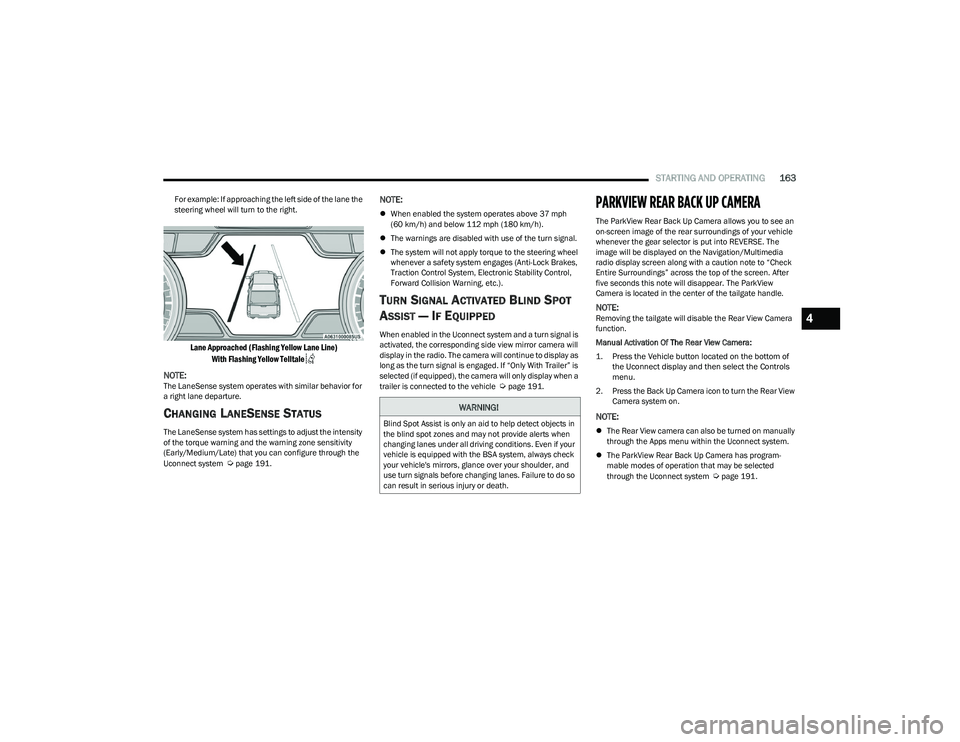
For example: If approaching the left side of the lane the
steering wheel will turn to the right.
Lane Approached (Flashing Yellow Lane Line)
With Flashing Yellow Telltale
NOTE:
The LaneSense system operates with similar behavior for
a right lane departure.
CHANGING LANESENSE STATUS
The LaneSense system has settings to adjust the intensity
of the torque warning and the warning zone sensitivity
(Early/Medium/Late) that you can configure through the
Uconnect system
Úpage 191.
NOTE:
When enabled the system operates above 37 mph
(60 km/h) and below 112 mph (180 km/h).
The warnings are disabled with use of the turn signal.
The system will not apply torque to the steering wheel
whenever a safety system engages (Anti-Lock Brakes,
Traction Control System, Electronic Stability Control,
Forward Collision Warning, etc.).
TURN SIGNAL ACTIVATED BLIND SPOT
A
SSIST — IF EQUIPPED
When enabled in the Uconnect system and a turn signal is
activated, the corresponding side view mirror camera will
display in the radio. The camera will continue to display as
long as the turn signal is engaged. If “Only With Trailer” is
selected (if equipped), the camera will only display when a
trailer is connected to the vehicle
Úpage 191.
PARKVIEW REAR BACK UP CAMERA
The ParkView Rear Back Up Camera allows you to see an
on-screen image of the rear surroundings of your vehicle
whenever the gear selector is put into REVERSE. The
image will be displayed on the Navigation/Multimedia
radio display screen along with a caution note to “Check
Entire Surroundings” across the top of the screen. After
five seconds this note will disappear. The ParkView
Camera is located in the center of the tailgate handle.
NOTE:Removing the tailgate will disable the Rear View Camera
function.
Manual Activation Of The Rear View Camera:
1. Press the Vehicle button located on the bottom of
the Uconnect display and then select the Controls
menu.
2. Press the Back Up Camera icon to turn the Rear View Camera system on.
NOTE:
The Rear View camera can also be turned on manually
through the Apps menu within the Uconnect system.
The ParkView Rear Back Up Camera has program -
mable modes of operation that may be selected
through the Uconnect system
Úpage 191.
WARNING!
Blind Spot Assist is only an aid to help detect objects in
the blind spot zones and may not provide alerts when
changing lanes under all driving conditions. Even if your
vehicle is equipped with the BSA system, always check
your vehicle's mirrors, glance over your shoulder, and
use turn signals before changing lanes. Failure to do so
can result in serious injury or death.
4
23_DT_OM_EN_USC_t.book Page 163
Page 184 of 416
182STARTING AND OPERATING
Display Messages
The trailer brake control interacts with the instrument
cluster display. Display messages, along with a single
chime, will be displayed when a malfunction is determined
in the trailer connection, trailer brake control, or on the
trailer
Úpage 98.
NOTE:
An aftermarket controller may be available for use with
trailers with air or EOH trailer brake systems. To deter -
mine the type of brakes on your trailer and the avail -
ability of controllers, check with your trailer
manufacturer or dealer.
Removal of the ITBM will cause errors and it may cause
damage to the electrical system and electronic
modules of the vehicle. See an authorized dealer if an
aftermarket module is to be installed.
Towing Requirements — Trailer Lights
And Wiring
Whenever you pull a trailer, regardless of the trailer size,
stop lights and turn signals on the trailer are required for
motoring safety.
The Trailer Tow Package may include a four-pin and
seven-pin wiring harness. Use a factory approved trailer
harness and connector.
NOTE:Do not cut or splice wiring into the vehicle’s wiring
harness. The electrical connections are all complete to the vehicle
but you must connect the harness to a trailer connector.
Refer to the following illustrations.
NOTE:
Disconnect the trailer wiring connector from the vehicle
(or any other device plugged into vehicle’s electrical
connectors) before launching a boat into water.
Be sure to reconnect once clear from water area.
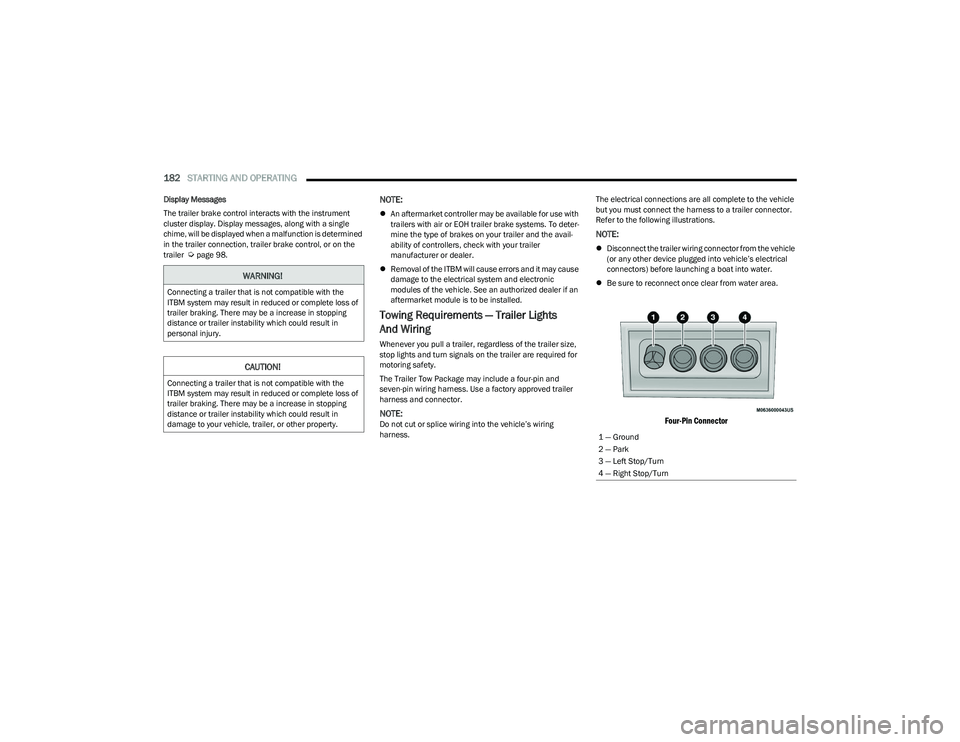
Four-Pin Connector
WARNING!
Connecting a trailer that is not compatible with the
ITBM system may result in reduced or complete loss of
trailer braking. There may be a increase in stopping
distance or trailer instability which could result in
personal injury.
CAUTION!
Connecting a trailer that is not compatible with the
ITBM system may result in reduced or complete loss of
trailer braking. There may be a increase in stopping
distance or trailer instability which could result in
damage to your vehicle, trailer, or other property.
1 — Ground
2 — Park
3 — Left Stop/Turn
4 — Right Stop/Turn
23_DT_OM_EN_USC_t.book Page 182
Page 185 of 416
STARTING AND OPERATING183
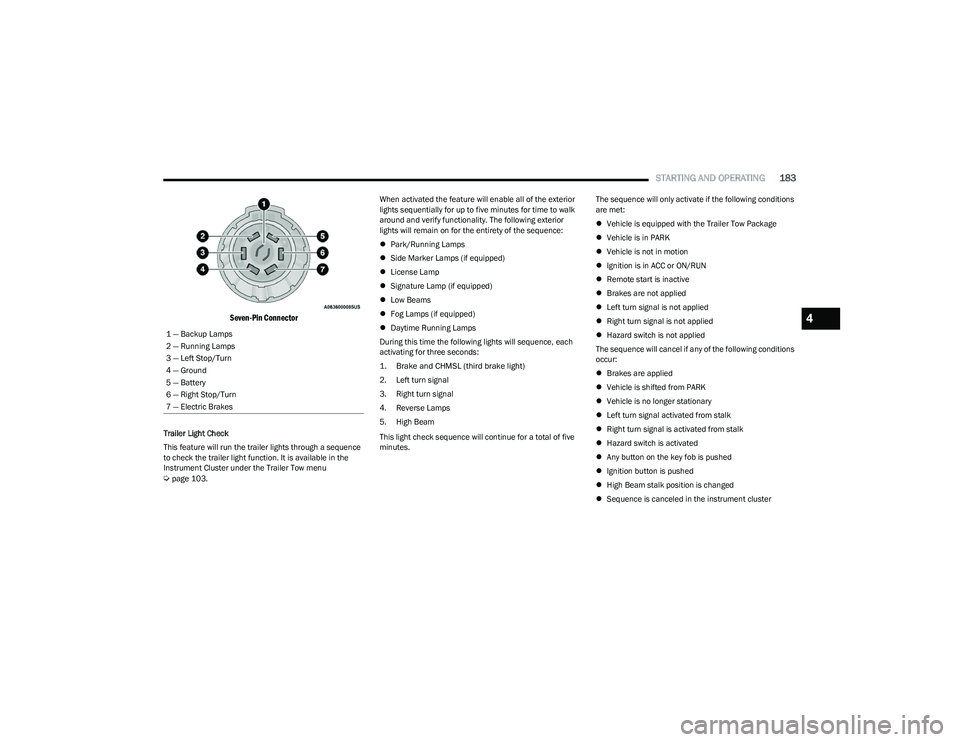
Seven-Pin Connector
Trailer Light Check
This feature will run the trailer lights through a sequence
to check the trailer light function. It is available in the
Instrument Cluster under the Trailer Tow menu
Úpage 103. When activated the feature will enable all of the exterior
lights sequentially for up to five minutes for time to walk
around and verify functionality. The following exterior
lights will remain on for the entirety of the sequence:
Park/Running Lamps
Side Marker Lamps (if equipped)
License Lamp
Signature Lamp (if equipped)
Low Beams
Fog Lamps (if equipped)
Daytime Running Lamps
During this time the following lights will sequence, each
activating for three seconds:
1. Brake and CHMSL (third brake light)
2. Left turn signal
3. Right turn signal
4. Reverse Lamps
5. High Beam
This light check sequence will continue for a total of five
minutes. The sequence will only activate if the following conditions
are met:
Vehicle is equipped with the Trailer Tow Package
Vehicle is in PARK
Vehicle is not in motion
Ignition is in ACC or ON/RUN
Remote start is inactive
Brakes are not applied
Left turn signal is not applied
Right turn signal is not applied
Hazard switch is not applied
The sequence will cancel if any of the following conditions
occur:
Brakes are applied
Vehicle is shifted from PARK
Vehicle is no longer stationary
Left turn signal activated from stalk
Right turn signal is activated from stalk
Hazard switch is activated
Any button on the key fob is pushed
Ignition button is pushed
High Beam stalk position is changed
Sequence is canceled in the instrument cluster
1 — Backup Lamps
2 — Running Lamps
3 — Left Stop/Turn
4 — Ground
5 — Battery
6 — Right Stop/Turn
7 — Electric Brakes
4
23_DT_OM_EN_USC_t.book Page 183
Page 199 of 416
MULTIMEDIA197
Safety/Driving Assistance
Control Screen Timeout This setting allows you to set the Control Screen to turn off automatically after five
seconds or stay open until manually closed.
Navigation Next Turn Pop-ups Displayed in Cluster This setting will display navigation prompts in the Instrument Cluster Display.
Phone Pop-ups Displayed In Cluster This setting will display smartphone notifications and messages in the Instrument
Cluster Display.
Fuel Saver Display This setting will enable fuel saver mode in the Instrument Cluster Display.
Ready To Drive Pop-ups This setting will enable the Ready To Drive Pop-ups in the Instrument Cluster Display.
Setting NameDescription
When the Safety/Driving Assistance button is selected on the touchscreen, the system displays the options related to the vehicle’s safety settings. These options will differ
depending on the features equipped on the vehicle. The settings may display in list form or within subfolders on the screen. To access a subfolder, select the desired folder; the
available options related to that feature will then display on the screen.
NOTE:Depending on the vehicle’s options, feature settings may vary.
Setting NameDescription
Forward Collision Warning Sensitivity — Located in Automatic Emergency Braking
Submenu This setting will change the distance at which the Forward Collision Warning (FCW) alert
sounds. The “Medium” setting will have the FCW system signal when an object is in view,
and the possibility of a collision is detected. The “Near” setting will have the FCW system
signal when the object is closer to the vehicle. The “Far” setting will have the FCW system
signal when an object is at a far distance from the vehicle.
Forward Collision Warning — Located in Automatic Emergency Braking Submenu This setting will turn the Forward Collision Warning system on or off. The “Off” setting will
deactivate the FCW system. The “Warning Only” setting will provide only an audible chime
when a collision is detected. The “Warning + Active Braking” setting will provide an
audible chime and apply some brake pressure when a collision is detected.
Pedestrian Emergency Braking — Located in Automatic Emergency Braking Submenu This setting will turn the Pedestrian Emergency Braking system on or off.
5
23_DT_OM_EN_USC_t.book Page 197
Page 206 of 416
204MULTIMEDIA
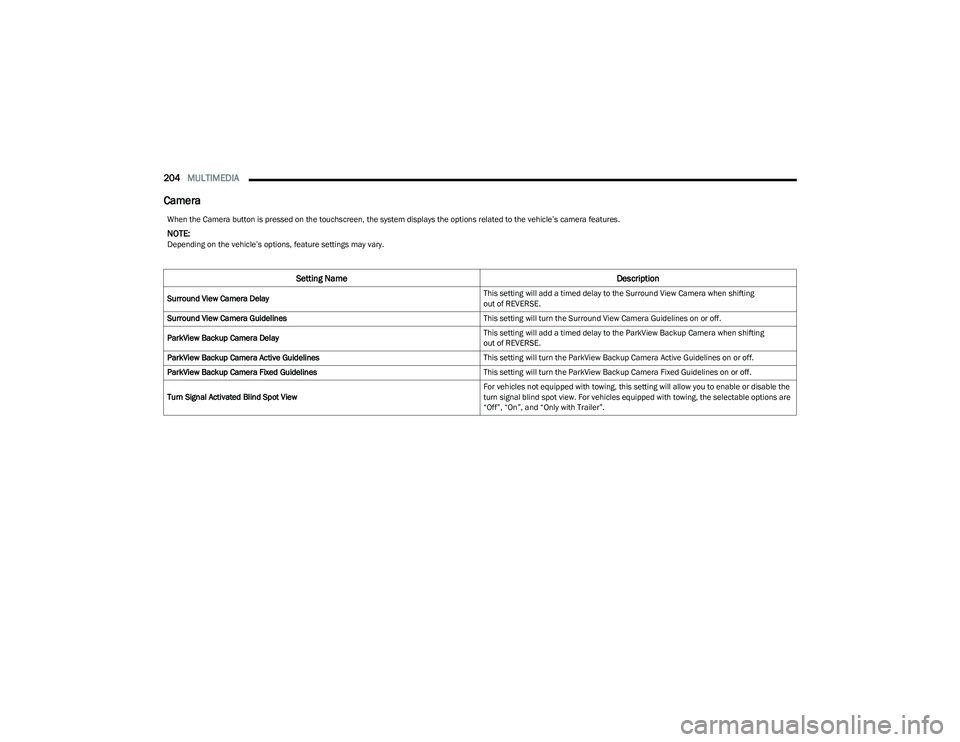
Camera
When the Camera button is pressed on the touchscreen, the system displays the options related to the vehicle’s camera features.
NOTE:Depending on the vehicle’s options, feature settings may vary.
Setting Name Description
Surround View Camera Delay This setting will add a timed delay to the Surround View Camera when shifting
out of REVERSE.
Surround View Camera Guidelines This setting will turn the Surround View Camera Guidelines on or off.
ParkView Backup Camera Delay This setting will add a timed delay to the ParkView Backup Camera when shifting
out of REVERSE.
ParkView Backup Camera Active Guidelines This setting will turn the ParkView Backup Camera Active Guidelines on or off.
ParkView Backup Camera Fixed Guidelines This setting will turn the ParkView Backup Camera Fixed Guidelines on or off.
Turn Signal Activated Blind Spot View For vehicles not equipped with towing, this setting will allow you to enable or disable the
turn signal blind spot view. For vehicles equipped with towing, the selectable options are
“Off”, “On”, and “Only with Trailer”.
23_DT_OM_EN_USC_t.book Page 204
Page 229 of 416
MULTIMEDIA227
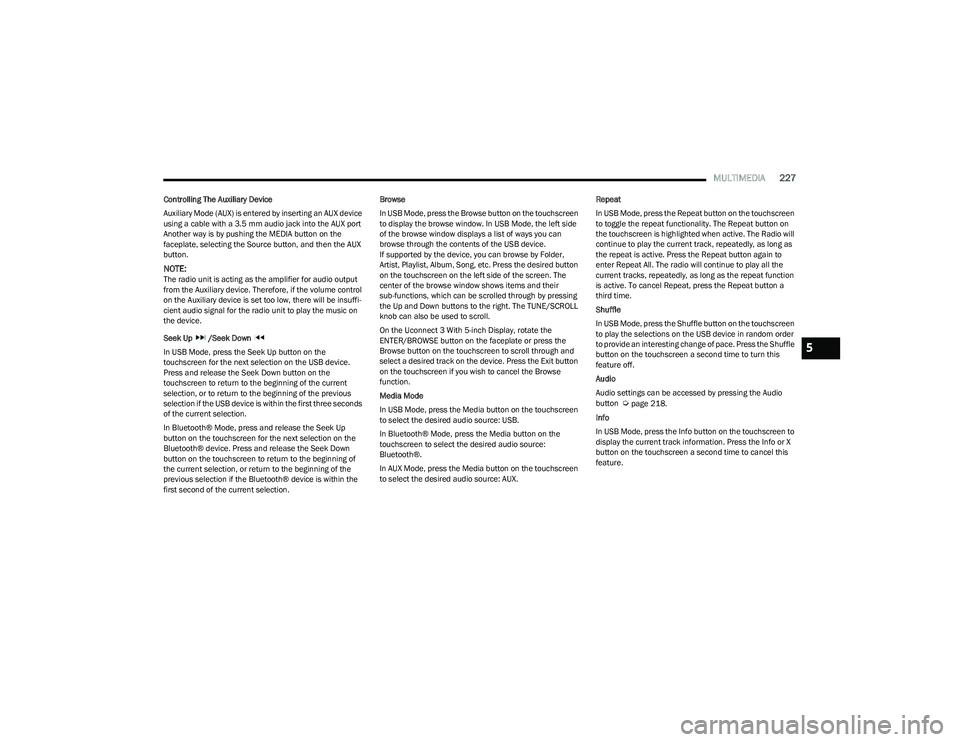
Controlling The Auxiliary Device
Auxiliary Mode (AUX) is entered by inserting an AUX device
using a cable with a 3.5 mm audio jack into the AUX port
Another way is by pushing the MEDIA button on the
faceplate, selecting the Source button, and then the AUX
button.
NOTE:The radio unit is acting as the amplifier for audio output
from the Auxiliary device. Therefore, if the volume control
on the Auxiliary device is set too low, there will be insuffi -
cient audio signal for the radio unit to play the music on
the device.
Seek Up /Seek Down
In USB Mode, press the Seek Up button on the
touchscreen for the next selection on the USB device.
Press and release the Seek Down button on the
touchscreen to return to the beginning of the current
selection, or to return to the beginning of the previous
selection if the USB device is within the first three seconds
of the current selection.
In Bluetooth® Mode, press and release the Seek Up
button on the touchscreen for the next selection on the
Bluetooth® device. Press and release the Seek Down
button on the touchscreen to return to the beginning of
the current selection, or return to the beginning of the
previous selection if the Bluetooth® device is within the
first second of the current selection. Browse
In USB Mode, press the Browse button on the touchscreen
to display the browse window. In USB Mode, the left side
of the browse window displays a list of ways you can
browse through the contents of the USB device.
If supported by the device, you can browse by Folder,
Artist, Playlist, Album, Song, etc. Press the desired button
on the touchscreen on the left side of the screen. The
center of the browse window shows items and their
sub-functions, which can be scrolled through by pressing
the Up and Down buttons to the right. The TUNE/SCROLL
knob can also be used to scroll.
On the Uconnect 3 With 5-inch Display, rotate the
ENTER/BROWSE button on the faceplate or press the
Browse button on the touchscreen to scroll through and
select a desired track on the device. Press the Exit button
on the touchscreen if you wish to cancel the Browse
function.
Media Mode
In USB Mode, press the Media button on the touchscreen
to select the desired audio source: USB.
In Bluetooth® Mode, press the Media button on the
touchscreen to select the desired audio source:
Bluetooth®.
In AUX Mode, press the Media button on the touchscreen
to select the desired audio source: AUX.
Repeat
In USB Mode, press the Repeat button on the touchscreen
to toggle the repeat functionality. The Repeat button on
the touchscreen is highlighted when active. The Radio will
continue to play the current track, repeatedly, as long as
the repeat is active. Press the Repeat button again to
enter Repeat All. The radio will continue to play all the
current tracks, repeatedly, as long as the repeat function
is active. To cancel Repeat, press the Repeat button a
third time.
Shuffle
In USB Mode, press the Shuffle button on the touchscreen
to play the selections on the USB device in random order
to provide an interesting change of pace. Press the Shuffle
button on the touchscreen a second time to turn this
feature off.
Audio
Audio settings can be accessed by pressing the Audio
button
Úpage 218.
Info
In USB Mode, press the Info button on the touchscreen to
display the current track information. Press the Info or X
button on the touchscreen a second time to cancel this
feature.
5
23_DT_OM_EN_USC_t.book Page 227
Page 231 of 416

MULTIMEDIA229
The Phone feature is driven through your Bluetooth®
“Hands-Free Profile” mobile phone. Uconnect features
Bluetooth® technology — the global standard that enables
different electronic devices to connect to each other
without wires or a docking station. Ensure you phone is
turned on with Bluetooth® active and has been paired to
the Uconnect system. Up to 10 mobile phones or audio
devices are allowed to be linked to the system. Only one
linked (or paired) mobile phone and one audio device can
be used with the system at a time.
Phone Button
The Phone button on your steering wheel is
used to get into the Phone Mode and make
calls, show recent, incoming or outgoing calls,
view phonebook, etc. When you push the
button you will hear a BEEP. The BEEP is your signal to give
a command.
Voice Command Button
The Voice Command button on your steering
wheel is only used for “barge in” and when you
are already in a call or want to make another
call. The button on your steering wheel is also used to access
the Voice Commands for the Uconnect Voice Command
features if your vehicle is equipped.
Phone Operation
OPERATION
Voice commands can be used to operate the Uconnect
Phone and to navigate its menu structure. Voice
commands are required after most Uconnect Phone
prompts. There are two general methods for how Voice
Command works:
1. Say compound commands like “Call John Smith
mobile”.
2. Say the individual commands and allow the system to guide you to complete the task.
You will be prompted for a specific command and then
guided through the available options.
Prior to giving a voice command, one must wait for the
beep, which follows the “Listen” prompt or another
prompt.
For certain operations, compound commands can be
used. For example, instead of saying “Call” and then
“John Smith” and then “mobile”, the following
compound command can be said: “Call John Smith
mobile.”
For each feature explanation in this section, only the
compound command form of the voice command is
given. You can also break the commands into parts
and say each part of the command when you are asked
for it. For example, you can use the compound command
form voice command “Search for John Smith,” or you
can break the compound command form into two voice
commands: “Search Contacts” and when asked, “John
Smith.” Please remember, the Uconnect Phone works
best when you talk in a normal conversational tone, as
if speaking to someone sitting a few feet/meters away
from you.
NATURAL SPEECH
Your Uconnect Phone Voice system uses a Natural
Language Voice Recognition (VR) engine.
Natural speech allows the user to speak commands in
phrases or complete sentences. The system filters out
certain non-word utterances and sounds such as “ah”
and “eh.” The system handles fill-in words such as
“I would like to”.
The system handles multiple inputs in the same phrase or
sentence such as “make a phone call” and “to Kelly
Smith”. For multiple inputs in the same phrase or
sentence, the system identifies the topic or context and
provides the associated follow-up prompt such as “Who
do you want to call?” in the case where a phone call was
requested but the specific name was not recognized.
The system utilizes continuous dialog. When the system
requires more information from the user, it will ask a
question to which the user can respond without pushing
the Voice Command button on the steering wheel.
WARNING!
ALWAYS drive safely with your hands on the steering
wheel. You have full responsibility and assume all risks
related to the use of the Uconnect features and
applications in this vehicle. Only use Uconnect when it
is safe to do so. Failure to do so may result in an
accident involving serious injury or death.
5
23_DT_OM_EN_USC_t.book Page 229
Page 242 of 416

240MULTIMEDIA
How It Works
1. Push the SOS Call button; the indicator light will turn green indicating a call has been placed.
NOTE:
In case the SOS Call button is accidentally pushed,
there is a 10-second delay before the SOS call is
placed. The system will verbally alert you that a
call is about to be made. To cancel the SOS Call
connection, push the SOS Call button on the
rearview mirror or overhead console or press
the Cancel button on the touchscreen within
10 seconds.
During an SOS Call, the Bluetooth®-paired phone
is disconnected so incoming or outgoing calls will
go through your mobile device versus the
hands-free system which is not available due to
the SOS Call.
2. Once a connection between the vehicle and a SiriusXM Guardian™ Customer Care agent is made,
the agent will stay on the line with you.
NOTE:Calls between the vehicle occupants and the SiriusXM
Guardian™ Customer Care center may be recorded or
monitored for quality assurance purposes. Through your
enrollment in and use of the SiriusXM Guardian™
connected services, you consent to being recorded. SOS Call System Limitations
Vehicles that have been purchased in the US and that
travel into Mexico and Canada may have limited services.
In particular, responses to SOS calls or other emergency
services may be unavailable or very limited. Vehicles
purchased outside the United States and Canada are
unable to receive SiriusXM Guardian™ connected
services.
If the SOS Call system detects a malfunction, any of the
following may occur at the time the malfunction is
detected:
The light will continuously be illuminated red.
The screen will display the following message “Vehicle
phone requires service. Please contact your dealer.”
An in-vehicle audio message will state “Vehicle phone
requires service. Please contact your dealer.”
Even if the SOS Call system is fully functional, factors
beyond FCA US LLC’s control may prevent or stop SOS Call
system operation. These include, but are not limited to,
the following factors:
The ignition key is in OFF position.
The vehicle’s electrical systems are not intact.
The vehicle battery loses power or becomes
disconnected during a vehicle crash.
The SOS Call system software and/or hardware is
damaged during a vehicle crash.
LTE (voice/data) or 4G (data) coverage and/or GPS
signals are unavailable or obstructed.
Network congestion.
Weather conditions.
Buildings, structures, geographic terrain, or tunnels.
If your vehicle loses battery power for any reason
(including during or after an accident), the SOS Call
system, among other vehicle systems, will not operate.
Requirements
This feature is available only on vehicles sold in the US
or Canada.
Vehicle must be properly equipped with the SiriusXM
Guardian™ connected services. Vehicle must be regis -
tered with SiriusXM Guardian™ and have an active
subscription that includes the applicable feature.
Vehicle must have an operable LTE (voice/data) or 4G
(data) network connection compatible with your device.
Vehicle must be powered in the ON/RUN or ACC
(Accessory) position with a properly functioning elec -
trical system.
23_DT_OM_EN_USC_t.book Page 240
Page 243 of 416
MULTIMEDIA241
(Continued)
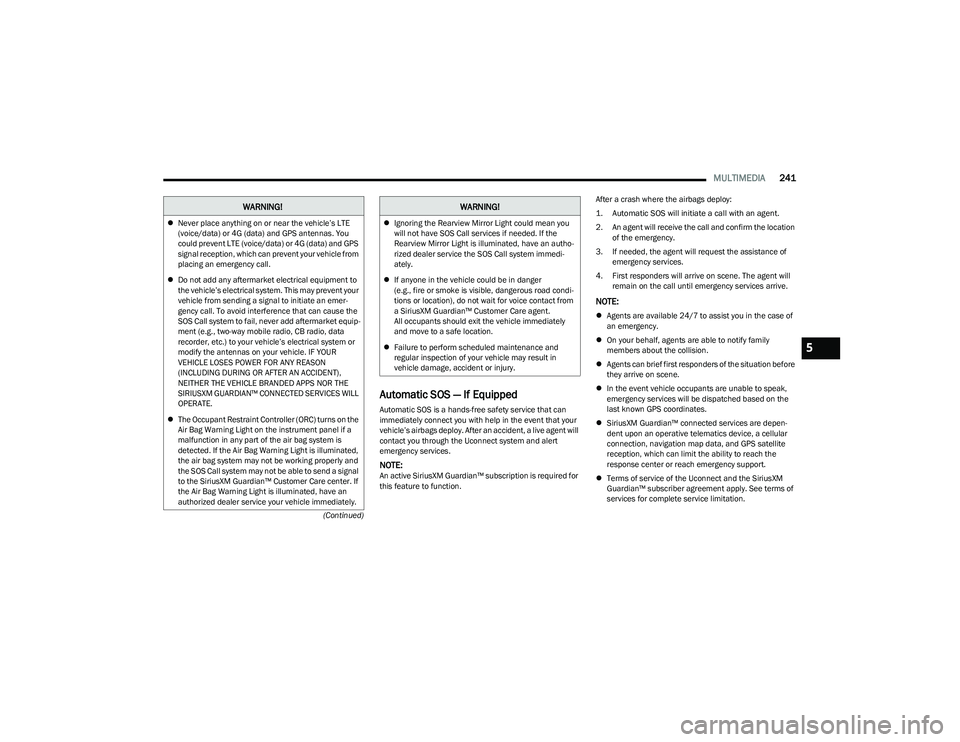
Automatic SOS — If Equipped
Automatic SOS is a hands-free safety service that can
immediately connect you with help in the event that your
vehicle’s airbags deploy. After an accident, a live agent will
contact you through the Uconnect system and alert
emergency services.
NOTE:An active SiriusXM Guardian™ subscription is required for
this feature to function. After a crash where the airbags deploy:
1. Automatic SOS will initiate a call with an agent.
2. An agent will receive the call and confirm the location
of the emergency.
3. If needed, the agent will request the assistance of emergency services.
4. First responders will arrive on scene. The agent will remain on the call until emergency services arrive.
NOTE:
Agents are available 24/7 to assist you in the case of
an emergency.
On your behalf, agents are able to notify family
members about the collision.
Agents can brief first responders of the situation before
they arrive on scene.
In the event vehicle occupants are unable to speak,
emergency services will be dispatched based on the
last known GPS coordinates.
SiriusXM Guardian™ connected services are depen -
dent upon an operative telematics device, a cellular
connection, navigation map data, and GPS satellite
reception, which can limit the ability to reach the
response center or reach emergency support.
Terms of service of the Uconnect and the SiriusXM
Guardian™ subscriber agreement apply. See terms of
services for complete service limitation.
WARNING!
Never place anything on or near the vehicle’s LTE
(voice/data) or 4G (data) and GPS antennas. You
could prevent LTE (voice/data) or 4G (data) and GPS
signal reception, which can prevent your vehicle from
placing an emergency call.
Do not add any aftermarket electrical equipment to
the vehicle’s electrical system. This may prevent your
vehicle from sending a signal to initiate an emer -
gency call. To avoid interference that can cause the
SOS Call system to fail, never add aftermarket equip -
ment (e.g., two-way mobile radio, CB radio, data
recorder, etc.) to your vehicle’s electrical system or
modify the antennas on your vehicle. IF YOUR
VEHICLE LOSES POWER FOR ANY REASON
(INCLUDING DURING OR AFTER AN ACCIDENT),
NEITHER THE VEHICLE BRANDED APPS NOR THE
SIRIUSXM GUARDIAN™ CONNECTED SERVICES WILL
OPERATE.
The Occupant Restraint Controller (ORC) turns on the
Air Bag Warning Light on the instrument panel if a
malfunction in any part of the air bag system is
detected. If the Air Bag Warning Light is illuminated,
the air bag system may not be working properly and
the SOS Call system may not be able to send a signal
to the SiriusXM Guardian™ Customer Care center. If
the Air Bag Warning Light is illuminated, have an
authorized dealer service your vehicle immediately.Ignoring the Rearview Mirror Light could mean you
will not have SOS Call services if needed. If the
Rearview Mirror Light is illuminated, have an autho -
rized dealer service the SOS Call system immedi -
ately.
If anyone in the vehicle could be in danger
(e.g., fire or smoke is visible, dangerous road condi-
tions or location), do not wait for voice contact from
a SiriusXM Guardian™ Customer Care agent.
All occupants should exit the vehicle immediately
and move to a safe location.
Failure to perform scheduled maintenance and
regular inspection of your vehicle may result in
vehicle damage, accident or injury.
WARNING!
5
23_DT_OM_EN_USC_t.book Page 241
Page 273 of 416
SAFETY271
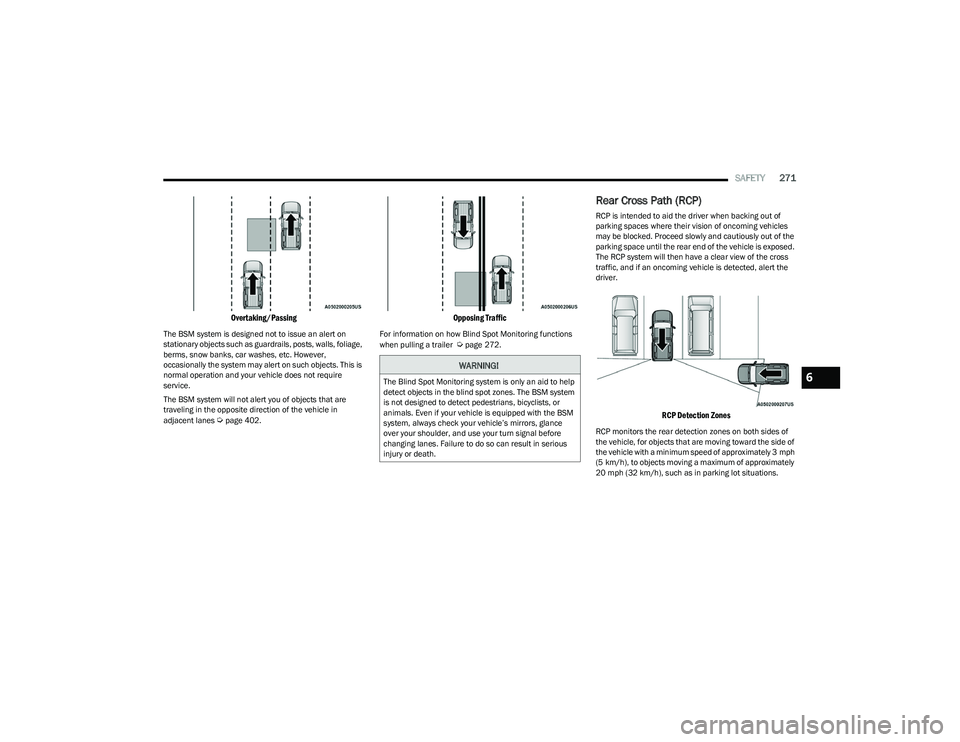
Overtaking/Passing
The BSM system is designed not to issue an alert on
stationary objects such as guardrails, posts, walls, foliage,
berms, snow banks, car washes, etc. However,
occasionally the system may alert on such objects. This is
normal operation and your vehicle does not require
service.
The BSM system will not alert you of objects that are
traveling in the opposite direction of the vehicle in
adjacent lanes
Úpage 402.
Opposing Traffic
For information on how Blind Spot Monitoring functions
when pulling a trailer Úpage 272.
Rear Cross Path (RCP)
RCP is intended to aid the driver when backing out of
parking spaces where their vision of oncoming vehicles
may be blocked. Proceed slowly and cautiously out of the
parking space until the rear end of the vehicle is exposed.
The RCP system will then have a clear view of the cross
traffic, and if an oncoming vehicle is detected, alert the
driver.
RCP Detection Zones
RCP monitors the rear detection zones on both sides of
the vehicle, for objects that are moving toward the side of
the vehicle with a minimum speed of approximately 3 mph
(5 km/h), to objects moving a maximum of approximately
20 mph (32 km/h), such as in parking lot situations.
WARNING!
The Blind Spot Monitoring system is only an aid to help
detect objects in the blind spot zones. The BSM system
is not designed to detect pedestrians, bicyclists, or
animals. Even if your vehicle is equipped with the BSM
system, always check your vehicle’s mirrors, glance
over your shoulder, and use your turn signal before
changing lanes. Failure to do so can result in serious
injury or death.6
23_DT_OM_EN_USC_t.book Page 271