suspension Ram 3500 2019 Owner's Guide
[x] Cancel search | Manufacturer: RAM, Model Year: 2019, Model line: 3500, Model: Ram 3500 2019Pages: 696, PDF Size: 13.89 MB
Page 548 of 696

546 SERVICING AND MAINTENANCE
(Continued)
NOTE:
Wheel Valve Stem must be replaced as well when installing
new tires due to wear and tear in existing tires.
Keep dismounted tires in a cool, dry place with as little expo-
sure to light as possible. Protect tires from contact with oil,
grease, and gasoline.
Replacement Tires
The tires on your new vehicle provide a balance of many
characteristics. They should be inspected regularly for wear
and correct cold tire inflation pressures. The manufacturer
strongly recommends that you use tires equivalent to the
originals in size, quality and performance when replacement
is needed. Refer to the paragraph on “Tread Wear Indica -
tors” in this section. Refer to the Tire and Loading Informa -
tion placard or the Vehicle Certification Label for the size
designation of your tire. The Load Index and Speed Symbol
for your tire will be found on the original equipment tire
sidewall.
See the Tire Sizing Chart example found in the “Tire Safety
Information” section of this manual for more information
relating to the Load Index and Speed Symbol of a tire. It is recommended to replace the two front tires or two rear
tires as a pair. Replacing just one tire can seriously affect
your vehicle’s handling. If you ever replace a wheel, make
sure that the wheel’s specifications match those of the orig
-
inal wheels.
It is recommended you contact an authorized tire dealer or
original equipment dealer with any questions you may have
on tire specifications or capability. Failure to use equivalent
replacement tires may adversely affect the safety, handling,
and ride of your vehicle.
WARNING!
• Do not use a tire, wheel size, load rating, or speed rating other than that specified for your vehicle. Some combi -
nations of unapproved tires and wheels may change
suspension dimensions and performance characteris -
tics, resulting in changes to steering, handling, and
braking of your vehicle. This can cause unpredictable
handling and stress to steering and suspension compo -
nents. You could lose control and have a collision
resulting in serious injury or death. Use only the tire
and wheel sizes with load ratings approved for your
vehicle.
Page 555 of 696

SERVICING AND MAINTENANCE 553
Tire Rotation Recommendations
Tires on the front and rear axles of vehicles operate at
different loads and perform different steering, driving, and
braking functions. For these reasons, they wear at unequal
rates.
These effects can be reduced by timely rotation of tires. The
benefits of rotation are especially worthwhile with aggres-
sive tread designs such as those on all season type tires. Rota -
tion will increase tread life, help to maintain mud, snow and
wet traction levels and contribute to a smooth, quiet ride.
Refer to the “Maintenance Plan” for the proper maintenance
intervals. More frequent rotation is permissible if desired.
The reasons for any rapid or unusual wear should be
corrected prior to rotation being performed.
CAUTION!
To avoid damage to your vehicle or tires, observe the
following precautions:
• Because of restricted traction device clearance between tires and other suspension components, it is important
that only traction devices in good condition are used.
Broken devices can cause serious damage. Stop the
vehicle immediately if noise occurs that could indicate
device breakage. Remove the damaged parts of the
device before further use.
• Install device as tightly as possible and then retighten after driving about ½ mile (0.8 km).
• Do not exceed 30 mph (48 km/h).
• Drive cautiously and avoid severe turns and large bumps, especially with a loaded vehicle.
• Do not drive for a prolonged period on dry pavement.
• Observe the traction device manufacturer’s instruc -
tions on the method of installation, operating speed,
and conditions for use. Always use the suggested oper -
ating speed of the device manufacturer’s if it is less
than 30 mph (48 km/h).
• Do not use traction devices on a compact spare tire.
7
Page 580 of 696
578 MULTIMEDIA
UCONNECT SETTINGS
The Uconnect system uses a combination of buttons on the
touchscreen and buttons on the faceplate located on the
center of the instrument panel that allows you to access and
change the customer programmable features. Many features
can vary by vehicle.
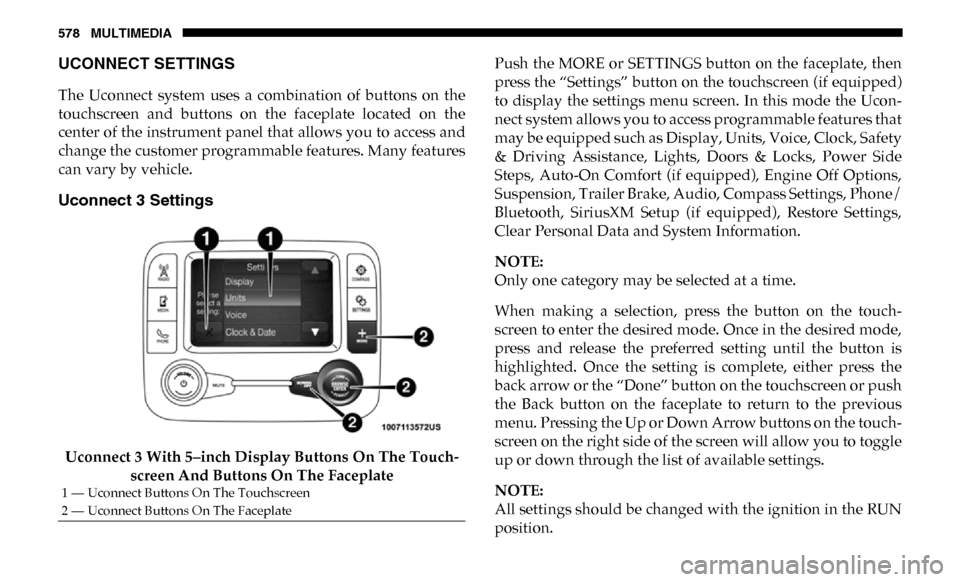
Uconnect 3 Settings
Uconnect 3 With 5–inch Display Buttons On The Touch-
screen And Buttons On The Faceplate Push the MORE or SETTINGS button on the faceplate, then
press the “Settings” button on the touchscreen (if equipped)
to display the settings menu screen. In this mode the Ucon
-
nect system allows you to access programmable features that
may be equipped such as Display, Units, Voice, Clock, Safety
& Driving Assistance, Lights, Doors & Locks, Power Side
Steps, Auto-On Comfort (if equipped), Engine Off Options,
Suspension, Trailer Brake, Audio, Compass Settings, Phone/
Bluetooth, SiriusXM Setup (if equipped), Restore Settings,
Clear Personal Data and System Information.
NOTE:
Only one category may be selected at a time.
When making a selection, press the button on the touch -
screen to enter the desired mode. Once in the desired mode,
press and release the preferred setting until the button is
highlighted. Once the setting is complete, either press the
back arrow or the “Done” button on the touchscreen or push
the Back button on the faceplate to return to the previous
menu. Pressing the Up or Down Arrow buttons on the touch -
screen on the right side of the screen will allow you to toggle
up or down through the list of available settings.
NOTE:
All settings should be changed with the ignition in the RUN
position.
1 — Uconnect Buttons On The Touchscreen
2 — Uconnect Buttons On The Faceplate
Page 591 of 696

MULTIMEDIA 589
Suspension — If Equipped
After pressing the “Suspension” button on the touchscreen, the following settings will be available:Setting Name
Selectable Options
Auto Entry/Exit — If Equipped OnOff
Setting Name Selectable Options
Auto Entry/Exit Suspension OnOff
NOTE:
When the “Auto Entry/Exit Suspension” feature is selected, the vehicle automatically lowers from ride height position when
vehicle shifted to park for easy entry/exit. Display Suspension Messages AllWarning Only
Tire Jack Mode OnOff
NOTE:
When this feature is selected the air suspension system is disabled to prevent auto leveling of the suspension, while the
vehicle is on a jack changing a tire. Transport Mode OnOff
NOTE:
When the “Transport Mode” feature is selected, the air suspension system is disabled to assist with flat bed towing. Wheel Alignment Mode OnOff
NOTE:
The “Wheel Alignment Mode” feature prevents auto leveling of the air suspension while performing a wheel alignment service.
Before performing a wheel alignment, this mode must be enabled. Refer to an authorized dealer for further information.
9
Page 599 of 696
MULTIMEDIA 597
Uconnect 4/4C/4C NAV Settings
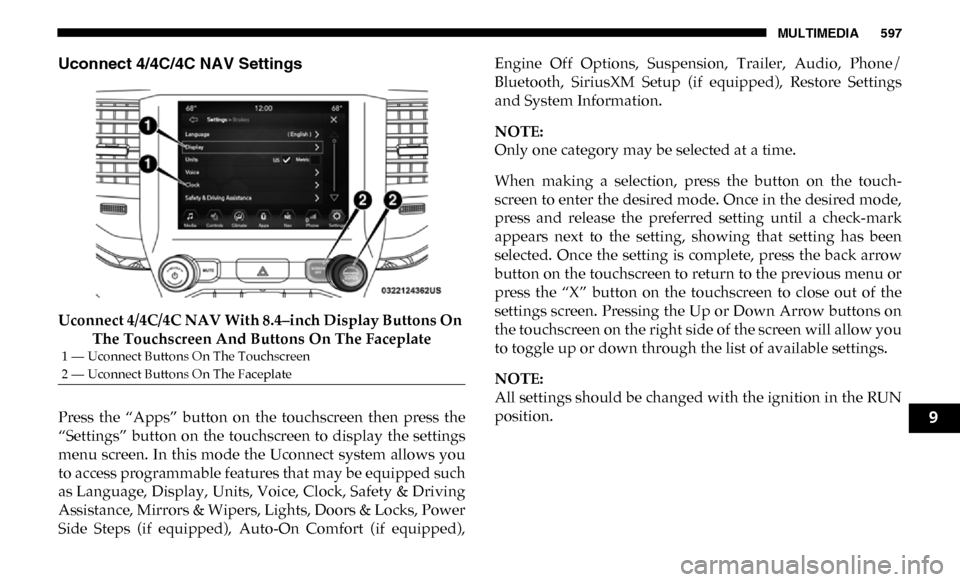
Uconnect 4/4C/4C NAV With 8.4–inch Display Buttons On The Touchscreen And Buttons On The Faceplate
Press the “Apps” button on the touchscreen then press the
“Settings” button on the touchscreen to display the settings
menu screen. In this mode the Uconnect system allows you
to access programmable features that may be equipped such
as Language, Display, Units, Voice, Clock, Safety & Driving
Assistance, Mirrors & Wipers, Lights, Doors & Locks, Power
Side Steps (if equipped), Auto-On Comfort (if equipped), Engine Off Options, Suspension, Trailer, Audio, Phone/
Bluetooth, SiriusXM Setup (if equipped), Restore Settings
and System Information.
NOTE:
Only one category may be selected at a time.
When making a selection, press the button on the touch
-
screen to enter the desired mode. Once in the desired mode,
press and release the preferred setting until a check-mark
appears next to the setting, showing that setting has been
selected. Once the setting is complete, press the back arrow
button on the touchscreen to return to the previous menu or
press the “X” button on the touchscreen to close out of the
settings screen. Pressing the Up or Down Arrow buttons on
the touchscreen on the right side of the screen will allow you
to toggle up or down through the list of available settings.
NOTE:
All settings should be changed with the ignition in the RUN
position.
1 — Uconnect Buttons On The Touchscreen
2 — Uconnect Buttons On The Faceplate
9
Page 617 of 696

MULTIMEDIA 615
Air Suspension — If Equipped
After pressing the “Suspension” button on the touchscreen, the following settings will be available:Setting Name Selectable Options
Display Suspension Messages All
Warnings Only
Tire Jack Mode On Off
NOTE:
When the “Tire Jack Mode” feature is selected, the air suspension system is disabled to assist with changing a spare tire. Transport Mode On Off
NOTE:
When the “Transport Mode” feature is selected, the air suspension system lowers and then disables to assist with flat bed
towing. Wheel Alignment Mode On Off
NOTE:
Before performing a wheel alignment, the “Wheel Alignment Mode” must be enabled. Refer to an authorized dealer for
further information. Four Corner Air Suspension Modes — If Equipped Tire Jack Mode
Transport Mode Wheel Alignment Mode
NOTE:
There are four air suspension modes designed to protect the system in unique situations. Tire Jack Mode is selected to assist
in changing a spare tire. Transport Mode is selected to assist when the vehicle is being flat bed towed. Wheel Alignment
Mode is selected before performing a wheel alignment, refer to an authorized dealer for information.
9
Page 623 of 696
MULTIMEDIA 621
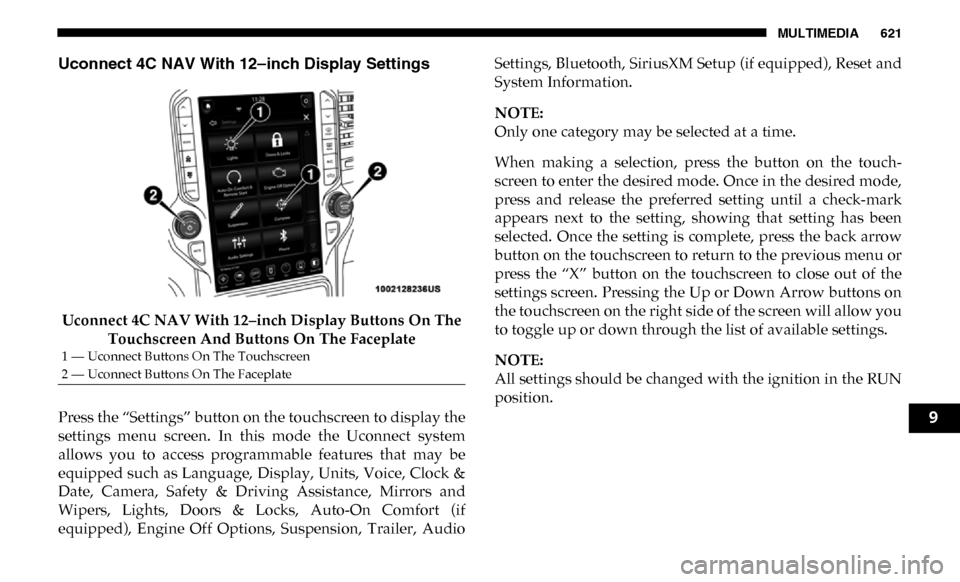
Uconnect 4C NAV With 12–inch Display Settings
Uconnect 4C NAV With 12–inch Display Buttons On The Touchscreen And Buttons On The Faceplate
Press the “Settings” button on the touchscreen to display the
settings menu screen. In this mode the Uconnect system
allows you to access programmable features that may be
equipped such as Language, Display, Units, Voice, Clock &
Date, Camera, Safety & Driving Assistance, Mirrors and
Wipers, Lights, Doors & Locks, Auto-On Comfort (if
equipped), Engine Off Options, Suspension, Trailer, Audio Settings, Bluetooth, SiriusXM Setup (if equipped), Reset and
System Information.
NOTE:
Only one category may be selected at a time.
When making a selection, press the button on the touch
-
screen to enter the desired mode. Once in the desired mode,
press and release the preferred setting until a check-mark
appears next to the setting, showing that setting has been
selected. Once the setting is complete, press the back arrow
button on the touchscreen to return to the previous menu or
press the “X” button on the touchscreen to close out of the
settings screen. Pressing the Up or Down Arrow buttons on
the touchscreen on the right side of the screen will allow you
to toggle up or down through the list of available settings.
NOTE:
All settings should be changed with the ignition in the RUN
position.
1 — Uconnect Buttons On The Touchscreen
2 — Uconnect Buttons On The Faceplate
9
Page 637 of 696

MULTIMEDIA 635
Suspension — If Equipped
After pressing the “Suspension” button on the touchscreen, the following settings will be available:Setting Name Selectable Options
Display Suspension Messages All
Warning Only
Tire Jack Mode On Off
NOTE:
When the “Tire Jack Mode” feature is selected, the air suspension system is disabled to assist with changing a spare tire. Transport Mode On Off
NOTE:
When the “Transport Mode” feature is selected, the air suspension system lowers and then disables to assist with flat bed
towing. Wheel Alignment Mode On Off
NOTE:
Before performing a wheel alignment, the “Wheel Alignment Mode” must be enabled. Refer to an authorized dealer for
further information. Four Corner Air Suspension Modes — If Equipped Tire Jack Mode
Transport Mode Wheel Alignment Mode
NOTE:
There are four air suspension modes designed to protect the system in unique situations. Tire Jack Mode is selected to assist
in changing a spare tire. Transport Mode is selected to assist when the vehicle is being flat bed towed. Wheel Alignment
Mode is selected before performing a wheel alignment, refer to an authorized dealer for information.
9