instrument panel Ram 3500 Chassis Cab 2017 Owner's Manual
[x] Cancel search | Manufacturer: RAM, Model Year: 2017, Model line: 3500 Chassis Cab, Model: Ram 3500 Chassis Cab 2017Pages: 542, PDF Size: 5.09 MB
Page 245 of 542

Display
After pressing the “Display” button on the touchscreen, the following settings will be available:
Setting NameSelectable Options
Display Mode AutoManual
Set Language English, Français, Español
NOTE:
If Arabic is selected as the vehicle language, the voice recognition and text messaging features will not function. Touchscreen Beep OnOff
Units
After pressing the “Units” button on the touchscreen, you may select each unit of measure independently displayed in the
Instrument Cluster Display, and navigation system (if equipped). The following selectable units of measure are listed below:
Setting Name Selectable Options
Speed MPH km/h
Distance mi km
Fuel Consumption MPG (US)MPG (UK) L/100 km km/L
Capacity gal (US)gal (UK)L/100 km L
Pressure psikpabar
Temperature °C °F
Power HP (US) HP (UK) kW
Torque lb-ft Nm
4
UNDERSTANDING YOUR INSTRUMENT PANEL 243
Page 246 of 542

Voice
After pressing the “Voice” button on the touchscreen, the following settings will be available:
Setting NameSelectable Options
Voice Response Length Brief Detailed
Show Command List AlwaysWith Help Never
Clock & Date
After pressing the “Clock & Date” button on the touchscreen, the following settings will be available:
Setting Name Selectable Options
Set Time 12 hour24 hour
NOTE:
Within the “Set Time” feature, press the corresponding arrow above and below the current time to adjust, then select
“AM” or “PM.” Set Date Up ArrowDown Arrow
244 UNDERSTANDING YOUR INSTRUMENT PANEL
Page 247 of 542

Safety/Assistance
After pressing the “Safety/Assistance” button on the touchscreen, the following settings will be available:
Setting NameSelectable Options
ParkSense — If Equipped Sound Only Sounds and Display
NOTE:
The ParkSense system will scan for objects behind the vehicle when the transmission gear selector is in REVERSE and
the vehicle speed is less than 7 mph (11 km/h). It will provide an alert (audible and/or visual) to indicate the prox-
imity to other objects. Front ParkSense Chime Volume Low
Med High
Rear ParkSense Chime
Volume — If Equipped Low Med High
Tilt Mirrors In Reverse — If Equipped
NOTE:
When the “Tilt Mirrors In Reverse” feature is selected, the exterior side-view mirrors will tilt downward when the
ignition is in the RUN position and the transmission gear selector is in the REVERSE position. The mirrors will move
back to their previous position when the transmission is shifted out of REVERSE.
4
UNDERSTANDING YOUR INSTRUMENT PANEL 245
Page 248 of 542

ParkView Backup CameraActive Guidelines
NOTE:
Your vehicle may be equipped with the ParkView Rear Back Up Camera Active Guidelines that allows you to see ac-
tive guidelines over the ParkView Back up camera display whenever the gear selector is put into REVERSE. The im-
age will be displayed on the radio touchscreen display along with a caution note to “check entire surroundings”
across the top of the screen. After five seconds, this note will disappear.
ParkView Backup Camera Delay
NOTE:
When the vehicle is shifted out of REVERSE (with camera delay turned OFF), the rear camera mode is exited and the
navigation or audio screen appears again. When the vehicle is shifted out of REVERSE (with camera delay turned
ON), the rear view image with dynamic grid lines will be displayed for up to ten seconds after shifting out of RE-
VERSE unless the forward vehicle speed exceeds 8 mph (12 km/h), the transmission is shifted into PARK or the igni-
tion is switched to the OFF position.
246 UNDERSTANDING YOUR INSTRUMENT PANEL
Page 249 of 542

Rain Sensing Auto Wipers— If Equipped
NOTE:
When the “Rain Sensing Auto Wipers” feature is selected, the system will automatically activate the windshield wip-
ers if it senses moisture on the windshield.
Hill Start Assist — If Equipped
NOTE:
When the “Hill Start Assist” feature is selected, the Hill Start Assist (HSA) system becomes active.
Lights
After pressing the “Lights” button on the touchscreen, the following settings will be available:
Setting Name Selectable Options
Headlight Off Delay 030609 0
Headlight Illumina- tion On Approach 03
0609 0
NOTE:
When the “Headlight Illumination On Approach” feature is selected, it allows the adjustment of the amount of time
the headlights remain on when the doors are unlocked with the key fob.
4
UNDERSTANDING YOUR INSTRUMENT PANEL 247
Page 250 of 542

Setting NameSelectable Options
Headlights With Wipers — IfEquipped On
Off
Auto Dim High Beams — IfEquipped On
Off
Flash Lights With Lock On
Off
NOTE:
When the “Flash Lights With Lock” feature is selected, the exterior lights will flash when the doors are locked or un-
locked with the key fob. This feature may be selected with or without the sound horn on lock feature selected.
Doors & Locks
After pressing the “Doors & Locks” button on the touchscreen, the following settings will be available:
Setting Name Selectable Options
Auto Door Locks On Off
NOTE:
When the “Auto Door Locks” feature is selected, all doors will lock automatically when the vehicle reaches a speed of
15 mph (24 km/h).
248 UNDERSTANDING YOUR INSTRUMENT PANEL
Page 251 of 542

Setting NameSelectable Options
Auto Unlock On Exit On Off
NOTE:
When the “Auto Unlock On Exit” feature is selected, all doors will unlock when the vehicle is stopped, the transmis-
sion is in the PARK or NEUTRAL position and the driver’s door is opened. Sound Horn With Lock Off1st Press 2nd Press
Remote Door Unlock All Driver
NOTE:
The “Remote Door Unlock” feature will allow you to program your remote door locks to open “All doors” or only
the “Driver door” with the first push of the key fob or grabbing the Passive Entry door handle. Sound Horn With Remote Start On
Off
NOTE:
When the “Sound Horn With Remote Start” feature is selected, the horn will sound when the remote start is activated.
Memory Linked To Fob — If Equipped On Off
NOTE:
•The “Memory Linked To Fob” feature provides automatic driver seat positioning to enhance driver mobility when
entering and exiting the vehicle.
•The seat will return to the memorized seat location if “Memory Linked To Fob” is set to (On) when the key fob is
used to unlock the door.
4
UNDERSTANDING YOUR INSTRUMENT PANEL 249
Page 252 of 542

Setting NameSelectable Options
Passive Entry — If Equipped On
Off
NOTE:
The “Passive Entry” feature allows you to lock and unlock the vehicle’s door(s) without having to push the key fob
lock or unlock buttons. It automatically unlocks the doors when the outside door handle is grabbed. Flash Lights With Lock On Off
NOTE:
When the “Flash Lights With Lock” feature is selected, the exterior lights will flash when the doors are locked or un-
locked with the key fob. This feature may be selected with or without the “Sound Horn With Lock” feature selected.
Auto Comfort Systems — If Equipped
After pressing the “Auto-On Comfort” button on the touchscreen, the following settings will be available:
Setting Name Selectable Options
Auto-On Driver Heated/Ventilated
Seat & Steering Wheel With Vehicle Start — If Equipped On
Off
NOTE:
When the “Auto-On Driver Heated/Ventilated Seat & Steering Wheel With Vehicle Start” feature is selected the driv-
er’s heated seat and heated steering wheel will automatically turn on when temperatures are below 40° F (4.4° C).
When temperatures are above 80° F (26.7° C) the driver vented seat will turn on.
250 UNDERSTANDING YOUR INSTRUMENT PANEL
Page 253 of 542
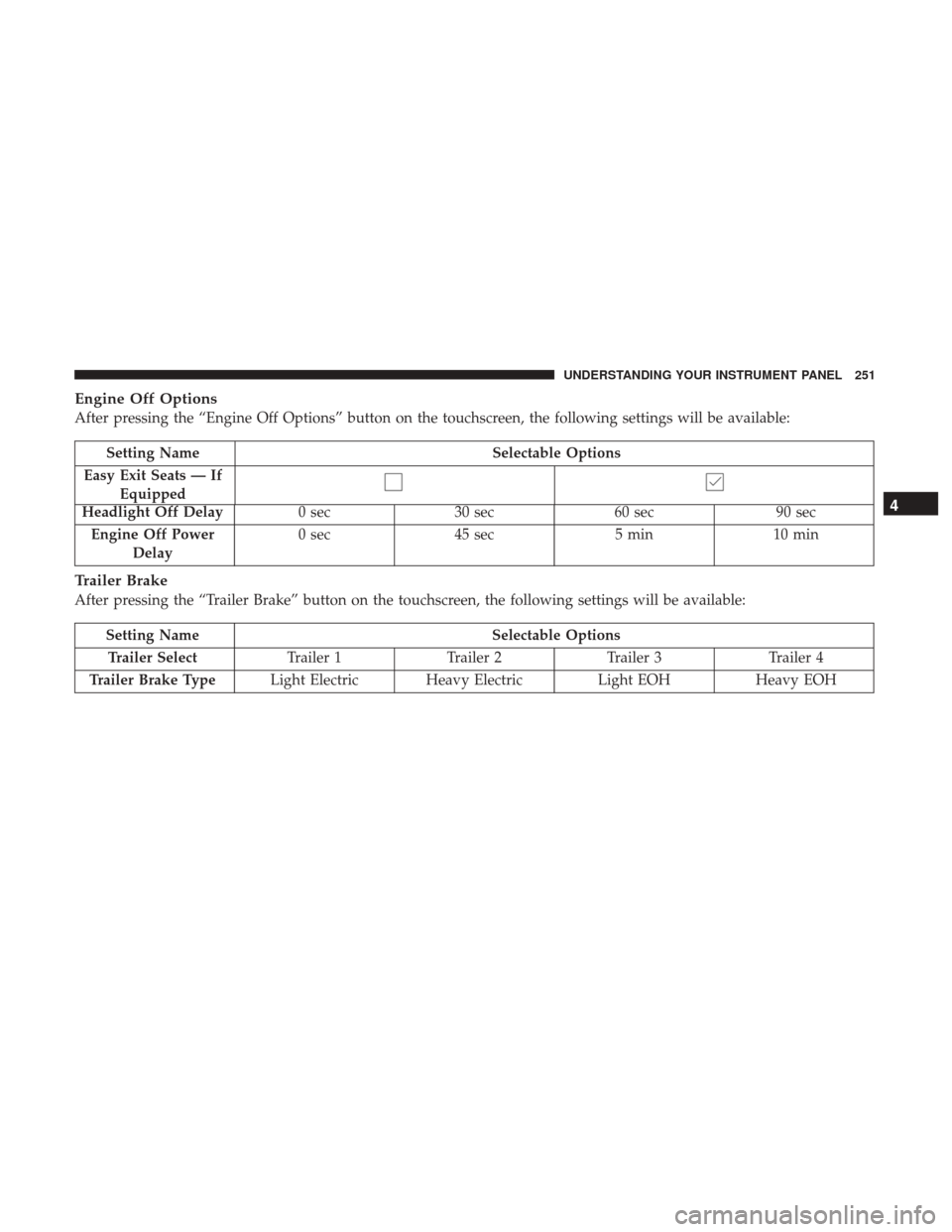
Engine Off Options
After pressing the “Engine Off Options” button on the touchscreen, the following settings will be available:
Setting NameSelectable Options
Easy Exit Seats — If Equipped
Headlight Off Delay 0 sec30 sec 60 sec 90 sec
Engine Off Power Delay 0 sec
45 sec 5 min10 min
Trailer Brake
After pressing the “Trailer Brake” button on the touchscreen, the following settings will be available:
Setting Name Selectable Options
Trailer Select Trailer 1Trailer 2Trailer 3 Trailer 4
Trailer Brake Type Light Electric Heavy Electric Light EOHHeavy EOH
4
UNDERSTANDING YOUR INSTRUMENT PANEL 251
Page 254 of 542

Audio
After pressing the “Audio” button on the touchscreen, the following settings will be available:
Setting NameSelectable Options
Balance/Fade Speaker Icon (Arrow Buttons) C
NOTE:
The “Balance/Fade” feature allows you to adjust the Balance and Fade settings. Press and drag the speaker icon or
use the arrows to adjust, tap the “C” icon to readjust to the center. Equalizer +–
NOTE:
When in the “Equalizer” display you may adjust the Bass, Mid and Treble settings. Speed Adjusted Volume Off
12 3
NOTE:
The “Speed Adjusted Volume” feature increases or decreases volume relative to vehicle speed. Surround Sound — If Equipped On
Off
NOTE:
The “Surround Sound” feature provides simulated surround sound mode.
252 UNDERSTANDING YOUR INSTRUMENT PANEL