phone Ram 3500 Chassis Cab 2018 User Guide
[x] Cancel search | Manufacturer: RAM, Model Year: 2018, Model line: 3500 Chassis Cab, Model: Ram 3500 Chassis Cab 2018Pages: 527, PDF Size: 5.83 MB
Page 458 of 527
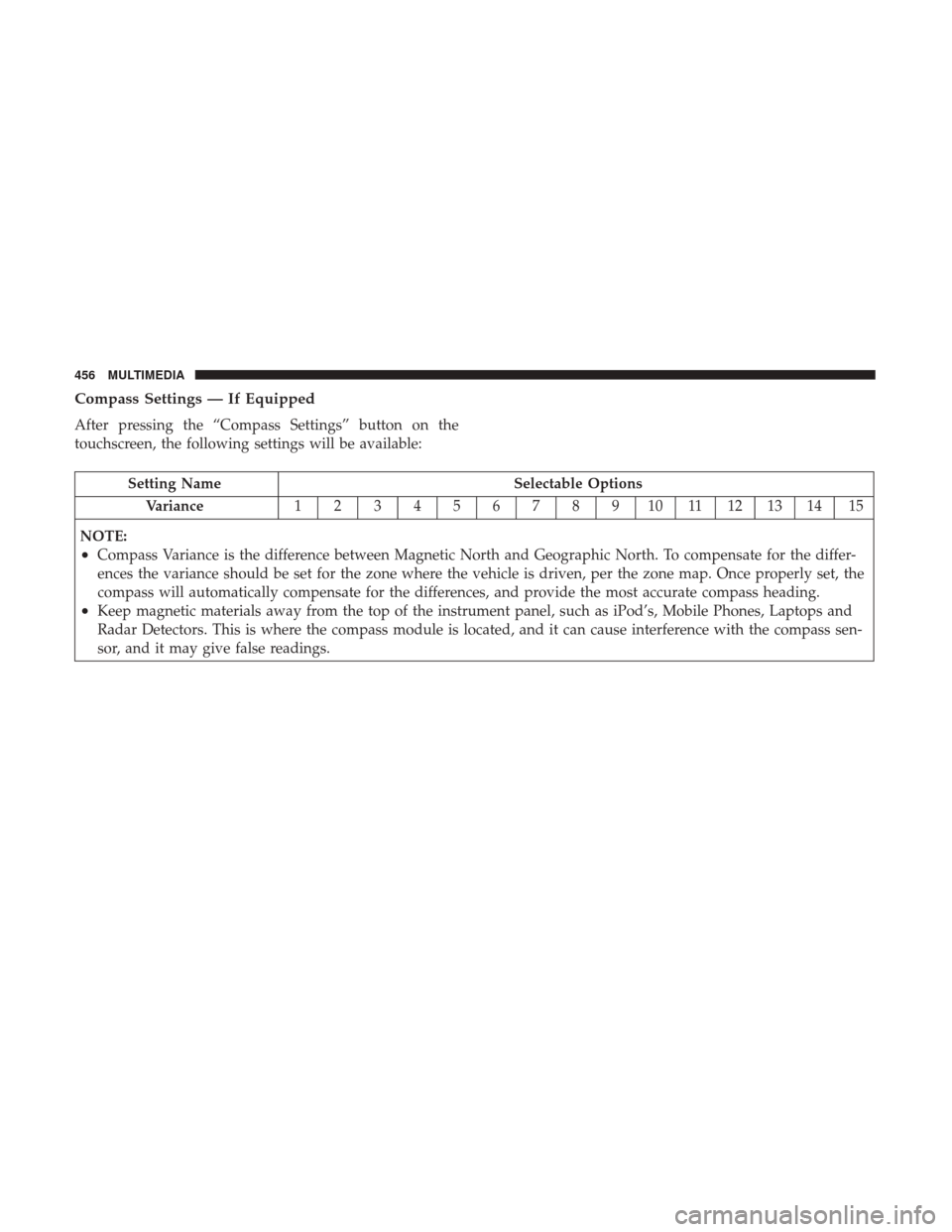
Compass Settings — If Equipped
After pressing the “Compass Settings” button on the
touchscreen, the following settings will be available:
Setting NameSelectable Options
Variance 123456789101112131415
NOTE:
•Compass Variance is the difference between Magnetic North and Geographic North. To compensate for the differ-
ences the variance should be set for the zone where the vehicle is driven, per the zone map. Once properly set, the
compass will automatically compensate for the differences, and provide the most accurate compass heading.
•Keep magnetic materials away from the top of the instrument panel, such as iPod’s, Mobile Phones, Laptops and
Radar Detectors. This is where the compass module is located, and it can cause interference with the compass sen-
sor, and it may give false readings.
456 MULTIMEDIA
Page 460 of 527

Phone/Bluetooth
After pressing the “Phone/Bluetooth” button on the touch-
screen, the following settings will be available:
Setting NameSelectable Options
Paired Phones List of Paired Phones
NOTE:
The “Paired Phones” feature shows which phones are paired to the Phone/Bluetooth system. For further information,
refer to the Uconnect Owner ’s Manual Supplement.
SiriusXM Setup — If Equipped
After pressing the “SiriusXM Setup” button on the touch-
screen, the following settings will be available:
Setting Name Selectable Options
Tune Start OnOff
Channel Skip List of Channels
NOTE:
SiriusXM can be programmed to exclude undesirable channels while scanning. To make your selection, press the
“Channel Skip” button on the touchscreen, select the channels you would like to skip.
458 MULTIMEDIA
Page 463 of 527
Customer Programmable Features — Uconnect
4C/4C NAV Personal Settings
Press the “Apps” button on the touchscreen then press the
“Settings” button on the touchscreen to display the settings
menu screen. In this mode the Uconnect system allows you
to access programmable features that may be equipped
such as Display, Voice, Clock, Safety & Driving Assistance,
Lights, Doors & Locks, Auto-On Comfort (if equipped),
Engine Off Options, Trailer Brake, Audio, Phone/
Bluetooth, SiriusXM Setup (if equipped), Restore Settings,
Clear Personal Data and System Information.
NOTE:Only one category may be selected at a time.
When making a selection, press the button on the touch-
screen to enter the desired mode. Once in the desired
mode, press and release the preferred setting until a check-mark appears next to the setting, showing that
setting has been selected. Once the setting is complete,
either press the back arrow button on the touchscreen or
the Back button on the faceplate to return to the previous
menu or press the “X” button on the touchscreen to close
out of the settings screen. Pressing the Up or Down Arrow
buttons on the touchscreen on the right side of the screen
will allow you to toggle up or down through the list of
available settings.
NOTE:
All settings should be changed with the ignition in
the RUN position.
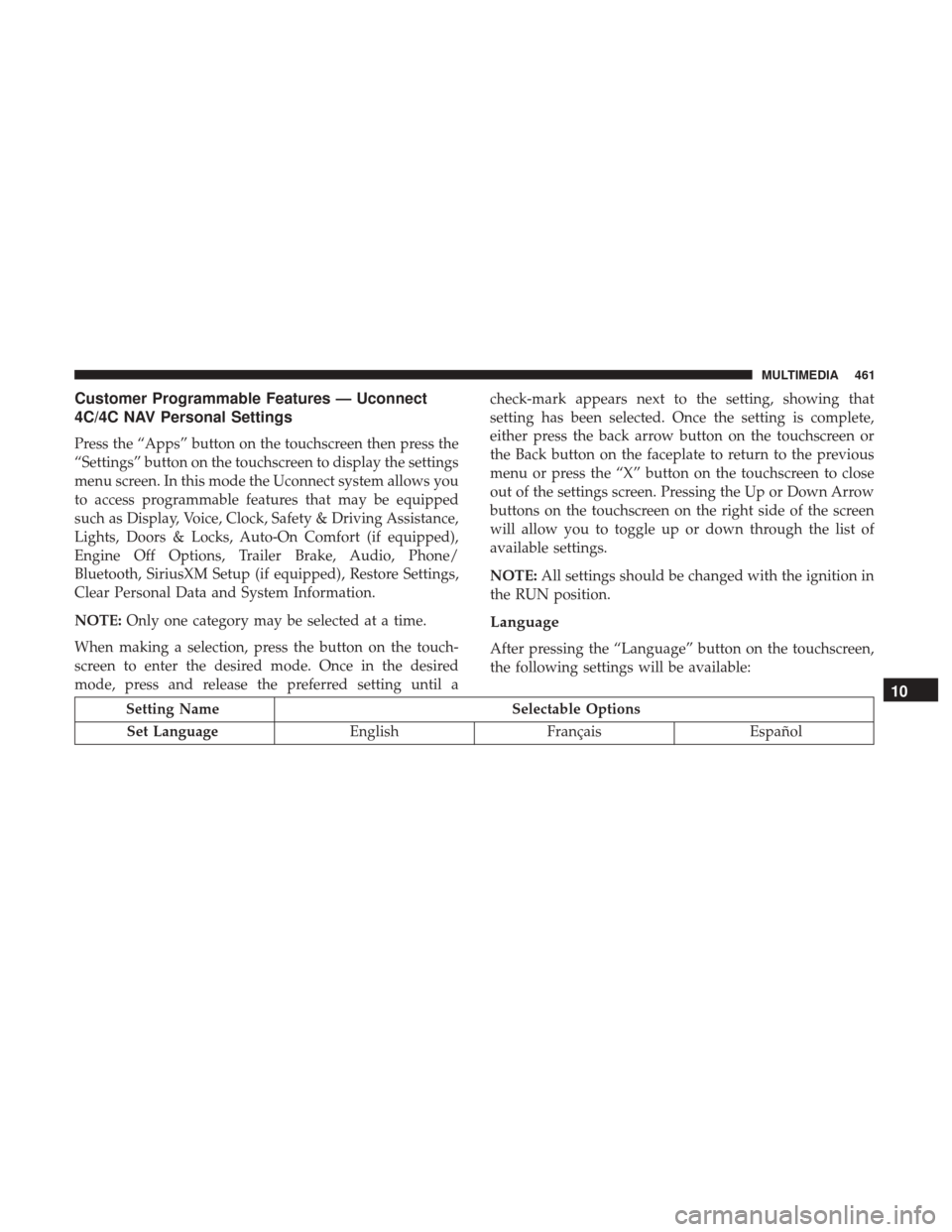
Language
After pressing the “Language” button on the touchscreen,
the following settings will be available:
Setting Name Selectable Options
Set Language EnglishFrançais Español
10
MULTIMEDIA 461
Page 475 of 527
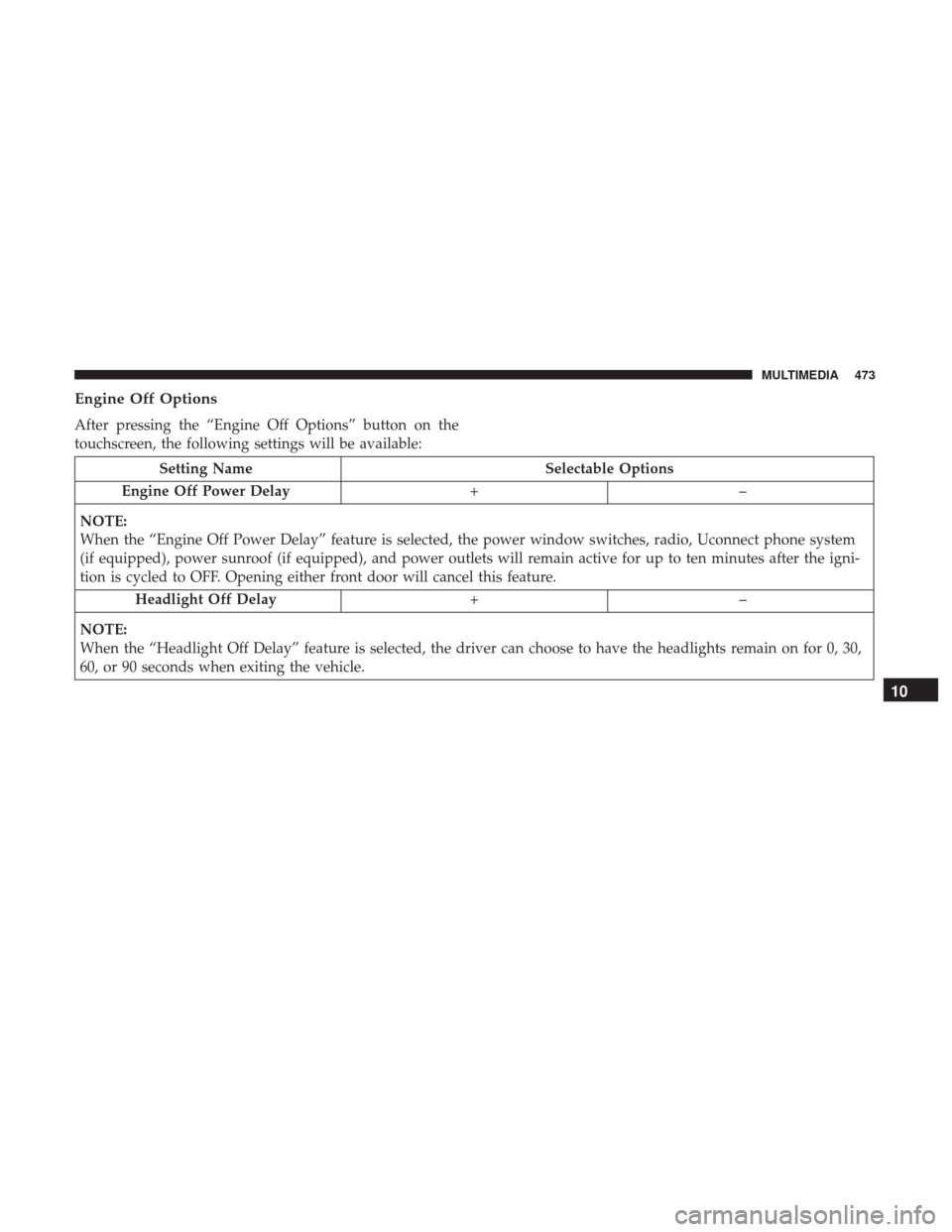
Engine Off Options
After pressing the “Engine Off Options” button on the
touchscreen, the following settings will be available:
Setting NameSelectable Options
Engine Off Power Delay +–
NOTE:
When the “Engine Off Power Delay” feature is selected, the power window switches, radio, Uconnect phone system
(if equipped), power sunroof (if equipped), and power outlets will remain active for up to ten minutes after the igni-
tion is cycled to OFF. Opening either front door will cancel this feature. Headlight Off Delay +–
NOTE:
When the “Headlight Off Delay” feature is selected, the driver can choose to have the headlights remain on for 0, 30,
60, or 90 seconds when exiting the vehicle.
10
MULTIMEDIA 473
Page 480 of 527
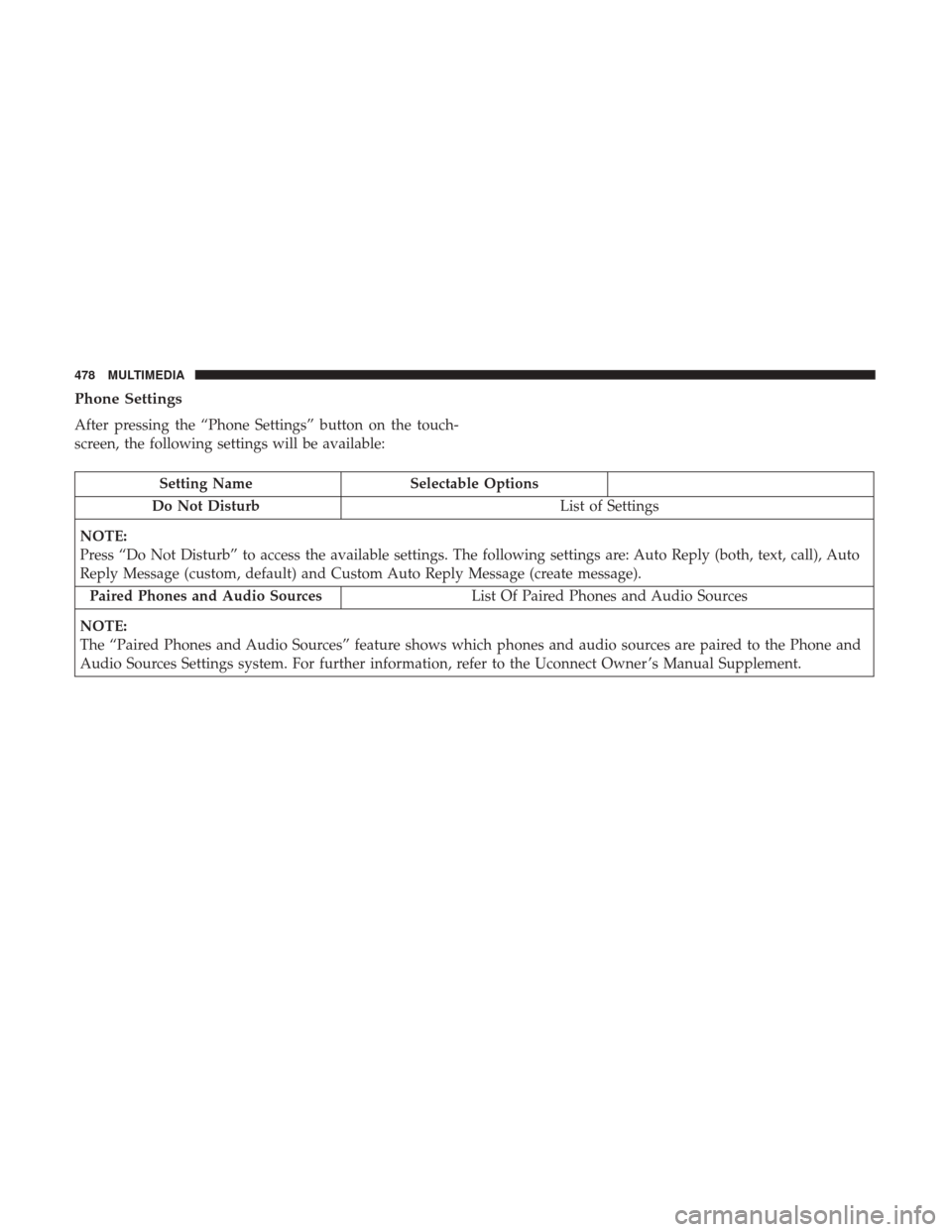
Phone Settings
After pressing the “Phone Settings” button on the touch-
screen, the following settings will be available:
Setting NameSelectable Options
Do Not Disturb List of Settings
NOTE:
Press “Do Not Disturb” to access the available settings. The following settings are: Auto Reply (both, text, call), Auto
Reply Message (custom, default) and Custom Auto Reply Message (create message). Paired Phones and Audio Sources List Of Paired Phones and Audio Sources
NOTE:
The “Paired Phones and Audio Sources” feature shows which phones and audio sources are paired to the Phone and
Audio Sources Settings system. For further information, refer to the Uconnect Owner ’s Manual Supplement.
478 MULTIMEDIA
Page 484 of 527
CD Player — If Equipped
Pushing the top of the switch once will go to the next track
on the CD. Pushing the bottom of the switch once will go
to the beginning of the current track or to the beginning of
the previous track if it is within eight seconds after the
current track begins to play.
If you push the switch up or down twice, it plays the
second track. If you push the switch up or down three
times, it will play the third, etc.
IPOD/USB/MP3 CONTROL — IF EQUIPPED
Located inside the center console upper lid, this feature
allows an iPod or external USB device to be plugged into
the USB port.
iPod control supports the following: iPod/iPod classic,
iPod mini, iPod nano, iPod shuffle, iPod touch, and iPhone
devices. Some iPod software versions may not fully sup-
port the iPod control features. Please visit Apple’s website
for software updates.For further information, refer to the Uconnect Owner ’s
Manual Supplement or visit UconnectPhone.com.Center Console USB/AUX Media Hub
1 — USB Port #1
2 — Aux Jack
3 — USB Port #2
482 MULTIMEDIA
Page 485 of 527

RADIO OPERATION AND MOBILE PHONES
Under certain conditions, the mobile phone being on in
your vehicle can cause erratic or noisy performance from
your radio. This condition may be lessened or eliminated
by relocating the mobile phone antenna. This condition is
not harmful to the radio. If your radio performance does
not satisfactorily “clear” by the repositioning of the an-
tenna, it is recommended that the radio volume be turned
down or off during mobile phone operation when not
using Uconnect (if equipped).
Regulatory And Safety Information
USA/CANADA
Exposure to Radio Frequency Radiation
The radiated output power of the internal wireless radio is
far below the FCC and IC radio frequency exposure limits.
Nevertheless, the wireless radio will be used in such a
manner that the radio is 20 cm or further from the human
body.
The internal wireless radio operates within guidelines
found in radio frequency safety standards and recommen-
dations, which reflect the consensus of the scientific com-
munity.The radio manufacturer believes the internal wireless radio
is safe for use by consumers. The level of energy emitted is
far less than the electromagnetic energy emitted by wire-
less devices such as mobile phones. However, the use of
wireless radios may be restricted in some situations or
environments, such as aboard airplanes. If you are unsure
of restrictions, you are encouraged to ask for authorization
before turning on the wireless radio.
The following regulatory statement applies to all Radio
Frequency (RF) devices equipped in this vehicle:
This device complies with Part 15 of the FCC Rules and
with Industry Canada license-exempt RSS standard(s).
Operation is subject to the following two conditions:
1. This device may not cause harmful interference, and
2. This device must accept any interference received, in-
cluding interference that may cause undesired opera-
tion.
NOTE: Changes or modifications not expressly approved
by the party responsible for compliance could void the
user ’s authority to operate the equipment.
10
MULTIMEDIA 483
Page 488 of 527

Get Started
All you need to control your Uconnect system with your
voice are the buttons on your steering wheel.
1. Visit UconnectPhone.com to check mobile device andfeature compatibility and to find phone pairing instruc-
tions.
2. Reduce background noise. Wind noise and passenger conversations are examples of noise that may impact
recognition.
3. Speak clearly at a normal pace and volume while facing straight ahead. The microphone is located in the head-
liner and aimed at the driver.
4. Each time you give a Voice Command, you must first push either the VR or Phone button, wait until afterthe
beep, then say your Voice Command.
5. You can interrupt the help message or system prompts by pushing the VR or Phone button and saying a Voice
Command from current category.
Uconnect Voice Command Buttons
1 — Push To Initiate Or To Answer A Phone Call, Send Or Receive
A Text
2 — For All Radios: Push To Begin Radio Or Media Functions. For
4C/4C NAV Only: Push To Begin Navigation, Apps And Climate
Functions
3 — Push To End Call
486 MULTIMEDIA
Page 494 of 527
Phone
Making and answering hands-free phone calls is easy with
Uconnect. When the Phonebook button is illuminated on
your touchscreen, your system is ready. Check
UconnectPhone.com for mobile phone compatibility and
pairing instructions.
Push the Phone button
. After the beep, say one of the
following commands:
• “Call John Smith”
• “Dial 123-456-7890 and follow the system prompts”
• “Redial (call previous outgoing phone number)”
• “Call back (call previous incoming phone number)”
Uconnect 4C/4C NAV
492 MULTIMEDIA
Page 495 of 527
TIP:When providing a Voice Command, push the Phone
button
and say “Call,”then pronounce the name
exactly as it appears in your phone book. When a
contact has multiple phone numbers, you can say “Call
John Smith work.”
Uconnect 3.0
Uconnect 3
10
MULTIMEDIA 493