horn RAM CHASSIS CAB 2023 User Guide
[x] Cancel search | Manufacturer: RAM, Model Year: 2023, Model line: CHASSIS CAB, Model: RAM CHASSIS CAB 2023Pages: 444, PDF Size: 20.51 MB
Page 252 of 444
250MULTIMEDIA
After a crash where the airbags deploy:
1. Automatic SOS will initiate a call with an agent.
2. An agent will receive the call and confirm the location of the emergency.
3. If needed, the agent will request the assistance of emergency services.
4. First responders will arrive on scene. The agent will remain on the call until emergency
services arrive.
NOTE:
Agents are available 24/7 to assist you in the
case of an emergency.
On your behalf, agents are able to notify family
members about the collision.
Agents can brief first responders of the situation
before they arrive on scene.
In the event vehicle occupants are unable to
speak, emergency services will be dispatched
based on the last known GPS coordinates.
SiriusXM Guardian™ connected services are
dependent upon an operative telematics
device, a cellular connection, navigation map
data, and GPS satellite reception, which can
limit the ability to reach the response center or
reach emergency support.
Terms of service of the Uconnect and the Siri -
usXM Guardian™ subscriber agreement apply.
See terms of services for complete service
limitation.
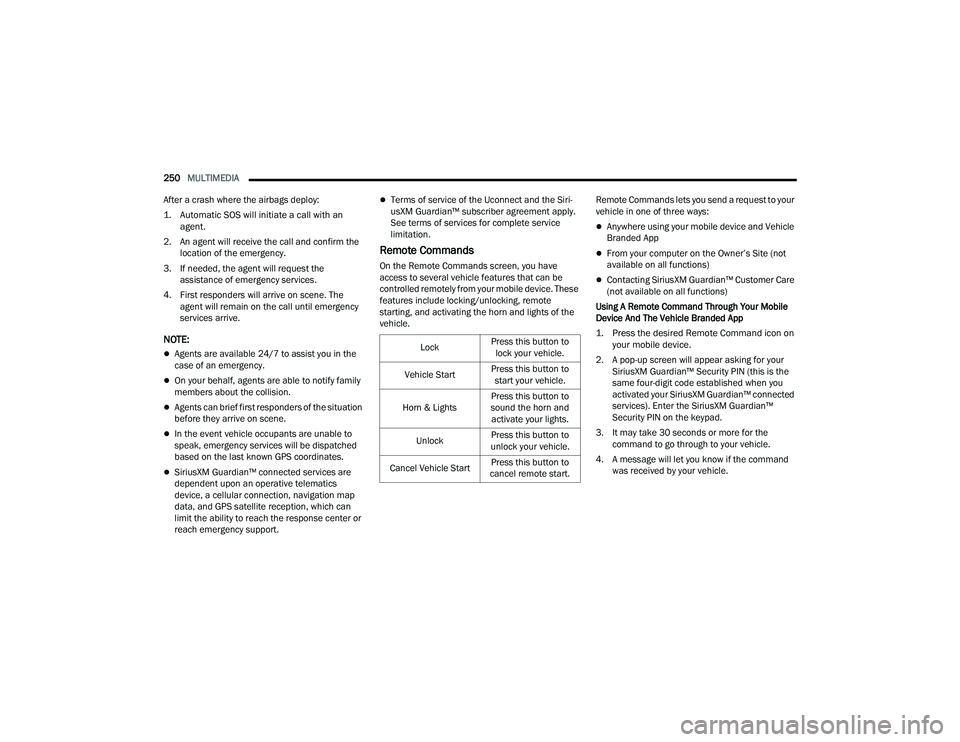
Remote Commands
On the Remote Commands screen, you have
access to several vehicle features that can be
controlled remotely from your mobile device. These
features include locking/unlocking, remote
starting, and activating the horn and lights of the
vehicle. Remote Commands lets you send a request to your
vehicle in one of three ways:
Anywhere using your mobile device and Vehicle
Branded App
From your computer on the Owner’s Site (not
available on all functions)
Contacting SiriusXM Guardian™ Customer Care
(not available on all functions)
Using A Remote Command Through Your Mobile
Device And The Vehicle Branded App
1. Press the desired Remote Command icon on your mobile device.
2. A pop-up screen will appear asking for your SiriusXM Guardian™ Security PIN (this is the
same four-digit code established when you
activated your SiriusXM Guardian™ connected
services). Enter the SiriusXM Guardian™
Security PIN on the keypad.
3. It may take 30 seconds or more for the command to go through to your vehicle.
4. A message will let you know if the command was received by your vehicle.
Lock
Press this button to
lock your vehicle.
Vehicle Start Press this button to
start your vehicle.
Horn & Lights Press this button to
sound the horn and activate your lights.
Unlock Press this button to
unlock your vehicle.
Cancel Vehicle Start Press this button to
cancel remote start.
23_DPF_OM_EN_USC_t.book Page 250
Page 253 of 444
MULTIMEDIA251
Using A Remote Command Through Your Owner’s
Site
1. Log on to your Owner’s Site using the username and password you used when
activating your SiriusXM Guardian™
connected services in your vehicle.
NOTE:If you forgot your username or password, links are
provided on the website to help you retrieve them.
2. If you have more than one vehicle registered into your Owner’s Site, select the vehicle you
want to send the command to by clicking on its
image along the top.
3. On your dashboard, you will see remote commands. Press the desired icon to activate
that feature.
4. You will then be asked to enter your SiriusXM Guardian™ Security PIN (this is the same
four-digit code established when you activated
your SiriusXM Guardian™ connected services).
Please enter your SiriusXM Guardian™
Security PIN.
5. A message will appear on the screen to let you know if the command was received by your
vehicle. Contacting SiriusXM Guardian™ Customer Care
(for example, in case of an accidental lock-out):
1. Contact SiriusXM Guardian™ Customer Care if you are unable to lock your vehicle through
the Vehicle Branded App or your key fob.
2. For security purposes, the SiriusXM Guardian™ Customer Care agent will verify
your identity by asking for your four-digit
SiriusXM Guardian™ Security PIN.
3. After providing your SiriusXM Guardian™ Security PIN, you can ask them to perform a
remote command.
NOTE:Anyone with access to your PIN may request
Remote Door Lock/Unlock. It is your responsibility
to protect your PIN appropriately.
Remote Door Lock/Unlock
Description
The Remote Door Lock/Unlock feature provides
you the ability to lock or unlock the door on your
vehicle without the keys and from virtually any
distance.
Working Vehicle Conditions
The vehicle must in PARK or at a standstill.
The vehicle must be in an open area with cell
tower reception.
Your mobile device must have a cellular or Wi-Fi
connection.
Requirements
Vehicle must be properly equipped with Siri -
usXM Guardian™.
Vehicle must have an operable LTE (voice/data)
or 4G (data) network connection. If using the
Vehicle Branded App to command your vehicle,
your device must be compatible and be
connected to an operable LTE (voice/data) or
4G (data) network connection.
Vehicle must be registered with SiriusXM
Guardian™ and have an active subscription that
includes the applicable feature.
An ignition cycle is required for some remote
commands, such as Remote Vehicle Start and
Remote Door Lock/Unlock if following a Remote
Horn & Lights activation.
Your Remote Door Lock/Unlock request will not
be processed if the vehicle is in motion, the igni -
tion key is on or during an emergency call.
NOTE:All other remote services should be performed via
your Owner’s Site or through the Vehicle Branded
App on your compatible device.
5
23_DPF_OM_EN_USC_t.book Page 251
Page 254 of 444
252MULTIMEDIA
Remote Vehicle Start
Description
The Remote Vehicle Start feature provides you with
the ability to start the engine on your vehicle
without the keys and from virtually any distance.
Once started, the preset climate controls in your
vehicle can warm up or cool down the interior.
You can also send a command to turn off an
engine that has been started using Remote Vehicle
Start. After 15 minutes, if you have not entered
your vehicle with the key, the engine will shut off
automatically.
This remote function requires your vehicle to be
equipped with a factory-installed Remote Start
system.
You can set up push notifications every time a
command is sent to activate or cancel Remote
Start.
Working Vehicle Conditions
The vehicle must be off or in ACC mode.
The vehicle has been started with the key fob
within the last 14 days.
The vehicle must be in PARK or at a standstill.
The vehicle’s security system has been armed
and not triggered since the last vehicle start.
The doors, hood, and trunk/liftgate are closed.
The vehicle’s check engine light must be off.
The vehicle must have at least a quarter tank of
fuel, along with oil and battery power.
The vehicle’s hazard lights must be off.
If equipped, the vehicle must have an automatic
transmission.
The vehicle must be in an open area with cell
tower reception.
Your mobile device must have a cellular or Wi-Fi
connection.
If the Panic button has been pressed, the
vehicle must be started at least once after
alarming the system.
NOTE:The SiriusXM Guardian™ Customer Care agents
are not authorized for Remote Vehicle Start
services. Contact the Uconnect Care Team for
assistance.
Remote Horn & Lights
Description
It is easy to locate a vehicle in a dark, crowded or
noisy parking area by activating the horn and
lights. It may also help if you need to draw attention
to your vehicle for any reason.
If you want, you can set up push notifications every
time a command is sent to turn on the horn and
lights. Working Vehicle Conditions
The vehicle must in PARK or at a standstill.
The vehicle must be in an open area with cell
tower reception.
Your mobile device must have a cellular or Wi-Fi
connection.
NOTE:The Remote Horn & Lights feature is designed to
be loud and get noticed. Please keep in mind the
surroundings when using this feature. You are
responsible for compliance with local laws, rules
and ordinances in the location of your vehicle
when using Remote Horn & Lights.
Assist — If Equipped
Description
Vehicles equipped with the SiriusXM Guardian™
connected services feature may contain an ASSIST
button in the vehicle. Once your SiriusXM
Guardian™ connected services have been
activated, the ASSIST button can connect you
directly to the Customer Care call center (if
equipped). You will be directed to one of the
following four services:
Roadside Assistance
— If you get a flat tire or
need a tow, you’ll be connected to someone
who can help anytime.
23_DPF_OM_EN_USC_t.book Page 252
Page 256 of 444
254MULTIMEDIA
Requirements
Vehicle must have an operable LTE (voice/data)
or 4G (data) network connection compatible
with your device.
Vehicle must have an active subscription that
includes the applicable feature.
Vehicle Finder
Description
The Vehicle Finder feature allows you to find the
location of your vehicle.
You can also sound the horn and flash the lights to
make finding your vehicle even easier.
How It Works
Select the Vehicle Finder function within the
Vehicle Branded App and select the Location tab at
the bottom of the App. Then, press the Vehicle icon
to find your vehicle.
Requirements
Vehicle must be properly equipped with the
Uconnect system.
Vehicle must have an operable LTE (voice/data)
or 4G (data) network connection compatible
with your device.
Vehicle must have an active subscription that
includes the applicable feature.
Vehicle ignition must have been turned on
within 14 days.
4G Wi-Fi Hotspot — If Equipped
Description
4G Wi-Fi Hotspot is an in-vehicle service that
connects your device to an LTE (voice/data) or 4G
(data) network that is ready to go wherever you are.
After you've made your purchase, turn on your
device’s Wi-Fi and connect your devices.
Enables all your passengers to be simultane -
ously connected to the web.
Connect several devices at one time.
Any Wi-Fi-enabled device — such as a laptop or
any other portable-enabled media — can
connect over your private in-vehicle network.
A high-speed, secured connection lets anyone
on your private network access the Web — great
for working and relaxing. Create A 4G Wi-Fi Hotspot For Use In Your Vehicle
How It Works
The 4G Wi-Fi Hotspot feature provides
the vehicle passengers with an internet
access hotspot in the vehicle, using the
radio as an access point. The hotspot will
allow Wi-Fi-enabled in-vehicle devices (such as a
laptop or any other portable-enabled media
device) to wirelessly connect to the internet.
Uconnect offers a complimentary 3-month trial
period that includes 1GB of total data. The trial can
be activated any time within the first year of new
vehicle ownership.
Use one of these three ways to purchase a
subscription to the 4G Wi-Fi Hotspot:
1. From your vehicle’s touchscreen, select the 4G Wi-Fi Hotspot App, and press the How To
Purchase button and follow the instructions.
2. Log onto your Owner’s Site and click the link to the AT&T portal to get set up.
3. For existing Connected Car customers: Push
the ASSIST button to be routed to an AT&T
Customer Care agent who will assist you.
WARNING!
The driver should NEVER use the 4G Wi-Fi
Hotspot while driving the vehicle as doing so
may result in an accident involving serious injury
or death.
23_DPF_OM_EN_USC_t.book Page 254
Page 262 of 444
260MULTIMEDIA
3. Can I select a different route than the most
recent one I sent to my vehicle? Yes, once you
enter the vehicle, and start the engine, the
pop-up message offers a “Locations” option.
Once “Locations” is selected, you can choose
from a list of recently sent destinations.
CONNECTED SERVICES VEHICLE FINDER
FAQ
S
1.
Can someone else locate my vehicle?
Your
vehicle may be located by anyone who has
your PIN and access to your account. It is your
responsibility to guard your PIN accordingly.
See the Uconnect and SiriusXM Guardian™
terms of service for more information.
2. How long does it take to sound my horn and
flash the lights? Depending on various
conditions, it can take three minutes or more
for the request to get through to your vehicle.
3. How do I turn off the horn and lights after I turn
them on? If you are close enough to the
vehicle, you can use the key fob to turn off the
horn and lights by pushing the red Panic
button.
CONNECTED SERVICES STOLEN VEHICLE
A
SSISTANCE FAQS — IF EQUIPPED
1.
Can someone locate my vehicle?
To enhance
your privacy, and the privacy of others using
your vehicle, a stolen vehicle police report is
required for you to activate this service. You
must involve local law enforcement to have
SiriusXM Guardian™ locate your vehicle. We
may also locate the vehicle for other law
enforcement or government agencies,
subject to a valid court order telling SiriusXM
Guardian™ to do so. We will also provide the
service for FCA entities to locate a vehicle that
you have purchased through them.
2. How will I know if my vehicle is recovered?
After you provide the SiriusXM Guardian™
Customer Care agent with the stolen vehicle
report, the agent will work together with law
enforcement to try to locate your vehicle. If
your vehicle is recovered, you will be contacted
by law enforcement.
3.
Can SiriusXM Guardian™ lower my insurance
rates?
Some insurance providers offer lower
rates on vehicles equipped with systems that
can deter auto theft. When shopping for
insurance, be sure to inform the insurance
provider of your SiriusXM Guardian™ connected
services subscription to find out if the insurance
provider can offer you a lower rate.
NOTE:Neither FCA nor SiriusXM® are insurance
companies, and SiriusXM Guardian™ is not an
insurance product. You are responsible for
obtaining insurance coverage for your vehicle and
yourself.
CONNECTED SERVICES REMOTE VEHICLE
S
TART FAQS
1.
How long does it take to remotely start my
vehicle?
Depending on various conditions, it
can take three minutes or more for the
request to get through to your vehicle.
2. Which is faster, my key fob or the Vehicle
Branded App? Your key fob will remote start
your vehicle more quickly. However its range is
limited. For example, when you are leaving the
stadium after the game, you can use the
Vehicle Branded App to remote start your
vehicle and have the inside of your vehicle
comfortable by the time you get to it.
3. Will my vehicle be safe if I lose my wireless
device? People sometimes lose their wireless
devices, which is why security measures have
been engineered into the Vehicle Branded
App. Asking for your username, password and
SiriusXM Guardian™ Security PIN help to
ensure that nobody can start your vehicle if
they happen to find your device.
23_DPF_OM_EN_USC_t.book Page 260
Page 263 of 444
MULTIMEDIA261
4. Can someone drive off with my vehicle using
the App? No. Driving your vehicle still requires
the keys to be in the vehicle. The Remote Start
feature simply starts the engine to warm up or
cool down the interior before you arrive.
5. Can I stop a vehicle that is being driven with
the cancel Remote Vehicle Start command?
No. If the vehicle is in motion, the cancel
Remote Vehicle Start button will not stop the
vehicle.
6. Why can’t all mobile devices use the Vehicle
Branded App? The Vehicle Branded App has
been designed to work on most devices with
the Apple® and Android™ operating systems.
The capabilities of these devices allow us to
remotely command your vehicle. Other
operating systems may be supported in the
future.
CONNECTED SERVICES REMOTE HORN
& L
IGHTS FAQS
1.
How long does it take to sound my horn and
flash the lights?
Depending on various
conditions, it can take three minutes or more
for the request to get through to your vehicle.
2. Which is faster, my key fob or the Vehicle
Branded App? Your key fob will sound the horn
and flash the lights quicker; however, its range
is limited. 3.
How do I turn off the horn and lights after I turn
them on? If you are close enough to the
vehicle, you can use the key fob to turn off the
horn and lights by pressing the red Panic
button. Otherwise, Remote Horn & Lights will
continue for a maximum of three minutes.
4. Why can’t all mobile devices use the Vehicle
Branded App? The Vehicle Branded App has
been designed to work on most devices with
the Apple® and Android™ operating systems.
The capabilities of these devices allow us to
remotely command your vehicle. Other
operating systems may be supported in the
future.
CONNECTED SERVICES ACCOUNT
FAQS — IF EQUIPPED
1.
How do I register for my SiriusXM Guardian™
account? There are three ways that you can
register your SiriusXM Guardian™ Account:
Push the ASSIST button. A call will be placed
to an agent who can assist in registering
your new account.
Press the Activate Services icon in the Apps
menu. Select the button to speak with an
agent, who can assist in registering your
new account.
Press the Activate Services icon in the Apps
menu. Enter your email on the touchscreen and then follow the prompts from the
provided email. You will receive an email
with an activation link that will be good for
72 hours. Once you click the activation link,
you will be prompted to fill out your informa
-
tion and accept Terms and Conditions.
Then, you will be directed to the SiriusXM
Guardian™ home page to complete your
profile and demo the remote services.
2. Why do I need an email address? Without an
email address, customers cannot register for
SiriusXM Guardian™. Customers need to
register so they can subscribe to receive
additional services and create a SiriusXM
Guardian™ Security PIN for remote command
requests.
3. How do I create a SiriusXM Guardian™ security
PIN? Set up your SiriusXM Guardian™ Security
PIN during the registration process. The
SiriusXM Guardian™ Security PIN will be
required to authenticate you when accessing
your account via SiriusXM Guardian™ Call or
performing any remote services, such as
Remote Door Lock/Unlock, Remote Horn &
Lights, or Remote Vehicle Start.
4. What if I forgot my SiriusXM Guardian™
security PIN? If you’ve already activated
services and forgot your SiriusXM Guardian™
Security PIN, you can reset the PIN by selecting
Edit Profile on your Owner’s Site.
5
23_DPF_OM_EN_USC_t.book Page 261
Page 287 of 444

SAFETY285
Follow the on screen prompts to select the number
of axles (1-3), the number of trailer tires (2, 4, 6, 8,
or 12), and the set trailer tire pressure. The range
is selectable anywhere between 25-125 psi
(172-862 kPa).
Once psi (kPa) is programmed, the pairing screen
appears. Tire sensors must be paired in order
shown. Starting with Tire 1, deflate tire by 5 psi
(34 kPa) and wait for a horn chirp. It may take up
to three minutes for the chirp to occur, indicating
that the sensor has paired. Repeat process on
each tire, in order, until complete. Do not exit the
pairing screen until process is complete. If pairing
was unsuccessful, a double horn chirp will sound,
and a prompt on the touchscreen will allow you to
retry the procedure; “Retry” will only appear when
setup fails. Each tire must be successfully paired
during a single pairing process to receive the
success screen.
NOTE:If the pairing process times out after three minutes
of no communication with a sensor, a double horn
chirp will occur indicating the pairing has failed and
a message will display on the radio indicating the
process was unsuccessful. Under certain circum -
stances, the double horn chirp may continue to
happen every three minutes indicating the failed
pairing. If this happens, the horn chirping may be
canceled by cycling the ignition button OFF and
then back to ON/RUN position. Trailer Tire Pressure Monitoring System Low
Pressure Warnings
When a low tire pressure in one or more of the
active road tires is detected, the instrument cluster
will display a message stating “Trailer Tire
Pressure Low”. The instrument cluster will then
display the TTPMS graphic showing the pressure
values of each tire with the low tire pressure values
in a different color.
Should this occur, you should stop as soon as possible
and inflate the tires with a low pressure condition
(those in a different color in the instrument cluster
graphic) to the customer programmed target tire
pressure value as shown at the top of the TTPMS
instrument cluster graphic. Once the tire(s) are inflated,
the system will automatically update the graphic
display in the instrument cluster, returning to its
original color. The vehicle may need to be driven for up
to 10 minutes above 15 mph (24 km/h) in order for the
TTPMS to receive the updated information.
Service TTPMS Warning
If a system fault is detected, the instrument cluster
will display a “Trailer Tire Pressure System Service
Required” message for a minimum of five seconds.
Once the system fault is corrected the "Trailer Tire
Pressure System Service Required" message will
no longer be displayed. The vehicle may need to be
driven for up to 10 minutes above 15 mph
(24 km/h) in order for the TTPMS to receive the
trailer tire pressure information. Trailer Tire Pressure System Not Configured
A “Trailer Tire Pressure System Not Configured”
message will be displayed in the instrument
cluster on the TTPMS instrument cluster graphic
when a trailer number is selected that has not had
trailer tire pressure sensors paired Ú
page 199.
Trailer Sensors Detected Do Not Match Active
Trailer
The “Trailer Sensors Detected Do Not Match Active
Trailer” message will be displayed in the
instrument cluster when the trailer sensors being
received by the TTPMS module do not match the
trailer sensors paired to the current trailer number
selected. This message will be displayed when the
sensors being received completely match the
sensors paired to another trailer number
configured in the TTPMS module.
To correct this condition, the correct trailer number
must be selected in the radio Ú page 199.
System Limitations
The TTPMS may have difficulty transmitting
through steel-walled tires or on trailers longer than
30 ft. It is recommended to use standard tires and
trailers less than 30 ft long to avoid dropouts or
difficulty when pairing.
NOTE:The vehicle may not be driven until the pairing
process is complete.
6
23_DPF_OM_EN_USC_t.book Page 285
Page 288 of 444

286SAFETY
Tire Fill Alert — If Equipped
This feature notifies the user when the placard tire
pressure is attained while inflating or deflating the
tire.
The customer may choose to disable or enable the
Tire Fill Alert feature through use of the customer
settings in the radio.
NOTE:The Tire Fill Alert feature disables every time the
ignition is placed in the OFF position. The feature
must be re-enabled through the radio each time
the ignition is placed back in the ON/RUN position
Úpage 199.
NOTE:
Only one tire can be filled at a time when using
the Tire Fill Alert system.
The Tire Fill Alert feature cannot be entered if an
existing TPMS fault is set to “active” or if the
system is in deactivation mode (if equipped).
The system will be activated when the TPMS
receiver module detects a change in tire pressure.
The ignition must be in the RUN mode, with the
transmission in PARK (P).
NOTE:It is not required to have the engine running to
enter Tire Fill Alert mode. The hazard lamps will come on to confirm the
vehicle is in Tire Fill Alert mode.
If the hazard lamps do not come on while inflating
the tire, the TPMS sensor may be in a null spot
preventing the TPMS sensor signal from being
received. In this case, the vehicle may need to be
moved either forward or backward slightly to exit
the null spot.
When Tire Fill Alert mode is entered, the tire
pressure display screen will be displayed in the
instrument cluster.
Operation:
The horn will chirp once to let the user know
when to stop filling the tire, when it reaches
recommended pressure.
The horn will chirp three times if the tire is over
-
filled and will continue to chirp every five
seconds if the user continues to inflate the tire.
The horn will chirp once again when enough air
is let out to reach proper inflation level.
The horn will also chirp three times if the tire is
then underinflated and will continue to chirp
every five seconds if the user continues to
deflate the tire.
SELECTABLE TIRE FILL ALERT (STFA) —
IF EQUIPPED
The Selectable Tire Fill Alert (STFA) system is an
optional feature that is included as part of the
normal Tire Fill Alert system. The system is
designed to allow the customer to select a
pressure to inflate or deflate the vehicle's front and
rear axle tires to and to provide feedback to the
customer while inflating or deflating the vehicle's
tires.
In the Selectable Tire Fill Alert application, which is
located in the apps menu of the Uconnect system,
the customer will be able to select a pressure
setting for both the front and rear axle tire
pressures by scrolling through a pressure range
from XX to 15 psi in 1 psi increments for each axle
setting. XX = the vehicle’s cold placard pressure
values for the front and rear axles as shown on the
vehicle placard pressure label.
NOTE:The Tire Fill Alert feature disables every time the
ignition is placed in the OFF position. The feature
must be re-enabled through the radio each time
the ignition is placed back in the ON/RUN position
Ú page 199.
23_DPF_OM_EN_USC_t.book Page 286
Page 289 of 444

SAFETY287
The customer may also store the pressure values
chosen for each axle in the radio as a preset
pressure. The customer will be allowed to store up
to two sets of preset values in the radio for the
front and rear axle pressure values.
Once the customer selects the tire pressures for
the front and rear axles that they want to inflate or
deflate to, they can begin inflating or deflating one
tire at a time.
NOTE:The STFA system will only support inflating or
deflating one tire at a time.
The customer may choose to disable or enable the
STFA feature through use of the TFA settings in the
radio. If STFA appears grayed out it must be turned
on prior to selecting.
In order to use STFA, the Tire Fill Alert feature must
be enabled through the radio Ú page 199.
The system will be activated when the TPMS
receiver module detects a change in tire pressure.
The ignition must be in the RUN mode, with the
transmission in PARK (P).
The hazard lamps will come on to confirm the
vehicle is in Tire Fill Alert mode.
If the hazard lamps do not come on while inflating
or deflating the tire, the TPMS sensor may be in a
null spot preventing the TPMS sensor signal from
being received. In this case, the vehicle may need to be moved either forward or backward slightly to
exit the null spot.
When Tire Fill Alert mode is entered, the tire
pressure display screen will be displayed in the
instrument cluster.
Operation:
The horn will chirp once when the selected pres
-
sure is reached to let the user know when to
stop inflating or deflating the tire.
The horn will chirp three times if the tire is over -
inflated or over deflated and will continue to
chirp every five seconds if the user continues to
inflate or deflate the tire.
The horn will chirp once again when enough air
is added or removed to reach proper selected
pressure level.
Tire Pressure Information System (TPIS)
3500/4500/5500 Series Trucks
Your vehicle may be equipped with a Tire Pressure
Information System (TPIS).
The Tire Pressure Information System (TPIS) uses
wireless technology with wheel rim mounted
electronic sensors to transmit tire pressure levels.
Sensors mounted to each wheel as part of the
valve stem transmit tire pressure readings to the
receiver module.
NOTE:It is particularly important for you to check the tire
pressure in all of the tires on your vehicle monthly
and to maintain the proper pressure.
The TPIS consists of the following components:
Receiver module
Four TPMS sensors (Single Rear Wheel (SRW)
applications)
Six TPMS sensors (Dual Rear Wheel (DRW)
applications)
Pressure display in the instrument cluster
The TPIS will display all four (Single Rear Wheel
(SRW) applications) or six (Dual Rear Wheel (DRW)
applications) tire pressure values in the instrument
cluster display.
If a system fault is detected, the instrument cluster
will display a "SERVICE TPM SYSTEM" message for
a minimum of five seconds and then display
dashes (- -) in place of the pressure value to
indicate which sensor is not being received.
If the ignition switch is cycled, this sequence will
repeat, providing the system fault still exists. If the
system fault no longer exists, the "SERVICE TPM
SYSTEM" message will no longer be displayed, and
a pressure value will display in place of the dashes.
6
23_DPF_OM_EN_USC_t.book Page 287
Page 305 of 444

SAFETY303
(Continued)
Turn on the interior lights, which remain on as
long as the battery has power or for 15 minutes
from the intervention of the Enhanced Accident
Response System.
Unlock the power door locks.
Your vehicle may also be designed to perform any
of these other functions in response to the
Enhanced Accident Response System:
Turn off the Fuel Filter Heater, Turn off the HVAC
Blower Motor, Close the HVAC Circulation Door
Cut off battery power to the:
Engine
Electric Motor (if equipped)
Electric power steering
Brake booster
Electric park brake
Automatic transmission gear selector
Horn
Front wiper
NOTE:After an accident, remember to cycle the ignition to
the STOP (OFF/LOCK) position and remove the key
from the ignition switch to avoid draining the
battery. Carefully check the vehicle for fuel leaks in
the engine compartment and on the ground near
the engine compartment and fuel tank before
resetting the system and starting the engine. If
there are no fuel leaks or damage to the vehicle
electrical devices (e.g. headlights) after an
accident, reset the system by following the
procedure described below. If you have any doubt,
contact an authorized dealer.
Enhanced Accident Response System
Reset Procedure
In order to reset the Enhanced Accident Response
System functions after an event, the ignition switch
must be changed from ignition START or ON/RUN
to ignition OFF. Carefully check the vehicle for fuel
leaks in the engine compartment and on the
ground near the engine compartment and fuel
tank before resetting the system and starting the
engine. After an accident, if the vehicle will not start after
performing the reset procedure, the vehicle must
be towed to an authorized dealer to be inspected
and to have the Enhanced Accident Response
System reset.
Maintaining Your Air Bag System
WARNING!
Modifications to any part of the air bag system
could cause it to fail when you need it. You
could be injured if the air bag system is not
there to protect you. Do not modify the compo
-
nents or wiring, including adding any kind of
badges or stickers to the steering wheel hub
trim cover or the upper passenger side of the
instrument panel. Do not modify the front
fascia/bumper, vehicle body structure, or add
aftermarket side steps or running boards.
It is dangerous to try to repair any part of the
air bag system yourself. Be sure to tell anyone
who works on your vehicle that it has an air
bag system.
6
23_DPF_OM_EN_USC_t.book Page 303