fuel RAM CHASSIS CAB 2023 Workshop Manual
[x] Cancel search | Manufacturer: RAM, Model Year: 2023, Model line: CHASSIS CAB, Model: RAM CHASSIS CAB 2023Pages: 444, PDF Size: 20.51 MB
Page 204 of 444
202MULTIMEDIA
My Profile
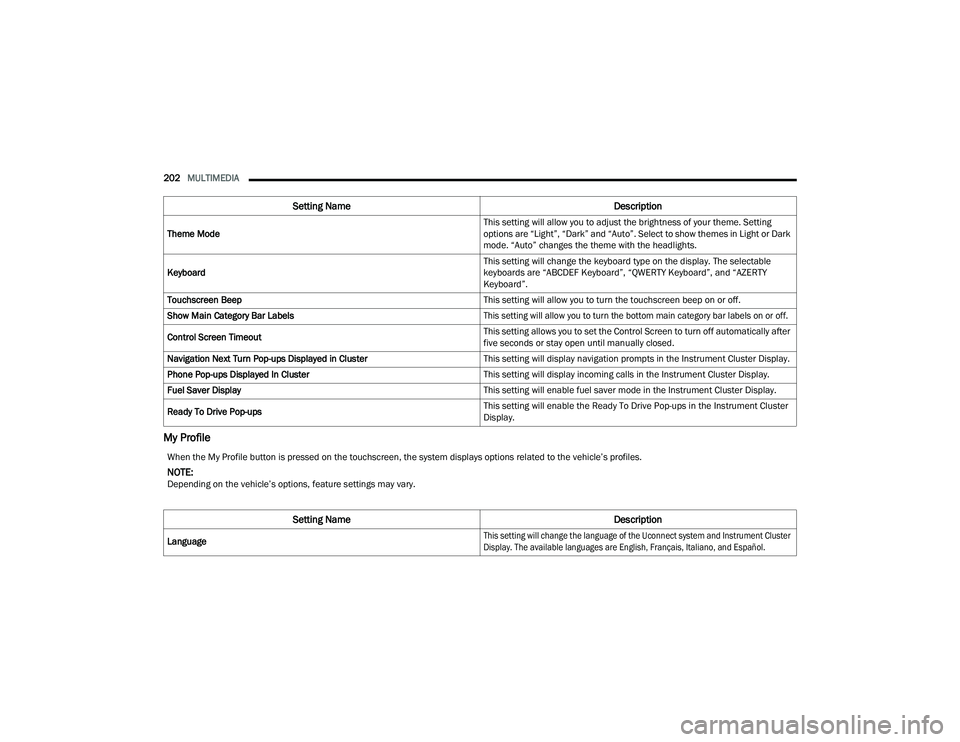
Theme Mode This setting will allow you to adjust the brightness of your theme. Setting
options are “Light”, “Dark” and “Auto”. Select to show themes in Light or Dark
mode. “Auto” changes the theme with the headlights.
Keyboard This setting will change the keyboard type on the display. The selectable
keyboards are “ABCDEF Keyboard”, “QWERTY Keyboard”, and “AZERTY
Keyboard”.
Touchscreen Beep This setting will allow you to turn the touchscreen beep on or off.
Show Main Category Bar Labels
This setting will allow you to turn the bottom main category bar labels on or off.
Control Screen Timeout This setting allows you to set the Control Screen to turn off automatically after
five seconds or stay open until manually closed.
Navigation Next Turn Pop-ups Displayed in Cluster This setting will display navigation prompts in the Instrument Cluster Display.
Phone Pop-ups Displayed In Cluster This setting will display incoming calls in the Instrument Cluster Display.
Fuel Saver Display This setting will enable fuel saver mode in the Instrument Cluster Display.
Ready To Drive Pop-ups This setting will enable the Ready To Drive Pop-ups in the Instrument Cluster
Display.
Setting Name
Description
When the My Profile button is pressed on the touchscreen, the system displays options related to the vehicle’s profiles.
NOTE:Depending on the vehicle’s options, feature settings may vary.
Setting NameDescription
Language
This setting will change the language of the Uconnect system and Instrument Cluster
Display. The available languages are English, Français, Italiano, and Español.
23_DPF_OM_EN_USC_t.book Page 202
Page 205 of 444
MULTIMEDIA203
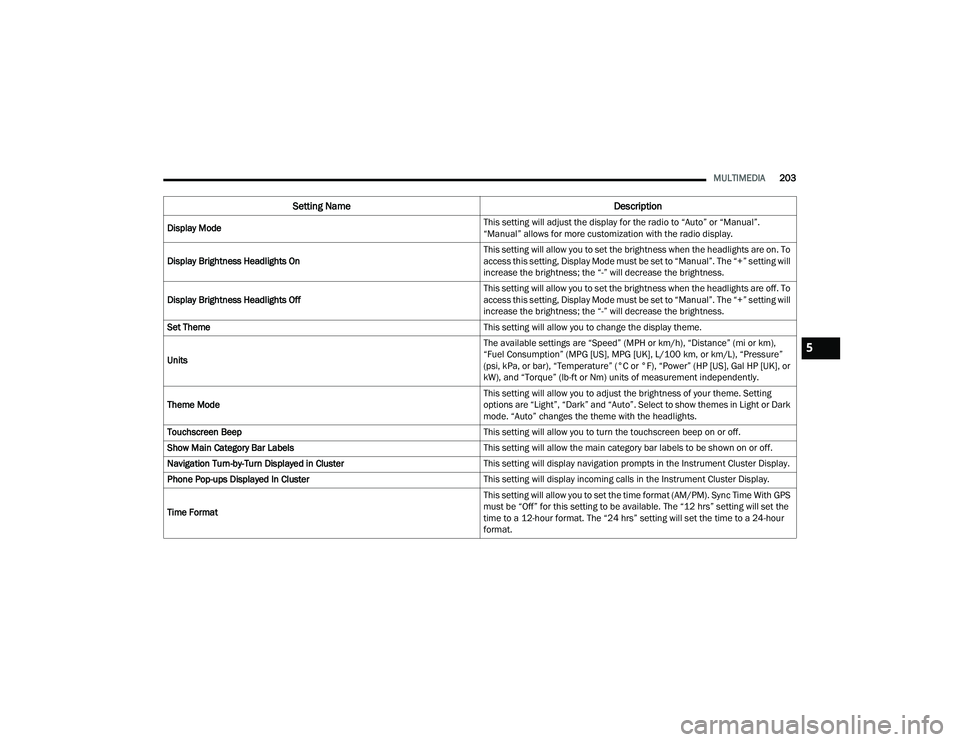
Display Mode This setting will adjust the display for the radio to “Auto” or “Manual”.
“Manual” allows for more customization with the radio display.
Display Brightness Headlights On This setting will allow you to set the brightness when the headlights are on. To
access this setting, Display Mode must be set to “Manual”. The “+” setting will
increase the brightness; the “-” will decrease the brightness.
Display Brightness Headlights Off This setting will allow you to set the brightness when the headlights are off. To
access this setting, Display Mode must be set to “Manual”. The “+” setting will
increase the brightness; the “-” will decrease the brightness.
Set Theme This setting will allow you to change the display theme.
Units The available settings are “Speed” (MPH or km/h), “Distance” (mi or km),
“Fuel Consumption” (MPG [US], MPG [UK], L/100 km, or km/L), “Pressure”
(psi, kPa, or bar), “Temperature” (°C or °F), “Power” (HP [US], Gal HP [UK], or
kW), and “Torque” (lb-ft or Nm) units of measurement independently.
Theme Mode This setting will allow you to adjust the brightness of your theme. Setting
options are “Light”, “Dark” and “Auto”. Select to show themes in Light or Dark
mode. “Auto” changes the theme with the headlights.
Touchscreen Beep This setting will allow you to turn the touchscreen beep on or off.
Show Main Category Bar Labels This setting will allow the main category bar labels to be shown on or off.
Navigation Turn-by-Turn Displayed in Cluster This setting will display navigation prompts in the Instrument Cluster Display.
Phone Pop-ups Displayed In Cluster This setting will display incoming calls in the Instrument Cluster Display.
Time Format This setting will allow you to set the time format (AM/PM). Sync Time With GPS
must be “Off” for this setting to be available. The “12 hrs” setting will set the
time to a 12-hour format. The “24 hrs” setting will set the time to a 24-hour
format.
Setting Name
Description
5
23_DPF_OM_EN_USC_t.book Page 203
Page 207 of 444
MULTIMEDIA205
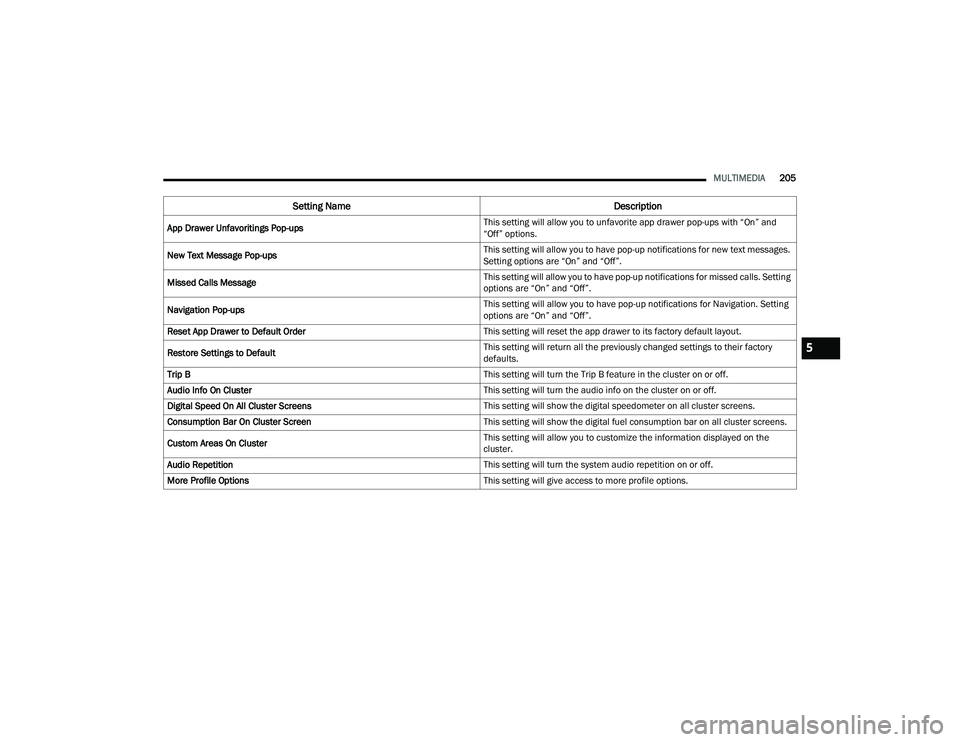
App Drawer Unfavoritings Pop-ups This setting will allow you to unfavorite app drawer pop-ups with “On” and
“Off” options.
New Text Message Pop-ups This setting will allow you to have pop-up notifications for new text messages.
Setting options are “On” and “Off”.
Missed Calls Message This setting will allow you to have pop-up notifications for missed calls. Setting
options are “On” and “Off”.
Navigation Pop-ups This setting will allow you to have pop-up notifications for Navigation. Setting
options are “On” and “Off”.
Reset App Drawer to Default Order This setting will reset the app drawer to its factory default layout.
Restore Settings to Default This setting will return all the previously changed settings to their factory
defaults.
Trip B This setting will turn the Trip B feature in the cluster on or off.
Audio Info On Cluster This setting will turn the audio info on the cluster on or off.
Digital Speed On All Cluster Screens This setting will show the digital speedometer on all cluster screens.
Consumption Bar On Cluster Screen This setting will show the digital fuel consumption bar on all cluster screens.
Custom Areas On Cluster This setting will allow you to customize the information displayed on the
cluster.
Audio Repetition This setting will turn the system audio repetition on or off.
More Profile Options This setting will give access to more profile options.
Setting NameDescription
5
23_DPF_OM_EN_USC_t.book Page 205
Page 254 of 444
252MULTIMEDIA
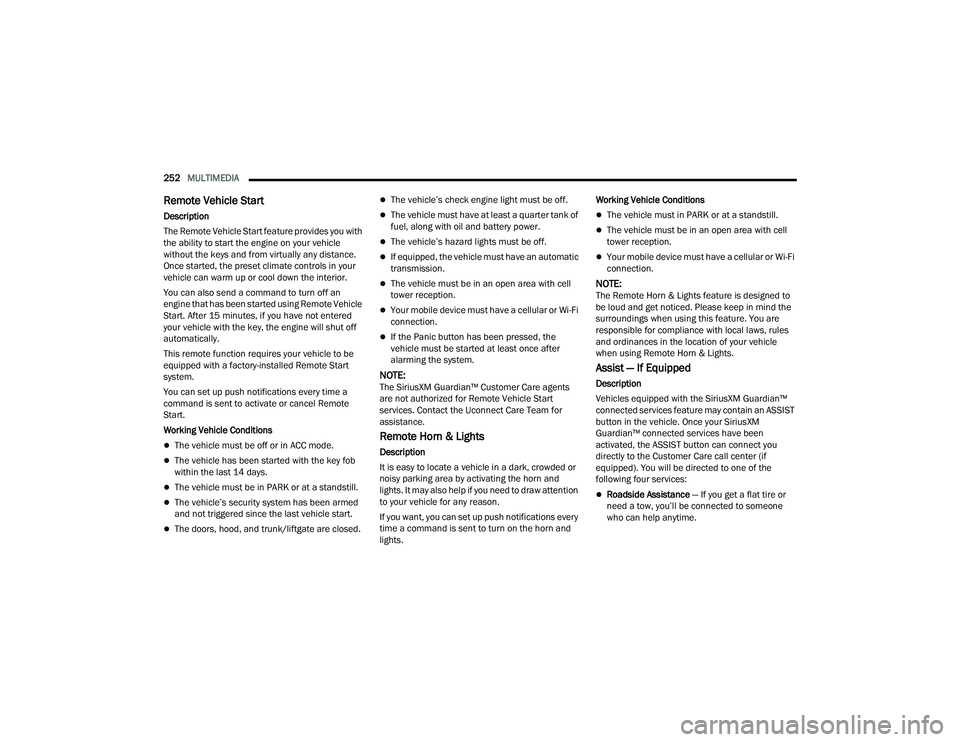
Remote Vehicle Start
Description
The Remote Vehicle Start feature provides you with
the ability to start the engine on your vehicle
without the keys and from virtually any distance.
Once started, the preset climate controls in your
vehicle can warm up or cool down the interior.
You can also send a command to turn off an
engine that has been started using Remote Vehicle
Start. After 15 minutes, if you have not entered
your vehicle with the key, the engine will shut off
automatically.
This remote function requires your vehicle to be
equipped with a factory-installed Remote Start
system.
You can set up push notifications every time a
command is sent to activate or cancel Remote
Start.
Working Vehicle Conditions
The vehicle must be off or in ACC mode.
The vehicle has been started with the key fob
within the last 14 days.
The vehicle must be in PARK or at a standstill.
The vehicle’s security system has been armed
and not triggered since the last vehicle start.
The doors, hood, and trunk/liftgate are closed.
The vehicle’s check engine light must be off.
The vehicle must have at least a quarter tank of
fuel, along with oil and battery power.
The vehicle’s hazard lights must be off.
If equipped, the vehicle must have an automatic
transmission.
The vehicle must be in an open area with cell
tower reception.
Your mobile device must have a cellular or Wi-Fi
connection.
If the Panic button has been pressed, the
vehicle must be started at least once after
alarming the system.
NOTE:The SiriusXM Guardian™ Customer Care agents
are not authorized for Remote Vehicle Start
services. Contact the Uconnect Care Team for
assistance.
Remote Horn & Lights
Description
It is easy to locate a vehicle in a dark, crowded or
noisy parking area by activating the horn and
lights. It may also help if you need to draw attention
to your vehicle for any reason.
If you want, you can set up push notifications every
time a command is sent to turn on the horn and
lights. Working Vehicle Conditions
The vehicle must in PARK or at a standstill.
The vehicle must be in an open area with cell
tower reception.
Your mobile device must have a cellular or Wi-Fi
connection.
NOTE:The Remote Horn & Lights feature is designed to
be loud and get noticed. Please keep in mind the
surroundings when using this feature. You are
responsible for compliance with local laws, rules
and ordinances in the location of your vehicle
when using Remote Horn & Lights.
Assist — If Equipped
Description
Vehicles equipped with the SiriusXM Guardian™
connected services feature may contain an ASSIST
button in the vehicle. Once your SiriusXM
Guardian™ connected services have been
activated, the ASSIST button can connect you
directly to the Customer Care call center (if
equipped). You will be directed to one of the
following four services:
Roadside Assistance
— If you get a flat tire or
need a tow, you’ll be connected to someone
who can help anytime.
23_DPF_OM_EN_USC_t.book Page 252
Page 258 of 444
256MULTIMEDIA
In order to provide the Monthly Vehicle Health
Report, the Uconnect system in your vehicle may
collect and transmit vehicle data to SiriusXM
Guardian™ and to FCA, such as your vehicle’s
health and performance, your vehicle’s location,
your utilization of the features in your vehicle, and
other data.
This data collection and transmission begins when
you enroll in SiriusXM Guardian™ and will continue
even if you cancel your SiriusXM Guardian™
subscription unless you call SiriusXM Guardian™
Customer Care and tell them to deactivate your
Uconnect Services.
Please see the Uconnect Privacy Policy for more
information, located at
www.driveuconnect.com/
connectedservices/privacy.html (US Residents)
or www.driveuconnect.ca (Canadian Residents).
For more information on SiriusXM Guardian™
private policy, see
https://siriusxmcvs.com/
privacy-policy.
NOTE:Your vehicle must be enrolled in an active
subscription with SiriusXM Guardian™ Connected
Services. If you have concerns about the operation,
function or performance of your vehicle, please
take it to an authorized dealer. This report does not
replace regularly scheduled maintenance. Check
the instrument cluster warning lights and cautions
in your vehicle for the most accurate vehicle health
information.
Vehicle Health Alert —If Equipped
Description
Your vehicle will send you an email alert if it senses
a problem with one of your vehicle’s key systems.
For further information, go to your Owner’s
website.
NOTE:Vehicle Health Alert emails require you to register
and activate services. During this process you will
be asked to provide an email address to which the
reports will be sent.
In-Vehicle Notifications — If Equipped
Description
Your vehicle will send you notifications to remind
you when services are needed, or to alert you of
other important information, such as recall
notices. When you receive a notification through
your touchscreen, press OK to dismiss the
message, or press Call Care to speak with a
SiriusXM Guardian™ Customer Care agent.
NOTE:Pressing “OK” or the X button on the pop-up screen
will dismiss or close the pop-up, and the In-Vehicle
Messages mailbox will display. In the Mailbox, you
can reopen messages or delete messages.
Amazon Alexa Skill — If Equipped
Enjoy the convenience of using your voice to
command your vehicle with Amazon Alexa!
With Amazon Alexa, you can connect to your
vehicle and remotely access key services and
features.
If your vehicle is equipped with Uconnect
Navigation, you can send a destination directly to
your vehicle using Alexa.
If you need assistance, you can always ask Alexa
for help, or complete a list of commands by saying:
“Alexa, ask
Here are a few of the many questions you can ask
Alexa:
“Alexa, ask
“Alexa, ask
“Alexa, ask
Chrysler Drive, Auburn Hills, Michigan to my
“Alexa, ask
level of my
23_DPF_OM_EN_USC_t.book Page 256
Page 259 of 444
MULTIMEDIA257
An active subscription to SiriusXM Guardian™ is
required. To use Amazon Alexa, first, register for
SiriusXM Guardian™ Ú page 245.
Next, link the Uconnect system on your vehicle to
Amazon Alexa:
1. Download the Amazon Alexa app on your mobile device (Apple® or Android™).
2. Once in the app, tap MENU and go to SKILLS.
3. Search for
4. Tap SAVE SETTINGS when prompted.
5. Link the vehicle brand name to the
6. Log in using your Owner Account credentials. This will be the same user name and password
you used when registering for SiriusXM
Guardian™ connected services. There will be
additional settings to confirm on the following
screen.
7. AUTHORIZE the account to return to the
You can now begin using the
on Alexa!
Google Assistant — If Equipped
With the Google Assistant, you can get help and
keep tabs on your car. Google Assistant is available
across your devices, including Android™ phones,
iPhone® devices, or voice-activated speakers, like
Google Home. If you need assistance, ask Google
for help, or for a complete list of commands by
saying: “Hey Google, ask
with my car.”
Here are a few examples of commands:
“Hey Google, ask
“Hey Google, ask
“Hey Google, ask
Chrysler Drive, Auburn Hills, Michigan to my
“Hey Google, ask
fuel level of my
To link your Uconnect account with Google
Assistant, follow these steps:
1. Download and install the Google Assistant app on your smart phone from the App
Store® or Google Play.
2. After installation, log in to the Google Assistant
app with your Gmail ID. Verify your account by
pressing the icon in the upper right-hand
corner.
3. Press the Discover button in the bottom left corner of the screen. Enter the vehicle brand
name.
4. A prompt will appear to link your Uconnect account. Press “Link Uconnect to Google”.
5. Press “Sign In” and enter the email address and password you created when you activated
SiriusXM Guardian™. There will be additional
settings to confirm on the following screen.
6. Lastly, press “Authorize” to complete the linking process.
Now, you can ask Google Assistant to help you:Remotely start the engine, or cancel a remote
start
Send a destination to your vehicle’s built-in
Uconnect Navigation system
Monitor vehicle vitals, such as tire pressure, fuel
level and oil life
And more!
5
23_DPF_OM_EN_USC_t.book Page 257
Page 260 of 444
258MULTIMEDIA
Family Drive Alerts — If Equipped
Description
Family Drive Alerts help promote safer driving and
give you peace of mind when your loved ones are
out on the road. You can set boundary limits,
monitor driving speed, and pinpoint your vehicle’s
location any time, any place. Use the Vehicle
Branded App to set alerts:
Boundary Alert
Receive a notification the moment your vehicle
is driven either out of or into a geographic
boundary that you set.
Curfew Alert
Receive a notification when your car is being
driven outside of the curfew time.
Speed Alert
Receive a notification whenever your car
exceeds a speed limit you set.
Valet Alert
Receive a notification if and when your vehicle is
driven outside a quarter-mile radius of a valet
drop-off zone.
SmartWatch Integration — If Equipped
Description
SmartWatch Integration puts the Vehicle Branded
App right on your Apple® Watch or Android™ Wear.
To get started, follow these steps:
1. Download the Vehicle Branded App from the
App Store® or Google Play.
2. Log onto the app from your smartphone using the username and password you created when
you first set up your account.
3. Make sure your watch and smartphone are connected through Bluetooth®.
4. The Vehicle Branded App should appear on your SmartWatch.
Once the app is downloaded on your SmartWatch,
you can enjoy these features:
Lock or unlock your vehicle by tapping the
remote lock button in the app and entering your
security PIN.
Remote start or stop your vehicle.
View important vehicle stats, such as fuel level,
vehicle location, tire pressure warning, and
more.
For help, refer to the Uconnect YouTube channel
for SmartWatch Integration.
MANAGE MY SIRIUSXM GUARDIAN™
A
CCOUNT
To manage your SiriusXM Guardian™ account,
press the ASSIST button in your vehicle, or call
SiriusXM Guardian™ Customer Care.
NOTE:It is recommended, when selling your vehicle, or
turning in your lease, to call SiriusXM Guardian™
Care to remove your personal data.
CONNECTED SERVICES FAQS
For additional information about SiriusXM
Guardian™, active subscribers can push the
ASSIST button (if equipped) and then select
SiriusXM Guardian™ Call on your in-vehicle
touchscreen to contact SiriusXM Guardian™. Your
call will be directed to a SiriusXM Guardian™ agent
or held in a queue until an agent is available. If you
do not have an active subscription, push the
ASSIST button and press the Activate button on the
touchscreen to activate services.
23_DPF_OM_EN_USC_t.book Page 258
Page 284 of 444

282SAFETY
NOTE:
The TPMS is not intended to replace normal tire
care and maintenance or to provide warning of
a tire failure or condition.
If your vehicle is not equipped with the Tire Fill
Alert feature the TPMS should not be used as a
tire pressure gauge while adjusting your tire
pressure.
Driving on a significantly underinflated tire
causes the tire to overheat and can lead to tire
failure. Underinflation also reduces fuel effi -
ciency and tire tread life, and may affect the
vehicle’s handling and stopping ability.
The TPMS is not a substitute for proper tire
maintenance, and it is the driver’s responsibility
to maintain correct tire pressure using an accu -
rate tire pressure gauge, even if underinflation
has not reached the level to trigger illumination
of the TPMS Warning Light.
Seasonal temperature changes will affect tire
pressure, and the TPMS will monitor the actual
tire pressure in the tire.
Example: Tire Pressure Monitoring System Display
The Tire Pressure Monitoring System (TPMS) uses
wireless technology with wheel rim mounted
electronic sensors to monitor tire pressure levels.
Sensors, mounted to each wheel as part of the
valve stem, transmit tire pressure readings to the
receiver module.
NOTE:It is particularly important for you to check the tire
pressure in all of the tires on your vehicle monthly
and to maintain the proper pressure.
The TPMS consists of the following components:
Receiver module
Four Tire Pressure Monitoring System sensors
Various Tire Pressure Monitoring System
messages, which display in the instrument
cluster
Tire Pressure Monitoring System Warning Light
Tire Pressure Monitoring System Low
Pressure Warnings
The Tire Pressure Monitoring System
Warning Light will illuminate in the
instrument cluster when tire pressure is
low in one or more of the four active road
tires. The instrument cluster will display a graphic
showing the pressure values of each tire with the
low tire pressure values in a different color. An
"Inflate to XX" message will also be displayed.
Example: Low Tire Pressure Display
Should this occur, you should stop as soon as
possible and inflate the tires with a low pressure
condition (those in a different color in the
instrument cluster graphic) to the vehicle’s
recommended cold placard pressure inflation
value shown in the "Inflate to XX" message. Once
the system receives the updated tire pressures,
the system will automatically update, the graphic
23_DPF_OM_EN_USC_t.book Page 282
Page 304 of 444

302SAFETY
Air Bag System Components
NOTE:The Occupant Restraint Controller (ORC) monitors
the internal circuits and interconnecting wiring
associated with electrical Air Bag System Compo -
nents listed below:
Occupant Restraint Controller (ORC)
Air Bag Warning Light
Steering Wheel and Column
Instrument Panel
Knee Impact Bolsters
Driver and Front Passenger Air Bags
Seat Belt Buckle Switch
Supplemental Side Air Bags — If Equipped
Front and Side Impact Sensors — If Equipped
Seat Belt Pretensioners — If Equipped
If A Deployment Occurs
The front air bags are designed to deflate
immediately after deployment.
NOTE:Front and/or side air bags will not deploy in all colli -
sions. This does not mean something is wrong with
the air bag system. If you do have a collision which deploys the air
bags, any or all of the following may occur:
The air bag material may sometimes cause
abrasions and/or skin reddening to the occu
-
pants as the air bags deploy and unfold. The
abrasions are similar to friction rope burns or
those you might get sliding along a carpet or
gymnasium floor. They are not caused by
contact with chemicals. They are not permanent
and normally heal quickly. However, if you
haven’t healed significantly within a few days, or
if you have any blistering, see your doctor imme -
diately.
As the air bags deflate, you may see some
smoke-like particles. The particles are a normal
by-product of the process that generates the
non-toxic gas used for air bag inflation. These
airborne particles may irritate the skin, eyes,
nose, or throat. If you have skin or eye irritation,
rinse the area with cool water. For nose or throat
irritation, move to fresh air. If the irritation
continues, see your doctor. If these particles
settle on your clothing, follow the garment
manufacturer’s instructions for cleaning.
Do not drive your vehicle after the air bags have
deployed. If you are involved in another collision,
the air bags will not be in place to protect you.
NOTE:
Air bag covers may not be obvious in the interior
trim, but they will open during air bag deploy -
ment.
After any collision, the vehicle should be taken
to an authorized dealer immediately.
Enhanced Accident Response System
In the event of an impact, if the communication
network remains intact, and the power remains
intact, depending on the nature of the event, the
ORC will determine whether to have the Enhanced
Accident Response System perform the following
functions:
Cut off fuel to the engine (if equipped).
Cut off battery power to the electric motor
(if equipped).
Flash hazard lights as long as the battery has
power.
WARNING!
Deployed air bags and seat belt pretensioners
cannot protect you in another collision. Have the
air bags, seat belt pretensioners, and the seat
belt retractor assemblies replaced by an
authorized dealer immediately. Also, have the
Occupant Restraint Controller System serviced
as well.
23_DPF_OM_EN_USC_t.book Page 302
Page 305 of 444

SAFETY303
(Continued)
Turn on the interior lights, which remain on as
long as the battery has power or for 15 minutes
from the intervention of the Enhanced Accident
Response System.
Unlock the power door locks.
Your vehicle may also be designed to perform any
of these other functions in response to the
Enhanced Accident Response System:
Turn off the Fuel Filter Heater, Turn off the HVAC
Blower Motor, Close the HVAC Circulation Door
Cut off battery power to the:
Engine
Electric Motor (if equipped)
Electric power steering
Brake booster
Electric park brake
Automatic transmission gear selector
Horn
Front wiper
NOTE:After an accident, remember to cycle the ignition to
the STOP (OFF/LOCK) position and remove the key
from the ignition switch to avoid draining the
battery. Carefully check the vehicle for fuel leaks in
the engine compartment and on the ground near
the engine compartment and fuel tank before
resetting the system and starting the engine. If
there are no fuel leaks or damage to the vehicle
electrical devices (e.g. headlights) after an
accident, reset the system by following the
procedure described below. If you have any doubt,
contact an authorized dealer.
Enhanced Accident Response System
Reset Procedure
In order to reset the Enhanced Accident Response
System functions after an event, the ignition switch
must be changed from ignition START or ON/RUN
to ignition OFF. Carefully check the vehicle for fuel
leaks in the engine compartment and on the
ground near the engine compartment and fuel
tank before resetting the system and starting the
engine. After an accident, if the vehicle will not start after
performing the reset procedure, the vehicle must
be towed to an authorized dealer to be inspected
and to have the Enhanced Accident Response
System reset.
Maintaining Your Air Bag System
WARNING!
Modifications to any part of the air bag system
could cause it to fail when you need it. You
could be injured if the air bag system is not
there to protect you. Do not modify the compo
-
nents or wiring, including adding any kind of
badges or stickers to the steering wheel hub
trim cover or the upper passenger side of the
instrument panel. Do not modify the front
fascia/bumper, vehicle body structure, or add
aftermarket side steps or running boards.
It is dangerous to try to repair any part of the
air bag system yourself. Be sure to tell anyone
who works on your vehicle that it has an air
bag system.
6
23_DPF_OM_EN_USC_t.book Page 303