light RAM PROMASTER 2021 Service Manual
[x] Cancel search | Manufacturer: RAM, Model Year: 2021, Model line: PROMASTER, Model: RAM PROMASTER 2021Pages: 288, PDF Size: 15.22 MB
Page 89 of 288

STARTING AND OPERATING87
(Continued)
Shallow Standing Water
Although your vehicle is capable of driving
through shallow standing water, consider
the following Cautions and Warnings before
doing so.
WARNING!
Driving through standing water limits your
vehicle’s traction capabilities. Do not
exceed 5 mph (8 km/h) when driving
through standing water.
Driving through standing water limits your
vehicle’s braking capabilities, which
increases stopping distances. Therefore,
after driving through standing water, drive
slowly and lightly press on the brake pedal
several times to dry the brakes.
Failure to follow these warnings may result
in injuries that are serious or fatal to you,
your passengers, and others around you.
CAUTION!
Always check the depth of the standing
water before driving through it. Never drive
through standing water that is deeper than
the bottom of the tire rims mounted on the
vehicle.
Determine the condition of the road or the
path that is under water and if there are any
obstacles in the way before driving through
the standing water.
Do not exceed 5 mph (8 km/h) when
driving through standing water. This will
minimize wave effects.
Driving through standing water may cause
damage to your vehicle’s drivetrain compo -
nents. Always inspect your vehicle’s fluids
(i.e., engine oil, transmission, axle, etc.) for
signs of contamination (i.e., fluid that is
milky or foamy in appearance) after driving
through standing water. Do not continue to
operate the vehicle if any fluid appears
contaminated, as this may result in further
damage. Such damage is not covered by
the New Vehicle Limited Warranty.
Getting water inside your vehicle’s engine
can cause it to lock up and stall out, and
cause serious internal damage to the
engine. Such damage is not covered by the
New Vehicle Limited Warranty.
CAUTION! (Continued)
4
21_VF_OM_EN_USC_t.book Page 87
Page 93 of 288
MULTIMEDIA91
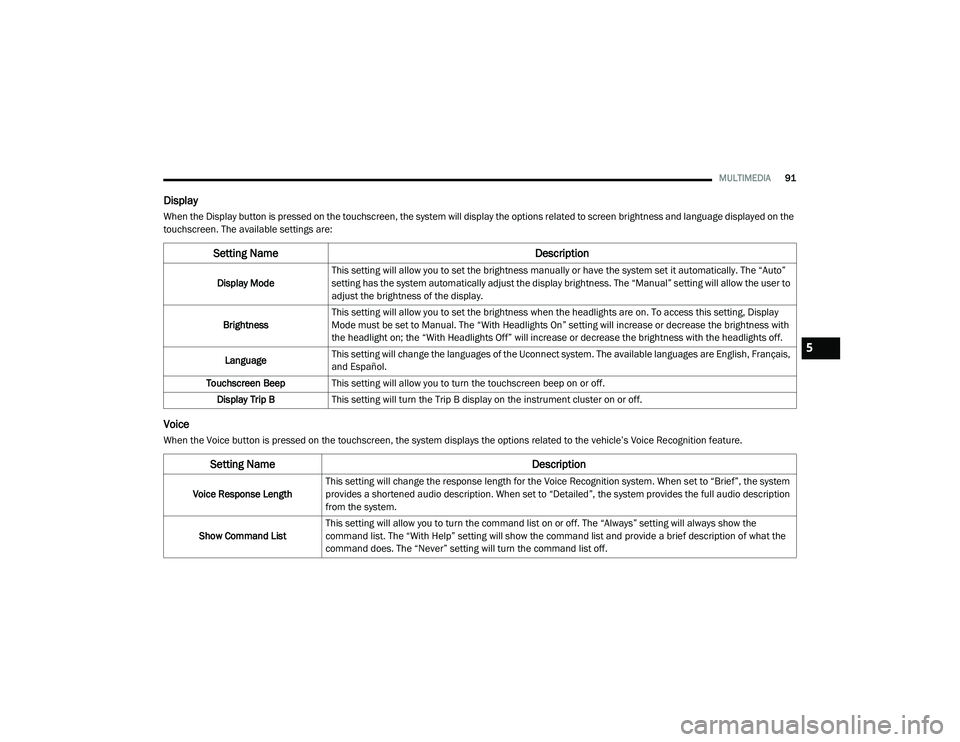
Display
When the Display button is pressed on the touchscreen, the system will display the options related to screen brightness and language displayed on the
touchscreen. The available settings are:
Voice
When the Voice button is pressed on the touchscreen, the system displays the options related to the vehicle’s Voice Recognition feature.
Setting Name Description
Display ModeThis setting will allow you to set the brightness manually or have the system set it automatically. The “Auto”
setting has the system automatically adjust the display brightness. The “Manual” setting will allow the user to
adjust the brightness of the display.
Brightness This setting will allow you to set the brightness when the headlights are on. To access this setting, Display
Mode must be set to Manual. The “With Headlights On” setting will increase or decrease the brightness with
the headlight on; the “With Headlights Off” will increase or decrease the brightness with the headlights off.
Language This setting will change the languages of the Uconnect system. The available languages are English, Français,
and Español.
Touchscreen Beep This setting will allow you to turn the touchscreen beep on or off.
Display Trip B This setting will turn the Trip B display on the instrument cluster on or off.
Setting Name Description
Voice Response LengthThis setting will change the response length for the Voice Recognition system. When set to “Brief”, the system
provides a shortened audio description. When set to “Detailed”, the system provides the full audio description
from the system.
Show Command List This setting will allow you to turn the command list on or off. The “Always” setting will always show the
command list. The “With Help” setting will show the command list and provide a brief description of what the
command does. The “Never” setting will turn the command list off.
5
21_VF_OM_EN_USC_t.book Page 91
Page 95 of 288
MULTIMEDIA93
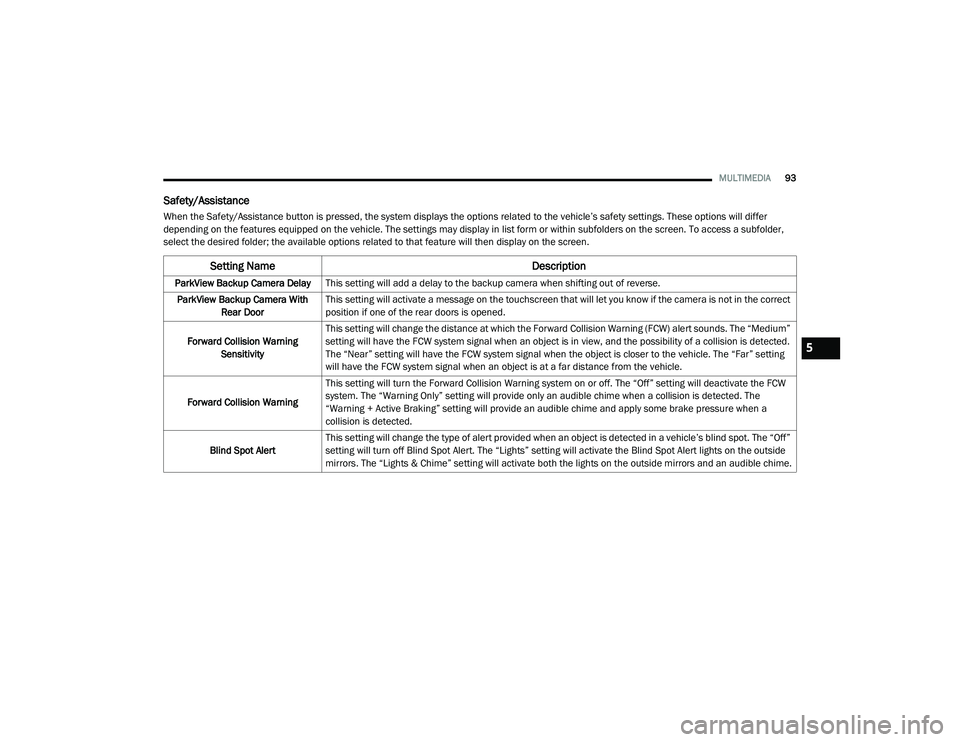
Safety/Assistance
When the Safety/Assistance button is pressed, the system displays the options related to the vehicle’s safety settings. These options will differ
depending on the features equipped on the vehicle. The settings may display in list form or within subfolders on the screen. To access a subfolder,
select the desired folder; the available options related to that feature will then display on the screen.
Setting Name Description
ParkView Backup Camera DelayThis setting will add a delay to the backup camera when shifting out of reverse.
ParkView Backup Camera With Rear Door This setting will activate a message on the touchscreen that will let you know if the camera is not in the correct
position if one of the rear doors is opened.
Forward Collision Warning Sensitivity This setting will change the distance at which the Forward Collision Warning (FCW) alert sounds. The “Medium”
setting will have the FCW system signal when an object is in view, and the possibility of a collision is detected.
The “Near” setting will have the FCW system signal when the object is closer to the vehicle. The “Far” setting
will have the FCW system signal when an object is at a far distance from the vehicle.
Forward Collision Warning This setting will turn the Forward Collision Warning system on or off. The “Off” setting will deactivate the FCW
system. The “Warning Only” setting will provide only an audible chime when a collision is detected. The
“Warning + Active Braking” setting will provide an audible chime and apply some brake pressure when a
collision is detected.
Blind Spot Alert This setting will change the type of alert provided when an object is detected in a vehicle’s blind spot. The “Off”
setting will turn off Blind Spot Alert. The “Lights” setting will activate the Blind Spot Alert lights on the outside
mirrors. The “Lights & Chime” setting will activate both the lights on the outside mirrors and an audible chime.
5
21_VF_OM_EN_USC_t.book Page 93
Page 96 of 288
94MULTIMEDIA
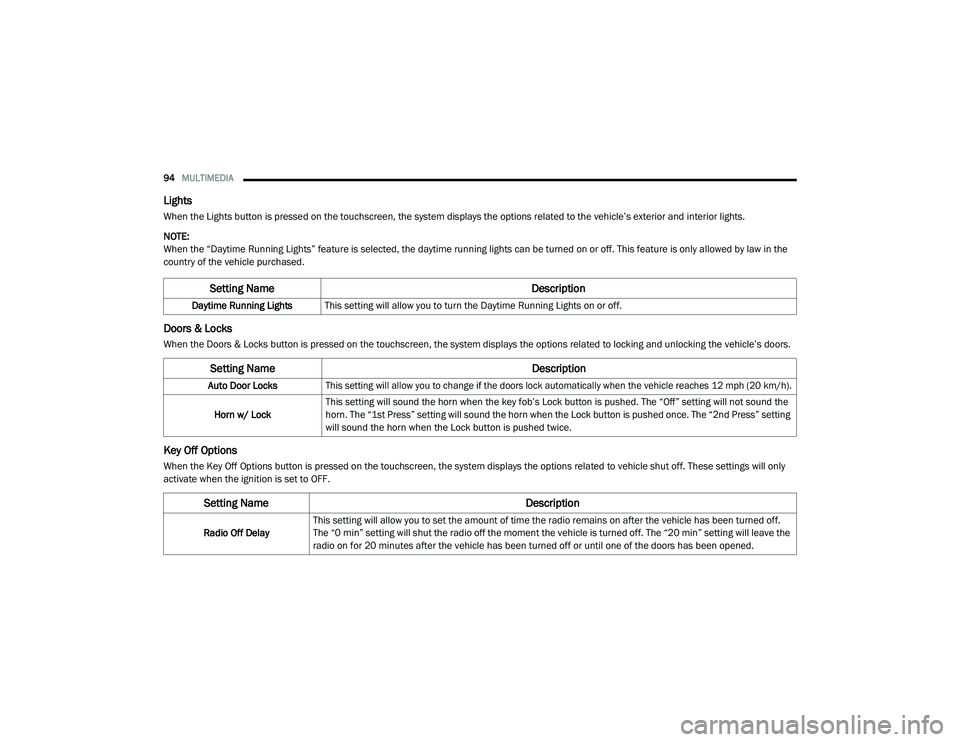
Lights
When the Lights button is pressed on the touchscreen, the system displays the options related to the vehicle’s exterior and interior lights.
NOTE:
When the “Daytime Running Lights” feature is selected, the daytime running lights can be turned on or off. This feature is only allowed by law in the
country of the vehicle purchased.
Doors & Locks
When the Doors & Locks button is pressed on the touchscreen, the system displays the options related to locking and unlocking the vehicle’s doors.
Key Off Options
When the Key Off Options button is pressed on the touchscreen, the system displays the options related to vehicle shut off. These settings will only
activate when the ignition is set to OFF.
Setting Name Description
Daytime Running LightsThis setting will allow you to turn the Daytime Running Lights on or off.
Setting Name Description
Auto Door Locks
This setting will allow you to change if the doors lock automatically when the vehicle reaches 12 mph (20 km/h).
Horn w/ Lock This setting will sound the horn when the key fob’s Lock button is pushed. The “Off” setting will not sound the
horn. The “1st Press” setting will sound the horn when the Lock button is pushed once. The “2nd Press” setting
will sound the horn when the Lock button is pushed twice.
Setting Name
Description
Radio Off DelayThis setting will allow you to set the amount of time the radio remains on after the vehicle has been turned off.
The “0 min” setting will shut the radio off the moment the vehicle is turned off. The “20 min” setting will leave the
radio on for 20 minutes after the vehicle has been turned off or until one of the doors has been opened.
21_VF_OM_EN_USC_t.book Page 94
Page 101 of 288
MULTIMEDIA99
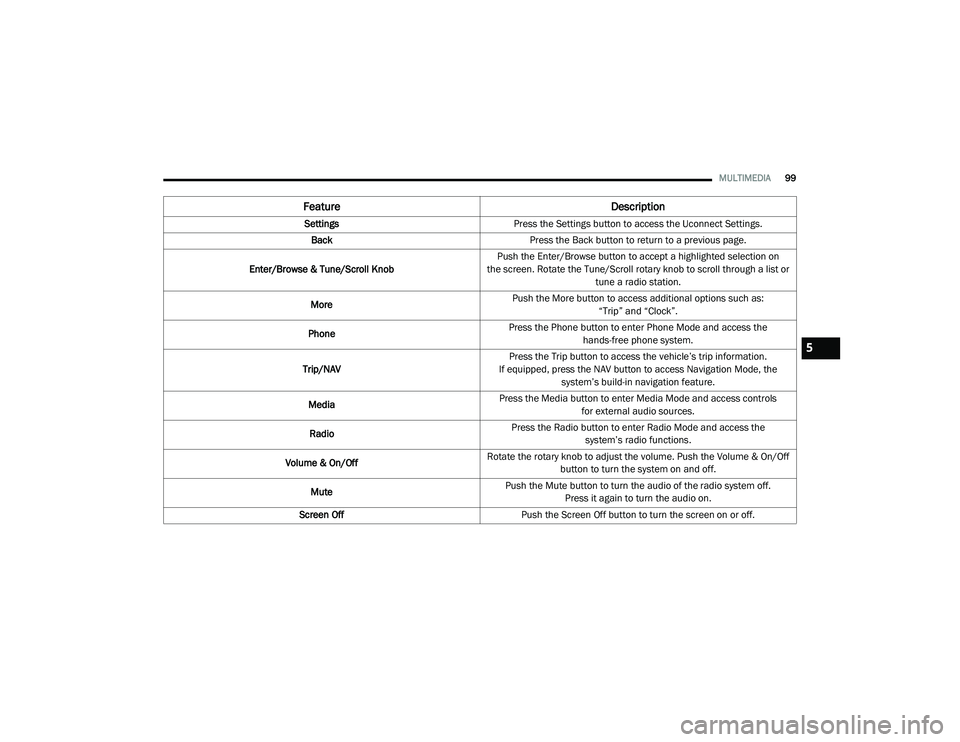
Feature Description
SettingsPress the Settings button to access the Uconnect Settings.
Back Press the Back button to return to a previous page.
Enter/Browse & Tune/Scroll Knob Push the Enter/Browse button to accept a highlighted selection on
the screen. Rotate the Tune/Scroll rotary knob to scroll through a list or tune a radio station.
More Push the More button to access additional options such as:
“Trip” and “Clock”.
Phone Press the Phone button to enter Phone Mode and access the
hands-free phone system.
Trip/NAV Press the Trip button to access the vehicle’s trip information.
If equipped, press the NAV button to access Navigation Mode, the system’s build-in navigation feature.
Media Press the Media button to enter Media Mode and access controls
for external audio sources.
Radio Press the Radio button to enter Radio Mode and access the
system’s radio functions.
Volume & On/Off Rotate the rotary knob to adjust the volume. Push the Volume & On/Off
button to turn the system on and off.
Mute Push the Mute button to turn the audio of the radio system off.
Press it again to turn the audio on.
Screen Off Push the Screen Off button to turn the screen on or off.
5
21_VF_OM_EN_USC_t.book Page 99
Page 106 of 288

104MULTIMEDIA
When in Satellite mode:
The SXM button on the touchscreen is high -
lighted.
The SiriusXM® Presets are displayed at the
top of the screen.
The SiriusXM® Channel Number is displayed
in the center.
The Program Information is displayed at the
bottom of the Channel Number.
The SiriusXM® function buttons are
displayed below the Program Information.
Tuning is done by operating the Tune Knob or by
Direct Tune, similar to other Radio Bands.
In addition to the tuning operation functions
common to all radio modes, the replay, Traffic/
Weather button, and Favorite button functions
are available in SiriusXM® Mode.
Uconnect 3/3 NAV With 5-inch Display SiriusXM®
Satellite Radio
Replay
The replay function provides a means to store
and replay up to 22 minutes of music audio and
48 minutes of talk radio. Once the channel is
switched, content in replay memory is lost.
Press the Replay button on the touchscreen.
The play/pause, rewind/forward and live
buttons will display at the top of the screen,
along with the replay time.
You can exit by pressing the Replay button on
the touchscreen any time during the Replay
mode.1 — Browse
2 — Radio Bands
3 — Direct Tune
4 — Info Button
5 — Next Button
21_VF_OM_EN_USC_t.book Page 104
Page 113 of 288
MULTIMEDIA111
Bluetooth® Mode
Before proceeding, the Bluetooth® device must
be paired with the Uconnect Phone to
communicate with the Uconnect system
Úpage 114.
Once the Bluetooth® device is paired to the
Uconnect system, push the Media button
located on the faceplate. Once in Media Mode,
press the Source button on the touchscreen
and select Bluetooth®.
NOTE:
For mobile phone compatibility and pairing
instructions, please visit UconnectPhone.com.
AUX Mode
AUX Mode is entered by inserting a AUX device
using a stereo cable with a 3.5 mm audio jack
into the AUX port or by pushing the MEDIA
button located on the faceplate. Once in Media
Mode, press the Source button on the
touchscreen and select AUX.
To insert an Auxiliary Device, gently insert the
Auxiliary device cable into the AUX Port. If you
insert an Auxiliary device with the ignition and
the radio on, the unit will switch to AUX mode
and begin to play. Controlling The Auxiliary Device
The control of the Auxiliary device (e.g.,
selecting playlists, play, fast forward, etc.)
cannot be provided by the radio; use the device
controls instead. Adjust the volume with the
Volume rotary knob, or with the volume of the
attached device.
NOTE:
The radio unit is acting as the amplifier for audio
output from the Auxiliary device. Therefore, if
the volume control on the Auxiliary device is set
too low, there will be insufficient audio signal for
the radio unit to play the music on the device.
Voice Commands Media
Uconnect offers connections via USB,
Bluetooth®, and auxiliary ports. Voice operation
is only available for connected USB and AUX
devices.
Push the VR button . After the beep, say one
of the following commands and follow the
prompts to switch your media source or choose
an artist.
“Change source to Bluetooth®”
“Change source to AUX”
“Change source to USB”
“Play artist Beethoven”; “Play album
Greatest Hits”; “Play song Moonlight
Sonata”; “Play genre Classical”
Did You Know: Press the Browse button on the
touchscreen to see all of the music on your USB
device. Your Voice Command must match
exactly how the artist, album, song, and genre
information is displayed.
5
21_VF_OM_EN_USC_t.book Page 111
Page 151 of 288

149
(Continued)
SAFETY
SAFETY FEATURES
ANTI-LOCK BRAKE SYSTEM (ABS)
The ABS is designed to aid the driver in
maintaining vehicle control under adverse
braking conditions. The system operates with a
separate computer to modulate hydraulic
pressure, to prevent wheel lock-up and to help
avoid skidding on slippery surfaces.
The system's pump motor runs during an ABS
stop to provide regulated hydraulic pressure.
The pump motor makes a low humming noise
during operation, which is normal.
The ABS includes an amber ABS Warning Light.
When the light is illuminated, the ABS is not
functioning. The system reverts to standard
non-anti-lock brakes. Placing the ignition in the
OFF mode and to the ON mode again may reset
the ABS if the fault detected was only
momentary.When you are in a severe braking condition
involving the use of the ABS, you will experience
some pedal drop as the vehicle comes to a stop.
This is the result of the system reverting to the
base brake system.
Engagement of the ABS may be accompanied
by a pulsing sensation. You may also hear a
clicking noise. These occurrences are normal
and indicate that the system is functioning
properly.
WARNING!
The ABS contains sophisticated electronic
equipment that may be susceptible to inter
-
ference caused by improperly installed or
high output radio transmitting equipment.
This interference can cause possible loss of
anti-lock braking capability. Installation of
such equipment should be performed by
qualified professionals.
Pumping of the Anti-Lock Brakes will
diminish their effectiveness and may lead
to a collision. Pumping makes the stopping
distance longer. Just press firmly on your
brake pedal when you need to slow down or
stop.
The ABS cannot prevent the natural laws of
physics from acting on the vehicle, nor can
it increase braking or steering efficiency
beyond that afforded by the condition of the
vehicle brakes and tires or the traction
afforded.
The ABS cannot prevent collisions,
including those resulting from excessive
speed in turns, following another vehicle
too closely, or hydroplaning.
The capabilities of an ABS equipped vehicle
must never be exploited in a reckless or
dangerous manner that could jeopardize
the user’s safety or the safety of others.
WARNING! (Continued)
6
21_VF_OM_EN_USC_t.book Page 149
Page 152 of 288
150SAFETY
ELECTRONIC BRAKE CONTROL (EBC)
S
YSTEM
Your vehicle is equipped with an advanced
Electronic Brake Control (EBC) system that
includes the Brake Assist System (BAS) and
Electronic Stability Control (ESC), Hill Start
Assist (HSA), Traction Control System (TCS), and
Trailer Sway Control (TSC). These systems
complement the Anti-Lock Brake System (ABS)
by optimizing the vehicle braking capability
during emergency braking maneuvers.
Brake Assist System (BAS)
The BAS is designed to optimize the vehicle’s
braking capability during emergency braking
maneuvers. The system detects an emergency
braking situation by sensing the rate and
amount of brake application and then applies
optimum pressure to the brakes. This can help
reduce braking distances. The BAS
complements the Anti-Lock Brake System
(ABS). Applying the brakes very quickly results
in the best BAS assistance. To receive the
benefit of the system, you must apply
continuous braking pressure during the
stopping sequence (do not “pump” the brakes). Do not reduce brake pedal pressure unless
braking is no longer desired. Once the brake
pedal is released, the BAS is deactivated.
Crosswind Assist (CWA)
CWA helps keep your vehicle from drifting out of
its lane due to unexpected crosswinds by
means of targeted braking of individual wheels.
The system will provide automatic stability
assistance to counteract the effect of strong
side wind. If a strong lateral wind is detected,
front and rear brakes on the affected side are applied, creating a steering effect that mitigates
the cross wind influence. During system
intervention, the driver should perceive the
natural stable handling feel of the vehicle.
Crosswind Assist will activate automatically
when the vehicle reaches speeds above
approximately 43 mph (70 km/h). When the
system is activated, the ESC Warning Light in
the instrument cluster will blink to warn the
driver.
Electronic Stability Control (ESC)
ESC enhances directional control and stability
of the vehicle under various driving conditions.
ESC corrects for over/under steering of the
vehicle by applying the brake of the appropriate
wheel(s) to counteract the above conditions.
Engine power may also be reduced to help the
vehicle maintain the desired path.
Oversteer – when the vehicle is turning more
than appropriate for the steering wheel
position.
Understeer – when the vehicle is turning less
than appropriate for the steering wheel
position.
WARNING!
The Brake Assist System (BAS) cannot
prevent the natural laws of physics from
acting on the vehicle, nor can it increase the
traction afforded by prevailing road
conditions. BAS cannot prevent collisions,
including those resulting from excessive
speed in turns, driving on very slippery
surfaces, or hydroplaning. The capabilities of
a BAS-equipped vehicle must never be
exploited in a reckless or dangerous manner,
which could jeopardize the user's safety or
the safety of others.
21_VF_OM_EN_USC_t.book Page 150
Page 154 of 288
152SAFETY
ESC Partial Off
This mode is entered by momentarily pushing
the ESC OFF button.
When in the “Partial Off” mode, the TCS portion
of ESC, except for the “limited slip” feature
described in the TCS section, has been disabled
and the ESC OFF Indicator Light will be
illuminated. When in the “Partial Off” mode,
ESC will operate without engine torque
management. This mode is intended to be used
if the vehicle is in deep snow, sand or gravel
conditions and more wheel spin than ESC would
normally allow is required to gain traction.
To turn ESC on again, momentarily push the
ESC OFF button. This will restore the normal
“ESC On” mode of operation. NOTE:
To improve the vehicle's traction when driving
with snow chains, or starting off in deep snow,
sand or gravel, it may be desirable to switch to
the “Partial Off” mode by pushing the ESC OFF
button. Once the situation requiring ESC to be
switched to the “Partial Off” mode is overcome,
turn ESC back on by momentarily pushing the
ESC OFF button. This may be done while the
vehicle is in motion.ESC Activation/Malfunction Indicator Light
And ESC OFF Indicator Light
The ESC Activation/Malfunction
Indicator Light in the instrument
cluster will come on when the ignition
is turned to the ON mode. It should go
out with the engine running. If the ESC
Activation/Malfunction Indicator Light comes
on continuously with the engine running, a
malfunction has been detected in the ESC
system. If this light remains on after several
ignition cycles, and the vehicle has been driven
several miles (kilometers) at speeds greater
than 30 mph (48 km/h), see an authorized
dealer as soon as possible to have the problem
diagnosed and corrected.
The ESC Activation/Malfunction Indicator Light
starts to flash as soon as the tires lose traction
and the ESC system becomes active. The ESC
Activation/Malfunction Indicator Light also
flashes when TCS is active. If the ESC
Activation/Malfunction Indicator Light begins to
flash during acceleration, ease up on the
accelerator and apply as little throttle as
possible. Be sure to adapt your speed and
driving to the prevailing road conditions.
WARNING!
When in “Partial Off” mode, the TCS func -
tionality of ESC, (except for the limited slip
feature described in the TCS section), has
been disabled and the ESC OFF Indicator
Light will be illuminated. When in “Partial
Off” mode, the engine power reduction
feature of TCS is disabled, and the
enhanced vehicle stability offered by the
ESC system is reduced.
Trailer Sway Control (TSC) is disabled when
the ESC system is in the “Partial Off” mode.
21_VF_OM_EN_USC_t.book Page 152