phone RAM PROMASTER 2022 User Guide
[x] Cancel search | Manufacturer: RAM, Model Year: 2022, Model line: PROMASTER, Model: RAM PROMASTER 2022Pages: 268, PDF Size: 13.26 MB
Page 59 of 268
GETTING TO KNOW YOUR INSTRUMENT PANEL57
Distance – Shows the total distance (mi or km)
traveled for Trip A or Trip B since the last reset.
Average Speed – Shows the average speed
(MPH or KM/H) of Trip A or Trip B since the last
reset.
Travel Time – Shows the total elapsed time of
travel since Trip A or Trip B has been reset.
Hold the OK button to reset feature information.
NOTE:During the reset the instruction line disappears
and a bar graph appears to indicate the resetting
status; when the bar graph is full the reset is
complete.
Vehicles with 3.5 Inch Instrument Cluster Display
Instant Information – Shows the instantaneous
consumption (MPG or L/100 km or km/L) and
distance to empty (mi or km).
Trip A – Shows the total distance (mi or km) trav -
eled, the total elapsed time of travel, average
consumption (MPG or L/100 km or km/L), and
the average speed (MPH or KM/H).
Trip B – Shows the total distance (mi or km) trav -
eled, the total elapsed time of travel, average
consumption (MPG or L/100 km or km/L), and
the average speed (MPH or KM/H).
Hold the OK button to reset feature information.
Driver Assist
The Driver Assist systems are electronic aids
designed to offer the driver help in certain driving
situations Ú page 79
Vehicle Info
Tire Pressure (TPMS)
TPMS shows the tire status with the numeric
pressure and the unit for each tire, when low
pressure is detected an alert mess and a yellow
telltale will pop-up in the instrument cluster display
Úpage 151.
Oil Temperature
A bar graph in your instrument cluster display will
show your current temperature of your oil.
Battery Voltage
A bar graph in your instrument cluster display will
show your current battery voltage.
Service Information – If Equipped
This feature can provide information on scheduled
maintenance. It will display either “Service
Distance” or “Service Days” Ú page 198.
Audio
Push and release the up or down arrow
button until the Audio Menu icon/title is
highlighted in the instrument cluster display. This menu will display the audio source
information, including the Song name, Artist name,
and audio source with an accompanying graphic.
Phone
This menu displays the current status of a phone
connected to the vehicle via Bluetooth®.
If no phone is connected, the menu will not
function when the
OK button is pushed. Otherwise,
if a phone is connected, push the OK button to
enter the menu. The following items will display:
Recent calls: displays a list of the last 10 calls.
SMS reader: displays the last 10 text messages
and if they are read or unread.
Favorite numbers: displays a maximum of
10 favorite numbers.
Navigation
If activated, this menu item will display navigation
status and directions.
Messages
This menu item allows you to display the
information messages/malfunction stored.
The background color of the display varies
according to the priorities of the failure:
Failed Messages with low priority display in yellow.
Failed Messages with high priority display in red.
3
22_VF_OM_EN_USC_t.book Page 57
Page 60 of 268
58GETTING TO KNOW YOUR INSTRUMENT PANEL
VEHICLE SETTINGS
NOTE:Some items may be displayed and managed
through the Uconnect system. This may vary
according to your vehicle equipment. If equipped,
the following menu/submenu items are available
in the cluster display.
NOTE:If equipped, some customer programmable
features will display in the Uconnect system
Úpage 120.
This menu allows you to change the settings for the
following:
Display
Security
Safety And Assistance
Vehicle Shut Off Display – If Equipped
By selecting the item “Display,” you can access the
following settings using the arrows on the steering
wheel:
Screen Setup
Center
• Audio Info
• Phone Info
• Time
• Outside Temp
• Date
Bottom Right
• Time
• Odometer
• Outside Temp
• Date
Reset Trip B
Phone repetition
Navigation repetition
Off
Map
PictogramSecurity – If Equipped
By selecting the item “Security” you can make the
following adjustments (if equipped):
Passenger Airbag: Front passenger air bag may
be enabled or disabled
Speed Warning: Set the vehicle speed limit,
which the driver is notified through a visual and
acoustic signaling (display of a message and a
symbol on the display)
Seat Belt Reminder: This function is only view
-
able when the Seat Belt Reminder (SBR) system
is active
Hill Start Assist: Activation/Deactivation of the
Hill Start Assist system
Safety And Assistance – If Equipped
By selecting the item “Safety & Assistance” you
can make the following adjustments
Warning Buzzer Volume: Off/Low/Medium/High
Vehicle Shut Off – If Equipped
By selecting the item “Vehicle Shut Off”, you can
turn off the engine from the instrument cluster.
This feature is available in the event of a Keyless
Ignition system failure, and will display instructions
for turning off the engine via the instrument cluster
display controls.
22_VF_OM_EN_USC_t.book Page 58
Page 121 of 268

119
MULTIMEDIA
UCONNECT SYSTEMS
For detailed information about your Uconnect 5
With 7-inch Display or Uconnect 5 NAV With
10.1-inch Display system, refer to your Uconnect
Owner’s Manual Supplement.
NOTE:Uconnect screen images are for illustration
purposes only and may not reflect exact software
for your vehicle.
CYBERSECURITY
Your vehicle may be a connected vehicle and
may be equipped with both wired and wireless
networks. These networks allow your vehicle to
send and receive information. This information
allows systems and features in your vehicle to
function properly.Your vehicle may be equipped with certain security
features to reduce the risk of unauthorized and
unlawful access to vehicle systems and wireless
communications. Vehicle software technology
continues to evolve over time and FCA US LLC,
working with its suppliers, evaluates and takes
appropriate steps as needed.
The risk of unauthorized and unlawful access to
your vehicle systems may still exist, even if the
most recent version of vehicle software (such as
Uconnect software) is installed.
NOTE:
To help further improve user experience, features,
stability, etc., and minimize the potential risk of a
security breach, vehicle owners should:
Routinely check www.driveuconnect.com
(US Residents) or www.driveuconnect.ca
(Canadian Residents) to learn about avail -
able Uconnect software updates.
Only connect and use trusted media devices
(e.g. personal mobile phones, USBs, CDs).
WARNING!
ONLY insert trusted devices/components into
your vehicle. Media of unknown origin could
possibly contain malicious software, and if
installed in your vehicle, it may increase the
possibility for vehicle systems to be breached.
As always, if you experience unusual vehicle
behavior, take your vehicle to your nearest
authorized dealer immediately.
5
22_VF_OM_EN_USC_t.book Page 119
Page 123 of 268
MULTIMEDIA121
My Profile
When the My Profile button is pressed on the touchscreen, the system displays options related to the vehicle’s profiles.
NOTE:Depending on the vehicle’s options, feature settings may vary.
Setting Name Description
LanguageThis setting will change the language of the Uconnect system and Instrument Cluster Display. The available
languages are English, Français, and Español.
Display Mode This setting will adjust the display for the radio to “Auto” or “Manual”. “Manual” allows for more customization
with the radio display.
Display Brightness Headlights On This setting will allow you to set the brightness when the headlights are on. To access this setting, Display Mode
must be set to “Manual”. The “+” setting will increase the brightness; the “-” will decrease the brightness.
Display Brightness Headlights Off This setting will allow you to set the brightness when the headlights are off. To access this setting, Display Mode
must be set to “Manual”. The “+” setting will increase the brightness; the “-” will decrease the brightness.
Set Theme This setting will allow you to change the display theme.
Units This setting will allow you to change the units. The available options are “Speed” (MPH or km/h), “Distance”
(mi or km), “Fuel Consumption” (MPG [US], MPG [UK], L/100 km, or km/L), “Pressure” (psi, kPa, or bar), and
“Temperature” (°C or °F) units of measurement independently.
Theme Mode This setting will allow you to adjust the brightness of your theme. Setting options are “Light”, “Dark” and “Auto”.
Select to show Themes in Light or Dark mode. “Auto” changes the theme with the headlights.
Touchscreen Beep This setting will allow you to turn the touchscreen beep on or off.
Show Main Category Bar Labels This setting will allow the main category bar labels to be shown on or off.
Navigation Next Turn Pop-Ups Displayed in
Cluster This setting will display Navigation prompts in the Instrument Cluster Display.
Phone Pop-Ups Displayed In Cluster This setting will display smartphone notifications and messages in the Instrument Cluster Display.
5
22_VF_OM_EN_USC_t.book Page 121
Page 126 of 268
124MULTIMEDIA
Safety & Driving Assistance
Navigation Next Turn Pop-ups Displayed in
Cluster This setting will display Navigation prompts in the Instrument Cluster Display.
Phone Pop-ups Displayed In Cluster This setting will display smartphone notifications and messages in the Instrument Cluster Display.
Setting Name Description
When the Safety & Driving Assistance button is pressed on the touchscreen, the system displays the options related to the vehicle’s safety settings. These
options will differ depending on the features equipped on the vehicle. The settings may display in list form or within subfolders on the screen. To access a
subfolder, select the desired folder; the available options related to that feature will then display on the screen.
NOTE:Depending on the vehicle’s options, feature settings may vary.
Setting NameDescription
Forward Collision Warning SensitivityThis setting will change the distance at which the Forward Collision Warning (FCW) alert sounds. The “Medium”
setting will have the FCW system signal when an object is in view, and the possibility of a collision is detected.
The “Near” setting will have the FCW system signal when the object is closer to the vehicle. The “Far” setting will
have the FCW system signal when an object is at a far distance from the vehicle.
Forward Collision Warning This setting will turn the Forward Collision Warning system on or off. The “Off” setting will deactivate the FCW
system. The “Warning Only” setting will provide only an audible chime when a collision is detected. The “Warning
+ Active Braking” setting will provide an audible chime and apply some brake pressure when a collision is
detected.
Traffic Sign Assist This setting will turn Traffic Sign Assist on or off.
Traffic Sign Assist Warning This setting will allow you to set the warning type related to the traffic sign. The available options are “Off”,
“Visual”, and “Visual + Chime”.
New Speed Zone Indication This setting will allow you to set if the system will warn you that the speed limit has changed in an area.
The available options are “Off”, “Visual”, and “Visual + Chime”.
22_VF_OM_EN_USC_t.book Page 124
Page 128 of 268
126MULTIMEDIA
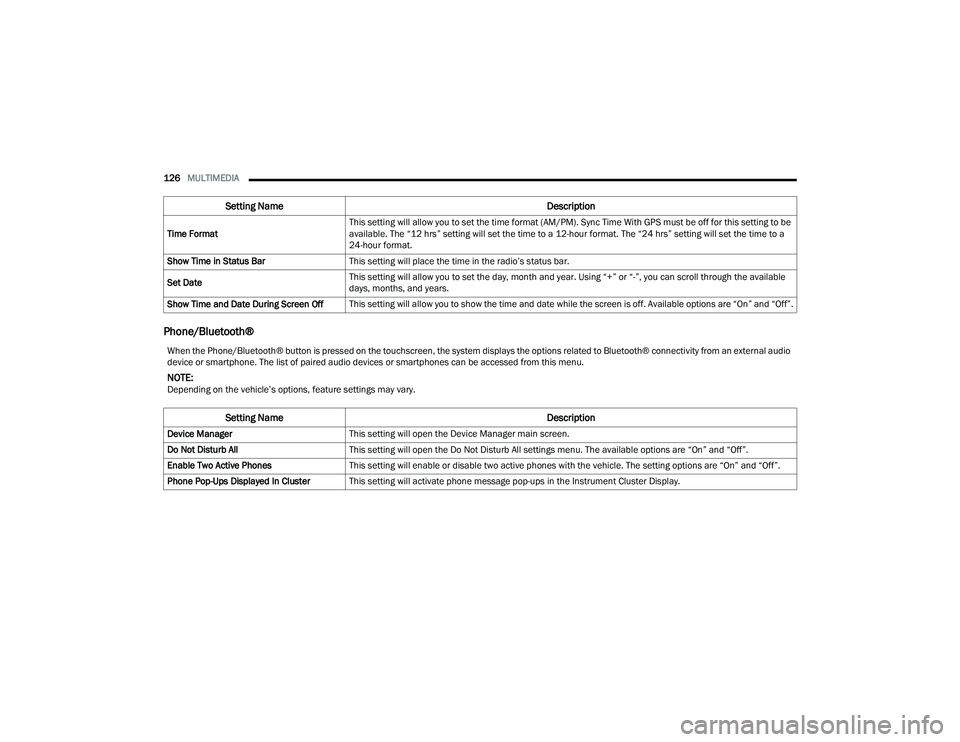
Phone/Bluetooth®
Time Format This setting will allow you to set the time format (AM/PM). Sync Time With GPS must be off for this setting to be
available. The “12 hrs” setting will set the time to a 12-hour format. The “24 hrs” setting will set the time to a
24-hour format.
Show Time in Status Bar This setting will place the time in the radio’s status bar.
Set Date This setting will allow you to set the day, month and year. Using “+” or “-”, you can scroll through the available
days, months, and years.
Show Time and Date During Screen Off This setting will allow you to show the time and date while the screen is off. Available options are “On” and “Off”.
Setting Name Description
When the Phone/Bluetooth® button is pressed on the touchscreen, the system displays the options related to Bluetooth® connectivity from an external audio
device or smartphone. The list of paired audio devices or smartphones can be accessed from this menu.
NOTE:Depending on the vehicle’s options, feature settings may vary.
Setting NameDescription
Device ManagerThis setting will open the Device Manager main screen.
Do Not Disturb All This setting will open the Do Not Disturb All settings menu. The available options are “On” and “Off”.
Enable Two Active Phones This setting will enable or disable two active phones with the vehicle. The setting options are “On” and “Off”.
Phone Pop-Ups Displayed In Cluster This setting will activate phone message pop-ups in the Instrument Cluster Display.
22_VF_OM_EN_USC_t.book Page 126
Page 134 of 268
132MULTIMEDIA
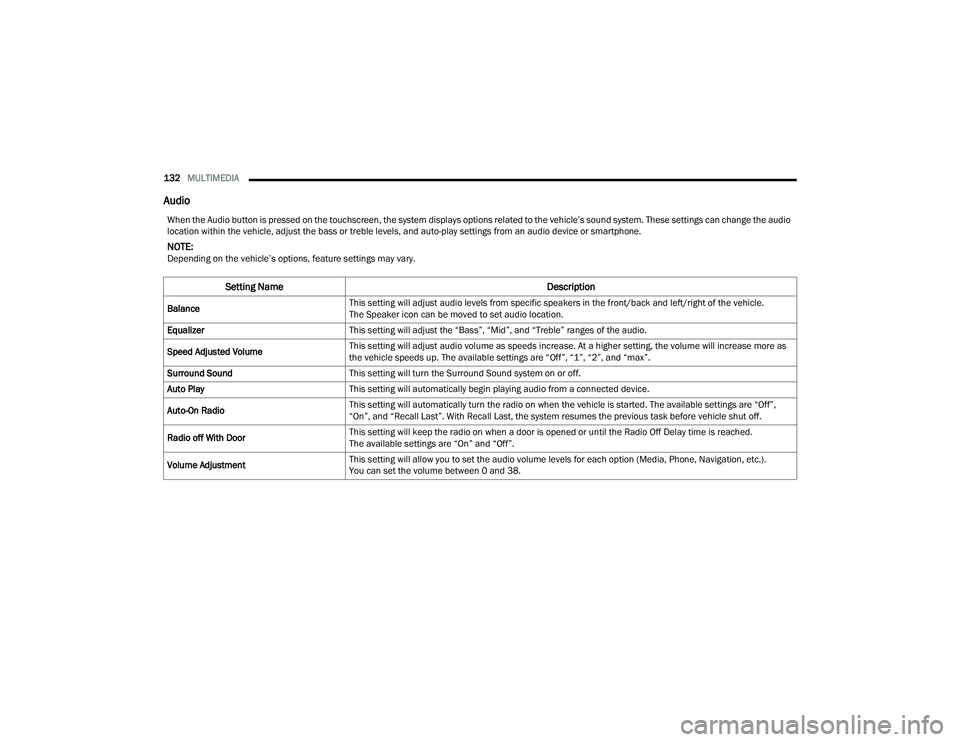
Audio
When the Audio button is pressed on the touchscreen, the system displays options related to the vehicle’s sound system. These settings can change the audio
location within the vehicle, adjust the bass or treble levels, and auto-play settings from an audio device or smartphone.
NOTE:Depending on the vehicle’s options, feature settings may vary.
Setting Name Description
BalanceThis setting will adjust audio levels from specific speakers in the front/back and left/right of the vehicle.
The Speaker icon can be moved to set audio location.
Equalizer This setting will adjust the “Bass”, “Mid”, and “Treble” ranges of the audio.
Speed Adjusted Volume This setting will adjust audio volume as speeds increase. At a higher setting, the volume will increase more as
the vehicle speeds up. The available settings are “Off”, “1”, “2”, and “max”.
Surround Sound This setting will turn the Surround Sound system on or off.
Auto Play This setting will automatically begin playing audio from a connected device.
Auto-On Radio This setting will automatically turn the radio on when the vehicle is started. The available settings are “Off”,
“On”, and “Recall Last”. With Recall Last, the system resumes the previous task before vehicle shut off.
Radio off With Door This setting will keep the radio on when a door is opened or until the Radio Off Delay time is reached.
The available settings are “On” and “Off”.
Volume Adjustment This setting will allow you to set the audio volume levels for each option (Media, Phone, Navigation, etc.).
You can set the volume between 0 and 38.
22_VF_OM_EN_USC_t.book Page 132
Page 135 of 268

MULTIMEDIA133
Notifications
SiriusXM® Setup
When the Notifications button is pressed on the touchscreen, the system displays the options related to Notifications for the system.
NOTE:Depending on the vehicle’s options, feature settings may vary.
Setting Name Description
Notification SoundsTurn this setting on or off to hear notification sounds throughout your system.
App Drawer Favoriting Pop-Ups This setting turns the App Favorited pop-up on or off.
App Drawer Unfavoriting Pop-Ups This setting turns the App Unfavorited pop-up on or off.
New Text Message Pop-Ups This setting turns receiving/storing a pop-up for new text messages of any connected phone on or off.
Missed Calls Message This setting turns receiving/storing a pop-up for missed calls of any connected phone on or off.
Navigation Pop-Ups This setting turns receiving/storing predictive Navigation Pop-Ups on or off.
When the SiriusXM® Setup button is pressed on the touchscreen, the system displays the options related to SiriusXM® satellite radio. These settings can be
used to skip specific radio channels and restart favorite songs from the beginning.
NOTE:
A subscription to SiriusXM® satellite radio is required for these settings to be functional.
Depending on the vehicle’s options, feature settings may vary.
Setting Name Description
SiriusXM® Account, Profile, And SettingsThis setting will redirect you to the SiriusXM® settings menu within the SiriusXM® menu.
Block Explicit This setting will skip over content labeled as explicit. The available settings are “On” and “Off”.
5
22_VF_OM_EN_USC_t.book Page 133
Page 137 of 268
MULTIMEDIA135
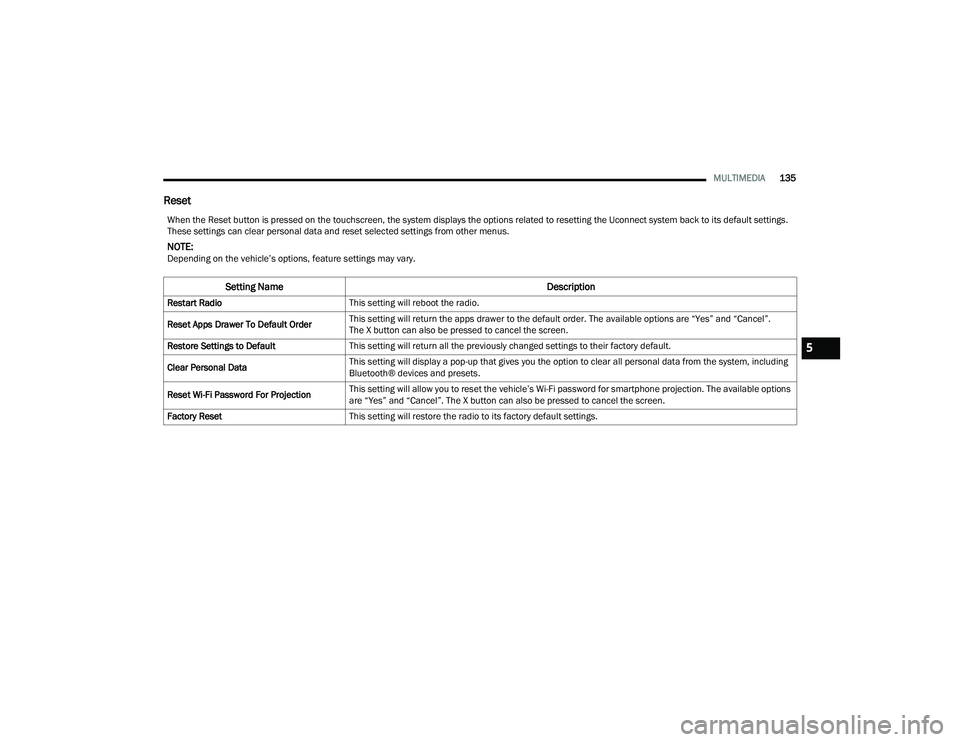
Reset
When the Reset button is pressed on the touchscreen, the system displays the options related to resetting the Uconnect system back to its default settings.
These settings can clear personal data and reset selected settings from other menus.
NOTE:Depending on the vehicle’s options, feature settings may vary.
Setting Name Description
Restart RadioThis setting will reboot the radio.
Reset Apps Drawer To Default Order This setting will return the apps drawer to the default order. The available options are “Yes” and “Cancel”.
The X button can also be pressed to cancel the screen.
Restore Settings to Default This setting will return all the previously changed settings to their factory default.
Clear Personal Data This setting will display a pop-up that gives you the option to clear all personal data from the system, including
Bluetooth® devices and presets.
Reset Wi-Fi Password For Projection This setting will allow you to reset the vehicle’s Wi-Fi password for smartphone projection. The available options
are “Yes” and “Cancel”. The X button can also be pressed to cancel the screen.
Factory Reset This setting will restore the radio to its factory default settings.
5
22_VF_OM_EN_USC_t.book Page 135
Page 138 of 268
136MULTIMEDIA
RADIO OPERATION AND MOBILE PHONES
Under certain conditions, the mobile phone being
on in your vehicle can cause erratic or noisy
performance from your radio. This condition may
be lessened or eliminated by repositioning the
mobile phone within the vehicle. This condition is
not harmful to the radio. If your radio performance
does not satisfactorily improve from repositioning
the mobile phone, it is recommended that the
volume be turned down or off during mobile phone
operation when not using the Uconnect system.
REGULATORY AND SAFETY
I
NFORMATION
US/CANADA
Exposure to Radio Frequency Radiation
The radiated output power of the internal wireless
radio is far below the FCC and IC radio frequency
exposure limits. Nevertheless, the wireless radio
will be used in such a manner that the radio is
8 inch (20 cm) or further from the human body.
The internal wireless radio operates within
guidelines found in radio frequency safety
standards and recommendations, which reflect
the consensus of the scientific community. The radio manufacturer believes the internal
wireless radio is safe for use by consumers.
The level of energy emitted is far less than the
electromagnetic energy emitted by wireless
devices such as mobile phones. However, the use
of wireless radios may be restricted in some
situations or environments, such as aboard
airplanes. If you are unsure of restrictions, you are
encouraged to ask for authorization before turning
on the wireless radio Ú
page 256.
22_VF_OM_EN_USC_t.book Page 136