lights RAM PROMASTER 2022 Owner's Manual
[x] Cancel search | Manufacturer: RAM, Model Year: 2022, Model line: PROMASTER, Model: RAM PROMASTER 2022Pages: 268, PDF Size: 13.26 MB
Page 89 of 268

STARTING AND OPERATING87
Distance Settings
To adjust the distance setting, push the Distance
Setting Button and release. Each time the button is
pushed, the distance setting decreases by one bar
(longer). Once the longest setting is reached, if the
button is pushed again it will be set to the shortest
setting available.
If a slower moving vehicle is detected in the same
lane, the instrument cluster display will show the
ACC Set With Target Detected Light. The system
will then adjust vehicle speed automatically to
maintain the distance setting, regardless of the
set speed.
The vehicle will then maintain the set distance until:
The vehicle ahead accelerates to a speed above
the set speed.
The vehicle ahead moves out of your lane or
view of the sensor.
The distance setting is changed.
The system disengages Ú
page 84.
The maximum braking applied by ACC is limited;
however, the driver can always apply the brakes
manually, if necessary.
NOTE:The brake lights will illuminate whenever the ACC
system applies the brakes.
A Proximity Warning will alert the driver if ACC
predicts that its maximum braking level is not
sufficient to maintain the set distance. If this
occurs, a visual alert “BRAKE!” will flash in the
instrument cluster display and a chime will sound
while ACC continues to apply its maximum braking
force.
NOTE:The “BRAKE!” screen in the instrument cluster
display is a warning for the driver to take action
and does not necessarily mean that the Forward
Collision Warning system is applying the brakes
autonomously.
Overtake Aid
When driving with Adaptive Cruise Control (ACC)
engaged and following a vehicle, the system will
provide an additional acceleration up to the ACC
set speed to assist in passing the vehicle. This
additional acceleration is triggered when the driver
utilizes the left turn signal and will only be active
when passing on the left hand side.
ACC Operation At Stop
In the event that the ACC system brings your
vehicle to a standstill while following a vehicle in
front, if the vehicle in front starts moving within two
seconds of your vehicle coming to a standstill, your
vehicle will resume motion without the need for
any driver action.
If the vehicle in front does not start moving within
two seconds of your vehicle coming to a standstill,
the driver will either have to push the RES (resume)
button, or apply the accelerator pedal to reengage
the ACC to the existing set speed.
NOTE:After the ACC system holds your vehicle at a stand -
still for approximately three consecutive minutes,
the parking brake will be activated, and the ACC
system will be cancelled.
While ACC is holding your vehicle at a standstill, if
the driver seat belt is unbuckled or the driver door
is opened, the parking brake will be activated, and
the ACC system will be cancelled.
1 — Longest Distance Setting (Four Bars)
2 — Medium Distance Setting (Two Bars)
3 — Long Distance Setting (Three Bars)
4 — Short Distance Setting (One Bar)
4
22_VF_OM_EN_USC_t.book Page 87
Page 96 of 268

94STARTING AND OPERATING
NOTE:Along with the color change of the steering wheel
image, the “glow” effect of the instrument cluster
display will also change to green when ADA is
engaged.
System Engagement Conditions
The following conditions must be met before the
system will engage:
Active Driving Assist system is enabled
ACC is engaged
System detects visible lane markings
Vehicle is traveling below 93 mph (150 km/h)
Vehicle is centered in lane
Turn signal is not activated
Vehicle is not in a tight curve
Driver has hands on steering wheel
NOTE:For the system to detect the driver’s hands on the
steering wheel, the wheel must be gripped on the
outside. Gripping the inside areas of the steering
wheel will not satisfy the hands-on condition to
engage the system.
Do Not Grip Inside Of Steering Wheel
System Deactivation
The system will be deactivated in any of the
following situations:
If the system has detected driver inattentive -
ness, and has gone through all escalation warn -
ings after hands are no longer detected on the
steering wheel
If lane markings are no longer detected
If the Active Driving Assist on/off button is
pushed again (ADA will turn off)
If a turn signal is used
If the driver applies torque to the steering wheel
If the vehicle speed exceeds 93 mph (150 km/h)
If the ACC system is deactivated
If the Forward Collision Warning (FCW) system
becomes active and is providing warnings/braking
NOTE:
Pushing the Active Driving Assist on/off button
will turn the system off. All other deactivation
conditions will place the system back into the
“enabled” state with the steering wheel indi -
cator displayed in grey until all engagement
conditions are met again.
When the system is deactivated, the system
status indicator lights will turn off, Active Lane
Management will return to its previous state,
and ACC will disable.
INDICATIONS ON THE DISPLAY
The Active Driving Assist system status can always
be viewed in the instrument cluster display, and
status changes are shown by changes in color of
the system’s indicator lights.
As the system detects driver inattentiveness as
previously described Ú page 92, the system
status indicator lights will change from green, to
yellow, to red, while the steering wheel icon on
the display moves up the screen to the center.
The following indicators will change in color as
warnings to the driver escalate:
Active Driving Assist Indicator (steering wheel
icon in the instrument cluster display)
Glow effect of the instrument cluster display
22_VF_OM_EN_USC_t.book Page 94
Page 97 of 268

STARTING AND OPERATING95
If driver attention is not returned, the system will
deactivate.
Active Driving Assist Indicators Are Off
ADA is not turned on/enabled by the driver.
Active Driving Assist Indicators Are Grey
ADA is turned on/enabled by the driver, but the
system is not actively providing steering to the
vehicle.
Active Driving Assist Indicators Are Green
System is actively steering the vehicle and the
system detects driver is attentive.
Active Driving Assist Indicators Are Yellow
Driver inattentiveness has been detected,
warning the driver to place hands on the
steering wheel.
Active Driving Assist Indicators Are Red
Driver inattentiveness is still being detected,
warning the driver to place hands on the
steering wheel.
NOTE:The driver MUST replace hands on the steering
wheel and take control of the vehicle when the
system is deactivated.
Active Driving Assist Cancelled Message
MINIMUM RISK MANEUVER
If the driver removes the hands from the steering
wheel, a counter will start in order to display and
activate visual and acoustic alerts. When the
hands absence is detected the system will start
Minimum Risk Maneuver for bringing the vehicle in
a safe position.
After 23 seconds from the absence of the hands
on the steering wheel, the Adaptive System Cruise
Control will apply a brake jerk to warn the driver to
take vehicle control. If, after another 3 seconds the
driver does not take the control of the vehicle, the
system will apply a second brake jerk.Subsequently, if the absence of hands on the
steering wheel persists, the system will apply an
automatic braking intervention to bring the vehicle
to the stop. As soon as the standstill condition is
reached, the hazard emergency lights will be
activated. Then, the system will unlock the doors
(if previously locked). If the driver will take the
control of the vehicle during the Minimum Risk
Maneuver by placing the hands on the steering
wheel or pressing the pedal throttle, the system
will behave normally and the Minimum Risk
Maneuver will be stopped.
SYSTEM STATUS
Along with changes in the system’s indicator lights
(green, yellow, and red), the system can also issue a
steering wheel vibration to accompany these warnings.
The vibration warning (if enabled) will occur if the
vehicle crosses a lane marker, for example, when
driving on a tight curve. This feature can be turned on
or off within the Uconnect system
Ú
page 120.
4
22_VF_OM_EN_USC_t.book Page 95
Page 98 of 268

96STARTING AND OPERATING
SYSTEM OPERATION/LIMITATIONS
The Active Driving Assist system DOES NOT:
Warn or prevent collisions with other vehicles
Steer your vehicle around stopped vehicles,
slower vehicles, construction equipment,
pedestrians, or animals
Respond to traffic lights or stop signs
Merge onto highways or exit off ramps
Turn your vehicle
Change lanes
React to cross traffic The Active Driving Assist system may have limited
or reduced functionality when one of the following
conditions occur:
The vehicle’s radar sensors and/or forward
facing camera is damaged, covered, or
obstructed (e.g. by mud, ice, snow, etc.)
Driving near highway toll booths
NOTE:If damage to the windshield occurs, have the wind
-
shield replaced by an authorized dealer as soon as
possible.
PARKSENSE FRONT/REAR PARK ASSIST —
IF EQUIPPED
The ParkSense Park Assist system provides visual
and audible indications of the distance between
the rear, and if equipped, the front fascia/bumper
and a detected obstacle when backing up or
moving forward (e.g. during a parking maneuver).
For limitations of the system (e.g. during a parking
maneuver), see Ú page 101.
NOTE:
The system is designed to assist the driver and
not to substitute the driver.
The driver must stay in full control of the vehicle's
acceleration and braking and is responsible for
controlling the vehicle's movements.
ParkSense will retain the last system state
(enabled or disabled) from the last ignition cycle
when the ignition is placed in the ON/RUN position.
ParkSense is active when the gear selector is
shifted to REVERSE or to a forward gear and an
obstacle is detected, as long as the system is on.
When the gear selector shifted to NEUTRAL or
PARK, the system becomes inactive. When the
vehicle is moving forward, the system will remain
active until the vehicle speed remains below
approximately 11 mph (18 km/h). Reducing the
speed approximately below 9 mph (15 km/h), the
system will come back active. When the vehicle is
moving in REVERSE, the system will remain active
as long as the speed remains below the maximum
operating speed of 7 mph (11 km/h). When the
maximum speed limit is exceeded, the system is
disabled and the ParkSense switch LED with
illuminate. The system will become active again if
the vehicle speed reduces below approximately
6 mph (9 km/h).
WARNING!
To prevent serious injury or death:
Always remain alert and be ready to take
control of the vehicle in the event that the
Active Driving Assist system disables.
Always keep your hands on the steering wheel
when the Active Driving Assist system is activated.
Maintain a safe distance from other vehicles
and pay attention to traffic conditions.
Do not place any objects on the steering wheel
(e.g. steering wheel covers) which could inter
-
fere with the hand detection sensors.
22_VF_OM_EN_USC_t.book Page 96
Page 117 of 268

STARTING AND OPERATING115
Towing Requirements — Trailer Lights And
Wiring
Whenever you pull a trailer, regardless of the trailer
size, stoplights and turn signals on the trailer are
required for motoring safety.
The Trailer Tow Package may include a four- and
seven-pin wiring harness. Use a factory approved
trailer harness and connector.
NOTE:Do not cut or splice wiring into the vehicle’s wiring
harness. The electrical connections are all complete to the
vehicle but you must mate the harness to a trailer
connector. Refer to the following illustrations.
NOTE:
Disconnect trailer wiring connector from the
vehicle before launching a boat (or any other
device plugged into vehicle’s electrical connect)
into water.
Be sure to reconnect after clear from water area.
Four-Pin Connector Seven-Pin Connector
TOWING TIPS
Before towing, practice turning, stopping, and
backing up the trailer in an area located away from
heavy traffic.
Towing any trailer will increase your stopping
distance. When towing, you should allow for
additional space between your vehicle and the
vehicle in front of you. Failure to do so could
result in an accident.
CAUTION!
If the trailer weighs more than 1,000 lb (453 kg)
loaded, it should have its own brakes and they
should be of adequate capacity. Failure to do
this could lead to accelerated brake lining wear,
higher brake pedal effort, and longer stopping
distances.
WARNING!
1 — Ground
2 — Tail Lamp
3 — Left Stop/Turn
4 — Right Stop/Turn
1 — Backup Lamps
2 — Tail Lamp
3 — Left Stop/Turn
4 — Ground
5 — Battery
6 — Right Stop/Turn
7 — Electric Brakes
4
22_VF_OM_EN_USC_t.book Page 115
Page 123 of 268
MULTIMEDIA121
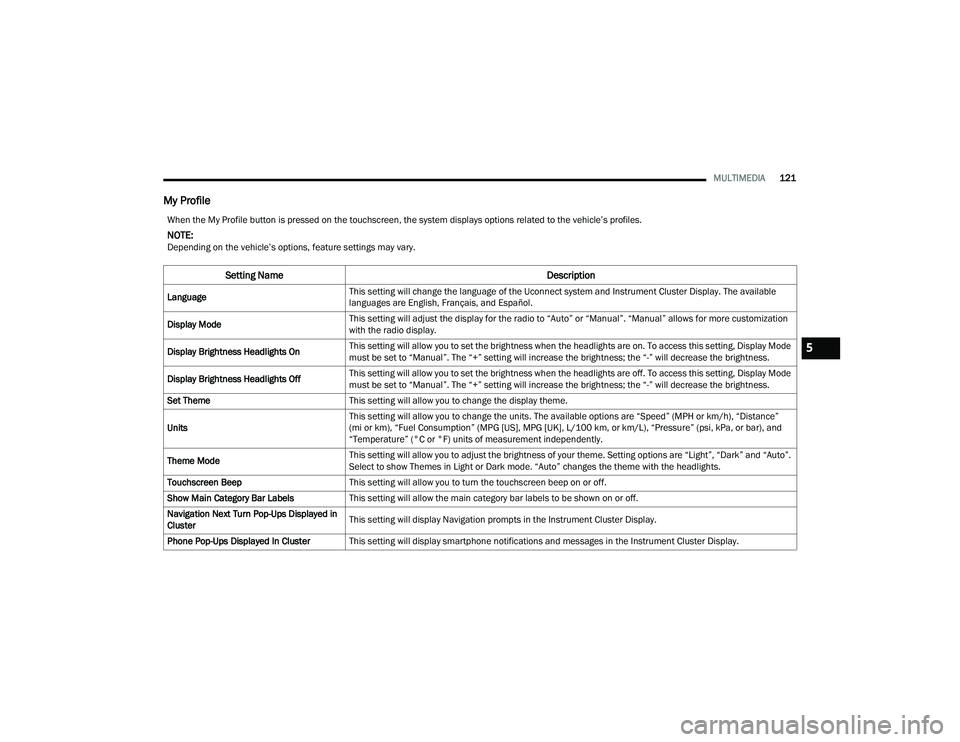
My Profile
When the My Profile button is pressed on the touchscreen, the system displays options related to the vehicle’s profiles.
NOTE:Depending on the vehicle’s options, feature settings may vary.
Setting Name Description
LanguageThis setting will change the language of the Uconnect system and Instrument Cluster Display. The available
languages are English, Français, and Español.
Display Mode This setting will adjust the display for the radio to “Auto” or “Manual”. “Manual” allows for more customization
with the radio display.
Display Brightness Headlights On This setting will allow you to set the brightness when the headlights are on. To access this setting, Display Mode
must be set to “Manual”. The “+” setting will increase the brightness; the “-” will decrease the brightness.
Display Brightness Headlights Off This setting will allow you to set the brightness when the headlights are off. To access this setting, Display Mode
must be set to “Manual”. The “+” setting will increase the brightness; the “-” will decrease the brightness.
Set Theme This setting will allow you to change the display theme.
Units This setting will allow you to change the units. The available options are “Speed” (MPH or km/h), “Distance”
(mi or km), “Fuel Consumption” (MPG [US], MPG [UK], L/100 km, or km/L), “Pressure” (psi, kPa, or bar), and
“Temperature” (°C or °F) units of measurement independently.
Theme Mode This setting will allow you to adjust the brightness of your theme. Setting options are “Light”, “Dark” and “Auto”.
Select to show Themes in Light or Dark mode. “Auto” changes the theme with the headlights.
Touchscreen Beep This setting will allow you to turn the touchscreen beep on or off.
Show Main Category Bar Labels This setting will allow the main category bar labels to be shown on or off.
Navigation Next Turn Pop-Ups Displayed in
Cluster This setting will display Navigation prompts in the Instrument Cluster Display.
Phone Pop-Ups Displayed In Cluster This setting will display smartphone notifications and messages in the Instrument Cluster Display.
5
22_VF_OM_EN_USC_t.book Page 121
Page 125 of 268
MULTIMEDIA123
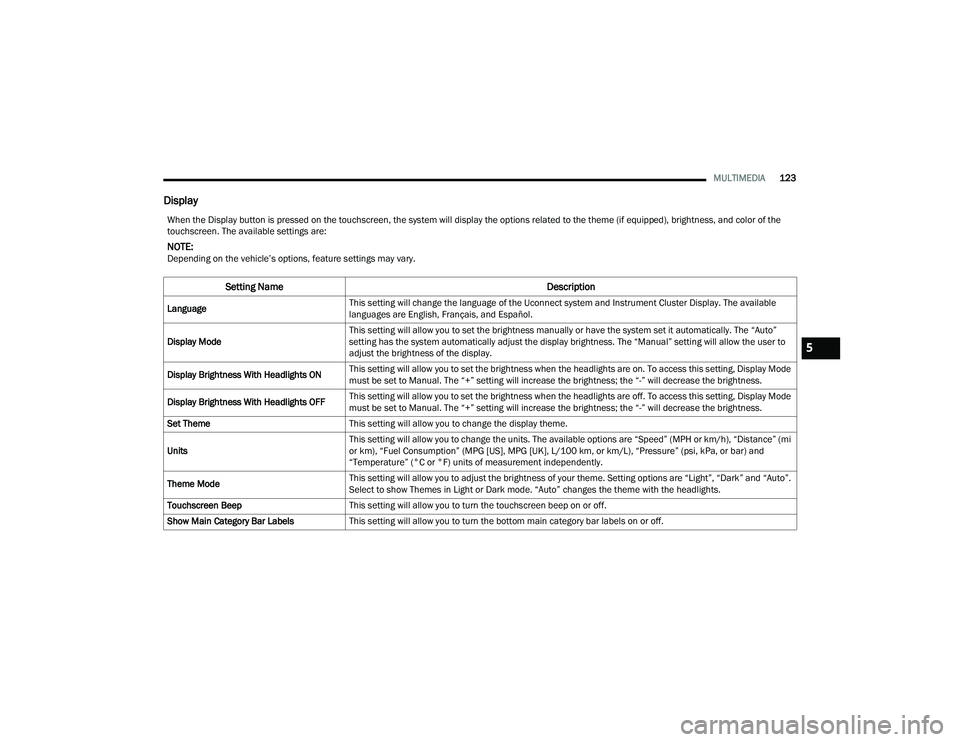
Display
When the Display button is pressed on the touchscreen, the system will display the options related to the theme (if equipped), brightness, and color of the
touchscreen. The available settings are:
NOTE:Depending on the vehicle’s options, feature settings may vary.
Setting Name Description
LanguageThis setting will change the language of the Uconnect system and Instrument Cluster Display. The available
languages are English, Français, and Español.
Display Mode This setting will allow you to set the brightness manually or have the system set it automatically. The “Auto”
setting has the system automatically adjust the display brightness. The “Manual” setting will allow the user to
adjust the brightness of the display.
Display Brightness With Headlights ON This setting will allow you to set the brightness when the headlights are on. To access this setting, Display Mode
must be set to Manual. The “+” setting will increase the brightness; the “-” will decrease the brightness.
Display Brightness With Headlights OFF This setting will allow you to set the brightness when the headlights are off. To access this setting, Display Mode
must be set to Manual. The “+” setting will increase the brightness; the “-” will decrease the brightness.
Set Theme This setting will allow you to change the display theme.
Units This setting will allow you to change the units. The available options are “Speed” (MPH or km/h), “Distance” (mi
or km), “Fuel Consumption” (MPG [US], MPG [UK], L/100 km, or km/L), “Pressure” (psi, kPa, or bar) and
“Temperature” (°C or °F) units of measurement independently.
Theme Mode This setting will allow you to adjust the brightness of your theme. Setting options are “Light”, “Dark” and “Auto”.
Select to show Themes in Light or Dark mode. “Auto” changes the theme with the headlights.
Touchscreen Beep This setting will allow you to turn the touchscreen beep on or off.
Show Main Category Bar Labels This setting will allow you to turn the bottom main category bar labels on or off.
5
22_VF_OM_EN_USC_t.book Page 123
Page 127 of 268

MULTIMEDIA125
Clock & Date
LaneSense Warning This setting will set the warning type for LaneSense. The available options are “Early”, “Medium”, and “Late”.
LaneSense Strength
This setting will set the strength of the LaneSense system. The available options are “Low”, “Medium”, and “High”.
ParkSense This setting will change the type of ParkSense alert when a close object is detected. The available options are
“Sound” which provides only an audible chime and “Sounds & Display” which provides both a sound and a
visual display.
Front ParkSense Volume
This setting adjusts the volume of the Front ParkSense system. The available settings are “Low”, “Medium”, and “High”.
Rear ParkSense Volume
This setting adjusts the volume of the Rear ParkSense system. The available settings are “Low”, “Medium”, and “High”.
Drowsy Driver Detection This setting will monitor the driver’s driving habits and warn you of any changes, indicating that the driver may
be drowsy. The available options are “On” and “Off”.
Blind Spot Alert This setting will change the type of alert provided when an object is detected in a vehicle’s blind spot. The “Off”
setting will turn off Blind Spot Alert. The “Lights” setting will activate the Blind Spot Alert lights on the outside
mirrors. The “Lights & Chime” setting will activate the lights on the outside mirrors and an audible chime.
Setting Name
Description
When the Clock & Date button is pressed on the touchscreen, the system displays the different options related to the vehicle’s internal clock.
NOTE:Depending on the vehicle’s options, feature settings may vary.
Setting NameDescription
Sync Time With GPS
This setting will sync the time to the GPS receiver in the system. The system will control the time via the GPS location.
Set Time
This setting will allow you to set the hours and minutes. Sync Time With GPS must be off for this setting to be
available. The “+” setting will increase the hours and minutes. The “-” setting will decrease the hours and minutes.
5
22_VF_OM_EN_USC_t.book Page 125
Page 131 of 268

MULTIMEDIA129
Lights
When the Lights button is pressed on the touchscreen, the system displays the options related to the vehicle’s exterior and interior lights.
NOTE:
When the “Daytime Running Lights” feature is selected, the daytime running lights can be turned on or off. This feature is only allowed by law in the country
of the vehicle purchased.
Depending on the vehicle’s options, feature settings may vary.
Setting Name Description
Headlight Off DelayThis setting will allow you to set the amount of time it takes for the headlights to shut off after the vehicle is
turned off. The available settings are “0 sec”, “30 sec”, “60 sec”, and “90 sec”.
Greeting Lights When the “Greeting Lights” feature is selected, it allows the adjustment of the amount of time the headlights
remain on after the doors are unlocked with the key fob. The available settings are “0 sec”, “30 sec”, “60 sec”,
and “90 sec”.
Auto Dim High Beams This setting will allow you to turn the Auto Dim High Beams on or off.
Daytime Running Lights This setting will allow you to turn the Daytime Running Lights on or off.
Cornering Lights When this setting is selected, if the steering wheel rotation angle is large or the turn signal indicators are on, a
light (incorporated in the fog light) will turn on, on the relevant side to improve visibility at night.
Flash Lights With Lock
This setting will allow you to turn the flashing of the lights when the Lock button is pushed on the key fob on or off.
Headlights with Wipers This setting will turn the headlights on when the wipers are activated.
5
22_VF_OM_EN_USC_t.book Page 129
Page 132 of 268

130MULTIMEDIA
Brakes
Doors & Locks
When the Brakes button is pressed on the touchscreen, the system will display a setting related to the vehicle’s brake system.
NOTE:Depending on the vehicle’s options, feature settings may vary.
Setting Name Description
Auto Park BrakeThis setting will turn the Auto Park Brake on or off.
Brake Service This setting will allow you to set the brakes for service. When the setting is selected, a pop-up will display with
“Yes” and “No” options.
When the Doors & Locks button is pressed on the touchscreen, the system displays the options related to locking and unlocking the vehicle’s doors.
NOTE:
The Auto Door Locks feature default condition is enabled. When enabled, the door locks will lock automatically when the vehicle’s speed exceeds 12 mph
(20 km/h). The Auto Door Locks feature can be enabled or disabled by an authorized dealer per written request of the customer. Please see an authorized
dealer for service.
Depending on the vehicle’s options, feature settings may vary.
Setting Name
Description
Auto Unlock On ExitThis setting will unlock the doors when any of the doors are opened from the inside.
Flash Lights With Lock
This setting will allow you to turn the flashing of the lights when the Lock button is pushed on the key fob on or off.
22_VF_OM_EN_USC_t.book Page 130