warning RAM PROMASTER CITY 2021 Repair Manual
[x] Cancel search | Manufacturer: RAM, Model Year: 2021, Model line: PROMASTER CITY, Model: RAM PROMASTER CITY 2021Pages: 280, PDF Size: 15.78 MB
Page 101 of 280
MULTIMEDIA99
Safety And General Information
Safety Guidelines
Please read the manual carefully before using
the system. It contains instructions on how to
use the system in a safe and effective manner.
Please read and follow these safety
precautions. Failure to do so may result in injury
or property damage.
Glance at the screen only when it is safe to do
so. If prolonged viewing of the screen is
required, park in a safe location and set the
parking brake.
Stop use immediately if a problem occurs.
Failure to do so may cause injury or damage
to the product. Return it to an authorized
dealer to repair.
Ensure the volume level of the system is set
to a level that still allows you to hear outside
traffic and emergency vehicles.
Safe Usage Of The Uconnect System
Your system is a sophisticated electronic
device. Do not let young children use your
system.
Permanent hearing loss may occur if you play
your music or sound system at loud volumes.
Exercise caution when setting the volume on
your system.
Keep drinks, rain and other sources of mois -
ture away from your system. Besides damage
to your system, moisture can cause electric
shocks as with any electronic device. NOTE:
Many features of this system are speed depen
-
dent. For your own safety, it is not possible to
use some of the touchscreen features while the
vehicle is in motion.
Care And Maintenance
Touchscreen
Do not press the touchscreen with any hard
or sharp objects (pen, USB stick, jewelry, etc.)
which could scratch the touchscreen surface!
Do not spray any liquid or caustic chemicals
directly on the screen! Use a clean and dry
microfiber lens cleaning cloth in order to
clean the touchscreen.
If necessary, use a lint-free cloth dampened
with a cleaning solution, such as isopropyl
alcohol or an isopropyl alcohol and water
solution ratio of 50:50. Be sure to follow the
solvent manufacturer's precautions and
directions Ú page 265.
WARNING!
ALWAYS drive safely with your hands on the
steering wheel. You have full responsibility
and assume all risks related to the use of the
Uconnect features and applications in this
vehicle. Only use Uconnect when it is safe to
do so. Failure to do so may result in an
accident involving serious injury or death.
CAUTION!
Do NOT attach any object to the touchscreen,
doing so can result in breaking the
touchscreen.
5
21_VM_OM_EN_USC_t.book Page 99
Page 112 of 280
110MULTIMEDIA
NOTE:
Your phone must be capable of SMS messaging
via Bluetooth® for messaging features to work
properly.
Your mobile phone’s audio is transmitted
through your vehicle’s audio system; the system
will automatically mute your radio when using
the Uconnect Phone.
For Uconnect customer support:
US — visit UconnectPhone.com or call
877-855-8400
Canada — visit UconnectPhone.com or call800-465-2001 (English)
800-387-9983 (French)
Visit UconnectPhone.com
Uconnect Phone allows you to transfer calls
between the system and your mobile phone as
you enter or exit your vehicle and enables you to
mute the system's microphone for private
conversation. The Uconnect Phone is driven through your
Bluetooth® “Hands-Free Profile” mobile phone.
Uconnect features Bluetooth® technology — the
global standard that enables different
electronic devices to connect to each other
without wires or a docking station. Ensure you
phone is turned on with Bluetooth® active and
has been paired to the vehicle's Uconnect
Phone. The Uconnect Phone allows up to
10 mobile phones or audio devices to be linked
to the system. Only one linked (or paired) mobile
phone and one audio device can be used with
the system at a time.
Uconnect Phone Button
The Uconnect Phone button on your steering
wheel is used to get into the phone mode and
make calls, show recent, incoming or outgoing calls, view phonebook, etc. When you press the
button you will hear a BEEP. The BEEP is your
signal to give a command.
Uconnect Voice Command Button
The Uconnect Voice Command button on your
steering wheel is only used for “barge in” and
when you are already in a call or want to make
another call.
The button on your steering wheel is also used
to access the Voice Commands for the
Uconnect Voice Command features.
Phone Operation
Operation
Voice commands can be used to operate the
Uconnect Phone and to navigate through the
Uconnect Phone menu structure. Voice
commands are required after most Uconnect
Phone prompts. There are two general methods
for how Voice Command works:
1. Say compound commands like “Call John
Smith mobile”.
2. Say the individual commands and allow the system to guide you to complete the task.
WARNING!
ALWAYS drive safely with your hands on the
steering wheel. You have full responsibility
and assume all risks related to the use of the
Uconnect features and applications in this
vehicle. Only use Uconnect when it is safe to
do so. Failure to do so may result in an
accident involving serious injury or death.
21_VM_OM_EN_USC_t.book Page 110
Page 121 of 280
MULTIMEDIA119
Things You Should Know About Uconnect
Phone
Voice Command
For the best performance:
Always wait for the beep before speaking
Speak normally, without pausing, just as you
would speak to a person sitting a few feet/
meters away from you
Ensure that no one other than you is
speaking during a voice command period
Low-To-Medium Blower Setting
Low-To-Medium Vehicle Speed
Low Road Noise
Smooth Road Surface
Fully Closed Windows
Dry Weather Condition Even though the system is designed for many
languages and accents, the system may not
always work for some.
NOTE:
It is recommended that you do not store names
in your Favorites phonebook while the vehicle is
in motion.
Number and name recognition rate is optimized
when the entries are not similar. You can say
“O” (letter “O”) for “0” (zero).
Even though international dialing for most
number combinations is supported, some
shortcut dialing number combinations may not
be supported. Audio Performance
Audio quality is maximized under:
Low-To-Medium Blower Setting
Low-To-Medium Vehicle Speed
Low Road Noise
Smooth Road Surface
Fully Closed Windows
Dry Weather Conditions
Operation From The Driver's Seat
Performance such as audio clarity, echo, and
loudness to a large degree rely on the phone
and network, and not the Uconnect Phone.
Echo at the far end can sometimes be reduced
by lowering the in-vehicle audio volume.
Phone Voice Commands
Making and answering hands-free phone calls
is easy with Uconnect. When the Phonebook
button is illuminated on your touchscreen, your
system is ready. Check UconnectPhone.com for mobile phone compatibility and pairing
instructions.
WARNING!
ALWAYS drive safely with your hands on the
wheel. You have full responsibility and
assume all risks related to the use of the
Uconnect features and applications in this
vehicle. Only use Uconnect when it is safe to
do so. Failure to do so may result in an
accident involving serious injury or death.
5
21_VM_OM_EN_USC_t.book Page 119
Page 132 of 280
130MULTIMEDIA
Voice Command — If Equipped
About Voice command
Instead of pressing the touchscreen to control
your navigation system, you can use your voice
to control navigation.
For example, to switch to 2D view, you can say
“2D view”.
To view a list of available commands, press the
“Help” button in the Main menu and then press
“What can I say?”.
Using Voice Control The following example shows how to use voice
control to plan a journey to your Home address:
1. Push the Voice Recognition button on
the steering wheel to turn on the
microphone.
A screen will pop up with examples of com -
mands.
NOTE:
Press the Help button in the Main menu then
press “What can I say?” to see a full list of
commands.
2. When you hear a beep, say a command of your choice. For example, you can say
“Navigate home”.
NOTE:
For accurate results, speak normally without
trying to articulate words in an unnatural way. If
there is excessive road noise, for example, you
may need to speak directly into the microphone.
3. If the command is correct, say “Yes”. NOTE:
If the command is incorrect, say “No” and
repeat the command after you hear the prompt
and tone again. Your navigation system plans a
route from your current location to your destina-
tion. To stop your navigation system from
listening out for further commands, say
“Cancel”.
Guidance View
The guidance view is used to guide you along
the route to your destination. As soon as you
start driving, your navigation system will
immediately start guiding you to your
destination with spoken instructions and visual
instructions on the touchscreen. You can also
see your current location and details along your
route, including 3D buildings in some cities. The
guidance view is normally in 3D. To show a 2D
map with the map moving in your direction of
travel, change the 2D and 3D settings
Ú
page 135.
WARNING!
ALWAYS drive safely with your hands on the
wheel. You have full responsibility and
assume all risks related to the use of the
Uconnect features and applications in this
vehicle. Only use Uconnect when it is safe to
do so. Failure to do so may result in an
accident involving serious injury or death.
21_VM_OM_EN_USC_t.book Page 130
Page 137 of 280
MULTIMEDIA135
Voices
About Voices
Your navigation system uses sound for some or
all of the following:
Driving directions
Warnings that you set
By selecting “Settings” in the main menu, then
selecting “Voices,” you can change the settings
for how voice instructions are given. Instruction
settings include the following:
Read Early Instructions Out Loud : This setting
allows to you to hear early instructions. For
example, an early instruction could be, “After
two miles, take the exit right”.
Read Road Numbers Out Loud (if equipped):
Use this setting to control whether road
numbers are read out loud as part of naviga -
tion instructions.
Read Road Sign Information Out Loud (if
equipped): Use this setting to control whether
road sign information is read out loud as part
of navigation instructions.
Read Street Names Out Loud (if equipped):
Use this setting to control whether street
names are read out loud as part of navigation
instructions.
Read Foreign Street Names Out Loud (if
equipped): Use this setting to control whether
foreign street names are read out loud as
part of navigation instructions. Changing The Volume Level
To change the volume of your navigation
system, use the Volume knob on the radio when
an instruction is being given.
Settings
About Settings
You can change the way your
navigation system looks and behaves.
Most of the settings on your system
can be accessed by pressing the
Settings button in the Main Menu.
Zoom Button
Press the zoom in + button to zoom in and the zoom out – button to zoom
out.
Switch View Button Press the Switch View button to change between the map view and the
guidance view.
Feature
Description
5
21_VM_OM_EN_USC_t.book Page 135
Page 139 of 280
MULTIMEDIA137
Route Planning
Select this setting to control how your system
plans routes. The following options are
available:
Always Take the Fastest Route
You can choose whether you would like the
navigation system to always default to the
fastest route.
Ask Me So I Can Choose
You can choose whether you would like the
navigation system to allow you to pick the
route to the destination.
Don’t Ask me
You can choose whether you would like the
navigation system to select the route to the
destination.
Fastest Route
You can choose whether you would like the
navigation system to choose the fastest
route to the destination.
Shortest Route
You can choose whether you would like the
navigation system to choose the shortest
route by distance to the destination.
Most Eco-Friendly Route
You can choose whether you would like the
navigation system to choose the route that
will consume the least amount of energy.
Avoid Interstate Highways
You can choose whether you would like the
navigation system to avoid all highways while
navigating to the destination.
Sounds And Warnings
Select this setting to change the following
sounds and warnings:
Warning Type : You can choose the type of
warnings you want to hear when you are
driving:
Warning Sounds: Hear only warning
sounds
None: No warning sounds are given
Safety Warnings : You can change settings for
whether you want to be warned, never
warned, or warned only if you are speeding.
The following options are available:
When speeding: This warning is given
when you exceed the speed limit by more
than 3 mph (5 km/h). When you are
speeding, the speed panel also turns red
in the guidance view.
Driver Safety: Select this setting to make
some features locked while the vehicle is
in motion.
NOTE:
This feature increases safety by minimizing
driver distraction. When driver safety is on, a
message tells you when the lock is enabled.
System
Select this setting to reset all other settings.
Selecting “Reset” will delete all saved places
and settings and restore the standard settings.
This includes the language, voice settings,
warning settings, and theme.
NOTE:
This is not a software update and will not affect
the version of the software application installed
on your Uconnect system.
5
21_VM_OM_EN_USC_t.book Page 137
Page 143 of 280
MULTIMEDIA141
Getting Help
Press the Help button in the Main menu or from
the Settings menu to see the following
information:
About: Press this button to view
information about your Uconnect
system. This information includes:
Serial number
Application version
Installed maps
Legal information, such as Copyright and
Licenses for EULA and Open Source
Important Safety Notices And Warnings
Global Positioning System
The Global Positioning System (GPS) is a
satellite-based system that provides location
and timing information around the globe. GPS is
operated and controlled under the sole
responsibility of the Government of the United
States of America, which is responsible for its
availability and accuracy. Any changes in GPS
availability and accuracy, or in environmental
conditions, may impact the operation of this navigation system. TomTom® does not accept
any liability for the availability and accuracy of
GPS.
Use With Care
Use of TomTom® navigation while driving still
means that you need to drive with due care and
attention.
Safety Settings
We recommend using the safety settings to
make your driving as safe as possible. These
are some of the options included in the safety
settings:
Show safety reminders
Warn when driving faster than allowed
You can also drive more safely by using voice
commands to control navigation Ú page 135.
Copyright Notices
© 2020 TomTom®. All rights reserved.
TomTom® and the "two hands" logo are
registered trademarks of TomTom® N.V. or one
of its subsidiaries. Please see
www.tomtom.com/en_us/legal/ for warranties
and end user license agreements applying to
this product. © 2020 TomTom®. All rights reserved. This
material is proprietary and the subject of
copyright protection and/or database rights
protection and/or other intellectual property
rights owned by TomTom® or its suppliers. The
use of this material is subject to the terms of a
license agreement. Any unauthorized copying or
disclosure of this material will lead to criminal
and civil liabilities.
Data Source © 2020 TomTom® All rights
reserved.
The software included in this product contains
copyrighted software that is licensed under the
GPL. A copy of that license can be viewed in the
License section. You can obtain the complete
corresponding source code from us for a period
of three years after our last shipment of this
product. For more information, visit https://
www.tomtom.com/en_gb/opensource or
contact your local TomTom® customer support
team via us.support.tomtom.com/app/
answers/list. Upon request, we will send you a
CD with the corresponding source code.
Linotype, Frutiger and Univers are trademarks
of Linotype GmbH registered in the U.S. Patent
and Trademark Office and may be registered in
certain other jurisdictions. MHei is a trademark
of The Monotype Corporation and may be
registered in certain jurisdictions.
5
21_VM_OM_EN_USC_t.book Page 141
Page 147 of 280
145
(Continued)
SAFETY
SAFETY FEATURES
Four-Wheel Anti-Lock Brake System (ABS)
ABS is designed to aid the driver in maintaining
vehicle control under adverse braking
conditions. The system operates with a
separate computer to modulate hydraulic
pressure, to prevent wheel lock-up and to help
avoid skidding on slippery surfaces.
The system's pump motor runs during an ABS
stop to provide regulated hydraulic pressure.
The pump motor makes a low humming noise
during operation, which is normal.
The ABS includes an amber ABS Warning Light.
When the light is illuminated, the ABS is not
functioning. The system reverts to standard
non-anti-lock brakes. Turning the ignition OFF
and ON again may reset the ABS if the fault
detected was only momentary.When you are in a severe braking condition
involving the use of the ABS, you will experience
some pedal drop as the vehicle comes to a stop.
This is the result of the system reverting to the
base brake system.
Engagement of the ABS may be accompanied
by a pulsing sensation. You may also hear a
clicking noise. These occurrences are normal
and indicate that the system is functioning
properly.
WARNING!
The ABS contains sophisticated electronic
equipment that may be susceptible to inter
-
ference caused by improperly installed or
high output radio transmitting equipment.
This interference can cause possible loss of
anti-lock braking capability. Installation of
such equipment should be performed by
qualified professionals.
Pumping of the Anti-Lock Brakes will
diminish their effectiveness and may lead
to a collision. Pumping makes the stopping
distance longer. Just press firmly on your
brake pedal when you need to slow down or
stop.
The ABS cannot prevent the natural laws of
physics from acting on the vehicle, nor can
it increase braking or steering efficiency
beyond that afforded by the condition of the
vehicle brakes and tires or the traction
afforded.
The ABS cannot prevent collisions,
including those resulting from excessive
speed in turns, following another vehicle
too closely, or hydroplaning.
The capabilities of an ABS equipped vehicle
must never be exploited in a reckless or
dangerous manner that could jeopardize
the user’s safety or the safety of others.
WARNING! (Continued)
6
21_VM_OM_EN_USC_t.book Page 145
Page 148 of 280
146SAFETY
Electronic Brake Control (EBC) System
Your vehicle is equipped with an advanced
Electronic Brake Control (EBC) system that
includes the Brake Assist System (BAS),
Traction Control System (TCS), Hill Start Assist
(HSA), Electronic Stability Control (ESC),
Electronic Roll Mitigation (ERM) and Trailer
Sway Control (TSC). All systems work together to
enhance vehicle stability and control in various
driving conditions and are commonly referred to
as ESC.
Brake Assist System (BAS)
BAS is designed to optimize the vehicle’s
braking capability during emergency braking
maneuvers. The system detects an emergency
braking situation by sensing the rate and
amount of brake application and then applies
optimum pressure to the brakes. This can help
reduce braking distances. The BAS
complements the Anti-Lock Brake System
(ABS). Applying the brakes very quickly results
in the best BAS assistance. To receive the
benefit of the system, you must apply continuous braking pressure during the
stopping sequence (do not “pump” the brakes).
Do not reduce brake pedal pressure unless
braking is no longer desired. Once the brake
pedal is released, the BAS is deactivated.
Electronic Stability Control (ESC)
ESC enhances directional control and stability
of the vehicle under various driving conditions.
ESC corrects for over/under steering of the
vehicle by applying the brake of the appropriate
wheel to counteract the above conditions.
Engine power may also be reduced to help the
vehicle maintain the desired path.
Oversteer - when the vehicle is turning more
than appropriate for the steering wheel posi
-
tion.
Understeer - when the vehicle is turning less
than appropriate for the steering wheel posi -
tion.
ESC uses sensors in the vehicle to determine
the vehicle path intended by the driver and
compares it to the actual path of the vehicle.
When the actual path does not match the
intended path, ESC applies the brake of the
appropriate wheel to assist in counteracting the
oversteer or understeer condition.
WARNING!
The Brake Assist System (BAS) cannot
prevent the natural laws of physics from
acting on the vehicle, nor can it increase the
traction afforded by prevailing road
conditions. BAS cannot prevent collisions,
including those resulting from excessive
speed in turns, driving on very slippery
surfaces, or hydroplaning. The capabilities of
a BAS-equipped vehicle must never be
exploited in a reckless or dangerous manner,
which could jeopardize the user's safety or
the safety of others.
21_VM_OM_EN_USC_t.book Page 146
Page 149 of 280
SAFETY147
(Continued)
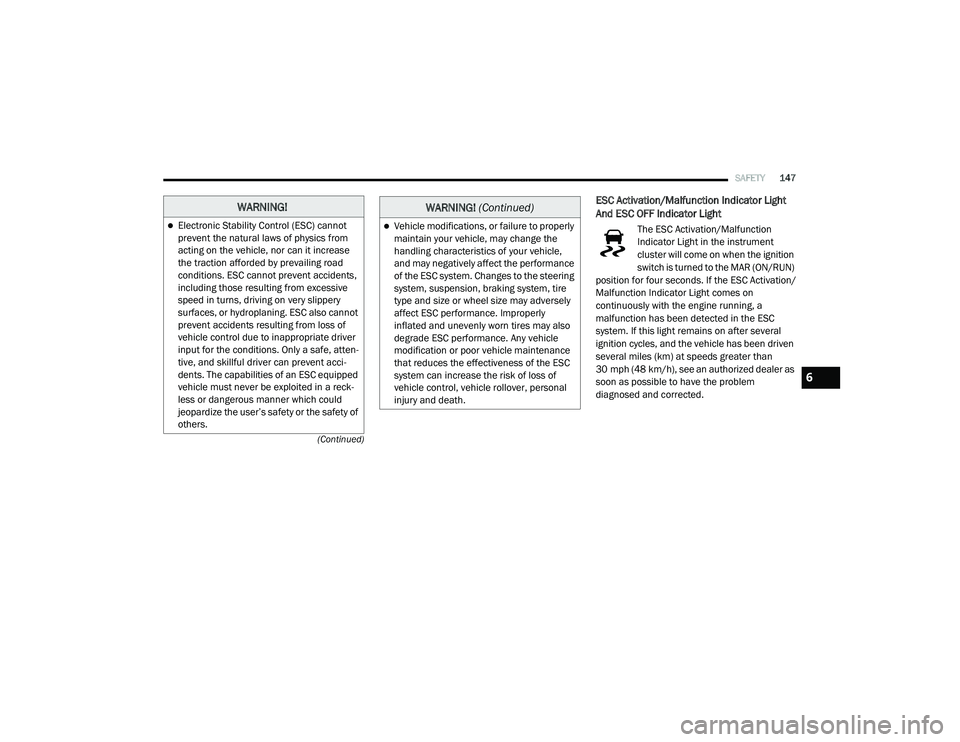
ESC Activation/Malfunction Indicator Light
And ESC OFF Indicator Light
The ESC Activation/Malfunction
Indicator Light in the instrument
cluster will come on when the ignition
switch is turned to the MAR (ON/RUN)
position for four seconds. If the ESC Activation/
Malfunction Indicator Light comes on
continuously with the engine running, a
malfunction has been detected in the ESC
system. If this light remains on after several
ignition cycles, and the vehicle has been driven
several miles (km) at speeds greater than
30 mph (48 km/h), see an authorized dealer as
soon as possible to have the problem
diagnosed and corrected.
WARNING!
Electronic Stability Control (ESC) cannot
prevent the natural laws of physics from
acting on the vehicle, nor can it increase
the traction afforded by prevailing road
conditions. ESC cannot prevent accidents,
including those resulting from excessive
speed in turns, driving on very slippery
surfaces, or hydroplaning. ESC also cannot
prevent accidents resulting from loss of
vehicle control due to inappropriate driver
input for the conditions. Only a safe, atten -
tive, and skillful driver can prevent acci -
dents. The capabilities of an ESC equipped
vehicle must never be exploited in a reck -
less or dangerous manner which could
jeopardize the user’s safety or the safety of
others.Vehicle modifications, or failure to properly
maintain your vehicle, may change the
handling characteristics of your vehicle,
and may negatively affect the performance
of the ESC system. Changes to the steering
system, suspension, braking system, tire
type and size or wheel size may adversely
affect ESC performance. Improperly
inflated and unevenly worn tires may also
degrade ESC performance. Any vehicle
modification or poor vehicle maintenance
that reduces the effectiveness of the ESC
system can increase the risk of loss of
vehicle control, vehicle rollover, personal
injury and death.
WARNING! (Continued)
6
21_VM_OM_EN_USC_t.book Page 147