change time RAM PROMASTER CITY 2022 Owner's Manual
[x] Cancel search | Manufacturer: RAM, Model Year: 2022, Model line: PROMASTER CITY, Model: RAM PROMASTER CITY 2022Pages: 260, PDF Size: 8.45 MB
Page 107 of 260
MULTIMEDIA105
Depending on the maximum number of entries
downloaded, there may be a short delay before
the latest downloaded names can be used. Until
then, if available, the previously downloaded
phonebook is available for use.
Only the phonebook of the currently connected
mobile phone is accessible.
This downloaded phonebook cannot be edited
or deleted on the Uconnect Phone. These can
only be edited on the mobile phone. The
changes are transferred and updated to
Uconnect Phone on the next phone connection.
MANAGING YOUR FAVORITES — IF EQUIPPED
There are two ways you can add an entry to your
favorites:
1. After loading the mobile phonebook, press
the Favorites button on the touchscreen, and
then press one of the +Add Favorite Contact
buttons that appears on the list.
2. After loading the mobile phonebook, select “Contacts” from the Phone main screen, and
then select the appropriate number. Press the
Down Arrow button next to the selected
number to display the options pop-up. In the
pop-up, select “Add to Favorites”.
NOTE:If the Favorites list is full, you will be asked to
remove an existing favorite.
TO REMOVE A FAVORITE — IF EQUIPPED
1. To remove a Favorite, select “Favorites” from the Phone main screen.
2. Next, select the Down Arrow icon next to the contact you want to remove from your
favorites. This will bring up the options for that
Favorite contact.
3. Deselect the Star icon to delete the Favorite.
Phone Call Features
The following features can be accessed through
the Uconnect Phone if the feature(s) are available
and supported by Bluetooth® on your mobile
service plan. For example, if your mobile service
plan provides three-way calling, this feature can be
accessed through the Uconnect Phone. Check with
your mobile service provider for the features that
you have.
Listed below are the phone options with Uconnect
Phone:
Redial
Dial by pressing in the number
Voice Commands (Dial by Saying a Name, Call
by Saying a Phonebook Name, Redial or Call
Back)
Favorites
Mobile Phonebook
Recent Call Log
SMS Message Viewer
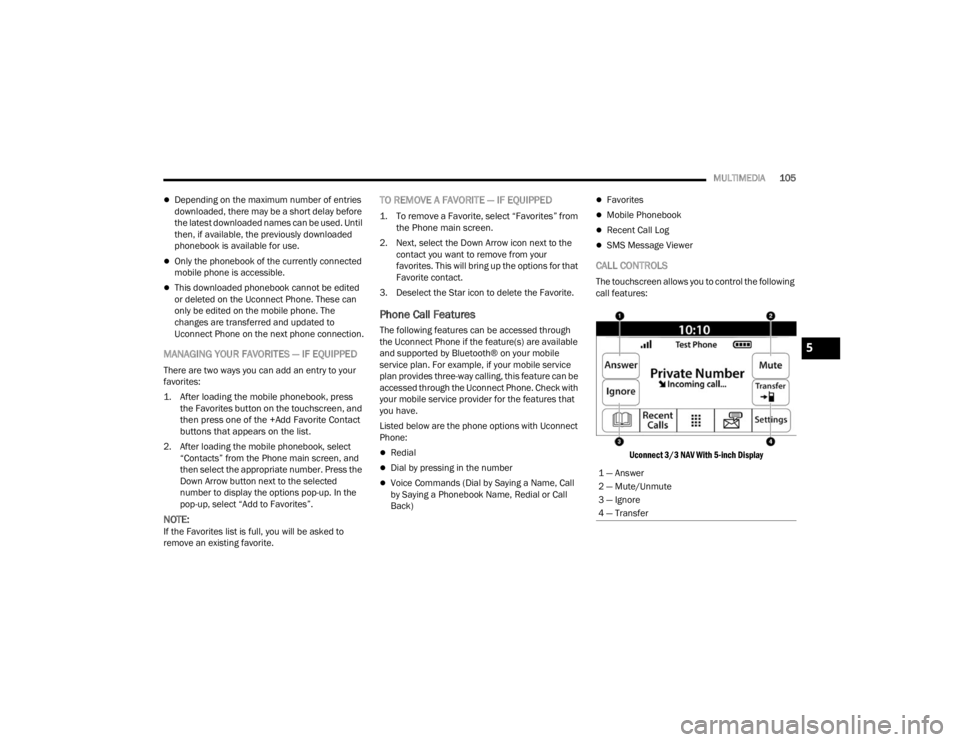
CALL CONTROLS
The touchscreen allows you to control the following
call features:
Uconnect 3/3 NAV With 5-inch Display
1 — Answer
2 — Mute/Unmute
3 — Ignore
4 — Transfer
5
22_VM_OM_EN_USC_t.book Page 105
Page 111 of 260
MULTIMEDIA109
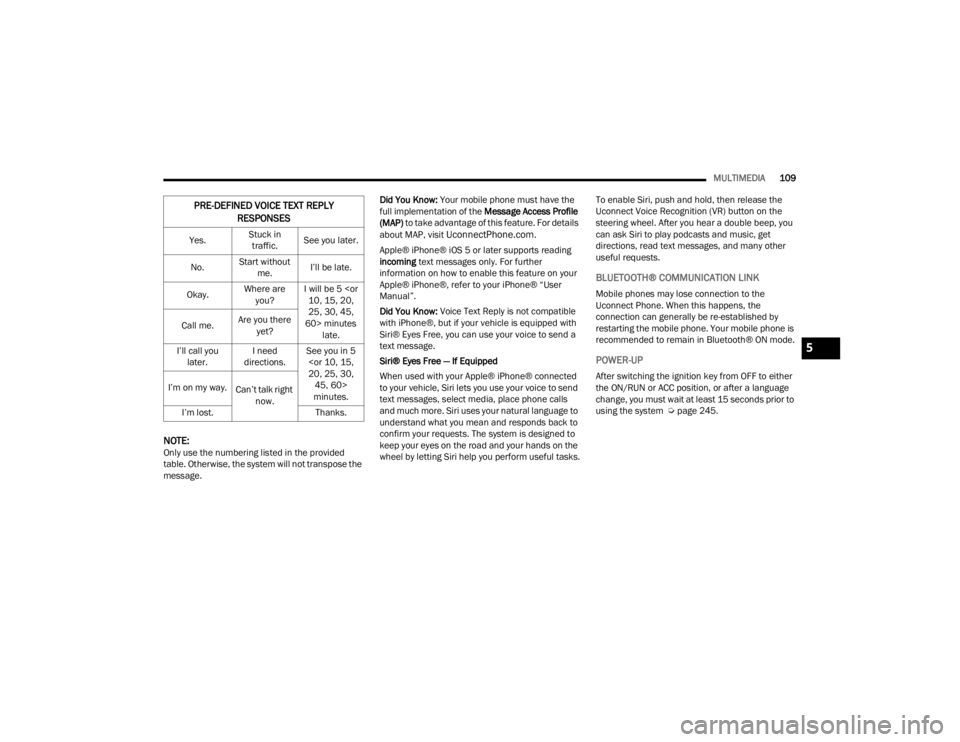
NOTE:Only use the numbering listed in the provided
table. Otherwise, the system will not transpose the
message. Did You Know:
Your mobile phone must have the
full implementation of the Message Access Profile
(MAP) to take advantage of this feature. For details
about MAP, visit
UconnectPhone.com.
Apple® iPhone® iOS 5 or later supports reading
incoming text messages only. For further
information on how to enable this feature on your
Apple® iPhone®, refer to your iPhone® “User
Manual”.
Did You Know: Voice Text Reply is not compatible
with iPhone®, but if your vehicle is equipped with
Siri® Eyes Free, you can use your voice to send a
text message.
Siri® Eyes Free — If Equipped
When used with your Apple® iPhone® connected
to your vehicle, Siri lets you use your voice to send
text messages, select media, place phone calls
and much more. Siri uses your natural language to
understand what you mean and responds back to
confirm your requests. The system is designed to
keep your eyes on the road and your hands on the
wheel by letting Siri help you perform useful tasks. To enable Siri, push and hold, then release the
Uconnect Voice Recognition (VR) button on the
steering wheel. After you hear a double beep, you
can ask Siri to play podcasts and music, get
directions, read text messages, and many other
useful requests.
BLUETOOTH® COMMUNICATION LINK
Mobile phones may lose connection to the
Uconnect Phone. When this happens, the
connection can generally be re-established by
restarting the mobile phone. Your mobile phone is
recommended to remain in Bluetooth® ON mode.
POWER-UP
After switching the ignition key from OFF to either
the ON/RUN or ACC position, or after a language
change, you must wait at least 15 seconds prior to
using the system Ú
page 245.
PRE-DEFINED VOICE TEXT REPLY
RESPONSES
Yes. Stuck in
traffic. See you later.
No. Start without
me. I’ll be late.
Okay. Where are
you? I will be 5
25, 30, 45,
60> minutes late.
Call me.
Are you there
yet?
I’ll call you later. I need
directions. See you in 5
minutes.
I’m on my way.
Can’t talk right
now.
I’m lost. Thanks.
5
22_VM_OM_EN_USC_t.book Page 109
Page 113 of 260
MULTIMEDIA111
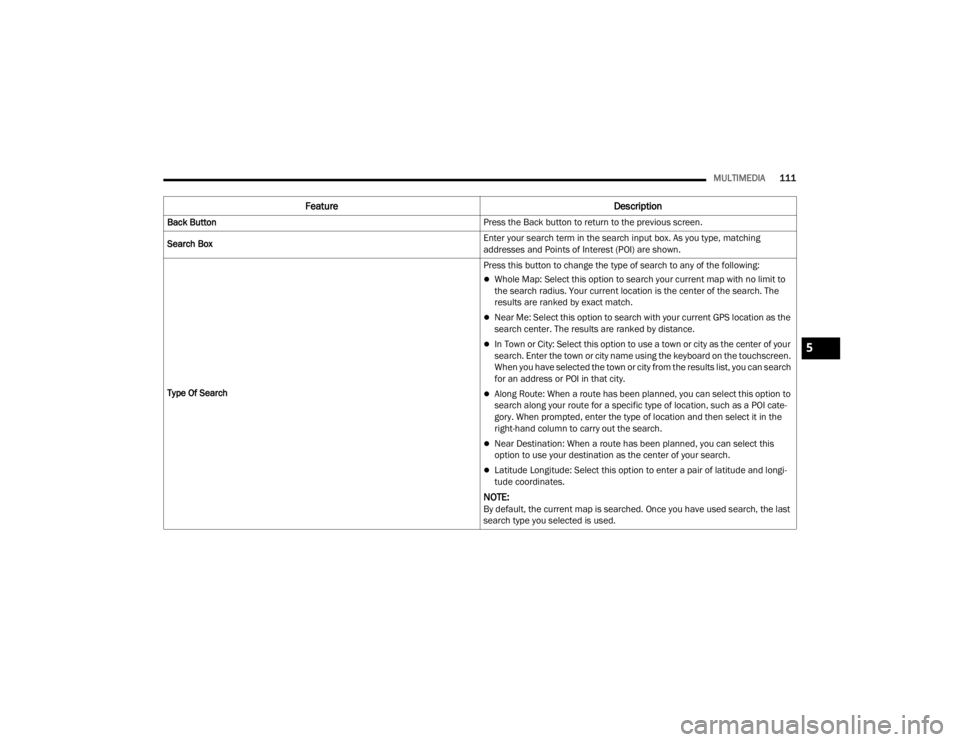
Feature Description
Back Button Press the Back button to return to the previous screen.
Search Box Enter your search term in the search input box. As you type, matching
addresses and Points of Interest (POI) are shown.
Type Of Search Press this button to change the type of search to any of the following:
Whole Map: Select this option to search your current map with no limit to
the search radius. Your current location is the center of the search. The
results are ranked by exact match.
Near Me: Select this option to search with your current GPS location as the
search center. The results are ranked by distance.
In Town or City: Select this option to use a town or city as the center of your
search. Enter the town or city name using the keyboard on the touchscreen.
When you have selected the town or city from the results list, you can search
for an address or POI in that city.
Along Route: When a route has been planned, you can select this option to
search along your route for a specific type of location, such as a POI cate-
gory. When prompted, enter the type of location and then select it in the
right-hand column to carry out the search.
Near Destination: When a route has been planned, you can select this
option to use your destination as the center of your search.
Latitude Longitude: Select this option to enter a pair of latitude and longi
-
tude coordinates.
NOTE:By default, the current map is searched. Once you have used search, the last
search type you selected is used.
5
22_VM_OM_EN_USC_t.book Page 111
Page 114 of 260
112MULTIMEDIA
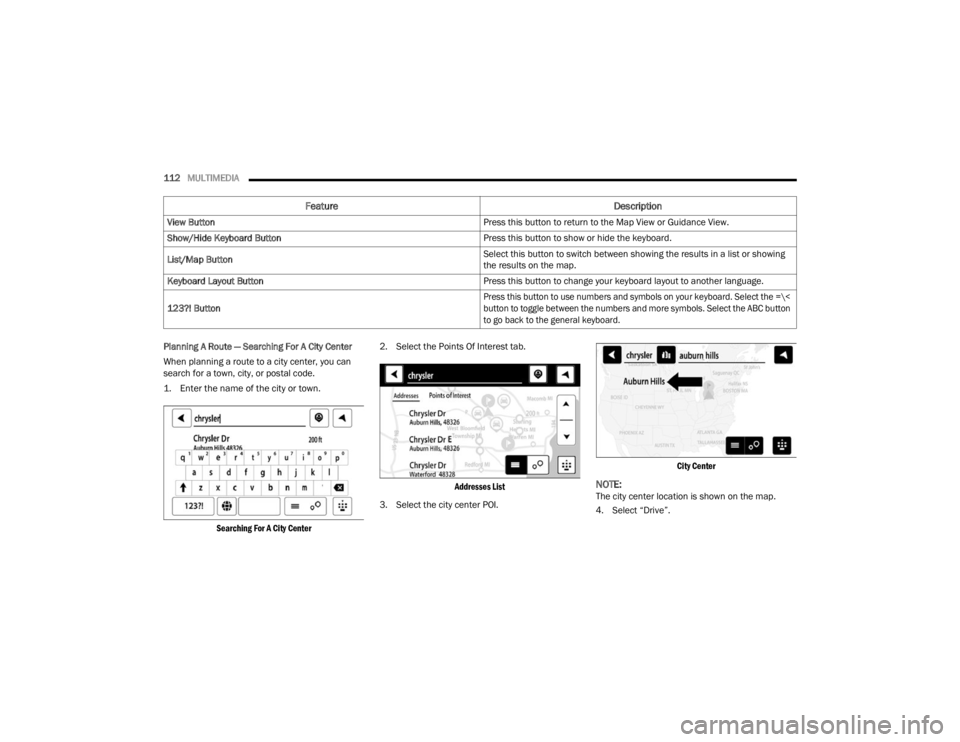
Planning A Route — Searching For A City Center
When planning a route to a city center, you can
search for a town, city, or postal code.
1. Enter the name of the city or town.
Searching For A City Center
2. Select the Points Of Interest tab.
Addresses List
3. Select the city center POI.
City Center
NOTE:The city center location is shown on the map.
4. Select “Drive”.
View Button
Press this button to return to the Map View or Guidance View.
Show/Hide Keyboard Button Press this button to show or hide the keyboard.
List/Map Button Select this button to switch between showing the results in a list or showing
the results on the map.
Keyboard Layout Button Press this button to change your keyboard layout to another language.
123?! Button
Press this button to use numbers and symbols on your keyboard. Select the =\<
button to toggle between the numbers and more symbols. Select the ABC button
to go back to the general keyboard.
Feature
Description
22_VM_OM_EN_USC_t.book Page 112
Page 115 of 260
MULTIMEDIA113
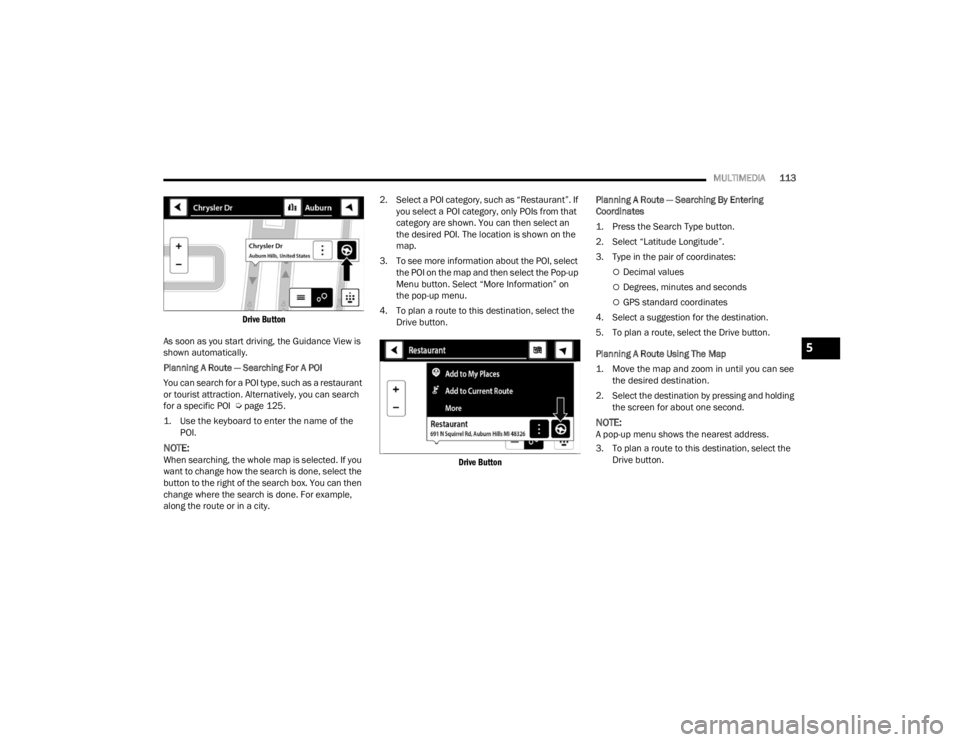
Drive Button
As soon as you start driving, the Guidance View is
shown automatically.
Planning A Route — Searching For A POI
You can search for a POI type, such as a restaurant
or tourist attraction. Alternatively, you can search
for a specific POI Ú page 125.
1. Use the keyboard to enter the name of the POI.
NOTE:When searching, the whole map is selected. If you
want to change how the search is done, select the
button to the right of the search box. You can then
change where the search is done. For example,
along the route or in a city. 2. Select a POI category, such as “Restaurant”. If
you select a POI category, only POIs from that
category are shown. You can then select an
the desired POI. The location is shown on the
map.
3. To see more information about the POI, select the POI on the map and then select the Pop-up
Menu button. Select “More Information” on
the pop-up menu.
4. To plan a route to this destination, select the Drive button.
Drive Button
Planning A Route — Searching By Entering
Coordinates
1. Press the Search Type button.
2. Select “Latitude Longitude”.
3. Type in the pair of coordinates:
Decimal values
Degrees, minutes and seconds
GPS standard coordinates
4. Select a suggestion for the destination.
5. To plan a route, select the Drive button.
Planning A Route Using The Map
1. Move the map and zoom in until you can see the desired destination.
2. Select the destination by pressing and holding the screen for about one second.
NOTE:A pop-up menu shows the nearest address.
3. To plan a route to this destination, select the Drive button.
5
22_VM_OM_EN_USC_t.book Page 113
Page 116 of 260
114MULTIMEDIA
Planning A Route Using My Places
1. Select the Main Menu button.
2. Select “My Places”.
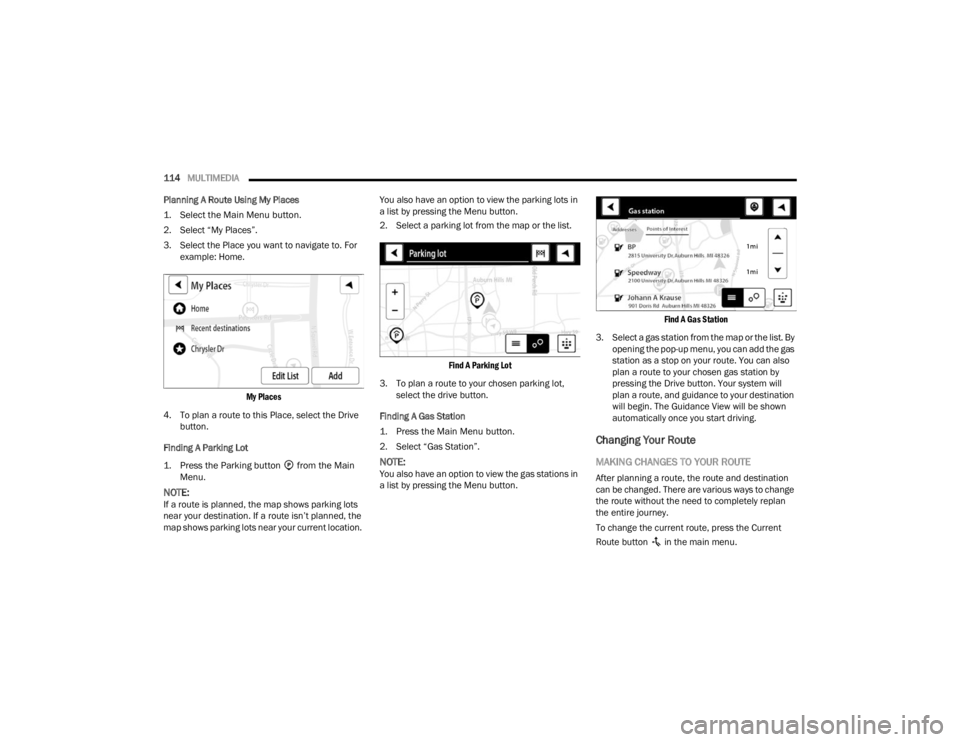
3. Select the Place you want to navigate to. For example: Home.
My Places
4. To plan a route to this Place, select the Drive button.
Finding A Parking Lot
1. Press the Parking button from the Main Menu.
NOTE:If a route is planned, the map shows parking lots
near your destination. If a route isn’t planned, the
map shows parking lots near your current location. You also have an option to view the parking lots in
a list by pressing the Menu button.
2. Select a parking lot from the map or the list.
Find A Parking Lot
3. To plan a route to your chosen parking lot, select the drive button.
Finding A Gas Station
1. Press the Main Menu button.
2. Select “Gas Station”.
NOTE:You also have an option to view the gas stations in
a list by pressing the Menu button.
Find A Gas Station
3. Select a gas station from the map or the list. By opening the pop-up menu, you can add the gas
station as a stop on your route. You can also
plan a route to your chosen gas station by
pressing the Drive button. Your system will
plan a route, and guidance to your destination
will begin. The Guidance View will be shown
automatically once you start driving.
Changing Your Route
MAKING CHANGES TO YOUR ROUTE
After planning a route, the route and destination
can be changed. There are various ways to change
the route without the need to completely replan
the entire journey.
To change the current route, press the Current
Route button in the main menu.
22_VM_OM_EN_USC_t.book Page 114
Page 119 of 260
MULTIMEDIA117
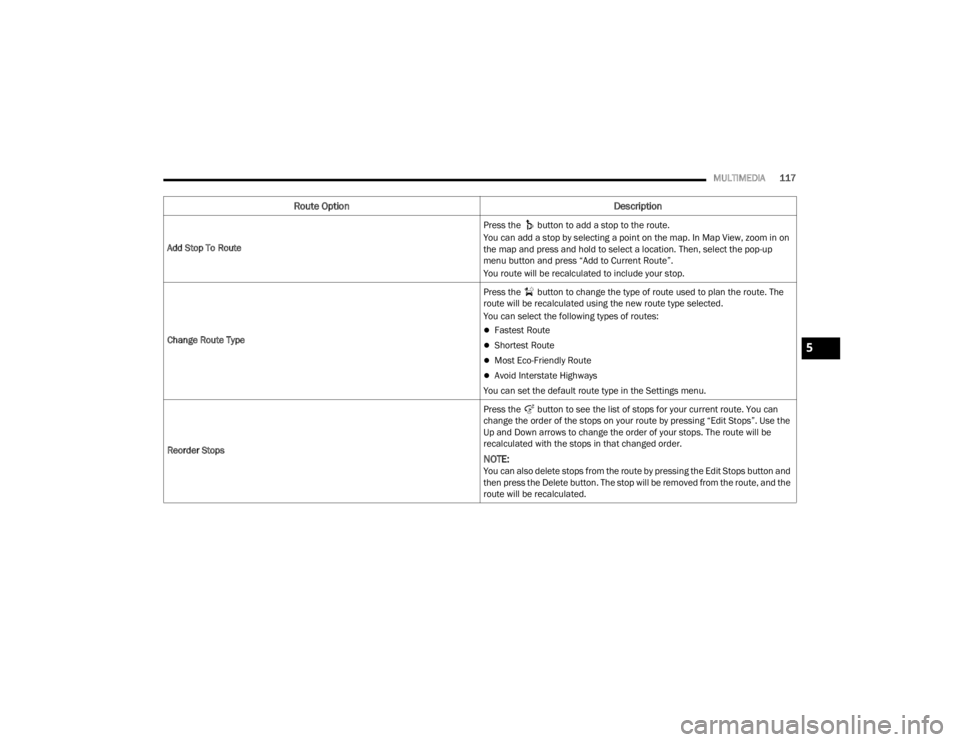
Add Stop To Route Press the button to add a stop to the route.
You can add a stop by selecting a point on the map. In Map View, zoom in on
the map and press and hold to select a location. Then, select the pop-up
menu button and press “Add to Current Route”.
You route will be recalculated to include your stop.
Change Route Type Press the button to change the type of route used to plan the route. The
route will be recalculated using the new route type selected.
You can select the following types of routes:
Fastest Route
Shortest Route
Most Eco-Friendly Route
Avoid Interstate Highways
You can set the default route type in the Settings menu.
Reorder Stops Press the button to see the list of stops for your current route. You can
change the order of the stops on your route by pressing “Edit Stops”. Use the
Up and Down arrows to change the order of your stops. The route will be
recalculated with the stops in that changed order.
NOTE:You can also delete stops from the route by pressing the Edit Stops button and
then press the Delete button. The stop will be removed from the route, and the
route will be recalculated.
Route Option
Description
5
22_VM_OM_EN_USC_t.book Page 117
Page 121 of 260
MULTIMEDIA119
NOTE:For accurate results, speak normally without trying
to articulate words in an unnatural way. If there is
excessive road noise, for example, you may need
to speak directly into the microphone.
3. If the command is correct, say “Yes”.
NOTE:If the command is incorrect, say “No” and repeat
the command after you hear the prompt and tone
again. Your Navigation system plans a route from
your current location to your destination. To stop
your Navigation system from listening out for
further commands, say “Cancel”.
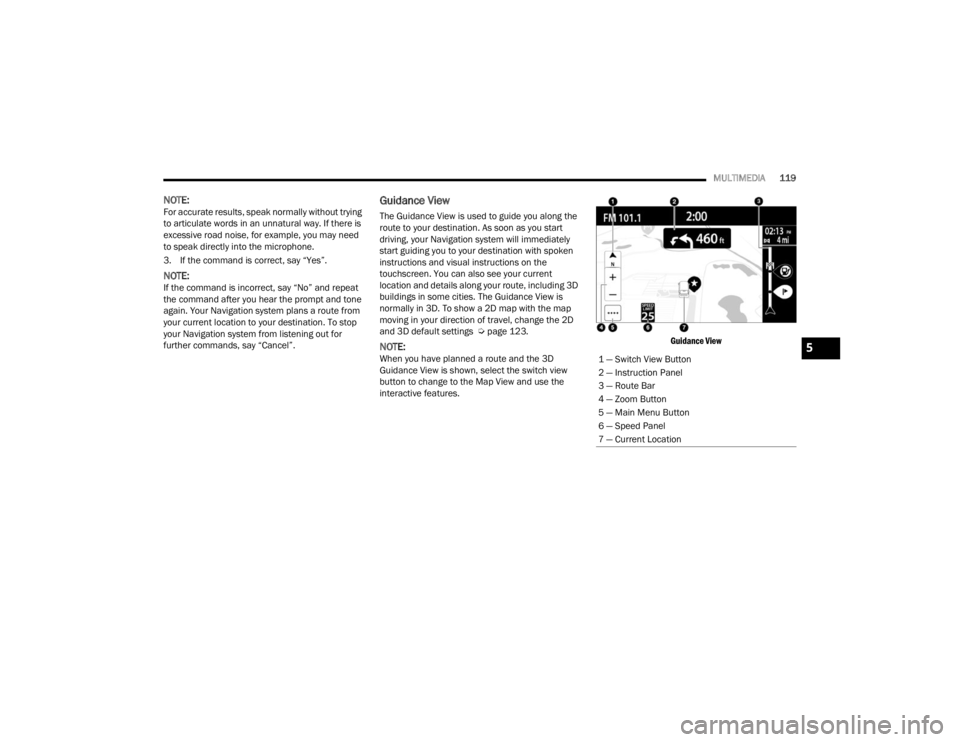
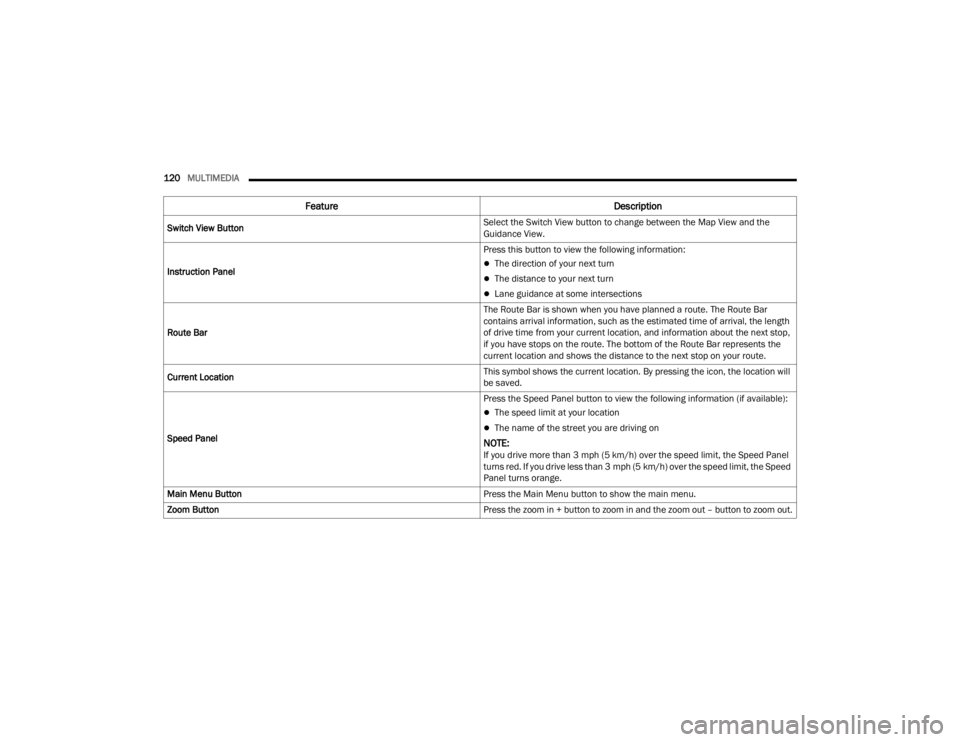
Guidance View
The Guidance View is used to guide you along the
route to your destination. As soon as you start
driving, your Navigation system will immediately
start guiding you to your destination with spoken
instructions and visual instructions on the
touchscreen. You can also see your current
location and details along your route, including 3D
buildings in some cities. The Guidance View is
normally in 3D. To show a 2D map with the map
moving in your direction of travel, change the 2D
and 3D default settings Ú page 123.
NOTE:When you have planned a route and the 3D
Guidance View is shown, select the switch view
button to change to the Map View and use the
interactive features.
Guidance View
1 — Switch View Button
2 — Instruction Panel
3 — Route Bar
4 — Zoom Button
5 — Main Menu Button
6 — Speed Panel
7 — Current Location5
22_VM_OM_EN_USC_t.book Page 119
Page 122 of 260
120MULTIMEDIA
Feature Description
Switch View Button Select the Switch View button to change between the Map View and the
Guidance View.
Instruction Panel Press this button to view the following information:
The direction of your next turn
The distance to your next turn
Lane guidance at some intersections
Route Bar The Route Bar is shown when you have planned a route. The Route Bar
contains arrival information, such as the estimated time of arrival, the length
of drive time from your current location, and information about the next stop,
if you have stops on the route. The bottom of the Route Bar represents the
current location and shows the distance to the next stop on your route.
Current Location This symbol shows the current location. By pressing the icon, the location will
be saved.
Speed Panel Press the Speed Panel button to view the following information (if available):
The speed limit at your location
The name of the street you are driving on
NOTE:If you drive more than 3 mph (5 km/h) over the speed limit, the Speed Panel
turns red. If you drive less than 3 mph (5 km/h) over the speed limit, the Speed
Panel turns orange.
Main Menu Button Press the Main Menu button to show the main menu.
Zoom Button Press the zoom in + button to zoom in and the zoom out – button to zoom out.
22_VM_OM_EN_USC_t.book Page 120
Page 124 of 260
122MULTIMEDIA
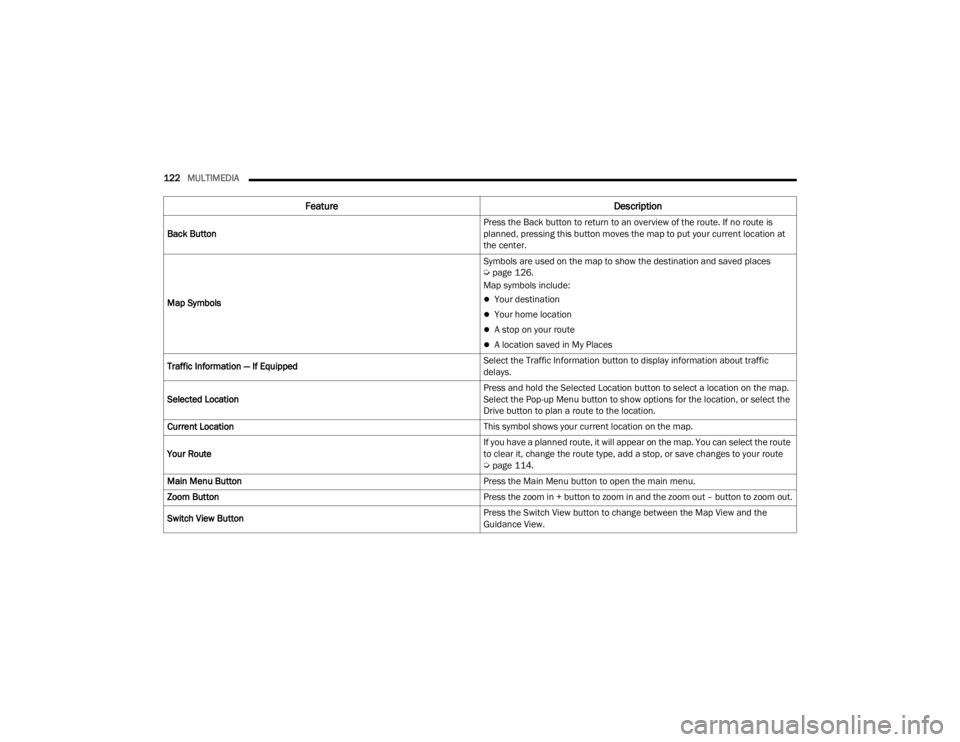
Feature Description
Back Button Press the Back button to return to an overview of the route. If no route is
planned, pressing this button moves the map to put your current location at
the center.
Map Symbols Symbols are used on the map to show the destination and saved places
Ú
page 126.
Map symbols include:
Your destination
Your home location
A stop on your route
A location saved in My Places
Traffic Information — If Equipped Select the Traffic Information button to display information about traffic
delays.
Selected Location Press and hold the Selected Location button to select a location on the map.
Select the Pop-up Menu button to show options for the location, or select the
Drive button to plan a route to the location.
Current Location This symbol shows your current location on the map.
Your Route If you have a planned route, it will appear on the map. You can select the route
to clear it, change the route type, add a stop, or save changes to your route
Ú
page 114.
Main Menu Button Press the Main Menu button to open the main menu.
Zoom Button Press the zoom in + button to zoom in and the zoom out – button to zoom out.
Switch View Button Press the Switch View button to change between the Map View and the
Guidance View.
22_VM_OM_EN_USC_t.book Page 122