phone RAM PROMASTER CITY 2022 Owner's Manual
[x] Cancel search | Manufacturer: RAM, Model Year: 2022, Model line: PROMASTER CITY, Model: RAM PROMASTER CITY 2022Pages: 260, PDF Size: 8.45 MB
Page 109 of 260
MULTIMEDIA107
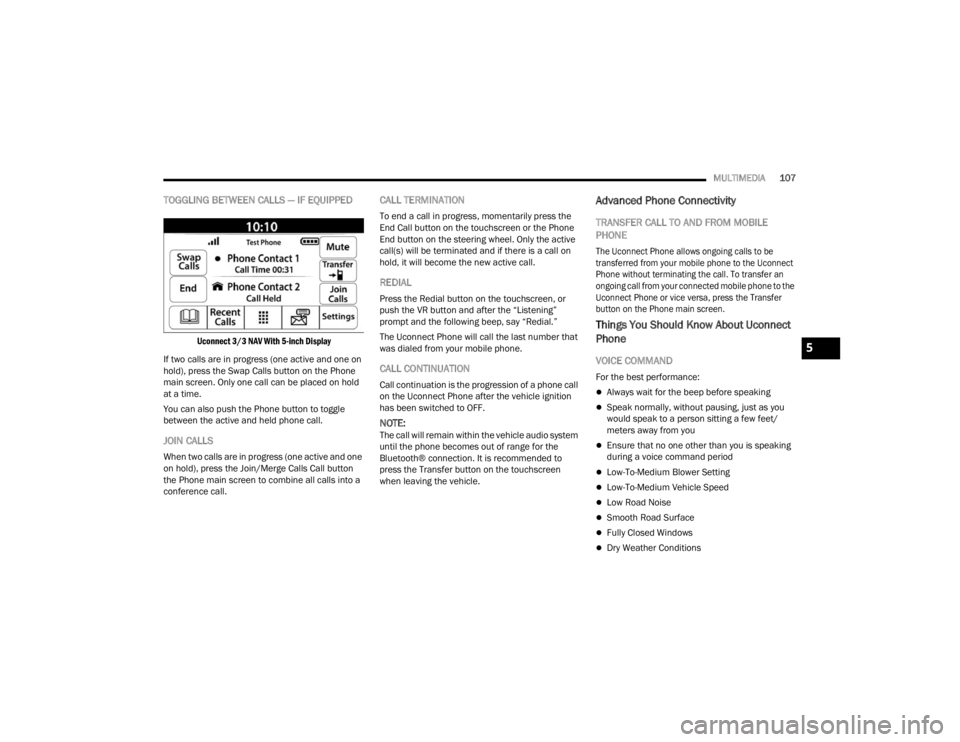
TOGGLING BETWEEN CALLS — IF EQUIPPED
Uconnect 3/3 NAV With 5-inch Display
If two calls are in progress (one active and one on
hold), press the Swap Calls button on the Phone
main screen. Only one call can be placed on hold
at a time.
You can also push the Phone button to toggle
between the active and held phone call.
JOIN CALLS
When two calls are in progress (one active and one
on hold), press the Join/Merge Calls Call button
the Phone main screen to combine all calls into a
conference call.
CALL TERMINATION
To end a call in progress, momentarily press the
End Call button on the touchscreen or the Phone
End button on the steering wheel. Only the active
call(s) will be terminated and if there is a call on
hold, it will become the new active call.
REDIAL
Press the Redial button on the touchscreen, or
push the VR button and after the “Listening”
prompt and the following beep, say “Redial.”
The Uconnect Phone will call the last number that
was dialed from your mobile phone.
CALL CONTINUATION
Call continuation is the progression of a phone call
on the Uconnect Phone after the vehicle ignition
has been switched to OFF.
NOTE:The call will remain within the vehicle audio system
until the phone becomes out of range for the
Bluetooth® connection. It is recommended to
press the Transfer button on the touchscreen
when leaving the vehicle.
Advanced Phone Connectivity
TRANSFER CALL TO AND FROM MOBILE
PHONE
The Uconnect Phone allows ongoing calls to be
transferred from your mobile phone to the Uconnect
Phone without terminating the call. To transfer an
ongoing call from your connected mobile phone to the
Uconnect Phone or vice versa, press the Transfer
button on the Phone main screen.
Things You Should Know About Uconnect
Phone
VOICE COMMAND
For the best performance:
Always wait for the beep before speaking
Speak normally, without pausing, just as you
would speak to a person sitting a few feet/
meters away from you
Ensure that no one other than you is speaking
during a voice command period
Low-To-Medium Blower Setting
Low-To-Medium Vehicle Speed
Low Road Noise
Smooth Road Surface
Fully Closed Windows
Dry Weather Conditions
5
22_VM_OM_EN_USC_t.book Page 107
Page 110 of 260
108MULTIMEDIA
Even though the system is designed for many
languages and accents, the system may not always
work for some.
NOTE:It is recommended that you do not store names in
your Favorites phonebook while the vehicle is in
motion.
Number and name recognition rate is optimized
when the entries are not similar. You can say “O”
(letter “O”) for “0” (zero).
Even though international dialing for most number
combinations is supported, some shortcut dialing
number combinations may not be supported. Audio Performance
Audio quality is maximized under:
Low-To-Medium Blower Setting
Low-To-Medium Vehicle Speed
Low Road Noise
Smooth Road Surface
Fully Closed Windows
Dry Weather Conditions
Operation From The Driver's Seat
Performance such as audio clarity, echo, and
loudness to a large degree rely on the phone and
network, and not the Uconnect Phone.
Echo at the far end can sometimes be reduced by
lowering the in-vehicle audio volume.
Phone Voice Commands
Making and answering hands-free phone calls is
easy with Uconnect. When the Phonebook button
is illuminated on your touchscreen, your system is
ready. Check
UconnectPhone.com for mobile
phone compatibility and pairing instructions. Push the Phone button and wait for the beep to
say a command. See some examples below:
“
Call John Smith”
“Dial 123 456 7890”
“Redial ” (call previous outgoing phone number)
“Call back ” (call previous incoming phone
number)
Did You Know: When providing a Voice Command,
push the Phone button and say “ Call”, then
pronounce the name exactly as it appears in your
phone book. When a contact has multiple phone
numbers, you can say “ Call John Smith work ”.
Voice Text Reply — If Equipped
Uconnect can announce incoming text messages.
Push the VR button or Phone button and
say:
1. “
Listen
” to have the system read an incoming
text message. (Must have compatible mobile
phone paired to Uconnect system.)
2. “ Reply ” after an incoming text message has
been read.
Listen to the Uconnect prompts. After the
beep, repeat one of the predefined messag -
es and follow the system prompts.
WARNING!
ALWAYS drive safely with your hands on the
wheel. You have full responsibility and assume
all risks related to the use of the Uconnect
features and applications in this vehicle. Only
use Uconnect when it is safe to do so. Failure to
do so may result in an accident involving serious
injury or death.
22_VM_OM_EN_USC_t.book Page 108
Page 111 of 260

MULTIMEDIA109
NOTE:Only use the numbering listed in the provided
table. Otherwise, the system will not transpose the
message. Did You Know:
Your mobile phone must have the
full implementation of the Message Access Profile
(MAP) to take advantage of this feature. For details
about MAP, visit
UconnectPhone.com.
Apple® iPhone® iOS 5 or later supports reading
incoming text messages only. For further
information on how to enable this feature on your
Apple® iPhone®, refer to your iPhone® “User
Manual”.
Did You Know: Voice Text Reply is not compatible
with iPhone®, but if your vehicle is equipped with
Siri® Eyes Free, you can use your voice to send a
text message.
Siri® Eyes Free — If Equipped
When used with your Apple® iPhone® connected
to your vehicle, Siri lets you use your voice to send
text messages, select media, place phone calls
and much more. Siri uses your natural language to
understand what you mean and responds back to
confirm your requests. The system is designed to
keep your eyes on the road and your hands on the
wheel by letting Siri help you perform useful tasks. To enable Siri, push and hold, then release the
Uconnect Voice Recognition (VR) button on the
steering wheel. After you hear a double beep, you
can ask Siri to play podcasts and music, get
directions, read text messages, and many other
useful requests.
BLUETOOTH® COMMUNICATION LINK
Mobile phones may lose connection to the
Uconnect Phone. When this happens, the
connection can generally be re-established by
restarting the mobile phone. Your mobile phone is
recommended to remain in Bluetooth® ON mode.
POWER-UP
After switching the ignition key from OFF to either
the ON/RUN or ACC position, or after a language
change, you must wait at least 15 seconds prior to
using the system Ú
page 245.
PRE-DEFINED VOICE TEXT REPLY
RESPONSES
Yes. Stuck in
traffic. See you later.
No. Start without
me. I’ll be late.
Okay. Where are
you? I will be 5
25, 30, 45,
60> minutes late.
Call me.
Are you there
yet?
I’ll call you later. I need
directions. See you in 5
minutes.
I’m on my way.
Can’t talk right
now.
I’m lost. Thanks.
5
22_VM_OM_EN_USC_t.book Page 109
Page 120 of 260

118MULTIMEDIA
Voice Command — If Equipped
ABOUT VOICE COMMAND
Instead of pressing the touchscreen to control your
Navigation system, you can use your voice to
control navigation.
For example, to switch to 2D view, you can say
“2D view”.
To view a list of available commands, press the
Help button in the Main menu and then press
“What can I say?”.
USING VOICE CONTROLThe following example shows how to use voice
control to plan a journey to your Home address:
1. Push the Voice Recognition button on the
steering wheel to turn on the microphone.
A screen will pop up with examples of com -
mands.
NOTE:
Press the Help button in the Main menu then press
“What can I say?” to see a full list of commands.
2. When you hear a beep, say a command of your choice. For example, you can say “Navigate
home”.
Pay Route or Track Preview
Press button to watch a preview of the planned route or track.
NOTE:This feature is not available while driving.
Stop Route Preview Press button to stop the preview of the planned route.
Route OptionDescription
WARNING!
ALWAYS drive safely with your hands on the
wheel. You have full responsibility and assume
all risks related to the use of the Uconnect
features and applications in this vehicle. Only
use Uconnect when it is safe to do so. Failure to
do so may result in an accident involving serious
injury or death.
22_VM_OM_EN_USC_t.book Page 118
Page 121 of 260
MULTIMEDIA119
NOTE:For accurate results, speak normally without trying
to articulate words in an unnatural way. If there is
excessive road noise, for example, you may need
to speak directly into the microphone.
3. If the command is correct, say “Yes”.
NOTE:If the command is incorrect, say “No” and repeat
the command after you hear the prompt and tone
again. Your Navigation system plans a route from
your current location to your destination. To stop
your Navigation system from listening out for
further commands, say “Cancel”.
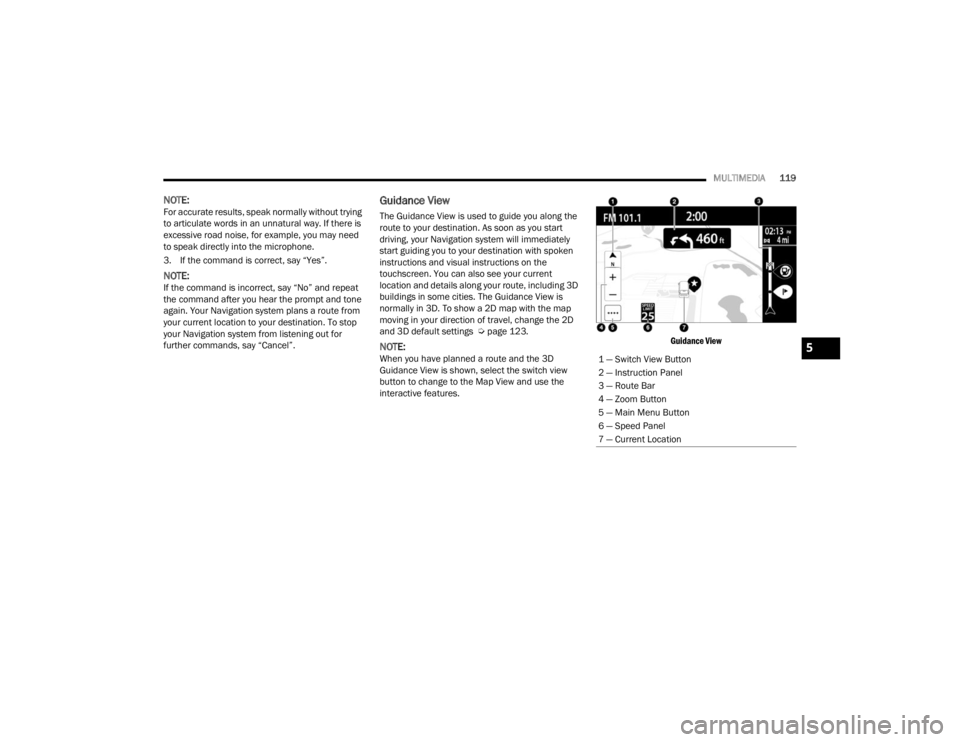
Guidance View
The Guidance View is used to guide you along the
route to your destination. As soon as you start
driving, your Navigation system will immediately
start guiding you to your destination with spoken
instructions and visual instructions on the
touchscreen. You can also see your current
location and details along your route, including 3D
buildings in some cities. The Guidance View is
normally in 3D. To show a 2D map with the map
moving in your direction of travel, change the 2D
and 3D default settings Ú page 123.
NOTE:When you have planned a route and the 3D
Guidance View is shown, select the switch view
button to change to the Map View and use the
interactive features.
Guidance View
1 — Switch View Button
2 — Instruction Panel
3 — Route Bar
4 — Zoom Button
5 — Main Menu Button
6 — Speed Panel
7 — Current Location5
22_VM_OM_EN_USC_t.book Page 119
Page 127 of 260

MULTIMEDIA125
Safety Warnings: You can change settings for
whether you want to be warned, never warned,
or warned only if you are speeding. The following
options are available:
When speeding: This warning is given when
you exceed the speed limit by more than
3 mph (5 km/h). When you are speeding,
the speed panel also turns red in the Guid -
ance View.
Driver Safety: Select this setting to make
some features locked while the vehicle is in
motion.
NOTE:This feature increases safety by minimizing driver
distraction. When driver safety is on, a message
tells you when the lock is enabled.
SYSTEM
Select this setting to reset all other settings.
Selecting “Reset” will delete all saved places and
settings and restore the standard settings. This
includes the language, voice settings, warning
settings, and theme.
NOTE:This is not a software update and will not affect the
version of the software application installed on
your Uconnect system.
Points Of Interest
ABOUT POINTS OF INTEREST
Points Of Interest (POI) are useful places on the
map.
Here are some examples:
Restaurants
Hotels
Museums
Parking lots
Gas stations
Emergency Services
USING POIS TO PLAN A ROUTE
When you plan a route, you can use a POI for the
destination or as a stop along the route. Using Search
1. Select “Search” on the Main Menu to begin a
search. The search screen will open,
displaying the keyboard. Enter the name of
your desired destination. Your search results
will be displayed in two lists. Addresses and
city matches are shown in the list called
“Addresses.” POIs, types of POIs, and Places
are shown in the list called “Points of
Interest.” You can also select a POI category
to only see POI search results from that
category.
2. Select the desired POI. The location will appear on the map. From here, you can save the POI
to “My Places,” use this POI as a starting point,
begin navigation to this destination, or view
more details about this POI. By pressing “More
Information,” you can view the phone number
and full address of the POI.
3. If a route is already planned, you can add the location to your current route. To plan a route
to this destination, press the Drive button on
the touchscreen.
NOTE:Your Navigation system will calculate a route, and
guidance to your destination will begin. Guidance
View will begin as soon as you start driving.
5
22_VM_OM_EN_USC_t.book Page 125
Page 132 of 260

130MULTIMEDIA
Interference Statement
This device complies with Part 15, 22, 24, and 27
of the FCC and Industry Canada licence-exempt
RSS standard(s). Operation is subject to the
following two conditions:(1) This device may not
cause interference, and(2) This device must
accept any interference, including interference
that may cause undesired operation of the device.
Le présent appareil est conforme aux CNR
d'Industrie Canada applicables aux appareils radio
exempts de licence. L'exploitation est autorisée
aux deux conditions suivantes:(1) l'appareil ne doit
pas produire de brouillage, et(2) l'utilisateur de
l'appareil doit accepter tout brouillage
radioélectrique subi, même si le broulliage est
susceptible d'en compromettre le fonctionnement.
RF Exposure
This equipment complies with FCC and IC radiation
exposure limits set forth for an uncontrolled
environment. The antenna should be installed and
operated with minimum distance of 8 in (20) cm
between the radiator and your body.
Cet appareil est conforme aux limites d'exposition
aux rayonnements de la IC pour environnement
non contrôlé. L'antenne doit être installé de façon
à garder une distance minmale de 20 centimètres
entre la source de rayonnements et votre corps.
RADIO OPERATION AND MOBILE PHONES
Under certain conditions, the mobile phone being
on in your vehicle can cause erratic or noisy
performance from your radio. This condition may
be lessened or eliminated by repositioning the
mobile phone within the vehicle. This condition is
not harmful to the radio. If your radio performance
does not satisfactorily improve from repositioning
the mobile phone, it is recommended that the
volume be turned down or off during mobile phone
operation when not using the Uconnect system.
REGULATORY AND SAFETY
I
NFORMATION
US/CANADA
Exposure to Radio Frequency Radiation
The radiated output power of the internal wireless
radio is far below the FCC and IC radio frequency
exposure limits. Nevertheless, the wireless radio
will be used in such a manner that the radio is 8 in
(20 cm) or further from the human body. The internal wireless radio operates within
guidelines found in radio frequency safety
standards and recommendations, which reflect
the consensus of the scientific community.
The radio manufacturer believes the internal
wireless radio is safe for use by consumers. The
level of energy emitted is far less than the
electromagnetic energy emitted by wireless
devices such as mobile phones. However, the use
of wireless radios may be restricted in some
situations or environments, such as aboard
airplanes. If you are unsure of restrictions, you are
encouraged to ask for authorization before turning
on the wireless radio Ú
page 245.
22_VM_OM_EN_USC_t.book Page 130
Page 244 of 260
242
CUSTOMER ASSISTANCE
SUGGESTIONS FOR OBTAINING SERVICE
FOR YOUR VEHICLE
PREPARE FOR THE APPOINTMENT
All work to be performed may not be covered by the
warranty. Discuss additional charges with the
service manager. Keep a maintenance log of your
vehicle's service history. This can often provide a
clue to the current problem.
PREPARE A LIST
Make a written list of your vehicle's problems or the
specific work you want done. If you've had an
accident or work done that is not on your
maintenance log, let the service advisor know.
BE REASONABLE WITH REQUESTS
If you list a number of items and you must have
your vehicle by the end of the day, discuss the
situation with the service advisor and list the items
in order of priority. At many authorized dealers, you
may obtain a rental vehicle (additional charges
may apply). If you need a rental, it is advisable to
make these arrangements when you call for an
appointment.
IF YOU NEED ASSISTANCE
FCA US LLC and its authorized dealers are vitally
interested in your satisfaction. We want you to be
happy with our products and services.
Warranty service must be done by an authorized
dealer. We strongly recommend that you take the
vehicle to an authorized dealer. They know your
vehicle the best, and are most concerned that you
get prompt and high quality service. FCA US LLC’s
authorized dealers have the facilities,
factory-trained technicians, special tools, and the
latest information to ensure the vehicle is fixed
correctly and in a timely manner.
This is why you should always talk to an authorized
dealer service manager first. Most matters can be
resolved with this process.
If for some reason you are still not satisfied, talk
to the general manager or owner of the autho-
rized dealer. They want to know if you need
assistance.
If an authorized dealer is unable to resolve the
concern, you may contact FCA US LLC’s
customer center. Any communication to FCA US LLC's customer
center should include the following information:
Owner's name and address
Owner's telephone number (mobile, home and
office)
Authorized dealer name
Vehicle Identification Number (VIN)
Vehicle delivery date and mileage
FCA U S LLC CUSTOMER CENTER
P.O. Box 21–8004
Auburn Hills, MI 48321–8004
Phone: (866) 726-4636
FCA CANADA INC. CUSTOMER CENTER
P.O. Box 1621
Windsor, Ontario N9A 4H6
Phone: (800) 465-2001 English / (800) 387-9983
French
22_VM_OM_EN_USC_t.book Page 242
Page 245 of 260

CUSTOMER ASSISTANCE243
MEXICO
Av. Prolongacion Paseo de la Reforma, 1240
Sante Fe C.P. 05109
Mexico, D.F.
In Mexico City: (800) 505-1300
Outside Mexico City: +(52) 55 50817568
PUERTO RICO AND US VIRGIN ISLANDS
FCA Caribbean LLC
P.O. Box 191857
San Juan 00919-1857
Phone: (866) 726-4636
Fax: (787) 782-3345
CUSTOMER ASSISTANCE FOR THE
H
EARING OR SPEECH IMPAIRED
(TDD/TTY)
To assist customers who have hearing difficulties,
FCA US LLC has installed special Telecommu -
nication Devices for the Deaf (TDD) equipment at
its customer center. Any hearing or speech
impaired customer, who has access to a TDD or a
conventional teletypewriter (TTY) in the United
States, can communicate with FCA US LLC by
dialing 1-800-380-2479. Canadian residents with hearing difficulties that
require assistance can use the special needs relay
service offered by Bell Canada. For TTY
teletypewriter users, dial 711 and for Voice callers,
dial 1-800-855-0511 to connect with a Bell Relay
Service operator.
SERVICE CONTRACT
You may have purchased a service contract for a
vehicle to help protect you from the high cost of
unexpected repairs after FCA US LLC's New
Vehicle Limited Warranty expires. The Mopar®
Vehicle Protection plans are the ONLY vehicle
extended protection plans authorized, endorsed
and backed by FCA US LLC to provide additional
protection beyond your vehicle’s warranty. If you
purchased a Mopar® Vehicle Protection Plan, you
will receive Plan Provisions and an Owner
Identification Card in the mail within three weeks
of the vehicle delivery date. If you have any
questions about the service contract, call FCA US
LLC's Service Contract National Customer Hotline
at 1-800-521-9922 (Canadian residents, call
(800) 465-2001 English / (800) 387-9983
French).
FCA US LLC is not responsible for any service
contract you may have purchased from another
manufacturer. If you require service after the FCA
US LLC New Vehicle Limited Warranty expires,
please refer to the contract documents, and
contact the person listed in those documents.
We appreciate that you have made a major
investment when you purchased the vehicle. An
authorized dealer has also made a major
investment in facilities, tools, and training to
assure that you are absolutely delighted with the
ownership experience.
WARNING!
Engine exhaust (internal combustion engines
only), some of its constituents, and certain
vehicle components contain, or emit, chemicals
known to the State of California to cause cancer
and birth defects, or other reproductive harm. In
addition, certain fluids contained in vehicles and
certain products of component wear contain, or
emit, chemicals known to the State of California
to cause cancer and birth defects, or other
reproductive harm.
10
22_VM_OM_EN_USC_t.book Page 243
Page 247 of 260

CUSTOMER ASSISTANCE245
PUBLICATION ORDER FORMS
To order the following manuals, you may use either
the website or the phone numbers listed below.
Service Manuals
These comprehensive Service Manuals provide a
complete working knowledge of the vehicle,
system, and/or components and is written in
straightforward language with illustrations,
diagrams, and charts.
Diagnostic Procedure Manuals
Diagnostic Procedure Manuals are filled with
diagrams, charts and detailed illustrations. These
manuals make it easy to find and fix problems on
computer-controlled vehicle systems and features.
They show exactly how to find and correct
problems, using step-by-step troubleshooting and
drivability procedures, proven diagnostic tests and
a complete list of all tools and equipment.
To order a hard copy of your Service or Diagnostic
Procedure manuals, visit:
www.techauthority.com (US and Canada).
Owner's Manuals
These Owner's Manuals have been prepared with
the assistance of service and engineering
specialists to acquaint you with specific FCA
vehicles. To access your Owner's Information online, visit
www.mopar.com/om (US) or www.owners.mopar.ca (Canada).
Or
Call Tech Authority toll free at:
1-800-890-4038 (US)
Owner's Manuals, Radio Manuals and Warranty
Information Books can be ordered through
Archway at:
1-800-387-1143 (Canada)
GENERAL INFORMATION
UConnect
The following regulatory statement applies to
UConnect devices equipped in this vehicle:
FCC ID: Y7OVP2REFRESH
IC: 7812H-VP2REFRESH
This device complies with Part 15 of the FCC Rules
and with Innovation, Science and Economic
Development Canada license-exempt RSS
standard(s). Operation is subject to the following
two conditions:
1. This device may not cause harmful interference, and
2. This device must accept any interference received, including interference that may
cause undesired operation. Le présent appareil est conforme aux CNR
d`Innovation, Science and Economic Development
applicables aux appareils radio exempts de
licence. L'exploitation est autorisée aux deux
conditions suivantes:
1. l'appareil ne doit pas produire de brouillage,
et
2. l'utilisateur de l'appareil doit accepter tout brouillage radioélectrique subi, même si le
brouillage est susceptible d'en compromettre
le fonctionnement.
La operación de este equipo está sujeta a las
siguientes dos condiciones:
1. es posible que este equipo o dispositivo no cause interferencia perjudicial y
2. este equipo o dispositivo debe aceptar cualquier interferencia, incluyendo la que
pueda causar su operación no deseada.
NOTE:Changes or modifications not expressly approved
by the party responsible for compliance could void
the user’s authority to operate the equipment.
Remarque: Les changements ou modifications
non expressément approuvés par la partie
responsable de la conformité peuvent annuler
l'autorisation de l'utilisateur à utiliser l'équi -
pement.
10
22_VM_OM_EN_USC_t.book Page 245