warning RAM PROMASTER CITY 2022 Repair Manual
[x] Cancel search | Manufacturer: RAM, Model Year: 2022, Model line: PROMASTER CITY, Model: RAM PROMASTER CITY 2022Pages: 260, PDF Size: 8.45 MB
Page 125 of 260

MULTIMEDIA123
Voices
ABOUT VOICES
Your Navigation system uses sound for some or all
of the following:
Driving directions
Warnings that you set
By selecting “Settings” in the main menu, then
selecting “Voices,” you can change the settings for
how voice instructions are given. Instruction
settings include the following:
Read Early Instructions Out Loud : This setting
allows to you to hear early instructions. For
example, an early instruction could be, “After
two miles, take the exit right”.
Read Road Numbers Out Loud (if equipped):
Use this setting to control whether road
numbers are read out loud as part of navigation
instructions.
Read Road Sign Information Out Loud (if
equipped): Use this setting to control whether
road sign information is read out loud as part of
navigation instructions.
Read Street Names Out Loud (if equipped): Use
this setting to control whether street names are
read out loud as part of navigation instructions.
Read Foreign Street Names Out Loud (if
equipped): Use this setting to control whether
foreign street names are read out loud as part of
navigation instructions.
CHANGING THE VOLUME LEVEL
To change the volume of your Navigation system,
use the Volume knob on the radio when an
instruction is being given.
Settings
ABOUT SETTINGS
You can change the way your Navigation system
looks and behaves. Most of the settings on your
system can be accessed by pressing the Settings
button in the Main Menu.
APPEARANCE
To change how your navigation screen looks,
select “Appearance” in the settings menu. From
here, you can change these features:
Switch To Night Colors When Dark: Select this
setting to make your system automatically
switch to night colors when it gets dark.
Automatic Zoom : Select “Automatic Zoom” to
change how your system zooms in Guidance
View when you approach a turn or intersection.
Zooming in can make the turn or intersection
easier to drive. The following options are avail -
able:
Zoom in to next turn
Based on road type
None
ARRIVAL INFORMATION
In the settings menu, select “Arrival Information”
to change the following settings:
Show Remaining Distance : Select this setting to
show the remaining distance left to travel in the
arrival information panel during navigation.
Show Remaining Time : Select this setting to
show the remaining time left to travel in the
arrival information panel during navigation.
Switch Between Distance And Time Automati -
cally : Select this setting to control the automatic
switching between remaining distance and
remaining time in the arrival information panel.
5
22_VM_OM_EN_USC_t.book Page 123
Page 126 of 260

124MULTIMEDIA
SHOW ON ROUTE
In the settings menu, select “Show On Route” to
see any of the following options in the route bar:
Parking: Select this setting to see parking lots
on your route.
Gas Stations : Select this setting to see gas
stations on your route.
Stops : Select this setting to see stops on your
route.
SHOW PREVIEWS OF HIGHWAY EXITS
Select this setting to control the full screen preview
when you approach highway exits.
AUTOMATIC MAP VIEW SWITCHING
Automatic changing of views is on by default. For
example, when an alternative route is being
suggested, the map will automatically switch to
Map View, and when you start driving, your map
will automatically switch to Guidance View. You
can turn this feature off by selecting “Automatic
Map View Switching” in the settings.
AUTOMATIC ZOOM
Select this setting to control the full screen preview
when you approach highway exits.
GUIDANCE VIEW STYLE
Select this setting to choose between 3D and 2D
versions of the Guidance View. Both the 2D and 3D
Guidance Views move in your direction of travel.
In 3D Guidance View, you can choose to use the 3D
car icon or an arrowhead as the current location
indicator. By default, the 3D Guidance View shows
the 3D car icon.
VOICES SETTING
Select this setting to change how instructions are
read out loud Ú page 123.
ROUTE PLANNING
Select this setting to control how your system plans
routes. The following options are available:
Always Take the Fastest Route
You can choose whether you would like the
Navigation system to always default to the
fastest route.
Ask Me So I Can Choose
You can choose whether you would like the
Navigation system to allow you to pick the route
to the destination.
Don’t Ask me
You can choose whether you would like the
Navigation system to select the route to the
destination.
Fastest Route
You can choose whether you would like the
Navigation system to choose the fastest route to
the destination.
Shortest Route
You can choose whether you would like the
Navigation system to choose the shortest route
by distance to the destination.
Most Eco-Friendly Route
You can choose whether you would like the
Navigation system to choose the route that will
consume the least amount of energy.
Avoid Interstate Highways
You can choose whether you would like the
Navigation system to avoid all highways while
navigating to the destination.
SOUNDS AND WARNINGS
Select this setting to change the following sounds
and warnings:
Warning Type: You can choose the type of warn -
ings you want to hear when you are driving:
Warning Sounds: Hear only warning sounds
None: No warning sounds are given
22_VM_OM_EN_USC_t.book Page 124
Page 127 of 260

MULTIMEDIA125
Safety Warnings: You can change settings for
whether you want to be warned, never warned,
or warned only if you are speeding. The following
options are available:
When speeding: This warning is given when
you exceed the speed limit by more than
3 mph (5 km/h). When you are speeding,
the speed panel also turns red in the Guid -
ance View.
Driver Safety: Select this setting to make
some features locked while the vehicle is in
motion.
NOTE:This feature increases safety by minimizing driver
distraction. When driver safety is on, a message
tells you when the lock is enabled.
SYSTEM
Select this setting to reset all other settings.
Selecting “Reset” will delete all saved places and
settings and restore the standard settings. This
includes the language, voice settings, warning
settings, and theme.
NOTE:This is not a software update and will not affect the
version of the software application installed on
your Uconnect system.
Points Of Interest
ABOUT POINTS OF INTEREST
Points Of Interest (POI) are useful places on the
map.
Here are some examples:
Restaurants
Hotels
Museums
Parking lots
Gas stations
Emergency Services
USING POIS TO PLAN A ROUTE
When you plan a route, you can use a POI for the
destination or as a stop along the route. Using Search
1. Select “Search” on the Main Menu to begin a
search. The search screen will open,
displaying the keyboard. Enter the name of
your desired destination. Your search results
will be displayed in two lists. Addresses and
city matches are shown in the list called
“Addresses.” POIs, types of POIs, and Places
are shown in the list called “Points of
Interest.” You can also select a POI category
to only see POI search results from that
category.
2. Select the desired POI. The location will appear on the map. From here, you can save the POI
to “My Places,” use this POI as a starting point,
begin navigation to this destination, or view
more details about this POI. By pressing “More
Information,” you can view the phone number
and full address of the POI.
3. If a route is already planned, you can add the location to your current route. To plan a route
to this destination, press the Drive button on
the touchscreen.
NOTE:Your Navigation system will calculate a route, and
guidance to your destination will begin. Guidance
View will begin as soon as you start driving.
5
22_VM_OM_EN_USC_t.book Page 125
Page 129 of 260

MULTIMEDIA127
Adding A Location Using Search
1. In the Main Menu, press “Search”.
2. Enter the name or address of a location using the touchscreen keyboard.
3. Select the desired location, and then press “Show In Map”.
4. The Map View will show the location. Press the pop-up menu button.
5. Press “Add to My Places”.
6. The name of the location will appear in the edit screen. You can edit the name of the location
for easy recognition.
7. Press “Done” to save your location in the My Places list.
Setting Your Home Location
1. In the Main Menu, press “My Places”.
2. Press “Home” .
3. To select a location for home, do one of the following:
Zoom in on the map at the location you want
to select. Press and hold to select the loca -
tion, then press the home icon next to the
name of the location.
You can also search for a location using the
search function. Select “Set Home Loca -
tion.”
DELETING A LOCATION FROM MY PLACES
Deleting A Recent Destination From My Places
1. In the main menu, select “My Places”.
2. Press “Recent Destinations”.
3. Press “Edit List”.
4. Select the destination(s) you want to delete.
5. Press the Delete button.
Deleting A Location From My Places
1. In the main menu, select “My Places”.
2. Press “Edit List”.
3. Select the destination(s) you want to delete.
4. Press the Delete button.
Getting Help
Press the Help button in the Main menu or from
the Settings menu to see the following information:
About : Press this button to view information about
your Uconnect system. This information includes:
Serial number
Application version
Installed maps
Legal information, such as Copyright and
Licenses for EULA and Open Source
Important Safety Notices And Warnings
GLOBAL POSITIONING SYSTEM
The Global Positioning System (GPS) is a
satellite-based system that provides location and
timing information around the globe. GPS is
operated and controlled under the sole
responsibility of the Government of the United
States of America, which is responsible for its
availability and accuracy. Any changes in GPS
availability and accuracy, or in environmental
conditions, may impact the operation of this
Navigation system. TomTom® does not accept any
liability for the availability and accuracy of GPS.
USE WITH CARE
Use of TomTom® navigation while driving still
means that you need to drive with due care and
attention.
SAFETY SETTINGS
We recommend using the safety settings to make
your driving as safe as possible. These are some of
the options included in the safety settings:
Show safety reminders
Warn when driving faster than allowed
You can also drive more safely by using voice
commands to control navigation Ú page 123.
5
22_VM_OM_EN_USC_t.book Page 127
Page 133 of 260
131
(Continued)
SAFETY
SAFETY FEATURES
FOUR-WHEEL ANTI-LOCK BRAKE
S
YSTEM (ABS)
The ABS is designed to aid the driver in
maintaining vehicle control under adverse braking
conditions. The system operates with a separate
computer to modulate hydraulic pressure, to
prevent wheel lock-up and to help avoid skidding
on slippery surfaces.
The system's pump motor runs during an ABS stop
to provide regulated hydraulic pressure. The pump
motor makes a low humming noise during
operation, which is normal.
The ABS includes an amber ABS Warning Light.
When the light is illuminated, the ABS is not
functioning. The system reverts to standard
non-Anti-Lock Brakes. Turning the ignition OFF and
ON again may reset the ABS if the fault detected
was only momentary. When you are in a severe braking condition
involving the use of the ABS, you will experience
some pedal drop as the vehicle comes to a stop.
This is the result of the system reverting to the
base brake system.
Engagement of the ABS may be accompanied by a
pulsing sensation. You may also hear a clicking
noise. These occurrences are normal and indicate
that the system is functioning properly.
WARNING!
The ABS contains sophisticated electronic
equipment that may be susceptible to interfer
-
ence caused by improperly installed or high
output radio transmitting equipment. This
interference can cause possible loss of
anti-lock braking capability. Installation of
such equipment should be performed by qual -
ified professionals.
Pumping of the Anti-Lock Brakes will diminish
their effectiveness and may lead to a collision.
Pumping makes the stopping distance longer.
Just press firmly on your brake pedal when you
need to slow down or stop.
The ABS cannot prevent the natural laws of
physics from acting on the vehicle, nor can it
increase braking or steering efficiency beyond
that afforded by the condition of the vehicle
brakes and tires or the traction afforded.
The ABS cannot prevent collisions, including
those resulting from excessive speed in turns,
following another vehicle too closely, or hydro -
planing.
The capabilities of an ABS equipped vehicle
must never be exploited in a reckless or
dangerous manner that could jeopardize the
user’s safety or the safety of others.
WARNING!
6
22_VM_OM_EN_USC_t.book Page 131
Page 134 of 260

132SAFETY
(Continued)
ELECTRONIC BRAKE CONTROL (EBC)
S
YSTEM
Your vehicle is equipped with an advanced
Electronic Brake Control (EBC) system that
includes the Brake Assist System (BAS), Traction
Control System (TCS), Hill Start Assist (HSA),
Electronic Stability Control (ESC), Electronic Roll
Mitigation (ERM) and Trailer Sway Control (TSC). All
systems work together to enhance vehicle stability
and control in various driving conditions and are
commonly referred to as ESC.
Brake Assist System (BAS)
BAS is designed to optimize the vehicle’s braking
capability during emergency braking maneuvers.
The system detects an emergency braking
situation by sensing the rate and amount of brake
application and then applies optimum pressure to
the brakes. This can help reduce braking
distances. The BAS complements the Anti-Lock
Brake System (ABS). Applying the brakes very
quickly results in the best BAS assistance. To
receive the benefit of the system, you must apply
continuous braking pressure during the stopping
sequence (do not “pump” the brakes). Do not
reduce brake pedal pressure unless braking is no
longer desired. Once the brake pedal is released,
the BAS is deactivated.Electronic Stability Control (ESC)
ESC enhances directional control and stability of
the vehicle under various driving conditions. ESC
corrects for over/under steering of the vehicle by
applying the brake of the appropriate wheel to
counteract the above conditions. Engine power
may also be reduced to help the vehicle maintain
the desired path.
Oversteer — when the vehicle is turning more
than appropriate for the steering wheel position.
Understeer — when the vehicle is turning less
than appropriate for the steering wheel position. ESC uses sensors in the vehicle to determine the
vehicle path intended by the driver and compares
it to the actual path of the vehicle. When the actual
path does not match the intended path, ESC
applies the brake of the appropriate wheel to
assist in counteracting the oversteer or understeer
condition.
WARNING!
The Brake Assist System (BAS) cannot prevent
the natural laws of physics from acting on the
vehicle, nor can it increase the traction afforded
by prevailing road conditions. BAS cannot
prevent collisions, including those resulting from
excessive speed in turns, driving on very slippery
surfaces, or hydroplaning. The capabilities of a
BAS-equipped vehicle must never be exploited in
a reckless or dangerous manner, which could
jeopardize the user's safety or the safety of
others.
WARNING!
Electronic Stability Control (ESC) cannot
prevent the natural laws of physics from
acting on the vehicle, nor can it increase the
traction afforded by prevailing road condi
-
tions. ESC cannot prevent accidents, including
those resulting from excessive speed in turns,
driving on very slippery surfaces, or hydro -
planing. ESC also cannot prevent accidents
resulting from loss of vehicle control due to
inappropriate driver input for the conditions.
Only a safe, attentive, and skillful driver can
prevent accidents. The capabilities of an ESC
equipped vehicle must never be exploited in a
reckless or dangerous manner which could
jeopardize the user’s safety or the safety of
others.
22_VM_OM_EN_USC_t.book Page 132
Page 135 of 260
SAFETY133
ESC Activation/Malfunction Indicator Light
And ESC OFF Indicator Light
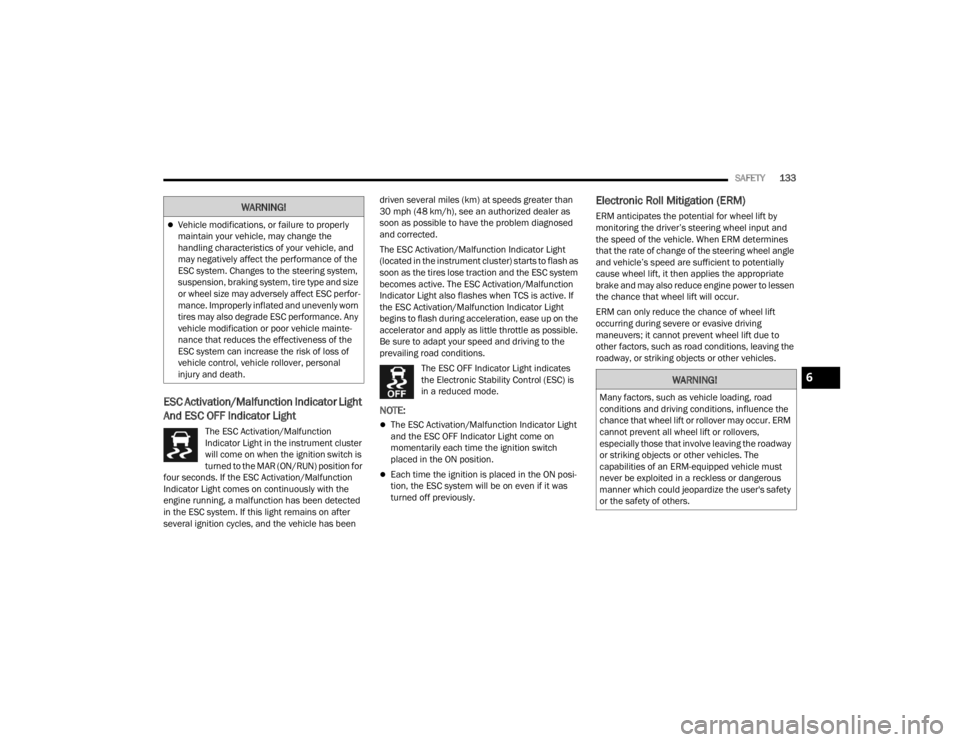
The ESC Activation/Malfunction
Indicator Light in the instrument cluster
will come on when the ignition switch is
turned to the MAR (ON/RUN) position for
four seconds. If the ESC Activation/Malfunction
Indicator Light comes on continuously with the
engine running, a malfunction has been detected
in the ESC system. If this light remains on after
several ignition cycles, and the vehicle has been driven several miles (km) at speeds greater than
30 mph (48 km/h), see an authorized dealer as
soon as possible to have the problem diagnosed
and corrected.
The ESC Activation/Malfunction Indicator Light
(located in the instrument cluster) starts to flash as
soon as the tires lose traction and the ESC system
becomes active. The ESC Activation/Malfunction
Indicator Light also flashes when TCS is active. If
the ESC Activation/Malfunction Indicator Light
begins to flash during acceleration, ease up on the
accelerator and apply as little throttle as possible.
Be sure to adapt your speed and driving to the
prevailing road conditions.
The ESC OFF Indicator Light indicates
the Electronic Stability Control (ESC) is
in a reduced mode.
NOTE:
The ESC Activation/Malfunction Indicator Light
and the ESC OFF Indicator Light come on
momentarily each time the ignition switch
placed in the ON position.
Each time the ignition is placed in the ON posi -
tion, the ESC system will be on even if it was
turned off previously.
Electronic Roll Mitigation (ERM)
ERM anticipates the potential for wheel lift by
monitoring the driver’s steering wheel input and
the speed of the vehicle. When ERM determines
that the rate of change of the steering wheel angle
and vehicle’s speed are sufficient to potentially
cause wheel lift, it then applies the appropriate
brake and may also reduce engine power to lessen
the chance that wheel lift will occur.
ERM can only reduce the chance of wheel lift
occurring during severe or evasive driving
maneuvers; it cannot prevent wheel lift due to
other factors, such as road conditions, leaving the
roadway, or striking objects or other vehicles.Vehicle modifications, or failure to properly
maintain your vehicle, may change the
handling characteristics of your vehicle, and
may negatively affect the performance of the
ESC system. Changes to the steering system,
suspension, braking system, tire type and size
or wheel size may adversely affect ESC perfor -
mance. Improperly inflated and unevenly worn
tires may also degrade ESC performance. Any
vehicle modification or poor vehicle mainte -
nance that reduces the effectiveness of the
ESC system can increase the risk of loss of
vehicle control, vehicle rollover, personal
injury and death.
WARNING!
WARNING!
Many factors, such as vehicle loading, road
conditions and driving conditions, influence the
chance that wheel lift or rollover may occur. ERM
cannot prevent all wheel lift or rollovers,
especially those that involve leaving the roadway
or striking objects or other vehicles. The
capabilities of an ERM-equipped vehicle must
never be exploited in a reckless or dangerous
manner which could jeopardize the user's safety
or the safety of others.
6
22_VM_OM_EN_USC_t.book Page 133
Page 136 of 260

134SAFETY
Hill Start Assist (HSA)
HSA is designed to assist the driver when starting
a vehicle from a stop on a hill. HSA will maintain
the level of brake pressure the driver applied for a
short period of time after the driver takes their foot
off of the brake pedal. If the driver does not apply
the throttle during this short period of time, the
system will release brake pressure and the vehicle
will roll down the hill. The system will release brake
pressure in proportion to the amount of throttle
applied as the vehicle starts to move in the
intended direction of travel.
HSA ACTIVATION CRITERIA
The following criteria must be met in order for HSA
to activate:
The vehicle must be stopped.
The vehicle must be on a 5% (approximate)
grade or greater hill.
Gear selection matches vehicle uphill direction
(i.e., vehicle facing uphill is in forward gear;
vehicle backing uphill is in REVERSE gear).
HSA will work in REVERSE and all forward gears
when the activation criteria have been met. The
system will not activate if the vehicle is placed in
NEUTRAL or PARK.
Traction Control System (TCS)
TCS monitors the amount of wheel spin of each of
the driven wheels. If wheel spin is detected, brake
pressure is applied to the slipping wheel(s) and
engine power is reduced to provide enhanced
acceleration and stability. A feature of the TCS
system, Brake Limited Differential (BLD) functions
similarly to a limited slip differential and controls
the wheel spin across a driven axle. If one wheel on
a driven axle is spinning faster than the other, the
system will apply the brake of the spinning wheel.
This will allow more engine torque to be applied to
the wheel that is not spinning. This feature remains
active even if TCS and ESC are in the “Partial Off”
mode Ú page 132.
Trailer Sway Control (TSC) — If Equipped
TSC uses sensors in the vehicle to recognize an
excessively swaying trailer and will take the
appropriate actions to attempt to stop the sway.
The system may reduce engine power and apply
the brake of the appropriate wheel(s) to counteract
the sway of the trailer.
NOTE:TSC cannot stop all trailers from swaying. Always
use caution when towing a trailer and follow the
trailer tongue weight recommendations
Úpage 68.
When TSC is functioning, the ESC Activation/
Malfunction Indicator Light will flash, the engine
power may be reduced and you may feel the
brakes being applied to individual wheels to
attempt to stop the trailer from swaying. TSC is
disabled when the ESC system is in the “Partial
Off” mode.
WARNING!
There may be situations on minor hills with a
loaded vehicle, or while pulling a trailer, when
the system will not activate and slight rolling may
occur. This could cause a collision with another
vehicle or object. Always remember the driver is
responsible for braking the vehicle.
WARNING!
If TSC activates while driving, slow the vehicle
down, stop at the nearest safe location, and
adjust the trailer load to eliminate trailer sway.
22_VM_OM_EN_USC_t.book Page 134
Page 137 of 260

SAFETY135
AUXILIARY DRIVING SYSTEMS
TIRE PRESSURE MONITORING SYSTEM
(TPMS)
The Tire Pressure Monitoring System (TPMS) will
warn the driver of a low tire pressure based on the
vehicle recommended cold placard pressure.
The tire pressure will vary with temperature by
about 1 psi (7 kPa) for every 12°F (6.5°C). This
means that when the outside temperature
decreases, the tire pressure will decrease. Tire
pressure should always be set based on cold
inflation tire pressure. This is defined as the tire
pressure after the vehicle has not been driven for
at least three hours, or driven less than 1 mile
(1.6 km) after a three hour period. The cold tire
inflation pressure must not exceed the maximum
inflation pressure molded into the tire sidewall.
The tire pressure will also increase as the vehicle
is driven — this is normal and there should be no
adjustment for this increased pressure.
See Ú page 217 on how to properly inflate the
vehicle’s tires.
The TPMS will warn the driver of a low tire pressure
if the tire pressure falls below the low-pressure
warning limit for any reason, including low
temperature effects and natural pressure loss
through the tire. The TPMS will continue to warn the driver of low
tire pressure as long as the condition exists, and
will not turn off until the tire pressure is at or above
the recommended cold placard pressure. Once the
low tire pressure warning (TPMS Warning Light)
illuminates, you must increase the tire pressure to
the recommended cold placard pressure in order
for the TPMS Warning Light to turn off. The system
will automatically update and the TPMS Warning
Light will turn off once the system receives the
updated tire pressures. The vehicle may need to be
driven for up to 20 minutes above 15 mph
(24 km/h) in order for the TPMS to receive this
information.
NOTE:When filling warm tires, the tire pressure may need
to be increased up to an additional 4 psi (28 kPa)
above the recommended cold placard pressure in
order to turn the TPMS Warning Light off.
For example, your vehicle may have a
recommended cold (parked for more than three
hours) placard pressure of 30 psi (207 kPa). If the
ambient temperature is 68°F (20°C) and the
measured tire pressure is 27 psi (186 kPa), a
temperature drop to 20°F (-7°C) will decrease the
tire pressure to approximately 23 psi (158 kPa).
This tire pressure is sufficiently low enough to turn
on the TPMS Warning Light. Driving the vehicle
may cause the tire pressure to rise to
approximately 27 psi (186 kPa), but the TPMS
Warning Light will still be on. In this situation, the
TPMS Warning Light will turn off only after the tires
are inflated to the vehicle’s recommended cold
placard pressure value.
CAUTION!
The TPMS has been optimized for the original
equipment tires and wheels. TPMS pressures
and warning have been established for the tire
size equipped on your vehicle. Undesirable
system operation or sensor damage may
result when using replacement equipment
that is not of the same size, type, and/or style.
Aftermarket wheels can cause sensor
damage.
Using aftermarket tire sealants may cause the
Tire Pressure Monitoring System (TPMS)
sensor to become inoperable. After using an
aftermarket tire sealant it is recommended
that you take your vehicle to an authorized
dealership to have your sensor function
checked.
After inspecting or adjusting the tire pressure
always reinstall the valve stem cap. This will
prevent moisture and dirt from entering the
valve stem, which could damage the TPMS
sensor.
6
22_VM_OM_EN_USC_t.book Page 135
Page 138 of 260

136SAFETY
NOTE:
The TPMS is not intended to replace normal tire
care and maintenance or to provide warning of
a tire failure or condition.
The TPMS should not be used as a tire pressure
gauge while adjusting your tire pressure.
Driving on a significantly underinflated tire
causes the tire to overheat and can lead to tire
failure. Underinflation also reduces fuel effi -
ciency and tire tread life, and may affect the
vehicle’s handling and stopping ability.
The TPMS is not a substitute for proper tire
maintenance, and it is the driver’s responsibility
to maintain correct tire pressure using an accu -
rate tire pressure gauge, even if underinflation
has not reached the level to trigger illumination
of the TPMS Warning Light.
Seasonal temperature changes will affect tire
pressure, and the TPMS will monitor the actual
tire pressure in the tire Ú page 245.
Base System
This is the TPMS Warning Light located
in the instrument cluster.
The TPMS uses wireless technology with
wheel rim mounted electronic sensors
to monitor tire pressure levels. Sensors, mounted
to each wheel as part of the valve stem, transmit
tire pressure readings to the receiver module.
NOTE:It is particularly important for you to check the tire
pressure in all of the tires on your vehicle regularly
and to maintain the proper pressure.
The TPMS consists of the following components:
Receiver module
Four TPMS sensors
Tire Pressure Monitoring System Warning Light
Tire Pressure Monitoring System Low
Pressure Warnings
The Tire Pressure Monitoring System Warning Light
will illuminate in the instrument cluster, an audible
chime will be activated, and the “Check tire
pressure” text message will display when one or
more of the four active road tire pressures are low.
Should this occur, you should stop as soon as
possible, check the inflation pressure of each tire
on your vehicle, and inflate each tire to the
vehicle’s recommended cold placard pressure
value. The system will automatically update and
the TPMS Warning Light will extinguish once the
updated tire pressures have been received. The
vehicle may need to be driven for up to 20 minutes
above 15 mph (24 km/h) to receive this
information.
Check TPMS Warnings
The TPMS Warning Light will flash on and off for 75
seconds and remain on solid when a system fault
is detected, an audible chime will be activated and
a proper text message will be displayed. If the
ignition key is cycled, this sequence will repeat
providing the system fault still exists. The TPMS
Warning Light will turn off when the fault condition
no longer exists. A system fault can occur with any
of the following scenarios:
1. Jamming due to electronic devices or driving next to facilities emitting the same radio
frequencies as the TPMS sensors.
2. Installing some form of aftermarket window tinting that affects radio wave signals.
3. Snow or ice around the wheels or wheel housings.
4. Using tire chains on the vehicle.
5. Using wheels/tires not equipped with TPMS sensors.
NOTE:Your vehicle can be equipped with either a Tire
Service Kit, a compact spare tire or a regular size
spare tire (with or without original TPMS sensor).
22_VM_OM_EN_USC_t.book Page 136