air condition RENAULT ALASKAN 2017 User Guide
[x] Cancel search | Manufacturer: RENAULT, Model Year: 2017, Model line: ALASKAN, Model: RENAULT ALASKAN 2017Pages: 340, PDF Size: 6.93 MB
Page 81 of 340
![RENAULT ALASKAN 2017 User Guide 4. [Fuel Economy]
[Average] fuel consumption jA:
The average fuel consumption mode shows the av-
erage fuel consumption since the last reset. Push
the <ENTER> switch for longer than 1second to
enter t](/img/7/58394/w960_58394-80.png "RENAULT ALASKAN 2017 User Guide 4. [Fuel Economy]
[Average] fuel consumption jA:
The average fuel consumption mode shows the av-
erage fuel consumption since the last reset. Push
the <ENTER> switch for longer than 1second to
enter t")
4. [Fuel Economy]
[Average] fuel consumption jA:
The average fuel consumption mode shows the av-
erage fuel consumption since the last reset. Push
the
enter the Reset menu.
The display is updated every 30 seconds. For about
the first 500 m(1/3 mile) after areset, the display
shows [——].
Push
Economy page.
The unit of measurement (l/100km, km/l, or MPG)
can be set in the settings menu. See, “[Units]” in the
“2. Instruments and controls” section.
Current fuel consumption jB:
The scale shows the current fuel consumption. 5. [Navigation] (where fitted)
When the route guidance is set in the navigation
system, this item shows the navigation route infor-
mation.
6. Compass (where fitted)
This display indicates the heading direction of the
vehicle jAa swell as acompass rose jBa round
the vehicle representation.
7. [Audio] (where fitted) j
A Current source
j B Current frequency
j C Current radio station name
The audio mode shows the status of audio informa-
tion.
For more details, see “FM AM radio with compact
disc (CD) player (Type A)” in the “4. Display screen,
heater and air conditioner, and audio system” sec-
tion or the separately provided Touchscreen Navi-
gation Owner’s manual.
8. [Driving Aids] (where fitted)
The driving aids mode shows the operating condi-
tion for the driving aids.
• Active Emergency Braking
Push
menu. NIC2758
NIC2732
NIC3105 NIC2734
Instruments and controls
2-23
Page 88 of 340
–T
he oil replacement indicator is displayed
in the vehicle information display.
• The engine oil should be changed before the
distance to oil change reaches
0km(0miles).
Continued driving after the distance to oil
change reaches 0km(0miles) may result in
reduced engine performance.
• The Diesel Particulate Filter (DPF) may also
become saturated because regeneration is
restricted once the distance to oil change
reaches 0km(0m iles).
Have the vehicle inspected by an approved
dealer or qualified workshop if the above con-
dition occurs.
• The oil change interval will reduce faster with
certain types of driving, especially at low
speeds in urban conditions.
3. Low level reminder
If the low level indicator is displayed, the engine oil level is low. If the low level reminder is displayed,
check the level using the engine oil dipstick. (See
“Checking engine oil level” in the “8. Maintenance
and do-it-yourself” section.)
CAUTION
The oil level should be checked regularly using
the engine oil dipstick. Operating with an insuffi-
cient amount of oil can damage the engine and
such damage is not covered by the warranty. 4. Oil level sensor warning
If the oil sensor warning is displayed, the engine oil
level sensor may be malfunctioning. Contact an ap-
proved dealer or qualified workshop immediately.
CLOCK AND OUTSIDE AIR
TEMPERATURE (where fitted)
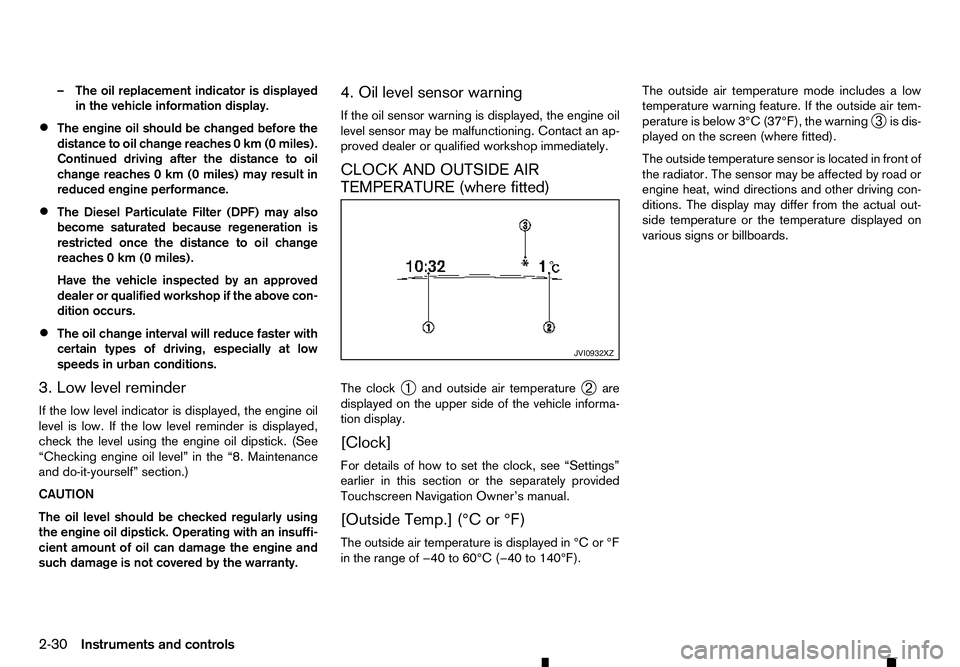
The clock
➀and outside air temperature
➁are
displayed on the upper side of the vehicle informa-
tion display.
[Clock]
For details of how to set the clock, see “Settings”
earlier in this section or the separately provided
Touchscreen Navigation Owner’s manual.
[Outside Temp.] (°C or °F)
The outside air temperature is displayed in °C or °F
in the range of −40 to 60°C (−40 to 140°F). The outside air temperature mode includes
alow
temperature warning feature. If the outside air tem-
perature is below 3°C (37°F), the warning ➂is dis-
played on the screen (where fitted).
The outside temperature sensor is located in front of
the radiator. The sensor may be affected by road or
engine heat, wind directions and other driving con-
ditions. The display may differ from the actual out-
side temperature or the temperature displayed on
various signs or billboards. JVI0932XZ
2-30 Instruments and controls
Page 97 of 340
•
This power outlet is not designed for use with
ac igarette lighter unit.
• Do not use accessories that exceed
acom-
bined power draw of 12 volt, 120W (10A)
• Do not use double adapters or more than one
electrical accessory.
• Use this power outlet with the engine running
to avoid discharging the vehicle battery.
• Avoid using when the air conditioner, head-
lights or rear window defogger is on (where
fitted).
• Push the plug in as far as it will go. If good
contact is not made, the plug may overheat or the internal temperature fuse may blow.
• Before inserting or disconnecting
aplug, be
sure that the electrical accessory being used
is turned OFF.
• When not in use, be sure to close the cap. Do
not allow water or any liquid to contact the
outlet. WARNING
• The storage compartments should not be
used while driving so that the full attention
may be given to vehicle operation.
• Keep the storage lids closed while driving to
help prevent injury in an accident or
asudden
stop.
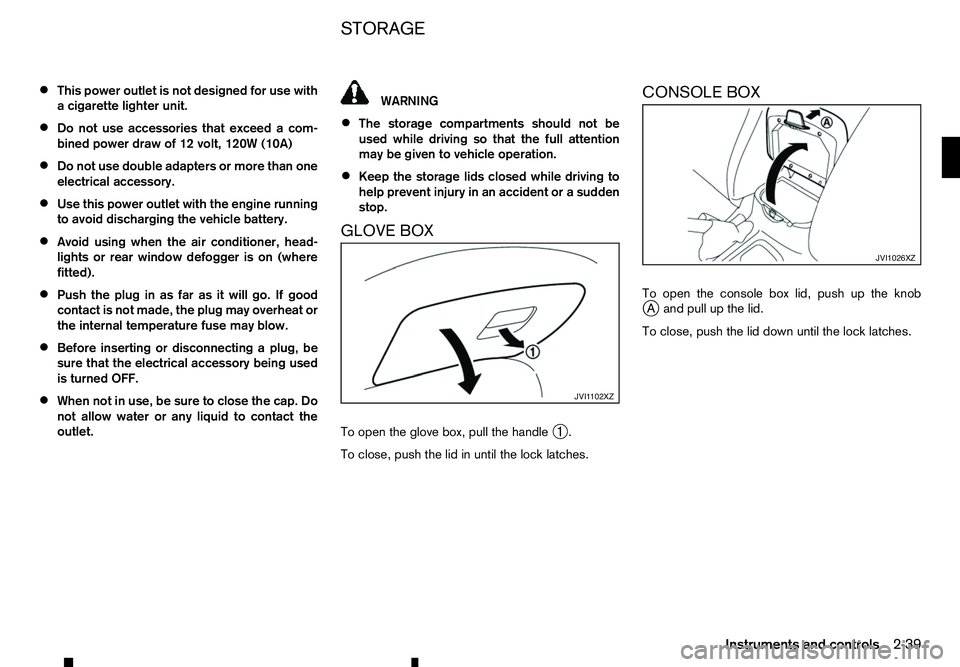
GLOVE BOX
To open the glove box, pull the handle ➀.
To close, push the lid in until the lock latches. CONSOLE BOX
To open the console box lid, push up the knob
j
Aa nd pull up the lid.
To close, push the lid down until the lock latches. JVI1 102XZ JVI1026XZ
STORAGE
Instruments and controls
2-39
Page 111 of 340
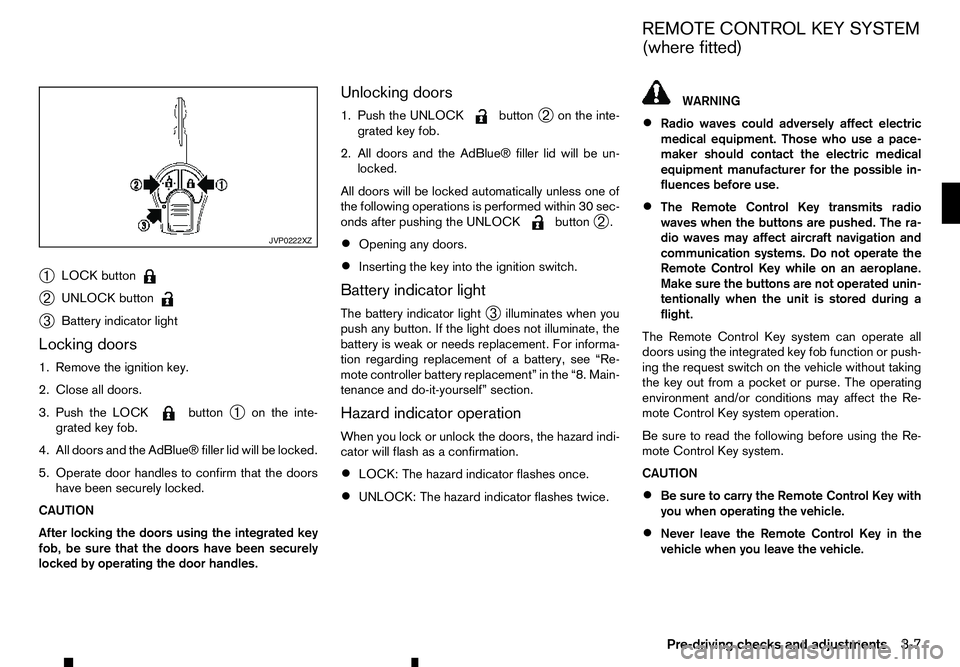
➀
LOCK button
➁
UNLOCK button
➂
Battery indicator light
Locking doors
1. Remove the ignition key.
2. Close all doors.
3. Push the LOCK button
➀on the inte-
grated key fob.
4. All doors and the AdBlue® filler lid will be locked.
5. Operate door handles to confirm that the doors have been securely locked.
CAUTION
After locking the doors using the integrated key
fob, be sure that the doors have been securely
locked by operating the door handles. Unlocking doors
1. Push the UNLOCK button
➁on the inte-
grated key fob.
2. All doors and the AdBlue® filler lid will be un- locked.
All doors will be locked automatically unless one of
the following operations is performed within 30 sec-
onds after pushing the UNLOCK button
➁.
• Opening any doors.
• Inserting the key into the ignition switch.
Battery indicator light
The battery indicator light ➂illuminates when you
push any button. If the light does not illuminate, the
battery is weak or needs replacement. For informa-
tion regarding replacement of abattery, see “Re-
mote controller battery replacement” in the “8. Main-
tenance and do-it-yourself” section.
Hazard indicator operation
When you lock or unlock the doors, the hazard indi-
cator will flash as aconfirmation.
• LOCK: The hazard indicator flashes once.
• UNLOCK: The hazard indicator flashes twice. WARNING
• Radio waves could adversely affect electric
medical equipment. Those who use apace-
maker should contact the electric medical
equipment manufacturer for the possible in-
fluences before use.
• The Remote Control Key transmits radio
waves when the buttons are pushed. The ra-
dio waves may affect aircraft navigation and
communication systems. Do not operate the
Remote Control Key while on an aeroplane.
Make sure the buttons are not operated unin-
tentionally when the unit is stored during a
flight.
The Remote Control Key system can operate all
doors using the integrated key fob function or push-
ing the request switch on the vehicle without taking
the key out from apocket or purse. The operating
environment and/or conditions may affect the Re-
mote Control Key system operation.
Be sure to read the following before using the Re-
mote Control Key system.
CAUTION
• Be sure to carry the Remote Control Key with
you when operating the vehicle.
• Never leave the Remote Control Key in the
vehicle when you leave the vehicle. JVP0222XZ
REMOTE CONTROL KEY SYSTEM
(where fitted)
Pre-driving checks and adjustments 3-7
Page 128 of 340
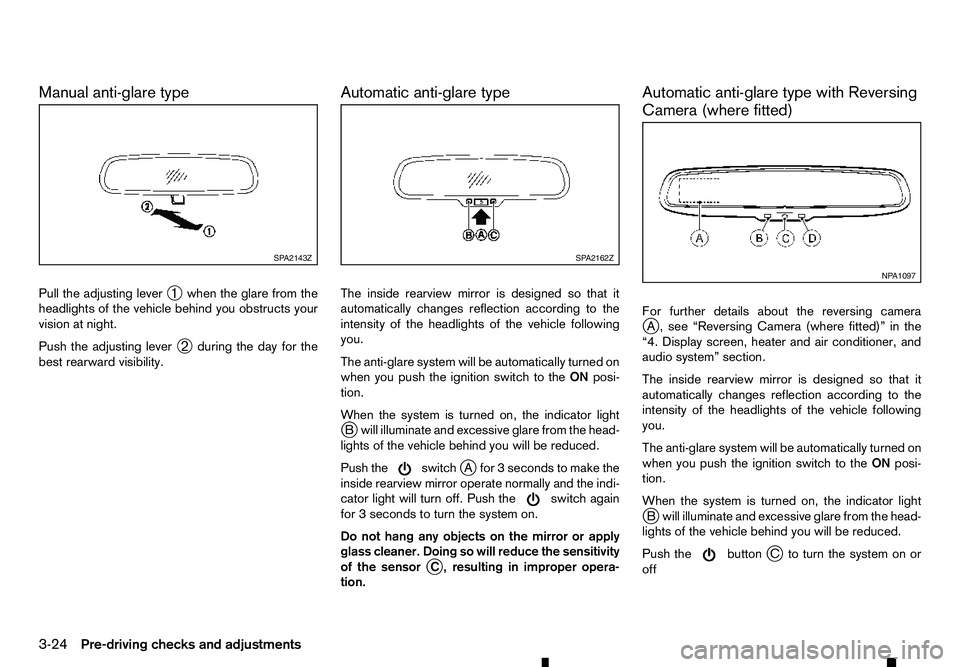
Manual anti-glare type
Pull the adjusting lever ➀when the glare from the
headlights of the vehicle behind you obstructs your
vision at night.
Push the adjusting lever ➁during the day for the
best rearward visibility. Automatic anti-glare type
The inside rearview mirror is designed so that it
automatically changes reflection according to the
intensity of the headlights of the vehicle following
you.
The anti-glare system will be automatically turned on
when you push the ignition switch to the
ONposi-
tion.
When the system is turned on, the indicator light
j Bw ill illuminate and excessive glare from the head-
lights of the vehicle behind you will be reduced.
Push the switch
jAf or3s econds to make the
inside rearview mirror operate normally and the indi-
cator light will turn off. Push the switch again
for 3s
econds to turn the system on.
Do not hang any objects on the mirror or apply
glass cleaner. Doing so will reduce the sensitivity
of the sensor j
C, resulting in improper opera-
tion. Automatic anti-glare type with Reversing
Camera (where fitted)
For further details about the reversing camera
j
A, see “Reversing Camera (where fitted)” in the
“4. Display screen, heater and air conditioner, and
audio system” section.
The inside rearview mirror is designed so that it
automatically changes reflection according to the
intensity of the headlights of the vehicle following
you.
The anti-glare system will be automatically turned on
when you push the ignition switch to the ONposi-
tion.
When the system is turned on, the indicator light j Bw ill illuminate and excessive glare from the head-
lights of the vehicle behind you will be reduced.
Push the button
jCt oturn the system on or
off SP A2143Z
SP A2162Z
NP A1097
3-24 Pre-driving checks and adjustments
Page 132 of 340
4
Display screen, heater and air conditioner,
and audio system Display screen, heater and air conditioner,
and audio system
Safety precautions ................................................... 4-2
Centre multi-function control panel (models with
navigation system) ................................................... 4-2 How to use touch screen display ........................ 4-3
How to use brightness control/display on·off
button ................................................................. 4-3
How to use
How to use BACK button ................................... 4-4
Vehicle information and settings (models with
navigation system) ................................................... 4-4 How to use INFO button..................................... 4-4
How to use
Reversing Camera (where fitted).............................. 4-7 How to read the displayed lines .......................... 4-8
Difference between predictive and actual
distances ............................................................ 4-8
How to adjust the screen .................................... 4-10
Operating tips..................................................... 4-10
360° Camera (where fitted) ..................................... 4-11 Operation ........................................................... 4-14
Guide lines ......................................................... 4-15
Difference between predictive and actual
distances ............................................................ 4-17
How to adjust the screen view ............................ 4-19
Operating tips..................................................... 4-19
Vents ....................................................................... 4-20
Centre vents ....................................................... 4-20
Side vents .......................................................... 4-20
Rear vents (where fitted) ..................................... 4-20
Heater and air conditioner ........................................ 4-21 Operating tips (models with automatic air
conditioner) ........................................................ 4-22
Manual air conditioner and heater (Type A) ......... 4-23
Manual air conditioner and heater (Type B) ......... 4-26
Automatic air conditioner .................................... 4-28
Servicing air conditioner ..................................... 4-30
Audio system (where fitted)...................................... 4-31 Audio operation precautions ............................... 4-31
Antenna .............................................................. 4-35
USB (Universal Serial Bus) connection port ........ 4-35
AUX (Auxiliary) input jack .................................... 4-36
CD/USB memory care and cleaning ................... 4-36
FM AM radio with compact disc (CD) player
(Type A) .................................................................. 4-37 Audio main operation .......................................... 4-38
Radio operation .................................................. 4-38
SETUP button .................................................... 4-39
Compact Disc (CD) operation ............................ 4-41
AUX (Auxiliary) socket......................................... 4-43
USB (Universal Serial Bus) connection port
(where fitted) ...................................................... 4-43
iPod player operation (where fitted)..................... 4-45
Bluetooth® operation.......................................... 4-46
FM-AM radio with compact disc (CD) player
(Type B) .................................................................. 4-52 Audio main operation .......................................... 4-52
Touchscreen Navigation (where fitted) ..................... 4-57
Steering wheel switch for audio control (where
fitted) ....................................................................... 4-58
Audio control ...................................................... 4-58
Page 134 of 340

WARNING
• Do not adjust the heater and air conditioner
controls or audio controls while driving so that full attention may be given to vehicle opera-
tion.
• If you noticed any foreign objects entering the
system hardware, spilled liquid on the sys-
tem, or noticed smoke or fumes coming out
from the system, or any other unusual opera-
tion is observed, stop using the system imme-
diately and contact the nearest approved
dealer or qualified workshop. Ignoring such
conditions may lead to an accident, fire or electric shock.
• Do not disassemble or modify this system. If
you do, it may lead to an accident, fire, or
electric shock.
CAUTION
Do not use the system when the engine is not
running for extended periods of time to prevent
battery discharge.
1.Phone button (P. 4-65)
2. Power/VOL (volume) dial
3. Display screen (P. 4-3)
4.
5.
6. Audio control buttons 7.
8. For navigation system control buttons refer to
the separate Navigation System Owner’s
Manual.
9. Brightness control/display ON·OFF button
(P. 4-3)
10.
SAFETY PRECAUTIONS
CENTRE MULTI-FUNCTION CONTROL PANEL (models with navigation
system)
4-2 Display screen, heater and air conditioner, and audio system
Page 135 of 340
11.
HOW TO USE TOUCH SCREEN
DISPLAY WARNING
• The glass display screen may break if it is hit
with ahard or sharp object. If the glass screen
breaks, do not touch it. Doing so could result
in an injury.
• To clean the display, never use
arough cloth,
alcohol, benzine, thinner or any kind of sol-
vent or paper towel with achemical cleaning
agent. They will scratch or deteriorate the
panel.
• Do not splash any liquid such as water or car
fragrance on the display. Contact with liquid
will cause the system to malfunction.
To help ensure safe driving, some functions cannot
be operated while driving.
The on-screen functions that are not available while
driving will be “greyed out” or muted.
Park the vehicle in asafe location and then operate
the navigation system.
CAUTION
• ALWAYS give your full attention to driving.
• Avoid using vehicle features that could dis-
tract you. If distracted, you could lose control
of your vehicle and cause an accident. Touch screen operation
Selecting items:
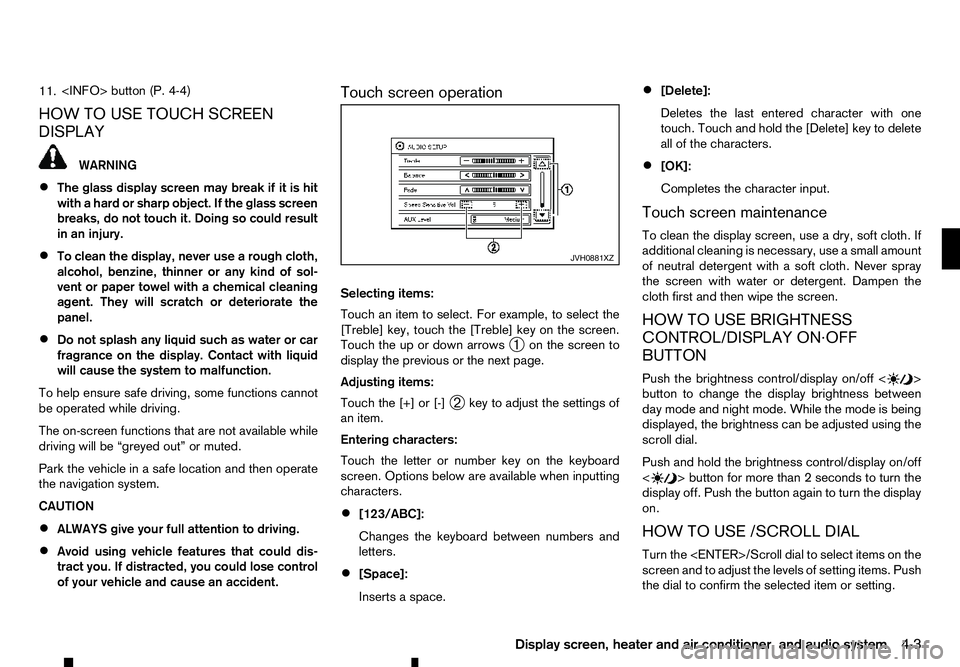
Touch an item to select. For example, to select the
[Treble] key, touch the [Treble] key on the screen.
Touch the up or down arrows
➀on the screen to
display the previous or the next page.
Adjusting items:
Touch the [+] or [-] ➁key to adjust the settings of
an item.
Entering characters:
Touch the letter or number key on the keyboard
screen. Options below are available when inputting
characters.
• [123/ABC]:
Changes the keyboard between numbers and
letters.
• [Space]:
Inserts
aspace. •
[Delete]:
Deletes the last entered character with one
touch. Touch and hold the [Delete] key to delete
all of the characters.
• [OK]:
Completes the character input.
Touch screen maintenance
To clean the display screen, use adry, soft cloth. If
additional cleaning is necessary, use asmall amount
of neutral detergent with asoft cloth. Never spray
the screen with water or detergent. Dampen the
cloth first and then wipe the screen.
HOW TO USE BRIGHTNESS
CONTROL/DISPLAY ON·OFF
BUTTON
Push the brightness control/display on/off < >
button to change the display brightness between
day mode and night mode. While the mode is being
displayed, the brightness can be adjusted using the
scroll dial.
Push and hold the brightness control/display on/off
< >b
utton for more than
2seconds to turn the
display off. Push the button again to turn the display
on.
HOW TO USE /SCROLL DIAL
Turn the
screen and to adjust the levels of setting items. Push
the dial to confirm the selected item or setting. JVH0881XZ
Display screen, heater and air conditioner, and audio system
4-3
Page 136 of 340
HOW TO USE BACK BUTTON
Push the
screen. Vehicle information can be checked and various set-
tings can be adjusted on the display.
NOTE
Designs and items displayed on the screen may
vary depending on the models and specifications.
HOW TO USE INFO BUTTON
Push the
menu items on the display screen.
Available items:
• [Traffic Messages]
• [Eco Score]
[Traffic Messages] (where fitted)
Traffic Messages can be displayed on the display
screen when available. Refer to the separate Navi-
gation System Owner’s Manual for details.
[Eco Score] (where fitted)
The [Eco Score] feature analyses driving behaviour
and provides an overall score. Refer to the separate
Navigation System Owner’s Manual for details. HOW TO USE BUTTON
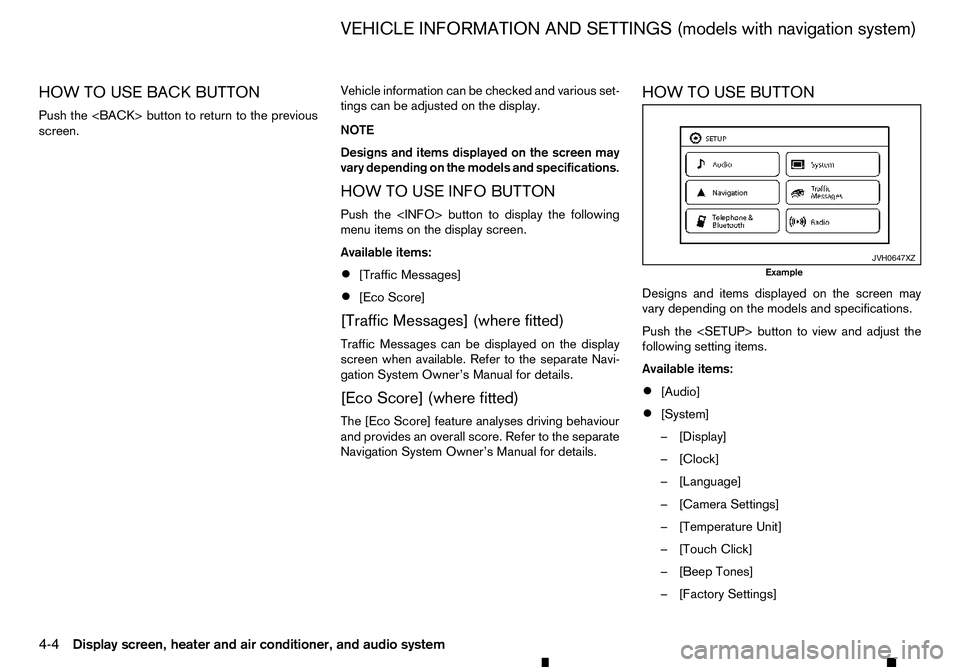
Designs and items displayed on the screen may
vary depending on the models and specifications.
Push the
following setting items.
Available items:
•
[Audio]
• [System]
–[
Display]
–[ Clock]
–[ Language]
–[ Camera Settings]
–[ Temperature Unit]
–[ Touch Click]
–[ Beep Tones]
–[ Factory Settings] JVH0647XZ
Example
VEHICLE INFORMATION AND SETTINGS (models with navigation system)
4-4 Display screen, heater and air conditioner, and audio system
Page 137 of 340
![RENAULT ALASKAN 2017 User Guide –[
Software Licenses]
• [Navigation]
• [Telephone
&Bluetooth]
• [Traffic Messages]
• [Radio]
[Audio] settings
Audio settings can be adjusted from the audio setup
screen.
This item is availab](/img/7/58394/w960_58394-136.png "RENAULT ALASKAN 2017 User Guide –[
Software Licenses]
• [Navigation]
• [Telephone
&Bluetooth]
• [Traffic Messages]
• [Radio]
[Audio] settings
Audio settings can be adjusted from the audio setup
screen.
This item is availab")
–[
Software Licenses]
• [Navigation]
• [Telephone
&Bluetooth]
• [Traffic Messages]
• [Radio]
[Audio] settings
Audio settings can be adjusted from the audio setup
screen.
This item is available only when the audio system is
turned on.
1. Push the
2. Touch the [Audio] key.
3. Select the item you wish to adjust.
[Bass]/[Treble]/[Balance]/[Fade]:
Touch the adjustment bar next to the corresponding
keys on the display to adjust the tone quality and
speaker balance.
The levels of these features can also be adjusted
with the
[Speed Sensitive Vol.]:
Speed sensitive volume function increases the vol-
ume of the audio system as the speed of the vehicle
increases. Choose the desired effect level from 0
(OFF) to 5. The higher the setting, the more the vol-
ume increases in relation to vehicle speed. [AUX Level]:
This feature controls the volume level of incoming
sound when an auxiliary device is connected to the
system. Select the level from [Quiet], [Medium], and
[Loud].
[System settings]
Various system settings can be adjusted from the
system settings.
1. Push the
2. Select the [System] key.
3. Select the item you wish to adjust.
[Display]:
Select the corresponding keys to adjust the set-
tings.
• [Brightness]:
Adjusts the brightness of the display.
• [Display Mode]:
Adjusts to fit the level of lighting in the vehicle.
Touch the [Display Mode] key to cycle through
options of the mode ([Day], [Night] and [Auto]).
• [Scroll Direction]:
Adjusts the direction of the menu scroll. Choose
either the up arrow or down arrow. [Clock]:
Select the corresponding keys to adjust the set-
tings.
• [Time Format]:
The time format setting can be selected from 12
hour and 24 hour formats.
• [Date Format]:
The day, month and year display can be selected
from five formats.
• [Clock Mode]:
Select the clock mode from [Manual], [Time
Zone] and [Auto].
When [Manual] is selected, you can set the clock
mode manually with the [Set Clock Manually]
key.
Select [Auto] to automatically maintain the time
using GPS.
• [Set Clock Manually]:
Mode (AM/PM) (where fitted), Hours, Minutes,
Day, Month and Year can be set manually if
“Manual” is selected in the Clock Mode setting.
• [Daylight Savings Time]:
Turns the daylight savings time ON or OFF.
• [Time Zone]:
Select the applicable time zone from the list.
Display screen, heater and air conditioner, and audio system 4-5