reset RENAULT ALASKAN 2017 User Guide
[x] Cancel search | Manufacturer: RENAULT, Model Year: 2017, Model line: ALASKAN, Model: RENAULT ALASKAN 2017Pages: 340, PDF Size: 6.93 MB
Page 78 of 340
See “Tyre Pressure Monitoring System (TPMS)
(where fitted)” in the “5. Starting and driving” sec-
tion.
Use the or and the
or cancel the calibration process. While the calibra-
tion process is active, the message: [Resetting tyre
pressure system] will be displayed.
[Units]
The following items are available under the [Units]
menu.
• [Distance/Fuel]
• [Tyre Pressures] (where fitted)
• [Temperature]
[Distance/Fuel]:
The unit for the distance and fuel consumption that
displays in the vehicle information display can be
changed to:
• [km, l/100km]
• [km, km/l]
• [miles, MPG]
[Tyre Pressures] (where fitted):
The unit for tyre pressure that displays in the vehicle
information display can be changed to:
• psi
• bar
• kPa •
Kgf/cm
2
Use the or and
the
and change the unit.
[Temperature]:
The temperature that displays in the vehicle informa-
tion display can be changed from:
• °C (Celsius)
• °F (Fahrenheit)
[Language]
The language of the vehicle information display can
be changed to:
• English
• French
• German
• Italian
• Portuguese
• Dutch
• Spanish
• Turkish
• Russian
Use the or and the
and change the language of the vehicle information
display. [Factory Reset]
The settings in the vehicle information display can
be reset back to the factory default. To reset the
vehicle information display:
1. Use the or buttons to select [Settings], and
press the
2. Select [Factory Reset] using the or buttons
and press the
3. Select [Yes] to return all settings back to default by pressing the
To cancel the reset operation select [No] or press
the BACK button located on the left side of the
steering wheel.
2-20 Instruments and controls
Page 80 of 340
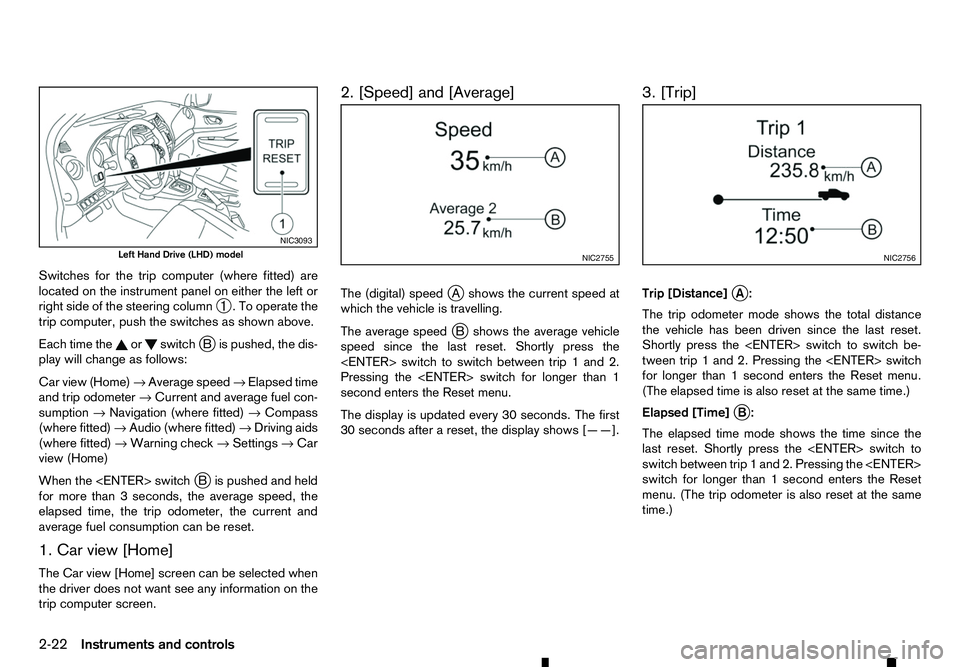
Switches for the trip computer (where fitted) are
located on the instrument panel on either the left or
right side of the steering column ➀.Too
perate the
trip computer, push the switches as shown above.
Each time the or switch
jBi spushed, the dis-
play will change as follows:
Car view (Home) →Average speed →Elapsed time
and trip odometer →Current and average fuel con-
sumption →Navigation (where fitted) →Compass
(where fitted) →Audio (where fitted) →Driving aids
(where fitted) →Warning check →Settings →Car
view (Home)
When the
Bi spushed and held
for more than 3seconds, the average speed, the
elapsed time, the trip odometer, the current and
average fuel consumption can be reset.
1. Car view [Home]
The Car view [Home] screen can be selected when
the driver does not want see any information on the
trip computer screen. 2. [Speed] and [Average]
The (digital) speed
jAs hows the current speed at
which the vehicle is travelling.
The average speed j
Bs hows the average vehicle
speed since the last reset. Shortly press the
Pressing the
second enters the Reset menu.
The display is updated every 30 seconds. The first
30 seconds after areset, the display shows [——]. 3. [Trip]
Trip [Distance]
jA:
The trip odometer mode shows the total distance
the vehicle has been driven since the last reset.
Shortly press the
tween trip 1and 2. Pressing the
for longer than 1second enters the Reset menu.
(The elapsed time is also reset at the same time.)
Elapsed [Time] j
B:
The elapsed time mode shows the time since the
last reset. Shortly press the
switch between trip 1and 2. Pressing the
switch for longer than 1second enters the Reset
menu. (The trip odometer is also reset at the same
time.) NIC3093
Left Hand Drive (LHD) model
NIC2755 NIC2756
2-22 Instruments and controls
Page 81 of 340
![RENAULT ALASKAN 2017 User Guide 4. [Fuel Economy]
[Average] fuel consumption jA:
The average fuel consumption mode shows the av-
erage fuel consumption since the last reset. Push
the <ENTER> switch for longer than 1second to
enter t](/img/7/58394/w960_58394-80.png "RENAULT ALASKAN 2017 User Guide 4. [Fuel Economy]
[Average] fuel consumption jA:
The average fuel consumption mode shows the av-
erage fuel consumption since the last reset. Push
the <ENTER> switch for longer than 1second to
enter t")
4. [Fuel Economy]
[Average] fuel consumption jA:
The average fuel consumption mode shows the av-
erage fuel consumption since the last reset. Push
the
enter the Reset menu.
The display is updated every 30 seconds. For about
the first 500 m(1/3 mile) after areset, the display
shows [——].
Push
Economy page.
The unit of measurement (l/100km, km/l, or MPG)
can be set in the settings menu. See, “[Units]” in the
“2. Instruments and controls” section.
Current fuel consumption jB:
The scale shows the current fuel consumption. 5. [Navigation] (where fitted)
When the route guidance is set in the navigation
system, this item shows the navigation route infor-
mation.
6. Compass (where fitted)
This display indicates the heading direction of the
vehicle jAa swell as acompass rose jBa round
the vehicle representation.
7. [Audio] (where fitted) j
A Current source
j B Current frequency
j C Current radio station name
The audio mode shows the status of audio informa-
tion.
For more details, see “FM AM radio with compact
disc (CD) player (Type A)” in the “4. Display screen,
heater and air conditioner, and audio system” sec-
tion or the separately provided Touchscreen Navi-
gation Owner’s manual.
8. [Driving Aids] (where fitted)
The driving aids mode shows the operating condi-
tion for the driving aids.
• Active Emergency Braking
Push
menu. NIC2758
NIC2732
NIC3105 NIC2734
Instruments and controls
2-23
Page 87 of 340
31. Low fuel level warning
The low fuel level warning appears on the vehicle
information display when the fuel level in the tank is
getting low. Refuel as soon as it is convenient, pref-
erably before the gauge reads the empty position.
For further details, see “Fuel gauge” earlier in this
section. OIL CONTROL SYSTEM (where fitted
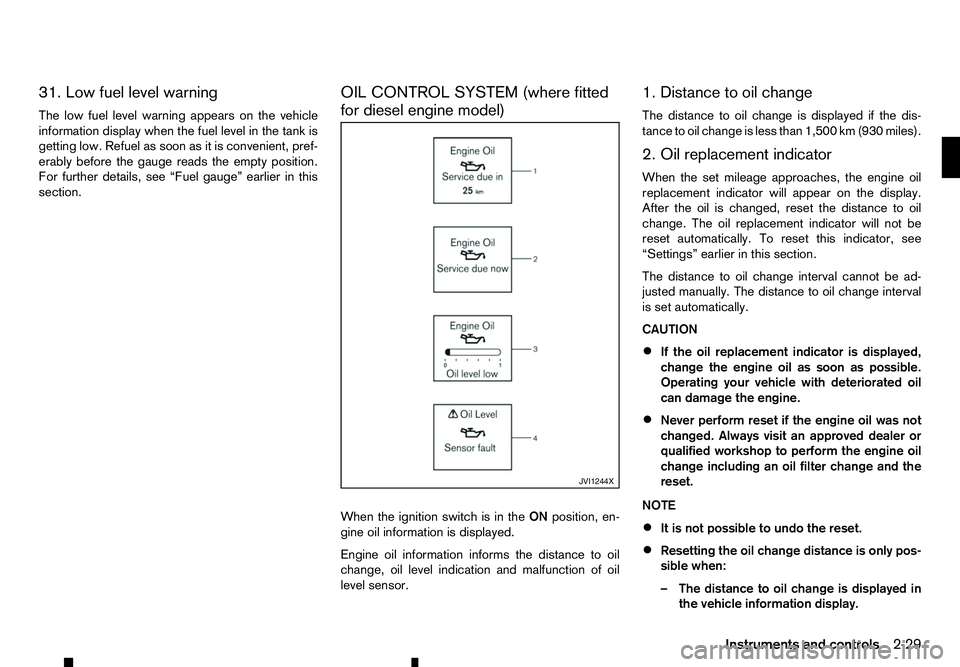
for diesel engine model)
When the ignition switch is in the
ONposition, en-
gine oil information is displayed.
Engine oil information informs the distance to oil
change, oil level indication and malfunction of oil
level sensor. 1. Distance to oil change
The distance to oil change is displayed if the dis-
tance to oil change is less than 1,500 km (930 miles).
2. Oil replacement indicator
When the set mileage approaches, the engine oil
replacement indicator will appear on the display.
After the oil is changed, reset the distance to oil
change. The oil replacement indicator will not be
reset automatically. To reset this indicator, see
“Settings” earlier in this section.
The distance to oil change interval cannot be ad-
justed manually. The distance to oil change interval
is set automatically.
CAUTION
•
If the oil replacement indicator is displayed,
change the engine oil as soon as possible.
Operating your vehicle with deteriorated oil
can damage the engine.
• Never perform reset if the engine oil was not
changed. Always visit an approved dealer or
qualified workshop to perform the engine oil
change including an oil filter change and the
reset.
NOTE
• It is not possible to undo the reset.
• Resetting the oil change distance is only pos-
sible when:
–T
he distance to oil change is displayed in
the vehicle information display. JVI1244X
Instruments and controls
2-29
Page 90 of 340
HEADLIGHT AIMING CONTROL
(where fitted)
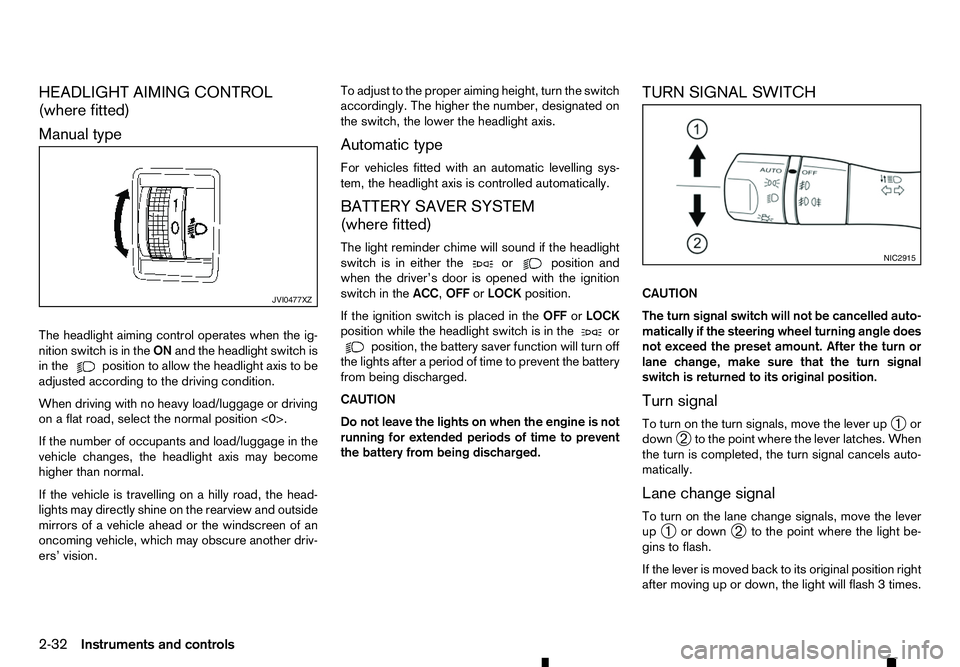
Manual type
The headlight aiming control operates when the ig- nition switch is in the ONand the headlight switch is
in the position to allow the headlight axis to be
adjusted according to the driving condition.
When driving with no heavy load/luggage or driving
on aflat road, select the normal position <0>.
If the number of occupants and load/luggage in the
vehicle changes, the headlight axis may become
higher than normal.
If the vehicle is travelling on ahilly road, the head-
lights may directly shine on the rearview and outside mirrors of avehicle ahead or the windscreen of an
oncoming vehicle, which may obscure another driv-
ers’ vision. To adjust to the proper aiming height, turn the switch
accordingly. The higher the number, designated on
the switch, the lower the headlight axis.
Automatic type
For vehicles fitted with an automatic levelling sys-
tem, the headlight axis is controlled automatically.
BATTERY SAVER SYSTEM
(where fitted)
The light reminder chime will sound if the headlight
switch is in either the or position and
when the driver’s door is opened with the ignition
switch in the ACC,OFForLOCK position.
If the ignition switch is placed in the OFForLOCK
position while the headlight switch is in the or
position, the battery saver function will turn off
the lights after aperiod of time to prevent the battery
from being discharged.
CAUTION
Do not leave the lights on when the engine is not
running for extended periods of time to prevent
the battery from being discharged. TURN SIGNAL SWITCH
CAUTION
The turn signal switch will not be cancelled auto-
matically if the steering wheel turning angle does
not exceed the preset amount. After the turn or
lane change, make sure that the turn signal
switch is returned to its original position.
Turn signal
To turn on the turn signals, move the lever up
➀or
down ➁to the point where the lever latches. When
the turn is completed, the turn signal cancels auto-
matically.
Lane change signal
To turn on the lane change signals, move the lever
up ➀ or down
➁to the point where the light be-
gins to flash.
If the lever is moved back to its original position right
after moving up or down, the light will flash 3times. JVI0477XZ NIC2915
2-32 Instruments and controls
Page 93 of 340
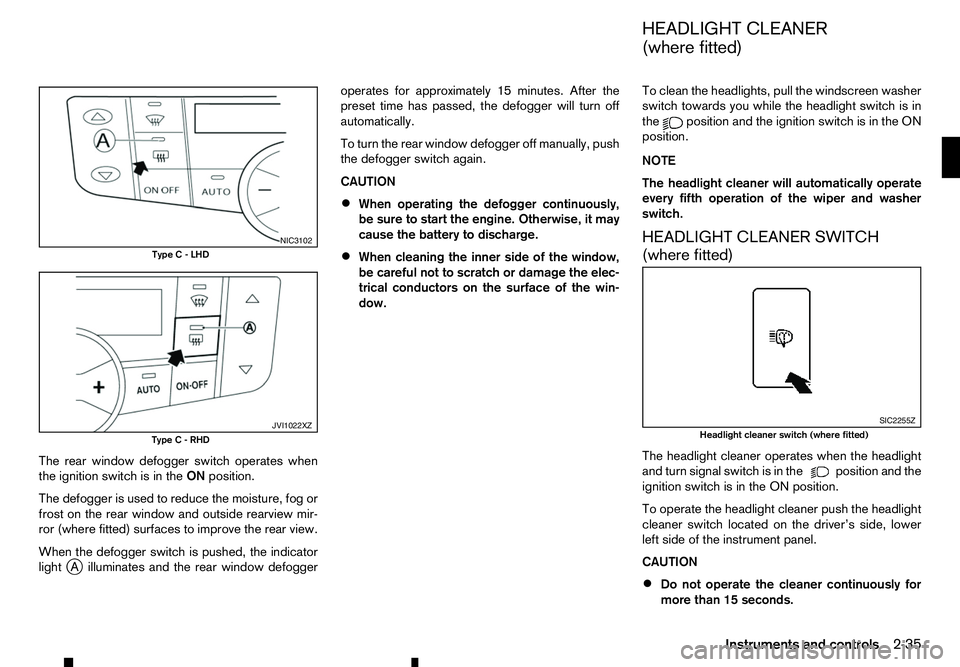
The rear window defogger switch operates when
the ignition switch is in the ONposition.
The defogger is used to reduce the moisture, fog or
frost on the rear window and outside rearview mir-
ror (where fitted) surfaces to improve the rear view.
When the defogger switch is pushed, the indicator
light j
Ai lluminates and the rear window defogger operates for approximately 15 minutes. After the
preset time has passed, the defogger will turn off
automatically.
To turn the rear window defogger off manually, push
the defogger switch again.
CAUTION
• When operating the defogger continuously,
be sure to start the engine. Otherwise, it may
cause the battery to discharge.
• When cleaning the inner side of the window,
be careful not to scratch or damage the elec-
trical conductors on the surface of the win-
dow. To clean the headlights, pull the windscreen washer
switch towards you while the headlight switch is in
the position and the ignition switch is in the ON
position.
NOTE
The headlight cleaner will automatically operate
every fifth operation of the wiper and washer
switch.
HEADLIGHT CLEANER SWITCH
(where fitted)
The headlight cleaner operates when the headlight
and turn signal switch is in the position and the
ignition switch is in the ON position.
To operate the headlight cleaner push the headlight
cleaner switch located on the driver’s side, lower
left side of the instrument panel.
CAUTION
• Do not operate the cleaner continuously for
more than 15 seconds. NIC3102
Type C-LHD JVI1022XZ
Type C-RHD SIC2255Z
Headlight cleaner switch (where fitted)
HEADLIGHT CLEANER
(where fitted)
Instruments and controls 2-35
Page 114 of 340
•
Do not pull the door handle before pushing the
door handle request switch. The door will be
unlocked but will not open. Release the door
handle once and pull it again to open the door.
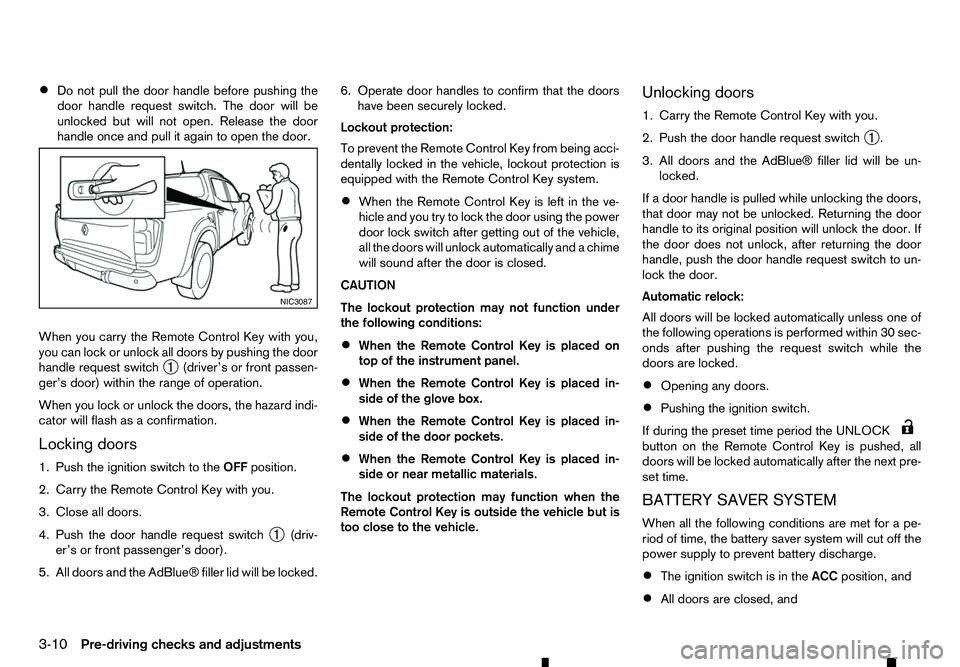
When you carry the Remote Control Key with you,
you can lock or unlock all doors by pushing the door
handle request switch ➀(driver’s or front passen-
ger’s door) within the range of operation.
When you lock or unlock the doors, the hazard indi-
cator will flash as aconfirmation.
Locking doors
1. Push the ignition switch to the OFFposition.
2. Carry the Remote Control Key with you.
3. Close all doors.
4. Push the door handle request switch ➀(driv-
er’s or front passenger’s door).
5. All doors and the AdBlue® filler lid will be locked. 6. Operate door handles to confirm that the doors
have been securely locked.
Lockout protection:
To prevent the Remote Control Key from being acci-
dentally locked in the vehicle, lockout protection is
equipped with the Remote Control Key system.
• When the Remote Control Key is left in the ve-
hicle and you try to lock the door using the power
door lock switch after getting out of the vehicle,
all the doors will unlock automatically and
achime
will sound after the door is closed.
CAUTION
The lockout protection may not function under
the following conditions:
• When the Remote Control Key is placed on
top of the instrument panel.
• When the Remote Control Key is placed in-
side of the glove box.
• When the Remote Control Key is placed in-
side of the door pockets.
• When the Remote Control Key is placed in-
side or near metallic materials.
The lockout protection may function when the
Remote Control Key is outside the vehicle but is
too close to the vehicle. Unlocking doors
1. Carry the Remote Control Key with you.
2. Push the door handle request switch
➀.
3. All doors and the AdBlue® filler lid will be un- locked.
If ad oor handle is pulled while unlocking the doors,
that door may not be unlocked. Returning the door
handle to its original position will unlock the door. If
the door does not unlock, after returning the door
handle, push the door handle request switch to un-
lock the door.
Automatic relock:
All doors will be locked automatically unless one of
the following operations is performed within 30 sec-
onds after pushing the request switch while the
doors are locked.
• Opening any doors.
• Pushing the ignition switch.
If during the preset time period the UNLOCK button on the Remote Control Key is pushed, all
doors will be locked automatically after the next pre-
set time.
BATTERY SAVER SYSTEM
When all the following conditions are met for ape-
riod of time, the battery saver system will cut off the
power supply to prevent battery discharge.
• The ignition switch is in the
ACCposition, and
• All doors are closed, and NIC3087
3-10 Pre-driving checks and adjustments
Page 118 of 340
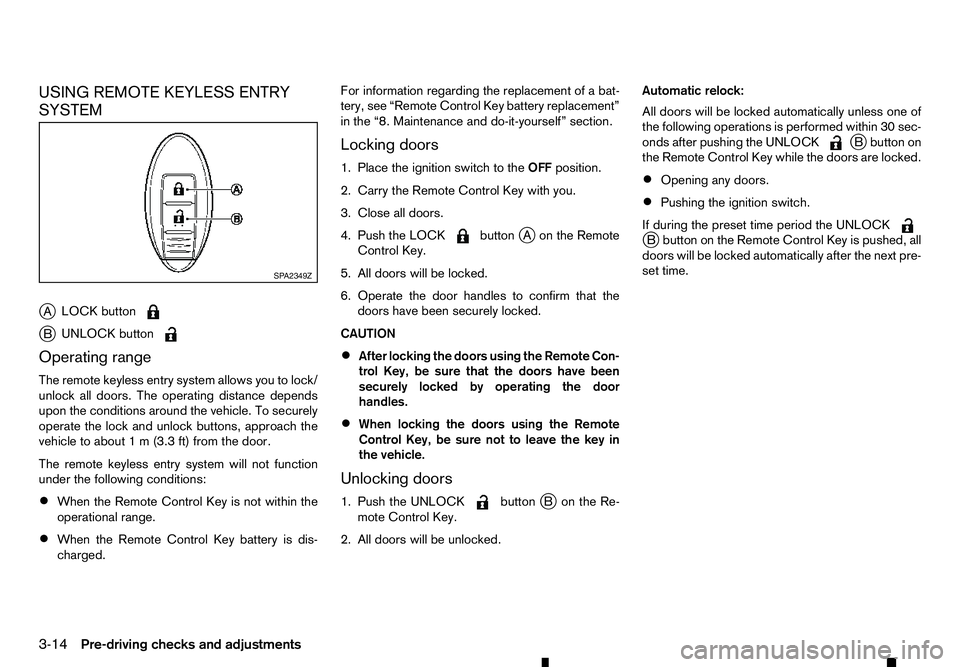
USING REMOTE KEYLESS ENTRY
SYSTEM
j A LOCK button j
B UNLOCK button
Operating range
The remote keyless entry system allows you to lock/
unlock all doors. The operating distance depends
upon the conditions around the vehicle. To securely
operate the lock and unlock buttons, approach the
vehicle to about 1m(3.3 ft) from the door.
The remote keyless entry system will not function
under the following conditions:
• When the Remote Control Key is not within the
operational range.
• When the Remote Control Key battery is dis-
charged. For information regarding the replacement of
abat-
tery, see “Remote Control Key battery replacement”
in the “8. Maintenance and do-it-yourself” section.
Locking doors
1. Place the ignition switch to the OFFposition.
2. Carry the Remote Control Key with you.
3. Close all doors.
4. Push the LOCK button
jAo nthe Remote
Control Key.
5. All doors will be locked.
6. Operate the door handles to confirm that the doors have been securely locked.
CAUTION
• After locking the doors using the Remote Con-
trol Key, be sure that the doors have been
securely locked by operating the door
handles.
• When locking the doors using the Remote
Control Key, be sure not to leave the key in
the vehicle.
Unlocking doors
1. Push the UNLOCK button
jBo nthe Re-
mote Control Key.
2. All doors will be unlocked. Automatic relock:
All doors will be locked automatically unless one of
the following operations is performed within 30 sec-
onds after pushing the UNLOCK j
Bb utton on
the Remote Control Key while the doors are locked.
• Opening any doors.
• Pushing the ignition switch.
If during the preset time period the UNLOCK j
Bb utton on the Remote Control Key is pushed, all
doors will be locked automatically after the next pre-
set time. SP A2349Z
3-14 Pre-driving checks and adjustments
Page 164 of 340
•
The CD player sometimes may not function when
the passenger compartment temperature is ex-
tremely high. Lower the temperature before use.
• Do not expose the CD to direct sunlight.
• CDs that are of poor quality, or are dirty,
scratched, covered with fingerprints, or that have
pin holes may not work properly.
• The following CDs may not work properly.
–C
opy control compact discs (CCCD)
–R ecordable compact discs (CD-R)
–R ewritable compact discs (CD-RW)
• Do not use the following CDs as they may cause
the CD player to malfunction.
–8
cm (3.1 in) discs
–C Ds that are not round
–C Ds with apaper label
–C Ds that are warped, scratched or have un-
usual edges.
• This audio system can only play prerecorded
CDs. It has no capabilities to record or burn
CDs. USB (Universal Serial Bus) Connection
Port WARNING
Do not connect, disconnect or operate the USB
device while driving. Doing so can be adistrac-
tion. If distracted you could lose control of your
vehicle and cause an accident or serious injury.
CAUTION
• Do not force the USB device into the USB
port. Inserting the USB device tilted or up-
side-down into the port may damage the port.
Make sure that the USB device is connected
correctly into the USB port.
• Do not grab the USB port cover (where fitted)
when pulling the USB device out of the port.
This could damage the port and the cover.
• Do not leave the USB cable in
aplace where
it can be pulled unintentionally. Pulling the
cable may damage the port.
The vehicle is not equipped with aUSB device.
USB devices should be purchased separately as
necessary.
This system cannot be used to format USB devices.
To format aUSB device, use apersonal computer.
In some areas, the USB device for the front seats
plays only sound without images for regulatory rea-
sons, even when the vehicle is parked. This system supports various USB memory devices,
USB hard drives and iPod players. Some USB de-
vices may not be supported by this system.
• Partitioned USB devices may not play correctly.
• Some characters used in other languages (Chi-
nese, Japanese, etc.) may not appear properly in
the display. Using English language characters
with
aUSB device is recommended.
General notes for USB use:
Refer to your device manufacturer’s owner informa-
tion regarding the proper use and care of the de-
vice.
Notes for iPod use:
iPod is atrademark of Apple Inc., registered in the
U.S. and other countries.
• Improperly plugging in the iPod may cause a
checkmark to be displayed on and off (flicker-
ing). Always make sure that the iPod is con-
nected properly.
• An iPod nano (1st Generation) may remain in
fast forward or rewind mode if it is connected
during
aseek operation. In this case, please
manually reset the iPod.
• An iPod nano (2nd Generation) will continue to
fast-forward or rewind if it is disconnected dur-
ing
aseek operation.
• An incorrect song title may appear when the Play
Mode is changed while using an iPod nano (2nd
Generation).
4-32 Display screen, heater and air conditioner, and audio system
Page 169 of 340
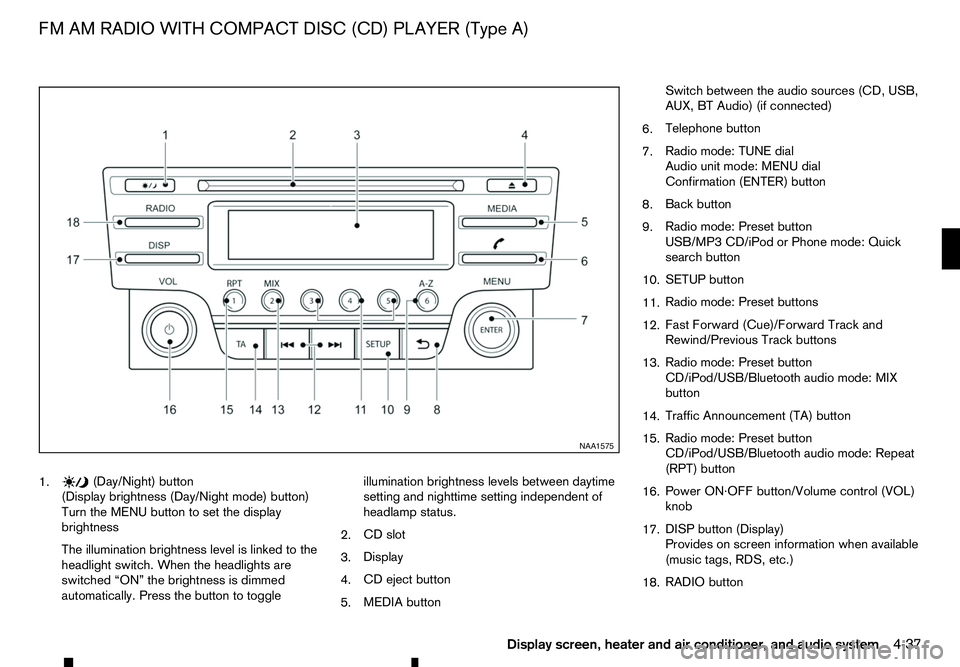
1. (Day/Night) button
(Display brightness (Day/Night mode) button)
Turn the MENU button to set the display
brightness
The illumination brightness level is linked to the
headlight switch. When the headlights are
switched “ON” the brightness is dimmed
automatically. Press the button to toggle illumination brightness levels between daytime
setting and nighttime setting independent of
headlamp status.
2. CD slot
3. Display
4. CD eject button
5. MEDIA button Switch between the audio sources (CD, USB,
AUX, BT Audio) (if connected)
6. Telephone button
7. Radio mode: TUNE dial
Audio unit mode: MENU dial
Confirmation (ENTER) button
8. Back button
9. Radio mode: Preset button
USB/MP3 CD/iPod or Phone mode: Quick
search button
10. SETUP button
11. Radio mode: Preset buttons
12. Fast Forward (Cue)/Forward Track and
Rewind/Previous Track buttons
13. Radio mode: Preset button
CD/iPod/USB/Bluetooth audio mode: MIX
button
14. Traffic Announcement (TA) button
15. Radio mode: Preset button
CD/iPod/USB/Bluetooth audio mode: Repeat
(RPT) button
16. Power ON·OFF button/Volume control (VOL)
knob
17. DISP button (Display)
Provides on screen information when available
(music tags, RDS, etc.)
18. RADIO button NAA1575
FM AM RADIO WITH COMPACT DISC (CD) PLAYER (Type A)
Display screen, heater and air conditioner, and audio system4-37