phone RENAULT MEGANE 2017 4.G R Link 2 Owner's Manual
[x] Cancel search | Manufacturer: RENAULT, Model Year: 2017, Model line: MEGANE, Model: RENAULT MEGANE 2017 4.GPages: 130, PDF Size: 5.83 MB
Page 76 of 130
4.4
Note: Upon the automatic connec-
tion of your telephone to the multime-
dia system, data downloads (phone-
book, music, contacts, etc.) will only be
enabled if you previously allowed data
sharing when pairing your telephone to
the multimedia system. For further in-
formation, please refer to the section on
“Pairing and unpairing a telephone”.
CONNECTING/DISCONNECTING A TELEPHONE (1/2)
Connecting a telephone
No phone can be connected to the
hands-free phone system if it has not
first been paired. For further informa-
tion, please refer to the section on
“Pairing and unpairing a telephone”.
Your phone must be connected to the
hands-free phone system in order to
use all its functions.
Automatic connection
Once the multimedia system is started,
the hands-free phone system searches
for any paired phones with Bluetooth®
activated nearby. The system auto-
matically downloads the data for the
last telephone connected (phonebook,
music, etc.).
Note: if a call is ongoing while the tele-
phone is being connected, it will auto-
matically be transferred to the vehicle
loudspeakers.
Changing a connected telephone
To change the connected telephone,
you will first have to pair more than one
telephone.
– Select Phone from the main menu, Settings then Paired devices list;
– Press on the telephone you wish to connect.
You will find the list of phones already
paired.
Note: for more information on com-
patible phones, contact an authorised
dealer or visit the manufacturer’s web-
site if available.
Page 77 of 130
4.5
CONNECTING/DISCONNECTING A TELEPHONE (2/2)Disconnect a phone
From the “Phone” menu, press
“Settings” then press “Paired devices
list”.
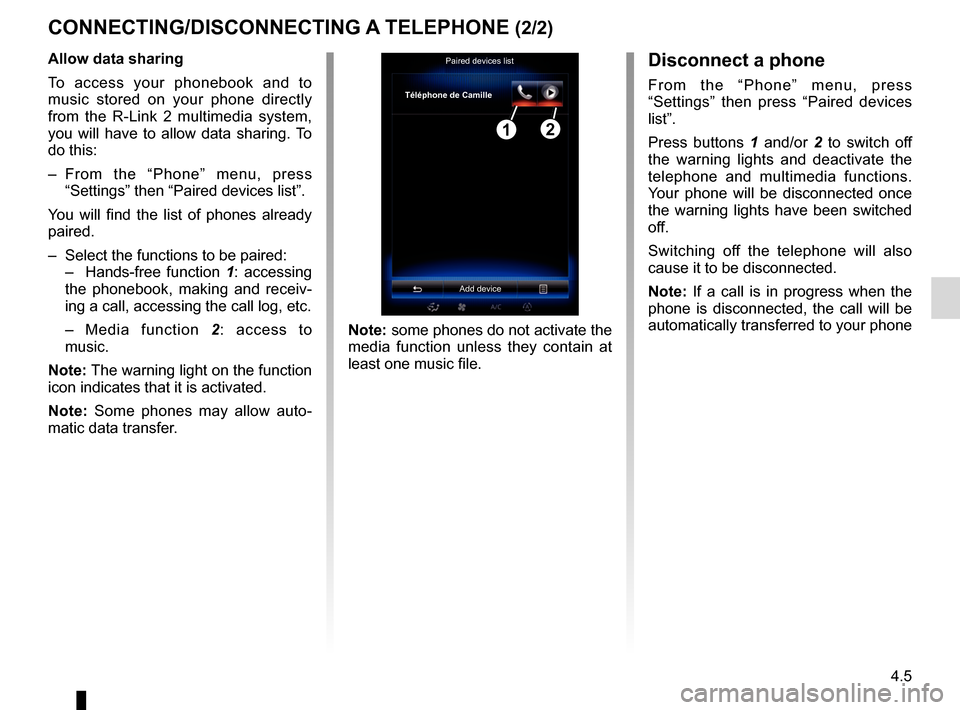
Press buttons 1 and/or 2 to switch off
the warning lights and deactivate the
telephone and multimedia functions.
Your phone will be disconnected once
the warning lights have been switched
off.
Switching off the telephone will also
cause it to be disconnected.
Note: If a call is in progress when the
phone is disconnected, the call will be
automatically transferred to your phone
Note: some phones do not activate the
media function unless they contain at
least one music file.
Allow data sharing
To access your phonebook and to
music stored on your phone directly
from the R-Link 2 multimedia system,
you will have to allow data sharing. To
do this:
– From the “Phone” menu, press
“Settings” then “Paired devices list”.
You will find the list of phones already
paired.
– Select the functions to be paired:
– Hands-free function 1: accessing
the phonebook, making and receiv-
ing a call, accessing the call log, etc.
– Media function 2: access to
music.
Note: The warning light on the function
icon indicates that it is activated.
Note: Some phones may allow auto-
matic data transfer.Paired devices list
Téléphone de Camille
Add device
12
Page 78 of 130
4.6
"Phone" menu
Making a call
From the “Phone” menu, you can make
a call by selecting:
– a contact from the phonebook;
– a number from the call log;
– the keypad to dial the number.
Note: from the home page, press the
"Favourites" widget to access contacts
you have already marked as favourites.
Please refer to the “Add, manage widg-
ets” section for further information.
Receiving a call
When receiving a call, the “Calls re-
ceived” screen is displayed, giving the
following information:
– the name of the contact (if the number is present in your handset
memory or the phonebook list); – the caller’s number (if the number is
not present in your handset memory);
– “No Caller ID” (if the number cannot be viewed).
"Accept"
To pick up a call, press “Accept”.
Press “End Phone Call” to end the call.
“Decline” a call
To reject a call, press and hold Decline.
The person calling you will be redi-
rected to your voicemail.
“Put on hold” the call
Press the "Put on hold" button or press
the pop-up menu button, then "Put on
hold" to place the call on hold.
Transfer to phone
To transfer the call to your telephone,
press "Transfer to phone" or press the
pop-up menu button then "Transfer to
phone".
PHONE CALL (1/2)
For safety reasons, carry
out these operations when
the vehicle is stationary.
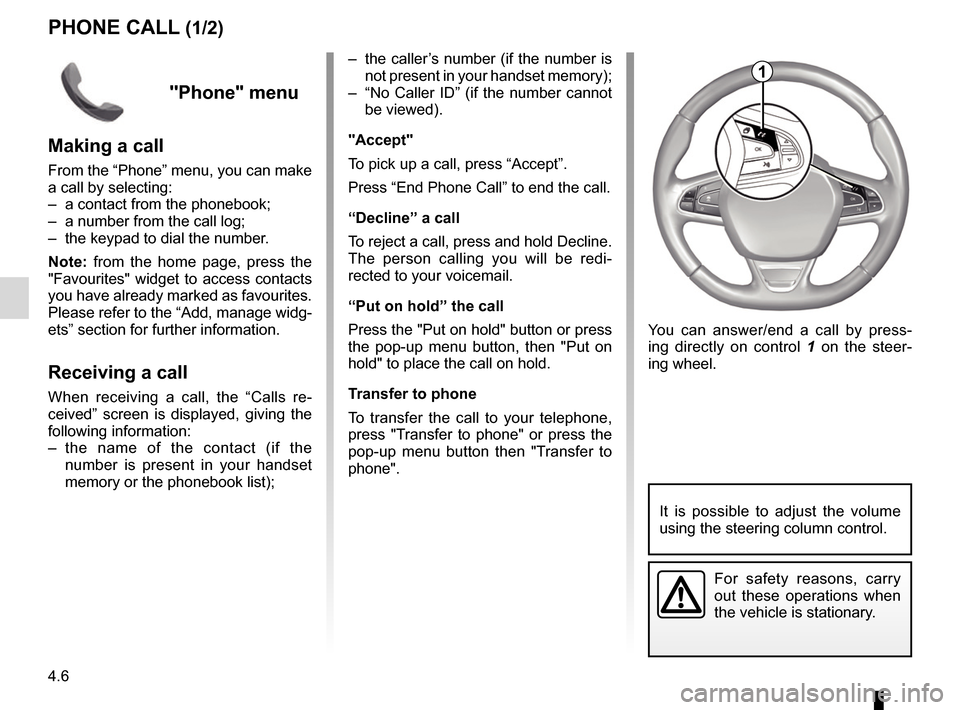
You can answer/end a call by press-
ing directly on control 1 on the steer-
ing wheel.
1
It is possible to adjust the volume
using the steering column control.
Page 79 of 130
4.7
PHONE CALL (2/2)
During a call
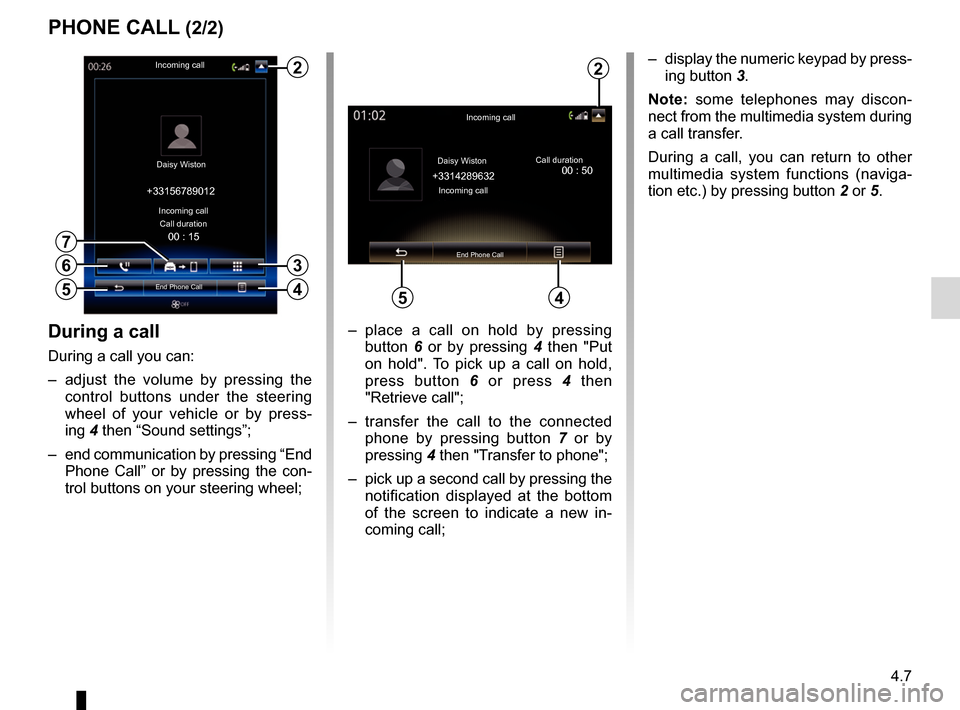
During a call you can:
– adjust the volume by pressing the control buttons under the steering
wheel of your vehicle or by press-
ing 4 then “Sound settings”;
– end communication by pressing “End Phone Call” or by pressing the con-
trol buttons on your steering wheel; – place a call on hold by pressing
button 6 or by pressing 4 then "Put
on hold". To pick up a call on hold,
press button 6 or press 4 then
"Retrieve call";
– transfer the call to the connected phone by pressing button 7 or by
pressing 4 then "Transfer to phone";
– pick up a second call by pressing the notification displayed at the bottom
of the screen to indicate a new in-
coming call;
Incoming call
Daisy Wiston Call duration
Incoming call
End Phone Call
+33156789012
6
4
– display the numeric keypad by press-
ing button 3.
Note: some telephones may discon-
nect from the multimedia system during
a call transfer.
During a call, you can return to other
multimedia system functions (naviga-
tion etc.) by pressing button 2 or 5.
Incoming call
Daisy Wiston
+3314289632Incoming call Call duration
End Phone Call
45
2
00 : 15
5
3
7
2
00 : 50
Page 80 of 130
4.8
PHONEBOOK
Note: the contacts saved on the SIM
card are not visible. Only contacts
saved on the phone are visible.
Updating the phonebook
You can transfer your phone contacts
into the handset memory of your hands-
free phone system via Bluetooth® (if
your phone allows this).
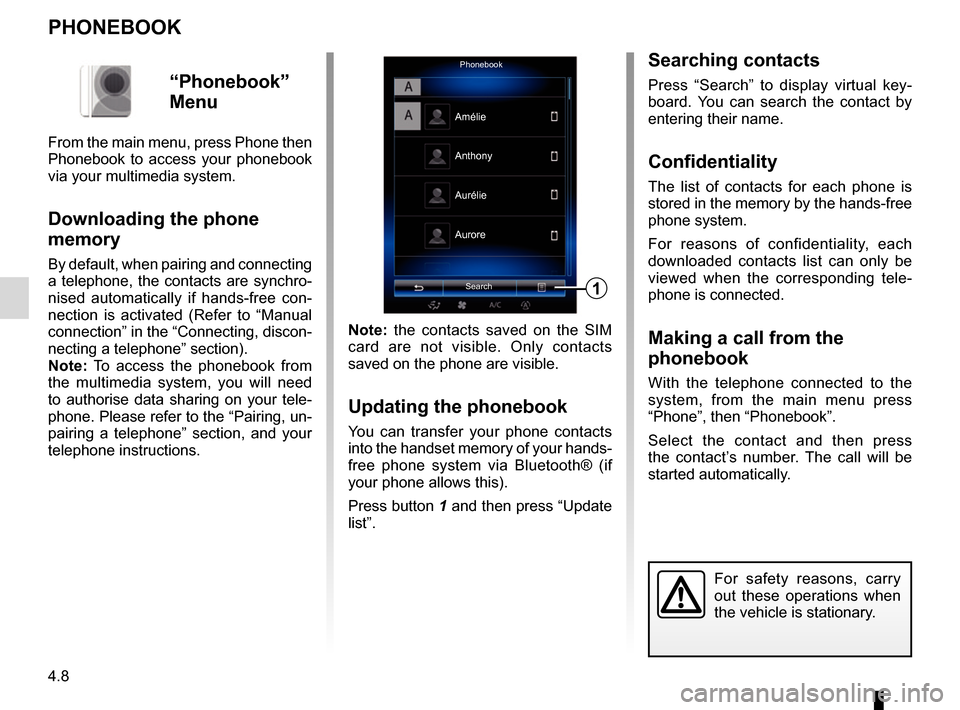
Press button 1 and then press “Update
list”.
PhonebookSearch
Anthony
Aurore
1
Amélie
Aurélie
“Phonebook”
Menu
From the main menu, press Phone then
Phonebook to access your phonebook
via your multimedia system.
Downloading the phone
memory
By default, when pairing and connecting
a telephone, the contacts are synchro-
nised automatically if hands-free con-
nection is activated (Refer to “Manual
connection” in the “Connecting, discon-
necting a telephone” section).
Note: To access the phonebook from
the multimedia system, you will need
to authorise data sharing on your tele-
phone. Please refer to the “Pairing, un-
pairing a telephone” section, and your
telephone instructions.
Searching contacts
Press “Search” to display virtual key-
board. You can search the contact by
entering their name.
Confidentiality
The list of contacts for each phone is
stored in the memory by the hands-free
phone system.
For reasons of confidentiality, each
downloaded contacts list can only be
viewed when the corresponding tele-
phone is connected.
Making a call from the
phonebook
With the telephone connected to the
system, from the main menu press
“Phone”, then “Phonebook”.
Select the contact and then press
the contact’s number. The call will be
started automatically.
For safety reasons, carry
out these operations when
the vehicle is stationary.
Page 81 of 130
4.9
CALL LOG
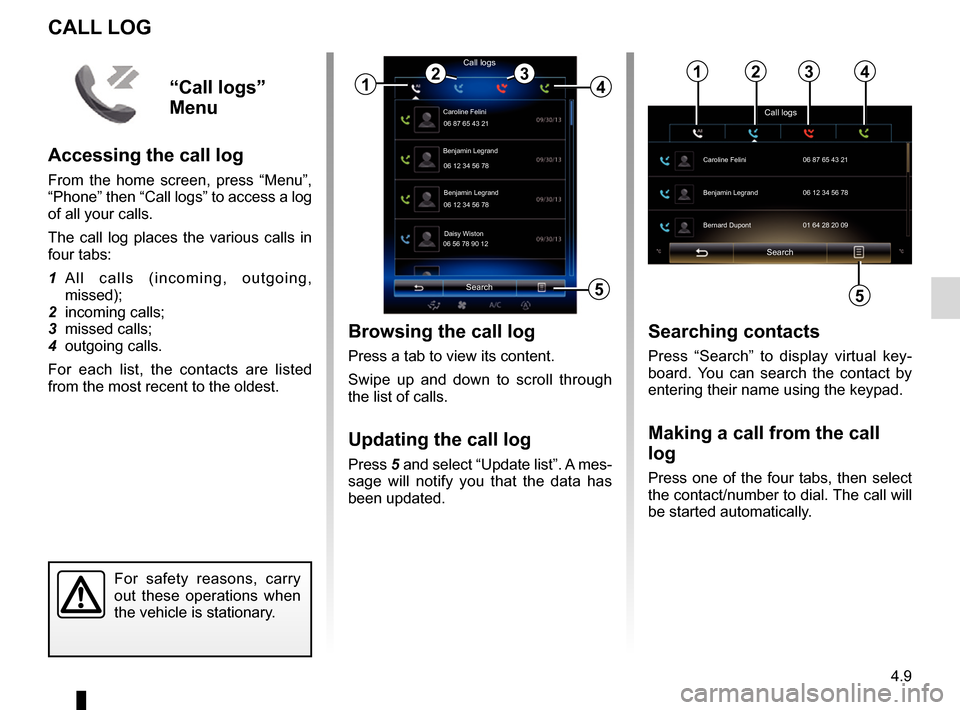
Browsing the call log
Press a tab to view its content.
Swipe up and down to scroll through
the list of calls.
Updating the call log
Press 5 and select “Update list”. A mes-
sage will notify you that the data has
been updated.
Search
Caroline Felini
Call logs
06 87 65 43 21
Benjamin Legrand
06 12 34 56 78
Benjamin Legrand
06 12 34 56 78
Daisy Wiston
06 56 78 90 12
1
Searching contacts
Press “Search” to display virtual key-
board. You can search the contact by
entering their name using the keypad.
Making a call from the call
log
Press one of the four tabs, then select
the contact/number to dial. The call will
be started automatically.
For safety reasons, carry
out these operations when
the vehicle is stationary.
243
5
“Call logs”
Menu
Accessing the call log
From the home screen, press “Menu”,
“Phone” then “Call logs” to access a log
of all your calls.
The call log places the various calls in
four tabs:
1 All calls (incoming, outgoing, missed);
2 incoming calls;
3 missed calls;
4 outgoing calls.
For each list, the contacts are listed
from the most recent to the oldest.
Search
Call logs
Caroline Felini
06 87 65 43 21
Benjamin Legrand 06 12 34 56 78
Bernard Dupont 01 64 28 20 09
1234
5
Page 82 of 130
4.10
DIAL NUMBER
For safety reasons, carry
out these operations when
the vehicle is stationary.
Dial numberCall
“Dial number”
menu
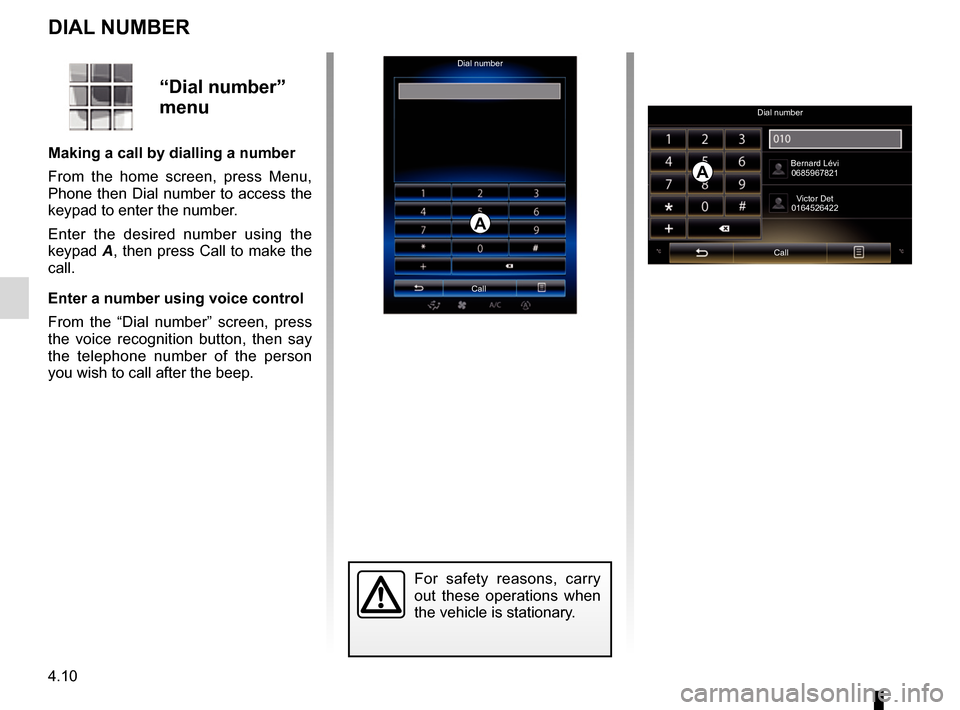
Making a call by dialling a number
From the home screen, press Menu,
Phone then Dial number to access the
keypad to enter the number.
Enter the desired number using the
keypad A, then press Call to make the
call.
Enter a number using voice control
From the “Dial number” screen, press
the voice recognition button, then say
the telephone number of the person
you wish to call after the beep.
Dial number
Call Bernard Lévi
0685967821
Victor Det
0164526422
A
A
Page 83 of 130
4.11
Searching SMSYou can search SMS by pressing
“Search”, then by entering a keyword
using the digital keypad.
Sorting SMSTo sort SMS by time or contact name,
press the pop-up menu button.
DetailPress one of the SMS in the list to get
details. You can find contact name,
number (if the number is present in
your handset memory or the phone-
book list) and message.
You can call the contact directly by
pressing “Call” if this number is saved
in the memory or in your phonebook.
SMS
Note: only SMS can be read via the
multimedia system. Other types of
message may not be read.
Using SMSWith the telephone connected to the
system, press SMS from the Phone
menu. While driving, press the mes-
sage you wish to have read out by the
multimedia system voice.
Note: reading of SMS is only possible
when the vehicle is stationary.
Receiving SMS texts on the
system
By default, after pairing and the tele-
phone connection, when a new mes-
sage is received, it will be available on
the multimedia system.
Note: only the messages received after
pairing of the telephone to the multime-
dia system will be available.
For safety reasons, carry
out these operations when
the vehicle is stationary.
“SMS” Menu
From the home screen, press “Menu”,
“Phone” then “SMS” to access SMS
from your phone via the multimedia
system.
No phone can be connected to the
hands-free phone system if it has not
first been paired. For more informa-
tion, please refer to the information
on “Pairing a telephone” in the section
“Pairing, unpairing a telephone”.
Your phone must be connected to the
hands-free phone system in order to
use all its functions.
Note: to access SMS from the multime-
dia system, you need to authorise data
sharing and notifications on your tele-
phone. For more information, please
refer to the section on “Pairing, unpair-
ing a telephone” and your telephone in-
structions.
Depending on the make and model
of your phone, certain functions
may not work.
Page 84 of 130
4.12
Configuring voicemail
If the voicemail box is not configured,
the configuration screen will be dis-
played. Enter your number on the
keypad, then confirm.
VOICE MAIL
For safety reasons, carry
out these operations when
the vehicle is stationary.
“Voice mail”
Menu
Accessing voicemail
With your telephone connected to the
system, from the home screen, press
Menu, Phone then Voice mail to access
your voicemail.
Page 85 of 130
4.13
TELEPHONE SETTINGS (1/2)
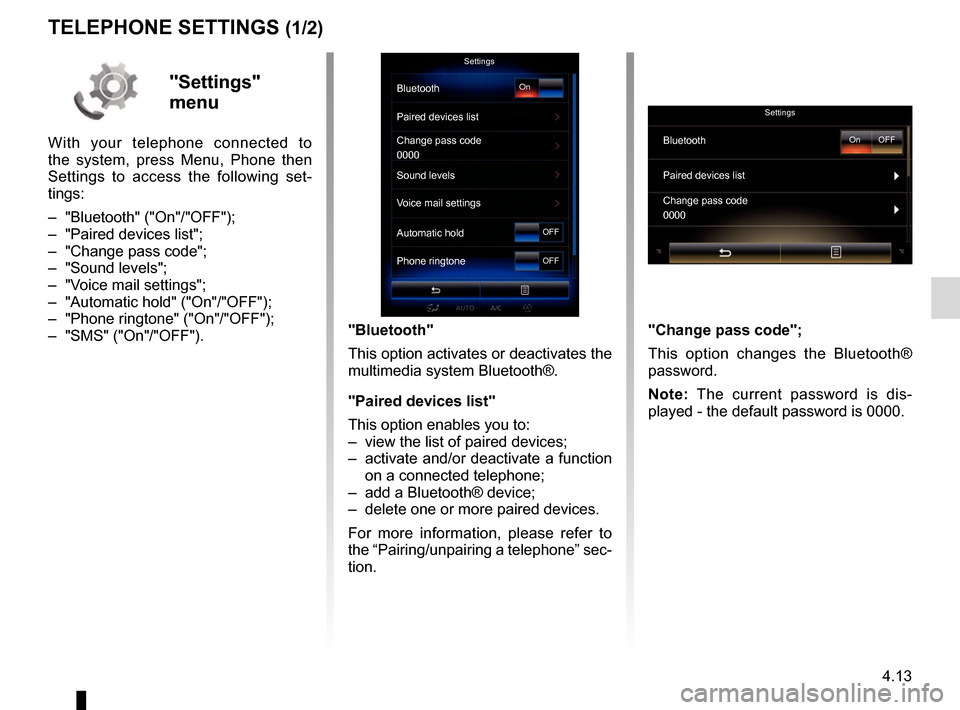
"Bluetooth"
This option activates or deactivates the
multimedia system Bluetooth®.
"Paired devices list"
This option enables you to:
– view the list of paired devices;
– activate and/or deactivate a function on a connected telephone;
– add a Bluetooth® device;
– delete one or more paired devices.
For more information, please refer to
the “Pairing/unpairing a telephone” sec-
tion.
Settings
Bluetooth
Paired devices list
Change pass code
Sound levels
Voice mail settings
Automatic hold
Phone ringtoneOn
OFF
OFF"Settings"
menu
With your telephone connected to
the system, press Menu, Phone then
Settings to access the following set-
tings:
– "Bluetooth" ("On"/"OFF");
– "Paired devices list";
– "Change pass code";
– "Sound levels";
– "Voice mail settings";
– "Automatic hold" ("On"/"OFF");
– "Phone ringtone" ("On"/"OFF");
– "SMS" ("On"/"OFF").
Settings
BluetoothOn OFF
Paired devices list
0000
Change pass code
0000
"Change pass code";
This option changes the Bluetooth®
password.
Note: The current password is dis-
played - the default password is 0000.