phone SAAB 9-7X 2008 User Guide
[x] Cancel search | Manufacturer: SAAB, Model Year: 2008, Model line: 9-7X, Model: SAAB 9-7X 2008Pages: 426, PDF Size: 2.77 MB
Page 202 of 426
DVD Player
The DVD player is located in the overhead console.
The DVD player can be controlled by the buttons on
the DVD player and/or by the buttons on the remote
control. See “Remote Control” later in this section
for more information.
The DVD player power may be turned on when the
ignition is in ON/RUN, ACC/ACCESSORY, or when
Retained Accessory Power (RAP) is active.
The RSE system DVD player is only compatible with
DVDs of the appropriate region code for the country
that the vehicle was sold in. The DVD region code
is printed on the jacket of most DVDs.
Standard audio CDs, CD-R, CD-RW, Video CD and
Photo CD/CD-R media are fully supported by this
DVD player. DVD-R and DVD-RW media is supported
if formatted as DVD-Video. DVD+R and DVD+RW
media may or may not be supported by the DVD player.The DVD player does not support DVD-RAM,
DVD-ROM, and DVD Audio media. An error message
will appear on the display if this type of media is
inserted into the DVD player.
When using the wired headphones, not included,
if the front seat passengers play a CD in the Radio
with Six-Disc CD (if equipped) or use XM™ Satellite
Radio Service (if equipped), you will hear the audio
for these sources, instead of the DVD or CD that
is currently playing through the RSE.
If an error message appears on the video screen,
see “DVD Messages” later in this section.
3-80
ProCarManuals.com
Page 209 of 426
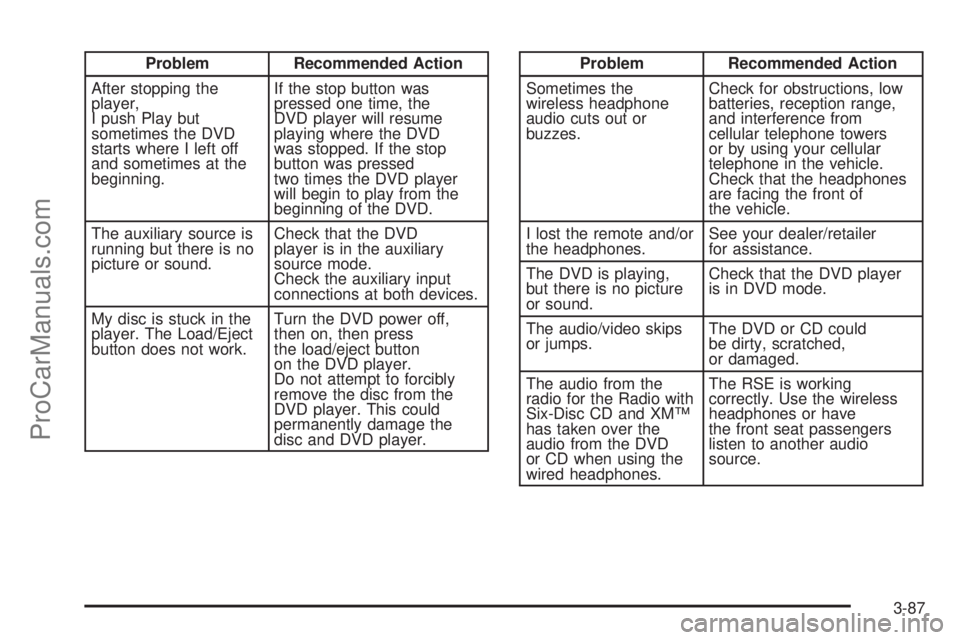
Problem Recommended Action
After stopping the
player,
I push Play but
sometimes the DVD
starts where I left off
and sometimes at the
beginning.If the stop button was
pressed one time, the
DVD player will resume
playing where the DVD
was stopped. If the stop
button was pressed
two times the DVD player
will begin to play from the
beginning of the DVD.
The auxiliary source is
running but there is no
picture or sound.Check that the DVD
player is in the auxiliary
source mode.
Check the auxiliary input
connections at both devices.
My disc is stuck in the
player. The Load/Eject
button does not work.Turn the DVD power off,
then on, then press
the load/eject button
on the DVD player.
Do not attempt to forcibly
remove the disc from the
DVD player. This could
permanently damage the
disc and DVD player.Problem Recommended Action
Sometimes the
wireless headphone
audio cuts out or
buzzes.Check for obstructions, low
batteries, reception range,
and interference from
cellular telephone towers
or by using your cellular
telephone in the vehicle.
Check that the headphones
are facing the front of
the vehicle.
I lost the remote and/or
the headphones.See your dealer/retailer
for assistance.
The DVD is playing,
but there is no picture
or sound.Check that the DVD player
is in DVD mode.
The audio/video skips
or jumps.The DVD or CD could
be dirty, scratched,
or damaged.
The audio from the
radio for the Radio with
Six-Disc CD and XM™
has taken over the
audio from the DVD
or CD when using the
wired headphones.The RSE is working
correctly. Use the wireless
headphones or have
the front seat passengers
listen to another audio
source.
3-87
ProCarManuals.com
Page 210 of 426
DVD Display Error Messages
The following errors may be displayed on the video
screen:
Disc Format Error:This message will be displayed if a
disc is inserted upside down, if the disc is not readable,
or if the format is not compatible with the DVD player.
Load/Eject Error:This message will be displayed if the
disc is not properly loaded or ejected.
Disc Play Error:This message will be displayed if the
DVD player cannot play the disc. Scratched or
damaged discs will cause this error.
Region Code Error:This message will be displayed if
the region code of the DVD is not compatible with
the region code of the DVD player.
No Disc:This message will be displayed if any of the
buttons on the DVD faceplate or remote control are
pressed and no disc is present in the DVD player.
DVD Distortion
There may be an experience with audio distortion
in the wireless headphones when operating cellular
phones, scanners, CB radios, Global Positioning
Systems (GPS)*, two-way radios, mobile fax,
or walkie talkies.
It might be necessary to turn off the DVD player when
operating one of these devices in or near the vehicle.
* Excludes the OnStar
®System.
Cleaning the Video Screen
Pour some isopropyl or rubbing alcohol on a clean
cloth and gently wipe the video screen. Do not spray
directly onto the screen and do not press too hard
or too long on the video screen.
3-88
ProCarManuals.com
Page 211 of 426
Rear Seat Audio (RSA)
This feature allows rear seat passengers to select and
listen to any of the available radio sources: AM/FM,
XM, CD, or DVD. However, a rear seat passenger
cannot control a source selected on the radio by
someone in the front of the vehicle. For example,
the RSA cannot be used to change CD tracks if the
radio is set to CD. Also, if the radio is switched to
a source the RSA has control of, sound will not be
lost, but the RSA will lose control of that source.
Rear seat passengers always have control of the volume
for each set of headphones.
The RSA will run when the radio is off if the ignition
key is positioned in the power mode, see XXX in
this manual.
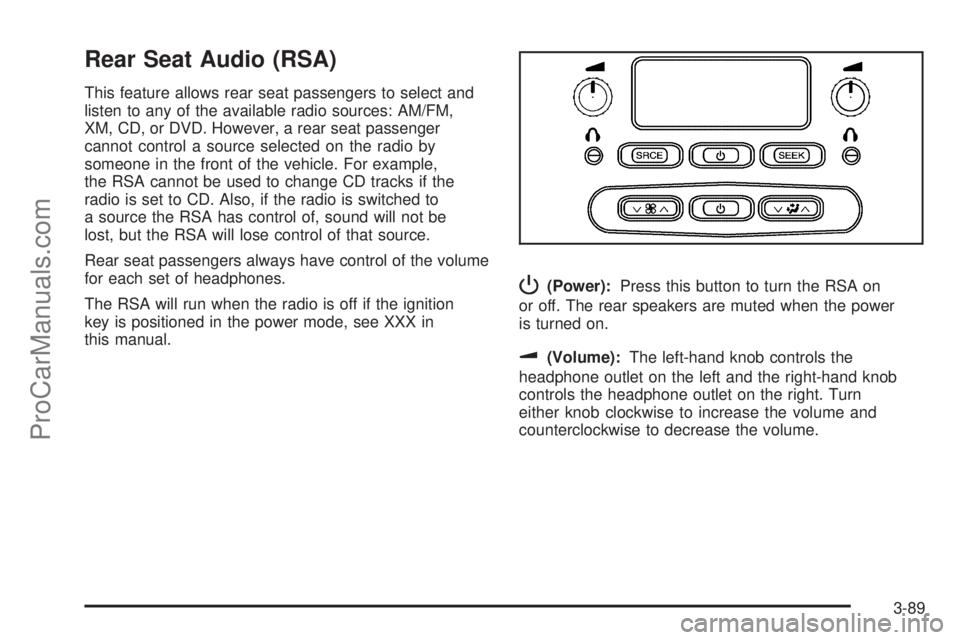
P(Power):Press this button to turn the RSA on
or off. The rear speakers are muted when the power
is turned on.
u(Volume):The left-hand knob controls the
headphone outlet on the left and the right-hand knob
controls the headphone outlet on the right. Turn
either knob clockwise to increase the volume and
counterclockwise to decrease the volume.
3-89
ProCarManuals.com
Page 213 of 426
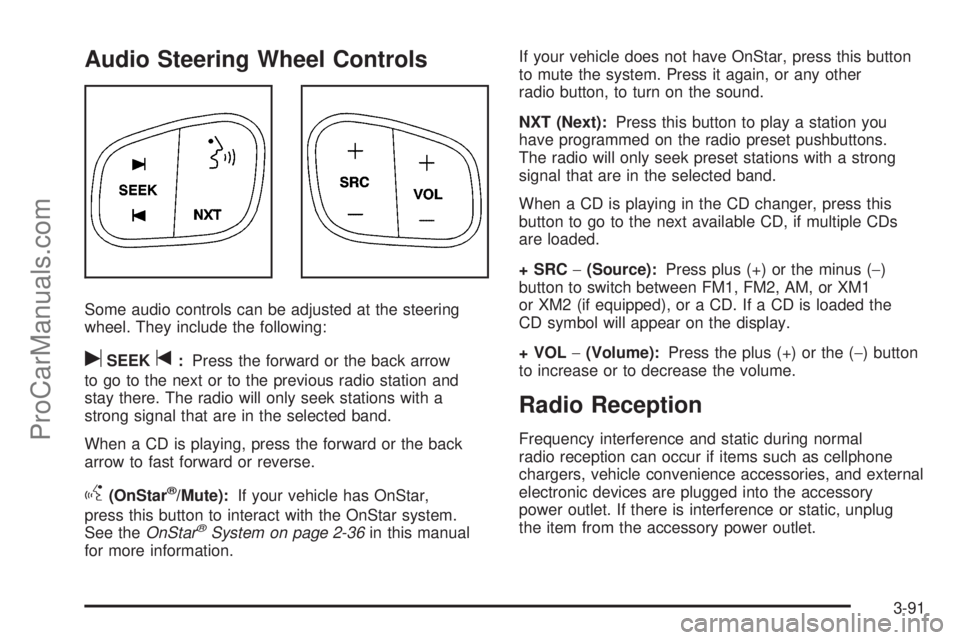
Audio Steering Wheel Controls
Some audio controls can be adjusted at the steering
wheel. They include the following:
uSEEKt:Press the forward or the back arrow
to go to the next or to the previous radio station and
stay there. The radio will only seek stations with a
strong signal that are in the selected band.
When a CD is playing, press the forward or the back
arrow to fast forward or reverse.
g(OnStar®/Mute):If your vehicle has OnStar,
press this button to interact with the OnStar system.
See theOnStar
®System on page 2-36in this manual
for more information.If your vehicle does not have OnStar, press this button
to mute the system. Press it again, or any other
radio button, to turn on the sound.
NXT (Next):Press this button to play a station you
have programmed on the radio preset pushbuttons.
The radio will only seek preset stations with a strong
signal that are in the selected band.
When a CD is playing in the CD changer, press this
button to go to the next available CD, if multiple CDs
are loaded.
+ SRC−(Source):Press plus (+) or the minus (−)
button to switch between FM1, FM2, AM, or XM1
or XM2 (if equipped), or a CD. If a CD is loaded the
CD symbol will appear on the display.
+ VOL−(Volume):Press the plus (+) or the (−) button
to increase or to decrease the volume.
Radio Reception
Frequency interference and static during normal
radio reception can occur if items such as cellphone
chargers, vehicle convenience accessories, and external
electronic devices are plugged into the accessory
power outlet. If there is interference or static, unplug
the item from the accessory power outlet.
3-91
ProCarManuals.com
Page 261 of 426
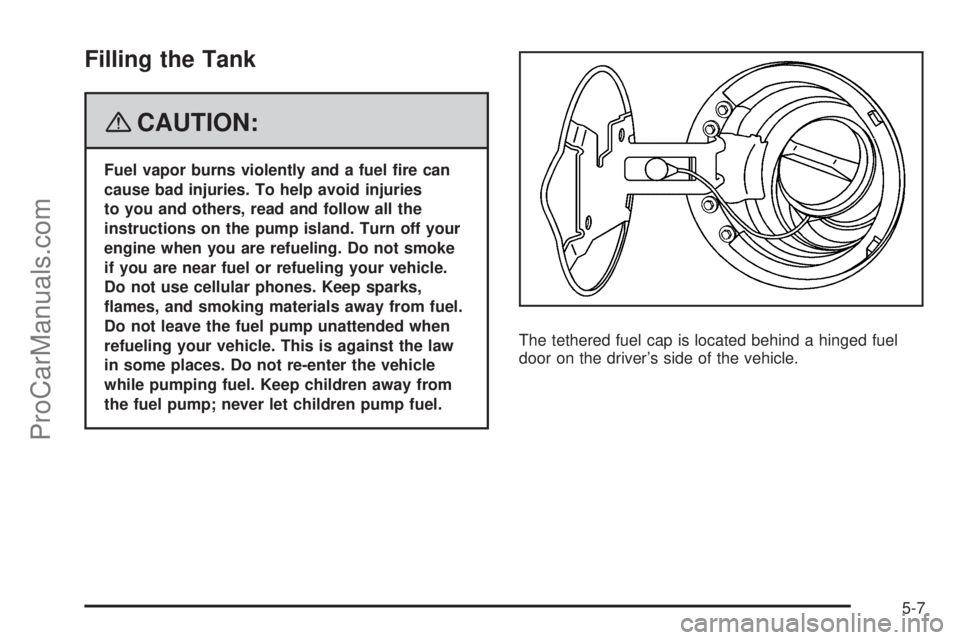
Filling the Tank
{CAUTION:
Fuel vapor burns violently and a fuel re can
cause bad injuries. To help avoid injuries
to you and others, read and follow all the
instructions on the pump island. Turn off your
engine when you are refueling. Do not smoke
if you are near fuel or refueling your vehicle.
Do not use cellular phones. Keep sparks,
ames, and smoking materials away from fuel.
Do not leave the fuel pump unattended when
refueling your vehicle. This is against the law
in some places. Do not re-enter the vehicle
while pumping fuel. Keep children away from
the fuel pump; never let children pump fuel.The tethered fuel cap is located behind a hinged fuel
door on the driver’s side of the vehicle.
5-7
ProCarManuals.com
Page 263 of 426
{CAUTION:
If a re starts while you are refueling, do not
remove the nozzle. Shut off the ow of fuel
by shutting off the pump or by notifying the
station attendant. Leave the area immediately.
Notice:If you need a new fuel cap, be sure to get
the right type. Your dealer/retailer can get one
for you. If you get the wrong type, it may not t
properly. This may cause your malfunction indicator
lamp to light and may damage your fuel tank and
emissions system. SeeMalfunction Indicator Lamp
on page 3-38.
Filling a Portable Fuel Container
{CAUTION:
Never ll a portable fuel container while it is in
your vehicle. Static electricity discharge from
the container can ignite the fuel vapor. You can
be badly burned and your vehicle damaged if
this occurs. To help avoid injury to you and
others:
Dispense fuel only into approved
containers.
Do not ll a container while it is inside a
vehicle, in a vehicle’s trunk, pickup bed,
or on any surface other than the ground.
Bring the ll nozzle in contact with the
inside of the ll opening before operating
the nozzle. Contact should be maintained
until the lling is complete.
Do not smoke while pumping fuel.
Do not use a cellular phone while
pumping fuel.
5-9
ProCarManuals.com
Page 397 of 426
Customer Assistance and Information...............7-2
Customer Satisfaction Procedure......................7-2
Online Owner Center......................................7-3
Customer Assistance for Text
Telephone (TTY) Users................................7-4
Customer Assistance Offices............................7-4
Roadside Assistance Program..........................7-4
Scheduling Service Appointments.....................7-7
Courtesy Transportation...................................7-7
Collision Damage Repair.................................7-9Reporting Safety Defects................................7-12
Reporting Safety Defects to the
United States Government..........................7-12
Reporting Safety Defects to the
Canadian Government................................7-12
Reporting Safety Defects to Saab...................7-12
Service Publications Ordering Information.........7-13
Vehicle Data Recording and Privacy................7-14
Event Data Recorders...................................7-14
OnStar
®......................................................7-15
Navigation System........................................7-15
Radio Frequency Identication (RFID)..............7-15
Section 7 Customer Assistance Information
7-1
ProCarManuals.com
Page 398 of 426
Customer Assistance and
Information
Customer Satisfaction Procedure
Your satisfaction and goodwill are important to your
dealer and to Saab. Normally, any concerns with the
sales transaction or the operation of your vehicle will be
resolved by your dealer’s sales or service departments.
Sometimes, however, despite the best intentions of all
concerned, misunderstandings can occur. If your concern
has not been resolved to your satisfaction, the following
steps should be taken:
STEP ONE:Discuss your concern with a member of
dealership management. Normally, concerns can be
quickly resolved at that level. If the matter has already
been reviewed with the sales, service or parts manager,
contact the owner of the dealership or the general
manager.
STEP TWO:If after contacting a member of dealership
management, it appears your concern cannot be
resolved by the dealership without further help, contact
the Saab Customer Assistance Center, in the U.S.,
by calling 1-800-955-9007. In Canada, contact Saab
Customer Assistance Centre by calling 1-800-263-1999
(English and French).We encourage you to call the toll-free number in order
to give your inquiry prompt attention. Please have the
following information available to give the Customer
Assistance Representative:
Your name, address and daytime phone number.
Vehicle Identication Number (VIN). This is available
from the vehicle registration or title, or the plate at the
top left of the instrument panel and visible through
the windshield.
The name of the selling dealership and location.
Vehicle delivery date and present mileage
(kilometers).
Nature and details of the problem you are
experiencing.
When contacting Saab, please remember that your
concern will likely be resolved at a dealer’s facility.
That is why we suggest you follow Step One rst if you
have a concern.
If after contacting the Saab Customer Assistance Center
your concern has not been resolved, please refer to
the “Dispute Resolution Process” found in your Saab
Consumer’s Guide.
7-2
ProCarManuals.com
Page 399 of 426
Online Owner Center
(United States only)
The Owner Center is a resource for your Saab
ownership needs. Specic vehicle information can be
found in one place.
The Online Owner Center allows you to:
Get e-mail service reminders.
Access information about your specic vehicle,
including tips and videos and an electronic
version of this owner manual.
Keep track of your vehicle’s service history and
maintenance schedule.
Find Saab dealers for service nationwide.
Receive special promotions and privileges only
available to members.
Refer to www.saabusa.com on the web for updated
information and to register your vehicle.
My GM Canada (Canada only)
My GM Canada is a password-protected section of
gmcanada.com where you can save information on GM
vehicles, get personalized offers, and use handy tools
and forms with greater ease.
Here are a few of the valuable tools and services you
will have access to:
My Showroom: Find and save information on
vehicles and current offers in your area.
My Dealers/Retailers: Save details such as
address and phone number for each of your
preferred GM Dealers or Retailers.
My Driveway: Receive service reminders and
helpful advice on owning and maintaining
your vehicle.
My Preferences: Manage your prole, subscribe to
E-News and use tools and forms with greater
ease.
To sign up to My GM Canada, visit the My GM Canada
section within www.gmcanada.com.
7-3
ProCarManuals.com