AUX SATURN OUTLOOK 2007 User Guide
[x] Cancel search | Manufacturer: SATURN, Model Year: 2007, Model line: OUTLOOK, Model: SATURN OUTLOOK 2007Pages: 538, PDF Size: 3.2 MB
Page 284 of 538
The DVD slot of the radio is compatible with most
audio CDs, CD-R, CD-RW, DVD-Video,
DVD-Audio, DVD-R/RW, DVD+R/RW media along
with MP3 and WMA formats.
If an error message appears on the video screen
or the radio, see “DVD Display Error Messages”
under,Rear Seat Entertainment System on
page 305and “DVD Radio Error Messages” in this
section for more information.
Playing a DVD
DVD/CD AUX (Auxiliary):Press this button to
cycle through DVD, CD, or Auxiliary when listening
to the radio. The DVD/CD text label and a message
showing track or chapter number displays when a
disc is in either slot. Press this button again and the
system automatically searches for an auxiliary input
device, such as a portable audio player. If a
portable audio player is not connected, “No aux
input device” displays. If a disc is in both the DVD
slot and the CD slot the DVD/CD AUX button cycles
between the two sources and not indicate “No aux
input device”. If a front auxiliary device is
connected, the DVD/CD AUX button cycles through
all available options, such as: DVD slot, CD slot,
Front Auxiliary, and Rear Auxiliary (if available).See “Using the Auxiliary Input Jack(s)” later in this
section, or “Audio/Video (A/V) Jacks” under,Rear
Seat Entertainment System on page 305for more
information.
O(Power):Press this knob to turn the radio on
or off. Turn this knob clockwise or
counterclockwise to increase or decrease the
volume. Press and hold the knob for more than
two seconds to turn off the entire radio and
Rear Seat Entertainment (RSE) system and to
start the parental control feature. Parental control
prevents the rear seat occupant from operating
the Rear Seat Audio (RSA) system or remote
control.
A lock symbol appears next to the clock display.
The parental control feature remains on until
you press and hold this button for more than
two seconds again, or until the driver turns
the ignition off and exits the vehicle.
284
ProCarManuals.com
Page 288 of 538
Stopping and Resuming Playback
To stop playing a DVD without turning off the
system, press the stop button on the remote
control, or press the pushbutton located under the
stop or the play/pause symbol tags displayed
on the radio. If the radio head is sourced to
something other than DVD-V, press the DVD/CD
AUX button to make DVD-V the active source.
To resume DVD playback, press the play/pause
button on the remote control, or press the
pushbutton located under the play/pause symbol
tag displayed on the radio. The DVD should resume
play from where it last stopped if the disc has not
been ejected and the stop button has not been
pressed twice on the remote control. If the disc has
been ejected or the stop button has been pressed
twice on the remote control, the disc resumes
playing at the beginning of the disc.
Ejecting a Disc
Press the eject button on the radio to eject the
disc. If a disc is ejected from the radio, but
not removed, the radio reloads the disc after a
short period of time. The disc is stored in the radio.
The radio does not resume play of the disc
automatically. If the RSA system is sourced to theDVD, the movie when reloaded into the DVD
player begins to play again. In case loading and
reading of a DVD or CD cannot be completed
(unknown format, etc.), and the disc fails to eject,
press and hold the DVD Eject button more
than 5 seconds to force the disc to eject.
DVD Radio Error Messages
Player Error:This message displays when there
are disc load or eject problems.
Disc Format Error:This message displays, if the
disc is inserted with the disc label wrong side
up, or if the disc is damaged.
Disc Region Error:This message displays, if the
disc is not from a correct region.
No Disc Inserted:This message displays, if no
disc is present when the EJECT or DVD/CD AUX
button is pressed on the radio.
Using the Auxiliary Input Jack(s)
Your radio system has an auxiliary input jack
located on the lower right side of the faceplate.
This is not an audio output; do not plug the
headphone set into the front auxiliary input jack.
You can however, connect an external audio
288
ProCarManuals.com
Page 289 of 538
device such as an iPod, laptop computer, MP3
player, CD player, or cassette tape player, etc. to
the auxiliary input jack for use as another
source for audio listening.
Drivers are encouraged to set up any auxiliary
device while the vehicle is in PARK (P). See
Defensive Driving on page 322for more
information on driver distraction.
To use a portable audio player, connect a 1/8 inch
(3.5 mm) cable to the radio’s front auxiliary
input jack. When a device is connected, the radio
automatically begins playing audio from the
device over the vehicle speakers.
To listen to a device through the rear auxiliary input
over the speakers, cycle the DVD/CD Aux button
on the radio faceplate until “Rear Aux Input”
displays on the radio. The RSA or DVD Screen
must be on in order for the radio to source to rear
auxiliary.
O(Power/Volume):Turn this knob clockwise or
counterclockwise to increase or decrease the
volume of the portable player. You might need to do
additional volume adjustments from the portable
device if the volume does not go loud or soft
enough.BAND:Press this button to listen to the radio
when a portable audio device is playing. The
portable audio device continues playing, so you
might want to stop it or power it off.
DVD/CD AUX (CD/Auxiliary):Press this button to
cycle through DVD, CD, or Auxiliary when listening
to the radio. The DVD/CD text label and a message
showing track or chapter number displays when a
disc is in either slot. Press this button again and the
system automatically searches for an auxiliary input
device, such as a portable audio player. If a
portable audio player is not connected, “No aux
input device” displays. If a disc is in both the DVD
slot and the CD slot the DVD/CD AUX button cycles
between the two sources and not indicate “No aux
input device”. If a front auxiliary device is
connected, the DVD/CD AUX button cycles through
all available options, such as: DVD slot, CD slot,
Front Auxiliary, and Rear Auxiliary (if available).
See “Using the Auxiliary Input Jack(s)” later in this
section, or “Audio/Video (A/V) Jacks” under,Rear
Seat Entertainment System on page 305for more
information.
289
ProCarManuals.com
Page 296 of 538

BAND:Press this button to listen to the radio
when a CD is playing. The CD remains inside the
radio for future listening.
CD/AUX (CD/Auxiliary):Press this button to play
a CD when listening to the radio. The CD icon
and a message showing disc and/or track number
displays when a CD is in the player. Press this
button again and the system automatically
searches for an auxiliary input device such as a
portable audio player. If a portable audio player is
not connected, “No Input Device Found” displays.
Using an MP3 (Radio with CD
and DVD Player)
MP3/WMA CD-R or CD-RW Disc
The radio plays MP3/WMA les that were recorded
on a CD-R or CD-RW disc. The les can be
recorded with the following xed bit rates: 32 kbps,
40 kbps, 56 kbps, 64 kbps, 80 kbps, 96 kbps,
112 kbps, 128 kbps, 160 kbps, 192 kbps,
224 kbps, 256 kbps, and 320 kbps or a variable
bit rate. Song title, artist name, and album display
when recorded using ID3 tags version 1 and 2.
Compressed Audio or Mixed Mode Discs
The radio also plays discs that contain both
uncompressed CD audio (.CDA les) and
MP3/WMA les depending on which slot the disc
is loaded into. By default the radio reads only
the uncompressed audio (.CDA) and ignores the
MP3/WMA les on the DVD deck. On the CD
deck, pressing the CAT button toggles between
compressed and uncompressed audio format, the
default being the uncompressed format (.CDA).
MP3/WMA Format
If an MP3/WMA disc is burned on a personal
computer:
Make sure the MP3/WMA les are recorded
on a CD-R or CD-RW disc.
Do not mix standard audio and MP3/WMA
les on one disc.
Make sure the CD player (lower slot) is able
to read and play a maximum combination of
512 les and folders. The DVD player
(upper slot) is able to read 255 folders,
15 playlists and 40 sessions.
296
ProCarManuals.com
Page 302 of 538

To exit music navigator mode, press the pushbutton
below the Back label to return to normal MP3/WMA
playback.
BAND:Press this button to listen to the radio when
a CD or a DVD is playing. The CD or DVD remains
inside the radio for future listening or viewing
entertainment.
DVD/CD AUX (Auxiliary):Press this button to
cycle through DVD, CD, or Auxiliary when listening
to the radio. The DVD/CD text label and a
message showing track or chapter number
displays when a disc is in either slot. Press this
button again and the system automatically
searches for an auxiliary input device, such as a
portable audio player. If a portable audio player is
not connected, “No Aux Input Device” displays.If a disc is in both the DVD slot and the CD slot
the DVD/CD AUX button cycles between the
two sources and not indicate “No Aux Input
Device”. If a front auxiliary device is connected,
the DVD/CD AUX button cycles through all
available options, such as: DVD slot, CD slot,
Front Auxiliary, and Rear Auxiliary (if available).
See “Using the Auxiliary Input Jack(s)” later in this
section, or “Audio/Video (A/V) Jacks” under,
Rear Seat Entertainment System on page 305for
more information.
If a MP3/WMA is inserted into top DVD slot, the
rear seat operator can turn on the video screen
and use the remote control to navigate the
CD (tracks only) through the remote control.
302
ProCarManuals.com
Page 306 of 538
Headphones
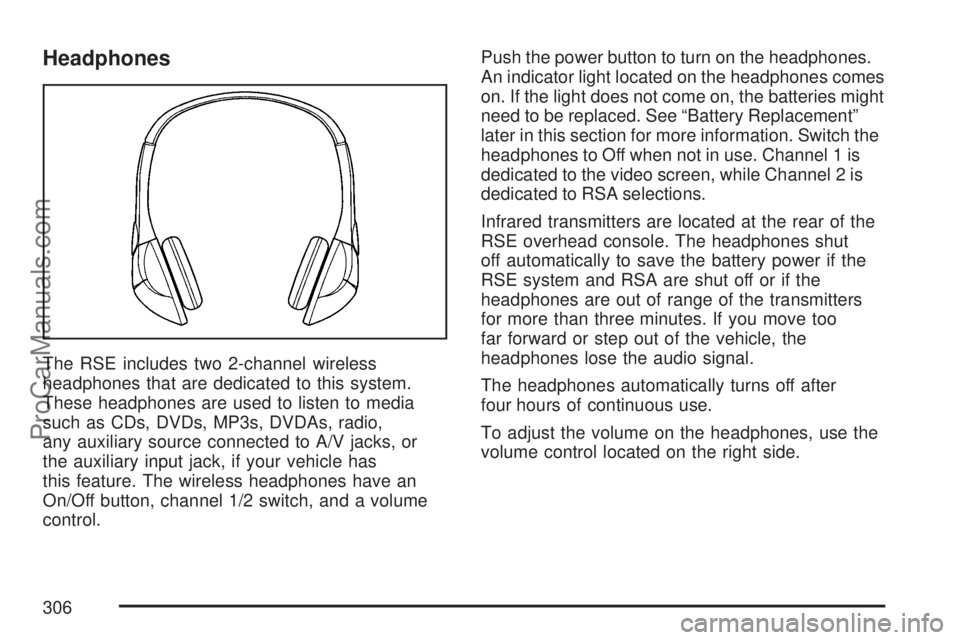
The RSE includes two 2-channel wireless
headphones that are dedicated to this system.
These headphones are used to listen to media
such as CDs, DVDs, MP3s, DVDAs, radio,
any auxiliary source connected to A/V jacks, or
the auxiliary input jack, if your vehicle has
this feature. The wireless headphones have an
On/Off button, channel 1/2 switch, and a volume
control.Push the power button to turn on the headphones.
An indicator light located on the headphones comes
on. If the light does not come on, the batteries might
need to be replaced. See “Battery Replacement”
later in this section for more information. Switch the
headphones to Off when not in use. Channel 1 is
dedicated to the video screen, while Channel 2 is
dedicated to RSA selections.
Infrared transmitters are located at the rear of the
RSE overhead console. The headphones shut
off automatically to save the battery power if the
RSE system and RSA are shut off or if the
headphones are out of range of the transmitters
for more than three minutes. If you move too
far forward or step out of the vehicle, the
headphones lose the audio signal.
The headphones automatically turns off after
four hours of continuous use.
To adjust the volume on the headphones, use the
volume control located on the right side.
306
ProCarManuals.com
Page 308 of 538

Audio/Video (A/V) Jacks
The A/V jacks located on the rear of the oor
console, allow audio or video signals to be
connected from an auxiliary device such as a
camcorder or a video game unit to the RSE system.
Adapter connectors or cables may be required to
connect the auxiliary device to the A/V jacks. Refer
to the manufacturer’s instructions for proper usage.
The A/V jacks are color coded to match typical
home entertainment system equipment. The yellow
jack (A) is for the video input. The white jack (B) is
for the left audio input. The red jack (C) is for the
right audio input.
Power for auxiliary devices is not supplied by the
radio system.To use the auxiliary inputs of the RSE system,
connect an external auxiliary device to the
color-coded A/V jacks and turn both the auxiliary
device and the video screen power on. If the
video screen is in the DVD player mode, pressing
the AUX (auxiliary) button on the remote control
switches the video screen from the DVD
player mode to the auxiliary device. The radio can
listen to the audio of the connected auxiliary
device by sourcing to auxiliary. SeeRadio with CD
and DVD on page 273for more information.
How to Change the RSE Video Screen
Settings
The screen display mode (normal, full, and zoom),
screen brightness, and setup menu language
can be changed from the on screen setup menu.
To change any feature, do the following:
1. Press the display menu button on the remote
control.
2. Use the remote control menu navigation
arrows and the enter button to use the
setup menu.
3. Press the display menu button again to
remove the setup menu from the screen.
308
ProCarManuals.com
Page 309 of 538

Audio Output
Audio from the DVD player or auxiliary inputs can
be heard through the following possible sources:
Wireless Headphones
Vehicle Speakers
Vehicle wired headphone jacks on the rear
seat audio system, if your vehicle has this
feature.
The RSE system always transmits the audio
signal to the wireless headphones, if there is audio
available. See “Headphones” earlier in this
section for more information.
When a device is connected to the A/V jacks, or
the radio’s auxiliary input jack, if your vehicle
has this feature, the rear seat passengers are able
to hear audio from the auxiliary device through
the wireless or wired headphones. The front seat
passengers are able to listen to playback from
this device through the vehicle speakers by
selecting AUX as the source on the radio.
Video Screen
The video screen is located in the RSE overhead
console.
To use the video screen, do the following:
1. Push the release button located on the RSE
overhead console.
2. Move the screen to the desired position.
When the video screen is not in use, push it up
into its locked position.
If a DVD is playing and the screen is raised to its
locked position, the screen remains on. This is
normal. The DVD continues to play through the
previous audio source. Use the remote control
power button or eject the disc to turn off the screen.
The RSE overhead console contains the IR
transmitters for the wireless headphones and the
IR receivers for the remote control. They are
located at the rear of the console.
Notice:Avoid directly touching the video
screen, as damage may occur. See “Cleaning
the Video Screen” later in this section for
more information.
309
ProCarManuals.com
Page 312 of 538

r(Fast Reverse):Press this button to fast
reverse the DVD or CD. To stop fast reversing a
DVD video, press the play button. To stop fast
reversing a DVD audio or CD, release the fast
reverse button. This button might not work when the
DVD is playing the copyright information or the
previews.
[(Fast Forward):Press this button to fast
forward the DVD or CD. To stop fast forwarding a
DVD video, press the play button. To stop fast
forwarding a DVD audio or CD, release the
fast forward button. This button might not work
when the DVD is playing the copyright information
or the previews.
e(Audio):Press this button to change audio
tracks on DVDs that have this feature when
the DVD is playing. The format and content of this
function vary for each disc.
{(Subtitles):Press this button to turn ON/OFF
subtitles and to move through subtitle options
when a DVD is playing. The format and content of
this function vary for each disc.AUX (Auxiliary):Press this button to switch the
system between the DVD player and an auxiliary
source.
d(Camera):Press this button to change camera
angles on DVDs that have this feature when a
DVD is playing. The format and content of
this function vary for each disc.
1 through 0 (Numeric Keypad):The numeric
keypad provides the capability of direct chapter or
track number selection.
\(Clear):Press this button within three seconds
after entering a numeric selection, to clear all
numeric inputs.
}10 (Double Digit Entries):Press this button to
select chapter or track numbers greater than
nine. Press this button before entering the number.
If the remote control becomes lost or damaged,
a new universal remote control can be purchased.
If this happens, make sure the universal remote
control uses a code set of Toshiba
®.
312
ProCarManuals.com
Page 313 of 538
Battery Replacement
To change the remote control batteries, do the
following:
1. Remove the battery compartment door
located on the bottom of the remote control.
2. Replace the two AA batteries in the
compartment. Make sure that they are
installed correctly, using the diagram on the
inside of the battery compartment.
3. Close the battery door securely.
If the remote control is to be stored for a long
period of time, remove the batteries and keep them
in a cool, dry place.
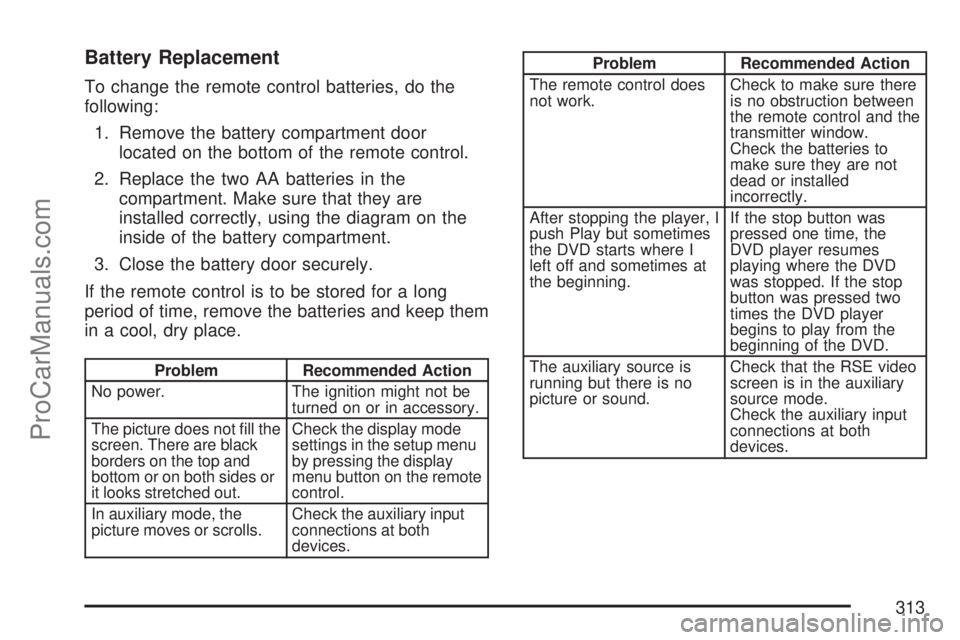
Problem Recommended Action
No power. The ignition might not be
turned on or in accessory.
The picture does not ll the
screen. There are black
borders on the top and
bottom or on both sides or
it looks stretched out.Check the display mode
settings in the setup menu
by pressing the display
menu button on the remote
control.
In auxiliary mode, the
picture moves or scrolls.Check the auxiliary input
connections at both
devices.
Problem Recommended Action
The remote control does
not work.Check to make sure there
is no obstruction between
the remote control and the
transmitter window.
Check the batteries to
make sure they are not
dead or installed
incorrectly.
After stopping the player, I
push Play but sometimes
the DVD starts where I
left off and sometimes at
the beginning.If the stop button was
pressed one time, the
DVD player resumes
playing where the DVD
was stopped. If the stop
button was pressed two
times the DVD player
begins to play from the
beginning of the DVD.
The auxiliary source is
running but there is no
picture or sound.Check that the RSE video
screen is in the auxiliary
source mode.
Check the auxiliary input
connections at both
devices.
313
ProCarManuals.com