phone SATURN OUTLOOK 2009 User Guide
[x] Cancel search | Manufacturer: SATURN, Model Year: 2009, Model line: OUTLOOK, Model: SATURN OUTLOOK 2009Pages: 432, PDF Size: 2.48 MB
Page 228 of 432

4. Say the name of the phone to
be deleted. If the phone name is
unknown, use the “List” command
for a list of all paired phones. The
system responds with “Would you
like to delete
Yes or No” followed by a tone.
5. Say “Yes” to delete the phone.
The system responds with
“OK, deleting
Linking to a Different Phone
1. Press and hold
bgfor
two seconds. The system
responds with “Ready”
followed by a tone.
2. Say “Bluetooth”. The system
responds with “Bluetooth
ready” followed by a tone.3. Say “Change phone”. The
system responds with “Please
wait while I search for other
phones”.
If another phone is found,
the response will be “
If another phone is not found,
the original phone remains
connected.
Storing Name Tags
The system can store up to thirty
phone numbers as name tags
that are shared between the
Bluetooth and OnStar systems.
The system uses the following
commands to store and retrieve
phone numbers:
Store
Digit Store
DirectoryUsing the Store Command
The store command allows a phone
number to be stored without
entering the digits individually.
1. Press and hold
bgfor
two seconds. The system
responds with “Ready”
followed by a tone.
2. Say “Store”. The system
responds with “Store, number
please” followed by a tone.
3. Say the complete phone number
to be stored at once with no
pauses.
If the system recognizes the
number it responds with
“OK, Storing” and repeats
the phone number.
If the system is unsure it
recognizes the phone number,
it responds with “Store” and
repeats the number followed
by “Please say yes or no”.
If the number is correct, say
“Yes”. If the number is not
correct, say “No”. The system
will ask for the number to be
re-entered.
3-106 Instrument Panel
ProCarManuals.com
Page 229 of 432

4. After the system stores the
phone number, it responds
with “Please say the name tag”
followed by a tone.
5. Say a name tag for the phone
number. The name tag is
recorded and the system
responds with “About to
store
that sound OK?”.
If the name tag does not sound
correct, say “No” and repeat
Step 5.
If the name tag sounds
correct, say “Yes” and the
name tag is stored. After the
number is stored the system
returns to the main menu.Using the Digit Store Command
The digit store command allows
a phone number to be stored
by entering the digits individually.
1. Press and hold
bgfor
two seconds. The system
responds with “Ready”
followed by a tone.
2. Say “Digit Store”. The system
responds with “Please say the
rst digit to store” followed
by a tone.
3. Say the rst digit to be stored.
The system will repeat back
the digit it heard followed by a
tone. Continue entering digits
until the number to be stored
is complete.
If an unwanted number is
recognized by the system,
say “Clear” at any time
to clear the last number.
To hear all of the numbers
recognized by the system,
say “Verify” at any time
and the system will
repeat them.4. After the complete number has
been entered, say “Store”.
The system responds with
“Please say the name tag”
followed by a tone.
5. Say a name tag for the phone
number. The name tag is
recorded and the system
responds with “About to
store
that sound OK?”.
If the name tag does not sound
correct, say “No” and repeat
Step 5.
If the name tag sounds
correct, say “Yes” and the
name tag is stored. After the
number is stored the system
returns to the main menu.
Instrument Panel 3-107
ProCarManuals.com
Page 230 of 432

Using the Directory Command
The directory command lists
all of the name tags stored by
the system. To use the directory
command:
1. Press and hold
bgfor
two seconds. The system
responds with “Ready”
followed by a tone.
2. Say “Directory”. The system
responds with “Directory”
and then plays back all of the
stored name tags. When the
list is complete, the system
returns to the main menu.
Deleting Name Tags
The system uses the following
commands to delete name tags:
Delete
Delete all name tagsUsing the Delete Command
The delete command allows specic
name tags to be deleted.
To use the delete command:
1. Press and hold
bgfor
two seconds. The system
responds with “Ready”
followed by a tone.
2. Say “Delete”. The system
responds with “Delete, please
say the name tag” followed
by a tone.
3. Say the name tag to be deleted.
The system responds with
“Would you like to delete,
If the name tag is correct, say
“Yes” to delete the name tag.
The system responds with
“OK, deleting
returning to the main menu.”
If the name tag is incorrect,
say “No”. The system
responds with “No. OK,
let’s try again, please say
the name tag.”Using the Delete All Name Tags
Command
The delete all name tags command
deletes all stored phone book name
tags and route name tags for OnStar
(if present).
To use the delete all name tags
command:
1. Press and hold
bgfor
two seconds. The system
responds with “Ready” followed
by a tone.
2. Say “Delete all name tags”.
The system responds with
“You are about to delete all
name tags stored in your
phone directory and your route
destination directory. Are you
sure you want to do this? Please
say yes or no.”
Say “Yes” to delete all
name tags.
Say “No” to cancel the function
and return to the main menu.
3-108 Instrument Panel
ProCarManuals.com
Page 231 of 432
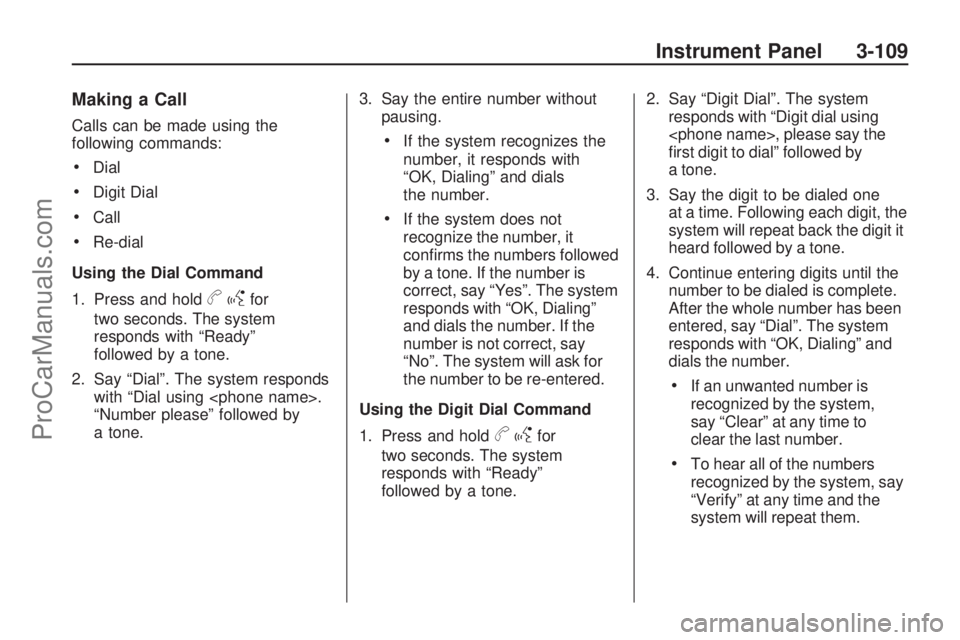
Making a Call
Calls can be made using the
following commands:
Dial
Digit Dial
Call
Re-dial
Using the Dial Command
1. Press and hold
bgfor
two seconds. The system
responds with “Ready”
followed by a tone.
2. Say “Dial”. The system responds
with “Dial using
“Number please” followed by
a tone.3. Say the entire number without
pausing.
If the system recognizes the
number, it responds with
“OK, Dialing” and dials
the number.
If the system does not
recognize the number, it
conrms the numbers followed
by a tone. If the number is
correct, say “Yes”. The system
responds with “OK, Dialing”
and dials the number. If the
number is not correct, say
“No”. The system will ask for
the number to be re-entered.
Using the Digit Dial Command
1. Press and hold
bgfor
two seconds. The system
responds with “Ready”
followed by a tone.2. Say “Digit Dial”. The system
responds with “Digit dial using
rst digit to dial” followed by
a tone.
3. Say the digit to be dialed one
at a time. Following each digit, the
system will repeat back the digit it
heard followed by a tone.
4. Continue entering digits until the
number to be dialed is complete.
After the whole number has been
entered, say “Dial”. The system
responds with “OK, Dialing” and
dials the number.
If an unwanted number is
recognized by the system,
say “Clear” at any time to
clear the last number.
To hear all of the numbers
recognized by the system, say
“Verify” at any time and the
system will repeat them.
Instrument Panel 3-109
ProCarManuals.com
Page 232 of 432
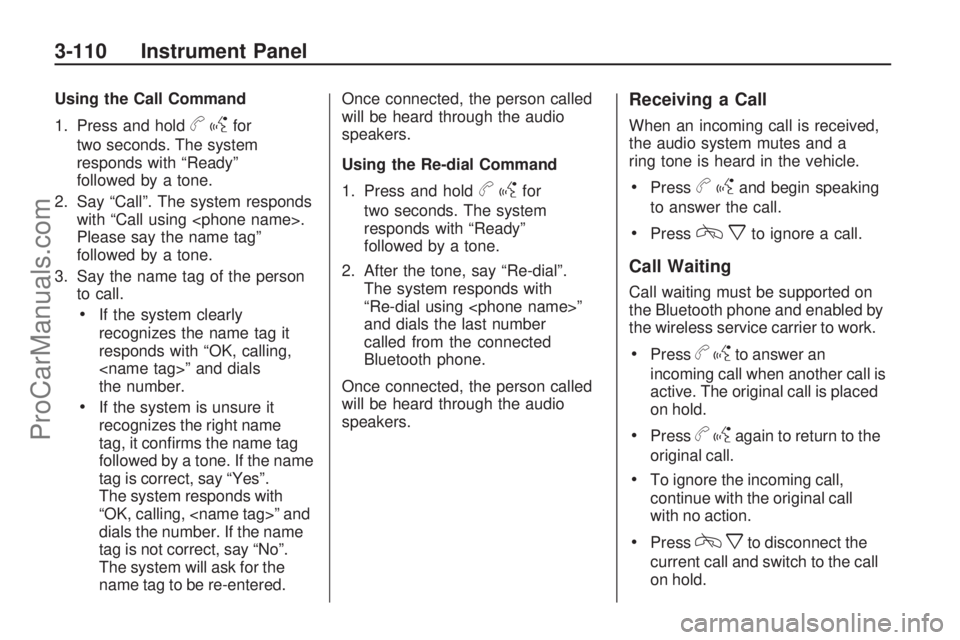
Using the Call Command
1. Press and hold
bgfor
two seconds. The system
responds with “Ready”
followed by a tone.
2. Say “Call”. The system responds
with “Call using
Please say the name tag”
followed by a tone.
3. Say the name tag of the person
to call.
If the system clearly
recognizes the name tag it
responds with “OK, calling,
the number.
If the system is unsure it
recognizes the right name
tag, it conrms the name tag
followed by a tone. If the name
tag is correct, say “Yes”.
The system responds with
“OK, calling,
dials the number. If the name
tag is not correct, say “No”.
The system will ask for the
name tag to be re-entered.Once connected, the person called
will be heard through the audio
speakers.
Using the Re-dial Command
1. Press and hold
bgfor
two seconds. The system
responds with “Ready”
followed by a tone.
2. After the tone, say “Re-dial”.
The system responds with
“Re-dial using
and dials the last number
called from the connected
Bluetooth phone.
Once connected, the person called
will be heard through the audio
speakers.
Receiving a Call
When an incoming call is received,
the audio system mutes and a
ring tone is heard in the vehicle.
Pressbgand begin speaking
to answer the call.
Presscxto ignore a call.
Call Waiting
Call waiting must be supported on
the Bluetooth phone and enabled by
the wireless service carrier to work.
Pressbgto answer an
incoming call when another call is
active. The original call is placed
on hold.
Pressbgagain to return to the
original call.
To ignore the incoming call,
continue with the original call
with no action.
Presscxto disconnect the
current call and switch to the call
on hold.
3-110 Instrument Panel
ProCarManuals.com
Page 233 of 432
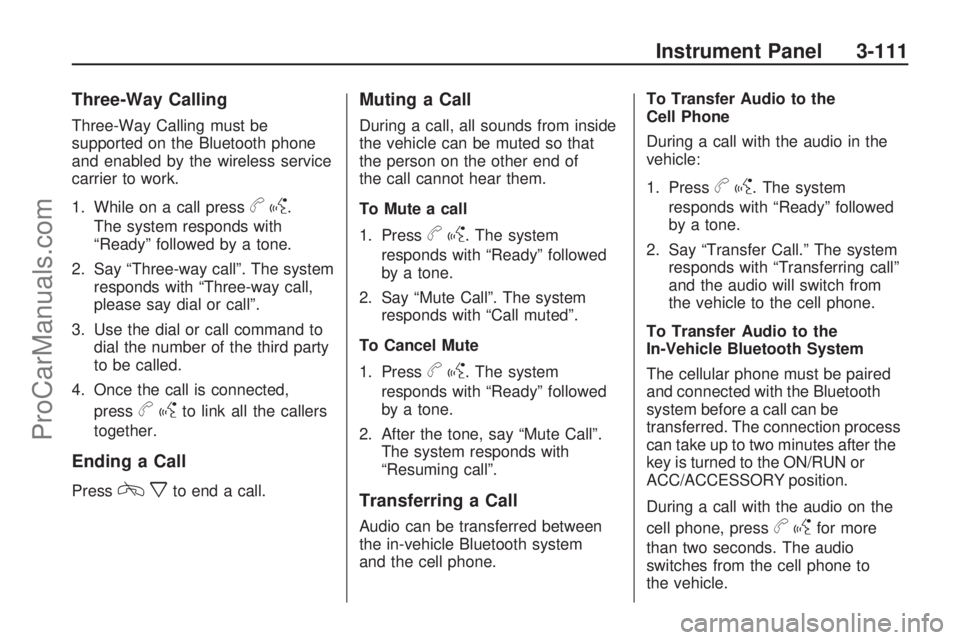
Three-Way Calling
Three-Way Calling must be
supported on the Bluetooth phone
and enabled by the wireless service
carrier to work.
1. While on a call press
bg.
The system responds with
“Ready” followed by a tone.
2. Say “Three-way call”. The system
responds with “Three-way call,
please say dial or call”.
3. Use the dial or call command to
dial the number of the third party
to be called.
4. Once the call is connected,
press
bgto link all the callers
together.
Ending a Call
Presscxto end a call.
Muting a Call
During a call, all sounds from inside
the vehicle can be muted so that
the person on the other end of
the call cannot hear them.
To Mute a call
1. Press
bg. The system
responds with “Ready” followed
by a tone.
2. Say “Mute Call”. The system
responds with “Call muted”.
To Cancel Mute
1. Press
bg. The system
responds with “Ready” followed
by a tone.
2. After the tone, say “Mute Call”.
The system responds with
“Resuming call”.
Transferring a Call
Audio can be transferred between
the in-vehicle Bluetooth system
and the cell phone.To Transfer Audio to the
Cell Phone
During a call with the audio in the
vehicle:
1. Press
bg. The system
responds with “Ready” followed
by a tone.
2. Say “Transfer Call.” The system
responds with “Transferring call”
and the audio will switch from
the vehicle to the cell phone.
To Transfer Audio to the
In-Vehicle Bluetooth System
The cellular phone must be paired
and connected with the Bluetooth
system before a call can be
transferred. The connection process
can take up to two minutes after the
key is turned to the ON/RUN or
ACC/ACCESSORY position.
During a call with the audio on the
cell phone, press
bgfor more
than two seconds. The audio
switches from the cell phone to
the vehicle.
Instrument Panel 3-111
ProCarManuals.com
Page 234 of 432
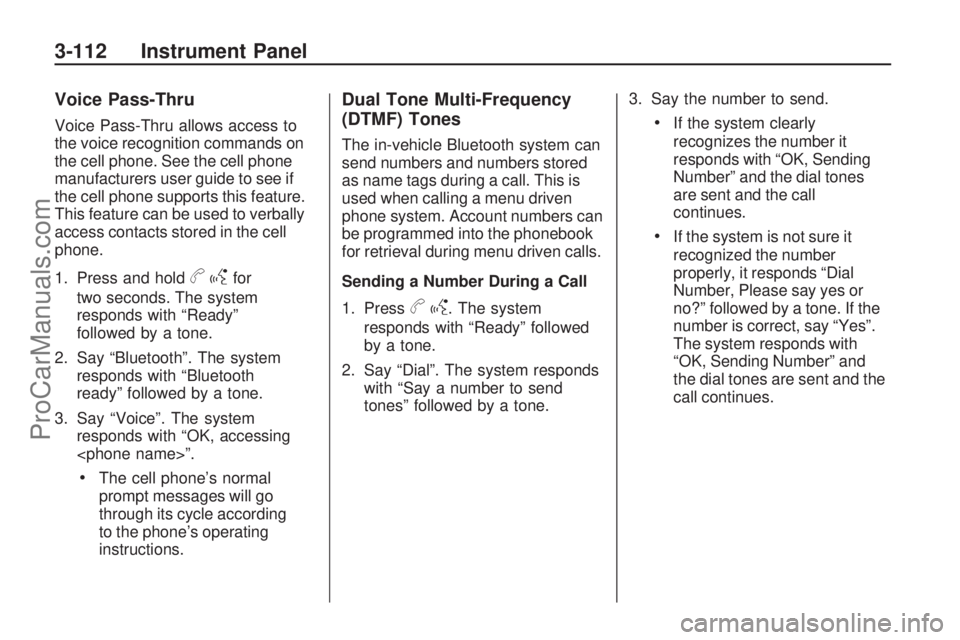
Voice Pass-Thru
Voice Pass-Thru allows access to
the voice recognition commands on
the cell phone. See the cell phone
manufacturers user guide to see if
the cell phone supports this feature.
This feature can be used to verbally
access contacts stored in the cell
phone.
1. Press and hold
bgfor
two seconds. The system
responds with “Ready”
followed by a tone.
2. Say “Bluetooth”. The system
responds with “Bluetooth
ready” followed by a tone.
3. Say “Voice”. The system
responds with “OK, accessing
The cell phone’s normal
prompt messages will go
through its cycle according
to the phone’s operating
instructions.
Dual Tone Multi-Frequency
(DTMF) Tones
The in-vehicle Bluetooth system can
send numbers and numbers stored
as name tags during a call. This is
used when calling a menu driven
phone system. Account numbers can
be programmed into the phonebook
for retrieval during menu driven calls.
Sending a Number During a Call
1. Press
bg. The system
responds with “Ready” followed
by a tone.
2. Say “Dial”. The system responds
with “Say a number to send
tones” followed by a tone.3. Say the number to send.
If the system clearly
recognizes the number it
responds with “OK, Sending
Number” and the dial tones
are sent and the call
continues.
If the system is not sure it
recognized the number
properly, it responds “Dial
Number, Please say yes or
no?” followed by a tone. If the
number is correct, say “Yes”.
The system responds with
“OK, Sending Number” and
the dial tones are sent and the
call continues.
3-112 Instrument Panel
ProCarManuals.com
Page 235 of 432
Sending a Stored Name Tag
During a Call
1. Press
bg. The system
responds with “Ready” followed
by a tone.
2. Say “Send name tag.”
The system responds with
“Say a name tag to send tones”
followed by a tone.
3. Say the name tag to send.
If the system clearly
recognizes the name tag it
responds with “OK, Sending
tones are sent and the
call continues.
If the system is not sure it
recognized the name tag
properly, it responds “Dial
or no?” followed by a tone.
If the name tag is correct, say
“Yes”. The system responds
with “OK, Sending
sent and the call continues.
Clearing the System
Unless information is deleted out
of the in-vehicle Bluetooth system,
it will be retained indenitely.
This includes all saved name tags
in the phonebook and phone pairing
information. For information on how
to delete this information, see the
above sections on Deleting a Paired
Phone and Deleting Name Tags.
Other Information
The Bluetooth®word mark and
logos are owned by the Bluetooth®
SIG, Inc. and any use of such
marks by General Motors is under
license. Other trademarks and
trade names are those of their
respective owners.This device complies with Part 15 of
the FCC Rules. Operation is subject
to the following two conditions:
1. This device may not cause
harmful interference.
2. This device must accept any
interference received, including
interference that may cause
undesired operation.
This device complies with RSS-210
of Industry Canada. Operation is
subject to the following two
conditions:
1. This device may not cause
interference.
2. This device must accept any
interference received, including
interference that may cause
undesired operation of the device.
Changes or modications to this
system by other than an authorized
service facility could void
authorization to use this equipment.
Instrument Panel 3-113
ProCarManuals.com
Page 236 of 432
Rear Seat Entertainment
(RSE) System
The vehicle may have a DVD Rear
Seat Entertainment (RSE) system.
The RSE system works with the
vehicle’s audio system. The DVD
player is part of the front radio.
The RSE system includes a radio
with a DVD player, a video display
screen, audio/video jacks, two
wireless headphones, and a remote
control. SeeRadio(s) on page 3-75
for more information on the vehicle’s
audio/DVD system.
Before Driving
The RSE is designed for rear
seat passengers only. The driver
cannot safely view the video screen
while driving and should not try
to do so.In severe or extreme weather
conditions the RSE system might
or might not work until the
temperature is within the operating
range. The operating range for the
RSE system is above−4°F (−20°C)
or below 140°F (60°C). If the
temperature of the vehicle is outside
of this range, heat or cool the vehicle
until the temperature is within the
operating range of the RSE system.
Parental Control
The RSE system may have
a Parental Control feature,
depending on the radio. To enable
Parental Control, press and hold
the radio power button for more
than two seconds to stop all system
features such as: radio, video
screen, RSA, DVD and/or CD. While
Parental Control is on,
Qdisplays.
When the radio is turned back on,
Parental Control is unlocked.
Headphones
The RSE includes two 2-channel
wireless headphones that are
dedicated to this system. Channel 1
is dedicated to the video screen,
while Channel 2 is dedicated to RSA
selections. These headphones are
used to listen to media such as CDs,
DVDs, MP3/WMAs, DVD-As, radio,
any auxiliary source connected to
A/V jacks, or the auxiliary input jack,
if the vehicle has this feature.
3-114 Instrument Panel
ProCarManuals.com
Page 237 of 432
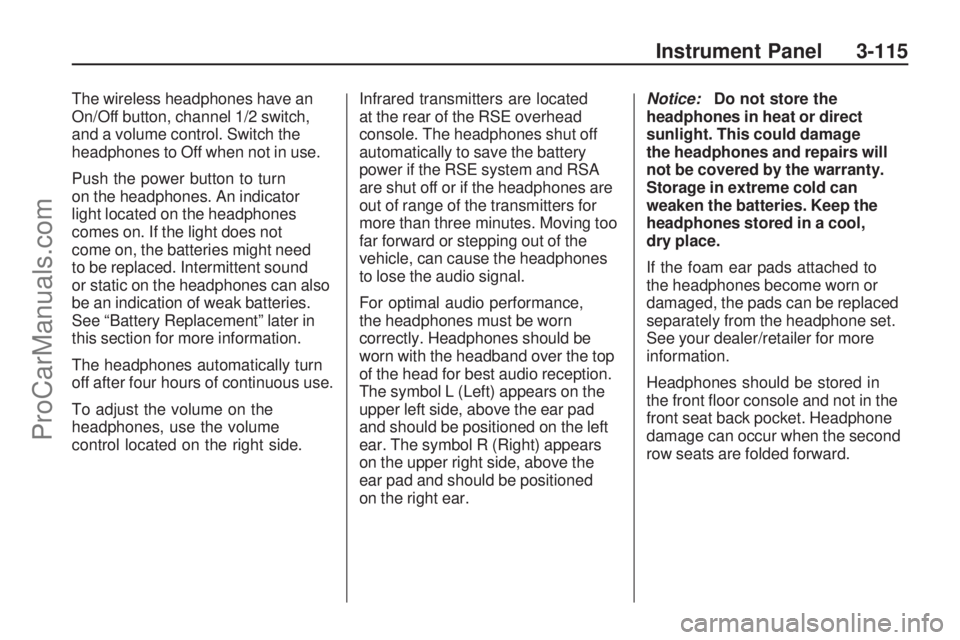
The wireless headphones have an
On/Off button, channel 1/2 switch,
and a volume control. Switch the
headphones to Off when not in use.
Push the power button to turn
on the headphones. An indicator
light located on the headphones
comes on. If the light does not
come on, the batteries might need
to be replaced. Intermittent sound
or static on the headphones can also
be an indication of weak batteries.
See “Battery Replacement” later in
this section for more information.
The headphones automatically turn
off after four hours of continuous use.
To adjust the volume on the
headphones, use the volume
control located on the right side.Infrared transmitters are located
at the rear of the RSE overhead
console. The headphones shut off
automatically to save the battery
power if the RSE system and RSA
are shut off or if the headphones are
out of range of the transmitters for
more than three minutes. Moving too
far forward or stepping out of the
vehicle, can cause the headphones
to lose the audio signal.
For optimal audio performance,
the headphones must be worn
correctly. Headphones should be
worn with the headband over the top
of the head for best audio reception.
The symbol L (Left) appears on the
upper left side, above the ear pad
and should be positioned on the left
ear. The symbol R (Right) appears
on the upper right side, above the
ear pad and should be positioned
on the right ear.Notice:Do not store the
headphones in heat or direct
sunlight. This could damage
the headphones and repairs will
not be covered by the warranty.
Storage in extreme cold can
weaken the batteries. Keep the
headphones stored in a cool,
dry place.
If the foam ear pads attached to
the headphones become worn or
damaged, the pads can be replaced
separately from the headphone set.
See your dealer/retailer for more
information.
Headphones should be stored in
the front oor console and not in the
front seat back pocket. Headphone
damage can occur when the second
row seats are folded forward.
Instrument Panel 3-115
ProCarManuals.com