radio Seat Alhambra 2017 Owner's Manual
[x] Cancel search | Manufacturer: SEAT, Model Year: 2017, Model line: Alhambra, Model: Seat Alhambra 2017Pages: 320, PDF Size: 6.88 MB
Page 29 of 320
The essentials
A specialised workshop will be able to pro-
gr amme or modif
y
additional functions, ac-
cording to the vehicle equipment. SEAT rec-
ommends taking your car in for technical
service.
Some menu options can only be read when
the vehicle is at a standstill.
As long as a priority 1 warning is displayed, it
will not be possible to read the menus. To
display the menus, confirm the warning by
pressing OK .
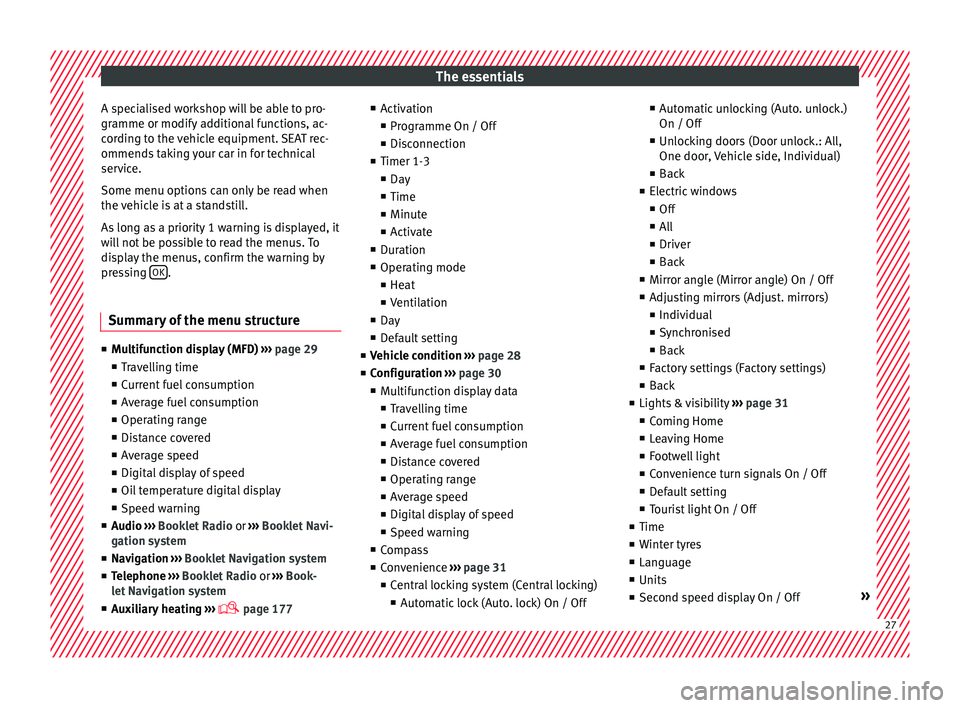
Summary of the menu structure ■
Mu ltif
unction display (MFD) ››› page 29
■ Travelling time
■ Current fuel consumption
■ Average fuel consumption
■ Operating range
■ Distance covered
■ Average speed
■ Digital display of speed
■ Oil temperature digital display
■ Speed warning
■ Audio ›››
Booklet Radio or ›››
Booklet Navi-
gation system
■ Navigation ›››
Booklet Navigation system
■ Telephone ›››
Booklet Radio or ›››
Book-
let Navigation system
■ Auxiliary heating ›››
page 177 ■
Activ ation
■ Pr
ogramme On / Off
■ Disconnection
■ Timer 1-3
■ Day
■ Time
■ Minute
■ Activate
■ Duration
■ Operating mode
■ Heat
■ Ventilation
■ Day
■ Default setting
■ Vehicle condition ››› page 28
■ Configuration ››› page 30
■ Multifunction display data
■ Travelling time
■ Current fuel consumption
■ Average fuel consumption
■ Distance covered
■ Operating range
■ Average speed
■ Digital display of speed
■ Speed warning
■ Compass
■ Convenience ››› page 31
■ Central locking system (Central locking)
■Automatic lock (Auto. lock) On / Off ■
Automatic unlocking (Auto. unlock.)
On / Off
■ Unlocking doors (Door unlock.: All,
One door, Vehicle side, Individual)
■ Back
■ Electric windows
■ Off
■ All
■ Driver
■ Back
■ Mirror angle (Mirror angle) On / Off
■ Adjusting mirrors (Adjust. mirrors)
■ Individual
■ Synchronised
■ Back
■ Factory settings (Factory settings)
■ Back
■ Lights & visibility ››› page 31
■ Coming Home
■ Leaving Home
■ Footwell light
■ Convenience turn signals On / Off
■ Default setting
■ Tourist light On / Off
■ Time
■ Winter tyres
■ Language
■ Units
■ Second speed display On / Off » 27
Page 30 of 320
The essentials
■ Aut oho
l
d
■ Service
■ Info
■ Reset
■ Default setting
Using the menus on the instrument
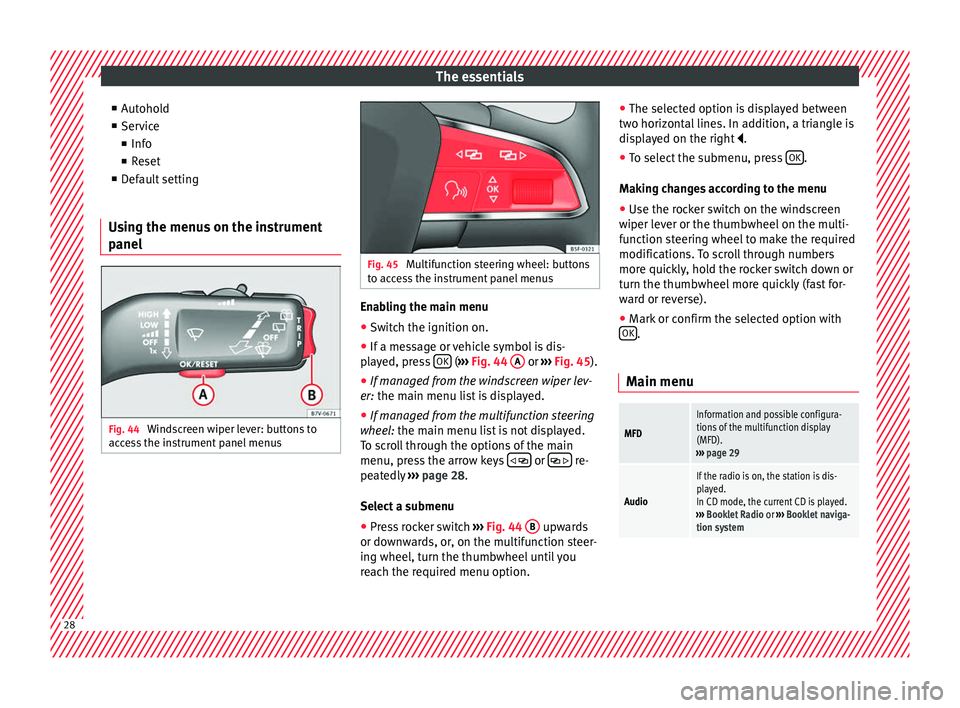
panel Fig. 44
Windscreen wiper lever: buttons to
ac c
e
ss the instrument panel menus Fig. 45
Multifunction steering wheel: buttons
to ac c
ess the instrument panel menus Enabling the main menu
● Switch the ignition on.
● If a message or vehicle symbol is dis-
p l
a
yed, press OK (
››
› Fig. 44 A or
››
› Fig. 45 ).
● If managed from the windscreen wiper lev-
er: the main menu lis
t is displayed.
● If managed from the multifunction steering
wheel:
the main menu list is not displayed.
To scroll through the options of the main
menu, press the arrow keys or
re-
pe at
edly
››› page 28.
Select a submenu ● Press rocker switch ›››
Fig. 44 B upwards
or do wn
w
ards, or, on the multifunction steer-
ing wheel, turn the thumbwheel until you
reach the required menu option. ●
The selected option i
s displayed between
two horizontal lines. In addition, a triangle is
displayed on the right .
● To select the submenu, press OK .
M ak
in
g changes according to the menu
● Use the rocker switch on the windscreen
wiper lev
er or the thumbwheel on the multi-
function steering wheel to make the required
modifications. To scroll through numbers
more quickly, hold the rocker switch down or
turn the thumbwheel more quickly (fast for-
ward or reverse).
● Mark or confirm the selected option with
OK .
Main menu
MFD
Information and possible configura-
tions of the multifunction display
(MFD).
››› page 29
Audio
If the radio is on, the station is dis-
played.
In CD mode, the current CD is played.
››› Booklet Radio or ››› Booklet naviga-
tion system 28
Page 31 of 320
The essentialsNavigation
When the navigation to destination is
on, change of direction arrows and a
proximity bar are displayed. These
symbols are similar to those used in
the navigation system.
If navigation to destination is not on,
the direction of travel (compass) and
the name of the street on which you
are driving are displayed.
››› Booklet Navigation system
Telephone
Information and possible configura-
tions of the mobile phone preinstalla-
tion.
››› Booklet Radio or ››› Booklet Naviga-
tion system
Parking heat-
ing
Information and configurations of the
parking heating:
switching the parking heating on or
off. Select the operating mode and du-
ration.
››› page 177
Vehicle status
Current warning or information texts.
This option only appears when one of
the following texts is available. The
number of available messages is dis-
played. Example 1/1 or 2/2.
››› page 100
Configuration
Different setting options, for example,
the Convenience, Lighting & Visibility
menus, and the time, speed warning
with winter tyres, language, units of
measurement, or “Display off”.
››› page 30 MFD
(mu ltifunction display) menu The multifunction display (MFD) has two au-
tom
atic
memories: 1 - Partial memory and 2 -
Total memory . The selected memory will be
shown in the upper right-hand corner of the
display.
With the ignition switched on, and memory 1
or 2 displayed, briefly press OK to change
from one memor y
to another
1
Trip memo-
ry (for a sin-
gle jour-
ney).
The memory stores the values for the
journey and the consumption from the
moment the ignition is switched on until
it is switched off again.
If the journey is broken for more than 2
hours, the memory is automatically
erased. If the journey is continued in less
than 2 hours after the ignition is switch-
ed off, the new data is added to the data
already stored in the memory.
2 Total mem-
ory (for all
journeys).
The memory records the values for a spe-
cific number of partial trips, up to a total
of 19 hours and 59 minutes or 99 hours
and 59 minutes, or 1999.9 km (or miles)
for 9999 km (or miles), depending on the
model of instrument panel. On reaching
either of these limits, the memory is au-
tomatically erased and starts to count
from 0 again. Possible displays
Travelling timeThis indicates the hours (h) and mi-
nutes (min) since the ignition was
switched on.
Current fuel
consumption
The current fuel consumption while
driving is displayed in l/100 km (or
miles per gallon, mpg); when the en-
gine is running but the vehicle is not
moving, in l/h (or gallons per hour).
Average fuel
consumption
When the ignition is switched on, the
average consumption (in l/100 km or
in mpg) is displayed after the vehicle
has moved approximately 100 metres
(328 feet). Otherwise horizontal lines
are displayed. The value shown is up-
dated approximately every 5 seconds.
Operating
range
Approximate distance in km (or miles)
that can still be travelled with the fuel
remaining in the tank, assuming the
same style of driving is maintained.
This is calculated using the current
fuel consumption.
Distance cov-
eredDistance travelled, after ignition is
switched on, in km (or miles).
Average speed
After the ignition is switched on, the
average speed will be shown after a
distance of approximately 100 metres
(328 feet) has been travelled. Other-
wise horizontal lines are displayed.
The value shown is updated approxi-
mately every 5 seconds.
Digital display
of speedCurrent speed displayed digitally.
Oil tempera-
ture digital
displayUpdated engine oil temperature digi-
tal display»
29
Page 36 of 320
The essentials
Use the foot brake!
Change
››› page
192
Brake
››› page
187
Cruise control operating.›››
page
219
Lane Assist is switched on and
active.›››
page
220
Main beam on or flasher on.›››
page
128 Headlight adjustment (Light As-
sist) on.
Electronic immobiliser active.›››
page
182
Service interval display›››
page
103
Mobile telephone is connected
via Bluetooth to the original tel-
ephone device.›››
Book-
let Radio
or
››› Book-
let Navi-
gation
system
Mobile telephone battery charge
meter. Available only for pre-in-
stalled factory-fitted devices.
Freezing warning. The outside
temperature is lower than +4°C
(+39°F).›››
page
102
››› in Control and warning lamps on
page 105
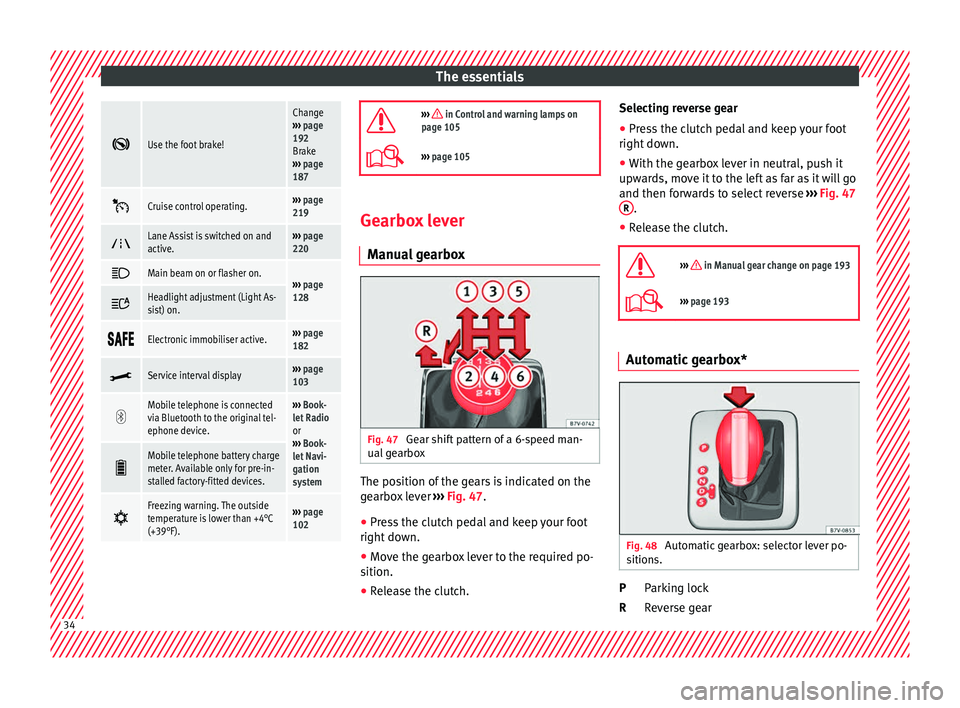
››› page 105 Gearbox lever
M anua
l
gearbox Fig. 47
Gear shift pattern of a 6-speed man-
ual g
e
arbox The position of the gears is indicated on the
g
e
arbo
x lever ››› Fig. 47.
● Press the clutch pedal and keep your foot
right down.
● Mo
ve the gearbox lever to the required po-
sition.
● Rel
ease the clutch. Selecting reverse gear
●
Press the clutch pedal and keep your foot
right down.
● W
ith the gearbox lever in neutral, push it
upwar
ds, move it to the left as far as it will go
and then forwards to select reverse ››› Fig. 47
R .
● Release the clutch.
››› in Manual gear change on page 193
››› page 193 Automatic gearbox*
Fig. 48
Automatic gearbox: selector lever po-
s ition
s. Parking lock
R
ev
er
se gear
P
R 34
Page 101 of 320

General instrument panel
Operation
Gener a
l
instrument panel
Instrument panel Interior door release lever
. . . . . . . . .119
Central lock button . . . . . . . . . . 112
Switch for adjusting the exterior
mirror s . . . . . . . . . . . . . . . . . . . . . . . . . . . 137
– Exterior mirr or a
djustment
– Heated exterior mirrors
– Folding exterior mirrors
Instrument panel controls and light-
ing control . . . . . . . . . . . . . . . . . . . . . 128
Headlamp range adjustment . . . 128
Light switch . . . . . . . . . . . . . . . . . . . 128
– Light off - -
– Aut
omatic dipped beam head-
light control - -
– Side/dipped lights
– Fog lights
Lever for . . . . . . . . . . . . . . . . . . . . . . . . . 128
– Main beam he
adlights
– Headlight flasher
– Turn signals
– Parking lights
Instrument panel:
1 2
3
4
5
6
7
8 –
Ins
truments . . . . . . . . . . . . . . . . . . . . 100
– Digit
al di
splay . . . . . . . . . . . . . . . . . . 100
– Warning and indic
ation lamps . . .105
Steering wheel with horn and – Driver airbag . . . . . . . . . . . . . . . . . . . 17
– On-bo
ard c
omputer controls . . . .26
– Contro
ls for radio, telephone,
navigation and speech dialogue
system ››› Booklet Radio
– Paddle levers for tiptronic gear-
shift (automatic gearbox) . . . . . . .195
Windscreen wiper/ windscreen
wash l
ever . . . . . . . . . . . . . . . . . . . . . . . 135
– Wind s
creen wipers –
– Intermittent wipe
– “Brief wipe” x
– Windscreen wipers
– Automatic windscreen wash/wipe
– Rear window wiper
– Automatic rear window
wash/wipe
– Lever with buttons for controlling
the SEAT information system - ,
/ . . . . . . . . . . . . . . . . . . . . . . . . . 26
Left seat heating controls . . . . . . . 144
Radio or navigation system (fitted
at fact
ory) ››› Booklet Radio or
››› Booklet Navigation system
9
10
11
12 Storage compartment
. . . . . . . . . . . . .163
Hazard warning lights switch . . . 82
Switches for:
– Electr
onic
manual air condition-
ing . . . . . . . . . . . . . . . . . . . . . . . . . . . . . 173
– Climatr
onic . . . . . . . . . . . . . . . . . . . . . 173
Right seat heating controls . . . . . 144
Button for:
– Anti-slip r
egulation (ASR) . .187
– Start
-Stop operation . . . . . . . . . .205
– Park in
g distance warning system
(Park Pilot) . . . . . . . . . . . . . . . . . . 208
– Park As
sist system . . . . . . . . . . . 211
– Tyr
e pressure monitor . . . . .231
– Dyn
amic chassis control (DCC)
– Opening the rear lid . . . . . . . . .122
– Opening and clo
sing of electric
sliding doors . . . . . . . . . . . . . . . . 119
Locking lever to open glove com-
par tment . . . . . . . . . . . . . . . . . . . . . . . . . 163
P
osition of passenger front airbag
on the dash p
anel . . . . . . . . . . . . . . . . 17
Key-operated switch in glove com-
partment
for deactivating front pas-
senger front airbag . . . . . . . . . . . . . . .18
Passenger front airbag off warning
lamp . . . . . . . . . . . . . . . . . . . . . . . . . . . . . 72
L ev
er for: »
13 14
15
16
17
18
19
20
21
22
99
Technical data
Advice
Operation
Emergencies
Safety
Page 108 of 320
Operation
Communications and multimedia
St eerin
g wheel
controls*
Operating the audio system + telephone Fig. 120
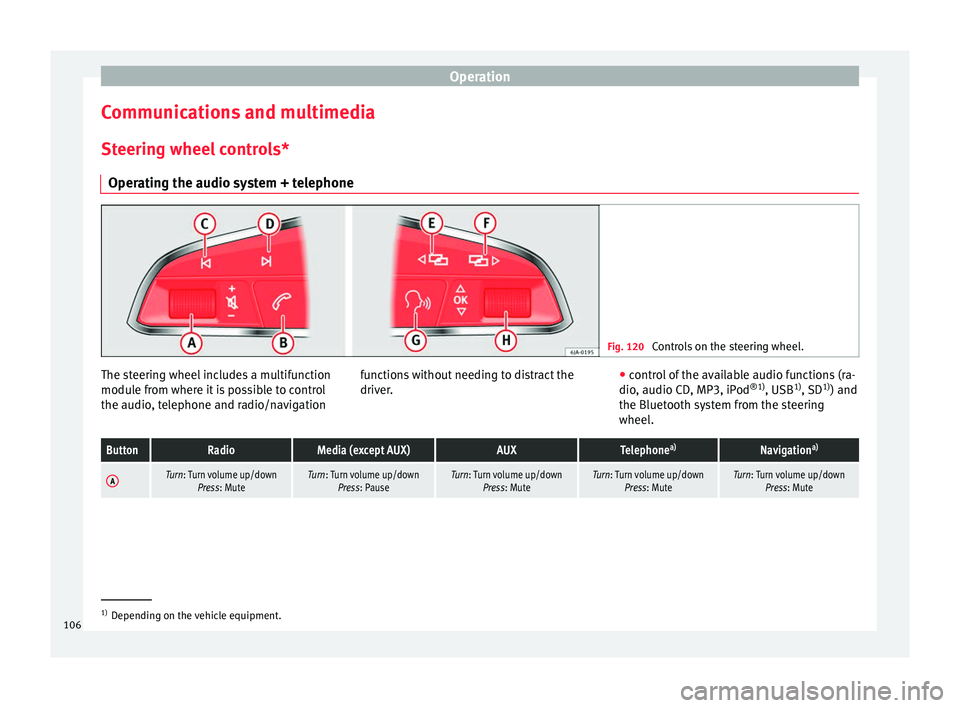
Controls on the steering wheel. The steering wheel includes a multifunction
modu
l
e fr
om where it is possible to control
the audio, telephone and radio/navigation functions without needing to distract the
driver.
●
c ontro
l of the available audio functions (ra-
dio, audio CD, MP3, iPod ®1)
, USB 1)
, SD 1)
) and
the Bluetooth system from the steering
wheel.
ButtonRadioMedia (except AUX)AUXTelephone a)Navigation a)
ATurn: Turn volume up/down
Press: MuteTurn: Turn volume up/downPress: PauseTurn: Turn volume up/down Press: MuteTurn: Turn volume up/downPress: MuteTurn: Turn volume up/downPress: Mute 1)
Depending on the vehicle equipment.
106
Page 109 of 320

Communications and multimediaButtonRadioMedia (except AUX)AUXTelephone
a)Navigation a)
B
Short press:
access to the tele-
phone menu on the dash pan- ela)
.
Hold down: redial a)Short press:
access to the tele-
phone menu on the dash pan- ela)
.
Hold down: redial a)Short press:
access to the tele-
phone menu on the dash pan- ela)
.
Hold down: redial a)
Short press:
answer/hang up
calls, enable/open the tele- phone menu.
Hold down: reject incoming
call/switch to private mode or
return to hands-free mode/re- dial
Short press: access to the tele-
phone menu on the dash pan- ela)
.
Hold down: redial a)
CSearch for last stationShort press:
switch to the previ-
ous song
Hold down: quick rewindNo functionNo function b)Radio/media functionality (ex-
cept AUX )
DSearch for the next stationShort press: switch to the next
song
Hold down: fast forwardNo functionNo function b)Radio/media functionality (ex-
cept AUX )
E, FChange menu on instrument
panelChange menu on instrumentpanelChange menu on instrumentpanelChange menu on instrumentpanelChange menu on instrumentpanel
GEnable/disable voice control a)Enable/disable voice controla)Enable/disable voice controla)No functionb)Enable/disable voice control
H
Turn: Next/previous preset c)
Press: Acts on the MFD or con- firms the menu option of the
dash panel depending on the menu optionTurn: Next/previous song c)
Press: Acts on the MFD or con- firms the menu option of the
dash panel depending on the menu optionTurn: Acts upon the instrument
panel menu depending on posi- tion
Press: Acts on the MFD or con- firms the menu option of the
dash panel depending on the menu optionTurn: Acts upon the instrumentpanel menu depending on po- sition
Press: Acts on the MFD or con- firms the menu option of the
dash panel depending on the menu optionTurn: Acts upon the instrumentpanel menu depending on po- sition
Press: Acts on the MFD or con- firms the menu option of the
dash panel depending on the menu option
a)According to the vehicle's equipment package.
b) When a call is being made, radio/media functionality (except AUX).
c) Only if the dash panel is in audio menu.
107
Technical data
Advice
Operation
Emergencies
Safety
Page 113 of 320
Opening and closing
CAUTION
All of the vehicle keys contain electronic com-
ponents. Pr ot
ect them from damage, impacts
and humidity. Note
● Only u
se the key button when you require
the corresponding function. Pushing the but-
ton unnecessarily could accidentally unlock
the vehicle or trigger the alarm. It is also pos-
sible even when you are outside the radius of
action.
● Key operation can be greatly influenced by
overl
apping radio signals around the vehicle
working in the same range of frequencies
(e.g. radio transmitters, mobile telephones).
● Obstacles between the remote control and
the vehic
le, bad weather conditions and
draining batteries can considerably reduce
the range of the remote control. Control lamp on the vehicle key
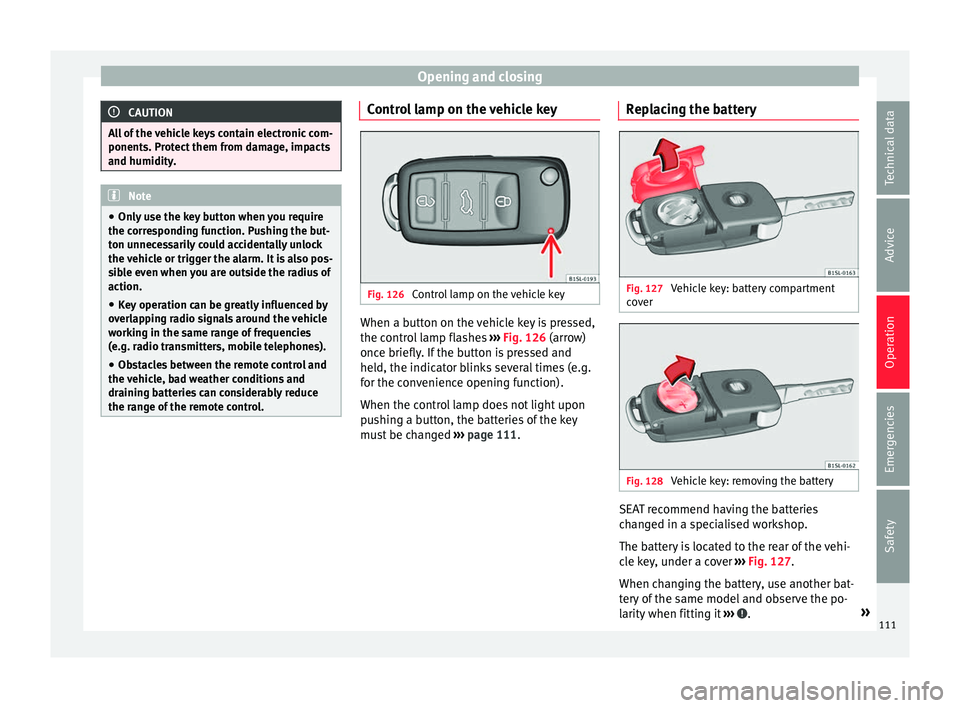
Fig. 126
Control lamp on the vehicle key When a button on the vehicle key is pressed,
the c ontr
o
l lamp flashes ››› Fig. 126 (arrow)
once briefly. If the button is pressed and
held, the indicator blinks several times (e.g.
for the convenience opening function).
When the control lamp does not light upon
pushing a button, the batteries of the key
must be changed ››› page 111. Replacing the battery Fig. 127
Vehicle key: battery compartment
c o
v
er Fig. 128
Vehicle key: removing the battery SEAT recommend having the batteries
c
h
an
ged in a specialised workshop.
The battery is located to the rear of the vehi-
cle key, under a cover ››› Fig. 127.
When changing the battery, use another bat-
tery of the same model and observe the po-
larity when fitting it ››› .
»
111
Technical data
Advice
Operation
Emergencies
Safety
Page 118 of 320
Operation
Unlocking and locking the boot hatch
When the v
ehic
le is locked, the hatch auto-
matically unlocks on opening if ››› Fig. 131
there is a valid vehicle key in the proximity.
Open or close the hatch normally
››› page 122.
After closing, the hatch locks automatically.
In the following instances, the rear lid does
not lock automatically after closing:
● If the entire vehicle is unlocked.
● If the key used last is inside the vehicle. All
vehicl
e indicator lights flash four times. The
vehicle will lock again after a few seconds if
no door or boot hatch are opened.
Locking the vehicle with a second key
If there is a vehicle key inside the vehicle and
it is locked from the outside with a second
vehicle key, the key inside the vehicle is
blocked for engine ignition ››› page 182. In
order to enable engine ignition, the button on the key inside the vehicle needs to be
pr
e
s
sed ››› Fig. 129.
Automatically disabling sensors
If the vehicle is not locked or unlocked for a
long period of time, the proximity sensor on
the passenger door is automatically disa-
bled.
If the exterior sensor on the door handle is
often activated unusually with the vehicle locked (e.g. by the branches of a bush rub-
bing ag
ainst it), all proximity sensors are dis-
abled for a time. If this only happens with the
exterior sensor on the driver's door, only this
sensor is disabled.
Sensors will again be enabled:
● After a time.
● OR: if the vehicle is unlocked with the but-
ton on the key.
● OR: if the boot is opened.
C on
venience functions
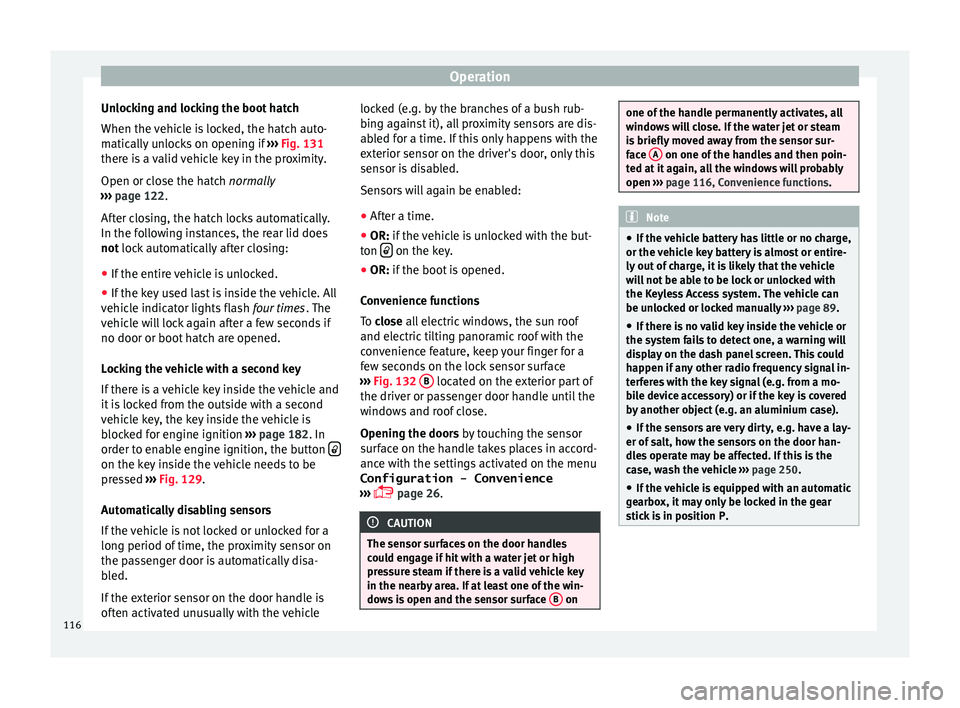
To close all electric windows, the sun roof
and electric tilting panoramic roof with the
convenience feature, keep your finger for a
few seconds on the lock sensor surface
››› Fig. 132 B located on the exterior part of
the driv er or p
a
ssenger door handle until the
windows and roof close.
Opening the doors by touching the sensor
surface on the handle takes places in accord-
ance with the settings activated on the menu
Configuration - Convenience
››› page 26. CAUTION
The sensor surfaces on the door handles
cou l
d engage if hit with a water jet or high
pressure steam if there is a valid vehicle key
in the nearby area. If at least one of the win-
dows is open and the sensor surface B on one of the handle permanently activates, all
windo
w
s will close. If the water jet or steam
is briefly moved away from the sensor sur-
face A on one of the handles and then poin-
ted at it
again, all the windows will probably
open ››› page 116, Convenience functions. Note
● If the v
ehicle battery has little or no charge,
or the vehicle key battery is almost or entire-
ly out of charge, it is likely that the vehicle
will not be able to be lock or unlocked with
the Keyless Access system. The vehicle can
be unlocked or locked manually ››› page 89.
● If there is no valid key inside the vehicle or
the syst
em fails to detect one, a warning will
display on the dash panel screen. This could
happen if any other radio frequency signal in-
terferes with the key signal (e.g. from a mo-
bile device accessory) or if the key is covered
by another object (e.g. an aluminium case).
● If the sensors are very dirty, e.g. have a lay-
er of sa
lt, how the sensors on the door han-
dles operate may be affected. If this is the
case, wash the vehicle ››› page 250.
● If the vehicle is equipped with an automatic
gearbo
x, it may only be locked in the gear
stick is in position P. 116
Page 173 of 320
Transport and practical equipment
●
Shoul d a c
onnected electrical device over-
heat, switch it off and unplug it immediately. CAUTION
● To av oid d
amage to the vehicle's electrical
system, never connect equipment that gener-
ates electrical current, such as solar panels
or battery chargers, to the 12 volt power
sockets in order to charge the vehicle's bat-
tery.
● Only use accessories with approved elec-
tromagnetic
compatibility according to cur-
rent regulations.
● To avoid damage due to voltage variations,
switc
h off all devices connected to the 12 V
power sockets before switching the ignition
on or off and before starting the engine.
● Never connect an appliance to the 12 volt
power soc
ket that consumes more than the
power indicated in watts. Exceeding the max-
imum power absorption could damage the ve-
hicle's electrical system. For the sake of the environment
Do not leave the engine running when the ve-
hicl e i
s at a standstill. Note
● Us in
g devices with the engine stopped and
the ignition switched on will drain the bat-
tery. ●
Unshiel ded equipment
can cause interfer-
ence on the radio equipment and the vehi-
cle's electrical system.
● Interference can occur on the radio's AM
wave
band if electrical appliances are used
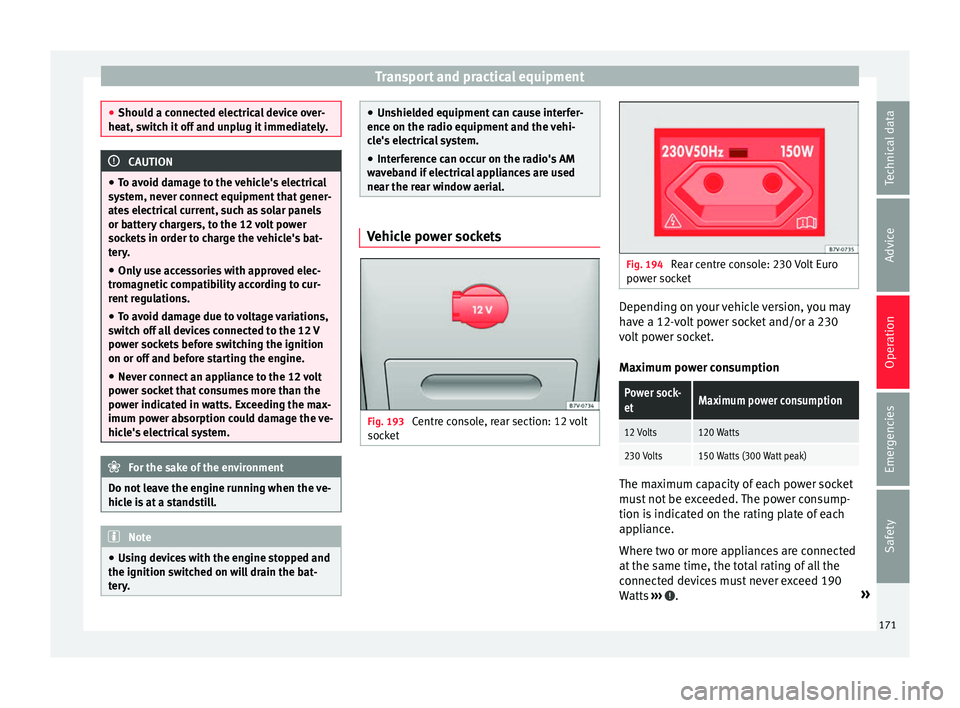
near the rear window aerial. Vehicle power sockets
Fig. 193
Centre console, rear section: 12 volt
soc k
et Fig. 194
Rear centre console: 230 Volt Euro
pow er soc
ket Depending on your vehicle version, you may
h
av
e a 12-
volt power socket and/or a 230
volt power socket.
Maximum power consumption
Power sock-
etMaximum power consumption
12 Volts120 Watts
230 Volts150 Watts (300 Watt peak) The maximum capacity of each power socket
mu
s
t
not be exceeded. The power consump-
tion is indicated on the rating plate of each
appliance.
Where two or more appliances are connected
at the same time, the total rating of all the
connected devices must never exceed 190
Watts ››› .
»
171
Technical data
Advice
Operation
Emergencies
Safety