phone Seat Exeo 2009 MEDIA SYSTEM 1.0
[x] Cancel search | Manufacturer: SEAT, Model Year: 2009, Model line: Exeo, Model: Seat Exeo 2009Pages: 124, PDF Size: 6.27 MB
Page 18 of 124
Display17
Operating
RADIO, CD/MP3
TEL (telephone)
NAV, INFO
SETUP
DisplayA guide to the displayDescription
The main menu or the submenus appear on the display when
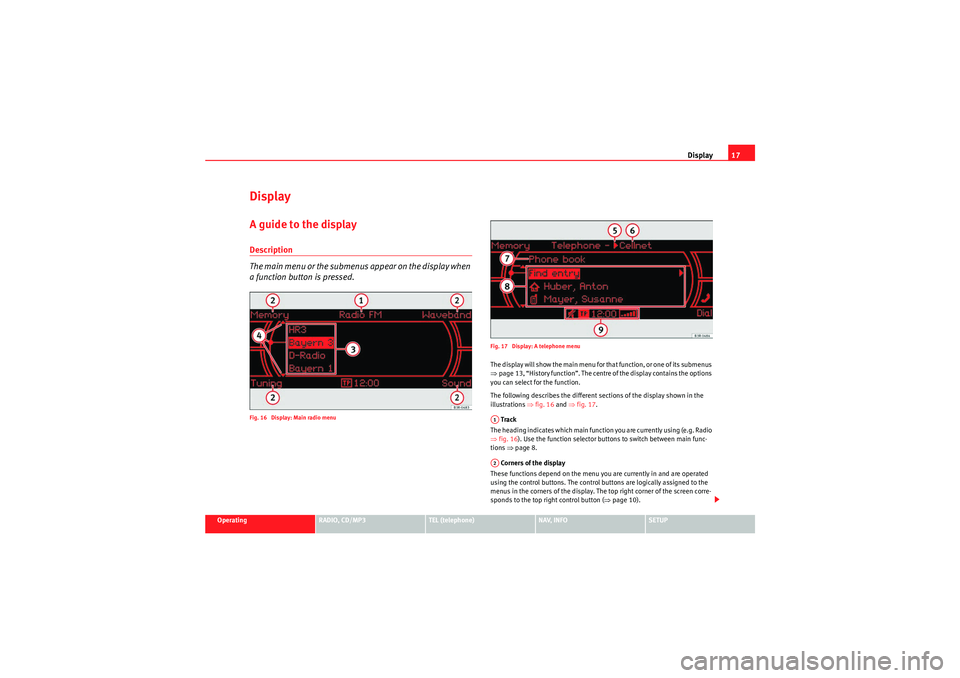
a function button is pressed.Fig. 16 Display: Main radio menu Fig. 17 Display: A telephone menu
The display will show the main menu for that function, or one of its submenus
⇒
page 13, “History function”. The centre of the display contains the options
you can select for the function.
The following describes the different sections of the display shown in the
illustrations ⇒fig. 16 and ⇒fig. 17 .
Track
The heading indicates which main function you are currently using (e.g. Radio
⇒ fig. 16 ). Use the function selector buttons to switch between main func-
tions ⇒page 8.
Corners of the display
These functions depend on the menu you are currently in and are operated
using the control buttons. The control buttons are logically assigned to the
menus in the corners of the display. The top right corner of the screen corre-
sponds to the top right control button ( ⇒page 10).A1A2
Media System 1.0_EN.book Seite 17 Donnerstag, 10. September 2009 1:52 13
Page 19 of 124
Display
18 Main menu display centre
The settings of the available options that you can modify and the system
messages are indicated in the centre of the display.
Cursor and arrows
The cursor and the arrows in the centre of the display help select other func-
tions ⇒page 19.
Roaming symbol*
If your vehicle is equipped with a telephone* and you are not using your home
network, the roaming symbol will also appear in the display header.
Mobile network service provider*
If your vehicle is equipped with a telephone*, the name of the mobile network
service provider your telephone is using will appear in the display header.
The name of the mobile network service provider as it appears in the display
may be different from the name that appears in the phone display.
Subtitle
The subtitle shows detailed information about the selected menu option,
such as Phone book ⇒ page 17, fig. 17 .
Submenu display centre
In the centre of the display, the available options in the particular menu are
listed or notes are displayed.
Status line
In the status line you can find the current status of the traffic programme
reception, traffic messaging channel (TMC) reception*, mute status of current
audio source, the time and telephone* information ⇒ page 18.
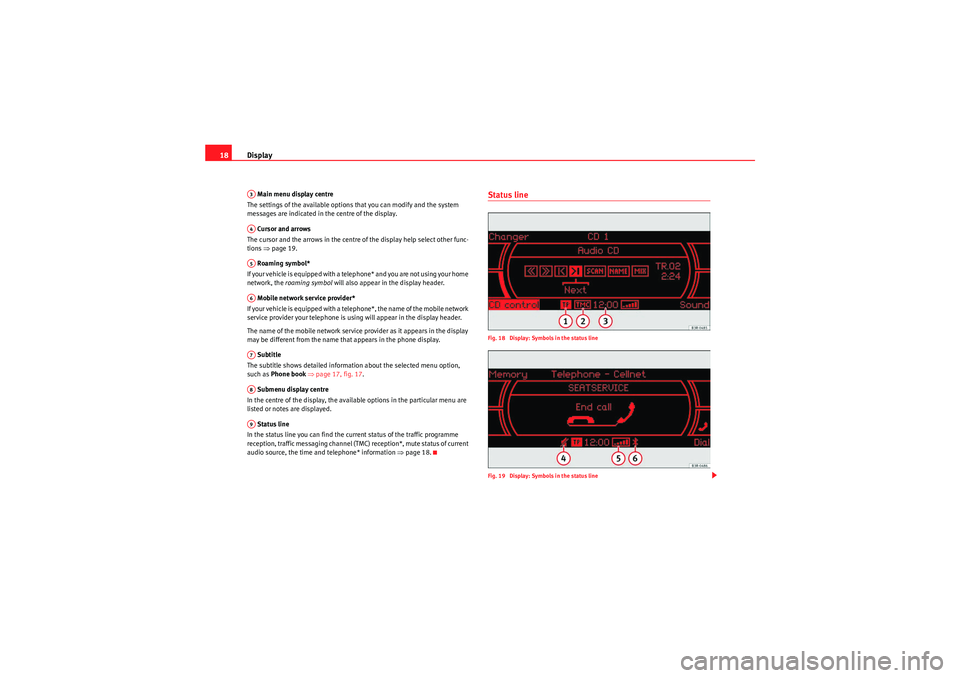
Status lineFig. 18 Display: Symbols in the status line
Fig. 19 Display: Symbols in the status line
A3A4A5A6A7A8A9
Media System 1.0_EN.book Seite 18 Donnerstag, 10. September 2009 1:52 13
Page 20 of 124
Display19
Operating
RADIO, CD/MP3
TEL (telephone)
NAV, INFO
SETUP
The symbols in the status line are displayed regardless of the menu selected.
For example, you can easily see in every menu if the mute function is acti-
vated
⇒page 12.
The status line includes the following symbols (as shown in the illustrations
⇒ page 18, fig. 18 and ⇒page 18, fig. 19 ).
TP Symbol
The TP symbol indicates the status of the traffic programme function
⇒ page 41.
TMC symbol*
The TMC symbol indicates the reception status of radio stations that broad-
cast traffic messages for specific routes or road types ⇒page 111.
Time
Displays the set or received time ⇒page 117.
Mute symbol
The mute symbol will appear if the volume for the current audio has been
switched off ⇒page 12.
Signal strength*
The telephone* reception signal is indicated by vertical bars. The more
shaded bars displayed, the greater the signal.
Under certain circumstances, the symbols SIM or PIN can appear in place of
the signal strength bars.
If SIM is displayed, you must insert your SIM card into the slot to be able to
use the phone.
If PIN is displayed, you must enter the PIN code ⇒page 62 for the SIM card
being used. Bluetooth Symbol*
The Bluetooth symbol appears on the display when a mobile phone is
connected to the navigation system through the Bluetooth* connection
⇒ page 60.
Cursor and arrows
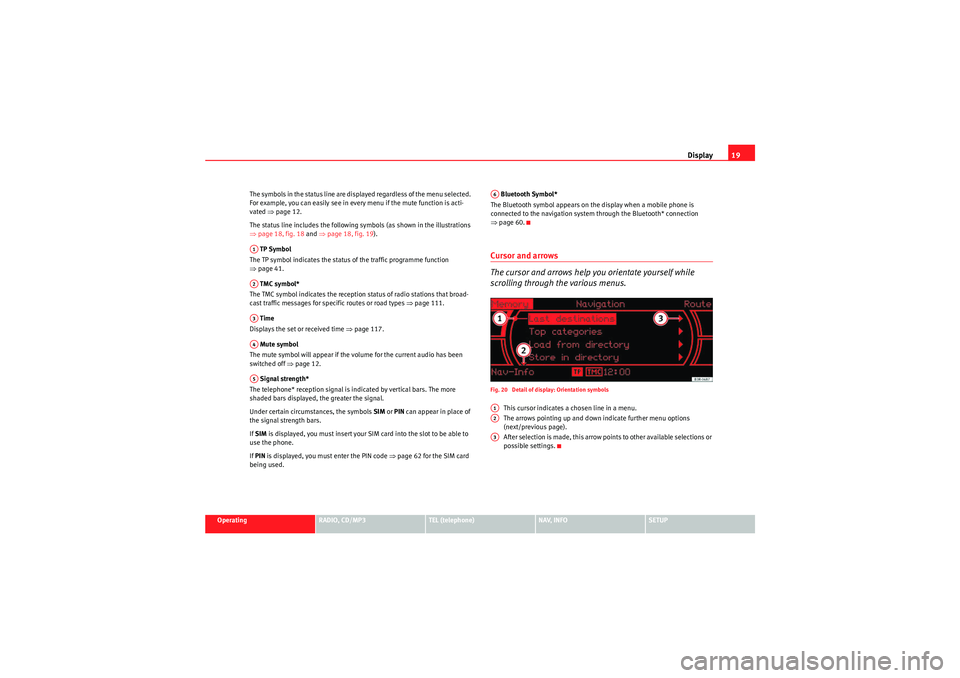
The cursor and arrows help you orientate yourself while
scrolling through the various menus.Fig. 20 Detail of display: Orientation symbols
This cursor indicates a chosen line in a menu.
The arrows pointing up and down indicate further menu options
(next/previous page).
After selection is made, this arrow points to other available selections or
possible settings.
A1A2A3A4A5
A6A1A2A3
Media System 1.0_EN.book Seite 19 Donnerstag, 10. September 2009 1:52 13
Page 22 of 124
Display21
Operating
RADIO, CD/MP3
TEL (telephone)
NAV, INFO
SETUP
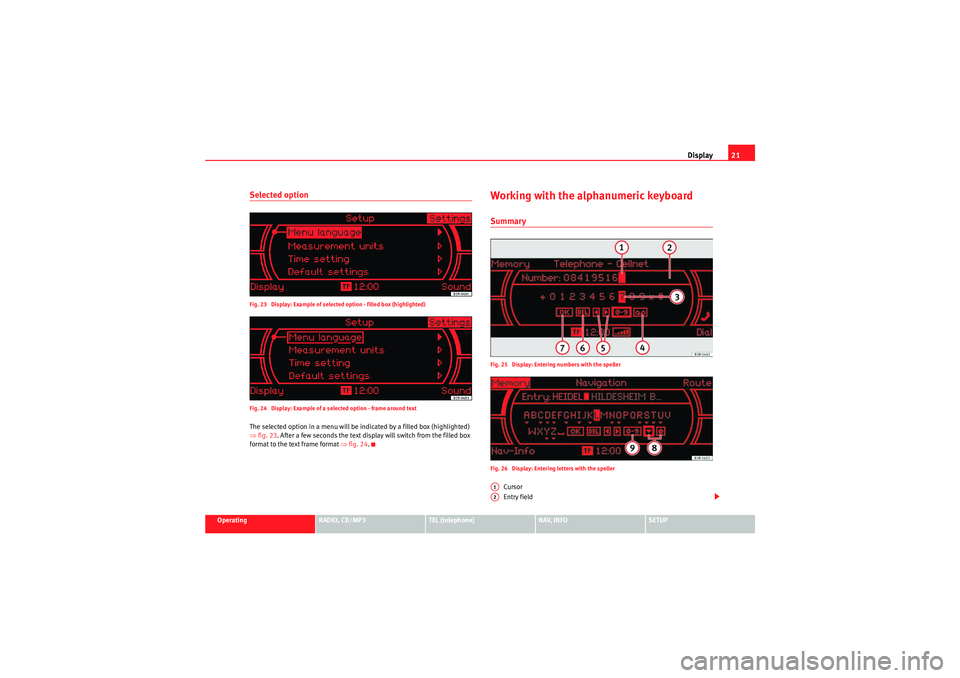
Selected optionFig. 23 Display: Example of selected option - filled box (highlighted)
Fig. 24 Display: Example of a selected option - frame around textThe selected option in a menu will be indicated by a filled box (highlighted)
⇒fig. 23 . After a few seconds the text display will switch from the filled box
format to the text frame format ⇒fig. 24.
Working with the alphanumeric keyboardSummaryFig. 25 Display: Entering numbers with the speller
Fig. 26 Display: Entering letters with the speller
Cursor
Entry field
A1A2
Media System 1.0_EN.book Seite 21 Donnerstag, 10. September 2009 1:52 13
Page 23 of 124
Display
22
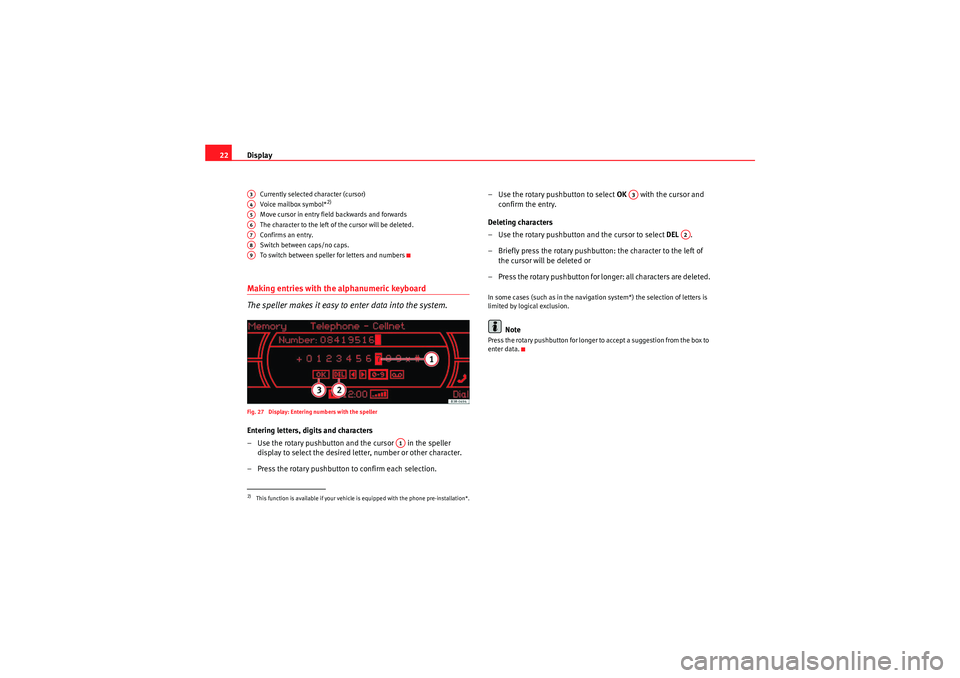
Currently selected character (cursor)
Voice mailbox symbol*
2)
Move cursor in entry field backwards and forwards
The character to the left of the cursor will be deleted.
Confirms an entr y.
Switch between caps/no caps.
To switch between speller for letters and numbers
Making entries with the alphanumeric keyboard
The speller makes it easy to enter data into the system.Fig. 27 Display: Entering numbers with the spellerEntering letters, digits and characters
– Use the rotary pushbutton and the cursor in the speller
display to select the desired letter, number or other character.
– Press the rotary pushbutton to confirm each selection. – Use the rotary pushbutton to select
OK with the cursor and
confirm the entry.
Deleting characters
– Use the rotary pushbutton and the cursor to select DEL .
– Briefly press the rotary pushbutton: the character to the left of the cursor will be deleted or
– Press the rotary pushbutton for longer: all characters are deleted.
In some cases (such as in the navigation system*) the selection of letters is
limited by logical exclusion.
Note
Press the rotary pushbutton for longer to accept a suggestion from the box to
enter data.
2)This function is available if your vehicle is equipped with the phone pre-installation*.A3A4A5A6A7A8A9
A1
A3
A2
Media System 1.0_EN.book Seite 22 Donnerstag, 10. September 2009 1:52 13
Page 24 of 124
Display23
Operating
RADIO, CD/MP3
TEL (telephone)
NAV, INFO
SETUP
Function symbolsIntroduction
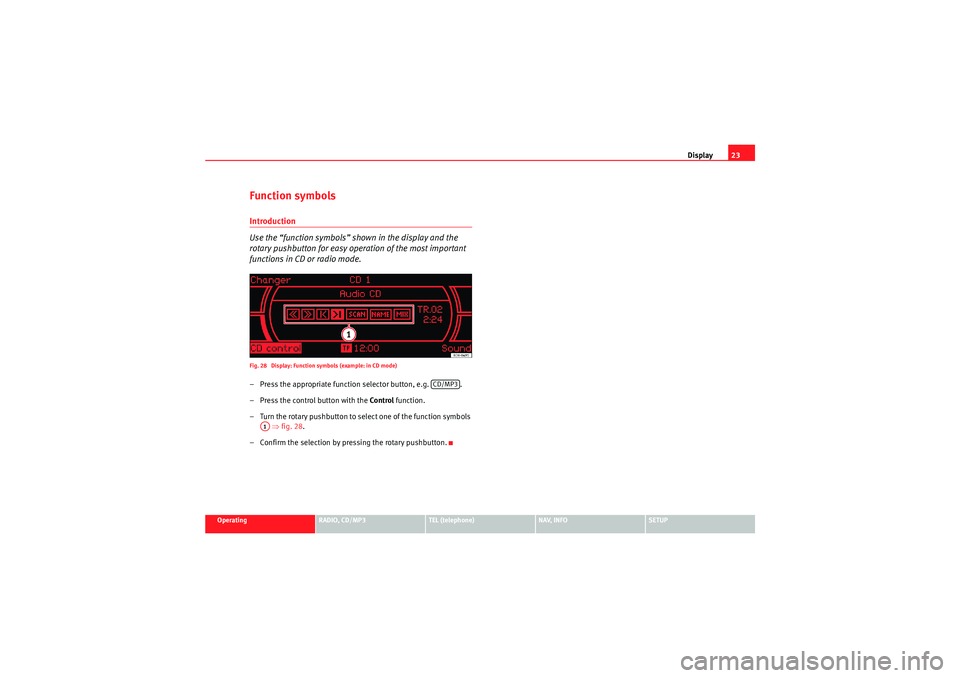
Use the “function symbols” shown in the display and the
rotary pushbutton for easy operation of the most important
functions in CD or radio mode.Fig. 28 Display: Function symbols (example: in CD mode)– Press the appropriate function selector button, e.g. .
– Press the control button with the Control function.
– Turn the rotary pushbutton to select one of the function symbols ⇒ fig. 28 .
– Confirm the selection by pressing the rotary pushbutton.
CD/MP3
A1
Media System 1.0_EN.book Seite 23 Donnerstag, 10. September 2009 1:52 13
Page 26 of 124
Drives25
Operating
RADIO, CD/MP3
TEL (telephone)
NAV, INFO
SETUP
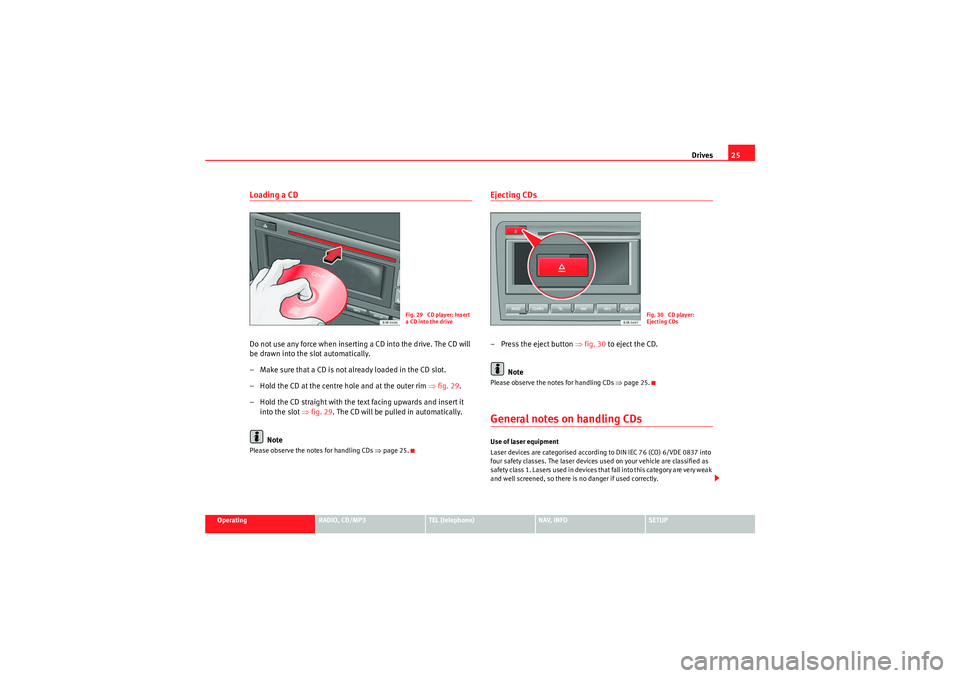
Loading a CDDo not use any force when inserting a CD into the drive. The CD will
be drawn into the slot automatically.
– Make sure that a CD is not already loaded in the CD slot.
– Hold the CD at the centre hole and at the outer rim ⇒fig. 29 .
– Hold the CD straight with the text facing upwards and insert it into the slot ⇒fig. 29 . The CD will be pulled in automatically.
NotePlease observe the notes for handling CDs ⇒page 25.
Ejecting CDs– Press the eject button ⇒fig. 30 to eject the CD.
NotePlease observe the notes for handling CDs ⇒page 25.General notes on handling CDsUse of laser equipment
Laser devices are categorised according to DIN IEC 76 (CO) 6/VDE 0837 into
four safety classes. The laser devices used on your vehicle are classified as
safe ty class 1. L as e rs use d in d e vices t ha t fa ll i nto t his ca te gor y a re ve r y weak
and well screened, so there is no danger if used correctly.
Fig. 29 CD player: Insert
a CD into the drive
Fig. 30 CD player:
Ejecting CDs
Media System 1.0_EN.book Seite 25 Donnerstag, 10. September 2009 1:52 13
Page 28 of 124
Drives27
Operating
RADIO, CD/MP3
TEL (telephone)
NAV, INFO
SETUP
iPod interface*General notes
The iPod interface can be used to connect an iPod to your
navigation system and allows you to play audio files directly
over the vehicle's sound system.The iPod interface is located in the vehicle glove box. It is compatible with 3rd
generation or higher iPod
3) devices (made from about 2003 onwards), with
the exception of the iPod Shuffle.
The iPod is controlled using the CD function ⇒page 44.
•The navigation system orders (first numerically and then alphabetically)
the playlists with the tracks stored in the iPod and then assigns them in the
sequence CD 1 to CD 5. For easier playing of these playlists through the
vehicle's sound system, we recommend you create five playlists (e.g. 1.... to
5....) in your iPod.•If you select CD 6, all the tracks on the iPod will be played even if they are
stored in different playlists.
Information stored on the iPod, such as artist, track, album and genre, or the
name of a playlist, does not appear on the navigation system display.Caution
Very high or very low temperatures (a common occurrence in a vehicle's inte-
rior) can cause damage to the iPod and/or impair its performance.•Please do not leave your iPod in the vehicle in case of extreme tempera-
tures.
Note
Please refer to the iPod operating instructions for important information on
how to use your iPod.Choosing the adapter
The iPod interface is supplied with a choice of adapters for
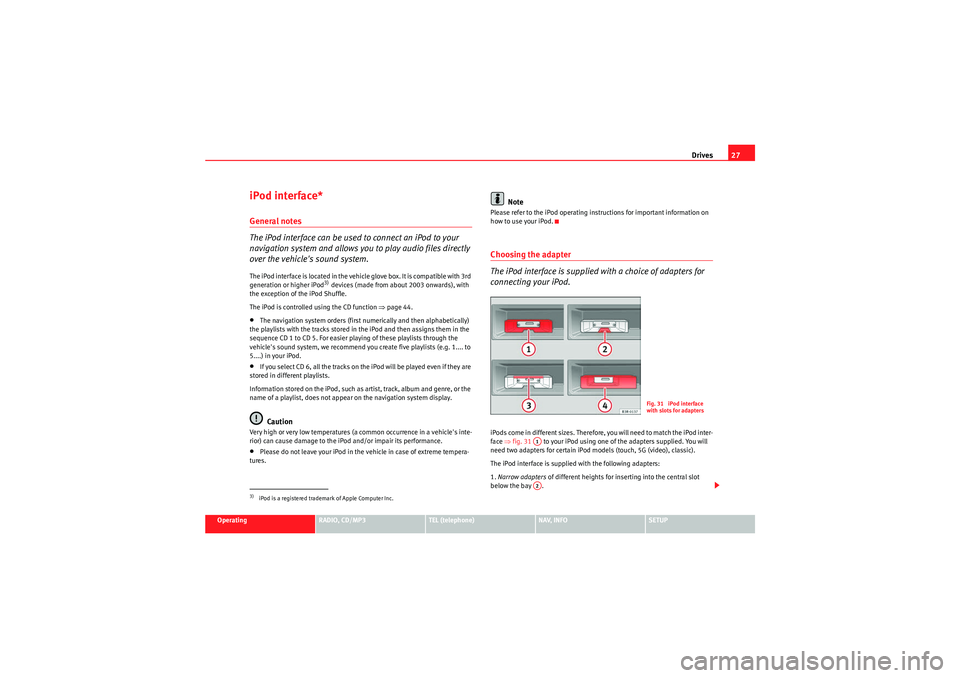
connecting your iPod.iPods come in different sizes. Therefore, you will need to match the iPod inter-
face ⇒fig. 31 to your iPod using one of the adapters supplied. You will
need two adapters for certain iPod models (touch, 5G (video), classic).
The iPod interface is supplied with the following adapters:
1. Narrow adapters of different heights for inserting into the central slot
below the bay .
3)iPod is a registered trademark of Apple Computer Inc.
Fig. 31 iPod interface
with slots for adapters
A1A2
Media System 1.0_EN.book Seite 27 Donnerstag, 10. September 2009 1:52 13
Page 30 of 124
Drives29
Operating
RADIO, CD/MP3
TEL (telephone)
NAV, INFO
SETUP
Functions
The iPod is operated just like a CD changer using the controls
on your vehicle's navigation system.The following functions are available:•Play all tracks stored on the iPod•Select and play up to five playlists (just like selecting CD 1 to 5 on a CD
changer).•Change between playlists (just like “selecting a CD” on the CD changer)•Fast forward and rewind within a track•Change tracks within a playlist•Shuffle function (random selection of tracks)•SCAN function
For further information on operation, please refer to the “CD/MP3” chapter
⇒ page 44.TipsHere are some tips and points to remember when using the iPod in the
vehicle:•Track numbers appear with a maximum of two digits in the navigation
system display. The first digit is suppressed if you select a track with a three-
digit number, i.e. track 125 and track 25 are both displayed as track “25”. For
this reason we do not recommend allocating more than 99 tracks to each
playlist.•If you reach the end of a playlist when selecting a track directly
(forward/reverse), the count is resumed at track “1”.
•The track numbers are counted up sequentially in the navigation system
display when you play tracks in shuffle mode (MIX).•We recommend you do not use the “Name CD” function, as all the playl-
ists will then be allocated the same name.USB Interface*Introduction
You can connect a memory stick or an MP3 player to the
vehicle's on-board navigation system via the USB port.The USB port is located in your vehicle's glove box. It is compatible with all
memory sticks and MP3 players approved by SEAT. Problems can occur if you
use a memory stick or MP3 player not list ed in the table. Your memory device
must be USB-certified as a minimum requirement.
WARNING
•Today's driving conditions require your full attention. As the driver, you
bear the responsibility for road safety. Do not remove the memory stick or
MP3 player while driving. Failure to do so may cause an accident.•The volume of the sound system should be set at a level that enables
you to hear acoustic signals from outside, such as police and fire brigade
sirens. Failure to do so may cause an accident.Caution
Very high or very low temperatures (a common occurrence inside a vehicle)
may cause damage to the memory stick or MP3 player and/or impair its
performance.
Media System 1.0_EN.book Seite 29 Donnerstag, 10. September 2009 1:52 13
Page 32 of 124
Drives31
Operating
RADIO, CD/MP3
TEL (telephone)
NAV, INFO
SETUP
Functions
Music files are played just like on a CD changer using the
controls on your vehicle navigation system.To start the memory stick or MP3 player, select the “CD changer” function on
the navigation system.
The following functions are available:•Play all tracks stored on the memory device (if no folders are stored on the
memory device)•Select and play up to six main folders with music files (just like selecting
CD 1 to 6 on a CD changer)•Change between main folders with music files (just like changing the CD
on a CD changer)•Change tracks within a main folder•Fast forward and rewind within a track•SCAN function•Play tracks in random or shuffle mode
For further information on operation, please refer to the “CD/MP3” chapter
⇒ page 44.TipsHere are some tips and points to remember when playing music files in the
car:•We recommend that, instead of storing music files in the main directory of
the memory stick or MP3 player, you create separate folders e.g. for tracks
belonging to the same genre or artist. Your navigation system can only
display and play a maximum of six folders, however. The folders are allocated first in numerical order and then in alphabetical order as CD 1 to CD 6. Folders
that do not contain music files are automatically ignored. You can create any
number of subfolders.
•If there are no folders on your memory device, the navigation system will
allocate all the music files it finds to CD 1.•Track numbers appear with a maximum of two digits in the navigation
system display. The first digit is suppressed if you select a track with a three-
digit number, i.e. track 125 and track 25 are both displayed as track “25”. We
therefore do not recommend allocating more than 99 tracks to each folder.•We recommend you do not use the “Name CD” function, as the folders
may not be named correctly.•Bear in mind that special characters (diaeresis, accents, etc) are at the
end of the alphabet.
The following music formats are supported:•mp3 (MPEG1 Layer3 from 32 to 320 kbps)•wma (from 8 to 192 kbps)•wav (11.025, 22.050 and 44.1 kHz sampling frequency with 16-bit
encoding, stereo)•ogg vorbis (up to q10, 48 kHz, stereo)
DRM music formats are not supported.Caution
Never store important data on the memory stick or MP3 player. SEAT is not
liable in any manner for any data or files that may be damaged or lost.
Media System 1.0_EN.book Seite 31 Donnerstag, 10. September 2009 1:52 13