phone Seat Exeo 2009 MEDIA SYSTEM 1.0
[x] Cancel search | Manufacturer: SEAT, Model Year: 2009, Model line: Exeo, Model: Seat Exeo 2009Pages: 124, PDF Size: 6.27 MB
Page 34 of 124
RADIO33
Operating
RADIO, CD/MP3
TEL (telephone)
NAV, INFO
SETUP
RADIO, CD/MP3RADIOIntroductionSelecting radio functions
The radio settings can be selected using the function
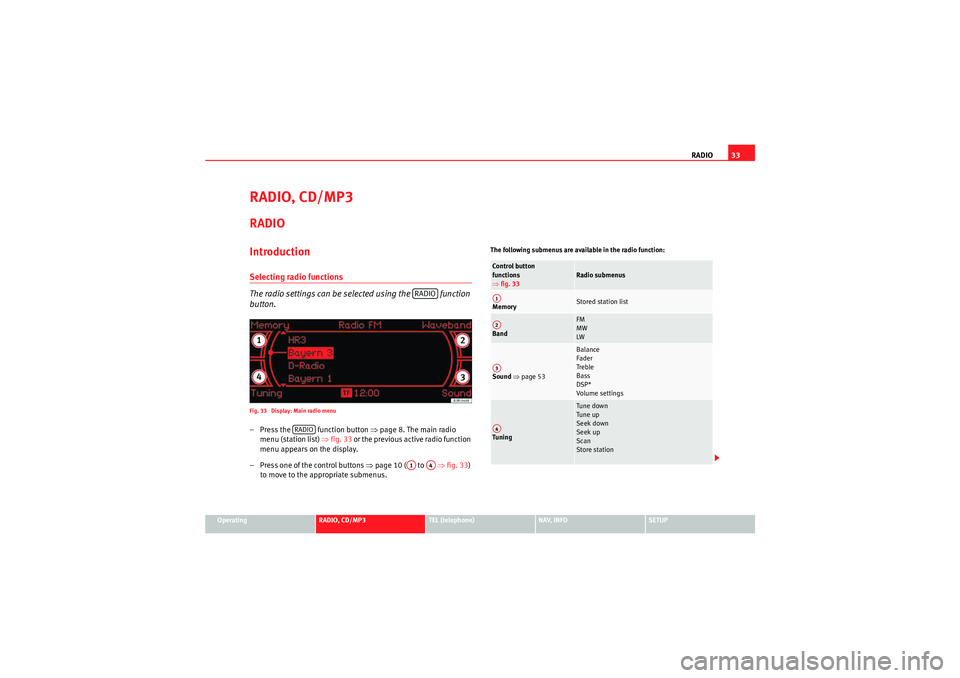
button.Fig. 33 Display: Main radio menu– Press the function button ⇒ page 8. The main radio
menu (station list) ⇒fig. 33 or the previous active radio function
menu appears on the display.
– Press one of the control buttons ⇒ page 10 ( to ⇒fig. 33 )
to move to the appropriate submenus.
The following submenus are available in the radio function:
RADIO
RADIO
A1
A4
Control button
functions
⇒ fig. 33
Radio submenus
Memory
Stored station list
Band
FM
MW
LW
Sound ⇒ page 53
Balance
Fader
Treble
Bass
DSP*
Volume settings
Tuning
Tune down
Tune up
Seek down
Seek up
Scan
Store station
A1A2A3A4
Media System 1.0_EN.book Seite 33 Donnerstag, 10. September 2009 1:52 13
Page 36 of 124
RADIO35
Operating
RADIO, CD/MP3
TEL (telephone)
NAV, INFO
SETUP
Main radio menuIntroduction
The radio station list for the selected frequency band is
displayed in the main radio menu.The station lists for the FM, MW and LW range differ in their behaviour. The FM
station list is updated automatically (dynamic), whereas the MW and LW
station lists must be updated manually (static).
The title line of the display shows whether the radio station is operating in FM
(frequency modulation), MW (medium wave) or LW (long wave). The
frequency band can be selected using the Band control button ⇒page 34.
If you do not use the navigation system for a while, the display of the station
list or memory list will be minimised. The minimised display only shows the
radio station you are currently listening to. Turn the rotary pushbutton to
display the complete station list or memory list again.
Note
You can select radio stations ⇒ page 36 on the instrument panel display
using the multi-function steering wheel*.
FM station list
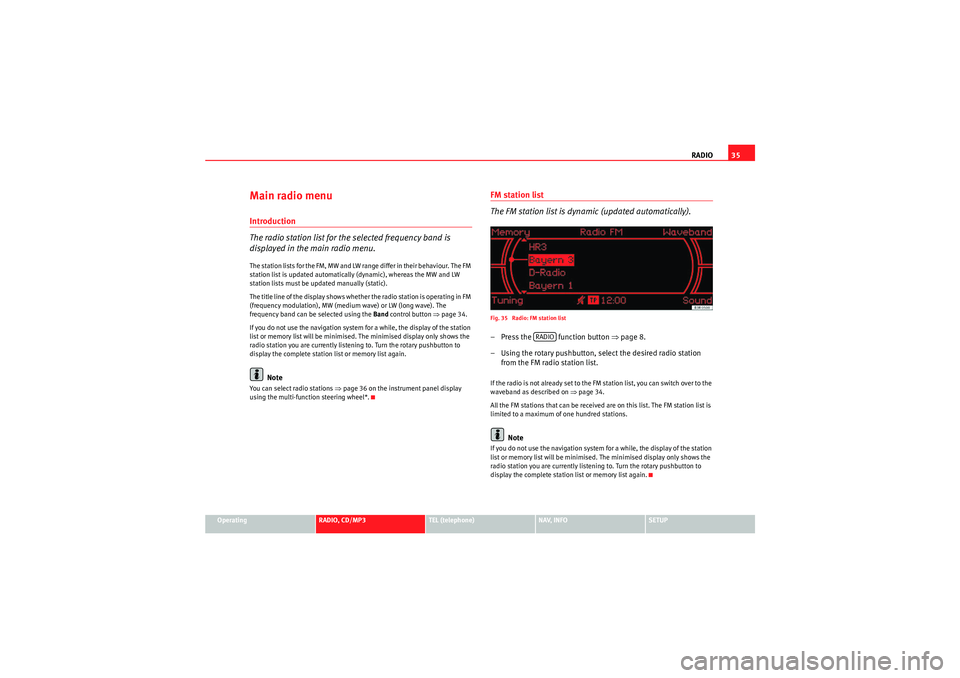
The FM station list is dynamic (updated automatically).Fig. 35 Radio: FM station list– Press the function button ⇒ page 8.
– Using the rotary pushbutton, select the desired radio station from the FM radio station list.If the radio is not already set to the FM station list, you can switch over to the
waveband as described on ⇒page 34.
All the FM stations that can be received are on this list. The FM station list is
limited to a maximum of one hundred stations.
Note
If you do not use the navigation system for a while, the display of the station
list or memory list will be minimised. The minimised display only shows the
radio station you are currently listening to. Turn the rotary pushbutton to
display the complete station list or memory list again.
RADIO
Media System 1.0_EN.book Seite 35 Donnerstag, 10. September 2009 1:52 13
Page 38 of 124
RADIO37
Operating
RADIO, CD/MP3
TEL (telephone)
NAV, INFO
SETUP
"Memory" MenuUsing the memory list
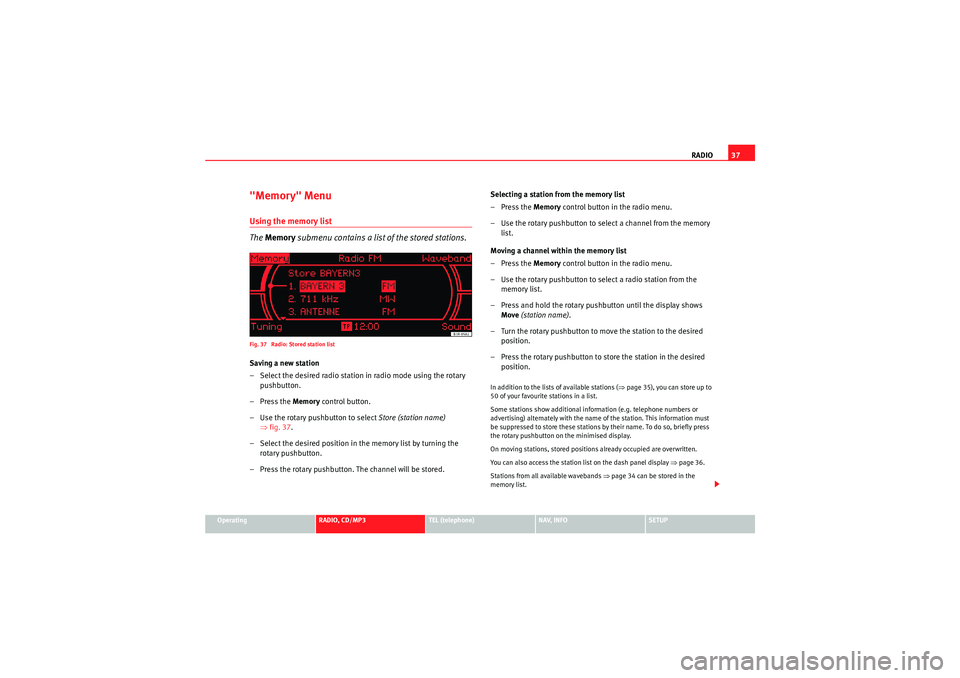
The Memory submenu contains a list of the stored stations.Fig. 37 Radio: Stored station listSaving a new station
– Select the desired radio station in radio mode using the rotary
pushbutton.
–Press the Memory control button.
– Use the rotary pushbutton to select Store (station name)
⇒ fig. 37.
– Select the desired position in the memory list by turning the rotary pushbutton.
– Press the rotary pushbutton. The channel will be stored. Selecting a station from the memory list
–Press the Memory
control button in the radio menu.
– Use the rotary pushbutton to select a channel from the memory list.
Moving a channel within the memory list
–Press the Memory control button in the radio menu.
– Use the rotary pushbutton to select a radio station from the memory list.
– Press and hold the rotary pushbutton until the display shows Move (station name) .
– Turn the rotary pushbutton to move the station to the desired position.
– Press the rotary pushbutton to store the station in the desired position.
In addition to the lists of available stations ( ⇒page 35), you can store up to
50 of your favourite stations in a list.
Some stations show additional information (e.g. telephone numbers or
advertising) alternately with the name of the station. This information must
be suppressed to store these stations by their name. To do so, briefly press
the rotary pushbutton on the minimised display.
On moving stations, stored positions already occupied are overwritten.
You can also access the station list on the dash panel display ⇒page 36.
Stations from all available wavebands ⇒ page 34 can be stored in the
memory list.
Media System 1.0_EN.book Seite 37 Donnerstag, 10. September 2009 1:52 13
Page 40 of 124
RADIO39
Operating
RADIO, CD/MP3
TEL (telephone)
NAV, INFO
SETUP
– Press the rotary pushbutton to begin automatic tuning.Pressing the rotary pushbutton briefly activates automatic station tuning.Station scan
The "scan" function displays each of the stations tuned for a
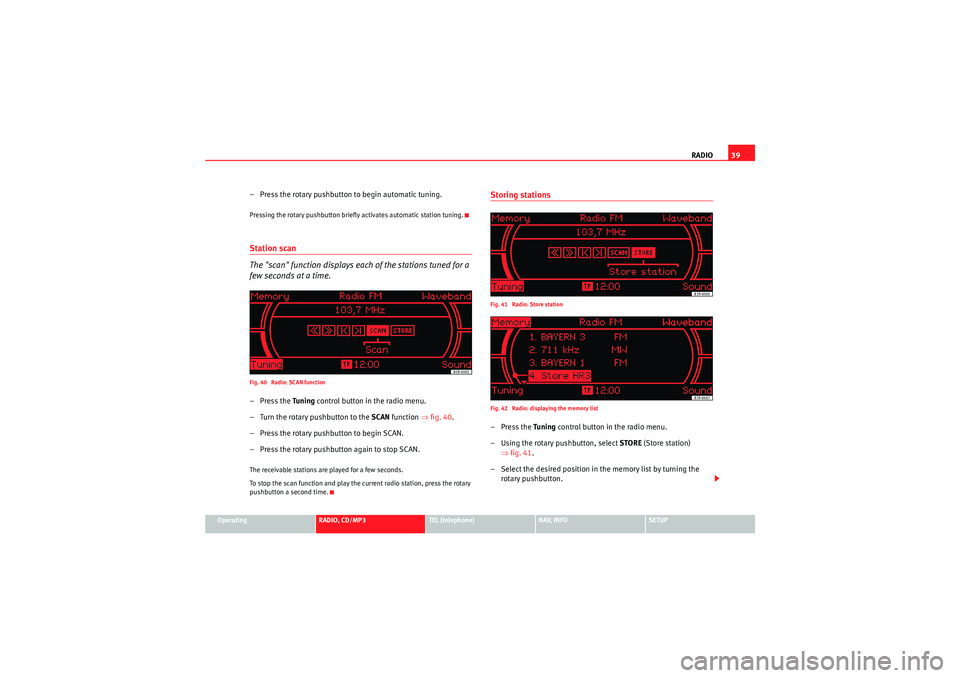
few seconds at a time.Fig. 40 Radio: SCAN function–Press the Tuning control button in the radio menu.
– Turn the rotary pushbutton to the SCAN function ⇒fig. 40 .
– Press the rotary pushbutton to begin SCAN.
– Press the rotary pushbutton again to stop SCAN.The receivable stations are played for a few seconds.
To stop the scan function and play the current radio station, press the rotary
pushbutton a second time.
Storing stationsFig. 41 Radio: Store station
Fig. 42 Radio: displaying the memory list–Press the Tuning control button in the radio menu.
– Using the rotary pushbutton, select STORE (Store station)
⇒ fig. 41 .
– Select the desired position in the memory list by turning the rotary pushbutton.
Media System 1.0_EN.book Seite 39 Donnerstag, 10. September 2009 1:52 13
Page 42 of 124
RADIO41
Operating
RADIO, CD/MP3
TEL (telephone)
NAV, INFO
SETUP
Note
We recommend that you enter these settings when the vehicle is stationary.
Please note ⇒page 6, “Notes on road safety”.Traffic programme
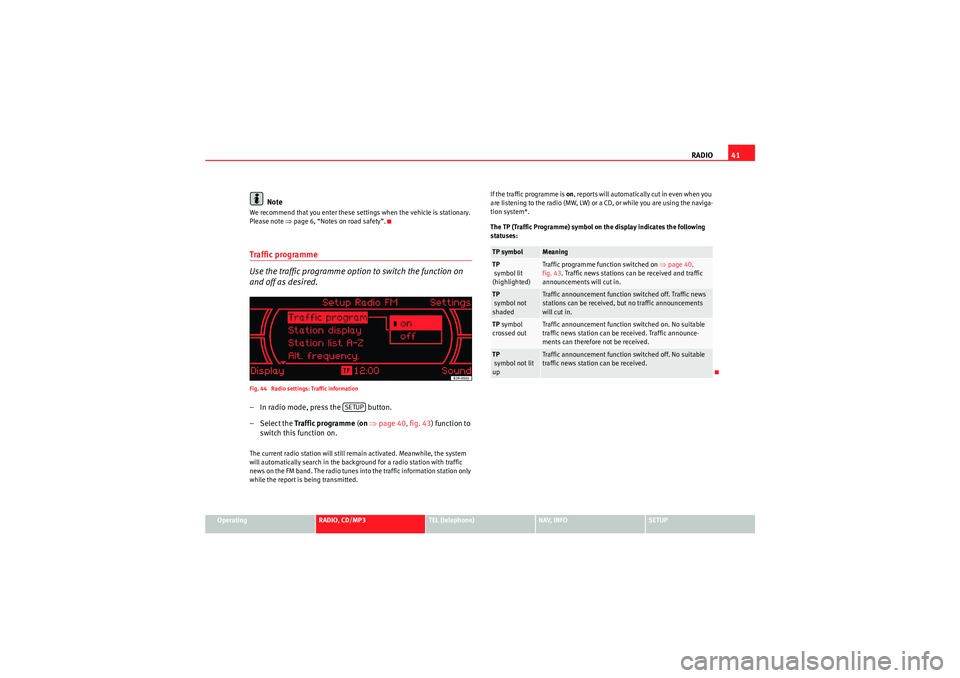
Use the traffic programme option to switch the function on
and off as desired.Fig. 44 Radio settings: Traffic information– In radio mode, press the button.
– Select the Traffic programme (on ⇒ page 40, fig. 43 ) function to
switch this function on.The current radio station will still remain activated. Meanwhile, the system
will automatically search in the background for a radio station with traffic
news on the FM band. The radio tunes into the traffic information station only
while the report is being transmitted. If the traffic programme is on
, reports will automatically cut in even when you
are listening to the radio (MW, LW) or a CD, or while you are using the naviga-
tion system*.
The TP (Traffic Programme) symbol on the display indicates the following
statuses:
SETUP
TP symbol
Meaning
TP
symbol lit
(highlighted)
Traffic programme function switched on ⇒page 40,
fig. 43 . Traffic news stations can be received and traffic
announcements will cut in.
TP
symbol not
shaded
Traffic announcement function switched off. Traffic news
stations can be received, but no traffic announcements
will cut in.
TP symbol
crossed out
Traffic announcement function switched on. No suitable
traffic news station can be received. Traffic announce-
ments can therefore not be received.
TP
symbol not lit
up
Traffic announcement function switched off. No suitable
traffic news station can be received.
Media System 1.0_EN.book Seite 41 Donnerstag, 10. September 2009 1:52 13
Page 43 of 124
RADIO
42Station display
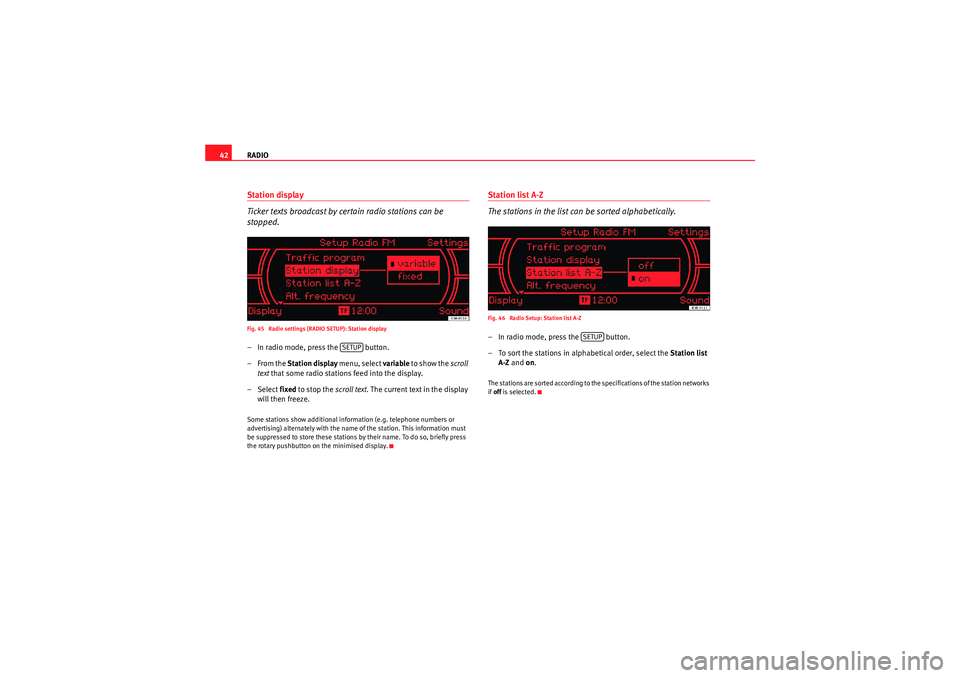
Ticker texts broadcast by certain radio stations can be
stopped.Fig. 45 Radio settings (RADIO SETUP): Station display– In radio mode, press the button.
–From the Station display menu, select variable to show the scroll
text that some radio stations feed into the display.
– Select fixed to stop the scroll text. The current text in the display
will then freeze.Some stations show additional information (e.g. telephone numbers or
advertising) alternately with the name of the station. This information must
be suppressed to store these stations by their name. To do so, briefly press
the rotary pushbutton on the minimised display.
Station list A-Z
The stations in the list can be sorted alphabetically.Fig. 46 Radio Setup: Station list A-Z– In radio mode, press the button.
– To sort the stations in alphabetical order, select the Station list
A-Z and on .The stations are sorted according to the specifications of the station networks
if off is selected.
SETUP
SETUP
Media System 1.0_EN.book Seite 42 Donnerstag, 10. September 2009 1:52 13
Page 44 of 124
RADIO43
Operating
RADIO, CD/MP3
TEL (telephone)
NAV, INFO
SETUP
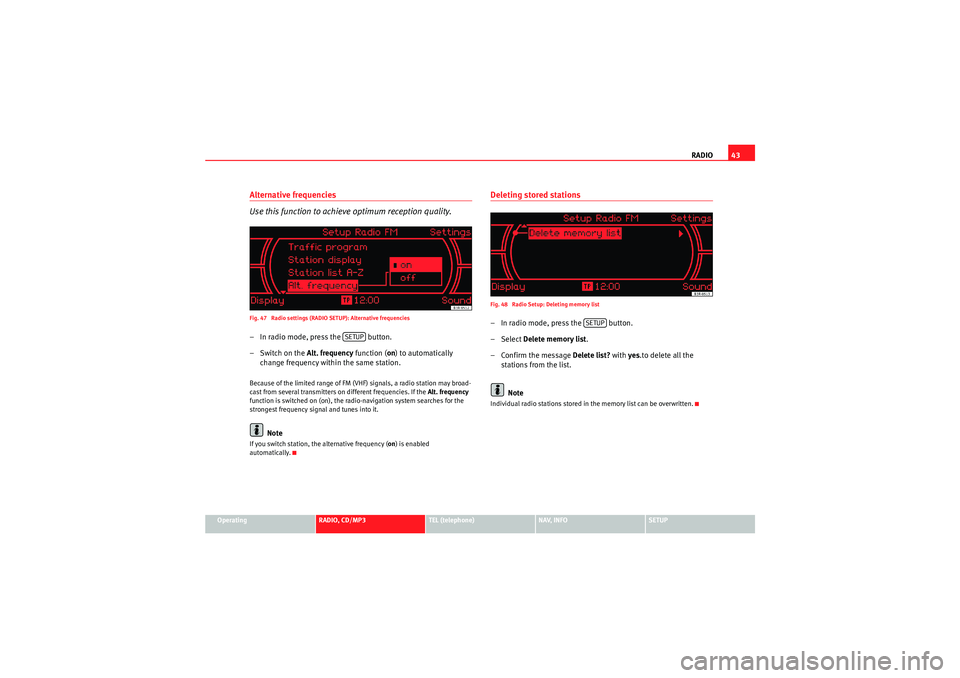
Alternative frequencies
Use this function to achieve optimum reception quality.Fig. 47 Radio settings (RADIO SETUP): Alternative frequencies– In radio mode, press the button.
– Switch on the Alt. frequency function (on) to automatically
change frequency within the same station.Because of the limited range of FM (VHF) signals, a radio station may broad-
cast from several transmitters on different frequencies. If the Alt. frequency
function is switched on (on), the radio-navigation system searches for the
strongest frequency signal and tunes into it.
Note
If you switch station, the alternative frequency ( on) is enabled
automatically.
Deleting stored stationsFig. 48 Radio Setup: Deleting memory list– In radio mode, press the button.
– Select Delete memory list .
–Confirm the message Delete list? with yes.to delete all the
stations from the list.
NoteIndividual radio stations stored in the memory list can be overwritten.
SETUP
SETUP
Media System 1.0_EN.book Seite 43 Donnerstag, 10. September 2009 1:52 13
Page 46 of 124
CD/MP345
Operating
RADIO, CD/MP3
TEL (telephone)
NAV, INFO
SETUP
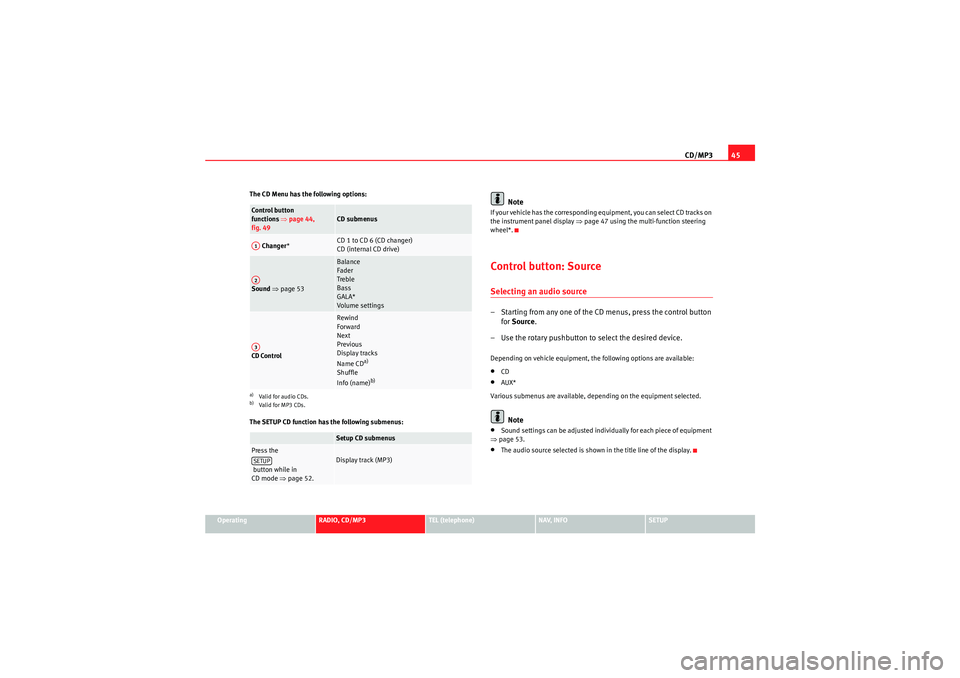
The CD Menu has the following options:
The SETUP CD function has the following submenus:
Note
If your vehicle has the corresponding equipment, you can select CD tracks on
the instrument panel display
⇒page 47 using the multi-function steering
wheel*.Control button: SourceSelecting an audio source– Starting from any one of the CD menus, press the control button for Source .
– Use the rotary pushbutton to select the desired device.Depending on vehicle equipment, the following options are available:•CD•AUX*
Various submenus are available, depending on the equipment selected.Note
•Sound settings can be adjusted individually for each piece of equipment
⇒ page 53.•The audio source selected is shown in the title line of the display.
Control button
functions ⇒page 44,
fig. 49
CD submenus
Changer *
CD 1 to CD 6 (CD changer)
CD (internal CD drive)
Sound ⇒ page 53
Balance
Fader
Treble
Bass
GALA*
Volume settings
CD Control
Rewind
Forward
Next
Previous
Display tracks
Name CD
a)
Shuffle
Info (name)
b)
a)Valid for audio CDs.b)Valid for MP3 CDs.
Setup CD submenus
Press the
button while in
CD mode ⇒page 52.
Display track (MP3)
A1A2A3SETUP
Media System 1.0_EN.book Seite 45 Donnerstag, 10. September 2009 1:52 13
Page 47 of 124
CD/MP3
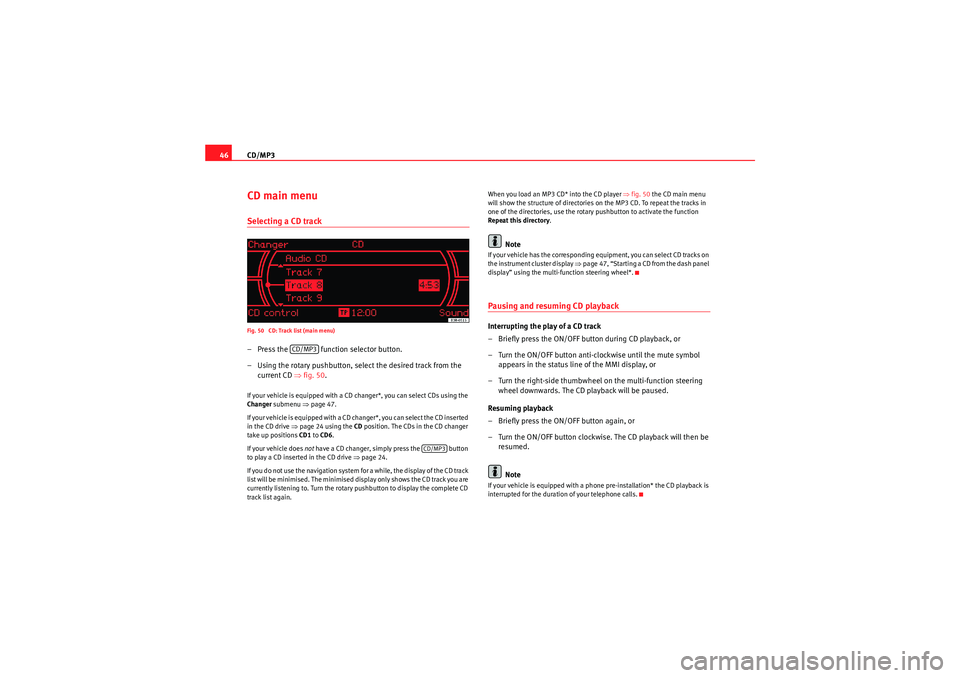
46CD main menuSelecting a CD trackFig. 50 CD: Track list (main menu)– Press the function selector button.
– Using the rotary pushbutton, select the desired track from the
current CD ⇒fig. 50 .If your vehicle is equipped with a CD changer*, you can select CDs using the
Changer submenu ⇒page 47.
If your vehicle is equipped with a CD changer*, you can select the CD inserted
in the CD drive ⇒page 24 using the CD position. The CDs in the CD changer
take up positions CD1 to CD6 .
If your vehicle does not have a CD changer, simply press the button
to play a CD inserted in the CD drive ⇒page 24.
If you do not use the navigation system for a while, the display of the CD track
list will be minimised. The minimised display only shows the CD track you are
currently listening to. Turn the rotary pushbutton to display the complete CD
track list again. When you load an MP3 CD* into the CD player
⇒fig. 50 the CD main menu
will show the structure of directories on the MP3 CD. To repeat the tracks in
one of the directories, use the rotary pushbutton to activate the function
Repeat this directory .
Note
If your vehicle has the corresponding equipment, you can select CD tracks on
the instrument cluster display ⇒page 47, “Starting a CD from the dash panel
display” using the multi-function steering wheel*.Pausing and resuming CD playbackInterrupting the play of a CD track
– Briefly press the ON/OFF button during CD playback, or
– Turn the ON/OFF button anti-clockwise until the mute symbol appears in the status line of the MMI display, or
– Turn the right-side thumbwheel on the multi-function steering wheel downwards. The CD playback will be paused.
Resuming playback
– Briefly press the ON/OFF button again, or
– Turn the ON/OFF button clockwise. The CD playback will then be resumed.
NoteIf your vehicle is equipped with a phone pre-installation* the CD playback is
interrupted for the duration of your telephone calls.
CD/MP3
CD/MP3
Media System 1.0_EN.book Seite 46 Donnerstag, 10. September 2009 1:52 13
Page 48 of 124
CD/MP347
Operating
RADIO, CD/MP3
TEL (telephone)
NAV, INFO
SETUP
Starting a CD from the dash panel displaySelecting CD track (CD player activated):
– Press the button on the multi-function steering wheel
⇒page 14 until TR appears at the top of the dash panel display.
– Scroll and press the left thumbwheel on the multi-function steering wheel to select the CD track.
Selecting CD track (CD player deactivated):
– Press the function selector button.
– Press the button on the multi-function steering wheel ⇒page 14 until TR appears at the top of the dash panel display.
– Scroll and press the left thumbwheel on the multi-function steering wheel to select the CD track.
Start fast forward:
– Keep the left thumbwheel on the multi-function steering wheel ⇒page 14 pressed down.
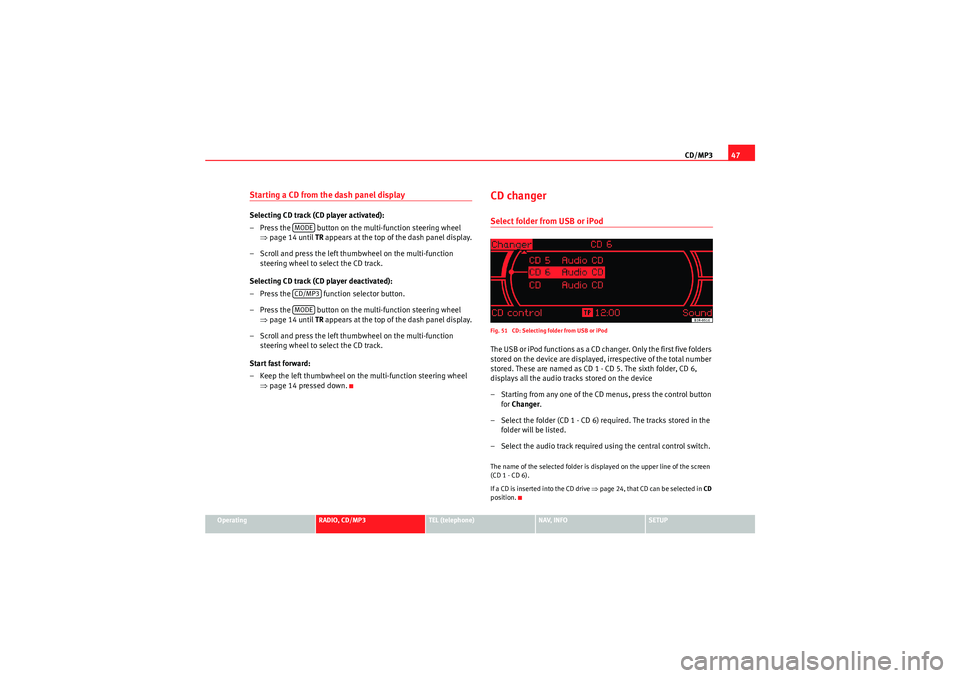
CD changerSelect folder from USB or iPodFig. 51 CD: Selecting folder from USB or iPodThe USB or iPod functions as a CD changer. Only the first five folders
stored on the device are displayed, irrespective of the total number
stored. These are named as CD 1 - CD 5. The sixth folder, CD 6,
displays all the audio tracks stored on the device
– Starting from any one of the CD menus, press the control button
for Changer .
– Select the folder (CD 1 - CD 6) required. The tracks stored in the folder will be listed.
– Select the audio track required using the central control switch.The name of the selected folder is displayed on the upper line of the screen
(CD 1 - CD 6).
If a CD is inser ted into the CD drive ⇒page 24, that CD can be selected in CD
position.
MODECD/MP3MODE
Media System 1.0_EN.book Seite 47 Donnerstag, 10. September 2009 1:52 13