radio controls Seat Exeo 2009 Owner's manual
[x] Cancel search | Manufacturer: SEAT, Model Year: 2009, Model line: Exeo, Model: Seat Exeo 2009Pages: 310, PDF Size: 8.54 MB
Page 60 of 310
Cockpit
58
− Driver's airbag . . . . . . . . . . . . . . . . . . . . . . . . . . . . . . . . . . . .
− Controls for radio and telephone*
Adjustable steering column . . . . . . . . . . . . . . . . . . . . . . . . . . . .
Vehicle wallet compartment / knee airbag* . . . . . . . . . . . . . . . Note
•Separate operating instructions are enclosed if the vehicle is equipped
with a factory-fitted radio or navigation system.•The arrangement of switches and controls on right-hand drive models*
may be slightly different from the layout shown in ⇒page 56, fig. 36 .
However, the symbols used to identify the controls are the same. 31A33
164
A34
31
Exeo_EN.book Seite 58 Freitag, 28. August 2009 10:14 10
Page 73 of 310
Cockpit71
Safety First
Controls and equipment
Practical tips
Technical Data
Driver information systemGeneral notes
The driver information system in the instrument panel shows
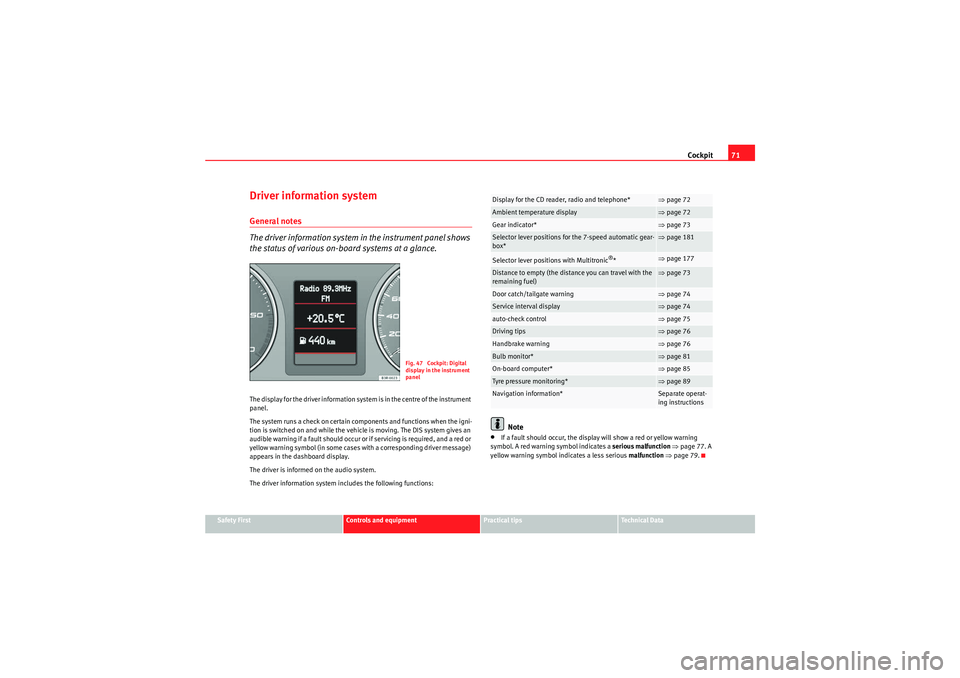
the status of various on-board systems at a glance.The display for the driver information system is in the centre of the instrument
panel.
The system runs a check on certain components and functions when the igni-
tion is switched on and while the vehicle is moving. The DIS system gives an
audible warning if a fault should occur or if servicing is required, and a red or
yellow warning symbol (in some cases with a corresponding driver message)
appears in the dashboard display.
The driver is informed on the audio system.
The driver information system includes the following functions:
Note
•If a fault should occur, the display will show a red or yellow warning
symbol. A red warning symbol indicates a serious malfunction ⇒ page 77. A
yellow warning symbol indicates a less serious malfunction ⇒ page 79.
Fig. 47 Cockpit: Digital
display in the instrument
panel
Display for the CD reader, radio and telephone*
⇒page 72
Ambient temperature display
⇒page 72
Gear indicator*
⇒page 73
Selector lever positions for the 7-speed automatic gear-
box*
⇒page 181
Selector lever positions with Multitronic
®*
⇒page 177
Distance to empty (the distance you can travel with the
remaining fuel)
⇒page 73
Door catch/tailgate warning
⇒page 74
Service interval display
⇒page 74
auto-check control
⇒page 75
Driving tips
⇒page 76
Handbrake warning
⇒page 76
Bulb monitor*
⇒page 81
On-board computer*
⇒page 85
Tyre pressure monitoring*
⇒page 89
Navigation information*
Separate operat-
ing instructions
Exeo_EN.book Seite 71 Freitag, 28. August 2009 10:14 10
Page 75 of 310
Cockpit73
Safety First
Controls and equipment
Practical tips
Technical Data
Note
When the display shows route guidance instructions from the navigation
system, the ambient temperature appears in the second line of the radio
display.Gear display*
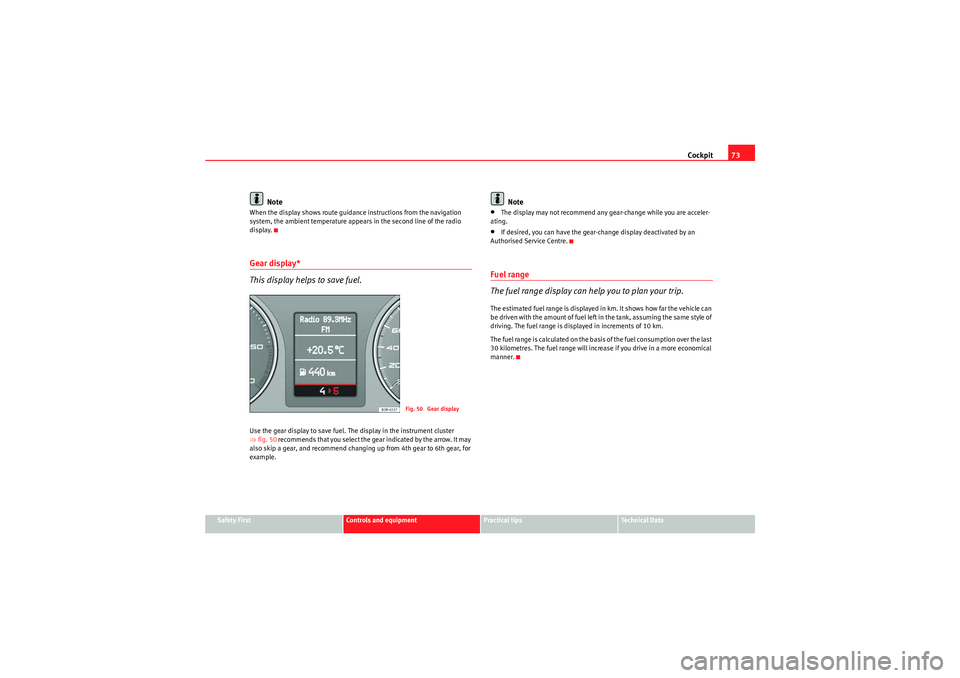
This display helps to save fuel.Use the gear display to save fuel. The display in the instrument cluster
⇒fig. 50 recommends that you select the gear indicated by the arrow. It may
also skip a gear, and recommend changing up from 4th gear to 6th gear, for
example.
Note
•The display may not recommend any gear-change while you are acceler-
ating.•If desired, you can have the gear-change display deactivated by an
Authorised Service Centre.Fuel range
The fuel range display can help you to plan your trip.The estimated fuel range is displayed in km. It shows how far the vehicle can
be driven with the amount of fuel left in the tank, assuming the same style of
driving. The fuel range is displayed in increments of 10 km.
The fuel range is calculated on the basis of the fuel consumption over the last
30 kilometres. The fuel range will increase if you drive in a more economical
manner.
Fig. 50 Gear display
Exeo_EN.book Seite 73 Freitag, 28. August 2009 10:14 10
Page 90 of 310
Cockpit
88Some of your vehicle's functions can be adjusted, activated and controlled by
menus . With the aid of the menus you can then also select the information
you wish to see displayed on the DIS display. This is only possible when the
ignition is on. The menu is enabled using the button on the wind-
screen wiper lever ⇒ page 87, fig. 61.
The main menu lists the different display types (or basic commands):
Programming
Check
Menu off
Help
The main menu options have the following submenus:
Controlling the menu
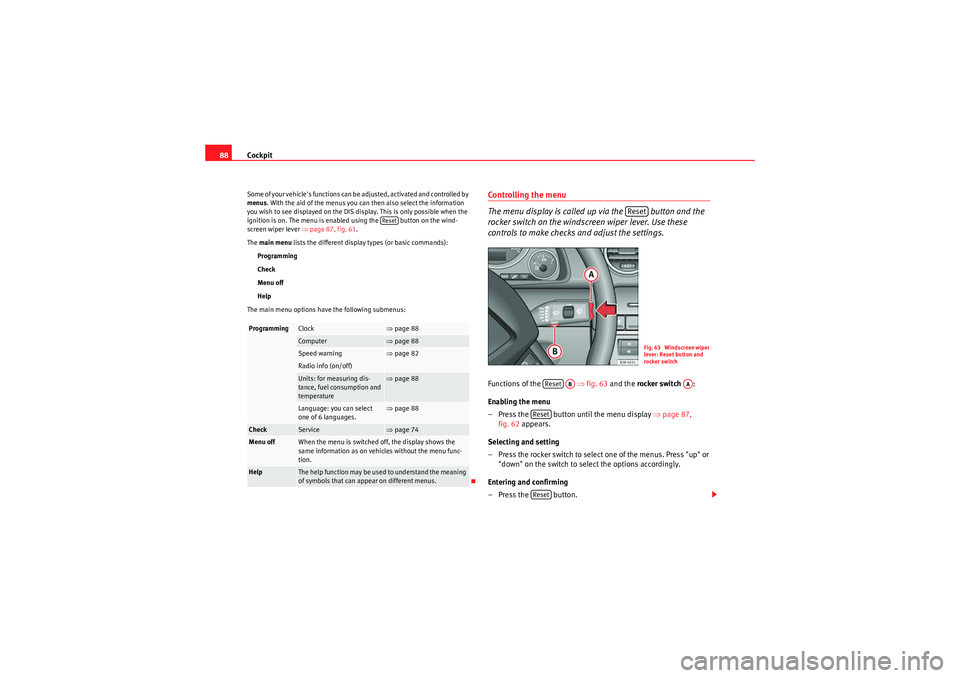
The menu display is called up via the button and the
rocker switch on the windscreen wiper lever. Use these
controls to make checks and adjust the settings.Functions of the ⇒fig. 63 and the rocker switch :
Enabling the menu
– Press the button until the menu display ⇒page 87,
fig. 62 appears.
Selecting and setting
– Press the rocker switch to select one of the menus. Press "up" or "down" on the switch to select the options accordingly.
Entering and confirming
–Press the button.
Programming
Clock
⇒ page 88
Computer
⇒page 88
Speed warning
⇒page 82
Radio info (on/off)Units: for measuring dis-
tance, fuel consumption and
temperature
⇒page 88
Language: you can select
one of 6 languages.
⇒page 88
Check
Service
⇒page 74
Menu off
When the menu is switched off, the display shows the
same information as on vehicles without the menu func-
tion.
Help
The help function may be used to understand the meaning
of symbols that can appear on different menus.
Reset
Reset
Fig. 63 Windscreen wiper
lever: Reset button and
rocker switch
Reset
AB
AA
ResetReset
Exeo_EN.book Seite 88 Freitag, 28. August 2009 10:14 10
Page 93 of 310
Steering wheel controls91
Safety First
Controls and equipment
Practical tips
Technical Data
Steering wheel controlsThe multi-function steering wheelIntroduction
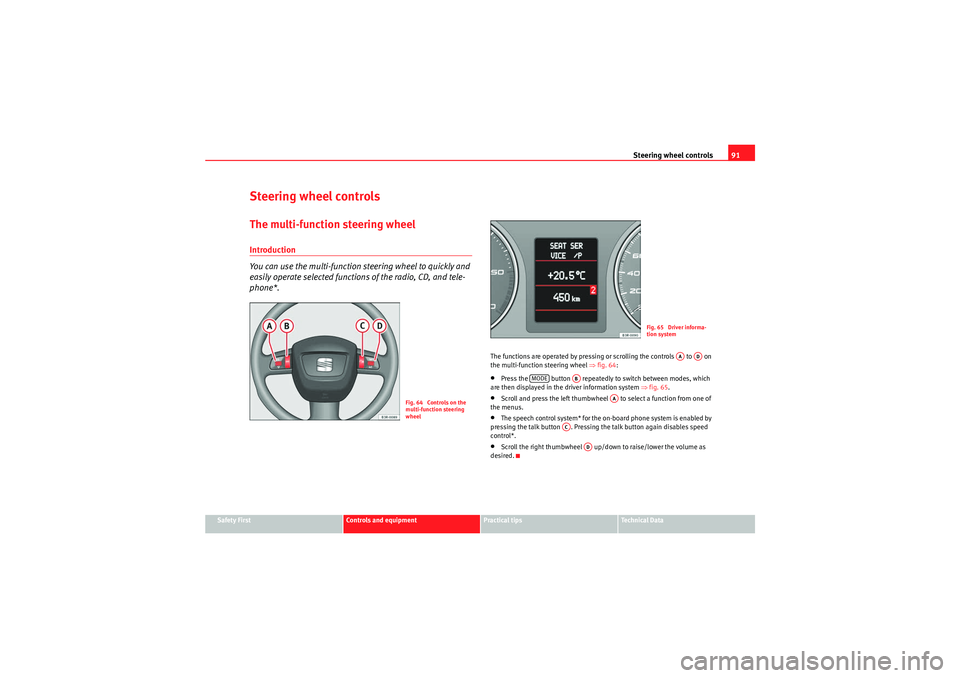
You can use the multi-function steering wheel to quickly and
easily operate selected functions of the radio, CD, and tele-
phone*.
The functions are operated by pressing or scrolling the controls to on
the multi-function steering wheel ⇒fig. 64 :•Press the button repeatedly to switch between modes, which
are then displayed in the driver information system ⇒fig. 65 .•Scroll and press the left thumbwheel to select a function from one of
the menus.•The speech control system* for the on-board phone system is enabled by
pressing the talk button . Pressing the talk button again disables speed
control*.•Scroll the right thumbwheel up/down to raise/lower the volume as
desired.
Fig. 64 Controls on the
multi-function steering
wheel
Fig. 65 Driver informa-
tion system
AA
AD
MODE
AB
AA
AC
AD
Exeo_EN.book Seite 91 Freitag, 28. August 2009 10:14 10
Page 94 of 310
Steering wheel controls
92Steering wheel audio version controls
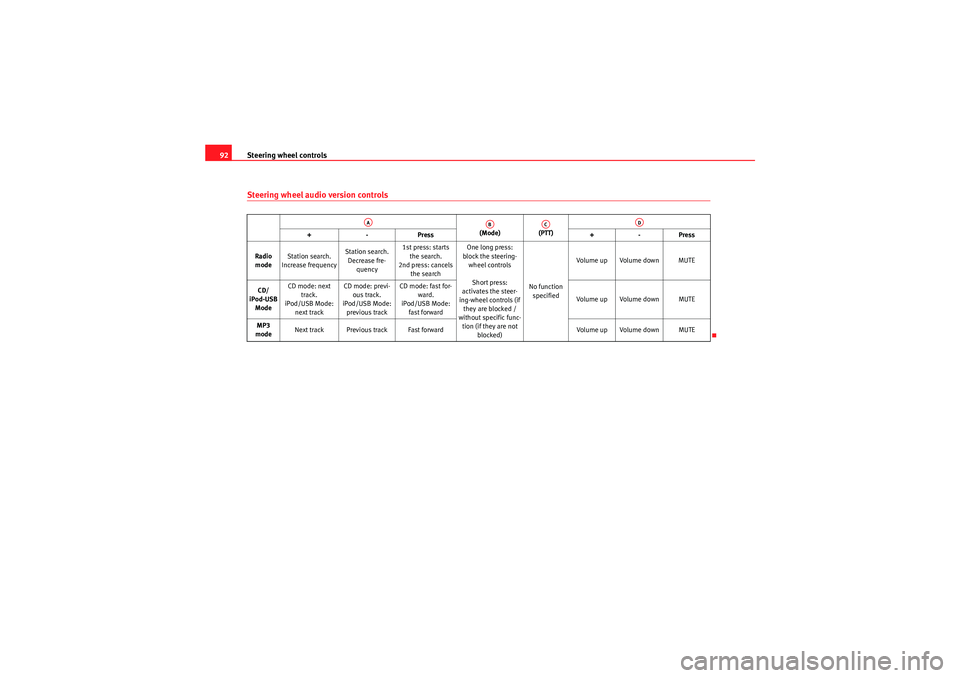
(Mode) (PTT)
+-P re ss +-Pre ss
Radio mode Station search.
Increase frequency Station search.
Decrease fre- quency 1st press: starts
the search.
2nd press: cancels the search One long press:
block the steering- wheel controls
Short press:
activates the steer-
ing-wheel controls (if they are blocked /
without specific func-
tion (if they are not blocked) No function
specified Volume up Volume down MUTE
CD/
iPod-USB Mode CD mode: next
track.
iPod/USB Mode: next track CD mode: previ-
ous track.
iPod/USB Mode: previous track CD mode: fast for-
ward.
iPod/USB Mode: fast forward Volume up Volume down MUTE
MP3
mode Next track Previous track Fast forward
Volume up Volume down MUTE
AA
AB
AC
AD
Exeo_EN.book Seite 92 Freitag, 28. August 2009 10:14 10
Page 95 of 310
Steering wheel controls93
Safety First
Controls and equipment
Practical tips
Technical Data
Steering wheel Audio + Telephone version controls
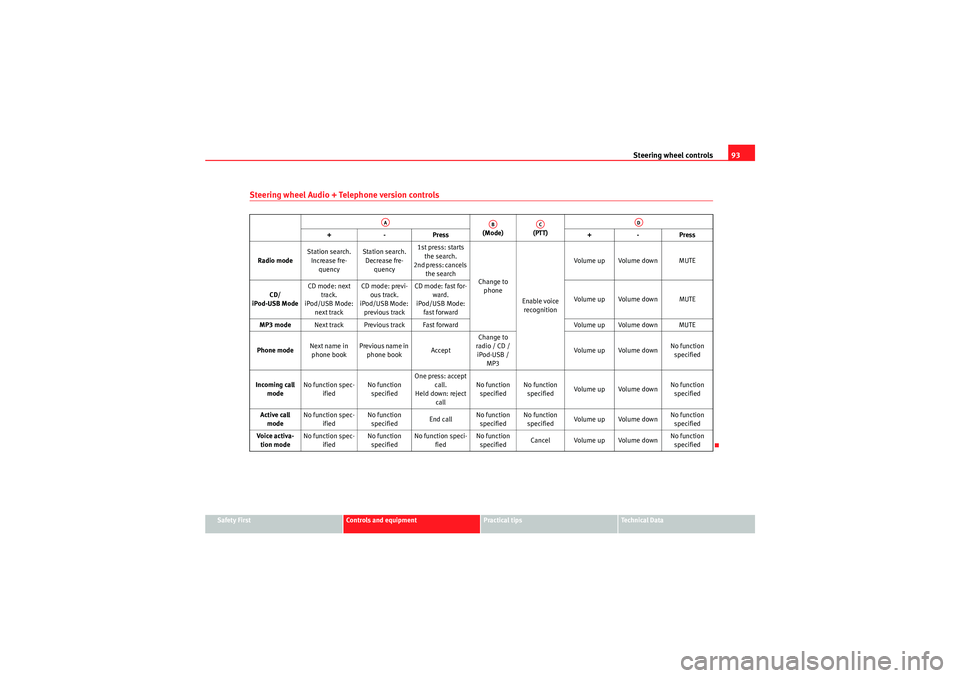
(Mode) (PTT)
+-P re ss +-Pre ss
Radio mode Station search.
Increase fre- quency Station search.
Decrease fre- quency 1st press: starts
the search.
2nd press: cancels the search Change to
phone
Enable voice recognition Volume up Volume down MUTE
CD/
iPod-USB Mode CD mode: next
track.
iPod/USB Mode: next track CD mode: previ-
ous track.
iPod/USB Mode: previous track CD mode: fast for-
ward.
iPod/USB Mode: fast forward Volume up Volume down MUTE
MP3 mode Next track Previous track Fast forward Volume up Volume down MUTE
Phone mode Next name in
phone book Previous name in
phone book AcceptChange to
radio / CD / iPod-USB / MP3 Volume up Volume down
No function
specified
Incoming call mode No function spec-
ified No function
specified One press: accept
call.
Held down: reject call No function
specified No function
specified Volume up Volume down No function
specified
Active call mode No function spec-
ified No function
specified End callNo function
specified No function
specified Volume up Volume down No function
specified
Voice activa- tion mode No function spec-
ified No function
specified No function speci-
fied No function
specified Cancel Volume up Volume down No function
specified
AA
AB
AC
AD
Exeo_EN.book Seite 93 Freitag, 28. August 2009 10:14 10
Page 96 of 310
Steering wheel controls
94Steering wheel controls, Navigation System* version
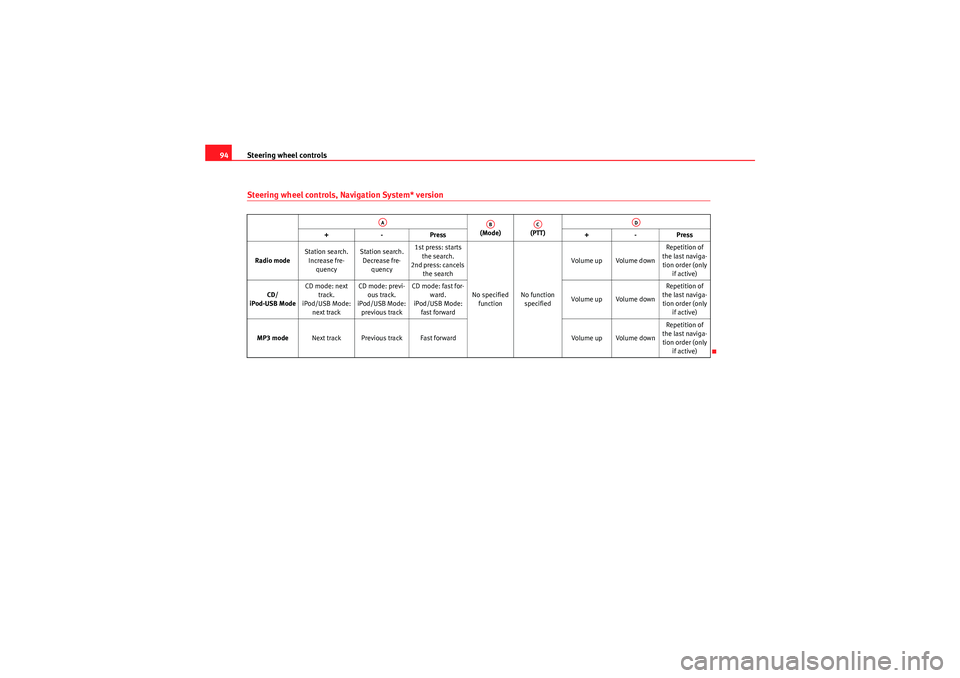
(Mode) (PTT)
+-P re ss +-Pre ss
Radio mode Station search.
Increase fre- quency Station search.
Decrease fre- quency 1st press: starts
the search.
2nd press: cancels the search
No specified function No function
specified Volume up Volume down
Repetition of
the last naviga- tion order (only if active)
CD/
iPod-USB Mode CD mode: next
track.
iPod/USB Mode: next track CD mode: previ-
ous track.
iPod/USB Mode: previous track CD mode: fast for-
ward.
iPod/USB Mode: fast forward Volume up Volume downRepetition of
the last naviga- tion order (only if active)
MP3 mode Next track Previous track Fast forward Volume up Volume downRepetition of
the last naviga- tion order (only if active)
AA
AB
AC
AD
Exeo_EN.book Seite 94 Freitag, 28. August 2009 10:14 10
Page 97 of 310
Steering wheel controls95
Safety First
Controls and equipment
Practical tips
Technical Data
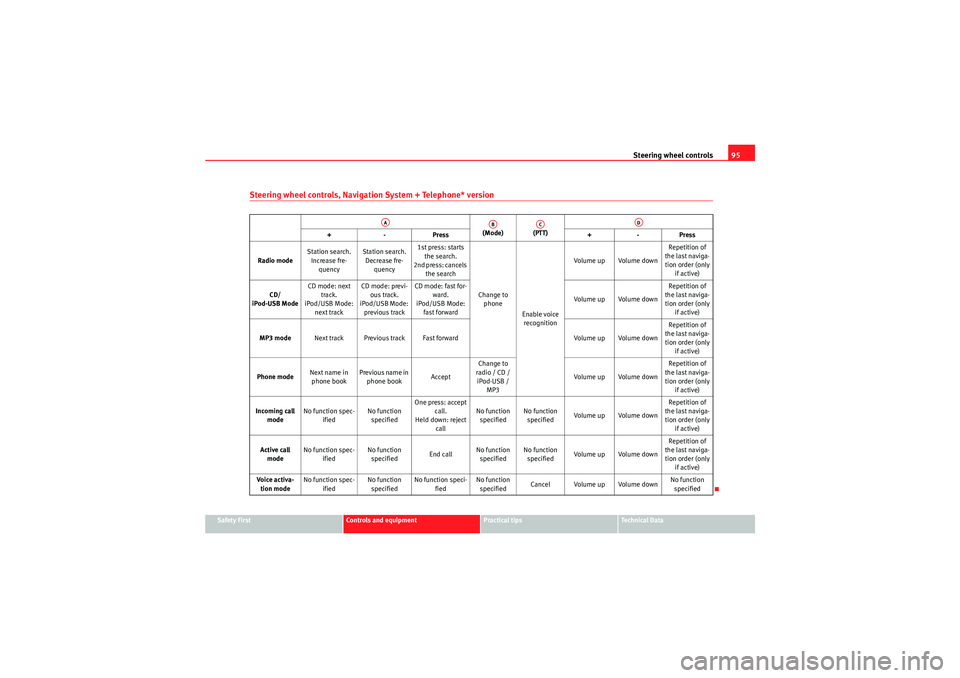
Steering wheel controls, Navigation System + Telephone* version
(Mode) (PTT)
+-P re ss +-Pre ss
Radio mode Station search.
Increase fre- quency Station search.
Decrease fre- quency 1st press: starts
the search.
2nd press: cancels the search
Change to phone
Enable voice recognition Volume up Volume down
Repetition of
the last naviga- tion order (only if active)
CD/
iPod-USB Mode CD mode: next
track.
iPod/USB Mode: next track CD mode: previ-
ous track.
iPod/USB Mode: previous track CD mode: fast for-
ward.
iPod/USB Mode: fast forward Volume up Volume downRepetition of
the last naviga- tion order (only if active)
MP3 mode Next track Previous track Fast forward Volume up Volume downRepetition of
the last naviga- tion order (only if active)
Phone mode Next name in
phone book Previous name in
phone book AcceptChange to
radio / CD / iPod-USB / MP3 Volume up Volume down Repetition of
the last naviga- tion order (only if active)
Incoming call mode No function spec-
ified No function
specified One press: accept
call.
Held down: reject call No function
specified No function
specified Volume up Volume down Repetition of
the last naviga- tion order (only if active)
Active call mode No function spec-
ified No function
specified End callNo function
specified No function
specified Volume up Volume down Repetition of
the last naviga- tion order (only if active)
Voice activa- tion mode No function spec-
ified No function
specified No function speci-
fied No function
specified Cancel Volume up Volume down No function
specified
AA
AB
AC
AD
Exeo_EN.book Seite 95 Freitag, 28. August 2009 10:14 10
Page 107 of 310
Unlocking and locking105
Safety First
Controls and equipment
Practical tips
Technical Data
the current legal requirements. This certification forms the basis for official
approval for use in other countries.
Note
•The remote control is automatically disabled when the ignition is
switched on.•The function of the remote control may be impaired by interference from
other nearby radio signals (e.g. from a mobile phone or TV transmitter) if
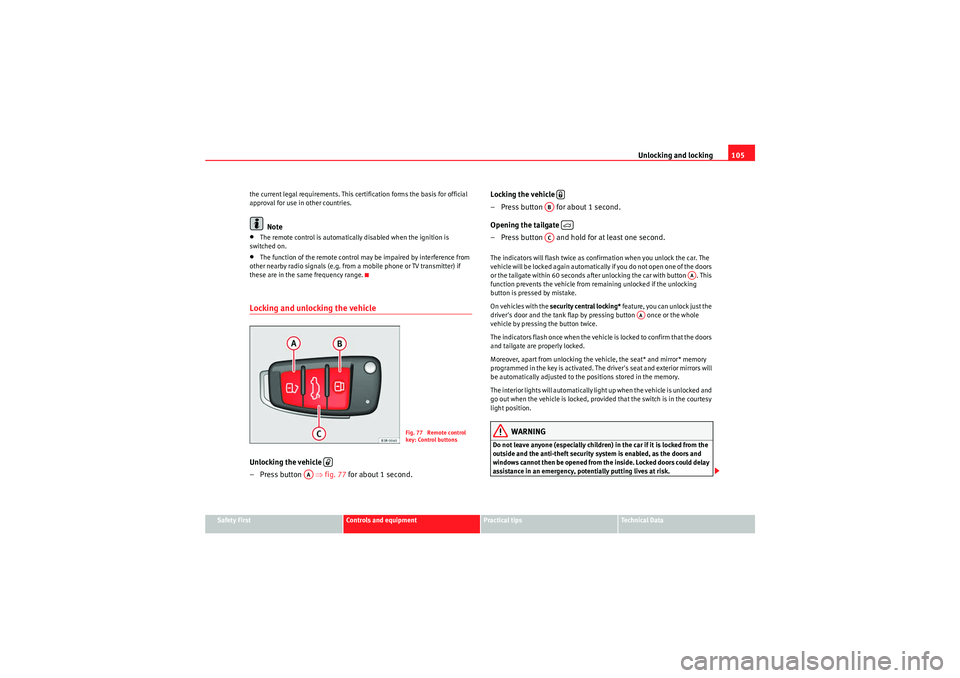
these are in the same frequency range.Locking and unlocking the vehicleUnlocking the vehicle
– Press button ⇒fig. 77 for about 1 second. Locking the vehicle
– Press button for about 1 second.
Opening the tailgate
– Press button and hold for at least one second.
The indicators will flash twice as confirmation when you unlock the car. The
vehicle will be locked again automatically if you do not open one of the doors
or the tailgate within 60 seconds after unlocking the car with button . This
function prevents the vehicle from remaining unlocked if the unlocking
button is pressed by mistake.
On vehicles with the
security central locking* feature, you can unlock just the
driver's door and the tank flap by pressing button once or the whole
vehicle by pressing the button twice.
The indicators flash once when the vehicle is locked to confirm that the doors
and tailgate are properly locked.
Moreover, apart from unlocking the vehicle, the seat* and mirror* memory
programmed in the key is activated. The driver's seat and exterior mirrors will
be automatically adjusted to the positions stored in the memory.
The interior lights will automatically light up when the vehicle is unlocked and
go out when the vehicle is locked, provided that the switch is in the courtesy
light position.
WARNING
Do not leave anyone (especially children) in the car if it is locked from the
outside and the anti-theft security system is enabled, as the doors and
windows cannot then be opened from the inside. Locked doors could delay
assistance in an emergency, potentially putting lives at risk.
Fig. 77 Remote control
key: Control buttons
AA
AB
AC
AA
AA
Exeo_EN.book Seite 105 Freitag, 28. August 2009 10:14 10