radio Seat Exeo ST 2011 MEDIA SYSTEM E
[x] Cancel search | Manufacturer: SEAT, Model Year: 2011, Model line: Exeo ST, Model: Seat Exeo ST 2011Pages: 167, PDF Size: 5.48 MB
Page 86 of 167
Mobile phone system*85
Operating
RADIO, MEDIA (audiovisual
systems)
NAME, TEL
NAV, INFO
CAR, SETUP
When "Automatic answer" is on, an incoming call is answered automatically.
However, you do have the opportunity to quickly select
Reject if you wish to
reject the call.
Voice mailboxStoring the voice mailbox number
– Press the button in a telephone menu.
–Select Voice mailbox number .
– Press the rotary pushbutton to enter the number using the alpha- numeric keyboard.
–Select OK in the alphanumeric keyboard to store the new mailbox
number.
Editing the voice mailbox number
– Press the button in a telephone menu.
–Select Voice mailbox number .
– Press the control knob to edit the number using the alphanu- meric keypad.
–Select OK in the alphanumeric keyboard to store the new voice
mailbox number.
Deleting the voice mailbox number
– Press the button in a telephone menu.
–Select Voice mailbox number . – Press the control knob. The alph
anumeric keyboard will appear.
– Select DEL in the alphanumeric keyboard.
– Press the control knob until the voice mailbox number has been deleted.
– Select OK in the alphanumeric keyboard to confirm deletion of
the number.
If you have stored your voice mailbox number, you can consult it using the
Memory control button ⇒page 78. You can listen to any voice messages left
in your mailbox.
This function must be selected and se t up beforehand. For more information,
contact your service provider.
Note
•You can also use the alphanumeric keyboard to call your voice mailbox
⇒ page 78.•If you are abroad, do not forget to dial the necessary country codes.
SETUPSETUPSETUP
media_systemE_EN.book Seite 85 Montag, 21. September 2009 1:48 13
Page 88 of 167

Mobile phone system*87
Operating
RADIO, MEDIA (audiovisual
systems)
NAME, TEL
NAV, INFO
CAR, SETUP
•Storing name tags (consisting of a name and number) in the phone book
for the speech control system ⇒page 93•Playing the phone book through the speech control system ⇒ page 94
Once you have saved name tags in the phone book for the speech control
system, you can select them via the speech control system.
Entering data
You should choose spoken names that can be identified clearly by the speech
control system.
Numbers from ZERO to NINE are recognised when you enter a telephone
number. The telephone number can be specified all at once, in blocks of
digits (separated by a brief pause), or as single digits. After each block of
digits you specify (separated by a brief pause) the system will repeat the
digits. The system does not recognise number combinations (e.g. "twenty-
three") but separate figures ( TWO, THREE ). Say the numbers clearly so that
the system can recognise them easily.
If you indicate a number of more than twenty figures, the system will respond:
The number is too long . A Plus (+) can also be placed ahead of the number.
If the system does not recognise a phone book entry, you can play back the
name tags (voice entries) on the speech control system by saying the
command PLAY PHONE BOOK . Press the talk button as a name is being read
to select the entry.
The function is not possible
Should the system say The function is not possible, please check the status
of the speech control system:•Is the navigation system on? Is the ignition switched on?•Is the mobile phone connected to the on-board phone system* via Blue-
tooth?•Is the mobile phone inserted in the mobile phone adapter*?•Is the mobile phone switched on and the PIN entered?
•Are the phone book entries being loaded from the mobile phone into the
on-board phone system* ⇒page 92?
media_systemE_EN.book Seite 87 Montag, 21. September 2009 1:48 13
Page 90 of 167
Mobile phone system*89
Operating
RADIO, MEDIA (audiovisual
systems)
NAME, TEL
NAV, INFO
CAR, SETUP
Commands
The speech control system processes speech commands.The system confirms acceptance of speech commands verbally and guides
you through the dialogue.
During the dialogue, you can use the commands REPEAT, BACK , and
DELETE .To ...
Speak this command:
Instruct the system to tell you which
commands are possible while a dia-
logue is active and show them in the
display.
HELP ⇒ page 90
Enter the PIN code for the SIM card.
ENTER PIN ⇒ page 73
Enter a telephone number you want
to dial.
DIAL NUMBER ⇒ page 91
Select the telephone number associ-
ated with a name tag from the phone
book for the speech control system.
SELECT NAME ⇒ page 93
Dial a selected telephone number.
DIAL ⇒ page 91, ⇒page 93
redial the last number dialled.
REDIAL ⇒ page 91
Store a name tag in the speech con-
trol system for a phone book entry
shown in the instrument panel dis-
play.
STORE ⇒ page 92
store a spoken name and telephone
number in the phone book for the
speech control system.
STORE ⇒ page 93
End a dialogue
CANCEL
Repeat a specified name or all of the
digits specified up to this point.
REPEAT
The system prompts you to Please
continue to enter other figures or
commands.
Delete the specified name or the last
entered block of digits.
BACK
The blocks of digits entered previ-
ously will be repeated. The system
prompts you to Please continue to
enter other figures or orders.
Delete all specified digits.
DELETE
The system will then give the cue
The number has been deleted.
Please continue so that you can
enter more figures or give another
command.
store names along with a telephone
number in the phone book for the
speech control system.
STORE NAME ⇒ page 93
delete a name tag from the phone
book for the speech control system.
DELETE NAME ⇒ page 93, or
DELETE PHONE BOOK ⇒ page 94
play back name tags from the phone
book of the speech control system.
PLAY PHONE BOOK ⇒ page 94
delete name tags from the phone
book for the speech control system.
DELETE PHONE BOOK ⇒ page 94
To ...
Speak this command:
media_systemE_EN.book Seite 89 Montag, 21. September 2009 1:48 13
Page 92 of 167
Mobile phone system*91
Operating
RADIO, MEDIA (audiovisual
systems)
NAME, TEL
NAV, INFO
CAR, SETUP
– Give the command CORREC T.If the PIN code is more than 8 digits long, the speech control system will
decline and give the cue The PIN is too long. If the specified PIN code is incor-
rect, the system will say The PIN is incorrect . If the wrong PIN code is entered
three times in a row, the SIM card will be blocked. You can unblock the SIM
card by entering the PUK code (personal unblocking key) via the keypad of
your mobile phone.Dialling a number
A telephone number can be specified to the system and then
dialled.– Switch on the speech control system ⇒page 88.
– Say the command DIAL NUMBER. The speech control system will
ask you to enter a telephone number.
– Say the digits of the telephone number individually or in groups. After each block of digits you specify (separated by a brief pause)
the system will repeat the digits.
–Say DIAL when you have completed the number entry. The tele-
phone number will be dialled.Redialling– Switch on the speech control system ⇒page 88. –Say the command
REDIAL. The last telephone number you used
will be dialled.
Note
On some mobile phones, the number you dialled last is placed at the bottom
of the list. In this case, the redial function of the speech control system
cannot be used.
media_systemE_EN.book Seite 91 Montag, 21. September 2009 1:48 13
Page 94 of 167

Mobile phone system*93
Operating
RADIO, MEDIA (audiovisual
systems)
NAME, TEL
NAV, INFO
CAR, SETUP
Storing a name in the phone book using the speech control system
Name tags, consisting of a name and associated telephone
numbers, can be stored in the phone book using the speech
control system.– Switch on the speech control system ⇒page 88.
– Say the command STORE NAME.
– When requested by the speech control system, please say the name ("tag") under which you wish to store the phone book
entry.
– When requested by the speech control system, repeat the name.
– When requested by the speech control system, say the digits of the corresponding telephone number individually or in groups.
After each block of digits you specify (separated by a brief pause)
the system will repeat the digits.
–Say STORE when you have completed the number entry. The
recorded name (spoken name tag with corresponding phone
number) will be stored in the phone book for the speech control
system.Name tags which you store in the phone book for the speech control system
using the STORE NAME command are not shown in the instrument panel
display.
Note
If two or more names sound alike, it is better to save the names including the
first name or some other distinguishing entry.Selecting a name– Switch on the speech control system ⇒page 88.
–Say the command DIAL NAME.
– When the speech control system gives you the cue, say the name of one of the entries stored in the phone book ⇒page 93.
–Say the command DIAL. The telephone number will be dialled.Recorded names are user-oriented and are best recognised by the system
when the same person who assigned the name repeats the recorded name.Deleting a name– Switch on the speech control system ⇒page 88.
–Say the command DELETE NAME.
– When the speech control system gives you the cue, say the name of one of the entries stored in the phone book ⇒page 93.
media_systemE_EN.book Seite 93 Montag, 21. September 2009 1:48 13
Page 96 of 167
Mobile phone system*95
Operating
RADIO, MEDIA (audiovisual
systems)
NAME, TEL
NAV, INFO
CAR, SETUP
Speech recognition for some countriesStoring name tags in the phone book*
If your vehicle is equipped accordingly, you can assign name
tags to the entries from the SIM card or the mobile phone
directory.
– Press the button on the multi-function steering wheel
⇒fig. 112 to switch to the telephone function. A phone book
entry from the on-board phone memory will appear in the instru-
ment panel display.
– Scroll the left thumbwheel until the desired phone book entry is shown in the instrument panel display.
– Press the talk button on the multi-function steering wheel. You will then hear a beep.
– Say the name ("tag") you wish to save for this phone book entry. You will then hear two beeps.
– Repeat the name. The system will repeat the recorded name and an ascending sequence of tones will confirm that the entry has
been accepted.If the entry was not accepted the system will emit a descending sequence of
tones to request that you enter the name again.
Fig. 112 The multi-func-
tion steering wheel
Fig. 113 Instrument
panel display: Phone
book entry in on-board
phone memory with name
tag assigned
MODE
AB
AC
media_systemE_EN.book Seite 95 Montag, 21. September 2009 1:48 13
Page 98 of 167

Navigation (NAV)*97
Operating
RADIO, MEDIA (audiovisual
systems)
NAME, TEL
NAV, INFO
CAR, SETUP
NAV, INFONavigation (NAV)*General safety precautionsThe driver is completely responsible for traffic safety even
when driving with the navigation system active.Be sure that you always have complete control of your vehicle in all traffic situ-
ations when using navigation system functions.
WARNING
•Today's driving conditions require the full attention of drivers. Please
see ⇒page 6, “Notes on road safety”.•Pay attention to traffic rules when driving. The route calculated by the
navigation system is a recommendation of how best to reach a destination.
If driving instructions run contrary to traffic laws, the traffic laws always
take precedence. Pay attention to traffic lights, no-stopping signs, lane
change restrictions, one-way streets, etc.Caution
The volume of the sound system should be set at a level that enables you to
hear acoustic signals from outside, such as police and fire brigade sirens.
Failure to do so may cause an accident.
IntroductionIntroductionThe SEAT navigation system can help you reach your destination without
spending a lot of time studying maps.
During route guidance you receive information in the navigation system
display ⇒fig. 114 and instrument panel display ⇒page 99, fig. 116
regarding vehicle position, turn-off information (direction and distance to
turn-off), remaining distance to destination and estimated arrival time. Addi-
tionally, you receive spoken navigation information ⇒ page 100.
There are two possibilities for route guidance:•Route without stopover (single destination mode)•Route with stopovers (route plan)
Fig. 114 Navigation:
Example of a map on the
navigation system displa
y
media_systemE_EN.book Seite 97 Montag, 21. September 2009 1:48 13
Page 100 of 167
Navigation (NAV)*99
Operating
RADIO, MEDIA (audiovisual
systems)
NAME, TEL
NAV, INFO
CAR, SETUP
– Wait until you reach one of the countries that is covered by both
DVDs. These countries serve as an overlap zone where you can
change the DVDs.
– Without stopping the route guidance, put the DVD for the country of your destination into the navigation drive once again
⇒page 23. Route guidance will be continued automatically.When navigating with two different DVDs, please note the following:•The destination flag will be displayed to indicate the direct line between
your starting point and your destination.•The system does not process the detailed navigation information on the
DVD which is not being used.•Some countries are covered by both DVDs. We recommend that you
change over the DVDs in good time before leaving this overlap zone.Note
•The packaging of the navigation DVD will indicate which countries are
covered by the DVD.•The traffic infrastructure is subject to changes. Therefore, the information
stored on the navigation DVD may not always correspond exactly to the roads
and other features that you encounter.•You can obtain navigation DVDs from your dealer. Your dealer will also be
able to provide information on updates which are available for the CDs.
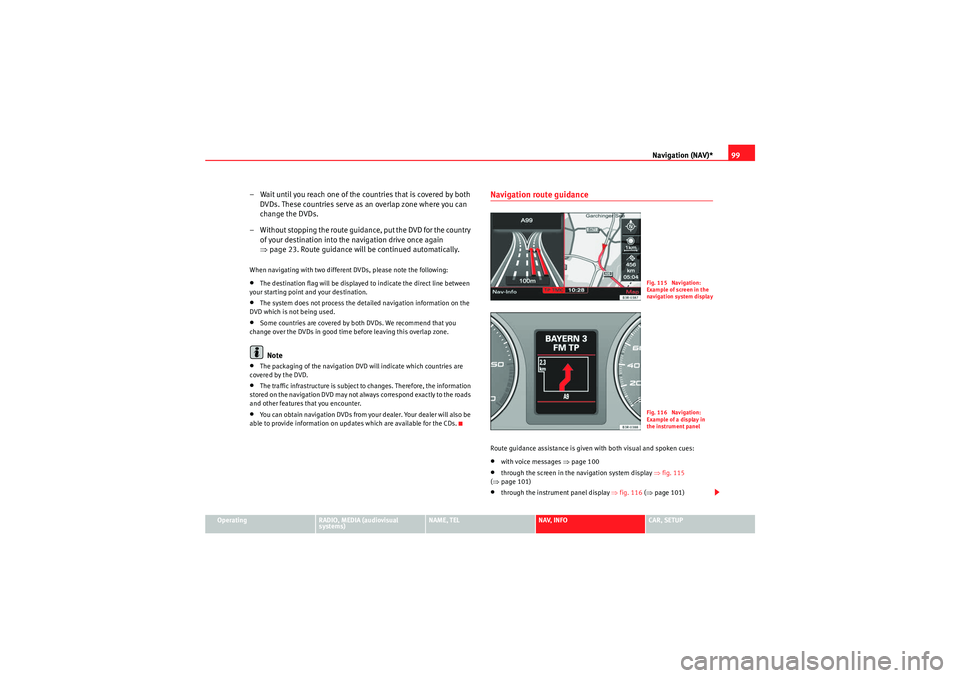
Navigation route guidanceRoute guidance assistance is given with both visual and spoken cues:•with voice messages ⇒page 100•through the screen in the navigation system display ⇒fig. 115
( ⇒ page 101)•through the instrument panel display ⇒fig. 116 (⇒ page 101)
Fig. 115 Navigation:
Example of screen in the
navigation system displa
y
Fig. 116 Navigation:
Example of a display in
the instrument panel
media_systemE_EN.book Seite 99 Montag, 21. September 2009 1:48 13
Page 101 of 167

Navigation (NAV)*
100
Note•If you do not follow the calculated route or if you leave the route, the
system will automatically calculate a new route plan based on your current
location.•You can also start a route guidance in demo mode ⇒page 139 for simu-
lation purposes.Navigation system voice guidanceRoute calculation is announced with a voice message. During this time, “The
route is being calculated” is shown on the navigation system display and
“CALC” is shown on the instrument panel display.
When route calculation is complete, guidance is given by spoken driving
instructions and symbols. Driving recommendations are always made with
eno ugh time to make a turn. An announcement is made in different stages in
preparation for a change of direction.
You can use the following options to repeat the last navigation voice
message:•Press the Nav-Info control button ⇒page 130 if you are not in the Nav-
Info submenu or•Press the right thumbwheel on the multi-function steering wheel*
⇒ page 12.
You can change the language for the voice messages if desired ⇒ page 154.Caution
If driving instructions run contrary to traffic laws, the traffic laws always take
precedence.
Note
•You can adjust the volume of the voice guidance prompts as they are
being announced using the on/off button ⇒page 9 on the navigation control
console or the right thumbwheel on the multi-function steering wheel*
⇒ page 12.•If the vehicle is in a location which cannot be read by the navigation
system (car park, garage), a voice message will inform you.Dynamic navigation
The dynamic navigation function calculates routes based on
the currently available TMC traffic messages.These TMC traffic messages are sent by TMC (Traffic Message Channel) radio
stations in addition to regular programming and are received and processed
by the navigation system. The reception of TMC traffic messages is free of
charge in Germany.
If the dynamic navigation function ⇒page 121 is activated, the system
constantly checks if relevant TMC messages are available for the set route. If
the navigation system then determines that a TMC traffic message is relevant
for the current route, the system will automatically calculate a new route plan
to the destination.
Note
•The quality of the dynamic navigation function depends largely on the
quality of the TMC traffic messages. Please note that the TMC messages sent
by the radio stations may not always be complete and correct.•For more information regarding TMC traffic messages, please refer to
⇒ page 141.
media_systemE_EN.book Seite 100 Montag, 21. September 2009 1:48 13
Page 102 of 167

Navigation (NAV)*101
Operating
RADIO, MEDIA (audiovisual
systems)
NAME, TEL
NAV, INFO
CAR, SETUP
Representation of maps on the navigation system display
A comprehensive route will be shown graphically on a map on
the display.– Press the Map control button ⇒page 123 from the navigation
menu. The route will be displayed on a map ⇒fig. 117 .In addition to the route guidance, you can also display detailed information
about your route on the map. Settings can be entered directly on the map
⇒page 124 and in Navigation Setup ⇒page 131 to display the map.
If you are navigating without stopovers, you can select from up to three routes
⇒ page 113. Detailed route information is also available.
If you are navigating with stopovers, you are shown the entire route with all
stopovers and detailed route information in an overview ⇒page 114.
You can also use the map as presented in the navigation system display to
enter a destination ⇒ page 111.
Route guidance on the instrument panel display*After you have entered a route and begun navigating, guidance to your desti-
nation will also be shown on the instrument panel display
(⇒ fig. 118/ ⇒fig. 119 ).
Fig. 117 Navigation:
Example of a map on the
navigation system display
Fig. 118 Instrument
panel display: Example of
route guidanceFig. 119 Instrument
panel display: Example of
route guidance (turn-off)
media_systemE_EN.book Seite 101 Montag, 21. September 2009 1:48 13