display Seat Ibiza 2017 MEDIA SYSTEM PLUS - NAVI SYSTEM
[x] Cancel search | Manufacturer: SEAT, Model Year: 2017, Model line: Ibiza, Model: Seat Ibiza 2017Pages: 88, PDF Size: 2.34 MB
Page 21 of 88
Audio and Media Mode
Digital radio mode (DAB, DAB+ and
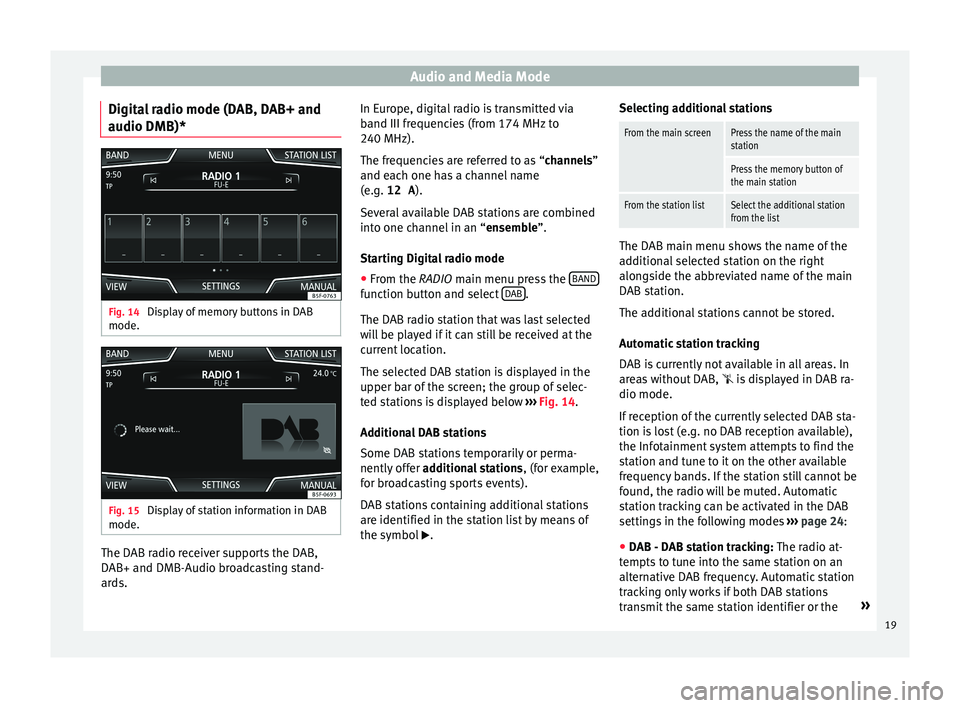
audio DMB)* Fig. 14
Display of memory buttons in DAB
mode. Fig. 15
Display of station information in DAB
mode. The DAB radio receiver supports the DAB,
D
AB+ and DMB-Audio br
o
adcasting stand-
ards. In Europe, digital radio is transmitted via
band III frequenc
ies (from 174 MHz to
240 MHz).
The frequencies are referred to as “channels”
and each one has a channel name
(e.g. 12 A ).
Several available DAB stations are combined
into one channel in an “ensemble”.
Starting Digital radio mode ● From the RADIO main menu pre
ss the BAND function button and select
D
AB .
The D AB r
a
dio station that was last selected
will be played if it can still be received at the
current location.
The selected DAB station is displayed in the
upper bar of the screen; the group of selec-
ted stations is displayed below ››› Fig. 14.
Additional DAB stations
Some DAB stations temporarily or perma-
nently offer additional stations , (for example,
for broadcasting sports events).
DAB stations containing additional stations
are identified in the station list by means of
the symbol . Selecting additional stations
From the main screenPress the name of the main
station
Press the memory button of
the main station
From the station listSelect the additional station
from the list
The DAB main menu shows the name of the
ad
dition
al selected station on the right
alongside the abbreviated name of the main
DAB station.
The additional stations cannot be stored.
Automatic station tracking
DAB is currently not available in all areas. In
areas without DAB,
is displayed in DAB ra-
dio mode.
If reception of the currently selected DAB sta-
tion is lost (e.g. no DAB reception available),
the Infotainment system attempts to find the
station and tune to it on the other available
frequency bands. If the station still cannot be
found, the radio will be muted. Automatic
station tracking can be activated in the DAB
settings in the following modes ›››
page 24:
● DAB - DAB station tracking: The ra dio at
-
tempts to tune into the same station on an
alternative DAB frequency. Automatic station
tracking only works if both DAB stations
transmit the same station identifier or the »
19
Page 22 of 88
Audio and Media Mode
DAB signal indicates the corresponding other
D AB s
t
ation.
● Automatic DAB - FM switching: The radio
att
empts to tune into the same station on the
FM frequency band. Automatic station track-
ing only works if the DAB station and the FM
station transmit the same station identifier or
the DAB signal indicates the corresponding
FM station. Once the corresponding FM sta-
tion has been found, “FM” is displayed after
the station name. When reception for the cor-
responding DAB station returns, after a short
time the unit will switch back to DAB mode
and “FM” will no longer be displayed.
● Switch to a similar station: This al
lows
service providers to indicate alternative sta-
tions with similar content. This way, if the ra-
dio loses reception of a DAB station and can-
not find an alternative frequency for it on FM
or DAB, there is a possibility of tuning in to a
station with similar content.
Radio text
Some stations also broadcast additional text
information known as radio text.
Radio text is displayed in the upper half of
the screen above the memory buttons
››› Fig. 14 or on the Station information or Ra-
dio text screens of the Screen view menu
››› page 20.
The radio text display can be deactivated in
DAB settings ››› page 24. Slideshow
Some station
s broadcast images for addi-
tional visual information.
These images are displayed as a slideshow
on the Station information or
Slide
sho
w screens
of the
Screen view menu ›
›
› page 20.
The slideshow can be viewed in full screen by
pressing on the current image.
Screen view menu
The function buttons refer to the menu that
appears when the View button is pressed
› ›
›
Fig. 14.
Function button: function
Preset list: Memory buttons display ››› Fig. 14.
Station information: Simultaneous display of radio text and
slideshows instead of the memory buttons ››› Fig. 15.
Radio text: Radio text is displayed instead of memory
buttons.
Slideshow: The slideshows are displayed in full screen. Note
● Not a l
l DAB stations broadcast radio text
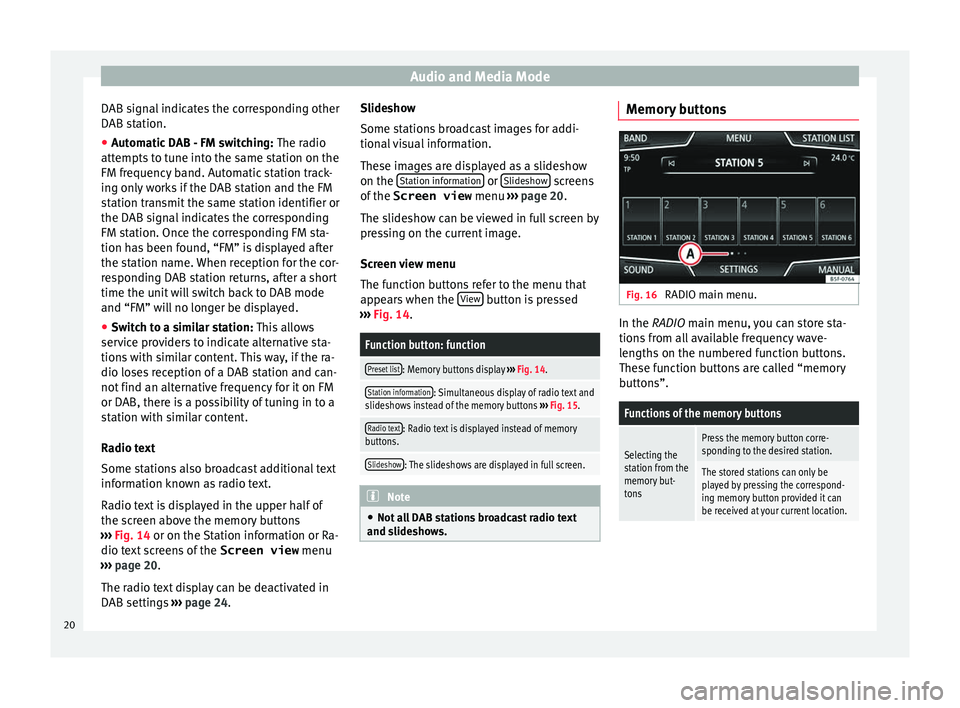
and slideshows. Memory buttons
Fig. 16
RADIO main menu. In the RADIO m
ain menu,
y
ou can store sta-
tions from all available frequency wave-
lengths on the numbered function buttons.
These function buttons are called “memory
buttons”.
Functions of the memory buttons
Selecting the
station from the
memory but-
tonsPress the memory button corre-
sponding to the desired station.
The stored stations can only be
played by pressing the correspond-
ing memory button provided it can
be received at your current location. 20
Page 23 of 88
Audio and Media ModeFunctions of the memory buttons
Switching be-
tween memory
banks
Move your finger over the screen
from left to right or vice-versa.
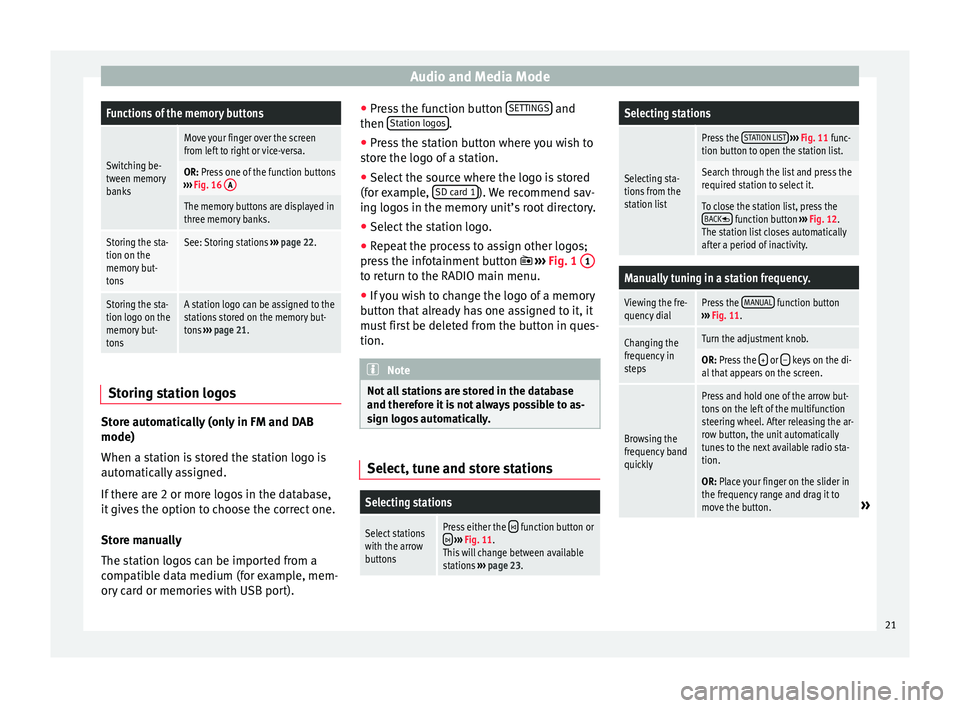
OR: Press one of the function buttons
››› Fig. 16 A
The memory buttons are displayed in
three memory banks.
Storing the sta-
tion on the
memory but-
tonsSee: Storing stations
››› page 22.
Storing the sta-
tion logo on the
memory but-
tonsA station logo can be assigned to the
stations stored on the memory but-
tons ››› page 21. Storing station logos
Store automatically (only in FM and DAB
mode)
When a s
t
ation i
s stored the station logo is
automatically assigned.
If there are 2 or more logos in the database,
it gives the option to choose the correct one.
Store manually
The station logos can be imported from a
compatible data medium (for example, mem-
ory card or memories with USB port). ●
Pres
s the function button SETTINGS and
then St
ation log
o
s .
● Press the station button where you wish to
s t
or
e the logo of a station.
● Select the source where the logo is stored
(for ex
ample, SD card 1 ). We recommend sav-
in g log
o
s in the memory unit’s root directory.
● Select the station logo.
● Repeat the process to assign other logos;
pres
s the infotainment button ››› Fig. 1 1 to return to the RADIO main menu.
●
If you wish to change the logo of a memory
b utt
on th
at already has one assigned to it, it
must first be deleted from the button in ques-
tion. Note
Not all stations are stored in the database
and theref or
e it is not always possible to as-
sign logos automatically. Select, tune and store stations
Selecting stations
Select stations
with the arrow
buttonsPress either the function button or
››› Fig. 11.
This will change between available
stations ››› page 23.
Selecting stations
Selecting sta-
tions from the
station list
Press the STATION LIST
››› Fig. 11 func-
tion button to open the station list.
Search through the list and press the
required station to select it.
To close the station list, press the BACK function button ››› Fig. 12.
The station list closes automatically
after a period of inactivity.
Manually tuning in a station frequency.
Viewing the fre-
quency dialPress the MANUAL function button
››› Fig. 11.
Changing the
frequency in
stepsTurn the adjustment knob.
OR: Press the + or – keys on the di-
al that appears on the screen.
Browsing the
frequency band
quickly
Press and hold one of the arrow but-
tons on the left of the multifunction
steering wheel. After releasing the ar-
row button, the unit automatically
tunes to the next available radio sta-
tion.
OR: Place your finger on the slider in
the frequency range and drag it to
move the button.
» 21
Page 24 of 88
Audio and Media ModeManually tuning in a station frequency.
Hiding the fre-
quency band
Briefly press the adjustment knob
››› Fig. 1 7.
Manual frequency selection is also
closed if you select a station with a
memory button. If no operation is
performed, the frequency range will
disappear after a period of inactivity.
Storing stations
Storing the sta-
tion that is cur-
rently being lis-
tened to.Press and hold
the desired memory
button ››› Fig. 11 until an audible sig-
nal is heard.
The station tuned in will be stored on
this memory button.
Storing a sta-
tion on the list
of stations
Press the STATION LIST
››› Fig. 11 func-
tion button to open the station list.
The stations that are already stored
on a memory button are marked on
the station list with the symbol
››› Fig. 12.
Select the desired station by press-
ing and holding it on the screen. A
screen will appear to store the sta-
tion on the memory buttons.
Press the memory button where the
station is to be stored.
An audible signal is heard and the
station is stored on the memory but-
ton. To continue storing other sta-
tions from the list, repeat the proc-
ess.
Storing stations
Deleting stored
stationsAll the stored stations can be deleted
together or separately from the FM,
AM, DAB Setup menu
››› page 23. SCAN function
When the scan function is active, all availa-
bl
e s
tations on the current frequency band
are played in sequence for approximately 5
seconds each.
Starting and stopping the scan function
Starting the scan
functionPress the SETTINGS function button
and then select SCAN.
Stopping the
scan function
Press the function button to
stop the scan function at the station
that is currently playing.
Manually selecting a station with
the memory buttons or changing the
screen also stops the scan function. Traffic news (TP)
Traffic information tracking with the TP func-
tion i
s
on
ly possible if the station is availa-
ble. The stations with the traffic information
function are indicated in the RADIO main menu and in the list of stations by the
TP
symbol ›
›› Fig. 11 and ››› Fig. 12.
Some stations that do not broadcast their
own traffic information support the TP func-
tion by broadcasting traffic warnings from
other stations (EON).
Switching the TP function on and off
● Using the Setup (FM, AM, DAB) menu,
activate
or deactivate the
Traffic programme (TP) by pressing it
› ›
›
page 23.
Active TP function and station selection
Traffic warnings are played in Audio mode.
If a station is selected without the TP func-
tion in FM mode, the radio tries to find sta-
tions with this function in the background. If
no station is found, this will be indicated half
way up the left of the screen .
In AM mode or media mode, the unit will al-
ways automatically tune to a traffic news sta-
tion in the background, provided that one is
available. This procedure may take some
time, depending on the situation.
Incoming traffic announcement
In active Audio mode, an incoming traffic an-
nouncement will play automatically.
During the traffic announcement, a pop-up
window is displayed and the radio changes,
22
Page 29 of 88
Audio and Media Mode
stored on the data medium at the locations
r ef
err
ed to by the playlist (relative file paths).
A cover can only be displayed when the name
starts with “Cover”, “Folder” or “Album”. Note
● Do not u se memor
y card adapters.
● SEAT assumes no liability for any deteriora-
tion or loss
of files on data storage devices. Playing order of files and folders
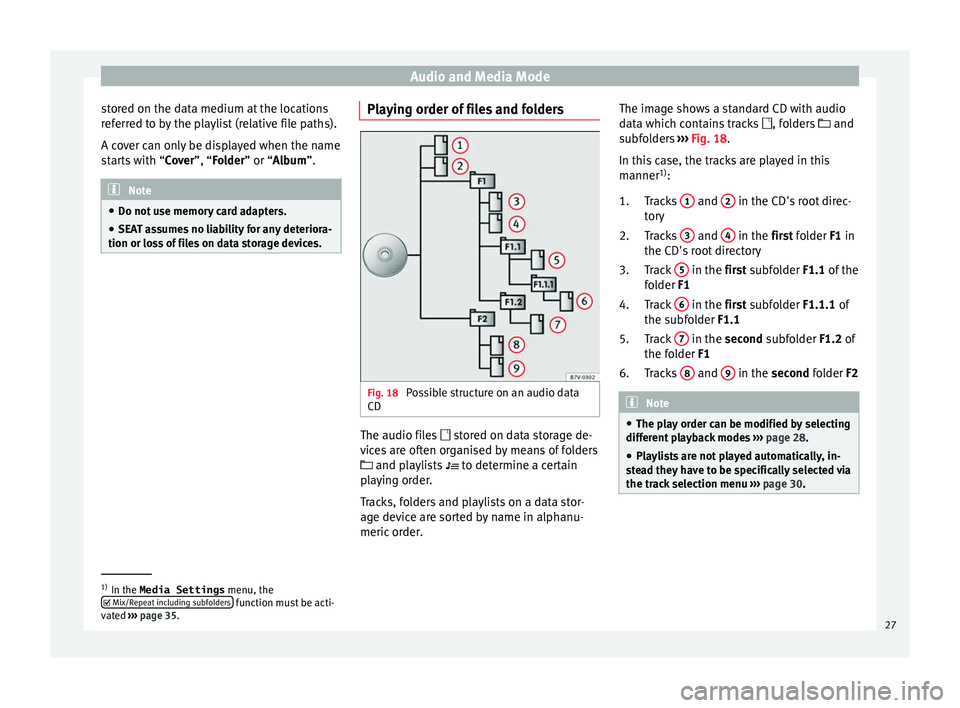
Fig. 18
Possible structure on an audio data
CD The audio files
st
or
ed on data storage de-
vices are often organised by means of folders
and playlists
to determine a certain
playing order.
Tracks, folders and playlists on a data stor-
age device are sorted by name in alphanu-
meric order. The image shows a standard CD with audio
data whic
h contains tracks , folders and
subfolders ››› Fig. 18.
In this case, the tracks are played in this
manner 1)
:
Tracks 1 and
2 in the CD's root direc-
t or
y
T
racks 3 and
4 in the fir
st folder F1 in
the CD's r
oot directory
Track 5 in the fir
st subfolder F1.1 of the
f o
lder F1
Track 6 in the fir
st subfolder F1.1.1 of
the s ubf
older F1.1
Track 7 in the sec
ond subfolder F1.2 of
the f o
lder F1
Tracks 8 and
9 in the sec
ond folder F2 Note
● The pl a
y order can be modified by selecting
different playback modes ››› page 28.
● Playlists are not played automatically, in-
ste
ad they have to be specifically selected via
the track selection menu ››› page 30. 1.
2.
3.
4.
5.
6.
1)
In the Media Settings menu, the
Mix/R epe
at including subfolders function must be acti-
vat ed ›
›› page 35.
27
Page 30 of 88
Audio and Media Mode
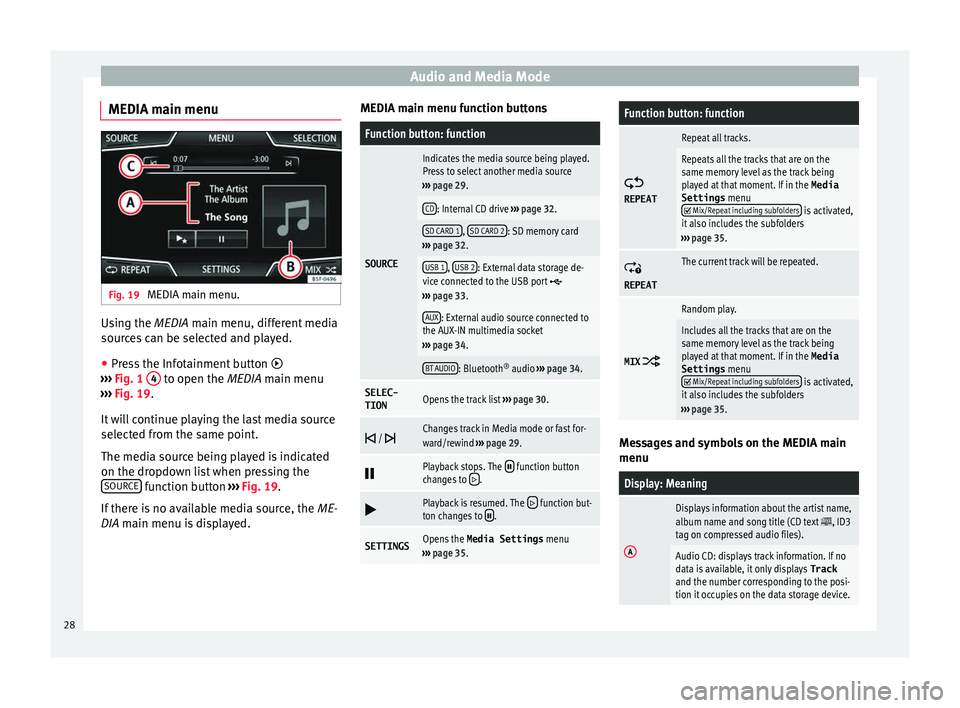
MEDIA main menu Fig. 19
MEDIA main menu. Using the MEDIA m
ain menu, diff
er ent media
sources can be selected and played.
● Press the Infotainment button
›››
Fig. 1 4 to open the MEDIA m
ain menu
› ›
› Fig. 19.
It will continue playing the last media source
selected from the same point.
The media source being played is indicated
on the dropdown list when pressing the SOURCE function button
››
›
Fig. 19.
If there is no available media source, the ME-
DIA main menu is displayed. MEDIA main menu function buttons
Function button: function
SOURCE
Indicates the media source being played.
Press to select another media source
››› page 29.
CD: Internal CD drive ››› page 32.
SD CARD 1, SD CARD 2: SD memory card
››› page 32.
USB 1, USB 2: External data storage de-
vice connected to the USB port ››› page 33.
AUX: External audio source connected to
the AUX-IN multimedia socket
››› page 34.
BT AUDIO: Bluetooth ®
audio ››› page 34.
SELEC-
TIONOpens the track list ››› page 30.
/ Changes track in Media mode or fast for-
ward/rewind
››› page 29.
Playback stops. The function button
changes to .
Playback is resumed. The function but-
ton changes to .
SETTINGSOpens the Media Settings menu
››› page 35.
Function button: function
REPEAT
Repeat all tracks.
Repeats all the tracks that are on the
same memory level as the track being
played at that moment. If in the
Media
Settings menu
Mix/Repeat including subfolders is activated,
it also includes the subfolders
››› page 35.
REPEAT
The current track will be repeated.
MIX
Random play.
Includes all the tracks that are on the
same memory level as the track being
played at that moment. If in the Media
Settings menu
Mix/Repeat including subfolders is activated,
it also includes the subfolders
››› page 35. Messages and symbols on the MEDIA main
menu
Display: Meaning
A
Displays information about the artist name,
album name and song title (CD text , ID3
tag on compressed audio files).
Audio CD: displays track information. If no
data is available, it only displays Track
and the number corresponding to the posi-
tion it occupies on the data storage device. 28
Page 31 of 88
Audio and Media ModeDisplay: Meaning
B
Viewing the album cover: If there are vari-
ous covers within the same folder/album,
the system only displays one of them.
It prioritizes displaying the covers in the fol-
lowing manner:
1. Cover embedded in the file(s).
2. Image in file folder.
3. Default icon for the connected device.
C
The playing time so far and time remaining
in minutes and seconds. In the case of au-
dio files with variable bit rates (VBR) the re-
maining time may vary.
TP
a)The TP function is active and can be tuned
in
››› page 22.
a)There is no traffic news station available
››› page 22.
a)
Depends on the market and unit in question. Note
● When the media sour c
e is inserted, playing
will not start automatically; it is necessary for
the user to select the source. Nor will the me-
dia source change when it is ejected. Change the media source
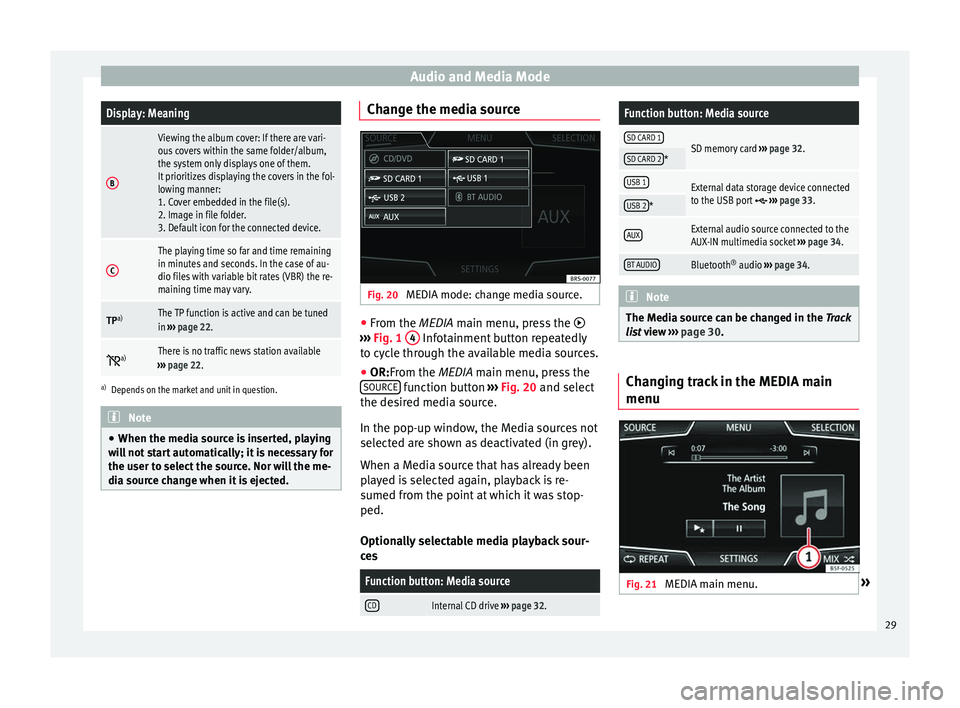
Fig. 20
MEDIA mode: change media source. ●
From the MEDIA m ain menu, pr
e
ss the
››› Fig. 1 4 Infotainment button repeatedly
t o cy
c
le through the available media sources.
● OR:From the MEDIA main menu, press the
SOURCE function button
››
›
Fig. 20 and select
the desired media source.
In the pop-up window, the Media sources not
selected are shown as deactivated (in grey).
When a Media source that has already been
played is selected again, playback is re-
sumed from the point at which it was stop-
ped.
Optionally selectable media playback sour-
ces
Function button: Media source
CDInternal CD drive ››› page 32.
Function button: Media source
SD CARD 1SD memory card ››› page 32.SD CARD 2*
USB 1External data storage device connected
to the USB port ››› page 33.USB 2*
AUXExternal audio source connected to the
AUX-IN multimedia socket ››› page 34.
BT AUDIOBluetooth ®
audio ››› page 34. Note
The Media source can be changed in the Tr ac
k
list view ››› page 30. Changing track in the MEDIA main
menu
Fig. 21
MEDIA main menu. » 29
Page 32 of 88
Audio and Media Mode
It is possible to browse through the tracks of
the M edi
a sour
ce that is currently playing us-
ing the arrow buttons.
It is not possible to exit a playlist or start the
playback of a playlist using the arrow but-
tons. Both actions must be performed man-
ually from the track selection menu
››› page 31.
Controlling playback via the MEDIA main
menu
ActionFunction
Briefly press the func-
tion button once.
Goes to the start of the cur-
rent track. If the track has
been playing for less than 3
seconds, it skips to the be-
ginning of the previous
track.
Quickly press the func-
tion button twice.If the track has been play-
ing for more than 3 sec-
onds, it skips to the begin-
ning of the previous track;
from the first track it skips
to the last track on the data
storage device being
played.
Briefly press the func-
tion button once.Goes to the next track. It
changes from the previous
track to the first track of the
data storage device being
played.
Press and hold the function button.Fast rewind.
ActionFunction
Press and hold the function button.Fast forward.
Slide your finger horizon-
tally across the screen.
Changes to the previ-
ous/next track, respecting
the same playing times as
when changing tracks with
the
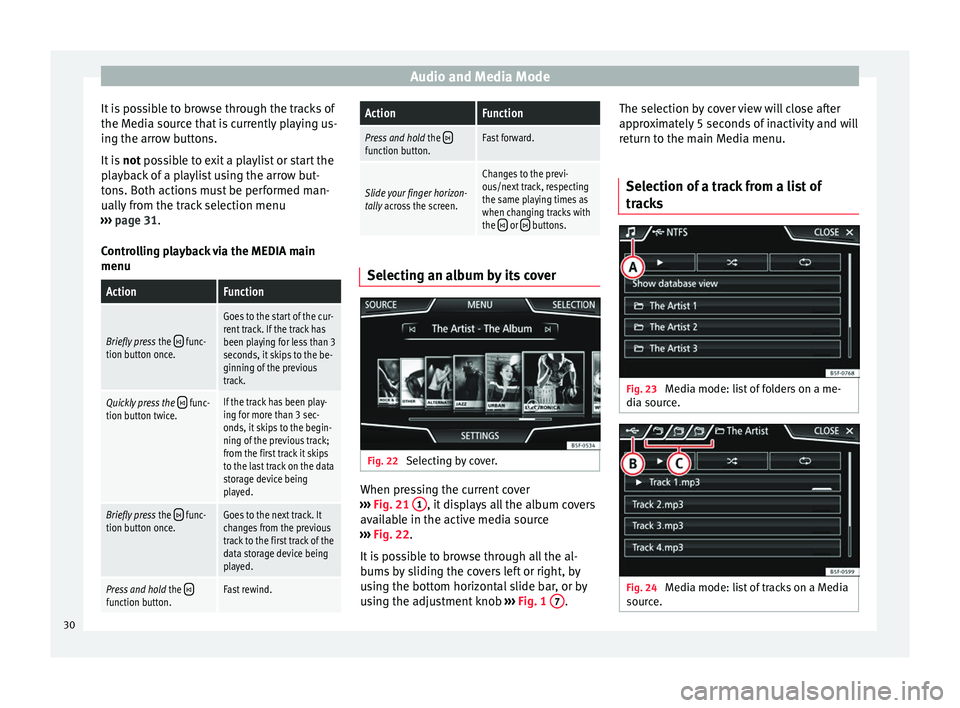
or buttons. Selecting an album by its cover
Fig. 22
Selecting by cover. When pressing the current cover
› ›
›
Fig. 21 1 , it displays all the album covers
av ai
l
able in the active media source
››› Fig. 22.
It is possible to browse through all the al-
bums by sliding the covers left or right, by
using the bottom horizontal slide bar, or by
using the adjustment knob ›››
Fig. 1 7 .The selection by cover view will close after
ap
pr
o
ximately 5 seconds of inactivity and will
return to the main Media menu.
Selection of a track from a list of
track
s Fig. 23
Media mode: list of folders on a me-
di a sour
c
e. Fig. 24
Media mode: list of tracks on a Media
sour c
e. 30
Page 33 of 88
Audio and Media Mode
Opening a track list
● From the MEDIA m ain menu, pr
e ss the
SELECTION
› ››
Fig. 21
function button to open
the track list. The track that is currently play-
ing is highlighted ››› Fig. 24.
● Search through the track list and press the
desir
ed track.
If there is information available on the track,
the track is displayed (for audio CDs) or the
name of the file (MP3), rather than Track +
number .
Overview of the function buttons on the track
list
Function button: function
AOpen the Sources menu. Select another
Media source by pressing it.
B
Indicates the media source being explored.
If pressed it goes to the root folder of the
device indicated on the icon.
CD: Internal CD drive ››› page 32.
SD CARD 1, SD CARD 2*: SD memory card
››› page 32.
USB 1, USB 2*: External data storage device
connected to the USB port ››› page 33.
BT AUDIO: External media player connected
by Bluetooth ®
››› page 34.
AUX: Audio source connected to the AUX-IN
socket ››› page 34
Function button: function
CPress the function button to open the top
folder of the media source.
Starts playback of the first track.
Repeat all tracks.
Repeats all the tracks that are on the same
memory level as the track being played at
that moment. If in the
Media Settings
menu
Mix/Repeat including subfolders is acti-
vated, it also includes the subfolders
››› page 35.
Random play.
Includes all the tracks that are on the same
memory level as the track being played at
that moment. If in the
Media Settings
menu
Mix/Repeat including subfolders is acti-
vated, it also includes the subfolders
››› page 35.
CLOSE ×To close the track list. Note
The tracks, folders and playlists can also be
select ed b
y turning the setup button, and can
be played or opened by pressing it. Database view
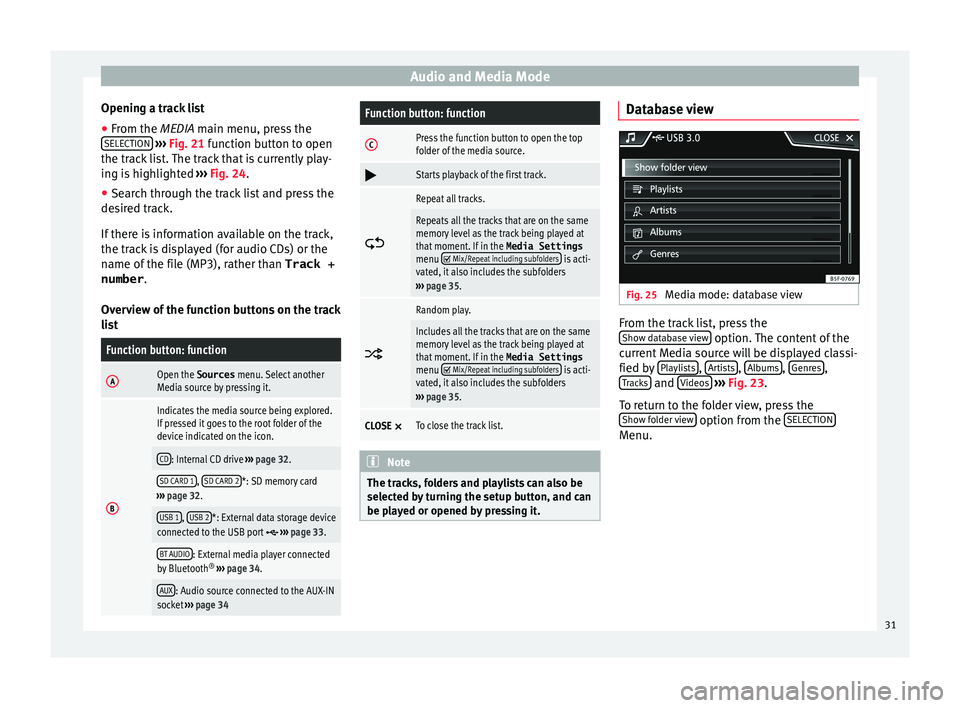
Fig. 25
Media mode: database view From the track list, press the
Sho w d
at
abase view option. The content of the
c urr
ent
Media source will be displayed classi-
fied by Playlists ,
Ar
ti
s
ts ,
A
l
b ums ,
Genr
e
s ,
T r
ac
ks and
V
ideo
s
› ›
› Fig. 23 .
To return to the folder view, press the Show folder view option from the
S
ELE
CTION Menu.
31
Page 34 of 88
Audio and Media Mode
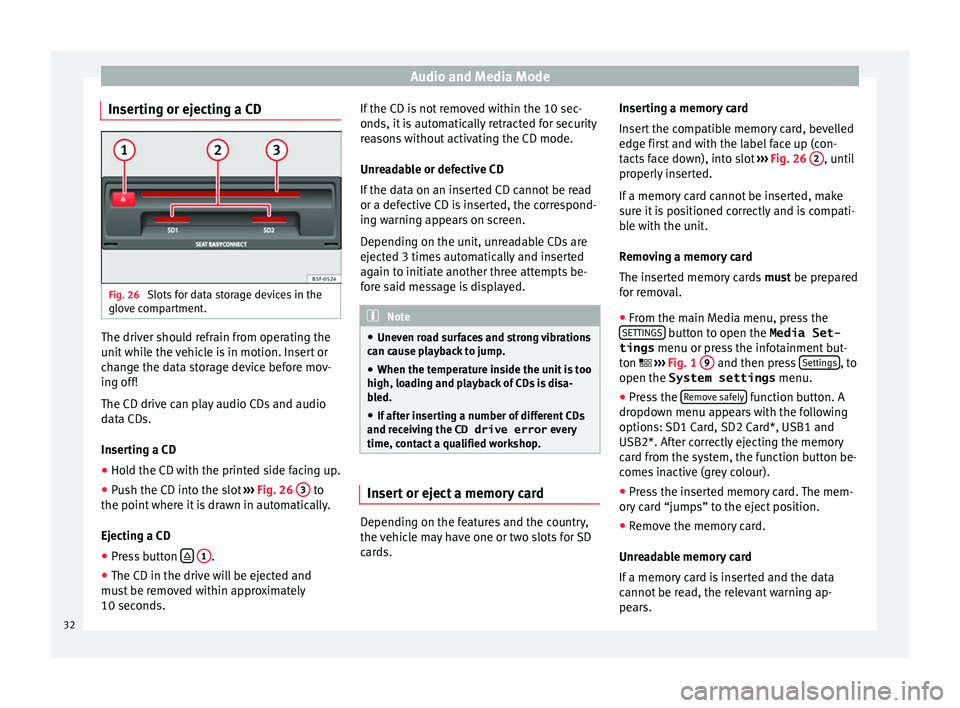
Inserting or ejecting a CD Fig. 26
Slots for data storage devices in the
glo v
e c
ompartment. The driver should refrain from operating the
u
nit
whi
le the vehicle is in motion. Insert or
change the data storage device before mov-
ing off!
The CD drive can play audio CDs and audio
data CDs.
Inserting a CD
● Hold the CD with the printed side facing up.
● Push the CD into the slot ›››
Fig. 26 3 to
the point wher
e it
is drawn in automatically.
Ejecting a CD
● Press button
1 .
● The CD in the drive will be ejected and
mu s
t
be removed within approximately
10 seconds. If the CD is not removed within the 10 sec-
onds, it i
s automatically retracted for security
reasons without activating the CD mode.
Unreadable or defective CD
If the data on an inserted CD cannot be read
or a defective CD is inserted, the correspond-
ing warning appears on screen.
Depending on the unit, unreadable CDs are
ejected 3 times automatically and inserted
again to initiate another three attempts be-
fore said message is displayed. Note
● Uneven r o
ad surfaces and strong vibrations
can cause playback to jump.
● When the temperature inside the unit is too
high, loadin
g and playback of CDs is disa-
bled.
● If after inserting a number of different CDs
and receiv
ing the CD drive error every
time, contact a qualified workshop. Insert or eject a memory card
Depending on the features and the country,
the
v
ehic
le may have one or two slots for SD
cards. Inserting a memory card
Insert
the compatible memory card, bevelled
edge first and with the label face up (con-
tacts face down), into slot ››› Fig. 26 2 , until
pr operly
in
serted.
If a memory card cannot be inserted, make
sure it is positioned correctly and is compati-
ble with the unit.
Removing a memory card
The inserted memory cards must be prepared
for removal.
● From the main Media menu, press the
SETTINGS button to open the Media Set-
tings menu or pr e
s
s the infotainment but-
ton ››› Fig. 1 9 and then press
Settin
g
s , to
open the System settings menu.
● Press the R
emo
v
e safely function button. A
dr opdo
wn menu ap
pears with the following
options: SD1 Card, SD2 Card*, USB1 and
USB2*. After correctly ejecting the memory
card from the system, the function button be-
comes inactive (grey colour).
● Press the inserted memory card. The mem-
ory c
ard “jumps” to the eject position.
● Remove the memory card.
Unrea
dable memory card
If a memory card is inserted and the data
cannot be read, the relevant warning ap-
pears.
32