display Seat Ibiza 2017 MEDIA SYSTEM PLUS - NAVI SYSTEM
[x] Cancel search | Manufacturer: SEAT, Model Year: 2017, Model line: Ibiza, Model: Seat Ibiza 2017Pages: 88, PDF Size: 2.34 MB
Page 35 of 88
Audio and Media Mode
External data storage device connec-
t ed t
o USB por
t Depending on the features and the country,
the v
ehic
le may have one or two USB connec-
tions. For their location consult the ››› Booklet
Instruction Manual.
Audio files on an external data storage de-
vice connected to the USB port can be
played and controlled via the Infotainment
system.
Where this manual refers to external data
storage devices, this means USB mass stor-
age devices containing supported audio
files, such as MP3 players, iPods™ and USB
sticks.
Only supported audio files are displayed and
played. Other files are ignored.
Further operation of the external data medi-
um (changing track, selecting tracks and
playback modes) is described in the appro-
priate chapters of this manual ›››
page 25.
Instructions and restrictions
Compatibility with Apple™ devices and other
media players depends on the unit.
The USB port supplies the usual USB volt-
age of 5 volts for a USB connection.
External hard disks with a capacity greater
than 32 GB must be reformatted for the
FAT32 file system in some circumstances. You will find the necessary software and informa-
tion on the Internet
.
T
ake into account all other instructions and
limitations regarding requirements for media
sources ››› page 25.
iPod™, iPad™ and iPhone™
Depending on the country and the equip-
ment, iPods™, iPads™ or iPhones™ can be
connected using the device's USB cable to
the USB port of the vehicle and used as
audio sources.
After connecting an iPod™, iPad™ or
iPhone™, the specific list views of the iPod
are displayed in the upper selection level
( Playlists , Artists , Albums,
Tracks , Podcasts etc.).
Possible error messages after connecting an
external data storage device
Error mes-
sageCauseProcedure
The device
is not
compatibleThe external
data carrier
cannot be
played or com-
munication is
not possible
with the adapt-
er cable being
used.Check the connec-
tion and make sure
the external data
storage device is
working correctly.
If possible, update
the external data
storage device soft-
ware.
Error mes-
sageCauseProcedure
The device does not
workCommunication
fault.Check the connec-
tion and make sure
the external data
medium is working
correctly.
Due to the large number of different data storage devi-
ces and various iPod™, iPad™ and iPhone™ genera-
tions available, it is not possible to guarantee fault-free
operation of all functions described here. Disconnecting
An
y
c
onnected data storage devices must be
prepared before their disconnection in order
to remove them.
● From the main Media menu, press the
SETTINGS button to open the Media Set-
tings menu or pr e
s
s the infotainment but-
ton ›››
Fig. 1 12 and then press
Settin
g
s , to
open the System settings menu.
● Press the R
emo
v
e safely function button. A
dr opdo
wn menu ap
pears with the following
options: SD1 Card, SD2 Card*, USB1 and
USB2*. After correctly ejecting the data stor-
age device from the system, the function but-
ton becomes inactive (grey colour).
● Now the data storage device can be discon-
nected. »
33
Page 38 of 88
Audio and Media Mode
The image files must be stored on a compati-
b l
e d
ata storage device (e.g., a CD or an SD
card).
● Press the Infotainment button
›››
Fig. 1 12 and then press the
Im
ag
e s func-
tion b utt
on.
● Pr
ess the SOURCE function button to select
the sour c
e wher
e the pictures in question are
located.
Function button: function
SOURCEViewing and selecting the source.
SELEC-
TIONOpens a list of image files.
The image viewed was obtained via GPS lo-
calisation and upon pressing this function
button, the navigator menu opens to start a
route to this destination.
/ Rotate the view of the image to the left or
the right.
Reset the view of the image.
To stop the playback of a slideshow. The function button changes to .
To continue the playback of a slideshow.
The function button changes to .
Function button: function
/
To change to the PREVIOUS
or NEXT im-
age.
The same function can be performed by
sliding your finger horizontally across the
screen.
SET- TINGSOpen the Image settings menu. Enlarging or reducing the view
To en
l
arge or reduce the view of the image
displayed:
● Turn the adjustment knob.
● OR: Stretch or reduce the image on the
s c
reen using 2 fingers.
Rotating the view/image
To rotate an image, in addition to the buttons
provided for this ( / ), you can also press
on the screen (e.g. with your thumb) and,
while continuing to press with your thumb,
slide another finger (e.g. your index finger)
around it like a compass either clockwise (to
rotate the image to the right) or anti-clock-
wise (to turn the image to the left). This will
rotate the image 90° with respect to its cur-
rent position. Requirements for viewing images
Image filesMaximum resolution
BMP4MP
JPEG4MP (Progressive Mode)
JPG64MP
GIF4MP
PNG4MP
Image settings
Open the Image settings
menu
● In the Ima ges main menu, press the
S ET
TINGS function button.
Function button: function
Image view: To adjust the viewing format of the image.
Automatic
: The images are shown in scale in rela-
tion to the size of the screen (the image may not be
displayed in its entirety).
Full : The full images are displayed on the screen.
Display time: To adjust the display time of the images
during a slideshow.
Repeat slideshow: The active slideshow will be repeated
indefinitely. 36
Page 40 of 88
Navigation*
●
Pre s
s the Infotainment button
››› Fig. 1 12 ; then press
Settings to open
the System settings menu.
● Nav
igation is not possible without the SD
card.
● Do not
remove the memory card while the
navig
ation data is in use. This could damage
the memory card!
● The navigation memory card may not be
used as
memory for other files. The infotain-
ment system will not recognise the files
saved.
● SEAT recommends only using original SEAT
memory c
ards to use navigation data. The
use of other memory cards could limit its op-
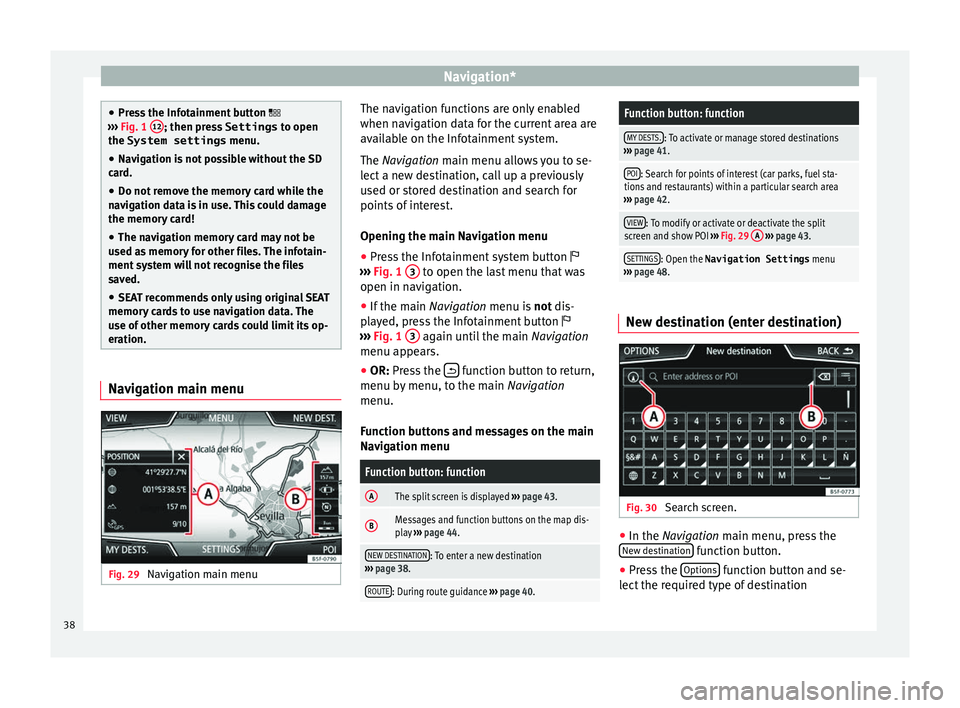
eration. Navigation main menu
Fig. 29
Navigation main menu The navigation functions are only enabled
when n
av
ig
ation data for the current area are
available on the Infotainment system.
The Navigation main menu allows you to se-
lect a new destination, call up a previously
used or stored destination and search for
points of interest.
Opening the main Navigation menu
● Press the Infotainment system button
›››
Fig. 1 3 to open the last menu that was
open in n av
ig
ation.
● If the main Navigation menu i
s not dis-
played, press the Infotainment button
››› Fig. 1 3 again until the main
Navigation
menu ap pe
ars.
● OR: Press the function button to return,
menu b y
menu, t
o the main Navigation
menu.
Function buttons and messages on the main
Navigation menu
Function button: function
AThe split screen is displayed ››› page 43.
BMessages and function buttons on the map dis-
play ››› page 44.
NEW DESTINATION: To enter a new destination
››› page 38.
ROUTE: During route guidance ››› page 40.
Function button: function
MY DESTS.: To activate or manage stored destinations
››› page 41.
POI: Search for points of interest (car parks, fuel sta-
tions and restaurants) within a particular search area
››› page 42.
VIEW: To modify or activate or deactivate the split
screen and show POI ››› Fig. 29 A
››› page 43.
SETTINGS: Open the Navigation Settings menu
››› page 48. New destination (enter destination)
Fig. 30
Search screen. ●
In the Na vigation main menu, press the
New de s
tination function button.
● Press the Option
s function button and se-
l ect
the r
equired type of destination
38
Page 42 of 88
Navigation*Route criteria: Meaning
Orange route: Shortest route
to the destination, even if it
results in longer travelling time. The route may have un-
conventional sections such as secondary roads. ●
Select the desired route by pressing it.
The setting f or the r
oute criteria in the Route
options menu is changed accordingly.
If no route is selected, then route guidance
starts automatically after about one minute
using the setting selected in the Route op- tions .
Navigation announcements (audible recom-
mendations for the driver)
Once the route has been calculated, the sys-
tem gives the first navigation announcement.
Up to 3 navigation announcements are given
before a turn, e.g. “Prepare to turn left”,
“Turn left in 300 metres” and “Now turn left”.
● Press the adjustment knob ››
›
Fig. 1 7 to
li s
t
en to the last audible navigation instruc-
tion.
The distances indicated largely depend on
the type of road and the speed at which you
are driving. For instance, navigation an-
nouncements are given much earlier on mo-
torways than on urban roads.
Appropriate navigation announcements are
also given on multi-lane roads, branching roads and at roundabouts, for example: “At
the round
about, take the second exit.”
A navigation announcement informs you
when you have reached your “destination”.
A navigation announcement informing you
that you have reached the “destination area”
is given if the exact destination cannot be
reached because it is located in a non-digi-
tised area. It also indicates the cardinal point
and the distance to the previously defined
destination. Navigation resumes “offroad”.
During dynamic route guidance , you receive
information about reported traffic congestion
on the route. An additional navigation an-
nouncement is given if the route is recalcula-
ted due to traffic congestion.
During a navigation announcement, you can
change its volume using the button
››› Fig. 1 6 up to a predefined minimum or
m ax
imum
volume. The following navigation
recommendations will then be made at the
adjusted volume.
For other adjustments to the navigation rec-
ommendations, see Navigation an-
nouncements settings. ››› page 48. Note
If you miss a turning during route guidance
and are c urr
ently unable to turn back, keep
on driving until the navigation system offers
a new route. Note
The quality of the navigation recommenda-
tions giv
en by the Infotainment system de-
pends on the navigation data available and
any reported traffic problems. Route
In the Navigation main menu, press the
R out
e function button.
The Rout
e function button is only displayed
w ith r
out
e guidance activated.
Function button: function
Stop route guidance: Aborts current route guidance.
Enter destination: To enter a new destination or a new
stopover ››› page 38.
Congestion ahead: To exclude a section (of 0.2 to 10 km in
length) from the current route, e.g. to avoid congestion.
To cancel the exclusion, press the Route
function button
and then Cancel congestion.
Route details: View route information for current route.40
Page 43 of 88
Navigation*
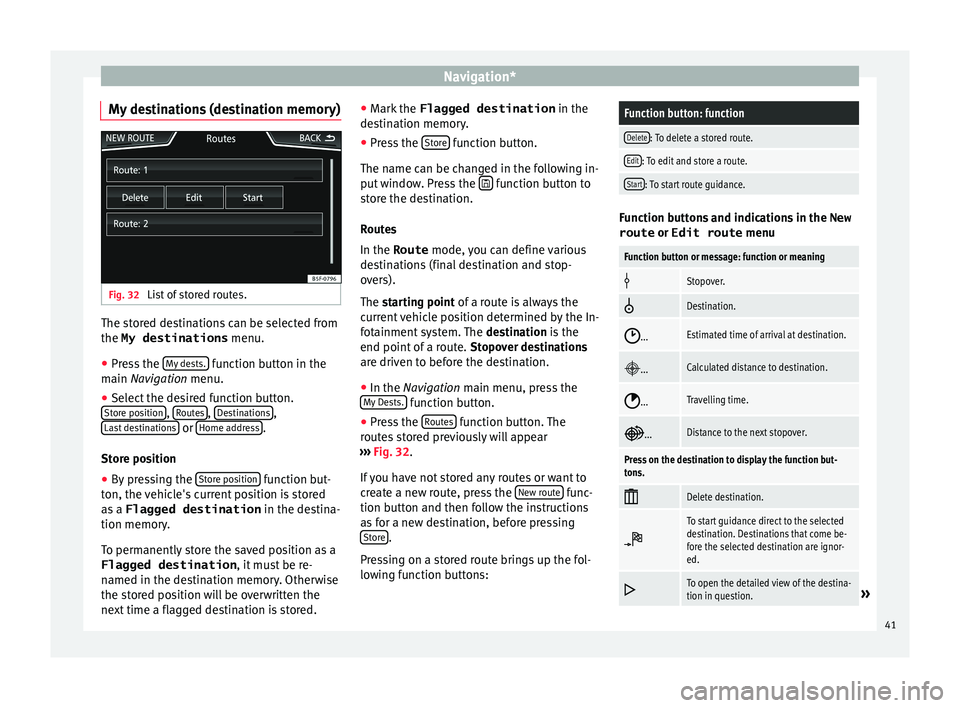
My destinations (destination memory) Fig. 32
List of stored routes. The stored destinations can be selected from
the My destinations
menu.
● Press the M
y
de sts. function button in the
m ain
Na
vigation menu.
● Select the desired function button.
Store po
sition ,
R
out
e s ,
D
e
s tinations ,
La s
t
destinations or
Home a
d
dr ess .
St or
e po
sition
● By pressing the Store po
sition function but-
t on, the
v
ehicle's current position is stored
as a Flagged destination in the destina-
tion memory.
To permanently store the saved position as a
Flagged destination , it must be re-
named in the destination memory. Otherwise
the stored position will be overwritten the
next time a flagged destination is stored. ●
Mark the Flagged destination in the
de
stination memory.
● Press the Store function button.
The n ame c
an be c
hanged in the following in-
put window. Press the function button to
s t
or
e the destination.
Routes
In the Route mode, you can define various
destinations (final destination and stop-
overs).
The starting point of a route is always the
current vehicle position determined by the In-
fotainment system. The destination is the
end point of a route. Stopover destinations
are driven to before the destination.
● In the Navigation main menu, press the
My
Dests. function button.
● Press the R
out
e
s function button. The
r out
e
s stored previously will appear
››› Fig. 32.
If you have not stored any routes or want to
create a new route, press the New route func-
tion b utt
on and then f
ollow the instructions
as for a new destination, before pressing Store .
Pr e
s
sing on a stored route brings up the fol-
lowing function buttons:
Function button: function
Delete: To delete a stored route.
Edit: To edit and store a route.
Start: To start route guidance. Function buttons and indications in the
New
route or Edit route menu
Function button or message: function or meaning
Stopover.
Destination.
...Estimated time of arrival at destination.
...Calculated distance to destination.
...Travelling time.
...Distance to the next stopover.
Press on the destination to display the function but-
tons.
Delete destination.
To start guidance direct to the selected
destination. Destinations that come be-
fore the selected destination are ignor-
ed.
To open the detailed view of the destina-
tion in question.»
41
Page 44 of 88

Navigation*Available function buttons.
New dest.To add a new destination to the tour.
Destina-
tionsTo add a new destination from My des-
tinations
to the tour.
StoringTo store the created tour in the tour
memory.
StartTo start route guidance.
CalculateTo update calculated distance and esti-
mated arrival time. a)
StopTo stop route guidance to the active des-
tination.b)
To move a stopover or a destination to
another position on the list. Press and
drag to move the destination.
a)
This function button is only displayed with route guidance ac-
tivated and when a destination has been added to the tour.
b) This function button is only displayed with route guidance ac-
tivated.
Last destinations
View of destinations for which a route has al-
ready been started.
My destinations
● Press the Options function button and se-
lect the de
sired function button.
Function button: function
Destination memory: View of destinations stored manually
and from imported vCards ››› page 46, Importing
vCards (electronic business cards) .
Favourites: View of destinations stored as favourites.
Contacts: View of entries in the phonebook that have a
stored address (postal address). Home address
Only
one a
ddress or position can be stored
as the home address at any one time. The
stored home address can be edited or over-
written.
If a home address has already been stored,
route guidance will be started to the stored
home address.
If a home address has not yet been stored,
an address can be assigned as the home ad-
dress.
Assigning the home address for the first time:
Position: Press to store the vehicle's current position as
the home address.
Address: Press to enter the home address manually.
Editing the home address:
The home address can be edited in the Navigation
settings menu ››› page 48.
Points of interest (POI) Fig. 33
Points of interest on the map. The points of interest saved in the navigation
d
at
a memor
y are divided into different point
of interest categories. Each point of interest
category is assigned a symbol for display on
the map.
If a database of points of interest has been
imported into the Infotainment system,
››› page 46, Importing Personal POI the cat-
egory Personal POI is also shown.
In the Map settings menu, the cat
e
gories
of points of interest to display on the map
can be configured ››› page 48. Up to 10 cat-
egories of points of interest can be selected.
42
Page 45 of 88
Navigation*
Selecting a point of interest on the mapFunction button: function
1There are several points of interest in the area.
Press this symbol to open a list of points of inter-
est.
2The only point of interest in this zone. Press the
symbol to open the detailed view of the point of
interest. Fast search for a POI
In the Navigation
m
ain menu, press the POIfunction button and the three main catego-
rie
s
w
ill appear. Alternatively, enter the name
of the point of interest to be searched using
the new destination keypad, or press Search nearby on the map.
››
›
table on
page 44.
View In the Na
vigation main menu, press the V
iew function button.
Function button: function
2D Map display in two dimensions (conven-
tional).
Function button: function
3D
Map display in three dimensions (bird's
eye view).
Buildings are also displayed in three di-
mensions. The places of interest and
well-known buildings are shown in detail
and in colour.
a)To display the destination on the map.
a)To display the route on the map.
Auto / Day /
NightTo change between day and night format.
Split screenPress to display the split screen
››› page 43.
POIDisplay points of interest on the map.
a)
This function button is only displayed with route guidance ac-
tivated.
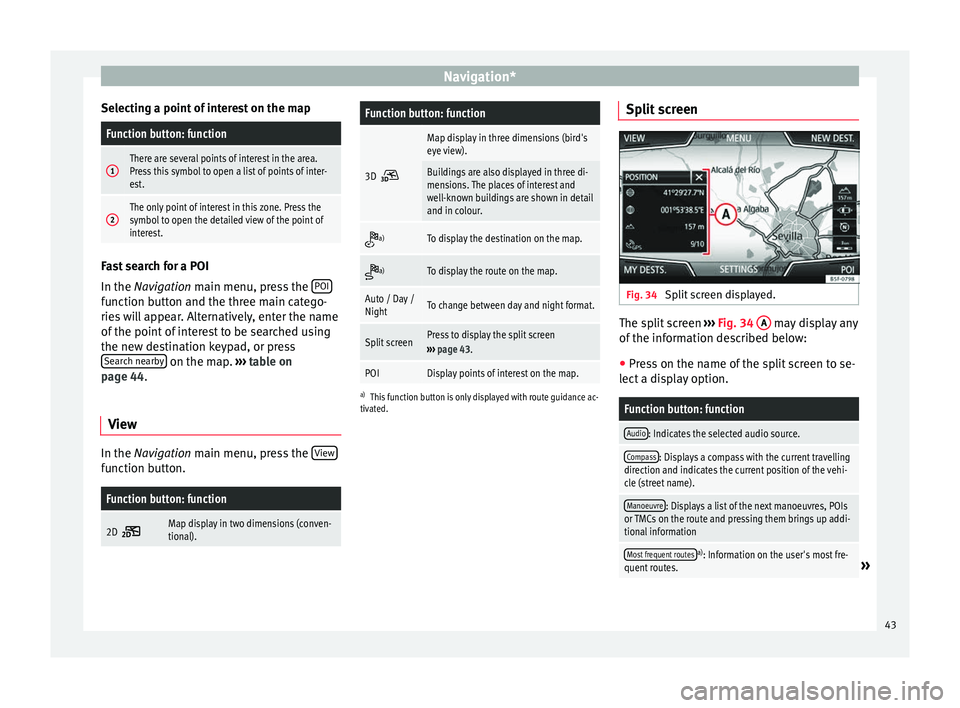
Split screen Fig. 34
Split screen displayed. The split screen
››
›
Fig. 34 A may display any
of the inf
orm
ation described below:
● Press on the name of the split screen to se-
lect a di
splay option.
Function button: function
Audio: Indicates the selected audio source.
Compass: Displays a compass with the current travelling
direction and indicates the current position of the vehi-
cle (street name).
Manoeuvre: Displays a list of the next manoeuvres, POIs
or TMCs on the route and pressing them brings up addi-
tional information
Most frequent routesa) : Information on the user's most fre-
quent routes.» 43
Page 46 of 88
Navigation*Function button: function
Position: current vehicle position in coordinates and GPS
status (satellite reception).
a) This function button is only shown when route guidance is
not active or when predictive route guidance is active.
Press the function button to close the split
sc r
een.
At any moment during navigation, pressing
inside the map will make a pop-up menu ap-
pear with the following functions:
Function button: function
Street name or coordinates: shows the details of the point
selected on the map.
Only when you press on an icon on the map:
POI: name of the point of interest (when only one
appears on the map).
Group of POIs: more points of interest (when you
press on the map on various POIs grouped togeth-
er).
Favourite: name of the favourite.
Home: Home address.
Start route guidance: starts guidance directly.
Add stopover destination: only when you have an active
route.
Search nearby: enters in the search menu, but only for the
area around the point selected on the map.
Function button: function
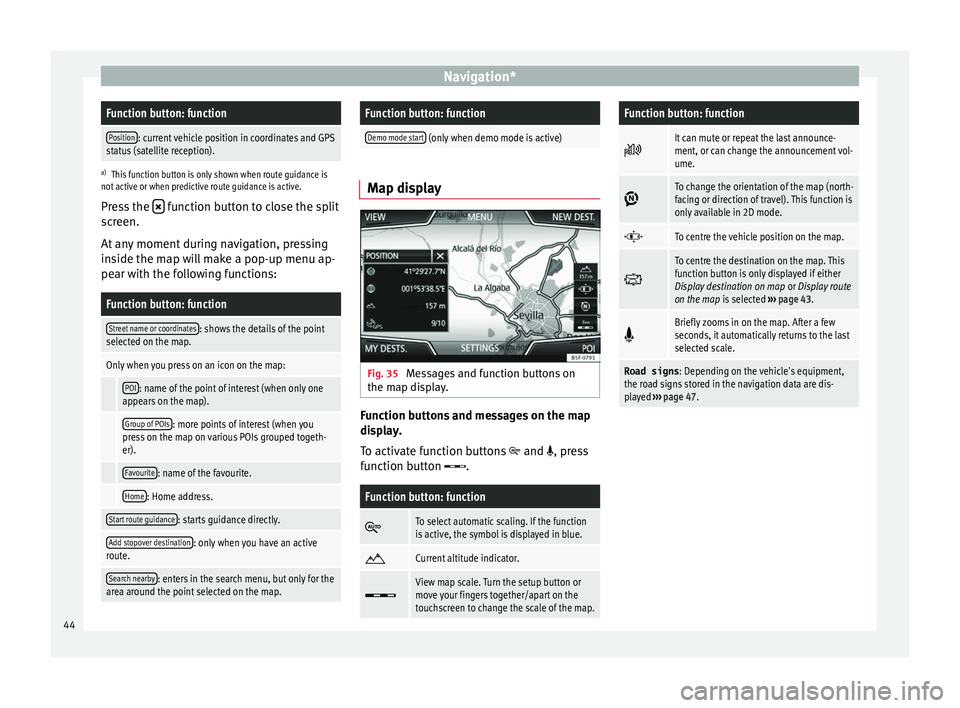
Demo mode start (only when demo mode is active) Map display
Fig. 35
Messages and function buttons on
the m ap di
s
play. Function buttons and messages on the map
di
s
p
lay.
To activate function buttons
and , press
function button .
Function button: function
To select automatic scaling. If the function
is active, the symbol is displayed in blue.
Current altitude indicator.
View map scale. Turn the setup button or
move your fingers together/apart on the
touchscreen to change the scale of the map.
Function button: function
It can mute or repeat the last announce-
ment, or can change the announcement vol-
ume.
To change the orientation of the map (north-
facing or direction of travel). This function is
only available in 2D mode.
To centre the vehicle position on the map.
To centre the destination on the map. This
function button is only displayed if either
Display destination on map
or Display route
on the map is selected ››› page 43.
Briefly zooms in on the map. After a few
seconds, it automatically returns to the last
selected scale.
Road signs
: Depending on the vehicle's equipment,
the road signs stored in the navigation data are dis-
played ››› page 47. 44
Page 47 of 88
Navigation*
Traffic reports and dynamic route
guid anc
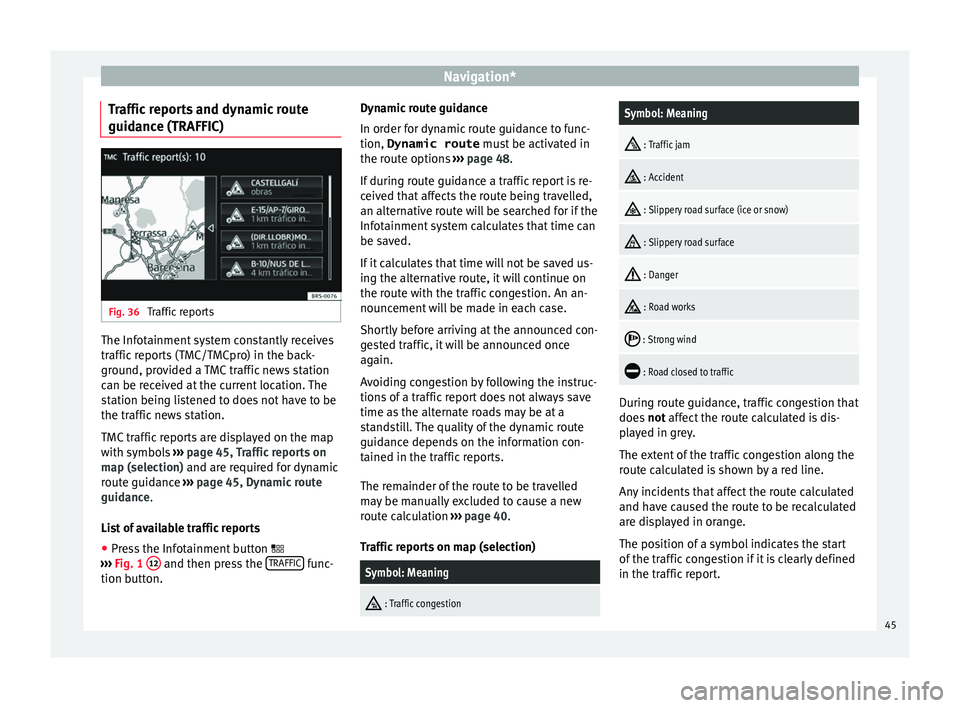
e (TRAFFIC) Fig. 36
Traffic reports The Infotainment system constantly receives
tr
affic
r
eports (TMC/TMCpro) in the back-
ground, provided a TMC traffic news station
can be received at the current location. The
station being listened to does not have to be
the traffic news station.
TMC traffic reports are displayed on the map
with symbols ››› page 45, Traffic reports on
map (selection) and are required for dynamic
route guidance ››› page 45, Dynamic route
guidance.
List of available traffic reports
● Press the Infotainment button
›››
Fig. 1 12 and then press the
TRAFFIC func-
tion b utt
on. D
ynamic route guidance
In order for dy
namic route guidance to func-
tion, Dynamic route must be activated in
the route options ››› page 48.
If during route guidance a traffic report is re-
ceived that affects the route being travelled,
an alternative route will be searched for if the
Infotainment system calculates that time can
be saved.
If it calculates that time will not be saved us-
ing the alternative route, it will continue on
the route with the traffic congestion. An an-
nouncement will be made in each case.
Shortly before arriving at the announced con-
gested traffic, it will be announced once
again.
Avoiding congestion by following the instruc-
tions of a traffic report does not always save
time as the alternate roads may be at a
standstill. The quality of the dynamic route
guidance depends on the information con-
tained in the traffic reports.
The remainder of the route to be travelled
may be manually excluded to cause a new
route calculation ››› page 40.
Traffic reports on map (selection)
Symbol: Meaning
: Traffic congestion
Symbol: Meaning
: Traffic jam
: Accident
: Slippery road surface (ice or snow)
: Slippery road surface
: Danger
: Road works
: Strong wind
: Road closed to traffic
During route guidance, traffic congestion that
doe
s
not
affect the route calculated is dis-
played in grey.
The extent of the traffic congestion along the
route calculated is shown by a red line.
Any incidents that affect the route calculated
and have caused the route to be recalculated
are displayed in orange.
The position of a symbol indicates the start
of the traffic congestion if it is clearly defined
in the traffic report.
45
Page 48 of 88
Navigation*
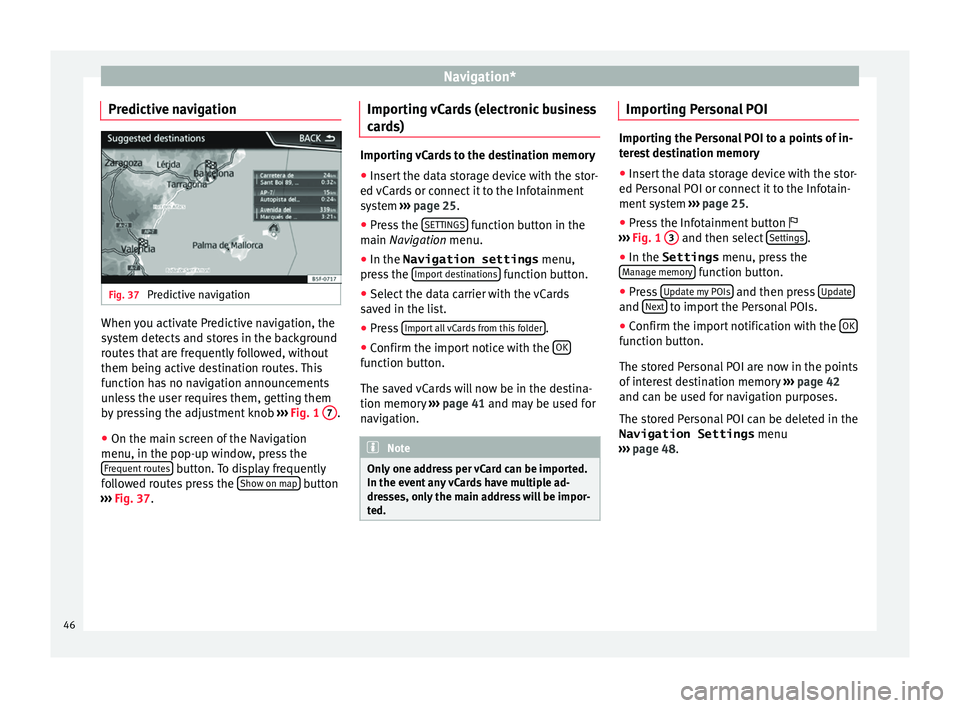
Predictive navigation Fig. 37
Predictive navigation When you activate Predictive navigation, the
sy s
t
em detects and stores in the background
routes that are frequently followed, without
them being active destination routes. This
function has no navigation announcements
unless the user requires them, getting them
by pressing the adjustment knob ››› Fig. 1 7 .
● On the main screen of the Navigation
menu, in the pop-up w indo
w
, press the
Frequent routes button. To display frequently
f o
l
lowed routes press the Show on map button
› ›
›
Fig. 37. Importing vCards (electronic business
card
s) Importing vCards to the destination memory
● Insert the data storage device with the stor-
ed vC ar
ds or connect it to the Infotainment
system ››› page 25.
● Press the SETTINGS function button in the
main Na
vigation menu.
● In the Navigation settings menu,
pres
s the Import destinations function button.
● Select the data carrier with the vCards
s av ed in the li
st.
● Press Import al
l vCards from this folder .
● Confirm the import notice with the OK function button.
The s
av
ed
vCards will now be in the destina-
tion memory ›››
page 41 and may be used for
navigation. Note
Only one address per vCard can be imported.
In the event an
y vCards have multiple ad-
dresses, only the main address will be impor-
ted. Importing Personal POI
Importing the Personal POI to a points of in-
ter
e
st destination memory
● Insert the data storage device with the stor-
ed Person
al POI or connect it to the Infotain-
ment system ››› page 25.
● Press the Infotainment button
›››
Fig. 1 3 and then select
Setting
s .
● In the Settings menu, pres
s the
Manage memory function button.
● Press U
pd at
e my POIs and then press
U
pd
at e and
Ne
xt to import the Personal POIs.
● Confirm the import notification with the OK function button.
The s
t
or
ed Personal POI are now in the points
of interest destination memory ›››
page 42
and can be used for navigation purposes.
The stored Personal POI can be deleted in the
Navigation Settings menu
››› page 48.
46