radio Seat Ibiza 2017 MEDIA SYSTEM PLUS - NAVI SYSTEM
[x] Cancel search | Manufacturer: SEAT, Model Year: 2017, Model line: Ibiza, Model: Seat Ibiza 2017Pages: 88, PDF Size: 2.34 MB
Page 22 of 88
Audio and Media Mode
DAB signal indicates the corresponding other
D AB s
t
ation.
● Automatic DAB - FM switching: The radio
att
empts to tune into the same station on the
FM frequency band. Automatic station track-
ing only works if the DAB station and the FM
station transmit the same station identifier or
the DAB signal indicates the corresponding
FM station. Once the corresponding FM sta-
tion has been found, “FM” is displayed after
the station name. When reception for the cor-
responding DAB station returns, after a short
time the unit will switch back to DAB mode
and “FM” will no longer be displayed.
● Switch to a similar station: This al
lows
service providers to indicate alternative sta-
tions with similar content. This way, if the ra-
dio loses reception of a DAB station and can-
not find an alternative frequency for it on FM
or DAB, there is a possibility of tuning in to a
station with similar content.
Radio text
Some stations also broadcast additional text
information known as radio text.
Radio text is displayed in the upper half of
the screen above the memory buttons
››› Fig. 14 or on the Station information or Ra-
dio text screens of the Screen view menu
››› page 20.
The radio text display can be deactivated in
DAB settings ››› page 24. Slideshow
Some station
s broadcast images for addi-
tional visual information.
These images are displayed as a slideshow
on the Station information or
Slide
sho
w screens
of the
Screen view menu ›
›
› page 20.
The slideshow can be viewed in full screen by
pressing on the current image.
Screen view menu
The function buttons refer to the menu that
appears when the View button is pressed
› ›
›
Fig. 14.
Function button: function
Preset list: Memory buttons display ››› Fig. 14.
Station information: Simultaneous display of radio text and
slideshows instead of the memory buttons ››› Fig. 15.
Radio text: Radio text is displayed instead of memory
buttons.
Slideshow: The slideshows are displayed in full screen. Note
● Not a l
l DAB stations broadcast radio text
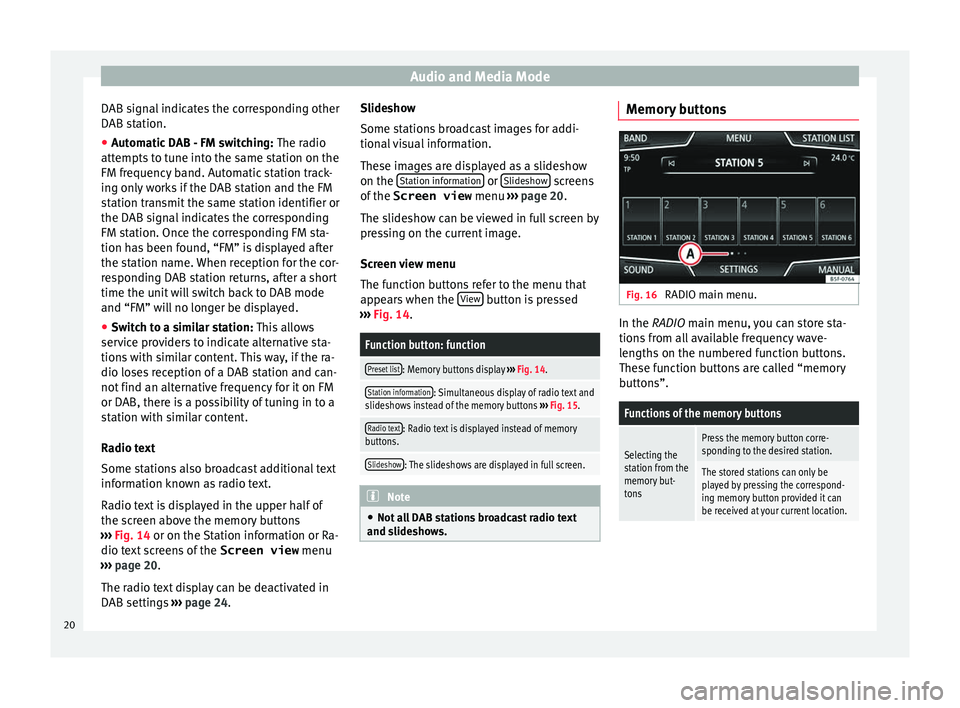
and slideshows. Memory buttons
Fig. 16
RADIO main menu. In the RADIO m
ain menu,
y
ou can store sta-
tions from all available frequency wave-
lengths on the numbered function buttons.
These function buttons are called “memory
buttons”.
Functions of the memory buttons
Selecting the
station from the
memory but-
tonsPress the memory button corre-
sponding to the desired station.
The stored stations can only be
played by pressing the correspond-
ing memory button provided it can
be received at your current location. 20
Page 23 of 88
Audio and Media ModeFunctions of the memory buttons
Switching be-
tween memory
banks
Move your finger over the screen
from left to right or vice-versa.
OR: Press one of the function buttons
››› Fig. 16 A
The memory buttons are displayed in
three memory banks.
Storing the sta-
tion on the
memory but-
tonsSee: Storing stations
››› page 22.
Storing the sta-
tion logo on the
memory but-
tonsA station logo can be assigned to the
stations stored on the memory but-
tons ››› page 21. Storing station logos
Store automatically (only in FM and DAB
mode)
When a s
t
ation i
s stored the station logo is
automatically assigned.
If there are 2 or more logos in the database,
it gives the option to choose the correct one.
Store manually
The station logos can be imported from a
compatible data medium (for example, mem-
ory card or memories with USB port). ●
Pres
s the function button SETTINGS and
then St
ation log
o
s .
● Press the station button where you wish to
s t
or
e the logo of a station.
● Select the source where the logo is stored
(for ex
ample, SD card 1 ). We recommend sav-
in g log
o
s in the memory unit’s root directory.
● Select the station logo.
● Repeat the process to assign other logos;
pres
s the infotainment button ››› Fig. 1 1 to return to the RADIO main menu.
●
If you wish to change the logo of a memory
b utt
on th
at already has one assigned to it, it
must first be deleted from the button in ques-
tion. Note
Not all stations are stored in the database
and theref or
e it is not always possible to as-
sign logos automatically. Select, tune and store stations
Selecting stations
Select stations
with the arrow
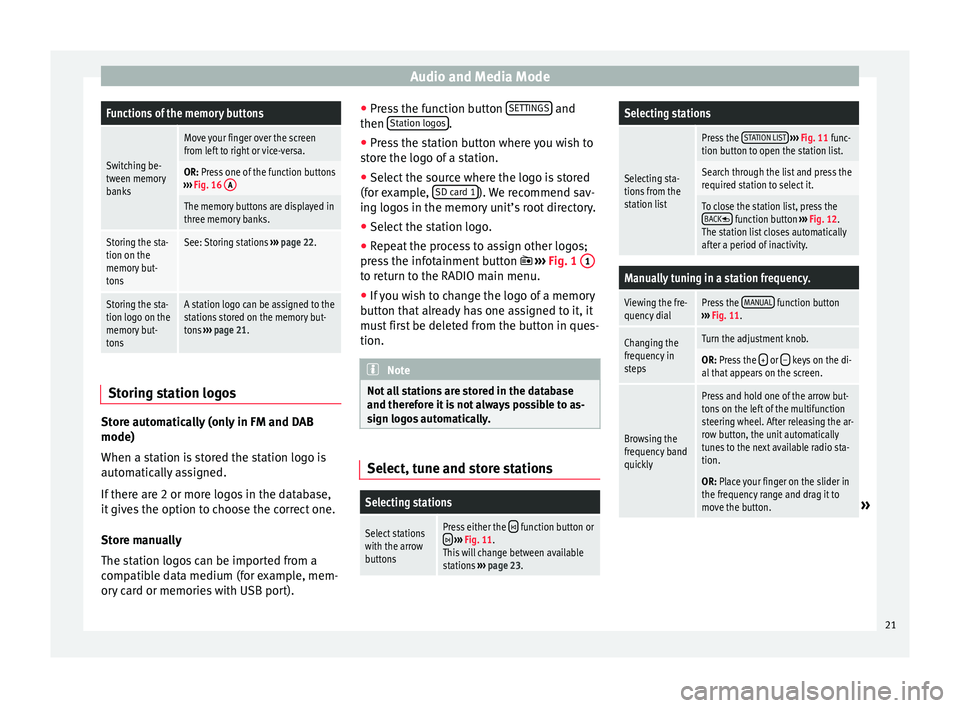
buttonsPress either the function button or
››› Fig. 11.
This will change between available
stations ››› page 23.
Selecting stations
Selecting sta-
tions from the
station list
Press the STATION LIST
››› Fig. 11 func-
tion button to open the station list.
Search through the list and press the
required station to select it.
To close the station list, press the BACK function button ››› Fig. 12.
The station list closes automatically
after a period of inactivity.
Manually tuning in a station frequency.
Viewing the fre-
quency dialPress the MANUAL function button
››› Fig. 11.
Changing the
frequency in
stepsTurn the adjustment knob.
OR: Press the + or – keys on the di-
al that appears on the screen.
Browsing the
frequency band
quickly
Press and hold one of the arrow but-
tons on the left of the multifunction
steering wheel. After releasing the ar-
row button, the unit automatically
tunes to the next available radio sta-
tion.
OR: Place your finger on the slider in
the frequency range and drag it to
move the button.
» 21
Page 24 of 88
Audio and Media ModeManually tuning in a station frequency.
Hiding the fre-
quency band
Briefly press the adjustment knob
››› Fig. 1 7.
Manual frequency selection is also
closed if you select a station with a
memory button. If no operation is
performed, the frequency range will
disappear after a period of inactivity.
Storing stations
Storing the sta-
tion that is cur-
rently being lis-
tened to.Press and hold
the desired memory
button ››› Fig. 11 until an audible sig-
nal is heard.
The station tuned in will be stored on
this memory button.
Storing a sta-
tion on the list
of stations
Press the STATION LIST
››› Fig. 11 func-
tion button to open the station list.
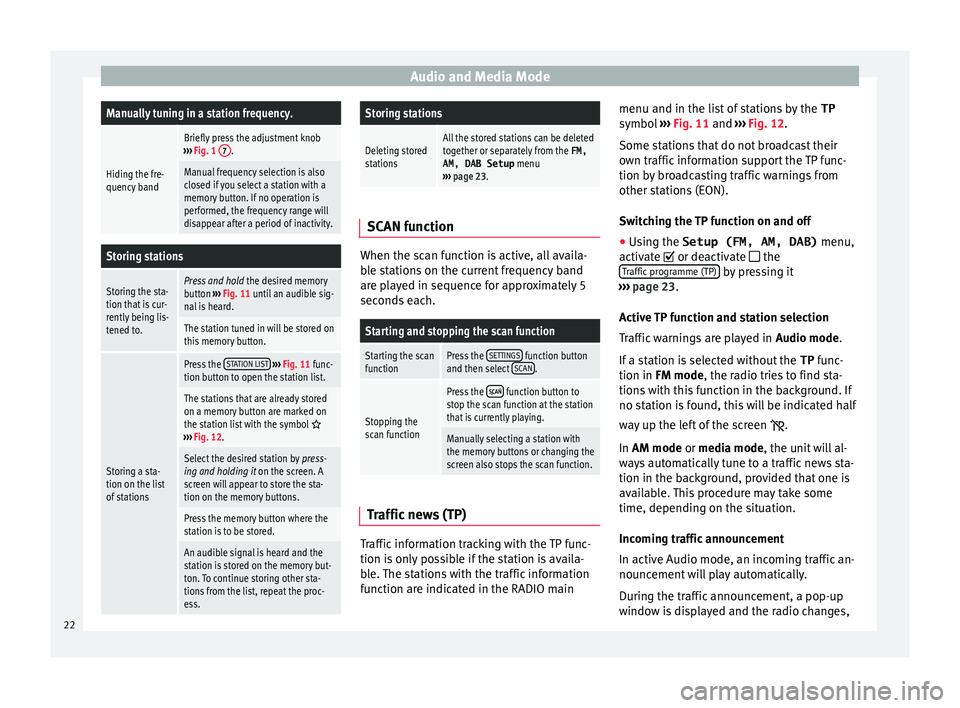
The stations that are already stored
on a memory button are marked on
the station list with the symbol
››› Fig. 12.
Select the desired station by press-
ing and holding it on the screen. A
screen will appear to store the sta-
tion on the memory buttons.
Press the memory button where the
station is to be stored.
An audible signal is heard and the
station is stored on the memory but-
ton. To continue storing other sta-
tions from the list, repeat the proc-
ess.
Storing stations
Deleting stored
stationsAll the stored stations can be deleted
together or separately from the FM,
AM, DAB Setup menu
››› page 23. SCAN function
When the scan function is active, all availa-
bl
e s
tations on the current frequency band
are played in sequence for approximately 5
seconds each.
Starting and stopping the scan function
Starting the scan
functionPress the SETTINGS function button
and then select SCAN.
Stopping the
scan function
Press the function button to
stop the scan function at the station
that is currently playing.
Manually selecting a station with
the memory buttons or changing the
screen also stops the scan function. Traffic news (TP)
Traffic information tracking with the TP func-
tion i
s
on
ly possible if the station is availa-
ble. The stations with the traffic information
function are indicated in the RADIO main menu and in the list of stations by the
TP
symbol ›
›› Fig. 11 and ››› Fig. 12.
Some stations that do not broadcast their
own traffic information support the TP func-
tion by broadcasting traffic warnings from
other stations (EON).
Switching the TP function on and off
● Using the Setup (FM, AM, DAB) menu,
activate
or deactivate the
Traffic programme (TP) by pressing it
› ›
›
page 23.
Active TP function and station selection
Traffic warnings are played in Audio mode.
If a station is selected without the TP func-
tion in FM mode, the radio tries to find sta-
tions with this function in the background. If
no station is found, this will be indicated half
way up the left of the screen .
In AM mode or media mode, the unit will al-
ways automatically tune to a traffic news sta-
tion in the background, provided that one is
available. This procedure may take some
time, depending on the situation.
Incoming traffic announcement
In active Audio mode, an incoming traffic an-
nouncement will play automatically.
During the traffic announcement, a pop-up
window is displayed and the radio changes,
22
Page 25 of 88
Audio and Media Mode
depending on the case, to the traffic news
s t
ation (E
ON).
The media mode is paused and the volume is
adjusted to the preset level ››› page 76.
The volume of the traffic announcement can
be modified with the volume control . The
adjusted volume setting will be applied to
subsequent announcements.
● Press the Cancel function button to end the
c urr
ent
traffic announcement. The TP function
remains switched on.
● OR: Press the De
activate function button to
end the c urr
ent
traffic warning and perma-
nently deactivate the TP function. This can be
reactivated in the Settings menu.
Setup (FM, AM, DAB) FM setup
Sel
ect
the FM
frequency band by pressing
the Infotainment button .
OR:Press the BAND function button and se-
l ect
the FM
frequency band.
Press the SETTINGS function button to open
the FM Settings menu.
Function button: function
Sound: Sound settings ››› page 76.
Function button: function
Scan: Scan function. When the scan function is active,
all available stations on the current frequency band are
played in sequence for approximately 5 seconds each
››› page 22.
Seek mode: To adjust settings for the buttons with the ar-
rows and . This setting applies to all frequency
bands (FM, AM and DAB).
Preset list: All stored stations on the selected fre-
quency band can be browsed with the arrow but-
tons.
Station list: All available stations on the selected fre-
quency band can be browsed with the arrow but-
tons.
Traffic programme (TP): The TP function (traffic news sta-
tion tracking) is active ››› page 22.
Delete presets: To delete all or some of the stored sta-
tions.
Station logos: To manually assign or delete the stored
station logos to and from the memory buttons
››› page 21.
Radio text: Radio Text is active
››› page 18, Radio text.
Advanced settingsa)
: Setup of the RDS (radio data system).
Autostore station logosa)
: Logos can be automatically
assigned to the stations stored on the memory but-
tons if they are available in the Infotainment sys-
tem. Also see ››› page 21.
Region for station logoa)
: Allows you to select the re-
gion (country) in which the vehicle is located. This
optimises the automatic assignment of station
logos. The option also allows the system to select
the region automatically.
Function button: function
Alternative frequency (AF)a)
: The automatic station
tracking is active. With the checkbox deactiva-
ted, the RDS regional function button remains inac-
tive (grey).
Radio Data System (RDS)a)
: The Radio Data System
(RDS) is deactivated ››› page 18. If the checkbox
is deactivated, the traffic news station functions
(TP), Radio Text, station name and programme type
will not be available.
RDS Regionala) : Setting automatic station tracking by
RDS ››› page 18.
Fixed: The unit only switches to alternative fre-
quencies for the selected station if the same re-
gional service is being broadcast.
Automatic: the unit always switches to the sta-
tion's frequency that currently offers the best
reception. As a result, regional programmes
may be interrupted.
a) This depends on the country and unit in question.
AM Setup
Select the AM frequency band by pressing
the Infotainment button .
OR: Press the BAND function button and se-
l ect
the AM
frequency band.
Press the SETTINGS function button to open
the AM Settings menu.
Function button: function
Sound: Sound settings ››› page 76.» 23
Page 26 of 88
Audio and Media ModeFunction button: function
Scan: Scan function. When the scan function is active,
all available stations on the current frequency band are
played in sequence for approximately 5 seconds each
››› page 22.
Seek mode: To adjust settings for the buttons with the ar-
rows and . This setting applies to all frequency
bands (FM, AM and DAB).
Preset list: All stored stations on the selected fre-
quency band can be browsed with the arrow but-
tons.
Station list: All available stations on the selected fre-
quency band can be browsed with the arrow but-
tons.
Traffic programme (TP): The TP function (traffic news sta-
tion tracking) is active ››› page 22.
Delete presets: To delete all or some of the stored sta-
tions.
Station logos: To assign the logos to the stations stored
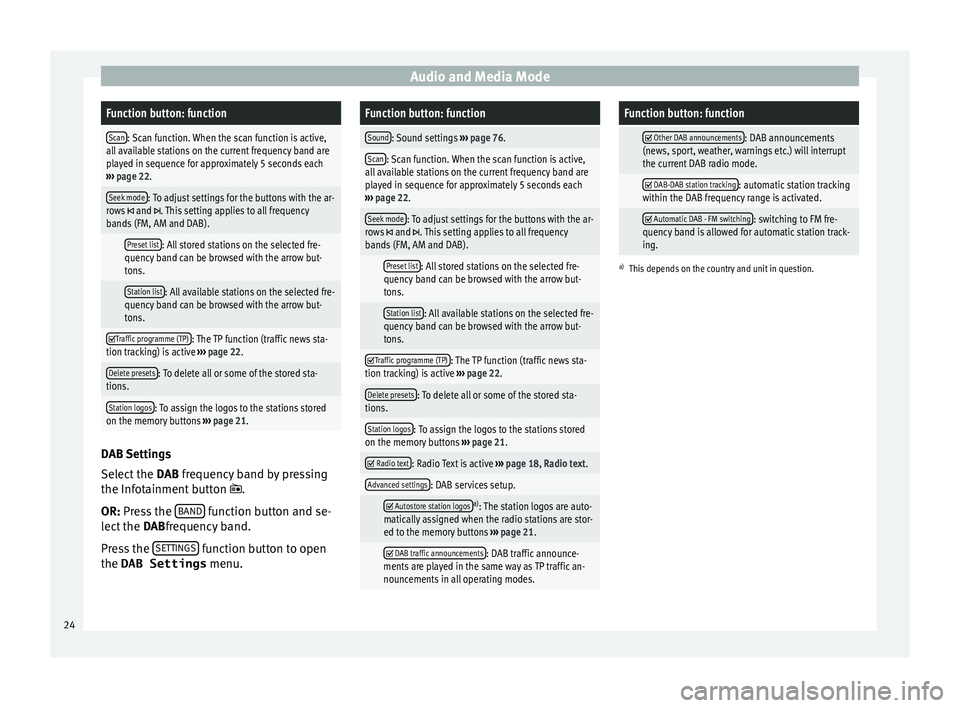
on the memory buttons ››› page 21. DAB Settings
Sel
ect
the D
AB frequency band by pressing
the Infotainment button .
OR: Press the BAND function button and se-
l ect
the D
ABfrequency band.
Press the SETTINGS function button to open
the DAB Settings menu.
Function button: function
Sound: Sound settings ››› page 76.
Scan: Scan function. When the scan function is active,
all available stations on the current frequency band are
played in sequence for approximately 5 seconds each
››› page 22.
Seek mode: To adjust settings for the buttons with the ar-
rows and . This setting applies to all frequency
bands (FM, AM and DAB).
Preset list: All stored stations on the selected fre-
quency band can be browsed with the arrow but-
tons.
Station list: All available stations on the selected fre-
quency band can be browsed with the arrow but-
tons.
Traffic programme (TP): The TP function (traffic news sta-
tion tracking) is active ››› page 22.
Delete presets: To delete all or some of the stored sta-
tions.
Station logos: To assign the logos to the stations stored
on the memory buttons ››› page 21.
Radio text: Radio Text is active
››› page 18, Radio text.
Advanced settings: DAB services setup.
Autostore station logosa)
: The station logos are auto-
matically assigned when the radio stations are stor-
ed to the memory buttons ››› page 21.
DAB traffic announcements: DAB traffic announce-
ments are played in the same way as TP traffic an-
nouncements in all operating modes.
Function button: function
Other DAB announcements: DAB announcements
(news, sport, weather, warnings etc.) will interrupt
the current DAB radio mode.
DAB-DAB station tracking: automatic station tracking
within the DAB frequency range is activated.
Automatic DAB - FM switching: switching to FM fre-
quency band is allowed for automatic station track-
ing.
a) This depends on the country and unit in question. 24
Page 52 of 88
Vehicle Menu
Vehicle Menu Intr oduction t
o u
sing the menu (Ve-
hicle) By pressing button
›››
Fig. 1 9 of the info-
tainment sy
stem you will access its main
menu with the following options:
● VIEW
● MINIPLAYER, in the top right corner (Radio
or Media f
unction)
● PREVIOUS-NEXT (to change screen)
● SETTINGS ››
›
Booklet Instruction Manual,
chapter System setup (CAR)
With the function button VIEW you can ac-
c e
s
s the following information:
● CONSUMERS
● DRIVING DATA
● ECOTRAINER*
● VEHICLE STATUS Consumers Fig. 39
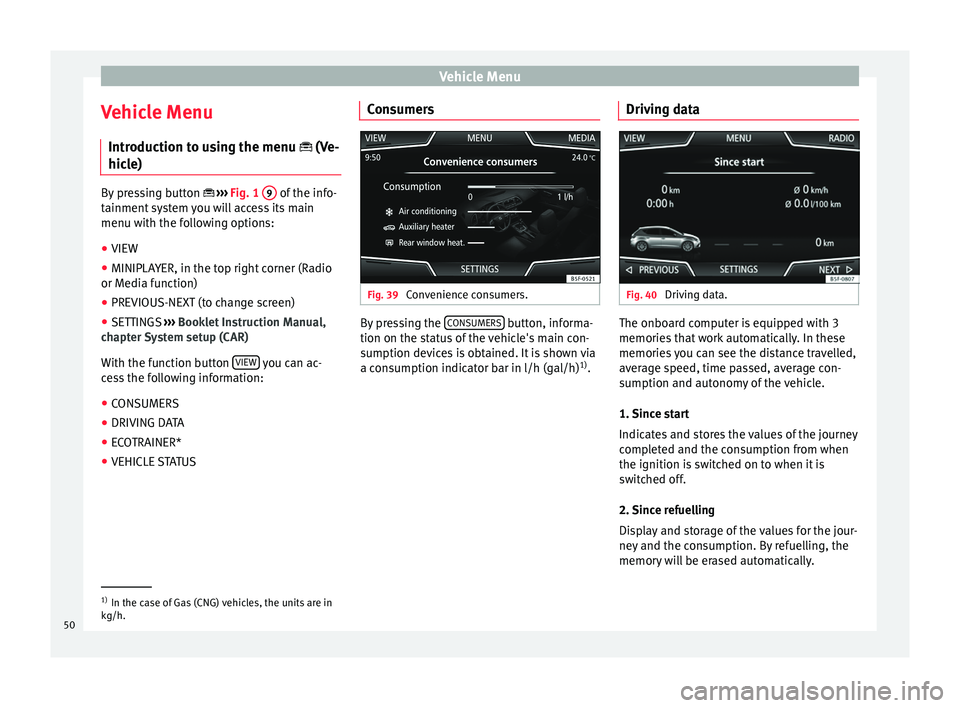
Convenience consumers. By pressing the
C
ONSUMERS button, informa-
tion on the s t
at
us of the vehicle's main con-
sumption devices is obtained. It is shown via
a consumption indicator bar in l/h (gal/h) 1)
. Driving data Fig. 40
Driving data. The onboard computer is equipped with 3
memorie
s
th
at work automatically. In these
memories you can see the distance travelled,
average speed, time passed, average con-
sumption and autonomy of the vehicle.
1. Since start
Indicates and stores the values of the journey
completed and the consumption from when
the ignition is switched on to when it is
switched off.
2. Since refuelling
Display and storage of the values for the jour-
ney and the consumption. By refuelling, the
memory will be erased automatically. 1)
In the case of Gas (CNG) vehicles, the units are in
kg/h.
50
Page 66 of 88
Telephone management system (PHONE)
Note
Some telephones need to be restarted to re-
down lo
ad the most recent contacts added. Connectivity Box* / Wireless Charger*
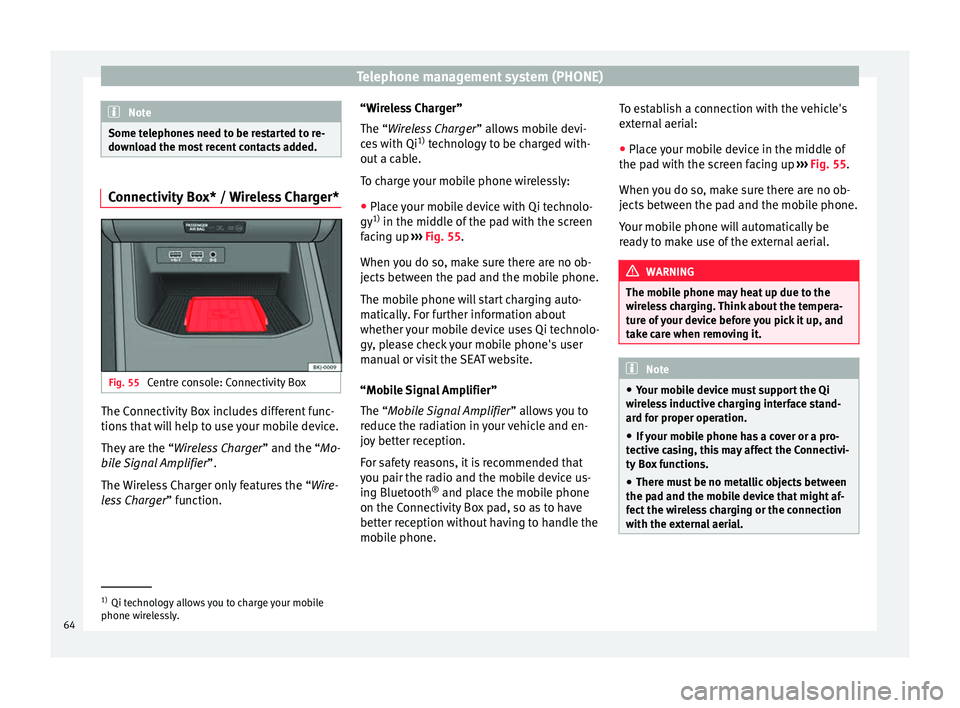
Fig. 55
Centre console: Connectivity Box The Connectivity Box includes different func-
tion
s
th
at will help to use your mobile device.
They are the “Wireless Charger ” and the “Mo-
bile Signal Amplifier”.
The Wireless Charger only features the “Wire-
less Charger ” function. “Wireless Charger”
The “Wire
less Charger ” allows mobile devi-
ces with Qi 1)
technology to be charged with-
out a cable.
To charge your mobile phone wirelessly:
● Place your mobile device with Qi technolo-
gy 1)
in the middl
e of the pad with the screen
facing up ››› Fig. 55.
When you do so, make sure there are no ob-
jects between the pad and the mobile phone.
The mobile phone will start charging auto-
matically. For further information about
whether your mobile device uses Qi technolo-
gy, please check your mobile phone's user
manual or visit the SEAT website.
“Mobile Signal Amplifier”
The “Mobile Signal Amplifier” allows you to
reduce the radiation in your vehicle and en-
joy better reception.
For safety reasons, it is recommended that
you pair the radio and the mobile device us-
ing Bluetooth ®
and place the mobile phone
on the Connectivity Box pad, so as to have
better reception without having to handle the
mobile phone. To establish a connection with the vehicle's
extern
al aerial:
● Place your mobile device in the middle of
the pad w
ith the screen facing up ››› Fig. 55.
When you do so, make sure there are no ob-
jects between the pad and the mobile phone.
Your mobile phone will automatically be
ready to make use of the external aerial. WARNING
The mobile phone may heat up due to the
wir el
ess charging. Think about the tempera-
ture of your device before you pick it up, and
take care when removing it. Note
● Your mo b
ile device must support the Qi
wireless inductive charging interface stand-
ard for proper operation.
● If your mobile phone has a cover or a pro-
tective c
asing, this may affect the Connectivi-
ty Box functions.
● There must be no metallic objects between
the pad and the mo
bile device that might af-
fect the wireless charging or the connection
with the external aerial. 1)
Qi technology allows you to charge your mobile
phone wir el
essly.
64
Page 80 of 88
Other important information
Other important information Le
g
al information ECE
SEA
T her
eby declares that the unit is in com-
pliance with the essential requirements and
other relevant provisions of Directive
1999/5/EC (CE 0700).
Abbreviations
A2DPTechnology included by many manufactur-
ers to transmit audio signals via Bluetooth ®
(Advanced Audio Distribution Profile).
AMModulation of the wave amplitude (medium
wave, MW)
AUX-INAdditional audio input (Auxiliary Input)
AVRCPTechnology included by many manufactur-
ers for the remote management of audio
sources via Bluetooth ®
(Audio Video Re-
mote Control Profile).
DABDigital transmission standard for digital ra-
dio (Digital Audio Broadcasting)
DINDeutsches Institut fur Normung (German in-
dustry standard).
DRMDigital Rights Management
DTMFDial tone with dual tone multiple frequency
EONAssistance for other radio transmission net-
works (Enhanced Other Network)
FMFrequency modulation (ultra-short wave,
UKW)
GPSGlobal Positioning System.
GSMGlobal System for Mobile Communications
HFPHands-Free Profile.
IMEISerial number for univocally identifying GSM
devices (International Mobile Station Equip-
ment Identity).
MP3Audio file compression format.
PINPersonal identification number.
RDSRadio data system.
SMSShort Message Service.
TMCTraffic reports for dynamic navigation (Traffic
Message Channel)
TPTraffic reports function in Radio mode (Traf-
fic programme).
USBUniversal Serial Bus
VBRVariable bit rate.
WMAAudio file compression format. 78
Page 81 of 88
Index
Index
A
Af t
er s
tarting route guidance . . . . . . . . . . . . . . . . 39
AM . . . . . . . . . . . . . . . . . . . . . . . . . . . . . . . . . . . . . . 17
Android Auto™ . . . . . . . . . . . . . . . . . . . . . . . . . . . . 70
Apple CarPlay™ . . . . . . . . . . . . . . . . . . . . . . . . . . . 70
Areas where special regulations apply . . . . . . . . . 54
AUX-IN . . . . . . . . . . . . . . . . . . . . . . . . . . . . . . . . . . . 34 AUX-IN multimedia socket . . . . . . . . . . . . . . . . . 34
external audio source . . . . . . . . . . . . . . . . . . . . . 34
AUX-IN multimedia socket . . . . . . . . . . . . . . . . . . . 34
Avoid congestion . . . . . . . . . . . . . . . . . . . . . . . . . . 45
B Base volume . . . . . . . . . . . . . . . . . . . . . . . . . . . . . . . 9 change . . . . . . . . . . . . . . . . . . . . . . . . . . . . . . . . . 9
sound suppression (mute) . . . . . . . . . . . . . . . . . . 9
Bluetooth connect audio source . . . . . . . . . . . . . . . . . . . . . 34
profiles . . . . . . . . . . . . . . . . . . . . . . . . . . . . . . . . 54
select Bluetooth audio . . . . . . . . . . . . . . . . . . . . 29
settings . . . . . . . . . . . . . . . . . . . . . . . . . . . . . . . . 63
Buttons . . . . . . . . . . . . . . . . . . . . . . . . . . . . . . . . . . 10
C
Call lists . . . . . . . . . . . . . . . . . . . . . . . . . . . . . . . . . 62
Call mailbox . . . . . . . . . . . . . . . . . . . . . . . . . . . . . . 59
CAR Menu operating . . . . . . . . . . . . . . . . . . . . . . . . . . . . . . . 50
CD inserting and ejecting . . . . . . . . . . . . . . . . . . . . 32
mode . . . . . . . . . . . . . . . . . . . . . . . . . . . . . . . . . . 32
select . . . . . . . . . . . . . . . . . . . . . . . . . . . . . . . . . . 29
Check boxes . . . . . . . . . . . . . . . . . . . . . . . . . . . . . . 10 Communication between the Infotainment sys-
tem and mob ile devices . . . . . . . . . . . . . . . . . . . 66
Connectivity Box . . . . . . . . . . . . . . . . . . . . . . . . . . . 64
Controls . . . . . . . . . . . . . . . . . . . . . . . . . . . . . . . . . . . 4
Copyright . . . . . . . . . . . . . . . . . . . . . . . . . . . . . . . . 25 information . . . . . . . . . . . . . . . . . . . . . . . . . . . . . 76
Cursor . . . . . . . . . . . . . . . . . . . . . . . . . . . . . . . . . . . 11
D
DAB . . . . . . . . . . . . . . . . . . . . . . . . . . . . . . . . . . . . . 17 see: RADIO . . . . . . . . . . . . . . . . . . . . . . . . . . . . . 19
Delayed switch off (waiting time) . . . . . . . . . . . . . . 9
Delete all entries . . . . . . . . . . . . . . . . . . . . . . . . . . . . . . 75
user entries . . . . . . . . . . . . . . . . . . . . . . . . . . . . . 75
Delete data . . . . . . . . . . . . . . . . . . . . . . . . . . . . . . . 75
Delete entries . . . . . . . . . . . . . . . . . . . . . . . . . . . . . 75
Demo mode navigation . . . . . . . . . . . . . . . . . . . . . . . . . . . . . . 47
Destination memory . . . . . . . . . . . . . . . . . . . . . . . . 41
Dial number . . . . . . . . . . . . . . . . . . . . . . . . . . . . . . 59
Dial (telephone number) . . . . . . . . . . . . . . . . . . . . 59
Display use . . . . . . . . . . . . . . . . . . . . . . . . . . . . . . . . . . . . 10
Dynamic route guidance . . . . . . . . . . . . . . . . . . . . 45
E
Ejecting see: CD . . . . . . . . . . . . . . . . . . . . . . . . . . . . . . . . 32
EON . . . . . . . . . . . . . . . . . . . . . . . . . . . . . . . . . . . . . 22
Explosion risk areas telephone . . . . . . . . . . . . . . . . . . . . . . . . . . . . . . 54
External audio source . . . . . . . . . . . . . . . . . . . . . . 34 adjust the playback volume . . . . . . . . . . . . . . . . 76
Bluetooth audio . . . . . . . . . . . . . . . . . . . . . . . . . 34
MEDIA-IN . . . . . . . . . . . . . . . . . . . . . . . . . . . . . . . 33 External data storage device
MEDIA-IN . . . . . . . . . . . . . . . . . . . . . . . . . . . . . . . 33
USB
. . . . . . . . . . . . . . . . . . . . . . . . . . . . . . . . . . . 33
F
Factory settings . . . . . . . . . . . . . . . . . . . . . . . . . . . 75
Favourites (phonebook shortcuts) see PHONE . . . . . . . . . . . . . . . . . . . . . . . . . . . . . 62
FM . . . . . . . . . . . . . . . . . . . . . . . . . . . . . . . . . . . . . . 17
Frequency wavelength AM . . . . . . . . . . . . . . . . . . . . . . . . . . . . . . . . . . . . 17
change . . . . . . . . . . . . . . . . . . . . . . . . . . . . . . . . 17
DAB . . . . . . . . . . . . . . . . . . . . . . . . . . . . . . . . . . . 17
FM . . . . . . . . . . . . . . . . . . . . . . . . . . . . . . . . . . . . 17
Full Link . . . . . . . . . . . . . . . . . . . . . . . . . . . . . . . . . . 66 pairing . . . . . . . . . . . . . . . . . . . . . . . . . . . . . . . . . 70
setup . . . . . . . . . . . . . . . . . . . . . . . . . . . . . . . . . . 70
Function buttons . . . . . . . . . . . . . . . . . . . . . . . . . . 10 main menu Images . . . . . . . . . . . . . . . . . . . . . . . 35
MEDIA main menu . . . . . . . . . . . . . . . . . . . . . . . 28
RADIO main menu . . . . . . . . . . . . . . . . . . . . . . . 17
G GALA . . . . . . . . . . . . . . . . . . . . . . . . . . . . . . . . . . . . 76
I Ignition switched off delayed switch off (waiting time) . . . . . . . . . . . . 9
Images display . . . . . . . . . . . . . . . . . . . . . . . . . . . . . . . . . 35
main menu . . . . . . . . . . . . . . . . . . . . . . . . . . . . . 35
settings . . . . . . . . . . . . . . . . . . . . . . . . . . . . . . . . 36
Infotainment system buttons . . . . . . . . . . . . . . . . . 9
Input mask . . . . . . . . . . . . . . . . . . . . . . . . . . . . . . . 11
Interference from a mobile telephone . . . . . . . . . . 8
Introduction . . . . . . . . . . . . . . . . . . . . . . . . . . . . . . . 7
iPad . . . . . . . . . . . . . . . . . . . . . . . . . . . . . . . . . . . . . 33
79
Page 82 of 88
Index
iPhone . . . . . . . . . . . . . . . . . . . . . . . . . . . . . . . . . . . 33
iP od
. . . . . . . . . . . . . . . . . . . . . . . . . . . . . . . . . . . . . 33
K K
eypad . . . . . . . . . . . . . . . . . . . . . . . . . . . . . . . . . . 11
L Lowering the volume . . . . . . . . . . . . . . . . . . . . . . . . 8
M Main menu images . . . . . . . . . . . . . . . . . . . . . . . . . . . . . . . . . 35
MEDIA . . . . . . . . . . . . . . . . . . . . . . . . . . . . . . . . . 28
PHONE . . . . . . . . . . . . . . . . . . . . . . . . . . . . . . . . . 57
RADIO . . . . . . . . . . . . . . . . . . . . . . . . . . . . . . . . . 17
settings . . . . . . . . . . . . . . . . . . . . . . . . . . . . . . . . 75
sound . . . . . . . . . . . . . . . . . . . . . . . . . . . . . . . . . 76
Map display change . . . . . . . . . . . . . . . . . . . . . . . . . . . . . . . . 43
function buttons . . . . . . . . . . . . . . . . . . . . . . . . . 44
MEDIA AUX-IN multimedia socket . . . . . . . . . . . . . . . . . 34
bit rate . . . . . . . . . . . . . . . . . . . . . . . . . . . . . . . . . 25
Bluetooth audio . . . . . . . . . . . . . . . . . . . . . . . . . 34
CD mode . . . . . . . . . . . . . . . . . . . . . . . . . . . . . . . 32
CD with audio data . . . . . . . . . . . . . . . . . . . . . . . 25
change media source . . . . . . . . . . . . . . . . . . . . . 29
changing track . . . . . . . . . . . . . . . . . . . . . . . . . . 29
copyright . . . . . . . . . . . . . . . . . . . . . . . . . . . . . . . 25
Defective CD . . . . . . . . . . . . . . . . . . . . . . . . . . . . 32
external data storage device connected toUSB port . . . . . . . . . . . . . . . . . . . . . . . . . . . . . 33
fast forward . . . . . . . . . . . . . . . . . . . . . . . . . . . . . 29
function buttons . . . . . . . . . . . . . . . . . . . . . . . . . 28
insert a memory card . . . . . . . . . . . . . . . . . . . . . 32
inserting and ejecting a CD . . . . . . . . . . . . . . . . 32
iPod, iPad and iPhone . . . . . . . . . . . . . . . . . . . . 33 main menu . . . . . . . . . . . . . . . . . . . . . . . . . . . . . 28
MEDIA-IN . . . . . . . . . . . . . . . . . . . . . . . . . . . . . . . 33
medi
a mode . . . . . . . . . . . . . . . . . . . . . . . . . . . . 25
media source selection menu . . . . . . . . . . . . . . 29
memory card unreadable . . . . . . . . . . . . . . . . . . 32
messages and symbols . . . . . . . . . . . . . . . . . . . 28
MP3 files . . . . . . . . . . . . . . . . . . . . . . . . . . . . . . . 25
notes . . . . . . . . . . . . . . . . . . . . . . . . . . . . . . . . . . 28
playing order . . . . . . . . . . . . . . . . . . . . . . . . . . . . 27
playlists . . . . . . . . . . . . . . . . . . . . . . . . . . . . . . . . 26
play modes . . . . . . . . . . . . . . . . . . . . . . . . . . . . . 28
prepare a memory card for removal . . . . . . . . . 32
random play (Mix) . . . . . . . . . . . . . . . . . . . . . . . 28
remove a memory card . . . . . . . . . . . . . . . . . . . . 32
repeat function (Repeat) . . . . . . . . . . . . . . . . . . 28
requirements . . . . . . . . . . . . . . . . . . . . . . . . . . . 25
restrictions . . . . . . . . . . . . . . . . . . . . . . . . . . . . . 26
rewind . . . . . . . . . . . . . . . . . . . . . . . . . . . . . . . . . 29
scan (SCAN) . . . . . . . . . . . . . . . . . . . . . . . . . . . . 28
select data storage device . . . . . . . . . . . . . . . . . 29
select track . . . . . . . . . . . . . . . . . . . . . . . . . . . . . 30
settings . . . . . . . . . . . . . . . . . . . . . . . . . . . . . . . . 35
track information . . . . . . . . . . . . . . . . . . . . . . . . 28
track list . . . . . . . . . . . . . . . . . . . . . . . . . . . . . . . . 30
Unreadable CD . . . . . . . . . . . . . . . . . . . . . . . . . . 32
WMA files . . . . . . . . . . . . . . . . . . . . . . . . . . . . . . 25
Media playback sources . . . . . . . . . . . . . . . . . . . . 29 CD . . . . . . . . . . . . . . . . . . . . . . . . . . . . . . . . . . . . 29
SD card . . . . . . . . . . . . . . . . . . . . . . . . . . . . . . . . 29
select . . . . . . . . . . . . . . . . . . . . . . . . . . . . . . . . . . 29
USB . . . . . . . . . . . . . . . . . . . . . . . . . . . . . . . . . . . 29
Media sources Bluetooth audio . . . . . . . . . . . . . . . . . . . . . . . . . 29
Memory buttons . . . . . . . . . . . . . . . . . . . . . . . . . . . 20
Memory card insert . . . . . . . . . . . . . . . . . . . . . . . . . . . . . . . . . . 32
prepare a memory card for removal . . . . . . . . . 32 remove . . . . . . . . . . . . . . . . . . . . . . . . . . . . . . . . 32
select . . . . . . . . . . . . . . . . . . . . . . . . . . . . . . . . . . 29
u
nreadable . . . . . . . . . . . . . . . . . . . . . . . . . . . . . 32
Messages navigation . . . . . . . . . . . . . . . . . . . . . . . . . . . . . . 37
MirrorLink . . . . . . . . . . . . . . . . . . . . . . . . . . . . . . . . 71
Mobile signal amplifier . . . . . . . . . . . . . . . . . . . . . 64
Mute . . . . . . . . . . . . . . . . . . . . . . . . . . . . . . . . . . . . . 9
My destinations . . . . . . . . . . . . . . . . . . . . . . . . . . . 41
N
Navigation announcements . . . . . . . . . . . . . . . . . 40
Navigation data data update . . . . . . . . . . . . . . . . . . . . . . . . . . . . 37
NAV (navigation) . . . . . . . . . . . . . . . . . . . . . . . . . . 37 after starting route guidance . . . . . . . . . . . . . . . 39
areas not fully digitalised . . . . . . . . . . . . . . . . . 37
avoid congestion . . . . . . . . . . . . . . . . . . . . . . . . 45
change destination . . . . . . . . . . . . . . . . . . . . . . 40
change view . . . . . . . . . . . . . . . . . . . . . . . . . . . . 43
compass display . . . . . . . . . . . . . . . . . . . . . . . . . 43
congestion ahead . . . . . . . . . . . . . . . . . . . . . . . . 40
contacts . . . . . . . . . . . . . . . . . . . . . . . . . . . . . . . . 41
data update . . . . . . . . . . . . . . . . . . . . . . . . . . . . 37
demo mode . . . . . . . . . . . . . . . . . . . . . . . . . . . . . 47
destination memory . . . . . . . . . . . . . . . . . . . . . . 41
display traffic disruptions . . . . . . . . . . . . . . . . . 45
dynamic route guidance . . . . . . . . . . . . . . . 40, 45
entering destination . . . . . . . . . . . . . . . . . . . . . . 38
entering the home address . . . . . . . . . . . . . . . . 42
enter new destination . . . . . . . . . . . . . . . . . . . . 39
enter stopover . . . . . . . . . . . . . . . . . . . . . . . . . . . 40
exclude section . . . . . . . . . . . . . . . . . . . . . . . . . . 40
fast search for a POI . . . . . . . . . . . . . . . . . . . . . . 43
function buttons . . . . . . . . . . . . . . . . . . . . . . . . . 38
importing Personal POI . . . . . . . . . . . . . . . . . . . 46
importing vCards . . . . . . . . . . . . . . . . . . . . . . . . 46
80