infotainment Seat Ibiza 2017 MEDIA SYSTEM PLUS - NAVI SYSTEM
[x] Cancel search | Manufacturer: SEAT, Model Year: 2017, Model line: Ibiza, Model: Seat Ibiza 2017Pages: 88, PDF Size: 2.34 MB
Page 37 of 88
Audio and Media Mode
● In the MEDIA m ain menu, pr
e
ss the SOURCE function button and select
B
T audio .
● Press Se
ar
c
h for new device in order to con-
nect an e
xt
ernal Bluetooth ®
audio source for
the first time ››› page 54.
● OR: Select a Bluetooth ®
ext
ernal audio
source from the list.
● Please refer to the instructions on the
scr
een of the Infotainment system and on the
Bluetooth ®
audio source regarding the rest
of the procedure.
You may still need to manually start playback
on the Bluetooth ®
source.
When playback on the Bluetooth ®
audio
source is stopped, the Infotainment system
remains in Bluetooth ®
Audio mode.
Controlling playback
The extent to which the Bluetooth ®
audio
source can be controlled via the Infotainment
system depends on the connected Blue-
tooth ®
audio source.
The available functions will depend on the
Bluetooth ®
Audio profile that the connected
external player supports.
With media players that support the AVRCP
Bluetooth ®
profile, playback on the Blue-
tooth ®
audio source can be automatically
started or stopped when the unit is switched
to Bluetooth ®
Audio mode or to a different
audio source. In addition, it is possible to view or change the track via the Infotainment
syst
em. Note
● Due t o the l
arge number of possible Blue-
tooth ®
audio sources, it is not possible to
guarantee fault-free operation of all descri-
bed functions.
● Always switch off the warning and service
tones
on a connected Bluetooth ®
audio
source, e.g. key tones on a mobile telephone,
to prevent possible interference noise and
malfunctions.
● Depending on the external player connec-
ted, the re
sponse time of the system can
vary.
● Do not connect an external media player to
pla
y music via Bluetooth ®
and via the USB
port ››› page 33 at the same time with the
Infotainment system, as this could cause
playback limitations.
● If the external player is an Apple™ device,
it cannot
be simultaneously connected by
USB and by Bluetooth ®
. Media Settings
●
Select the MEDIA main menu b
y
pressing
the Infotainment button ›››
Fig. 1 4 ●
Press the S
ET
TINGS function button to open
the Media Settings menu.
Function button: function
Sound: Sound settings ››› page 76.
Mix/Repeat including subfolders: Subfolders will be inclu-
ded in the selected playback mode ››› page 25.
Bluetooth: Bluetooth ®
settings ››› page 63
Remove safely: In order to prepare the external data stor-
age devices for their removal or disconnection. See also
››› page 32, Insert or eject a memory card and
››› page 33, External data storage device connected to
USB port
.
Traffic programme (TP): The TP function (traffic news sta-
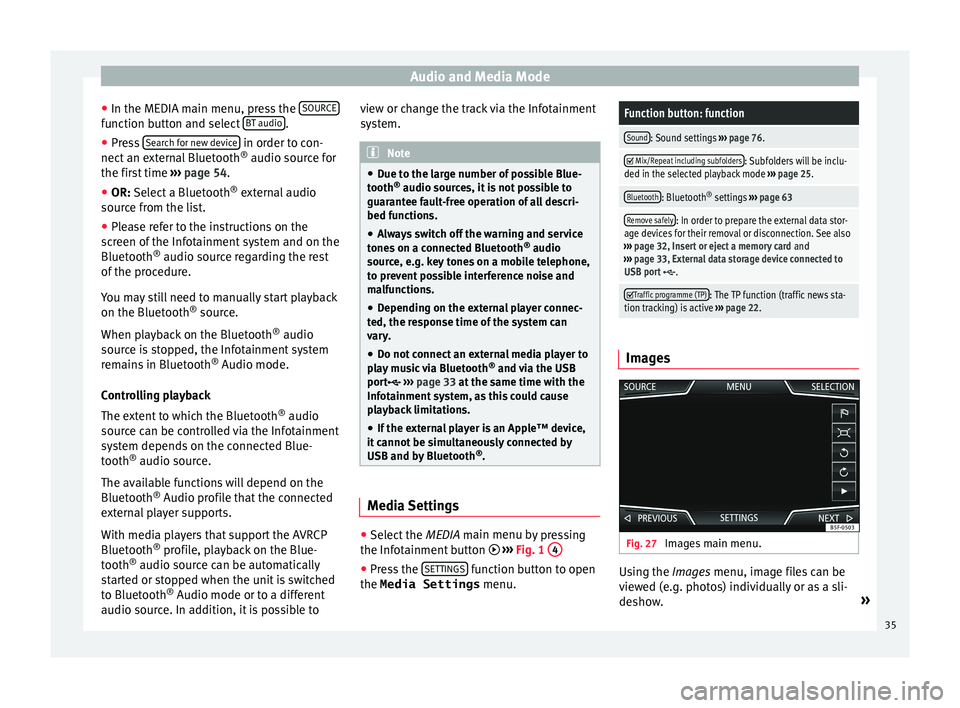
tion tracking) is active ››› page 22. Images
Fig. 27
Images main menu. Using the Ima
ge
s
menu, image files can be
viewed (e.g. photos) individually or as a sli-
deshow. »
35
Page 38 of 88
Audio and Media Mode
The image files must be stored on a compati-
b l
e d
ata storage device (e.g., a CD or an SD
card).
● Press the Infotainment button
›››
Fig. 1 12 and then press the
Im
ag
e s func-
tion b utt
on.
● Pr
ess the SOURCE function button to select
the sour c
e wher
e the pictures in question are
located.
Function button: function
SOURCEViewing and selecting the source.
SELEC-
TIONOpens a list of image files.
The image viewed was obtained via GPS lo-
calisation and upon pressing this function
button, the navigator menu opens to start a
route to this destination.
/ Rotate the view of the image to the left or
the right.
Reset the view of the image.
To stop the playback of a slideshow. The function button changes to .
To continue the playback of a slideshow.
The function button changes to .
Function button: function
/
To change to the PREVIOUS
or NEXT im-
age.
The same function can be performed by
sliding your finger horizontally across the
screen.
SET- TINGSOpen the Image settings menu. Enlarging or reducing the view
To en
l
arge or reduce the view of the image
displayed:
● Turn the adjustment knob.
● OR: Stretch or reduce the image on the
s c
reen using 2 fingers.
Rotating the view/image
To rotate an image, in addition to the buttons
provided for this ( / ), you can also press
on the screen (e.g. with your thumb) and,
while continuing to press with your thumb,
slide another finger (e.g. your index finger)
around it like a compass either clockwise (to
rotate the image to the right) or anti-clock-
wise (to turn the image to the left). This will
rotate the image 90° with respect to its cur-
rent position. Requirements for viewing images
Image filesMaximum resolution
BMP4MP
JPEG4MP (Progressive Mode)
JPG64MP
GIF4MP
PNG4MP
Image settings
Open the Image settings
menu
● In the Ima ges main menu, press the
S ET
TINGS function button.
Function button: function
Image view: To adjust the viewing format of the image.
Automatic
: The images are shown in scale in rela-
tion to the size of the screen (the image may not be
displayed in its entirety).
Full : The full images are displayed on the screen.
Display time: To adjust the display time of the images
during a slideshow.
Repeat slideshow: The active slideshow will be repeated
indefinitely. 36
Page 39 of 88

Navigation*
Navigation*
Nav ig
ation, entr
y and control
Introduction Fig. 28
Related video General information
The c
urr
ent
vehicle position is determined by
means of the GPS satellite system (Global Po-
sitioning System). Sensors in the vehicle
measure distances that have been driven.
The measurement values are compared with
the detailed map data and the road informa-
tion stored therein. Traffic reports, if any, will
also be taken into account in the route calcu-
lation (dynamic route guidance
››› page 45). Using all the data available,
the Infotainment system calculates the opti-
mum route to the destination.
The destination is defined by entering an ad-
dress or a point of interest, e.g. a petrol sta-
tion or hotel.
Spoken instructions and visual guidance on
the navigation unit and on the instrument
panel will direct you to your destination. Depending on the country, some infotain-
ment sys
tem functions can no longer be se-
lected when the vehicle is travelling above a
certain speed. This is not a malfunction, but
simply a legal requirement.
Navigation messages When the Infotainment system is unable to
rec
eiv
e any data from GPS satellites (due to a
dense tree canopy, underground car park),
navigation can still continue using the vehi-
cle sensors.
Possible navigation limitations
In areas that are not or are only partially digi-
tised on the data storage device (e.g. insuffi-
cient definition of one-way streets and road
categories), the Infotainment system will still
attempt to provide route guidance.
If navigation data are unavailable or incom-
plete, the navigation system may be unable
to determine the exact vehicle position. As a
result, the navigation may not be as exact as
usual.
Navigation area and updating of navigation
data
Roads and streets are subject to constant
change (e.g. new roads, changes to street
names and building numbers). Therefore, if
the navigation data is not updated, then er- rors or inaccuracies may occur during guid-
ance.
S
EA
T recommends updating navigation data
on a regular basis. Up to date navigation da-
ta can be acquired at a SEAT dealer.
Use navigation data from a memory
card. The SD card is initially to be found inserted in
SD car
d s
lot 2.
To update navigation data visit our website:
www.seat.com.
● Insert the memory card ›››
page 32 .
● Do not remove the memory card while test-
ing. W
ait for the testing icon to disappear.
If the inserted memory card contains valid
navigation data, the following message ap-
pears: “The source contains a valid
navigation database ”. It is now possible
to navigate with the memory card data. When
the memory card is no longer needed by the
hardware, it will be prepared for removal
››› page 32. Note
● The inser t
ed memory card must be pre-
pared before it is ejected ››› page 32. » 37
Page 40 of 88
Navigation*
●
Pre s
s the Infotainment button
››› Fig. 1 12 ; then press
Settings to open
the System settings menu.
● Nav
igation is not possible without the SD
card.
● Do not
remove the memory card while the
navig
ation data is in use. This could damage
the memory card!
● The navigation memory card may not be
used as
memory for other files. The infotain-
ment system will not recognise the files
saved.
● SEAT recommends only using original SEAT
memory c
ards to use navigation data. The
use of other memory cards could limit its op-
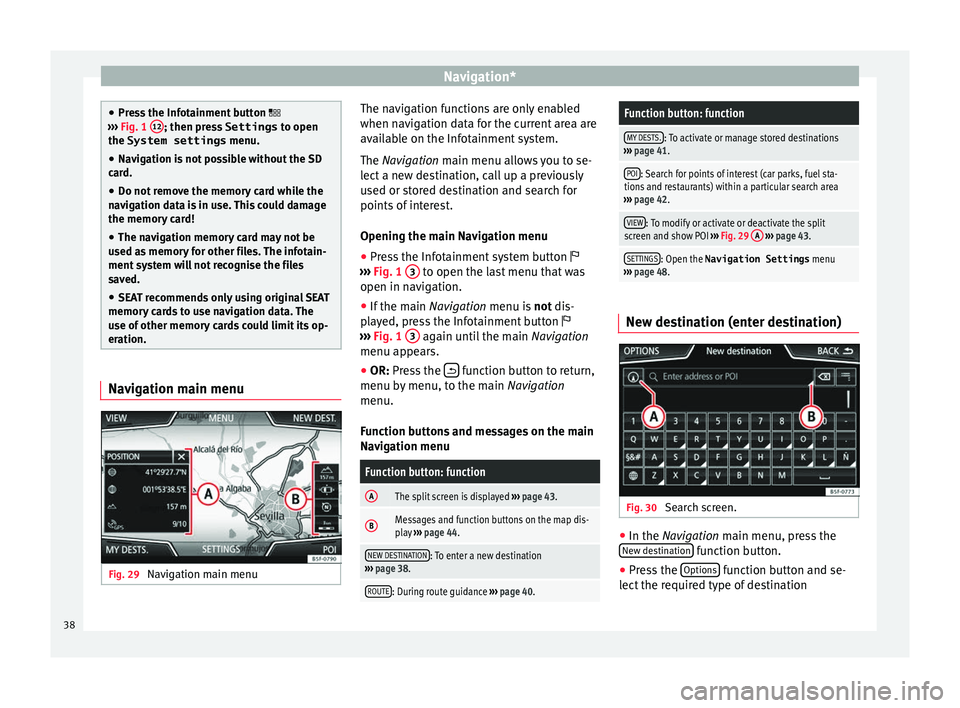
eration. Navigation main menu
Fig. 29
Navigation main menu The navigation functions are only enabled
when n
av
ig
ation data for the current area are
available on the Infotainment system.
The Navigation main menu allows you to se-
lect a new destination, call up a previously
used or stored destination and search for
points of interest.
Opening the main Navigation menu
● Press the Infotainment system button
›››
Fig. 1 3 to open the last menu that was
open in n av
ig
ation.
● If the main Navigation menu i
s not dis-
played, press the Infotainment button
››› Fig. 1 3 again until the main
Navigation
menu ap pe
ars.
● OR: Press the function button to return,
menu b y
menu, t
o the main Navigation
menu.
Function buttons and messages on the main
Navigation menu
Function button: function
AThe split screen is displayed ››› page 43.
BMessages and function buttons on the map dis-
play ››› page 44.
NEW DESTINATION: To enter a new destination
››› page 38.
ROUTE: During route guidance ››› page 40.
Function button: function
MY DESTS.: To activate or manage stored destinations
››› page 41.
POI: Search for points of interest (car parks, fuel sta-
tions and restaurants) within a particular search area
››› page 42.
VIEW: To modify or activate or deactivate the split
screen and show POI ››› Fig. 29 A
››› page 43.
SETTINGS: Open the Navigation Settings menu
››› page 48. New destination (enter destination)
Fig. 30
Search screen. ●
In the Na vigation main menu, press the
New de s
tination function button.
● Press the Option
s function button and se-
l ect
the r
equired type of destination
38
Page 42 of 88
Navigation*Route criteria: Meaning
Orange route: Shortest route
to the destination, even if it
results in longer travelling time. The route may have un-
conventional sections such as secondary roads. ●
Select the desired route by pressing it.
The setting f or the r
oute criteria in the Route
options menu is changed accordingly.
If no route is selected, then route guidance
starts automatically after about one minute
using the setting selected in the Route op- tions .
Navigation announcements (audible recom-
mendations for the driver)
Once the route has been calculated, the sys-
tem gives the first navigation announcement.
Up to 3 navigation announcements are given
before a turn, e.g. “Prepare to turn left”,
“Turn left in 300 metres” and “Now turn left”.
● Press the adjustment knob ››
›
Fig. 1 7 to
li s
t
en to the last audible navigation instruc-
tion.
The distances indicated largely depend on
the type of road and the speed at which you
are driving. For instance, navigation an-
nouncements are given much earlier on mo-
torways than on urban roads.
Appropriate navigation announcements are
also given on multi-lane roads, branching roads and at roundabouts, for example: “At
the round
about, take the second exit.”
A navigation announcement informs you
when you have reached your “destination”.
A navigation announcement informing you
that you have reached the “destination area”
is given if the exact destination cannot be
reached because it is located in a non-digi-
tised area. It also indicates the cardinal point
and the distance to the previously defined
destination. Navigation resumes “offroad”.
During dynamic route guidance , you receive
information about reported traffic congestion
on the route. An additional navigation an-
nouncement is given if the route is recalcula-
ted due to traffic congestion.
During a navigation announcement, you can
change its volume using the button
››› Fig. 1 6 up to a predefined minimum or
m ax
imum
volume. The following navigation
recommendations will then be made at the
adjusted volume.
For other adjustments to the navigation rec-
ommendations, see Navigation an-
nouncements settings. ››› page 48. Note
If you miss a turning during route guidance
and are c urr
ently unable to turn back, keep
on driving until the navigation system offers
a new route. Note
The quality of the navigation recommenda-
tions giv
en by the Infotainment system de-
pends on the navigation data available and
any reported traffic problems. Route
In the Navigation main menu, press the
R out
e function button.
The Rout
e function button is only displayed
w ith r
out
e guidance activated.
Function button: function
Stop route guidance: Aborts current route guidance.
Enter destination: To enter a new destination or a new
stopover ››› page 38.
Congestion ahead: To exclude a section (of 0.2 to 10 km in
length) from the current route, e.g. to avoid congestion.
To cancel the exclusion, press the Route
function button
and then Cancel congestion.
Route details: View route information for current route.40
Page 44 of 88

Navigation*Available function buttons.
New dest.To add a new destination to the tour.
Destina-
tionsTo add a new destination from My des-
tinations
to the tour.
StoringTo store the created tour in the tour
memory.
StartTo start route guidance.
CalculateTo update calculated distance and esti-
mated arrival time. a)
StopTo stop route guidance to the active des-
tination.b)
To move a stopover or a destination to
another position on the list. Press and
drag to move the destination.
a)
This function button is only displayed with route guidance ac-
tivated and when a destination has been added to the tour.
b) This function button is only displayed with route guidance ac-
tivated.
Last destinations
View of destinations for which a route has al-
ready been started.
My destinations
● Press the Options function button and se-
lect the de
sired function button.
Function button: function
Destination memory: View of destinations stored manually
and from imported vCards ››› page 46, Importing
vCards (electronic business cards) .
Favourites: View of destinations stored as favourites.
Contacts: View of entries in the phonebook that have a
stored address (postal address). Home address
Only
one a
ddress or position can be stored
as the home address at any one time. The
stored home address can be edited or over-
written.
If a home address has already been stored,
route guidance will be started to the stored
home address.
If a home address has not yet been stored,
an address can be assigned as the home ad-
dress.
Assigning the home address for the first time:
Position: Press to store the vehicle's current position as
the home address.
Address: Press to enter the home address manually.
Editing the home address:
The home address can be edited in the Navigation
settings menu ››› page 48.
Points of interest (POI) Fig. 33
Points of interest on the map. The points of interest saved in the navigation
d
at
a memor
y are divided into different point
of interest categories. Each point of interest
category is assigned a symbol for display on
the map.
If a database of points of interest has been
imported into the Infotainment system,
››› page 46, Importing Personal POI the cat-
egory Personal POI is also shown.
In the Map settings menu, the cat
e
gories
of points of interest to display on the map
can be configured ››› page 48. Up to 10 cat-
egories of points of interest can be selected.
42
Page 47 of 88
Navigation*
Traffic reports and dynamic route
guid anc
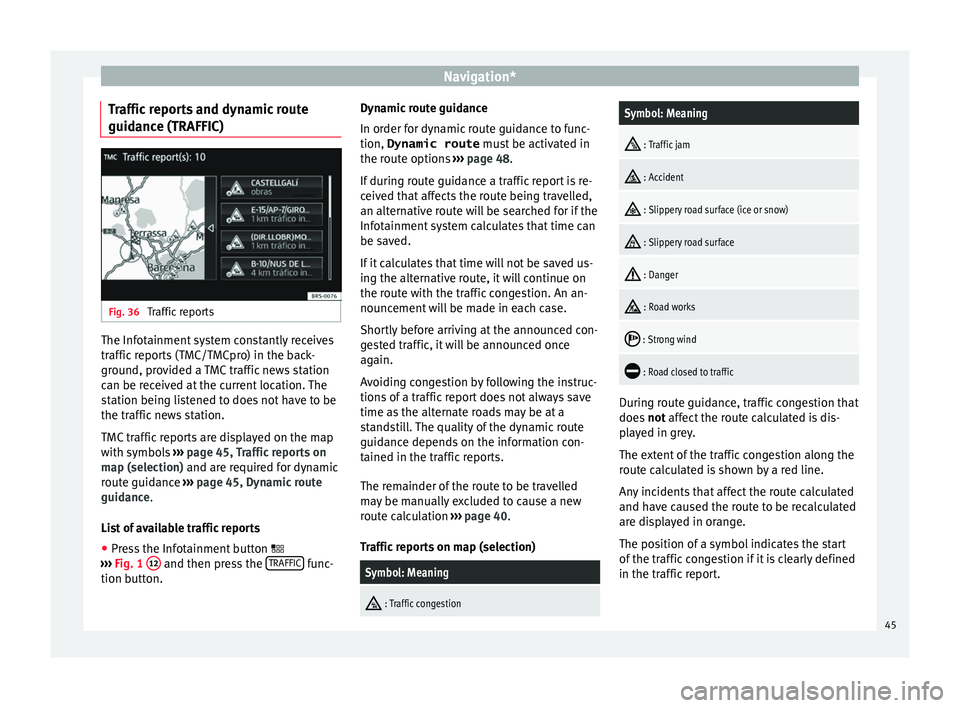
e (TRAFFIC) Fig. 36
Traffic reports The Infotainment system constantly receives
tr
affic
r
eports (TMC/TMCpro) in the back-
ground, provided a TMC traffic news station
can be received at the current location. The
station being listened to does not have to be
the traffic news station.
TMC traffic reports are displayed on the map
with symbols ››› page 45, Traffic reports on
map (selection) and are required for dynamic
route guidance ››› page 45, Dynamic route
guidance.
List of available traffic reports
● Press the Infotainment button
›››
Fig. 1 12 and then press the
TRAFFIC func-
tion b utt
on. D
ynamic route guidance
In order for dy
namic route guidance to func-
tion, Dynamic route must be activated in
the route options ››› page 48.
If during route guidance a traffic report is re-
ceived that affects the route being travelled,
an alternative route will be searched for if the
Infotainment system calculates that time can
be saved.
If it calculates that time will not be saved us-
ing the alternative route, it will continue on
the route with the traffic congestion. An an-
nouncement will be made in each case.
Shortly before arriving at the announced con-
gested traffic, it will be announced once
again.
Avoiding congestion by following the instruc-
tions of a traffic report does not always save
time as the alternate roads may be at a
standstill. The quality of the dynamic route
guidance depends on the information con-
tained in the traffic reports.
The remainder of the route to be travelled
may be manually excluded to cause a new
route calculation ››› page 40.
Traffic reports on map (selection)
Symbol: Meaning
: Traffic congestion
Symbol: Meaning
: Traffic jam
: Accident
: Slippery road surface (ice or snow)
: Slippery road surface
: Danger
: Road works
: Strong wind
: Road closed to traffic
During route guidance, traffic congestion that
doe
s
not
affect the route calculated is dis-
played in grey.
The extent of the traffic congestion along the
route calculated is shown by a red line.
Any incidents that affect the route calculated
and have caused the route to be recalculated
are displayed in orange.
The position of a symbol indicates the start
of the traffic congestion if it is clearly defined
in the traffic report.
45
Page 48 of 88
Navigation*
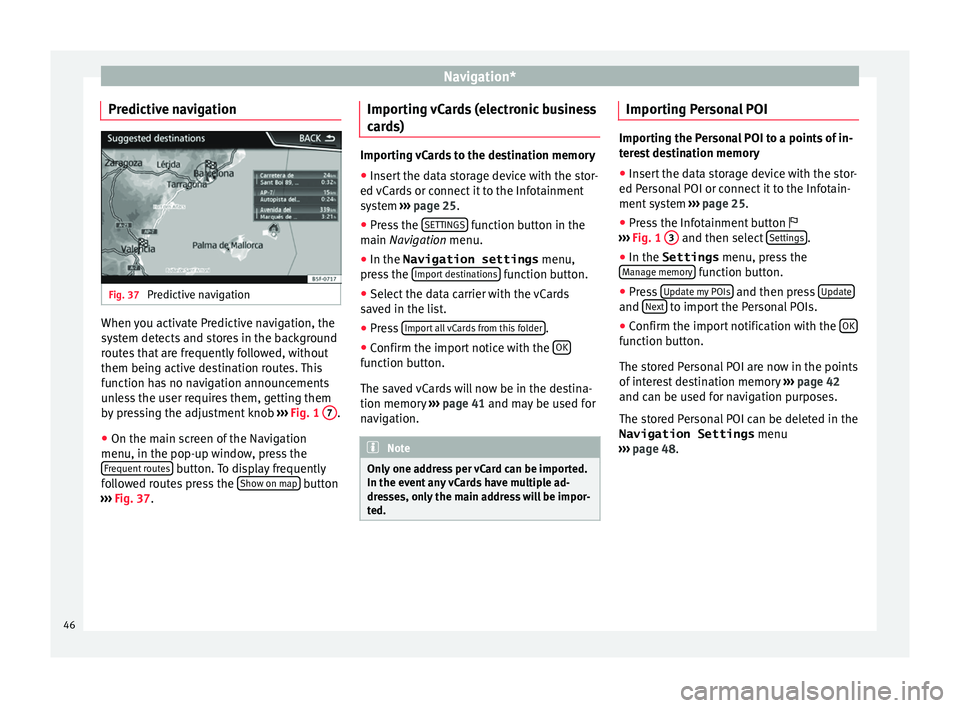
Predictive navigation Fig. 37
Predictive navigation When you activate Predictive navigation, the
sy s
t
em detects and stores in the background
routes that are frequently followed, without
them being active destination routes. This
function has no navigation announcements
unless the user requires them, getting them
by pressing the adjustment knob ››› Fig. 1 7 .
● On the main screen of the Navigation
menu, in the pop-up w indo
w
, press the
Frequent routes button. To display frequently
f o
l
lowed routes press the Show on map button
› ›
›
Fig. 37. Importing vCards (electronic business
card
s) Importing vCards to the destination memory
● Insert the data storage device with the stor-
ed vC ar
ds or connect it to the Infotainment
system ››› page 25.
● Press the SETTINGS function button in the
main Na
vigation menu.
● In the Navigation settings menu,
pres
s the Import destinations function button.
● Select the data carrier with the vCards
s av ed in the li
st.
● Press Import al
l vCards from this folder .
● Confirm the import notice with the OK function button.
The s
av
ed
vCards will now be in the destina-
tion memory ›››
page 41 and may be used for
navigation. Note
Only one address per vCard can be imported.
In the event an
y vCards have multiple ad-
dresses, only the main address will be impor-
ted. Importing Personal POI
Importing the Personal POI to a points of in-
ter
e
st destination memory
● Insert the data storage device with the stor-
ed Person
al POI or connect it to the Infotain-
ment system ››› page 25.
● Press the Infotainment button
›››
Fig. 1 3 and then select
Setting
s .
● In the Settings menu, pres
s the
Manage memory function button.
● Press U
pd at
e my POIs and then press
U
pd
at e and
Ne
xt to import the Personal POIs.
● Confirm the import notification with the OK function button.
The s
t
or
ed Personal POI are now in the points
of interest destination memory ›››
page 42
and can be used for navigation purposes.
The stored Personal POI can be deleted in the
Navigation Settings menu
››› page 48.
46
Page 49 of 88
Navigation*
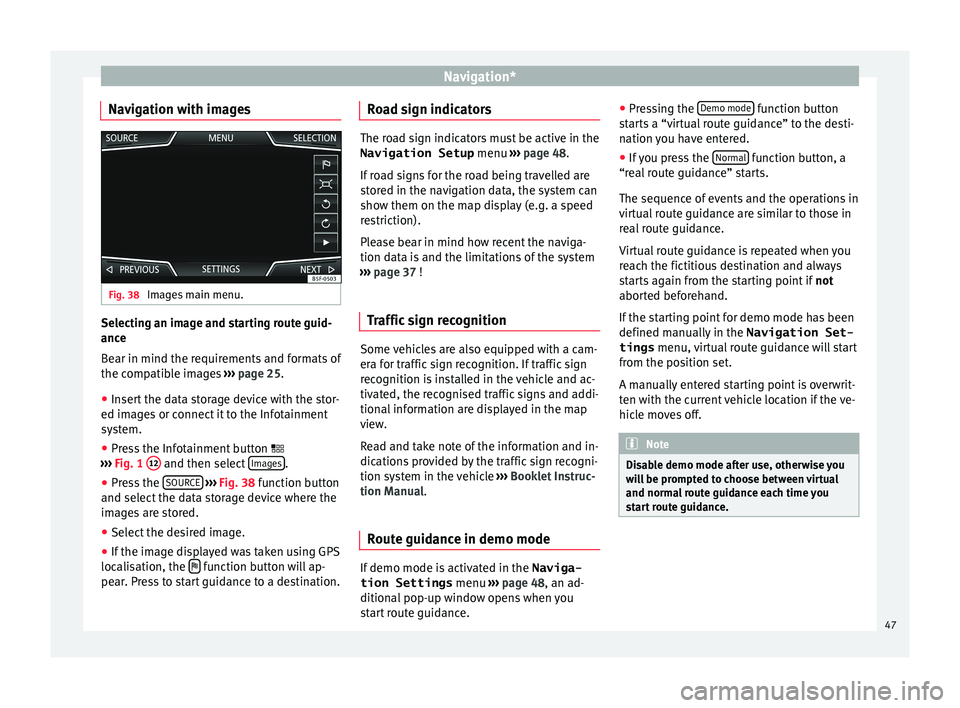
Navigation with images Fig. 38
Images main menu. Selecting an image and starting route guid-
anc
e
B e
ar in mind the requirements and formats of
the compatible images ››› page 25.
● Insert the data storage device with the stor-
ed image
s or connect it to the Infotainment
system.
● Press the Infotainment button
›››
Fig. 1 12 and then select
Im
ag
e s .
● Press the SOURC
E
› ›
› Fig. 38
function button
and select the data storage device where the
images are stored.
● Select the desired image.
● If the image displayed was taken using GPS
localis
ation, the function button will ap-
pe ar
. Pr
ess to start guidance to a destination. Road sign indicators The road sign indicators must be active in the
Navigation Setup menu ›››
page 48.
If road signs for the road being travelled are
stored in the navigation data, the system can
show them on the map display (e.g. a speed
restriction).
Please bear in mind how recent the naviga-
tion data is and the limitations of the system
››› page 37 !
Traffic sign recognition Some vehicles are also equipped with a cam-
er
a f
or tr
affic sign recognition. If traffic sign
recognition is installed in the vehicle and ac-
tivated, the recognised traffic signs and addi-
tional information are displayed in the map
view.
Read and take note of the information and in-
dications provided by the traffic sign recogni-
tion system in the vehicle ›››
Booklet Instruc-
tion Manual.
Route guidance in demo mode If demo mode is activated in the
Naviga-
tion Settings menu ››
›
page 48, an ad-
ditional pop-up window opens when you
start route guidance. ●
Pres
sing the Demo mode function button
s t
ar
ts a “virtual route guidance” to the desti-
nation you have entered.
● If you press the Normal function button, a
“r e
al
route guidance” starts.
The sequence of events and the operations in
virtual route guidance are similar to those in
real route guidance.
Virtual route guidance is repeated when you
reach the fictitious destination and always
starts again from the starting point if not
aborted beforehand.
If the starting point for demo mode has been
defined manually in the Navigation Set-
tings menu, virtual route guidance will start
from the position set.
A manually entered starting point is overwrit-
ten with the current vehicle location if the ve-
hicle moves off. Note
Disable demo mode after use, otherwise you
wi l
l be prompted to choose between virtual
and normal route guidance each time you
start route guidance. 47
Page 55 of 88
Telephone management system (PHONE)
Telephone management sys-
t em (PHONE)
Intr oduction t
o the telephone
management system
General information Fig. 45
Related video The Telephone functions described below
c
an be u
sed thr
ough the Infotainment system
if there is a mobile telephone connected to it
via Bluetooth ®
›››
page 55.
In order for the mobile telephone to be able
to connect to the Infotainment system the tel-
ephone must be equipped with Bluetooth®
.
If there is no mobile telephone connected to
the Infotainment system, the telephone man-
agement system will not be available.
The instructions shown on the screen for the
telephone menus will depend on the mobile
telephone used. There may be variations.
Only use compatible Bluetooth ®
devices. For
further information on compatible Blue- tooth
®
products, ask your nearest SEAT deal-
er or chec
k on the internet.
Use the instruction manual of the mobile tel-
ephone and of any accessories.
If you detect any operating issues between
your mobile telephone and the Infotainment
system, restart your mobile by switching it off
and on again.
You may experience poor reception or may be
cut off in areas where the signal is weak.
Most electronic devices are shielded against
HF (high-frequency) signals. In any case, the
electronic equipment may not be protected
from the HF signals of the telephone man-
agement system. This may cause interfer-
ence. WARNING
Speaking by telephone and operating the mo-
bi l
e telephone whilst driving can distract you
from the road and cause an accident.
● Always drive carefully and responsibly.
● Select volume settings that allow you to
eas
ily hear signals from outside the vehicle
at all times (e.g. emergency services sirens
and horns).
● In areas of little or no coverage or, in some
case
s, in a tunnel, garage or underpass, your
call may be cut off and you may not be able to
make even emergency calls. WARNING
If a mobile telephone is not secured or is in-
corr ectly
secured in the vehicle, it could move
around the passenger compartment in the
event of a sudden driving manoeuvre or emer-
gency stop, resulting in injury.
● While the vehicle is in motion, always se-
cure the mo
bile telephone properly outside
the airbag deployment zone. WARNING
Mobile telephones may interfere with and al-
ter the c orr
ect operation of pacemakers if
they are carried directly over them.
● Maintain a minimum distance of at least
20 centimetre
s between the aerials of the
mobile telephone and the pacemaker, as mo-
bile phones may affect the functioning of
pacemakers.
● Do not carry your switched-on mobile tele-
phone in your br
east pocket directly over the
pacemaker.
● If you suspect interference, switch off the
mobi
le telephone immediately. CAUTION
High speeds, poor weather or road conditions
and the quality of
reception can all affect the
quality of a telephone conversation in the ve-
hicle. » 53