phone Seat Ibiza 2017 MEDIA SYSTEM PLUS - NAVI SYSTEM
[x] Cancel search | Manufacturer: SEAT, Model Year: 2017, Model line: Ibiza, Model: Seat Ibiza 2017Pages: 88, PDF Size: 2.34 MB
Page 3 of 88
Related videos
General instructions and settings››› page 8Navigation››› page 37
Radio mode››› page 17Telephone management system
(PHONE)››› page 53
Media mode››› page 25Full Link››› page 66
Page 5 of 88
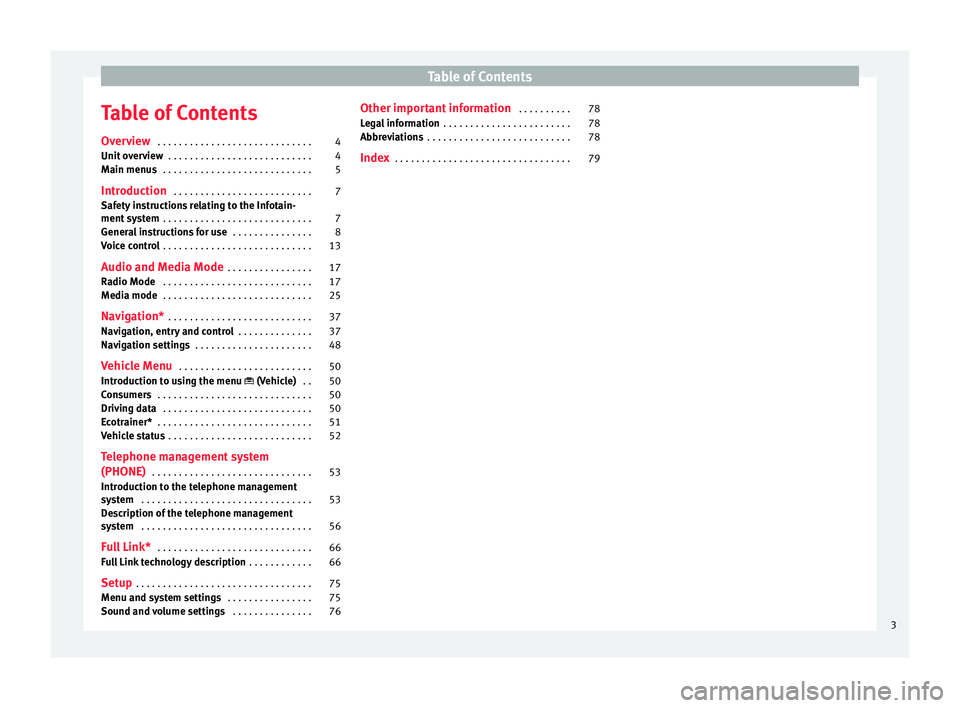
Table of Contents
Table of Contents
Ov er
v
iew . . . . . . . . . . . . . . . . . . . . . . . . . . . . . 4
Unit overview . . . . . . . . . . . . . . . . . . . . . . . . . . . 4
Main menus . . . . . . . . . . . . . . . . . . . . . . . . . . . . 5
Introduction . . . . . . . . . . . . . . . . . . . . . . . . . . 7
Safety instructions relating to the Infotain-
ment sys
tem . . . . . . . . . . . . . . . . . . . . . . . . . . . . 7
General instructions for use . . . . . . . . . . . . . . . 8
Voice control . . . . . . . . . . . . . . . . . . . . . . . . . . . . 13
Audio and Media Mode . . . . . . . . . . . . . . . . 17
Radio Mode . . . . . . . . . . . . . . . . . . . . . . . . . . . . 17
Media mode . . . . . . . . . . . . . . . . . . . . . . . . . . . . 25
Navigation* . . . . . . . . . . . . . . . . . . . . . . . . . . . 37
Navigation, entry and control . . . . . . . . . . . . . . 37
Navigation settings . . . . . . . . . . . . . . . . . . . . . . 48
Vehicle Menu . . . . . . . . . . . . . . . . . . . . . . . . . 50
Introduction to using the menu (Vehicl
e) . . 50
Consumers . . . . . . . . . . . . . . . . . . . . . . . . . . . . . 50
Driving data . . . . . . . . . . . . . . . . . . . . . . . . . . . . 50
Ecotrainer* . . . . . . . . . . . . . . . . . . . . . . . . . . . . . 51
Vehicle status . . . . . . . . . . . . . . . . . . . . . . . . . . . 52
Telephone management system
(PHONE) . . . . . . . . . . . . . . . . . . . . . . . . . . . . . . 53
Introduction to the telephone management
syst
em . . . . . . . . . . . . . . . . . . . . . . . . . . . . . . . . 53
Description of the telephone management
syst
em . . . . . . . . . . . . . . . . . . . . . . . . . . . . . . . . 56
Full Link* . . . . . . . . . . . . . . . . . . . . . . . . . . . . . 66
Full Link technology description . . . . . . . . . . . . 66
Setup . . . . . . . . . . . . . . . . . . . . . . . . . . . . . . . . . 75
Menu and system settings . . . . . . . . . . . . . . . . 75
Sound and volume settings . . . . . . . . . . . . . . . 76 Other important information
. . . . . . . . . . 78
Legal information . . . . . . . . . . . . . . . . . . . . . . . . 78
Abbreviations . . . . . . . . . . . . . . . . . . . . . . . . . . . 78
Index . . . . . . . . . . . . . . . . . . . . . . . . . . . . . . . . . 79
3
Page 8 of 88
Overview
Radio
››› page 17
RADIO main menu ››› page 17
RDS radio data services ››› page 18
Digital radio mode ››› page 19
Memory buttons ››› page 20
Storing station logos ››› page 21
Select, tune and store stations ››› page 21
Scan function ››› page 22
TP traffic news ››› page 22
Settings ››› page 23
Media
››› page 25
Data and file storage devices ››› page 25
Playing order ››› page 27 ››› page 27
Changing the media source ››› page 29
Changing tracks ››› page 29
Selecting an album by its cover ››› page 30
Selecting of a track from a list of tracks ››› page 30
Database view ››› page 31
Inserting or ejecting a CD ››› page 32
Memory card ››› page 32
External data storage device connected to the USB port
››› page 33
External audio source connected to the AUX-IN multime-
dia socket ››› page 34
External audio source with Bluetooth ®
››› page 34
Images ››› page 35
Settings ››› page 35 ››› page 36
Telephone
››› page 53
Pairing ››› page 55
Bluetooth ®
››› page 54
Function buttons ››› page 57
Entering a number ››› page 59
Phonebook ››› page 60
Short messages (SMS) ››› page 61
Call list ››› page 62
Speed dial buttons ››› page 62
Settings ››› page 63
Navigation
››› page 37
New destination ››› page 38
Route options ››› page 39 ››› page 40
My destinations ››› page 41
Points of interest (POI) ››› page 42
View ››› page 43
Split screen ››› page 43
Map display ››› page 44
Traffic reports and dynamic route guidance to the desti-
nation (TRAFFIC) ››› page 45
Predictive navigation ››› page 46
Importing vCards ››› page 46
Importing Personal POI ››› page 46
Navigation with images ››› page 47
Traffic signs ››› page 47
Route guidance in Demo mode ››› page 47
Settings ››› page 48
Traffic
››› page 45
TP Traffic Information station (Traffic Program)
››› page 22
Traffic reports and dynamic route guidance to the desti-
nation (TRAFFIC) ››› page 45
Vehicle
››› Booklet Instruction Manual
Consumers ››› page 50
Driving data ››› page 50
Ecotrainer ››› page 51
Vehicle status ››› page 52
Full Link
››› page 66
Requirements ››› page 68
Activation of Full Link ››› page 69
Pairing portable devices ››› page 70
MirrorLink ®
››› page 71
Apple CarPlay™ ››› page 72
Android Auto™ ››› page 72
Frequently asked questions ››› page 74
Images
››› page 35
Sound
››› page 76
Settings
››› page 75 6
Page 10 of 88
Introduction
CAUTION
The Infotainment system can be damaged by
the incorrect in
sertion of a data storage de-
vice or the insertion of an incompatible data
storage device.
● When inserting a data storage device, make
sure it i
s correctly positioned ››› page 25.
● Applying force may irreparably damage the
memory car
d slot locking mechanism.
● Only use compatible memory cards.
● When inserting and removing CDs, always
hold them at right
angles to the front of the
CD drive without tilting so as not to scratch
them.
● If a CD is inserted while another is already
in the unit or being ej
ected, the CD drive may
be irreparably damaged. Always wait until
the data medium is completely ejected. CAUTION
Any foreign objects stuck to a data storage
device and non-r ou
nd media may damage the
CD player.
● Only clean, standard 12-cm CDs should be
used.
– Do not affix
stickers or other items to the
data medium. Stickers may peel off and
damage the drive.
– Do not use printable data media. Printed
labels and coverings may peel off and
damage the CD drive. –
Do not inser t
8-cm single CDs or irregu-
larly shaped CDs.
– Do not insert DVD-Plus discs, Dual Discs
or Flip Discs, as these are thicker than
normal CDs. CAUTION
The vehicle loudspeakers may be damaged if
the volume i
s too high or the sound is distor-
ted. General instructions for use
Intr oduction Fig. 3
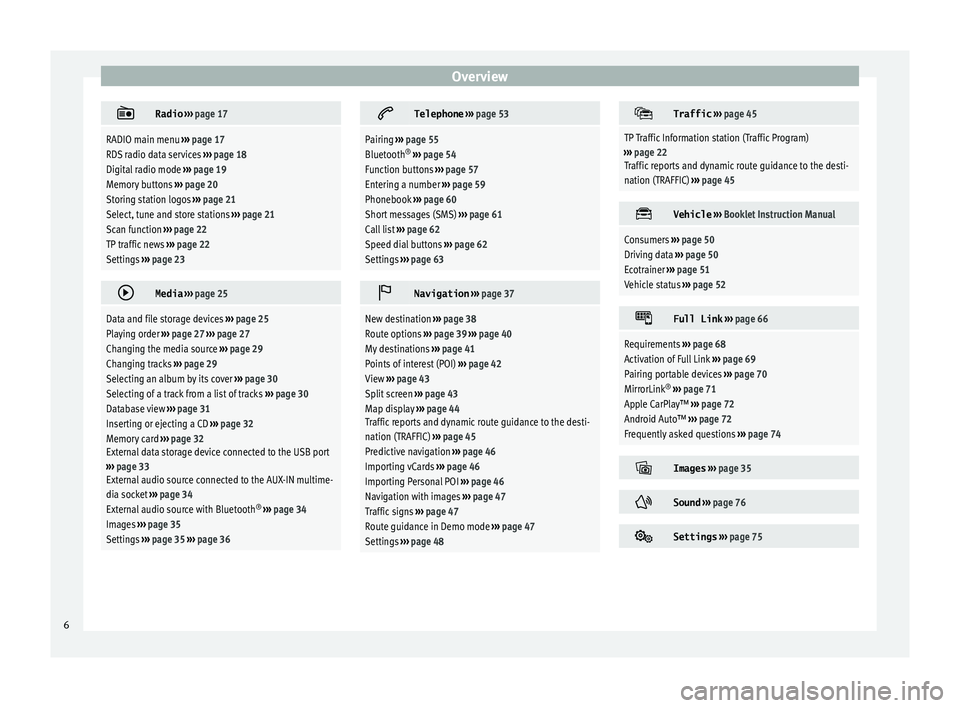
Related video If the setup is changed, this may change the
di
s
p l
ay on the screen and in some cases, the
Infotainment system may behave in a manner
different to that described in this manual. Note
● Lightly pre s
sing the buttons or briefly
pressing the touchscreen is sufficient to op-
erate the Infotainment system.
● Not all listed function buttons and func-
tions des
cribed may be available due to the
device software used in your market. The
equipment is not faulty if a function button is
missing from the screen.
● Due to country-specific legislation, certain
functions
may not be available on the screen
when the vehicle is travelling above a certain
speed.
● Using a mobile telephone in the vehicle
may c
ause noise from the vehicle loudspeak-
ers.
● Restrictions on the use of devices using
Bluetooth ®
techno
logy may apply in some
countries. For further information, contact the
local authorities.
● On some vehicles with ParkPilot, the vol-
ume of the audio source i
s automatically low-
ered when reverse gear is selected. You can
change settings for lowering the volume in
the Sound setup menu ››› page 76. Diagram of the menus
The Infotainment system touchscreen
› ›
›
Fig. 1 2 can be used to select the differ-
ent main menu
s.
8
Page 15 of 88
Introduction
››› Fig. 8 if any parameters have not been set
or if the NEVER f
unction button has not been
pressed.
Function
buttonFunction
CLOSE
Closes the Configuration Wizard, and the
main menu or last mode in which you
used the Infotainment system will ap-
pear. The next time you switch on the
system, the Configuration Wizard will
start up again.
NEVER
Disables the possibility of changing the
settings of the Infotainment system. If
you want to perform the initial system
setup, you must enter via System set-
up and select Configuration Wiz-
ard ››› page 75.
STARTStarts up the Configuration Wizard.
APress to configure the time and date (if it
has a navigation system it will be config-
ured automatically with the GPS).
BPress to search and store to memory the
radio stations that have the best recep-
tion at that moment.
CPress to link your mobile telephone to
the Infotainment system.
Da)Press to select your home address using
your current position or by manually en-
tering an address.
Function
buttonFunction
PREVIOUS
NEXT
To go to the previous or next parameter
to set.
When a parameter has been set, the only
way to reset it is from the main menu,
clicking on it, and not using the Previ-
ous/Next buttons.
When setting any parameter, a confirma-
tion mark will appear on it
.
FINISH
Once one or more settings have been ap-
plied, click on this in the main menu of
the wizard to confirm and finalize the
settings.
If there are any parameters you have not
set, the next time you connect the Info-
tainment system, the Initial Configura-
tion Wizard will start up.
a) Only valid for Navi System.
Voice control
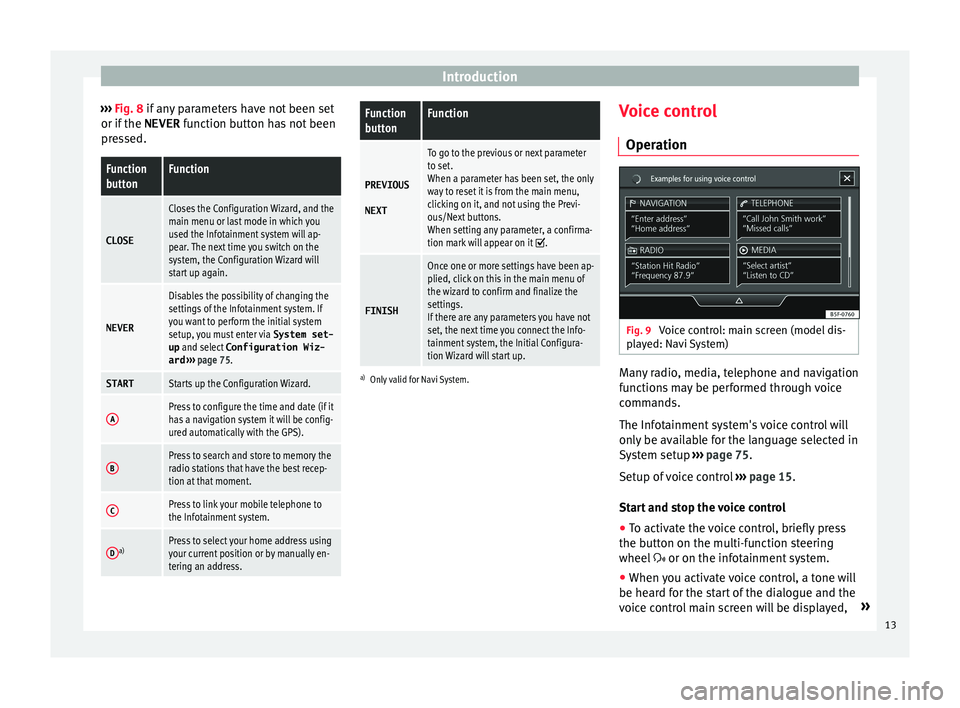
Operation Fig. 9
Voice control: main screen (model dis-
p l
a
yed: Navi System) Many radio, media, telephone and navigation
f
u
nction
s may be performed through voice
commands.
The Infotainment system's voice control will
only be available for the language selected in
System setup ››› page 75.
Setup of voice control ››› page 15.
Start and stop the voice control
● To activate the voice control, briefly press
the button on the mu
lti-function steering
wheel or on the infotainment system.
● When you activate voice control, a tone will
be heard f
or the start of the dialogue and the
voice control main screen will be displayed, »
13
Page 16 of 88
Introduction
››› Fig. 9, (the m ain s
c reen will appear in the
format selected in Voice control settings
››› page 15). The spoken instructions will
guide you through the following “dialogue”.
● Pronounce the desired order and follow the
instruction
s of the “dialogue”. A function can
often be activated with different spoken com-
mands. If in doubt, try giving a command or
say Help.
● When an action is performed (e.g. calling a
contact), the
voice control automatically de-
activates and must be reactivated again
when needed. There are certain commands
after which the voice control does not end
and waits with What do you wish to do
now? .
● To finish voice control manually, either
pres
s and hold the button until the corre-
sponding confirmation signal is heard, or
give two quick presses on the button or
press the function button in the top right
corner of the screen.
● Voice control can also be ended by giving
the fol
lowing orders: “End Voice Control” or
“Cancel”.
Help with voice control
Listening to Help when using voice control for
the first time is recommended.
● Switch on the speech control system .
● Give the Help command in the l
anguage
established in the System setup , and fol-low the dialogue instructions. The
Help com-
mand c
an also be spoken followed by the in-
fotainment system function, for example,
“Help with the navigation”.
Interaction with the dialogue mode
Icons in the top left corner:
The system is expecting a command
from the user.
The system has recognised a command
and will act shortly.
The system is sending a spoken com-
mand and confirms the command given.
The system is in pause mode. (max. 3
minutes).Hide or show the voice control menu
››› Fig. 9.
Operation during the dialogue
While the infotainment system transmits a
spoken indication, the display will show the
symbol .
● The announcement can be stopped by
pres
sing the upper left icon on the screen or
the button and voice recognition for the
user will resume.
IMPORTANT: The system will ONLY recognise
a command when the symbol is displayed
as “active” on the display or touch screen.
/
If you make a mistake when giving a com-
mand or give an inc
omplete command, and it
has no effect, you can repeat the command.
The symbol remains active.
● Briefly press the button t
o repeat the
command.
Instructions for voice control
For optimum functioning of the voice control,
follow these instructions:
● Speak slowly and clearly, as far as possi-
ble.
The system will not recognise words that
are not pronounced clearly, or words and fig-
ures in which syllables are omitted.
● Telephone numbers must be given digit by
digit or in bloc
ks of numbers in ones, tens or
hundreds.
● Speak at a normal volume, without exag-
gerat
ed intonation or long pauses.
● Avoid noise from the exterior and nearby
(for ex
ample, conversations inside the vehi-
cle). Close all doors, windows and the sliding
roof.
● Do not aim the air from the diffusers at the
roof of
the passenger compartment.
● If you are driving very fast, speak a little
louder.
When y
ou activate voice control you are tak-
en to the main screen ››› Fig. 9 where the
14
Page 17 of 88
Introduction
main commands and the modes in which
sy s
t
em works are shown.
From here, you can tell the system which
mode you want to activate or directly give a
voice command.
When you select any of the modes (Naviga-
tion, Telephone, Radio, Media, Voice control)
a menu will appear listing the main com-
mands and, in each one, brief explanations
to help understand how they work.
Voice control (RADIO)
LISTEN TO THE RADIOListen to the radio
SELECT STATIONStation NAME STATION 1
Set station
SELECT FREQUENCYFrequency 87.9
Set frequency
CHANGING BANDSBand FM
Change band Voice control (MEDIA)
SELECT A SOURCEPlay CD
Listen to CD
SELECTING MUSICSelect track / album / ar-
tist / genre Voice control (PHONE)
CALL CONTACTS
Call Forename Surname
Landline
Call Forename Surname
Mobile
CALL NUMBERSCall 01234
Call number
CALL LISTShow all calls
Missed calls
REDIALRedial
CALL MAILBOXCall mailbox
SMSRead out text message
SERVICEAssistance call
INFORMATIONInformation call
Voice control (NAV)*
ENTER AN ADDRESS
Enter address
Navigate to City, Street,
Number
HOME ADDRESSHome address
LAST DESTINATIONSLast destinations
NAVIGATE TO CONTACTSNavigate to Forename Sur-
name
ROUTE GUIDANCEStart route guidance
Route information Voice control
VOICE CONTROL
Pardon?
Back
Main menu
Cancel voice control
Pause voice control
HELPHelp
What can I say?
PUSH-TO-TALK
Note
Voice control is unavailable during parking
manoeu vr
es Voice control settings
●
Press the Infotainment button
› ›
›
Fig. 1 12 to open the main menuSystem
settings .
● Press the function button Settin
g
s to access
the sy s
t
em setup.
● Press the function button Voice c
ontrol .
»
15
Page 28 of 88
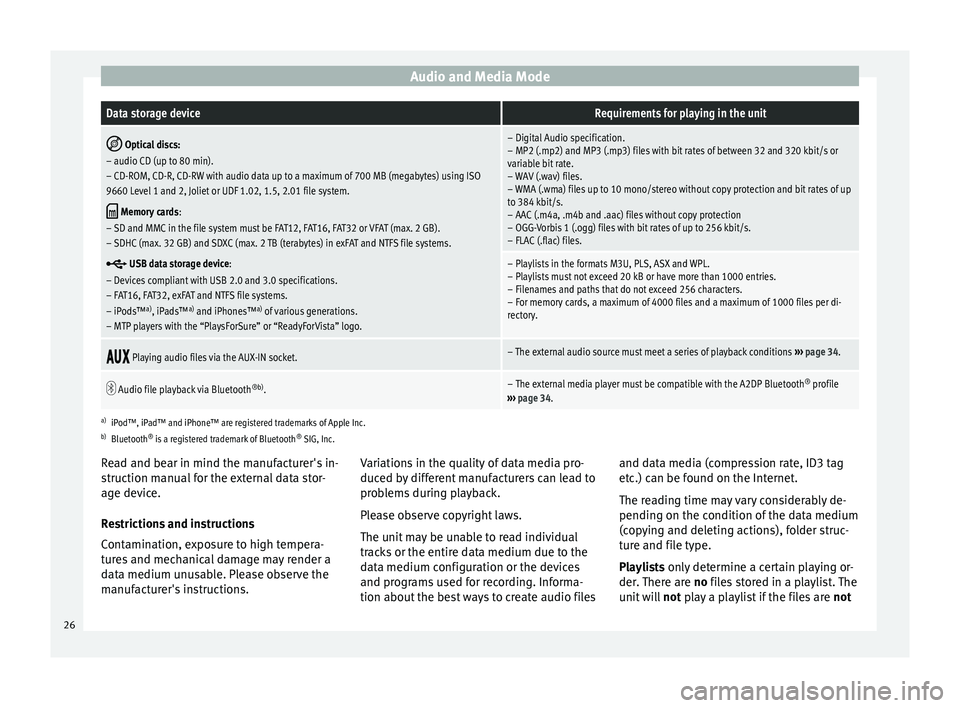
Audio and Media ModeData storage deviceRequirements for playing in the unit
Optical discs:
– audio CD (up to 80 min).
– CD-ROM, CD-R, CD-RW with audio data up to a maximum of 700 MB (megabytes) using ISO
9660 Level 1 and 2, Joliet or UDF 1.02, 1.5, 2.01 file system.
Memory cards :
– SD and MMC in the file system must be FAT12, FAT16, FAT32 or VFAT (max. 2 GB).
– SDHC (max. 32 GB) and SDXC (max. 2 TB (terabytes) in exFAT and NTFS file systems.
USB data storage device:
– Devices compliant with USB 2.0 and 3.0 specifications.
– FAT16, FAT32, exFAT and NTFS file systems.
– iPods™ a)
, iPads™ a)
and iPhones™ a)
of various generations.
– MTP players with the “PlaysForSure” or “ReadyForVista” logo.
– Digital Audio specification.
– MP2 (.mp2) and MP3 (.mp3) files with bit rates of between 32 and 320 kbit/s or
variable bit rate.
– WAV (.wav) files.
– WMA (.wma) files up to 10 mono/stereo without copy protection and bit rates of up
to 384 kbit/s.
– AAC (.m4a, .m4b and .aac) files without copy protection
– OGG-Vorbis 1 (.ogg) files with bit rates of up to 256 kbit/s.
– FLAC (.flac) files.
– Playlists in the formats M3U, PLS, ASX and WPL.
– Playlists must not exceed 20 kB or have more than 1000 entries.
– Filenames and paths that do not exceed 256 characters.
– For memory cards, a maximum of 4000 files and a maximum of 1000 files per di-
rectory.
Playing audio files via the AUX-IN socket.– The external audio source must meet a series of playback conditions
››› page 34.
Audio file playback via Bluetooth
®b)
.– The external media player must be compatible with the A2DP Bluetooth ®
profile
››› page 34.
a)
iPod™, iPad™ and iPhone™ are registered trademarks of Apple Inc.
b) Bluetooth ®
is a registered trademark of Bluetooth ®
SIG, Inc.
Read and bear in mind the manufacturer's in-
struction manual for the external data stor-
age device.
Restrictions and instructions
Contamination, exposure to high tempera-
tures and mechanical damage may render a
data medium unusable. Please observe the
manufacturer's instructions. Variations in the quality of data media pro-
duced by
different manufacturers can lead to
problems during playback.
Please observe copyright laws.
The unit may be unable to read individual
tracks or the entire data medium due to the
data medium configuration or the devices
and programs used for recording. Informa-
tion about the best ways to create audio files and data media (compression rate, ID3 tag
etc.) c
an be found on the Internet.
The reading time may vary considerably de-
pending on the condition of the data medium
(copying and deleting actions), folder struc-
ture and file type.
Playlists only determine a certain playing or-
der. There are no files stored in a playlist. The
unit will not play a playlist if the files are not
26
Page 35 of 88
Audio and Media Mode
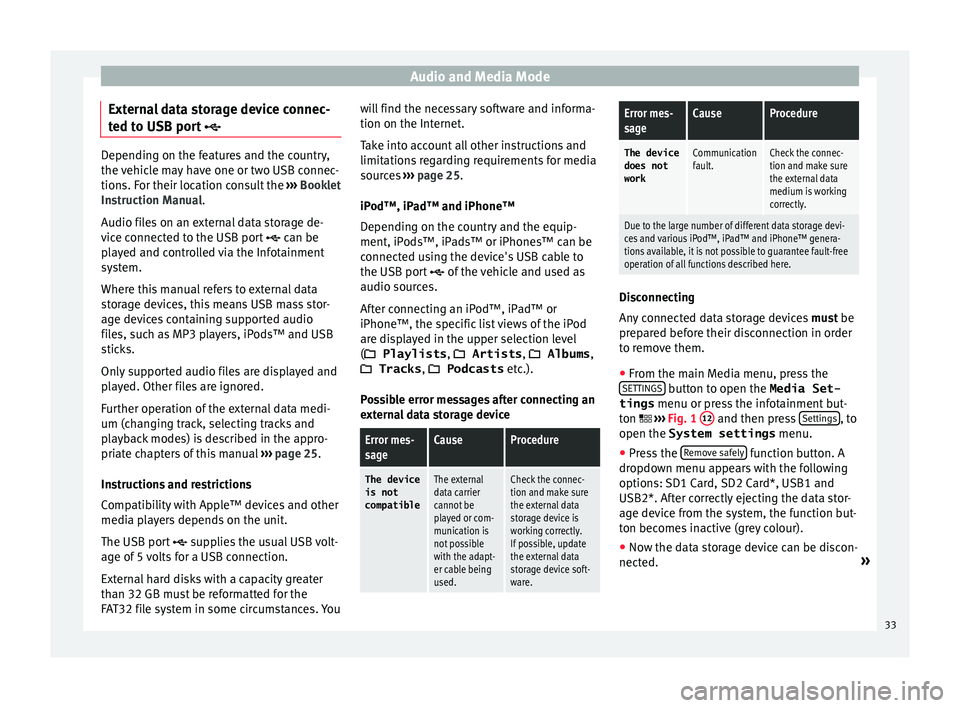
External data storage device connec-
t ed t
o USB por
t Depending on the features and the country,
the v
ehic
le may have one or two USB connec-
tions. For their location consult the ››› Booklet
Instruction Manual.
Audio files on an external data storage de-
vice connected to the USB port can be
played and controlled via the Infotainment
system.
Where this manual refers to external data
storage devices, this means USB mass stor-
age devices containing supported audio
files, such as MP3 players, iPods™ and USB
sticks.
Only supported audio files are displayed and
played. Other files are ignored.
Further operation of the external data medi-
um (changing track, selecting tracks and
playback modes) is described in the appro-
priate chapters of this manual ›››
page 25.
Instructions and restrictions
Compatibility with Apple™ devices and other
media players depends on the unit.
The USB port supplies the usual USB volt-
age of 5 volts for a USB connection.
External hard disks with a capacity greater
than 32 GB must be reformatted for the
FAT32 file system in some circumstances. You will find the necessary software and informa-
tion on the Internet
.
T
ake into account all other instructions and
limitations regarding requirements for media
sources ››› page 25.
iPod™, iPad™ and iPhone™
Depending on the country and the equip-
ment, iPods™, iPads™ or iPhones™ can be
connected using the device's USB cable to
the USB port of the vehicle and used as
audio sources.
After connecting an iPod™, iPad™ or
iPhone™, the specific list views of the iPod
are displayed in the upper selection level
( Playlists , Artists , Albums,
Tracks , Podcasts etc.).
Possible error messages after connecting an
external data storage device
Error mes-
sageCauseProcedure
The device
is not
compatibleThe external
data carrier
cannot be
played or com-
munication is
not possible
with the adapt-
er cable being
used.Check the connec-
tion and make sure
the external data
storage device is
working correctly.
If possible, update
the external data
storage device soft-
ware.
Error mes-
sageCauseProcedure
The device does not
workCommunication
fault.Check the connec-
tion and make sure
the external data
medium is working
correctly.
Due to the large number of different data storage devi-
ces and various iPod™, iPad™ and iPhone™ genera-
tions available, it is not possible to guarantee fault-free
operation of all functions described here. Disconnecting
An
y
c
onnected data storage devices must be
prepared before their disconnection in order
to remove them.
● From the main Media menu, press the
SETTINGS button to open the Media Set-
tings menu or pr e
s
s the infotainment but-
ton ›››
Fig. 1 12 and then press
Settin
g
s , to
open the System settings menu.
● Press the R
emo
v
e safely function button. A
dr opdo
wn menu ap
pears with the following
options: SD1 Card, SD2 Card*, USB1 and
USB2*. After correctly ejecting the data stor-
age device from the system, the function but-
ton becomes inactive (grey colour).
● Now the data storage device can be discon-
nected. »
33
Page 36 of 88
Audio and Media Mode
Note
● Do not c onnect
an external media player at
the same time to play music via Bluetooth ®
and via the USB port with the Infotain-
ment system, as this could cause playback
limitations.
● If the external player is an Apple™ device,
it cannot
be simultaneously connected by
USB and by Bluetooth ®
.
● If a connected device is not recognised, dis-
connect a
ll the connected devices and try
connecting the device again.
● Do not use memory card adaptors, USB ex-
tens
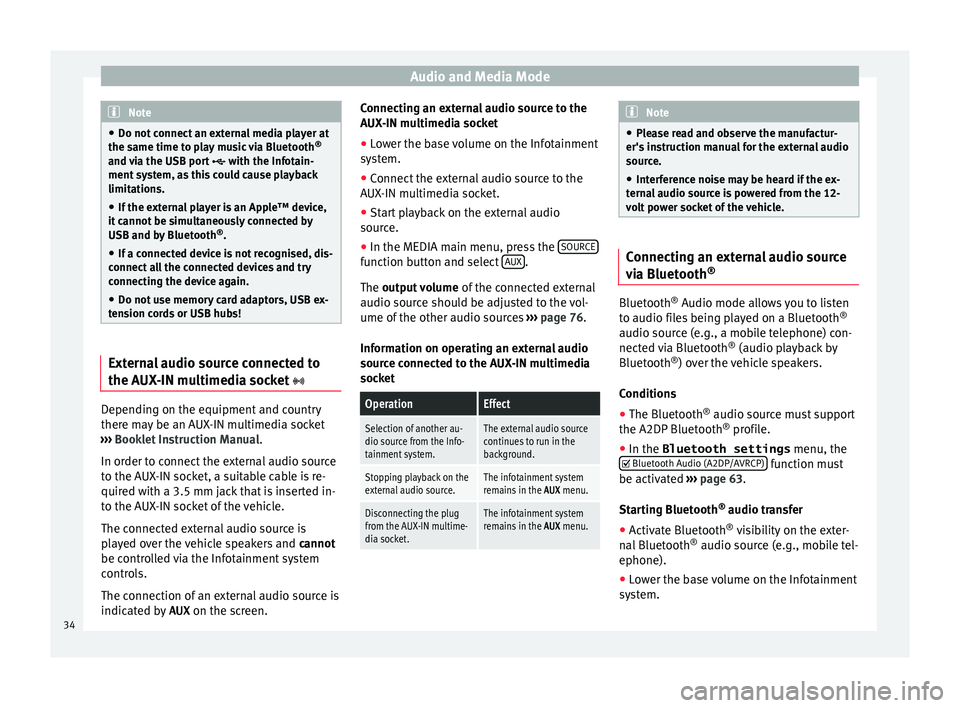
ion cords or USB hubs! External audio source connected to
the A
UX
-IN mu
ltimedia socket Depending on the equipment and country
ther
e m
a
y be an AUX-IN multimedia socket
››› Booklet Instruction Manual.
In order to connect the external audio source
to the AUX-IN socket, a suitable cable is re-
quired with a 3.5 mm jack that is inserted in-
to the AUX-IN socket of the vehicle.
The connected external audio source is
played over the vehicle speakers and cannot
be controlled via the Infotainment system
controls.
The connection of an external audio source is
indicated by AUX on the screen. Connecting an external audio source to the
AUX-IN mu
ltimedia socket
● Lower the base volume on the Infotainment
syst
em.
● Connect the external audio source to the
AUX-IN mu
ltimedia socket.
● Start playback on the external audio
source.
● In the MEDIA m
ain menu, press the SOURCE function button and select
A
UX .
The outp ut
volume of the connected external
audio source should be adjusted to the vol-
ume of the other audio sources ››› page 76.
Information on operating an external audio
source connected to the AUX-IN multimedia
socket
OperationEffect
Selection of another au-
dio source from the Info-
tainment system.The external audio source
continues to run in the
background.
Stopping playback on the
external audio source.The infotainment system
remains in the AUX menu.
Disconnecting the plug
from the AUX-IN multime-
dia socket.The infotainment system
remains in the AUX menu. Note
● Ple a
se read and observe the manufactur-
er's instruction manual for the external audio
source.
● Interference noise may be heard if the ex-
terna
l audio source is powered from the 12-
volt power socket of the vehicle. Connecting an external audio source
vi
a Bluet
ooth® Bluetooth
®
Audio mode al lo
w
s you to listen
to audio files being played on a Bluetooth ®
audio source (e.g., a mobile telephone) con-
nected via Bluetooth ®
(audio playback by
Bluetooth ®
) over the vehicle speakers.
Conditions ● The Bluetooth ®
audio source mu
st support
the A2DP Bluetooth ®
profile.
● In the Bluetooth settings menu, the
Bluetooth Audio (A2DP/AVRCP) function must
be activ at
ed ›
›› page 63.
Starting Bluetooth ®
audio transfer
● Activate Bluetooth ®
vis
ibility on the exter-
nal Bluetooth ®
audio source (e.g., mobile tel-
ephone).
● Lower the base volume on the Infotainment
syst
em.
34