infotainment Seat Ibiza 2017 MEDIA SYSTEM TOUCH - COLOUR
[x] Cancel search | Manufacturer: SEAT, Model Year: 2017, Model line: Ibiza, Model: Seat Ibiza 2017Pages: 48, PDF Size: 1.5 MB
Page 35 of 48
Telephone management system (PHONE)*Possible functions
Dialling with
speed dial but-
tonsBriefly press an assigned speed di-
al button from the PHONE main
menu to call the telephone number
that has been stored on it. Note
The contacts stored on the speed dial buttons
DO NO
T update automatically. If a contact
stored on a speed dial button is modified on
the mobile telephone, the speed dial button
will need to be reassigned. Telephone settings
Press the
S
ETUP function button from the
PHONE m
ain menu.
Function button: function
Select phone: From the list, select the mobile telephone
to be connected to the hands-free profile with the Info-
tainment system.
OR: Press Find to connect a new mobile telephone.
Bluetooth: Open the Bluetooth setup
menu
› ›› page 33.
User profile: Open the User profile settings menu
› ›› page 33. Bluetooth
®
settin
gs In the PHONE m
ain menu, press the SETUP function button and then the
Bluet ooth func-
tion b
utton.
Function button: function
Bluetooth: Press to deactivate Bluetooth
®
. Disconnects
all active connections.
Visibility: Activation and deactivation of Bluetooth ®
visi-
bility.
Visible: Bluetooth ®
visibility is active.
Hidden: Bluetooth ®
visibility is deactivated. Blue-
tooth ®
visibility must be active for the external
pairing of a Bluetooth ®
device with the Infotain-
ment system. If you have a Bluetooth audio device
active and playing, the visibility is automatically
set to Hidden .
Name: Viewing and changing the name of the Blue-
tooth ®
Infotainment system. This will be the name dis-
played to other Bluetooth ®
devices.
Paired devices: Displays paired devices. To disconnect
and connect Bluetooth ®
devices and profiles.
Find devices: Search for visible Bluetooth ®
devices within
the range of the Infotainment system. The maximum
range is approx. 10 metres.
Bluetooth audio (A2DP/AVRCP): This function must be ac-
tive if it is necessary to connect an external audio source
via Bluetooth ®
to the Infotainment system. ››› page 23. User profile settings
In the PHONE m
ain menu, press the SETUP function button and then the
U ser profile func-
tion b
utton.
Function button: function
Manage favourites: Editing speed dial buttons.
Speed dial button in use : Press to delete the stored
number.
Speed dial button free : Press to assign a number
from the phonebook to the speed dial button in
question.
Mailbox number: To enter or edit the voicemail number.
Sort by: To set the order of appearance of the entries in
the phonebook ( Forename and surname or vice-versa).
Import contacts: Press to import the phonebook of the
connected telephone, or to update the imported phone-
book.
Select ringtonea) : To select a ringtone from a list of prede-
fined melodies (tones). The selected ringtone is played
and set up when exiting the submenu.
Remember your
mobile telephone: If there is already an ac-
tive Bluetooth ®
connection with another mobile tele-
phone when turning off the ignition, the following mes-
sage appears: “Remember your mobile phone ”.
a)
Depending on the mobile telephone used, the selected ring
tone, or the one set up on the mobile telephone, is played. This
function will not be displayed if not supported by the mobile tel-
ephone.
»
33
Page 37 of 48
CAR menu
CAR menu Intr oduction to managing the
CAR menu
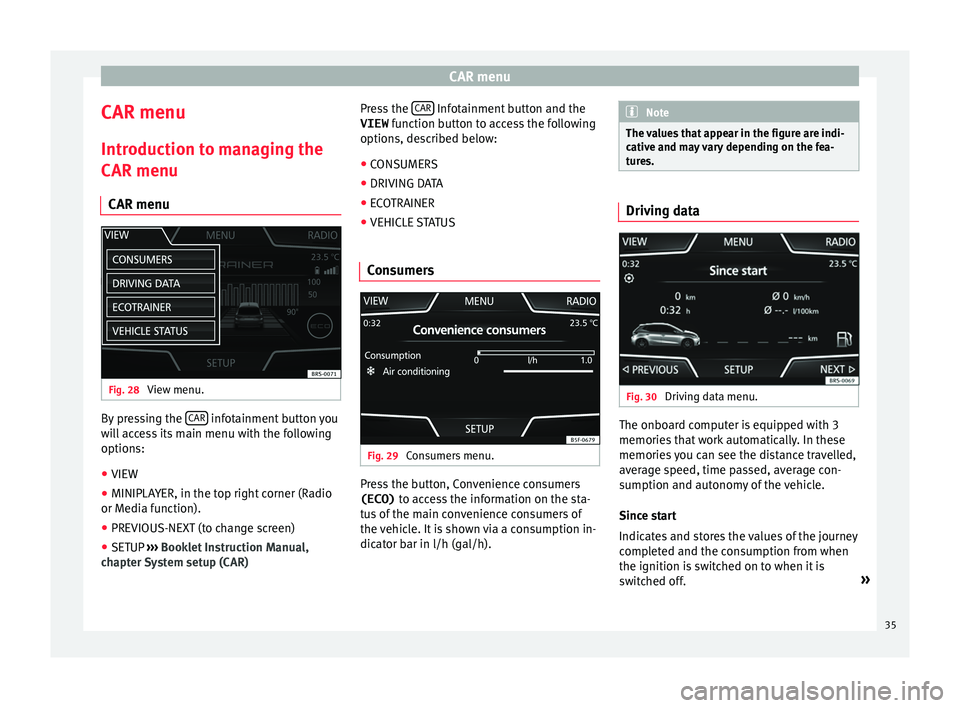
CAR menu Fig. 28
View menu. By pressing the
CAR infotainment button you
w
ill access its main menu with the following
options:
● VIEW
● MINIPLAYER, in the top right corner (Radio
or M
edia function).
● PREVIOUS-NEXT (to change screen)
● SETUP ›
›› Booklet Instruction Manual,
chapter System setup (CAR) Press the
CAR Infotainment button and the
VIEW f
unction button to access the following
options, described below:
● CONSUMERS
● DRIVING DATA
● ECOTRAINER
● VEHICLE STATUS
Consumers Fig. 29
Consumers menu. Press the button, Convenience consumers
(ECO) t
o access the information on the sta-
tus of the main convenience consumers of
the vehicle. It is shown via a consumption in-
dicator bar in l/h (gal/h). Note
The values that appear in the figure are indi-
c
ative and may vary depending on the fea-
tures. Driving data
Fig. 30
Driving data menu. The onboard computer is equipped with 3
memorie
s that work automatically. In these
memories you can see the distance travelled,
average speed, time passed, average con-
sumption and autonomy of the vehicle.
Since start
Indicates and stores the values of the journey
completed and the consumption from when
the ignition is switched on to when it is
switched off. »
35
Page 38 of 48

CAR menu
Since refuelling
Di splay and storage of the values for the jour-
ney and the consumption. By refuelling, the
memory will be erased automatically.
Long-term
The memory records the values for a specific
number of partial trips, up to a total of 19
hours and 59 minutes or 99 hours and 59 mi-
nutes, or 1999.9 km (or miles) for 9999 km
(or miles), depending on the model of instru-
ment panel.
When one of these values is reached (de-
pending on the version of the instrument
panel), the memory is automatically deleted
and it starts counting from 0 again. Note
The values that appear in the figure are indi-
c
ative and may vary depending on the fea-
tures. Ecotrainer*
Fig. 31
Ecotrainer menu. Fig. 32
Driving style symbols. Open ECOTRAINER menu
● With the vehicle stopped, press the CAR button on the Infotainment system.
● Press the VIEW function button and then
sel
ect ECOTRAINER . If the corresponding equipment is available,
the E
COTRAINER will provide information on
driving style. The information on driving style
is only evaluated and displayed when mov-
ing forward.
Points: Driving style display
This indicates the driving style since starting
the vehicle on a scale of 0 to 100. The higher
the score displayed, the more efficient the
driving style. To see more information, press
the display. It shows statistics for the last 30
minutes of driving since starting the vehicle.
If the car has not yet been driven for 30 mi-
nutes, it shows values from the last trip in
grey.
∅ km/l: Average fuel consumption
Shows the average fuel consumption. The
value is calculated by using the kilometres
covered since starting the vehicle. To see
more information, press the display. It shows
statistics for the last 30 minutes of driving
since starting the vehicle. If the car has not
yet been driven for 30 minutes, it shows val-
ues from the last trip in grey.
ECO tips: Tips on how to save fuel
By pressing the ECO tips function button, you
c
an view tips on how to save fuel. These tips
can only be viewed when the vehicle is stop-
ped.
36
Page 40 of 48
Setup
Setup
S ystem setup Menu (SETUP)
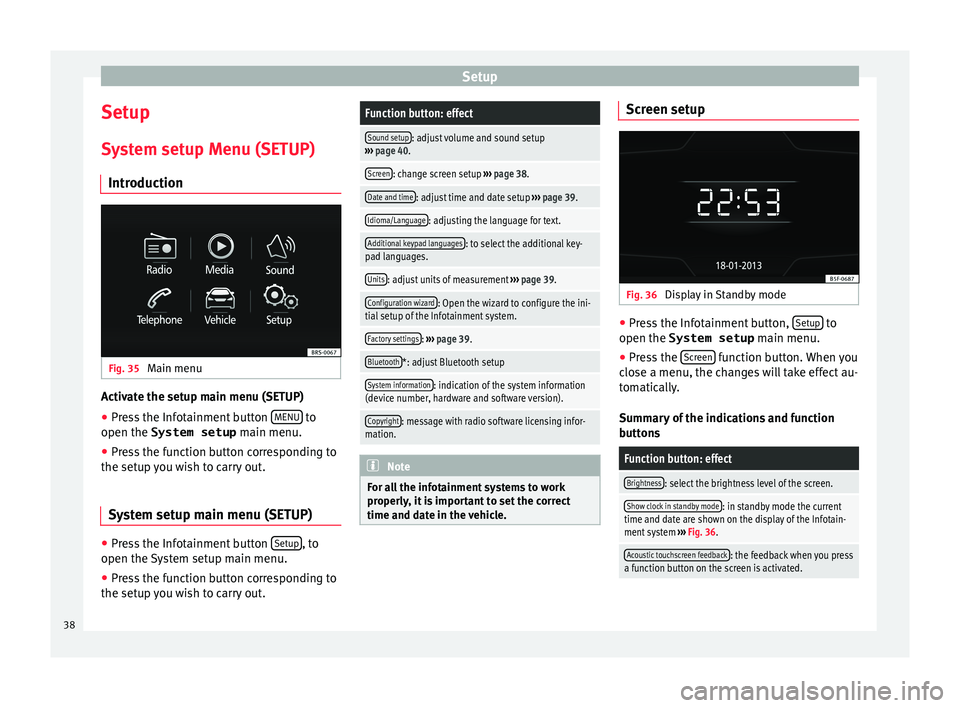
Introduction Fig. 35
Main menu Activate the setup main menu (SETUP)
● Press the Infotainment button MENU to
open the System setup m
ain menu.
● Press the function button corresponding to
the set
up you wish to carry out.
System setup main menu (SETUP) ●
Press the Infotainment button Set
up , to
open the
System setup main menu.
● Press the function button corresponding to
the set
up you wish to carry out.
Function button: effect
Sound setup: adjust volume and sound setup
› ›› page 40.
Screen: change screen setup ››› page 38.
Date and time: adjust time and date setup ››› page 39.
Idioma/Language: adjusting the language for text.
Additional keypad languages: to select the additional key-
pad languages.
Units: adjust units of measurement ››› page 39.
Configuration wizard: Open the wizard to configure the ini-
tial setup of the Infotainment system.
Factory settings: ››› page 39.
Bluetooth*: adjust Bluetooth setup
System information: indication of the system information
(device number, hardware and software version).
Copyright: message with radio software licensing infor-
mation. Note
For all the infotainment systems to work
pr
operly, it is important to set the correct
time and date in the vehicle. Screen setup
Fig. 36
Display in Standby mode ●
Press the Infotainment button, Set
up to
open the System setup m
ain menu.
● Press the Sc
reen function button. When you
c
lose a menu, the changes will take effect au-
tomatically.
Summary of the indications and function
buttons
Function button: effect
Brightness: select the brightness level of the screen.
Show clock in standby mode: in standby mode the current
time and date are shown on the display of the Infotain-
ment system ››› Fig. 36.
Acoustic touchscreen feedback: the feedback when you press
a function button on the screen is activated. 38
Page 41 of 48
SetupFunction button: effect
Switch off screen (in 10 s): With this function activated, if
there is no activity in the infotainment system after this
period of time has elapsed, the screen will switch off.
When you touch the screen or press an infotainment
button, the screen will light up again. Setting the menu language
The screen language can be adjusted.
● Press the Infotainment button, Set
up to
open the System setup m
ain menu.
● Press the function button, Idiom
a/Language .
● Press to select the required language from
the li
st.
The additional keypad language and the sys-
tem language can be adjusted separately.
Date and time ●
Press the Infotainment button, Set
up to
open the System setup m
ain menu.
● Press the function button, Time and Date.
S
ummary of the indications and function
buttons
Function button: effect
Time: set the time by pressing the arrow buttons or.
Time format: select the time format (12 or 24 hour clock).
Automatic summer timea)
: Summer (DST) is automatically
adjusted.
Date: set the date by pressing the arrow buttons or.
Date format: select the date format.
a) Option available depending on the equipment.
Units 1) ●
Press the Infotainment button, Set
up to
open the System setup m
ain menu.
● Press the function button, Units.
Factory settings Reset factory settings
When
you reset the settings to the vehicle's
default setup, all the data entered is deleted
accordingly, in addition to the settings
made. ●
Sc
roll through the list below and press the
lower function button, Factory settings .
● Select the required setting or the option
A
ll .
● Confirm the safety question that appears
b
y pressing the function button Reset .
1)
See vehicle instruction manual, CAR System setup.
39
Page 42 of 48
Sound
Sound
Sou nd and volume setup
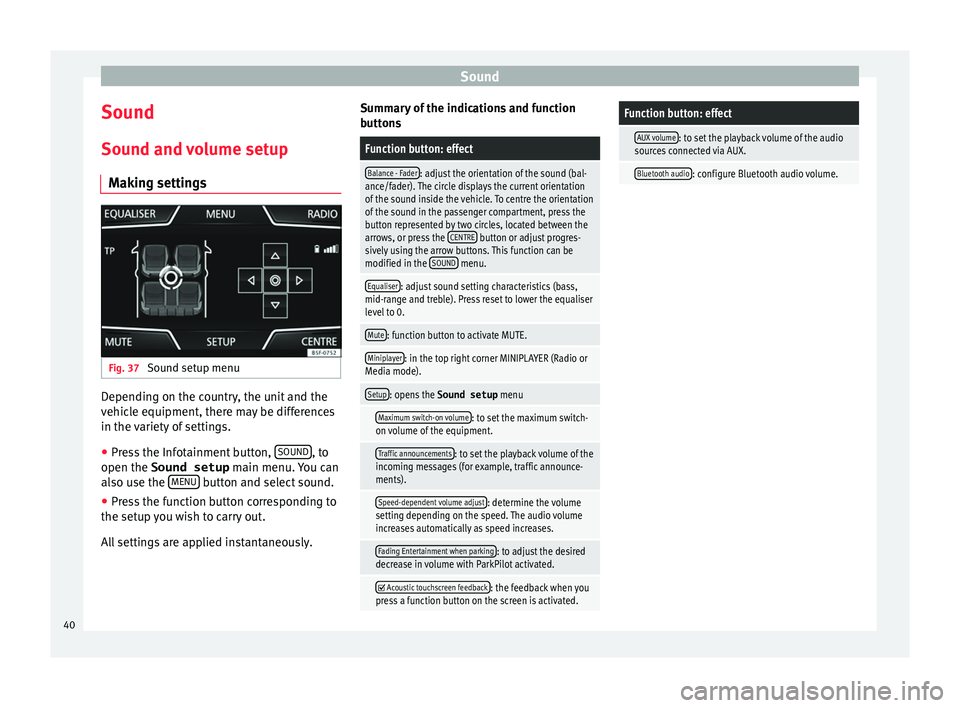
Making settings Fig. 37
Sound setup menu Depending on the country, the unit and the
v
ehicle equipment, there may be differences
in the variety of settings.
● Press the Infotainment button, SOUND , to
open the Sound setup m
ain menu. You can
also use the MENU button and select sound.
● Press the function button corresponding to
the set
up you wish to carry out.
All settings are applied instantaneously. Summary of the indications and function
b
uttons
Function button: effect
Balance - Fader: adjust the orientation of the sound (bal-
ance/fader). The circle displays the current orientation
of the sound inside the vehicle. To centre the orientation
of the sound in the passenger compartment, press the
button represented by two circles, located between the
arrows, or press the CENTRE
button or adjust progres-
sively using the arrow buttons. This function can be
modified in the SOUND
menu.
Equaliser: adjust sound setting characteristics (bass,
mid-range and treble). Press reset to lower the equaliser
level to 0.
Mute: function button to activate MUTE.
Miniplayer: in the top right corner MINIPLAYER (Radio or
Media mode).
Setup: opens the Sound setup menu
Maximum switch-on volume: to set the maximum switch-
on volume of the equipment.
Traffic announcements: to set the playback volume of the
incoming messages (for example, traffic announce-
ments).
Speed-dependent volume adjust: determine the volume
setting depending on the speed. The audio volume
increases automatically as speed increases.
Fading Entertainment when parking: to adjust the desired
decrease in volume with ParkPilot activated.
Acoustic touchscreen feedback: the feedback when you
press a function button on the screen is activated.
Function button: effect
AUX volume: to set the playback volume of the audio
sources connected via AUX.
Bluetooth audio: configure Bluetooth audio volume. 40
Page 44 of 48
Index
O Oper ating instructions
checkboxes . . . . . . . . . . . . . . . . . . . . . . . . . . . . . . 7
function buttons . . . . . . . . . . . . . . . . . . . . . . . . . . 7
Unit buttons . . . . . . . . . . . . . . . . . . . . . . . . . . . . . 7
Operation PHONE . . . . . . . . . . . . . . . . . . . . . . . . . . . . . . 25, 28
P PHONE A2DP . . . . . . . . . . . . . . . . . . . . . . . . . . . . . . . . . . 26
areas where special regulations apply . . . . . . . 26
bluetooth profiles . . . . . . . . . . . . . . . . . . . . . . . . 26
bluetooth settings . . . . . . . . . . . . . . . . . . . . . . . 33
call lists . . . . . . . . . . . . . . . . . . . . . . . . . . . . . . . . 31
call mailbox . . . . . . . . . . . . . . . . . . . . . . . . . . . . . 30
connect and disconnect the telephone man- agement system . . . . . . . . . . . . . . . . . . . . . . . 33
connection via the Infotainment system . . . . . . 26
contacts . . . . . . . . . . . . . . . . . . . . . . . . . . . . . . . . 31
description of the function . . . . . . . . . . . . . . . . 26
dial . . . . . . . . . . . . . . . . . . . . . . . . . . . . . . . . 30, 31
display and symbols . . . . . . . . . . . . . . . . . . . . . 29
enter telephone number . . . . . . . . . . . . . . . . . . 30
explosion risk areas . . . . . . . . . . . . . . . . . . . . . . 26
favourites (shortcut buttons) . . . . . . . . . . . . . . . 32
general information . . . . . . . . . . . . . . . . . . . . . . 25
GSM network . . . . . . . . . . . . . . . . . . . . . . . . . . . 26
HFP . . . . . . . . . . . . . . . . . . . . . . . . . . . . . . . . . . . 26
main menu . . . . . . . . . . . . . . . . . . . . . . . . . . . . . 28
mobile telephone pairing . . . . . . . . . . . . . . . . . 26
pairing of mobile telephone . . . . . . . . . . . . . . . 27
pairing via the Infotainment system . . . . . . . . . 26
phonebook . . . . . . . . . . . . . . . . . . . . . . . . . . . . . 31
settings . . . . . . . . . . . . . . . . . . . . . . . . . . . . . . . . 33
telephone management system . . . . . . . . . 25, 28
user profile settings . . . . . . . . . . . . . . . . . . . . . . 33 Play
A UX-IN . . . . . . . . . . . . . . . . . . . . . . . . . . . . . . . . . 24
external data storage device (USB) . . . . . . . . . . 21
Pop-up window . . . . . . . . . . . . . . . . . . . . . . . . . . . . . 7
Q Quick reference guide . . . . . . . . . . . . . . . . . . . . . . . 5
R
Radio . . . . . . . . . . . . . . . . . . . . . . . . . . . . . . . . . . . . 10
RADIO filter by station type (PTY) . . . . . . . . . . . . . . . . . 11
frequency bands . . . . . . . . . . . . . . . . . . . . . . . . . 13
main menu . . . . . . . . . . . . . . . . . . . . . . . . . . . . . 10
memory buttons . . . . . . . . . . . . . . . . . . . . . . . . . 13
radio data services RDS . . . . . . . . . . . . . . . . . . . 11
radio text . . . . . . . . . . . . . . . . . . . . . . . . . . . . . . . 11
scan function (SCAN) . . . . . . . . . . . . . . . . . . . . . 14
select, tune and store stations to memory . . . . 13
station name and automatic station tracking . . 11
RDS TP (Traffic Program) . . . . . . . . . . . . . . . . . . . . . . 14
Requirements for memory cards . . . . . . . . . . . . . . . . . . . . . . . . . . . 17
SD cards . . . . . . . . . . . . . . . . . . . . . . . . . . . . . . . 17
Rewind . . . . . . . . . . . . . . . . . . . . . . . . . . . . . . . . . . 20
Rotary/push knobs . . . . . . . . . . . . . . . . . . . . . . . . . 7
Rotary knobs . . . . . . . . . . . . . . . . . . . . . . . . . . . . . . . 6
S Safety notes . . . . . . . . . . . . . . . . . . . . . . . . . . . . . . . 5
SCAN see scan function . . . . . . . . . . . . . . . . . . . . . . . . 14
Scan function (SCAN) Radio mode . . . . . . . . . . . . . . . . . . . . . . . . . . . . . 14
SD card . . . . . . . . . . . . . . . . . . . . . . . . . . . . . . . . . . 21 Settings
b luetooth . . . . . . . . . . . . . . . . . . . . . . . . . . . . . . 33
PHONE . . . . . . . . . . . . . . . . . . . . . . . . . . . . . . . . . 33
user profile settings . . . . . . . . . . . . . . . . . . . . . . 33
Setup see: Setup (Setup) . . . . . . . . . . . . . . . . . . . . . . . 40
SETUP see: "Setup (SETUP)" . . . . . . . . . . . . . . . . . . . . . 38
Setup (Setup) . . . . . . . . . . . . . . . . . . . . . . . . . . . . . 40
Setup (SETUP) . . . . . . . . . . . . . . . . . . . . . . . . . . . . . 38 bluetooth setup . . . . . . . . . . . . . . . . . . . . . . . . . 38
date and time . . . . . . . . . . . . . . . . . . . . . . . . . . . 38
factory settings . . . . . . . . . . . . . . . . . . . . . . . . . . 38
language . . . . . . . . . . . . . . . . . . . . . . . . . . . . . . . 38
screen setup . . . . . . . . . . . . . . . . . . . . . . . . . . . . 38
sound . . . . . . . . . . . . . . . . . . . . . . . . . . . . . . . . . 40
system . . . . . . . . . . . . . . . . . . . . . . . . . . . . . . . . . 38
units . . . . . . . . . . . . . . . . . . . . . . . . . . . . . . . . . . 38
volume distribution . . . . . . . . . . . . . . . . . . . . . . 40
Shortcut buttons to the phonebook see PHONE . . . . . . . . . . . . . . . . . . . . . . . . . . . . . 32
Sound distribution (Balance/Fader) . . . . . . . . . . . 40
Sound setup . . . . . . . . . . . . . . . . . . . . . . . . . . . . . . 40
Sound (treble/midrange/bass) . . . . . . . . . . . . . . . 40
Station search see scan function . . . . . . . . . . . . . . . . . . . . . . . . 14
Switch-on volume . . . . . . . . . . . . . . . . . . . . . . . . . . 40
Switching off . . . . . . . . . . . . . . . . . . . . . . . . . . . . . . . 6
Switching on . . . . . . . . . . . . . . . . . . . . . . . . . . . . . . . 6
Symbols used in this manual . . . . . . . . . . . . . . . . . 7
T
Things to note AUX mode . . . . . . . . . . . . . . . . . . . . . . . . . . . . . . 24
Touchscreen . . . . . . . . . . . . . . . . . . . . . . . . . . . . . . . 7
42