ESP Seat Ibiza ST 2016 MEDIA SYSTEM PLUS - NAVI SYSTEM - NAVI SYSTEM PLUS
[x] Cancel search | Manufacturer: SEAT, Model Year: 2016, Model line: Ibiza ST, Model: Seat Ibiza ST 2016Pages: 100, PDF Size: 2.53 MB
Page 44 of 100

Audio and Media ModeFunction button: function
DUse the arrow buttons to browse the DVD
menu. Confirm the selection by pressing
OK.
EPress to open the DVD main menu.
/ To move to the next or previous chapter.
Playback stops. The function button
changes to .
Playback is resumed. The function button
changes to .
SETUPThis menu contains the Video (DVD) settings
››› page 42. Note
● The v
isual appearance of the DVD film me-
nus and the menu options which it offers are
the responsibility of the DVD manufacturer.
● The difference in behaviour of some films
when us
ing the same mode is the responsi-
bility of the DVD manufacturer.
● You may not be able to play video DVDs
which
you have burned yourself.
● The Infotainment system screen only dis-
pl
ays the image when the vehicle is stopped.
Whilst in motion, the screen disconnects (the
image), but the audio remains active. Video settings (DVD)
3 On
ly available for the model: Navi System Plus
In the
DVD mode main menu, press the
SETTINGS function button and then select the
option V
ideo settings (DVD).
Function button: function
Format: To select the screen format. If Automatic is se-
lected, it adjusts automatically to the optimal format for
the screen.
Audio channel: select language for acoustic voice output.
Subtitles: To select the subtitle language.
Enter/change PIN for parental settings: Parental settings pass-
word.
Parental settings: To select the level of protection for DVD
playback. The options in the Video setup (DVD) menu
m
a
y vary depending on the DVD or the chap-
ter currently being played.
The available audio language channels and
subtitles depend on the inserted DVD.
All or a part of the DVD video content may be
protected by means of a password (PIN) if the
DVD is compatible with parental settings. Fur-
thermore, the level of protection can be set
according to age with 1 being the least re-
strictive (appropriate for all audiences) and
8, the most restrictive (adults). Media settings ●
Select the MEDIA main menu b
y pressing
the Infotainment MEDIA button.
● Press the S
ETUP function button to open
the Media Settings menu.
Function button: function
Sound: Sound settings ››› page 87.
Manage jukeboxa)
: To import files to the jukebox or delete
stored files ››› page 38.
Mix/Repeat including subfolders: Subfolders will be inclu-
ded in the selected playback mode ››› page 26.
Bluetooth: Bluetooth ®
settings ››› page 75
WLANa)
: WLAN settings ››› page 40.
Video settings: Settings for playback of DVD videos or
files.
Remove safely: In order to prepare the external data stor-
age devices for their removal or disconnection. See also
››› page 35, Insert or eject a memory card and
››› page 36, External data storage device connected to
USB port
.
Traffic Program (TP): The TP function (traffic news station
tracking) is active ››› page 23.
a)
Only available for the model: “Navi System Plus”.
42
Page 45 of 100
Audio and Media Mode
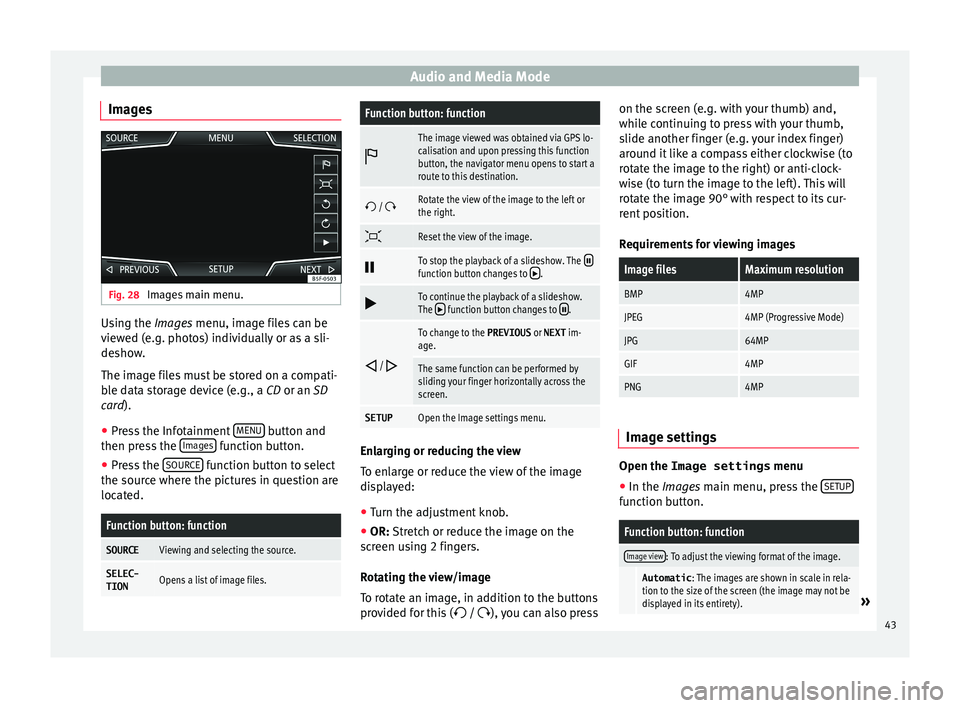
Images Fig. 28
Images main menu. Using the Ima
ge
s menu, image files can be
viewed (e.g. photos) individually or as a sli-
deshow.
The image files must be stored on a compati-
ble data storage device (e.g., a CD or an SD
card).
● Press the Infotainment MENU button and
then pr e
ss the Images function button.
● Press the SOURC
E function button to select
the sour c
e where the pictures in question are
located.
Function button: function
SOURCEViewing and selecting the source.
SELEC-
TIONOpens a list of image files.
Function button: function
The image viewed was obtained via GPS lo-
calisation and upon pressing this function
button, the navigator menu opens to start a
route to this destination.
/ Rotate the view of the image to the left or
the right.
Reset the view of the image.
To stop the playback of a slideshow. The function button changes to .
To continue the playback of a slideshow.
The function button changes to .
/
To change to the PREVIOUS
or NEXT im-
age.
The same function can be performed by
sliding your finger horizontally across the
screen.
SETUPOpen the Image settings menu. Enlarging or reducing the view
T
o en
large or reduce the view of the image
displayed:
● Turn the adjustment knob.
● OR: Stretch or reduce the image on the
s
creen using 2 fingers.
Rotating the view/image
To rotate an image, in addition to the buttons
provided for this ( / ), you can also press on the screen (e.g. with your thumb) and,
whil
e continuing to press with your thumb,
slide another finger (e.g. your index finger)
around it like a compass either clockwise (to
rotate the image to the right) or anti-clock-
wise (to turn the image to the left). This will
rotate the image 90° with respect to its cur-
rent position.
Requirements for viewing images
Image filesMaximum resolution
BMP4MP
JPEG4MP (Progressive Mode)
JPG64MP
GIF4MP
PNG4MP Image settings
Open the Image settings
menu
● In the Ima ges main menu, press the S
ETUP function button.
Function button: function
Image view: To adjust the viewing format of the image.
Automatic
: The images are shown in scale in rela-
tion to the size of the screen (the image may not be
displayed in its entirety).
» 43
Page 50 of 100

Navigation›››
Fig. 30
AAllows you to select a search that is local or
along the route.
BPress to open the cursor buttons (, ), which
allow you to move within the text. Address
Af
t
er entering a country and a town, you can
start navigating towards the centre of the se-
lected town.
When narrowing down the destination ad-
dress, please note that every entry restricts
the available range of subsequent selections.
For instance, if the street you are looking for
is not in the postcode area you have selected
in a previous window, you will not be able to
find the street at the street selection stage.
Function button: function
Country: To select the desired country.
City: To enter the desired city or postcode.
Street: To enter the desired street name.
House number: To enter the desired house number.
Junction: To select the desired intersection.
Last destinations: Open My destinations menu
››› page 49.
Start: Start route guidance to the selected address. Using the
● Select the destination on the map or enter
it u
sing GPS coordinates and confirm with
OK .
Function button: function
Save: To save the selected point of interest in the desti-
nation memory ››› page 49.
Edit: To edit a destination or to enter another destina-
tion.
Route options: To adjust route options, see Navigation
Setup ››› page 56.
Start: Starts guided navigation to the selected point of
interest. After starting route guidance
Fig. 31
Route calculation. After starting route guidance, the route to the
fir
s
t destination will be calculated. The calculation will be performed in accord-
ance w
ith the data selected in the Route
options menu ››› page 56.
After starting route guidance, three alterna-
tive routes will be suggested depending on
the selected setup ››› Fig. 31. These 3 routes
correspond to the selectable route options:
Economical, Fast and Short.
Route criteria: Meaning
Blue route: Economical route, the route is calculated by taking into consideration economic factors.
Red route: Fastest route to the destination, even if it is
necessary to make a deviation.
Orange route: Shortest route to the destination, even if it
results in longer travelling time. The route may have un-
conventional sections such as secondary roads. ●
Select the desired route by pressing it.
The settin g f
or the route criteria in the Route
options menu is changed accordingly.
If no route is selected, then route guidance
starts automatically after about one minute
using the setting selected in the Route op- tions .
Navigation announcements (audible recom-
mendations for the driver)
Once the route has been calculated, the sys-
tem gives the first navigation announcement.
Up to 3 navigation announcements are given
48
Page 62 of 100

CAR menu
CAR menu Intr oduction t
o managing the
CAR menu
Car menu By pressing the “CAR” infotainment button
y
ou w
ill access its main menu with the follow-
ing options:
● VIEW
● MINIPLAYER, in the top right corner (Radio
or M edi
a function if the HDC descent control*
is not active).
● PREVIOUS-NEXT (to change screen)
● SETUP ››
›
Booklet Instruction Manual,
chapter System setup (CAR)
With the function button View you can access
the f o
llowing information:
● SPORT*
● OFFROAD*
● CONSUMERS
● DRIVING DATA
● ECOTRAINER* ●
VEHICLE
STATUS
Sport* Fig. 42
SPORT menu Fig. 43
Lap Timer SPORT menu ●
Pr e
ss the CAR button on the Infotainment
sy s
tem.
● Press the VIEW function button and then
sel ect
SPORT.
If the corresponding equipment is available,
the information that appears in the Sport op-
tion is the following ››› Fig. 42:
Instantaneous power expressed in kW
G forces
Turbo pressure, expressed in bar
(“bar”), kilopascals (“kPa”) or in pounds
per square inch (“psi”). Press the Setup
button to change the units of pressure
››› page 86
Coolant temperature
Oil temperature
Only three of these items of information can
be displayed at the same time, but the user
chooses which to display, and in what order,
by moving the finger vertically over the dials.
If the Next button is pressed, the
Lap timer1)
menu i s
displayed; this is described below
››› Fig. 43:
Analogue lap timer.
1.
2.
3.
4.
5.
1 1)
This lap timer is independent of the one that ap-
pe ar
s on the instrument panel ››› Booklet Instruction
Manual
60
Page 63 of 100

CAR menu
A new lap timer recording is started by
pr e
ssing on the surface of the digital lap
timer + .
Stop lap timer/Partial time.
The analogue lap timer stops for 5 sec-
onds. After 5 seconds, the analogue lap
timer goes back to showing the real time.
Statistics/delete last lap timer recording.
Offroad* Fig. 44
CAR Menu Offroad. ●
Press the CAR button on the Infotainment
sy s
tem.
● Press the VIEW function button and then
sel ect
OFFROAD .
2 3
4
5 If the corresponding equipment is available,
the inf
orm
ation that appears is the following:
Compass.
Altimeter: altitude above sea level.
Turning angle of steered wheels.
Coolant temperature.
Lubricating oil temperature
Only the altimeter and 2 more of these items
of information can be displayed at the same
time, but the user chooses which to display,
and in what order, by moving their finger ver-
tically over the dials.
Consumers Fig. 45
Convenience consumers. 1.
2.
3.
4.
5.
By pressing the
C
on sumers button, informa-
tion on the s t
atus of the vehicle's main con-
sumption devices is obtained. It is shown via
a consumption indicator bar in l/h (gal/h) 1)
.
Driving data Fig. 46
Driving data. The onboard computer is equipped with 3
memorie
s
that work automatically. In these
memories you can see the distance travelled,
average speed, time passed, average con-
sumption and autonomy of the vehicle.
1. Since start
Indicates and stores the values of the journey
completed and the consumption from when »1)
In the case of Gas (CNG) vehicles, the units are in
k g/h.
61
Page 64 of 100

CAR menu
the ignition is switched on to when it is
sw it
ched off.
2. Since refuelling
Display and storage of the values for the jour-
ney and the consumption. By refuelling, the
memory will be erased automatically.
3. Long-term
The memory records the values for a specific
number of partial trips, up to a total of 19
hours and 59 minutes or 99 hours and 59 mi-
nutes, or 1999.9 km (or miles) for 9999 km
(or miles), depending on the model of instru-
ment panel.
When one of these values is reached (de-
pending on the version of the instrument
panel), the memory is automatically deleted
and it starts counting from 0 again. Ecotrainer* Fig. 47
CAR Menu Ecotrainer. Fig. 48
Driving style symbols. Open ECOTRAINER menu
● With the vehicle stopped, press the CAR button on the Infotainment system.
● Press the VIEW function button and then
sel ect
ECOTRAINER . If the corresponding equipment is available,
the EC
OTRAINER will provide information on
driving style. The information on driving style
is only evaluated and displayed when mov-
ing forward.
∅ ECO points: Driving style display
This indicates the driving style since starting
the vehicle on a scale of 0 to 100. The higher
the score displayed, the more efficient the
driving style. To see more information, press
the display. It shows statistics for the last 30
minutes of driving since starting the vehicle.
If the car has not yet been driven for 30 mi-
nutes, it shows values from the last trip in
grey.
∅ l/100 km: Average fuel consumption
Shows the average fuel consumption. The
value is calculated by using the kilometres
covered since starting the vehicle. To see
more information, press the display. It shows
statistics for the last 30 minutes of driving
since starting the vehicle. If the car has not
yet been driven for 30 minutes, it shows val-
ues from the last trip in grey.
ECO tips: Tips on how to save fuel
By pressing the ECO tips function button, you
c an
view tips on how to save fuel. These tips
can only be viewed when the vehicle is stop-
ped.
62
Page 65 of 100

CAR menu
Evaluation of efficient driving style
The effic iency
of the driving style is reflected
by different elements on the display.
Display ››› Fig. 47: Meaning
1Different symbols are shown on the left of the col-
umns that report on the current driving style ››› ta-
ble on page 63 .
2
The white column is an indication of where the ef-
ficiency graph begins (from left to right).
It shows the position of the evaluation that is cur-
rently being performed.
3
Bars to represent acceleration.
The position of the car represents the acceleration.
If speed is constant, the car remains in the central
area. When accelerating or braking, the car moves
forward or backward respectively.
4
Columns to show driving style efficiency.
On the horizon, the columns represent the effi-
ciency of the driving style in a retrospective man-
ner and move from left to right every five seconds
or so. The higher the height of the columns, the
more efficient the driving style.
The colour of the sky represents the average of the
last three minutes. The colour changes from grey
(less efficient) to blue (more efficient).
Symbols ››› Fig. 48: Meaning
AForesight when driving. If sudden changes of ac-
celeration occur, driving style efficiency is re-
duced.
BGear-change indicator.
Symbols ››› Fig. 48: Meaning
CThe current vehicle speed is having a negative im-
pact on fuel consumption.
DEcological driving style. Vehicle status
Fig. 49
Standard representation: vehicle sta-
t u
s. Fig. 50
Standard representation: vehicle sta-
t u
s. Press the
V
ehic
le status button to access infor-
m ation on the Vehicle status
me
ssages
and Start-Stop System . The Vehicle sta-
tus messages are displayed ››› Fig. 49, in ad-
dition to being specified on the correspond-
ing button.
Depending on the parts affected by these
messages, they will be indicated in different
colours (depending on their significance) in
the vehicle display.
To access the Tyre Pressure Monitor-
ing System you must press the Previous or
Ne xt buttons.
Fr om thi
s same menu, using the button
SET , the tyre pressures are stored.
Note
The values that appear in the figures
› ›
› Fig. 45, ››› Fig. 46, ››› Fig. 49 and ››› Fig. 50 » 63
Page 67 of 100

Telephone management system (PHONE)
Telephone management sys-
t em (PHONE)
Intr
oduction to the telephone
management system
General information
› ›
›
table on page 2
The Telephone functions described below
can be used through the Infotainment system
if there is a mobile telephone connected to it
via Bluetooth ®
››› page 67.
In order for the mobile telephone to be able
to connect to the Infotainment system the tel-
ephone must be equipped with Bluetooth®
.
If there is no mobile telephone connected to
the Infotainment system, the telephone man-
agement system will not be available.
The instructions shown on the screen for the
telephone menus will depend on the mobile
telephone used. There may be variations.
Only use compatible Bluetooth ®
devices. For
further information on compatible Blue-
tooth ®
products, ask your nearest SEAT deal-
er or check on the internet.
Use the instruction manual of the mobile tel-
ephone and of any accessories. If you detect any operating issues between
y
our mo
bile telephone and the Infotainment
system, restart your mobile by switching it off
and on again.
You may experience poor reception or may be
cut off in areas where the signal is weak.
Most electronic devices are shielded against
HF (high-frequency) signals. In any case, the
electronic equipment may not be protected
from the HF signals of the telephone man-
agement system. This may cause interfer-
ence. WARNING
Speaking by telephone and operating the mo-
b i
le telephone whilst driving can distract you
from the road and cause an accident.
● Always drive carefully and responsibly.
● Select volume settings that allow you to
ea
sily hear signals from outside the vehicle
at all times (e.g. emergency services sirens
and horns).
● In areas of little or no coverage or, in some
ca
ses, in a tunnel, garage or underpass, your
call may be cut off and you may not be able to
make even emergency calls. WARNING
If a mobile telephone is not secured or is in-
c orr
ectly secured in the vehicle, it could move
around the passenger compartment in the event of a sudden driving manoeuvre or emer-
g
ency
stop, resulting in injury.
● While the vehicle is in motion, always se-
cur
e the mobile telephone properly outside
the airbag deployment zone. WARNING
Mobile telephones may interfere with and al-
t er the c
orrect operation of pacemakers if
they are carried directly over them.
● Maintain a minimum distance of at least
20 centimetr
es between the aerials of the
mobile telephone and the pacemaker, as mo-
bile phones may affect the functioning of
pacemakers.
● Do not carry your switched-on mobile tele-
phone in y
our breast pocket directly over the
pacemaker.
● If you suspect interference, switch off the
mob
ile telephone immediately. CAUTION
High speeds, poor weather or road conditions
and the qua lity
of reception can all affect the
quality of a telephone conversation in the ve-
hicle. Note
● Re
strictions on the use of devices using
Bluetooth ®
technology may apply in some
countries. For further information, contact the
local authorities. » 65
Page 71 of 100
Telephone management system (PHONE)
After the first connection, it will take a few
minut e
s for the data from the phonebook of
the linked mobile phone to be available in
the Infotainment system. The next time that
the mobile telephone is connected (e.g. on
the next journey) the phonebook is updated
automatically.
If any entries in the mobile phonebook have
been modified while connected, a manual
update of the phonebook data can be initi-
ated from the User profile settings
menu ››› page 75.
Telephone management can store a maxi-
mum of 4 user profiles for mobile tele-
phones. If you wish to link/connect another
mobile phone, the oldest user profile will au-
tomatically be replaced.
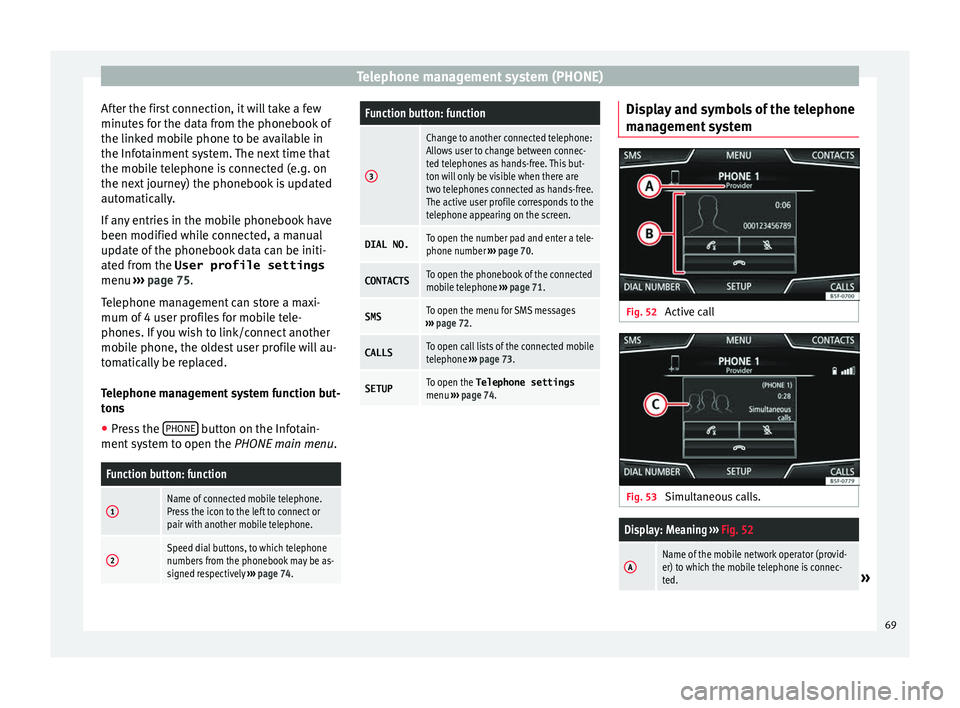
Telephone management system function but-
tons ● Press the PHONE button on the Infotain-
ment sy
stem to open the PHONE main menu.
Function button: function
1Name of connected mobile telephone.
Press the icon to the left to connect or
pair with another mobile telephone.
2Speed dial buttons, to which telephone
numbers from the phonebook may be as-
signed respectively ››› page 74.
Function button: function
3
Change to another connected telephone:
Allows user to change between connec-
ted telephones as hands-free. This but-
ton will only be visible when there are
two telephones connected as hands-free.
The active user profile corresponds to the
telephone appearing on the screen.
DIAL NO.To open the number pad and enter a tele-
phone number ››› page 70.
CONTACTSTo open the phonebook of the connected
mobile telephone ››› page 71.
SMSTo open the menu for SMS messages
››› page 72.
CALLSTo open call lists of the connected mobile
telephone ››› page 73.
SETUPTo open the Telephone settings
menu ››› page 74. Display and symbols of the telephone
m
an
agement system Fig. 52
Active call Fig. 53
Simultaneous calls.
Display: Meaning ››› Fig. 52
AName of the mobile network operator (provid-
er) to which the mobile telephone is connec-
ted.
» 69
Page 79 of 100

Full Link*
Full Link* F u
ll Link technology descrip-
tion
Introduction
› ›
›
table on page 2
The Full Link system provides a way of bring-
ing together technologies that allow commu-
nication between the Infotainment System
and mobile devices:
● MirrorLink ®
● Android Auto™
● Apple CarPlay™
Dat a tr
ansfer
This communication can allow data to be
read and/or written.
From the SETTINGS ,
Dat
a tr
ansfer for SEAT apps menu, there is a checkbox to activate/deacti-
v
at
e the function, and a dropdown menu
called Use apps to operate which controls the
l ev
el of interaction between the Apps and the
System ›››
table on page 86: Deactivate,
Confirm, and Allow. Interfaces
The connection t
o Full Link is made through a
USB interface. WARNING
If a mobile terminal is not secured or is incor-
r ectly
secured in the vehicle, it could move
around the passenger compartment in the
event of a sudden driving manoeuvre, emer-
gency stop or accident, resulting in injury.
● While driving, mobile terminals must be se-
cur
ely fastened in position, outside the air-
bag deployment zones, or safely stowed
away. WARNING
Any applications that are not suitable or exe-
c ut
e incorrectly may cause damage to the ve-
hicle, accidents and serious injuries.
● SEAT recommends the use of the Apps that
SEA
T provides for this vehicle.
● To make full use of SEAT Apps, you must ac-
tivat
e the option Setup , “Data transfer for
SEAT apps” ››› page 86.
● The interaction level of the Apps on the
sys
tem must be: ALLOW.
● Protect the mobile terminal with its appli-
cation
s from improper use.
● Never make modifications to the applica-
tions.
● C
onsult the instruction manual for the mo-
bi
le terminal. WARNING
The use of applications while driving can dis-
tr act
your attention from the traffic. Distract-
ing the driver in any way can lead to an acci-
dent and cause injuries.
● Always drive carefully and responsibly. CAUTION
● In ar e
as where special regulations apply or
the use of mobile terminals is forbidden, the
mobile terminal must be switched off at all
times. The radiation produced by the mobile
terminal when switched on may interfere with
sensitive technical and medical equipment,
possibly resulting in malfunction or damage
to the equipment.
● SEAT cannot be held liable for any damage
cau
sed to the vehicle as a result of the use of
applications that are of poor quality or are
defective, the inadequate programming of
the applications, the insufficient coverage of
the network, the loss of data during trans-
mission or the improper use of mobile termi-
nals. Note
● Use of
Full Link technology may result in
high consumption of your 3G/4G data plan.
● SEAT recommends having a high battery
ch
arge on the device when connected to Full
Link. » 77