buttons Seat Leon 5D 2015 NAVI SYSTEM PLUS
[x] Cancel search | Manufacturer: SEAT, Model Year: 2015, Model line: Leon 5D, Model: Seat Leon 5D 2015Pages: 96, PDF Size: 2.48 MB
Page 49 of 96
Navigation
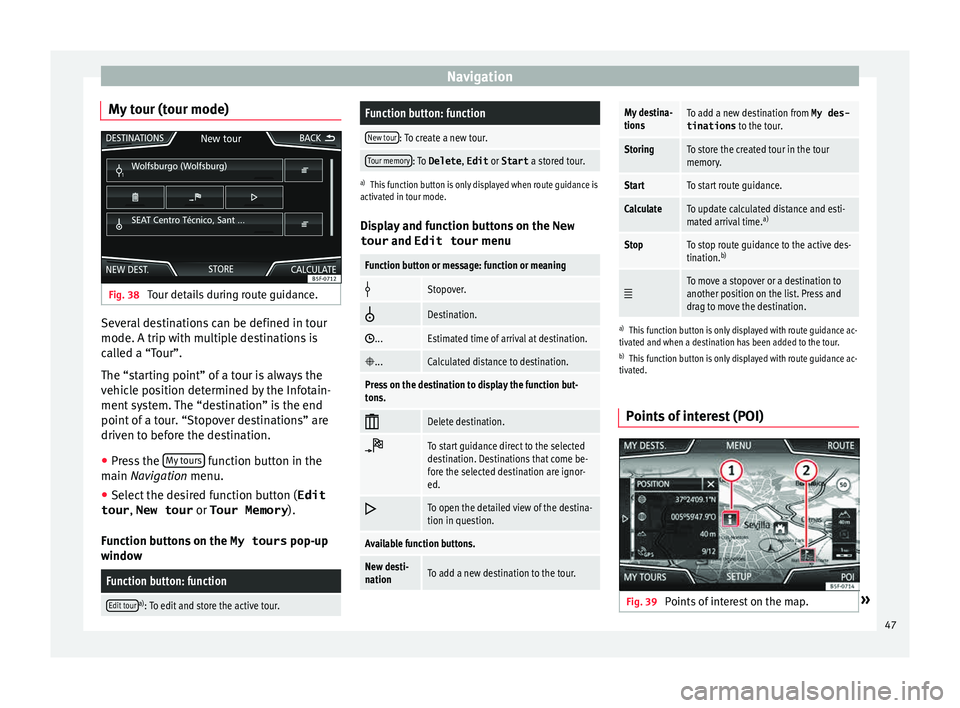
My tour (tour mode) Fig. 38
Tour details during route guidance. Several destinations can be defined in tour
mode. A trip w
ith mu
ltip
le destinations is
called a “Tour”.
The “starting point” of a tour is always the
vehicle position determined by the Infotain-
ment system. The “destination” is the end
point of a tour. “Stopover destinations” are
driven to before the destination.
● Press the My t
ours function button in the
m ain
Na
vigation menu.
● Select the desired function button ( Edit
tour , New tour or Tour Memory ).
Function b
uttons on the My tours pop-up
window
Function button: function
Edit toura) : To edit and store the active tour.
Function button: function
New tour: To create a new tour.
Tour memory: To Delete , Edit or Start a stored tour.
a)
This function button is only displayed when route guidance is
activated in tour mode.
Display and function buttons on the New
tour and Edit tour menu
Function button or message: function or meaning
Stopover.
Destination.
...Estimated time of arrival at destination.
...Calculated distance to destination.
Press on the destination to display the function but-
tons.
Delete destination.
To start guidance direct to the selected
destination. Destinations that come be-
fore the selected destination are ignor-
ed.
To open the detailed view of the destina-
tion in question.
Available function buttons.
New desti-
nationTo add a new destination to the tour.
My destina-
tionsTo add a new destination from My des-
tinations
to the tour.
StoringTo store the created tour in the tour
memory.
StartTo start route guidance.
CalculateTo update calculated distance and esti-
mated arrival time. a)
StopTo stop route guidance to the active des-
tination.b)
To move a stopover or a destination to
another position on the list. Press and
drag to move the destination.
a)
This function button is only displayed with route guidance ac-
tivated and when a destination has been added to the tour.
b) This function button is only displayed with route guidance ac-
tivated.
Points of interest (POI) Fig. 39
Points of interest on the map. » 47
Page 51 of 96

NavigationFunction button: function
Position: current vehicle position in coordinates and GPS
status (satellite reception).
a) This function button is only displayed with route guidance ac-
tivated.
Press the function button to deactivate the
sp lit
screen.
Map display Fig. 41
Messages and function buttons on
the m ap di
s
play. Function buttons and messages on the map
di
s
p
lay.
To activate function buttons and , press
function button .
Function button: function
To select automatic scaling. If the function
is active, the symbol is displayed in blue.
Function button: function
Current altitude indicator.
View map scale. Turn the setup button to
modify the scale of the map.
To change the orientation of the map (north-
facing or direction of travel). This function is
only available in 2D mode.
To centre the vehicle position on the map.
To centre the destination on the map. This
function button is only displayed if
Show
destination on map is selected ››› page 48.
Briefly zooms in on the map. After a few
seconds, it automatically returns to the last
selected scale.
Road
signsDepending on the vehicle's equipment, the
road signs stored in the navigation data are
displayed
››› page 52. Traffic reports and dynamic route
guid
anc
e (TRAFFIC) The Infotainment system constantly receives
tr
affic
r
eports (TMC/TMCpro) in the back-
ground, provided a TMC traffic news station
can be received at the current location. The
station being listened to does not have to be
the traffic news station.
TMC traffic reports are displayed on the map
with symbols ››› page 50, Traffic reports on map (selection) and are requir
ed for dynamic
route guidance ››› page 49, Dynamic route
guidance.
List of available traffic reports
● Press the TRAFFIC button on the Infotain-
ment sy
s
tem to display a list of the current
traffic reports.
● Press the OPTIONS function button and
then sel ect
All or
Route .
Function button: function
All: This will display all the traffic reports received.
Route: This will display the traffic reports received that
affect the calculated route. Dynamic route guidance
In or
der f
or dy
namic route guidance to func-
tion, Dynamic route must be activated in
the route options ›››
page 54.
If during route guidance a traffic report is re-
ceived that affects the route being travelled,
an alternative route will be searched for if the
Infotainment system calculates that time can
be saved.
If it calculates that time will not be saved us-
ing the alternative route, it will continue on
the route with the traffic congestion. An an-
nouncement will be made in each case. »
49
Page 55 of 96

Navigation
Offroad Navigation Menu Fig. 44
Navigation main menu Fig. 45
Offroad Navigation Menu start In the main Navigation menu, press the func-
tion b
utt
on
(split screen).
● In the pop-up window, press the WAYPOINT
Sfunction button
››
› Fig. 44.
● The Offroad Navigation menu opens
›››
Fig. 45. Function buttons in the Offroad Navigation
menu
Function button: function
RECORD: Initiates the plotting of an Offroad tour.
MEMORY: Opens a list allowing the selection of a stored
Offroad tour.
EXIT: Ends Offroad navigation. Recording an Offroad tour
Fig. 46
Recording an Offroad tour An Offroad tour is formed by a series of stor-
ed wa
ypoin
t
s.
Starting recording
● In the Offroad Navigation menu, in the pop-
up window pr
ess the RECORD pop-up button.
● In the pop-up window, the user is able to
p lot
the t
our with a given destination or start plotting the route without giving a final desti-
nation.
●
Star
ts plotting the route.
The offroa
d markers can be recorded by indi-
cating a manual waypoint.
● In the Offroad Navigation menu, press the
ADD WA
YPOINT function button. The tour way-
points defined m
anual
ly are shown on the
map by a marker.
Ending recording
● Press the STOP RE
CORDING function button in
the m ain O
ffr
oad Navigation menu.
Managing stored Offroad tours Fig. 47
Offroad Navigation menu, stored
t our
s ●
Press the T
OUR MEMORY function button in
the O ffr
o
ad Navigation menu. »
53
Page 62 of 96
CAR menuDisplay
››› Fig. 54: Meaning
3
Bars to represent acceleration.
The position of the car represents the acceleration.
If speed is constant, the car remains in the central
area. When accelerating or braking, the car moves
forward or backward respectively.
4
Columns to show driving style efficiency.
On the horizon, the columns represent the effi-
ciency of the driving style in a retrospective man-
ner and move from left to right every five seconds
or so. The higher the height of the columns, the
more efficient the driving style.
The colour of the sky represents the average of the
last three minutes. The colour changes from grey
(less efficient) to blue (more efficient).
Symbols ››› Fig. 55: Meaning
AForesight when driving. If sudden changes of ac-
celeration occur, driving style efficiency is re-
duced.
BGear-change indicator.
CThe current vehicle speed is having a negative im-
pact on fuel consumption.
DEcological driving style. Vehicle status
Fig. 56
Standard representation: vehicle sta-
t u
s. Fig. 57
Standard representation: vehicle sta-
t u s. Press the
V
ehic
l
e status button to access infor-
m ation on the Vehicle status
me
s
sages
and Start-Stop System . The Vehicle sta-
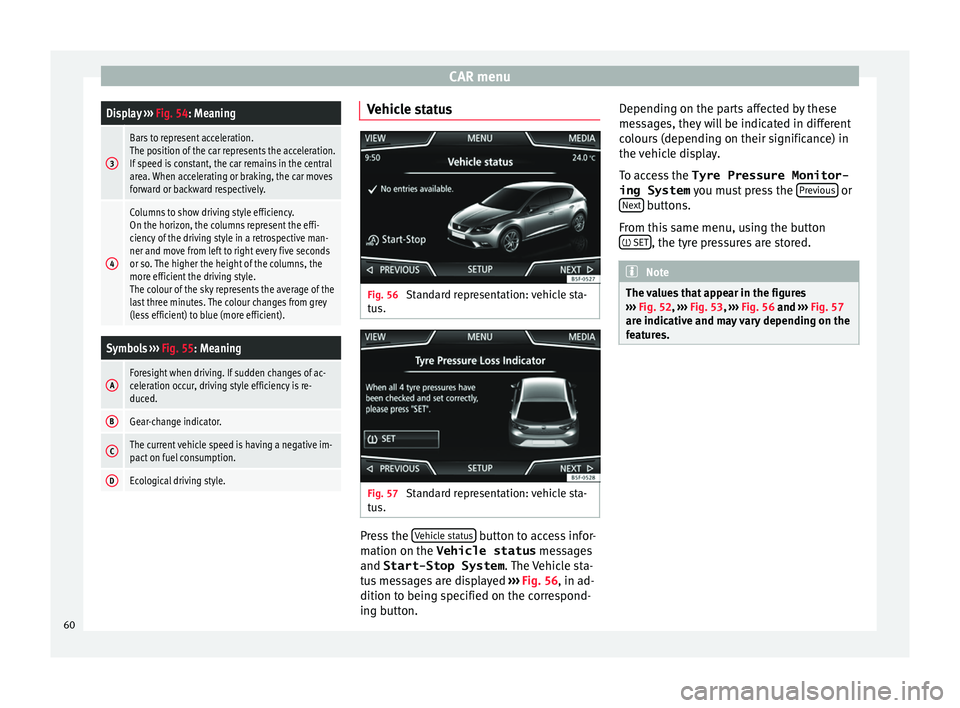
tus messages are displayed ››› Fig. 56, in ad-
dition to being specified on the correspond-
ing button. Depending on the parts affected by these
mess
ages, they will be indicated in different
colours (depending on their significance) in
the vehicle display.
To access the Tyre Pressure Monitor-
ing System you must press the Previous or
Ne xt buttons.
Fr om thi
s
same menu, using the button
SET , the tyre pressures are stored.
Note
The values that appear in the figures
›› ›
Fig. 52, ››› Fig. 53, ››› Fig. 56 and ››› Fig. 57
are indicative and may vary depending on the
features. 60
Page 67 of 96
Telephone management system (PHONE)
Assign a user profile
The d at
a fr
om the phonebook, the call lists
and the stored speed dial buttons are as-
signed to a user profile and remain stored on
the telephone management system. This in-
formation will be available every time the mo-
bile telephone is connected to the telephone
management system.
After the first connection, it will take a few
minutes for the data from the phonebook of
the linked mobile phone to be available in
the Infotainment system. The next time that
the mobile telephone is connected (e.g. on
the next journey) the phonebook is updated
automatically.
If any entries in the mobile phonebook have
been modified while connected, a manual
update of the phonebook data can be initi-
ated from the User profile settings
menu ››› page 70.
Telephone management can store a maxi-
mum of 4 user profiles for mobile tele-
phones. If you wish to link/connect another
mobile phone, the oldest user profile will au-
tomatically be replaced. If you do not want it
to do this, you must previously delete one of
the user profiles. To delete a profile manual-
ly:
● Menu Setup >
U
ser pr
ofi
le and press
D el
et
e other user profiles .Telephone management system function but-
t
on s
● Pr
ess the PHONE button on the Infotain-
ment sy
s
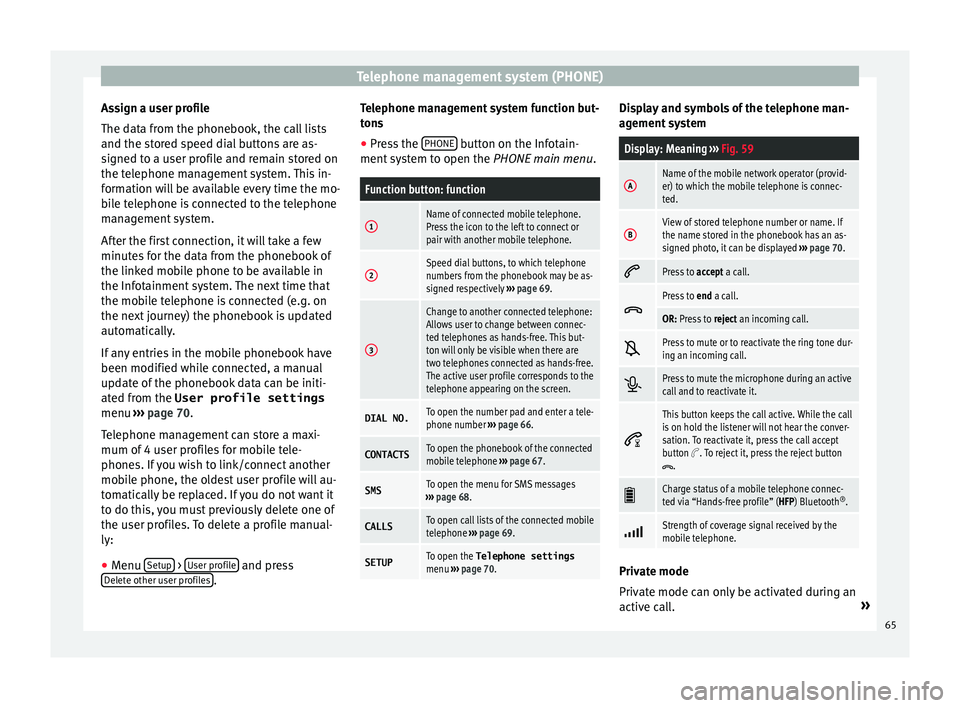
tem to open the PHONE main menu.
Function button: function
1Name of connected mobile telephone.
Press the icon to the left to connect or
pair with another mobile telephone.
2Speed dial buttons, to which telephone
numbers from the phonebook may be as-
signed respectively ››› page 69.
3
Change to another connected telephone:
Allows user to change between connec-
ted telephones as hands-free. This but-
ton will only be visible when there are
two telephones connected as hands-free.
The active user profile corresponds to the
telephone appearing on the screen.
DIAL NO.To open the number pad and enter a tele-
phone number ››› page 66.
CONTACTSTo open the phonebook of the connected
mobile telephone ››› page 67.
SMSTo open the menu for SMS messages
››› page 68.
CALLSTo open call lists of the connected mobile
telephone ››› page 69.
SETUPTo open the Telephone settings
menu ››› page 70. Display and symbols of the telephone man-
ag
ement
sy
stem
Display: Meaning ››› Fig. 59
AName of the mobile network operator (provid-
er) to which the mobile telephone is connec-
ted.
BView of stored telephone number or name. If
the name stored in the phonebook has an as-
signed photo, it can be displayed ››› page 70.
Press to
accept a call.
Press to
end a call.
OR: Press to reject an incoming call.
Press to mute or to reactivate the ring tone dur-
ing an incoming call.
Press to mute the microphone during an active
call and to reactivate it.
This button keeps the call active. While the call
is on hold the listener will not hear the conver-
sation. To reactivate it, press the call accept
button
. To reject it, press the reject button.
Charge status of a mobile telephone connec-
ted via “Hands-free profile” (HFP) Bluetooth
®
.
Strength of coverage signal received by the
mobile telephone.
Private mode
Priv
at
e mode c
an only be activated during an
active call. »
65
Page 70 of 96
Telephone management system (PHONE)Possible functions
Dialling a con-
tact
Press the desired telephone number
on the detailed list to establish the
connection.
Press the (pencil) icon to edit the
number before calling.
Send an SMS
to a contactPress the function button in the
detailed list.
Starting route
guidance to
the address of
a contactIf the address details of a contact
have been stored, route guidance can
be started for the address of the con-
tact. Press the address data on the
detailed view to start route guidance. Note
If you edit the number before calling, this will
only be u
sed for the call and will not be stor-
ed in the phonebook. Short messages menu (SMS)
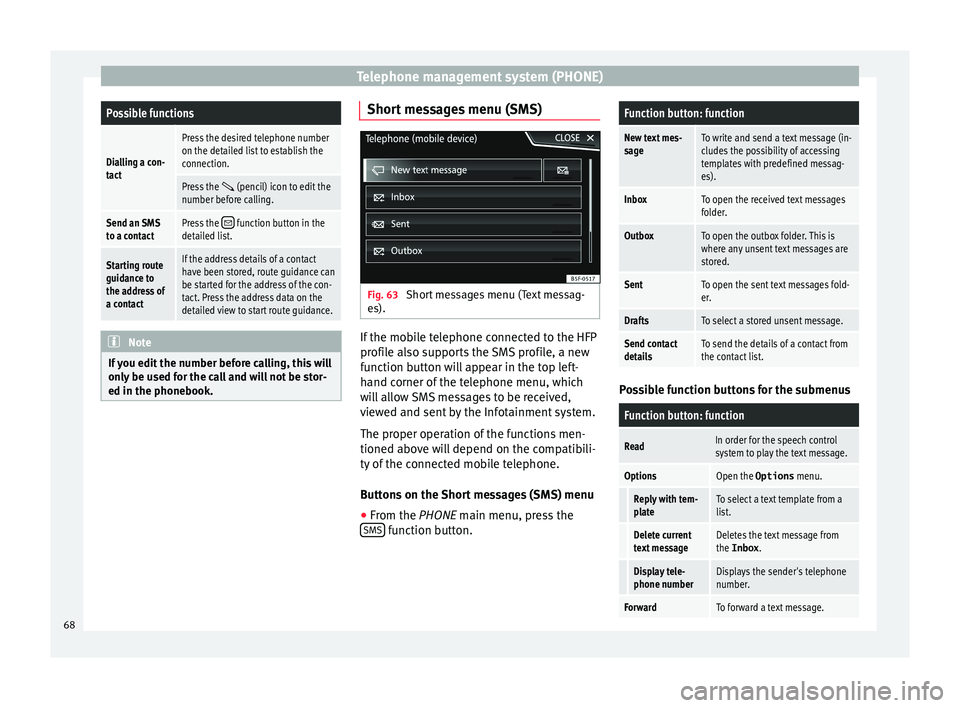
Fig. 63
Short messages menu (Text messag-
e s). If the mobile telephone connected to the HFP
pr
ofi
l
e also supports the SMS profile, a new
function button will appear in the top left-
hand corner of the telephone menu, which
will allow SMS messages to be received,
viewed and sent by the Infotainment system.
The proper operation of the functions men-
tioned above will depend on the compatibili-
ty of the connected mobile telephone.
Buttons on the Short messages (SMS) menu
● From the PHONE main menu, pre
ss the
SMS function button.
Function button: function
New text mes-
sageTo write and send a text message (in-
cludes the possibility of accessing
templates with predefined messag-
es).
InboxTo open the received text messages
folder.
OutboxTo open the outbox folder. This is
where any unsent text messages are
stored.
SentTo open the sent text messages fold-
er.
DraftsTo select a stored unsent message.
Send contact
detailsTo send the details of a contact from
the contact list. Possible function buttons for the submenus
Function button: function
ReadIn order for the speech control
system to play the text message.
OptionsOpen the Options
menu.
Reply with tem-
plateTo select a text template from a
list.
Delete current
text messageDeletes the text message from
the Inbox.
Display tele-
phone numberDisplays the sender's telephone
number.
ForwardTo forward a text message.68
Page 71 of 96
Telephone management system (PHONE)Function button: function
ReplyTo reply to an incoming text mes-
sage.
Enter number
To enter a telephone number or to
select a recipient from the con-
tact list.
Press the
Recipients function but-
ton to select multiple recipients.
RecipientsTo select multiple recipients from
the contact list.
DeleteTo delete a text message. Call Menu (call lists)
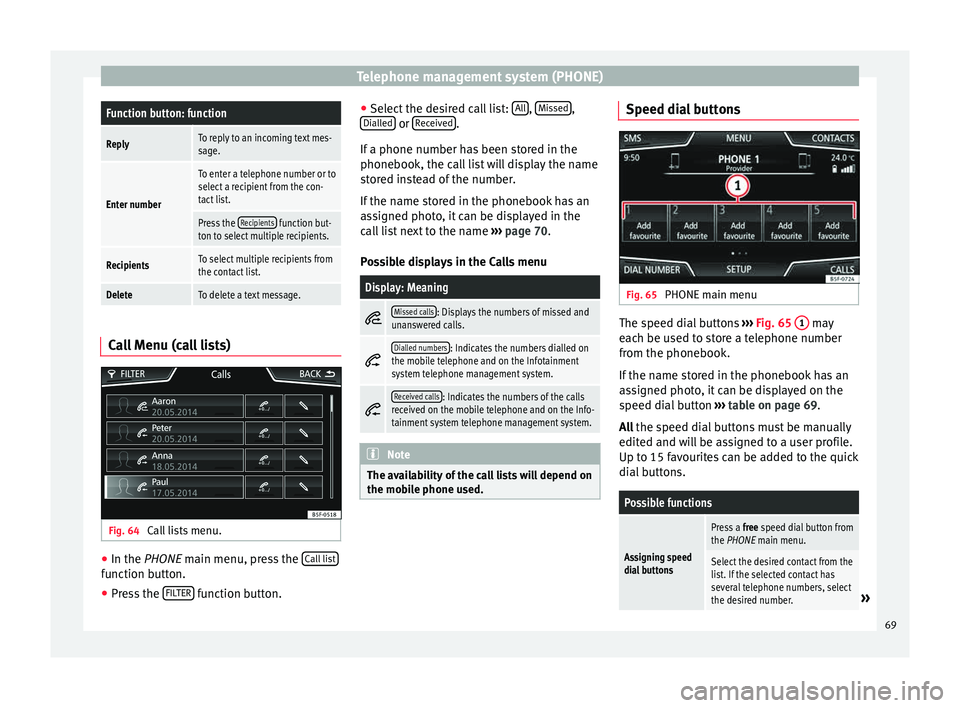
Fig. 64
Call lists menu. ●
In the PHONE m ain menu, pr
e
ss the Call list function button.
● Press the FIL
TER function button. ●
Sel ect
the de
sired call list: All ,
Mi
s
sed ,
Di al
l
ed or
R
ec
eiv ed .
If a phone number h
a
s been stored in the
phonebook, the call list will display the name
stored instead of the number.
If the name stored in the phonebook has an
assigned photo, it can be displayed in the
call list next to the name ››› page 70.
Possible displays in the Calls menu
Display: Meaning
Missed calls: Displays the numbers of missed and
unanswered calls.
Dialled numbers: Indicates the numbers dialled on
the mobile telephone and on the Infotainment
system telephone management system.
Received calls: Indicates the numbers of the calls
received on the mobile telephone and on the Info-
tainment system telephone management system. Note
The availability of the call lists will depend on
the mob i
le phone used. Speed dial buttons
Fig. 65
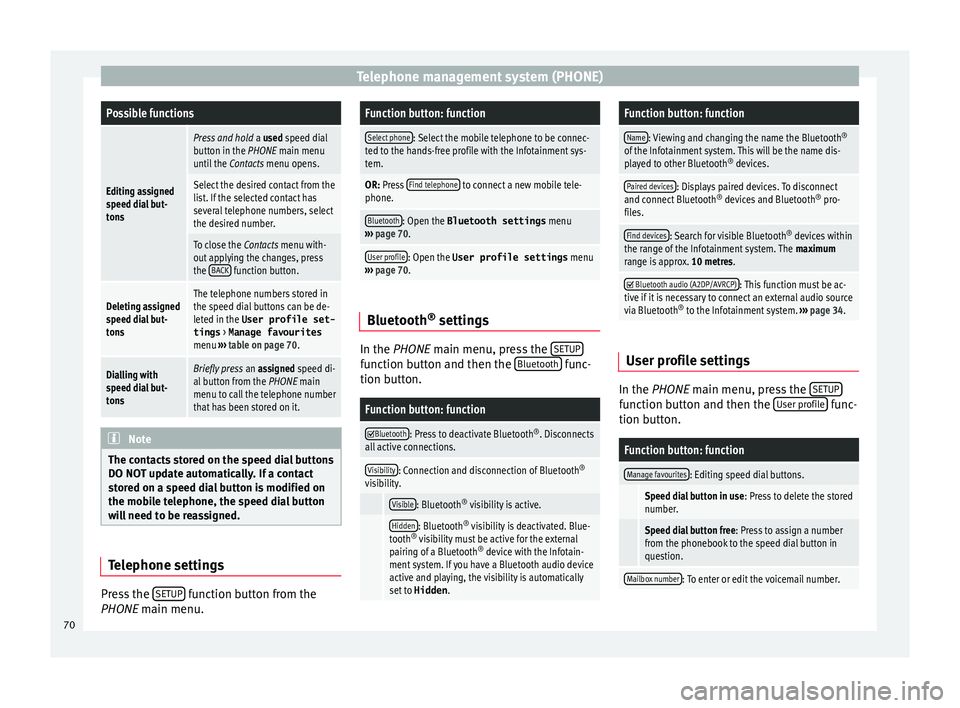
PHONE main menu The speed dial buttons
››
›
Fig. 65 1 may
e ac
h be u
sed to store a telephone number
from the phonebook.
If the name stored in the phonebook has an
assigned photo, it can be displayed on the
speed dial button ››› table on page 69.
All the speed dial buttons must be manually
edited and will be assigned to a user profile.
Up to 15 favourites can be added to the quick
dial buttons.
Possible functions
Assigning speed
dial buttons
Press a free speed dial button from
the PHONE main menu.
Select the desired contact from the
list. If the selected contact has
several telephone numbers, select
the desired number.
» 69
Page 72 of 96
Telephone management system (PHONE)Possible functions
Editing assigned
speed dial but-
tons
Press and hold
a used speed dial
button in the PHONE main menu
until the Contacts menu opens.
Select the desired contact from the
list. If the selected contact has
several telephone numbers, select
the desired number.
To close the Contacts menu with-
out applying the changes, press
the BACK
function button.
Deleting assigned
speed dial but-
tonsThe telephone numbers stored in
the speed dial buttons can be de-
leted in the User profile set-
tings
> Manage favourites
menu ››› table on page 70.
Dialling with
speed dial but-
tonsBriefly press an assigned speed di-
al button from the PHONE main
menu to call the telephone number
that has been stored on it. Note
The contacts stored on the speed dial buttons
DO NOT upd at
e automatically. If a contact
stored on a speed dial button is modified on
the mobile telephone, the speed dial button
will need to be reassigned. Telephone settings
Press the
S
ETUP function button from the
PHONE m ain menu.
Function button: function
Select phone: Select the mobile telephone to be connec-
ted to the hands-free profile with the Infotainment sys-
tem.
OR: Press Find telephone to connect a new mobile tele-
phone.
Bluetooth: Open the Bluetooth settings menu
››› page 70.
User profile: Open the User profile settings menu
››› page 70. Bluetooth
®
settin g
s In the PHONE m
ain menu, pr
e
ss the SETUP function button and then the
Bluet
ooth func-
tion b utt
on.
Function button: function
Bluetooth: Press to deactivate Bluetooth
®
. Disconnects
all active connections.
Visibility: Connection and disconnection of Bluetooth ®
visibility.
Visible: Bluetooth ®
visibility is active.
Hidden: Bluetooth ®
visibility is deactivated. Blue-
tooth ®
visibility must be active for the external
pairing of a Bluetooth ®
device with the Infotain-
ment system. If you have a Bluetooth audio device
active and playing, the visibility is automatically
set to Hidden .
Function button: function
Name: Viewing and changing the name the Bluetooth ®
of the Infotainment system. This will be the name dis-
played to other Bluetooth ®
devices.
Paired devices: Displays paired devices. To disconnect
and connect Bluetooth ®
devices and Bluetooth ®
pro-
files.
Find devices: Search for visible Bluetooth ®
devices within
the range of the Infotainment system. The maximum
range is approx. 10 metres.
Bluetooth audio (A2DP/AVRCP): This function must be ac-
tive if it is necessary to connect an external audio source
via Bluetooth ®
to the Infotainment system. ››› page 34. User profile settings
In the PHONE m
ain menu, pr
e
ss the SETUP function button and then the
U
ser pr
ofi le func-
tion b utt
on.
Function button: function
Manage favourites: Editing speed dial buttons.
Speed dial button in use : Press to delete the stored
number.
Speed dial button free : Press to assign a number
from the phonebook to the speed dial button in
question.
Mailbox number: To enter or edit the voicemail number. 70
Page 73 of 96
Telephone management system (PHONE)Function button: function
Code: To enter a prefix to be placed before the num-
ber entered ››› page 66.
Sort by: To set the order of appearance of the entries in
the phonebook ( Forename and surname or vice-versa).
Import contacts: Press to import the phonebook of the
connected telephone, or to update the imported phone-
book.
Delete other user profiles: To delete all the inactive user pro-
files or only one of them.
Reminder: remember your mobile phone: If there is already
an active Bluetooth ®
connection with another mobile
telephone when turning off the ignition, the following
message appears: “Remember your mobile
phone ”.
Select ringtonea)
: To select a ringtone from a list of prede-
fined melodies (tones). The selected ringtone is played
and set up when exiting the submenu.
Show pictures for contactsb)
: If phonebook contacts have
been stored with a photograph, it can be displayed on
the speed dial buttons, on the call lists and in the pho-
nebook.
a) Depending on the mobile telephone used, the selected ring
tone, or the one set up on the mobile telephone, is played. This
function will not be displayed if not supported by the mobile tel-
ephone.
b) Depending on the mobile phone. Note
Some telephones need to be restarted to re-
down lo
ad the most recent contacts added. 71
Page 79 of 96
Full Link™*
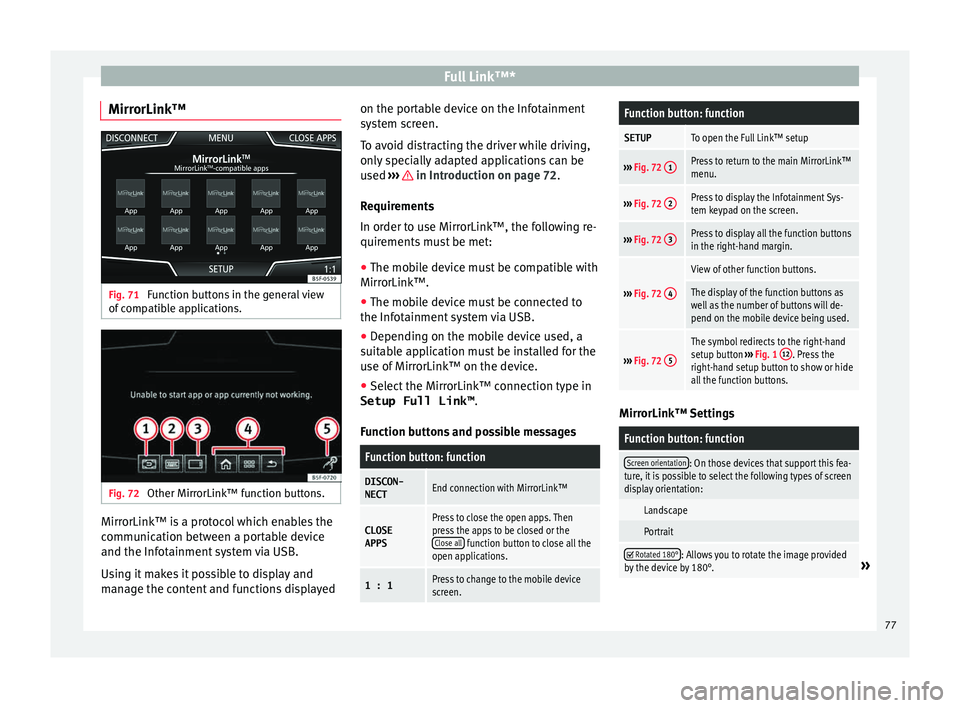
MirrorLink™ Fig. 71
Function buttons in the general view
of c
omp
atible applications. Fig. 72
Other MirrorLink™ function buttons. MirrorLink™ is a protocol which enables the
c
ommu
nic
ation between a portable device
and the Infotainment system via USB.
Using it makes it possible to display and
manage the content and functions displayed on the portable device on the Infotainment
syst
em screen.
To avoid distracting the driver while driving,
only specially adapted applications can be
used ››› in Introduction on page 72.
R equir
ement
s
In order to use MirrorLink™, the following re-
quirements must be met:
● The mobile device must be compatible with
MirrorLink™.
● The mob
ile device must be connected to
the Infotainment
system via USB.
● Depending on the mobile device used, a
suitab
le application must be installed for the
use of MirrorLink™ on the device.
● Select the MirrorLink™ connection type in
Setup Full Link™ .
Function b
uttons and possible messages
Function button: function
DISCON-NECTEnd connection with MirrorLink™
CLOSEAPPSPress to close the open apps. Then
press the apps to be closed or the Close all
function button to close all the
open applications.
1 : 1Press to change to the mobile device
screen.
Function button: function
SETUPTo open the Full Link™ setup
››› Fig. 72 1Press to return to the main MirrorLink™
menu.
›››
Fig. 72 2Press to display the Infotainment Sys-
tem keypad on the screen.
›››
Fig. 72 3Press to display all the function buttons
in the right-hand margin.
›››
Fig. 72 4
View of other function buttons.
The display of the function buttons as
well as the number of buttons will de-
pend on the mobile device being used.
›››
Fig. 72 5
The symbol redirects to the right-hand
setup button
››› Fig. 1 12. Press the
right-hand setup button to show or hide
all the function buttons. MirrorLink™ Settings
Function button: function
Screen orientation: On those devices that support this fea-
ture, it is possible to select the following types of screen
display orientation:
Landscape
Portrait
Rotated 180°: Allows you to rotate the image provided
by the device by 180°.» 77