change time Seat Leon SC 2014 NAVI SYSTEM PLUS
[x] Cancel search | Manufacturer: SEAT, Model Year: 2014, Model line: Leon SC, Model: Seat Leon SC 2014Pages: 84, PDF Size: 2.08 MB
Page 32 of 84
Audio and Media Mode
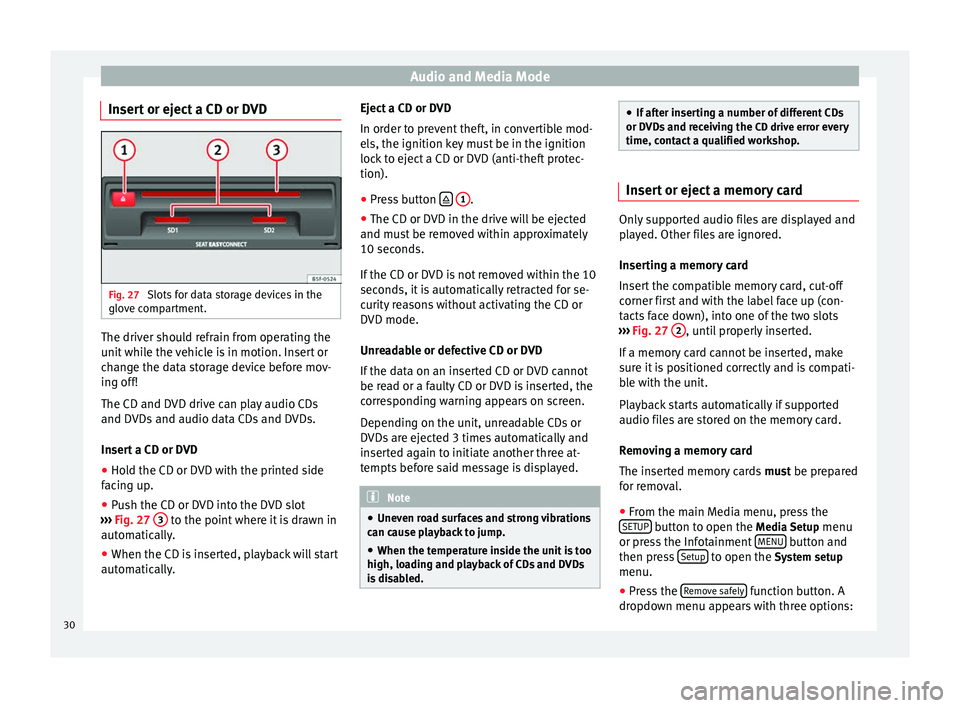
Insert or eject a CD or DVD Fig. 27
Slots for data storage devices in the
glove compartment. The driver should refrain from operating the
unit while the vehicle is in motion. Insert or
change the data storage device before mov-
ing off!
The CD and DVD drive can play audio CDs
and DVDs and audio data CDs and DVDs.
Insert a CD or DVD
● Hold the CD or DVD with the printed side
facing up.
● Push the CD or DVD into the DVD slot
››› Fig. 27 3 to the point where it is drawn in
automatically.
● When the CD is inserted, playback will start
automatically. Eject a CD or DVD
In order to prevent theft, in convertible mod-
els, the ignition key must be in the ignition
lock to eject a CD or DVD (anti-theft protec-
tion).
●
Press button
1 .
● The CD or DVD in the drive will be ejected
and must be removed within approximately
10 seconds.
If the CD or DVD is not removed within the 10
seconds, it is automatically retracted for se-
curity reasons without activating the CD or
DVD mode.
Unreadable or defective CD or DVD
If the data on an inserted CD or DVD cannot
be read or a faulty CD or DVD is inserted, the
corresponding warning appears on screen.
Depending on the unit, unreadable CDs or
DVDs are ejected 3 times automatically and
inserted again to initiate another three at-
tempts before said message is displayed. Note
● Uneven road surfaces and strong vibrations
can cause playback to jump.
● When the temperature inside the unit is too
high, loading and playback of CDs and DVDs
is disabled. ●
If after inserting a number of different CDs
or DVDs and receiving the CD drive error every
time, contact a qualified workshop. Insert or eject a memory card
Only supported audio files are displayed and
played. Other files are ignored.
Inserting a memory card
Insert the compatible memory card, cut-off
corner first and with the label face up (con-
tacts face down), into one of the two slots
››› Fig. 27 2 , until properly inserted.
If a memory card cannot be inserted, make
sure it is positioned correctly and is compati-
ble with the unit.
Playback starts automatically if supported
audio files are stored on the memory card.
Removing a memory card
The inserted memory cards must be prepared
for removal.
● From the main Media menu, press the
SETUP button to open the Media Setup
menu
or press the Infotainment MENU button and
then press Setup to open the System setup
menu.
● Press the Remove safely function button. A
dropdown menu appears with three options:
30
Page 35 of 84
Audio and Media Mode
The connection of an external audio source is
indicated by AUX on the screen ››› Fig. 28 .
Connecting an external audio source to the
AUX-IN multimedia socket
● Lower the base volume on the Infotainment
system.
● Connect the external audio source to the
AUX-IN multimedia socket.
● Start playback on the external audio
source.
● In the MEDIA main menu, press the SOURCEfunction button and select
AUX .
The output volume
of
the c onnected external
audio source should be adjusted to the vol-
ume of the other audio sources ››› page 72.
Information on operating an external audio
source connected to the AUX-IN multimedia
socket
OperationEffect
Selection of another au-
dio source from the Info-
tainment system.The external audio source
continues to run in the
background.
Stopping playback on the
external audio source.The infotainment system
remains in the AUX menu.
Disconnecting the plug
from the AUX-IN multime-
dia socket.The Infotainment system
changes to the playback of
the last audio source used. Note
● Please read and observe the manufactur-
er's instruction manual for the external audio
source.
● Interference may be heard if the external
audio source is powered from the vehicle’s
12-volt socket. Connecting an external audio source
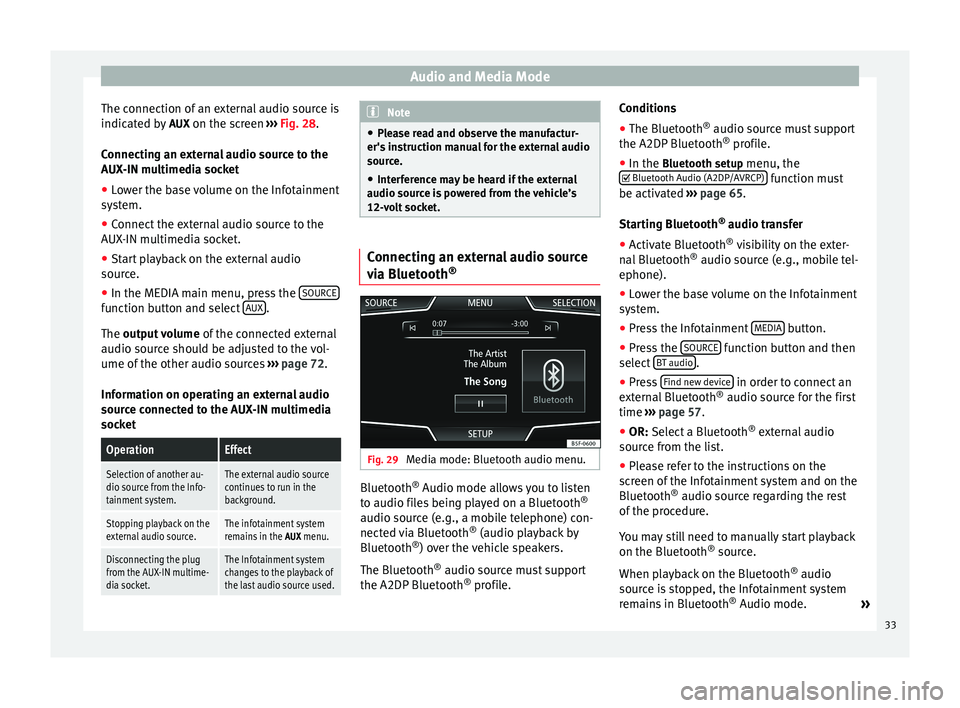
via Bluetooth
® Fig. 29
Media mode: Bluetooth audio menu. Bluetooth
®
Audio mode allows you to listen
to audio files being played on a Bluetooth ®
audio source (e.g., a mobile telephone) con-
nected via Bluetooth ®
(audio playback by
Bluetooth ®
) over the vehicle speakers.
The Bluetooth ®
audio source must support
the A2DP Bluetooth ®
profile. Conditions
●
The Bluetooth ®
audio source must support
the A2DP Bluetooth ®
profile.
● In the Bluetooth setup menu, the
Bluet
ooth Audio (A2DP/AVRCP) function must
be activated ››› page 65 .
St ar
ting Bluetooth ®
audio transfer
● Activate Bluetooth ®
visibility on the exter-
nal Bluetooth ®
audio source (e.g., mobile tel-
ephone).
● Lower the base volume on the Infotainment
system.
● Press the Infotainment MEDIA button.
● Press the SOURCE function button and then
select BT audio .
● Press Find new device in order to connect an
external Bluetooth ®
audio source for the first
time ››› page 57 .
● OR: Select a Bluetooth ®
e xt
ernal audio
source from the list.
● Please refer to the instructions on the
screen of the Infotainment system and on the
Bluetooth ®
audio source regarding the rest
of the procedure.
You may still need to manually start playback
on the Bluetooth ®
source.
When playback on the Bluetooth ®
audio
source is stopped, the Infotainment system
remains in Bluetooth ®
Audio mode. »
33
Page 36 of 84
Audio and Media Mode
Controlling playback
The extent to which the Bluetooth ®
audio
source can be controlled via the Infotainment
system depends on the connected Blue-
tooth ®
audio source.
The available functions will depend on the
Bluetooth ®
Audio profile that the connected
external player supports.
With media players that support the AVRCP
Bluetooth ®
profile, playback on the Blue-
tooth ®
audio source can be automatically
started or stopped when the unit is switched
to Bluetooth ®
Audio mode or to a different
audio source. In addition, it is possible to
view or change the track via the Infotainment
system. Note
● Due to the large number of possible Blue-
tooth ®
audio sources, it is not possible to
guarantee fault-free operation of all descri-
bed functions.
● Always switch off the warning and service
tones on a connected Bluetooth ®
audio
source, e.g. key tones on a mobile telephone,
to prevent possible interference noise and
malfunctions.
● Do not connect an external media player to
play music via Bluetooth ®
and via the USB
port ››› page 31 at the same time with the Infotainment system, as this could cause
playback limitations.
● If the external player is an Apple device™,
it cannot be simultaneously connected by
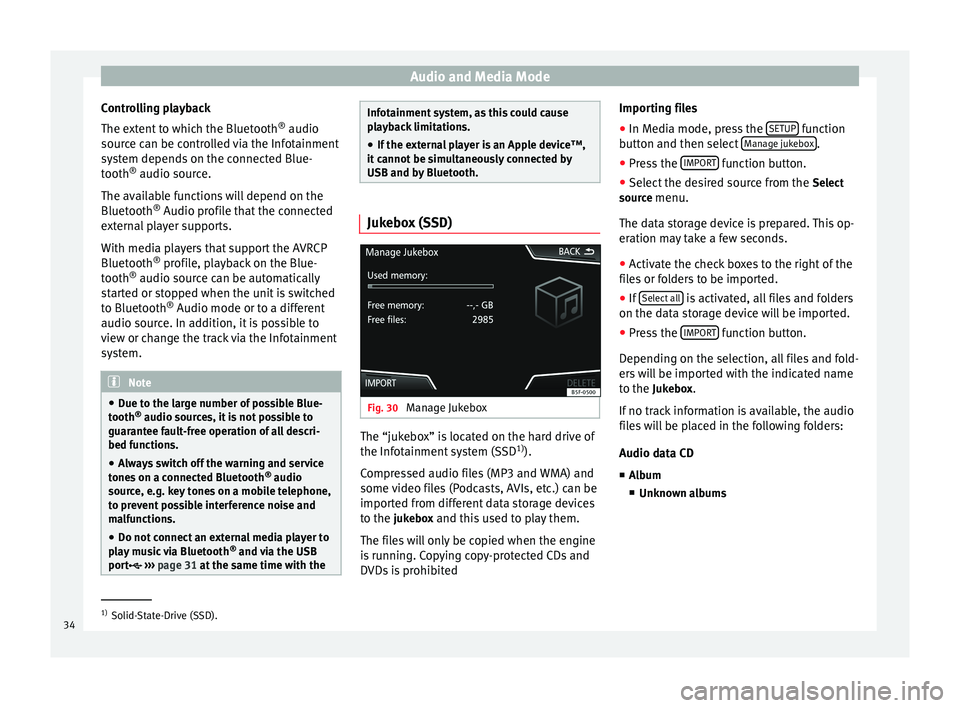
USB and by Bluetooth. Jukebox (SSD)
Fig. 30
Manage Jukebox The “jukebox” is located on the hard drive of
the Infotainment system (SSD
1)
).
Compressed audio files (MP3 and WMA) and
some video files (Podcasts, AVIs, etc.) can be
imported from different data storage devices
to the jukebox and this used to play them. The files will only be copied when the engine
is running. Copying copy-protected CDs and
DVDs is prohibited Importing files
● In Media mode, press the SETUP function
button and then select Manage jukebox .
● Press the IMPORT function button.
● Select the desired source from the Select
source menu.
The data storage device is prepared. This op-
eration may take a few seconds.
● Activate the check boxes to the right of the
files or folders to be imported.
● If Select all is activated, all files and folders
on the data storage device will be imported.
● Press the IMPORT function button.
Depending on the selection, all files and fold-
ers will be imported with the indicated name
to the Jukebox. If no track information is available, the audio
files will be placed in the following folders:
Audio data CD
■ Album
■ Unknown albums 1)
Solid-State-Drive (SSD).
34
Page 37 of 84
Audio and Media Mode
■ Track. mp3 1)
■ Artists
■Unknown artists
■ Unknown albums
■ Track. mp3 1)
Functions and progress display during the
copying operation
While copying, an animation is displayed
along with the progress percentage on the
import screen.
Audio data CD : It is not possible to copy and
p l
ay files at the same time.
● Press the Cancel function button to end the
import of the whole track that is currently be-
ing imported.
● To obtain information on the status of the
import, press the Information function button.
● Press the BACK function button to close
the import screen with the progress informa-
tion.
● When the file import ends, the following
message will appear: All files imported.
Deleting files
● In Media mode, press the SETUP function
button and then select Manage jukebox .●
Press the DELETE function button.
● Activate the check boxes to the right of the
files or folders to be deleted.
● If Select all is activated, all the files and
folders on the data storage device will be de-
leted.
● Press the DELETE function button. The files
and folders will be deleted according to the
selection made.
● When the files have been deleted, the fol-
lowing message will appear: All files deleted.
● Press the BACK function button to close
the menu.
Opening stored audio and video files
● Change to Jukebox (SSD) content
››› page 28 .
When s t
oring the tracks, they are stored un-
der different categories and lists according to
the information available.
The tracks saved can be checked and opened
from these lists according to different catego-
ries.
Jukebox
● Track list
● Artist ●
Album
● Music genre
● Title
● Video
● Unreadable files (an unsupported file has
been imported). Note
● If the Infotainment system cancels a copy-
ing operation, check the storage space on the
internal hard drive and check the data stor-
age device.
● Due to copyright laws, before any change in
ownership of the Infotainment system, all
files stored on the jukebox must be deleted. 1)
The name and extension of the file are examples.
35
Page 39 of 84
Audio and Media Mode
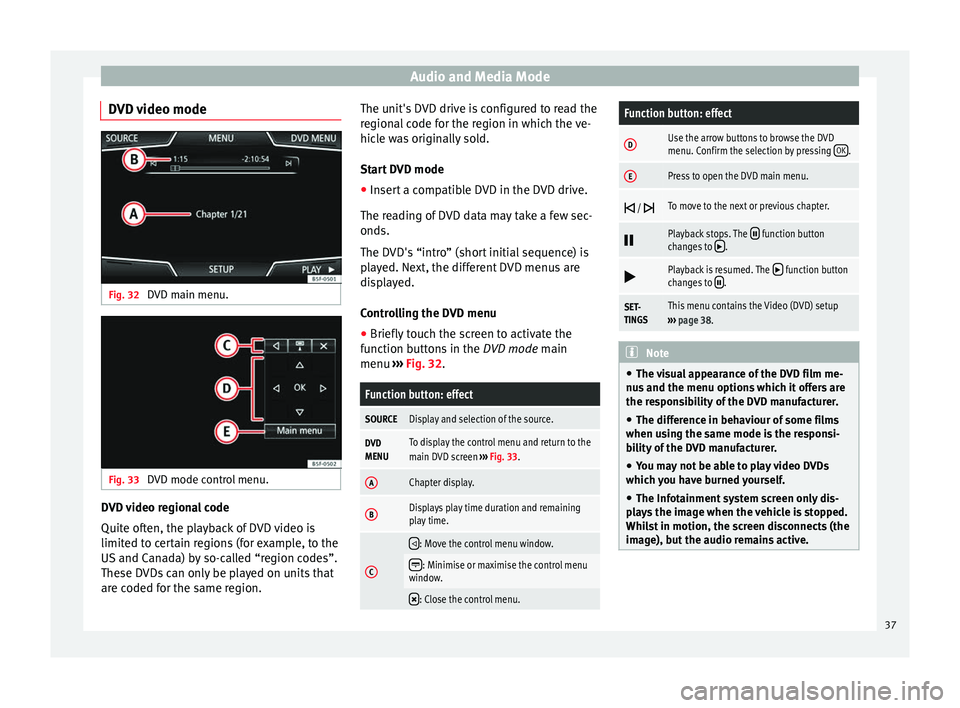
DVD video mode Fig. 32
DVD main menu. Fig. 33
DVD mode control menu. DVD video regional code
Quite often, the playback of DVD video is
limited to certain regions (for example, to the
US and Canada) by so-called “region codes”.
These DVDs can only be played on units that
are coded for the same region. The unit's DVD drive is configured to read the
regional code for the region in which the ve-
hicle was originally sold.
Start DVD mode
● Insert a compatible DVD in the DVD drive.
The reading of DVD data may take a few sec-
onds.
The DVD's “intro” (short initial sequence) is
played. Next, the different DVD menus are
displayed.
Controlling the DVD menu
● Briefly touch the screen to activate the
function buttons in the DVD mode main
menu ›
›
› Fig. 32.
Function button: effect
SOURCEDisplay and selection of the source.
DVD
MENUTo display the control menu and return to the
main DVD screen ››› Fig. 33.
AChapter display.
BDisplays play time duration and remaining
play time.
C
: Move the control menu window.
: Minimise or maximise the control menu
window.
: Close the control menu.
Function button: effect
DUse the arrow buttons to browse the DVD
menu. Confirm the selection by pressing
OK.
EPress to open the DVD main menu.
/ To move to the next or previous chapter.
Playback stops. The function button
changes to .
Playback is resumed. The function button
changes to .
SET-
TINGSThis menu contains the Video (DVD) setup
››› page 38. Note
● The visual appearance of the DVD film me-
nus and the menu options which it offers are
the responsibility of the DVD manufacturer.
● The difference in behaviour of some films
when using the same mode is the responsi-
bility of the DVD manufacturer.
● You may not be able to play video DVDs
which you have burned yourself.
● The Infotainment system screen only dis-
plays the image when the vehicle is stopped.
Whilst in motion, the screen disconnects (the
image), but the audio remains active. 37
Page 45 of 84
Navigation
The calculation will be performed in accord-
ance with the data selected in the Route op- tions menu ››› page 49 .
Af t
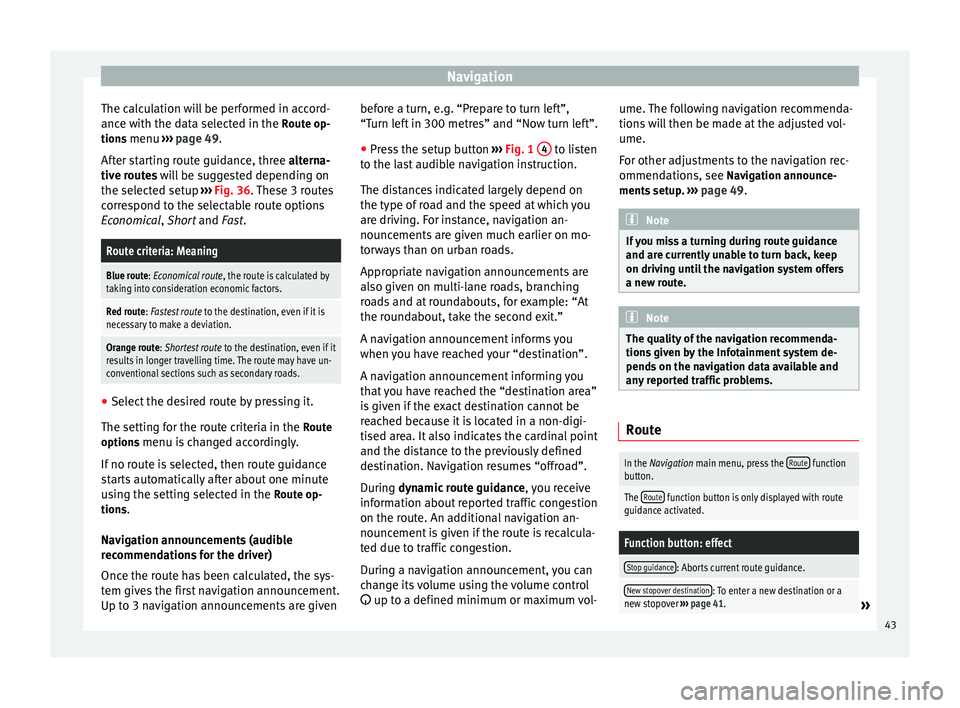
er starting route guidance, three
alterna-
tive routes will be suggested depending on
the selected setup ››› Fig. 36. These 3 routes
correspond to the selectable route options
Economical
, Short and Fast.
Route criteria: Meaning
Blue route: Economical route, the route is calculated by taking into consideration economic factors.
Red route: Fastest route to the destination, even if it is
necessary to make a deviation.
Orange route: Shortest route to the destination, even if it
results in longer travelling time. The route may have un-
conventional sections such as secondary roads. ●
Select the desired route by pressing it.
The setting for the route criteria in the Route
options menu is changed accordingly.
If no route is selected, then route guidance
starts automatically after about one minute
using the setting selected in the Route op-
tions .
Navigation announcements (audible
recommendations for the driver)
Once the route has been calculated, the sys-
tem gives the first navigation announcement.
Up to 3 navigation announcements are given before a turn, e.g. “Prepare to turn left”,
“Turn left in 300 metres” and “Now turn left”.
● Press the setup button ››› Fig. 1 4 to listen
to the last audible navigation instruction.
The distances indicated largely depend on
the type of road and the speed at which you
are driving. For instance, navigation an-
nouncements are given much earlier on mo-
torways than on urban roads.
Appropriate navigation announcements are
also given on multi-lane roads, branching
roads and at roundabouts, for example: “At
the roundabout, take the second exit.”
A navigation announcement informs you
when you have reached your “destination”.
A navigation announcement informing you
that you have reached the “destination area”
is given if the exact destination cannot be
reached because it is located in a non-digi-
tised area. It also indicates the cardinal point
and the distance to the previously defined
destination. Navigation resumes “offroad”.
During dynamic route guidance
,
y
ou receive
information about reported traffic congestion
on the route. An additional navigation an-
nouncement is given if the route is recalcula-
ted due to traffic congestion.
During a navigation announcement, you can
change its volume using the volume control
up to a defined minimum or maximum vol- ume. The following navigation recommenda-
tions will then be made at the adjusted vol-
ume.
For other adjustments to the navigation rec-
ommendations, see Navigation announce-
ments
setup. ››› page 49. Note
If you miss a turning during route guidance
and are currently unable to turn back, keep
on driving until the navigation system offers
a new route. Note
The quality of the navigation recommenda-
tions given by the Infotainment system de-
pends on the navigation data available and
any reported traffic problems. Route
In the Navigation main menu, press the
Route function
button.
The Route function button is only displayed with route
guidance activated.
Function button: effect
Stop guidance: Aborts current route guidance.
New stopover destination: To enter a new destination or a
new stopover ››› page 41.» 43
Page 46 of 84
NavigationFunction button: effect
Route information: View route information for current
route.
Store destination: To store the selected destina-
tion in the destination memory.
Congestion ahead: To exclude a section (of 0.2 to 10 km in
length) from the current route, e.g. to avoid congestion.
To cancel the exclusion, press the Route
function button
and then Cancel congestion.
Change route: The map of the calculated route appears
and by holding a finger on the route and dragging the
finger across said map, the route is changed to the
road(s) that you want and the new route is then recalcu-
lated. My destinations (destination memory)
The stored destinations can be selected from
the My destinations
menu.
● Press the My destinations function button in
the main Navigation
menu.
● Sel
ect the desired function button.
Store position ,
Destinations or
Home address .
Store position ● By pressing the Store position function but-
ton, the indicated position is stored as Flag-
ged destination in the Destination memory.
To permanently retain the position stored as
a Flagged destination, it must be renamed in the Destination memory. Otherwise the stored
position will be overwritten the next time a
flagged destination is stored.
● Mark the Flagged destination in the Destina-
tion memory.
● Press the Save function button.
The name can be changed in the following in-
put window. Press the function button to
store the destination.
Destinations and contacts
● Select the desired function button.
Function button: effect
Recent destinations: View of destinations for which a route
has already been started.
Dest. memory: View of destinations stored manually and
from imported vCards ››› page 48, Importing vCards
(electronic business cards) .
Favourites: View of destinations stored as favourites.
Contacts: View of entries in the phonebook that have a
stored address (postal address). Home address
Only one address or position can be stored
as the home address at any one time. The
stored home address can be edited or over-
written.If a home address has already been stored,
route guidance will be started to the stored
home address.
If a home address has not yet been stored,
an address can be assigned as the home ad-
dress.
Assigning the home address for the first time:
Position: Press to store the vehicle's current position as
the home address.
Address: Press to enter the home address manually.
Editing the home address:
The home address can be edited in the Navigation setup
menu ››› page 49.
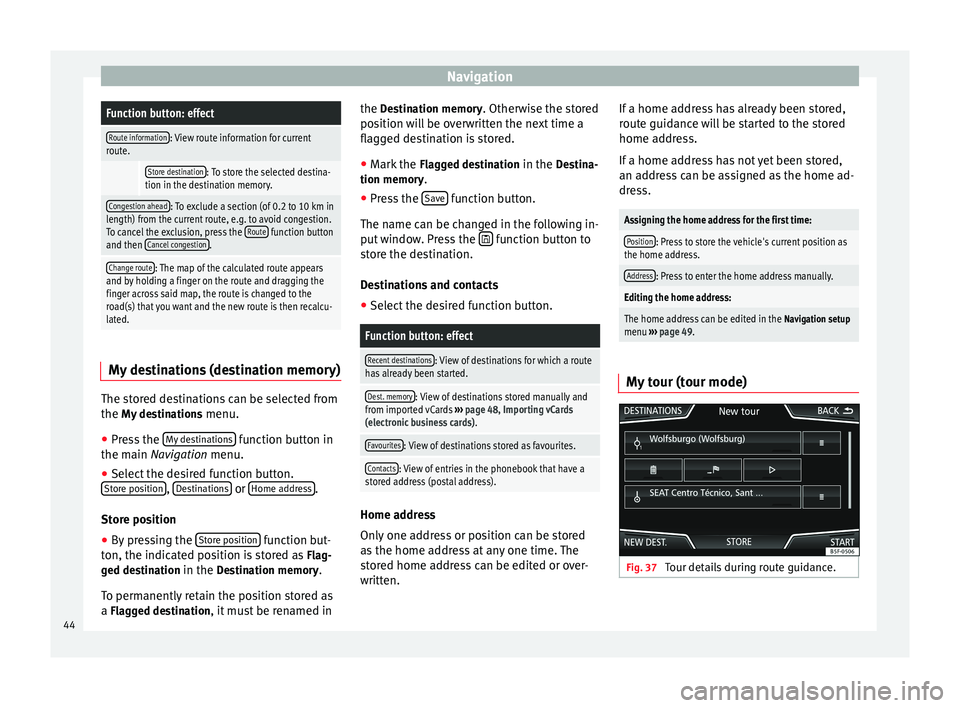
My tour (tour mode) Fig. 37
Tour details during route guidance.44
Page 49 of 84

NavigationFunction button: effect
Satellite data: current vehicle position in coordinates and
GPS status (satellite reception).
a) This function button is only displayed with route guidance ac-
tivated.
Press the function button to deactivate the
split screen.
Map display Fig. 40
Messages and function buttons on
the map display. Function buttons and messages on the map
display.
To activate function buttons
and , press
function button .
Function button: effect
To select automatic scaling. If the function is
active, the symbol is displayed in blue.
Current altitude indicator.
View map scale. Turn the setup button to mod-
ify the scale of the map.
To change the orientation of the map (north-
facing or direction of travel). This function is
only available in 2D mode.
To centre the vehicle position on the map.
To centre the destination on the map. This
function button is only displayed if
Display
destination on map is selected ››› page 46.
Briefly zooms in on the map. After a few sec-
onds, it automatically returns to the last selec-
ted scale.
Traffic reports and dynamic route
guidance (TRAFFIC)
The Infotainment system constantly receives
traffic reports (TMC/TMCpro) in the back-
ground, provided a TMC traffic news station
can be received at the current location. The
station being listened to does not have to be
the traffic news station.
TMC traffic reports are displayed on the map
with symbols
››› page 48, Traffic reports on
map (selection) and are required for dynamic r
out
e guidance
››› page 47, Dynamic route
guidance
.
List of available traffic reports
● Press the TRAFFIC button on the Infotain-
ment system to display a list of the current
traffic reports.
● Press the OPTIONS function button and
then select All or Route.
Function button: effect
All: This will display all the traffic reports received.
Route: This will display the traffic reports received that
affect the calculated route. Dynamic route guidance
In order for dynamic route guidance to func-
tion,
Dynamic route
must be activated in the
route options ›››
page 49.
If during route guidance a traffic report is re-
ceived that affects the route being travelled,
an alternative route will be searched for if the
Infotainment system calculates that time can
be saved.
If it calculates that time will not be saved us-
ing the alternative route, it will continue on
the route with the traffic congestion. An an-
nouncement will be made in each case. »
47
Page 54 of 84
CAR menu
CAR menu Introduction to managing the
CAR menu Car menu By pressing the “CAR” infotainment button
you will access its main menu with the follow-
ing options:
● VIEW
● MINIPLAYER (Radio and Media function)
● PREVIOUS-NEXT (to change screen)
● SETUP ›››
Booklet Instruction Manual,
chapter System setup (CAR)
With the function button View you can access
the following information:
● OFFROAD*
● CONSUMERS
● DRIVING DATA
● ECOTRAINER*
● VEHICLE STATUS Offroad*
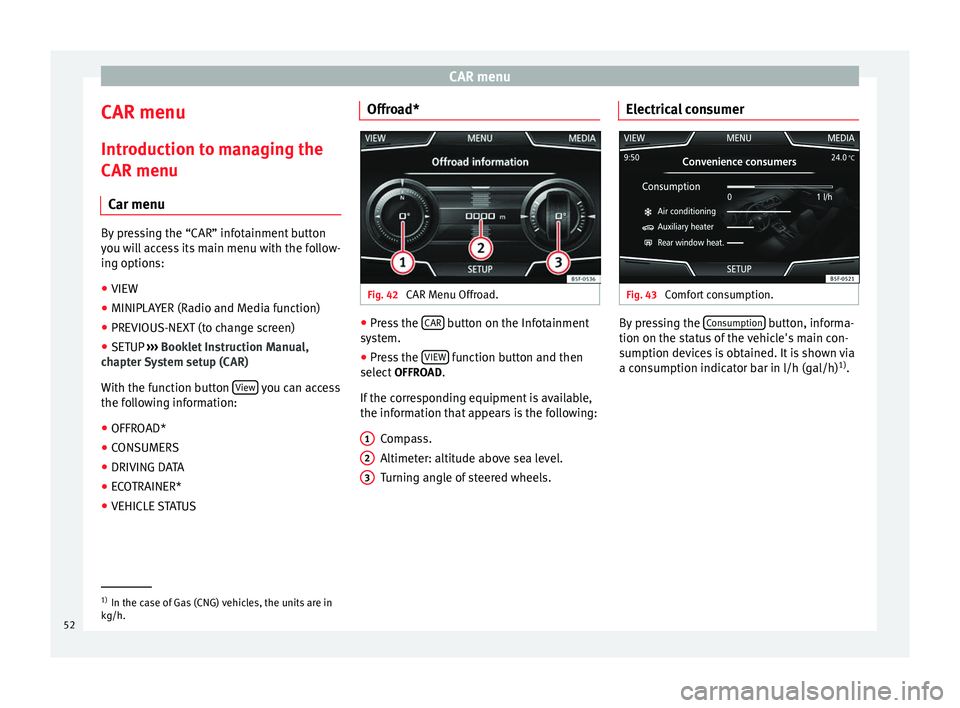
Fig. 42
CAR Menu Offroad. ●
Press the CAR button on the Infotainment
system.
● Press the VIEW function button and then
select OFFROAD.
If the corresponding equipment is available,
the information that appears is the following: Compass.
Altimeter: altitude above sea level.
Turning angle of steered wheels.
1 2
3 Electrical consumer
Fig. 43
Comfort consumption. By pressing the
Consumption button, informa-
tion on the status of the vehicle's main con-
sumption devices is obtained. It is shown via
a consumption indicator bar in l/h (gal/h) 1)
. 1)
In the case of Gas (CNG) vehicles, the units are in
kg/h.
52
Page 62 of 84
Telephone management system (PHONE)
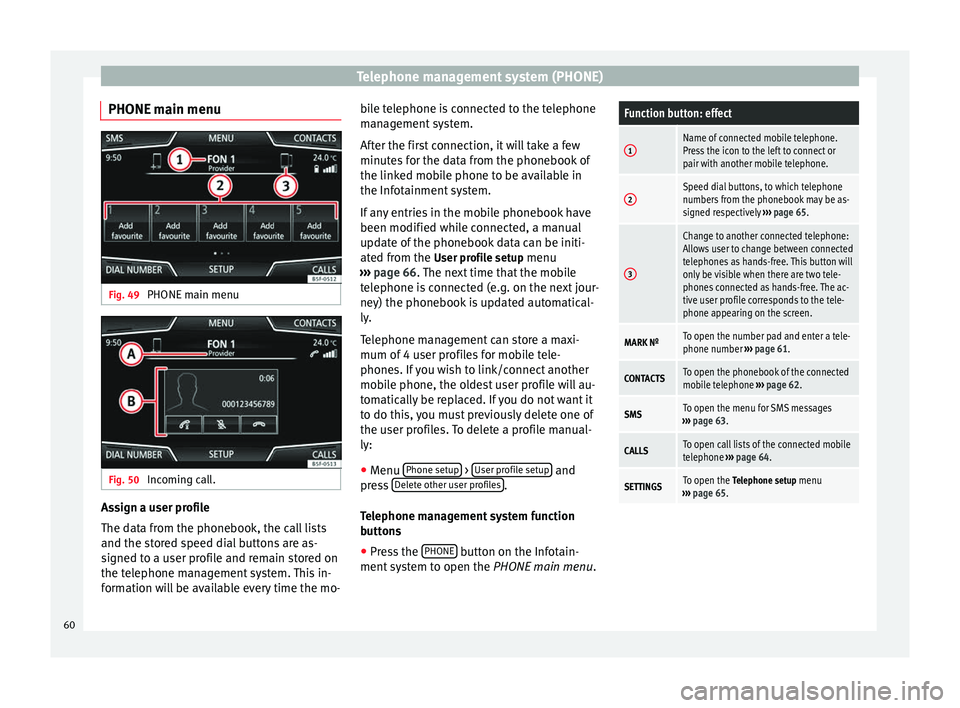
PHONE main menu Fig. 49
PHONE main menu Fig. 50
Incoming call. Assign a user profile
The data from the phonebook, the call lists
and the stored speed dial buttons are as-
signed to a user profile and remain stored on
the telephone management system. This in-
formation will be available every time the mo- bile telephone is connected to the telephone
management system.
After the first connection, it will take a few
minutes for the data from the phonebook of
the linked mobile phone to be available in
the Infotainment system.
If any entries in the mobile phonebook have
been modified while connected, a manual
update of the phonebook data can be initi-
ated from the
User profile setup menu
› ›
› page 66. The next time that the mobile
tel
ephone is connected (e.g. on the next jour-
ney) the phonebook is updated automatical-
ly.
Telephone management can store a maxi-
mum of 4 user profiles for mobile tele-
phones. If you wish to link/connect another
mobile phone, the oldest user profile will au-
tomatically be replaced. If you do not want it
to do this, you must previously delete one of
the user profiles. To delete a profile manual-
ly:
● Menu Phone setup >
User profile setup and
press Delete other user profiles .
Telephone management system function
buttons ● Press the PHONE button on the Infotain-
ment system to open the PHONE main menu.
Function button: effect
1Name of connected mobile telephone.
Press the icon to the left to connect or
pair with another mobile telephone.
2Speed dial buttons, to which telephone
numbers from the phonebook may be as-
signed respectively ››› page 65.
3
Change to another connected telephone:
Allows user to change between connected
telephones as hands-free. This button will
only be visible when there are two tele-
phones connected as hands-free. The ac-
tive user profile corresponds to the tele-
phone appearing on the screen.
MARK NºTo open the number pad and enter a tele-
phone number ››› page 61.
CONTACTSTo open the phonebook of the connected
mobile telephone ››› page 62.
SMSTo open the menu for SMS messages
››› page 63.
CALLSTo open call lists of the connected mobile
telephone ››› page 64.
SETTINGSTo open the Telephone setup menu
››› page 65. 60