audio Seat Mii 2015 SOUND SYSTEM 1.X
[x] Cancel search | Manufacturer: SEAT, Model Year: 2015, Model line: Mii, Model: Seat Mii 2015Pages: 36, PDF Size: 0.87 MB
Page 16 of 36
Audio mode
Digital radio mode* (DAB, DAB
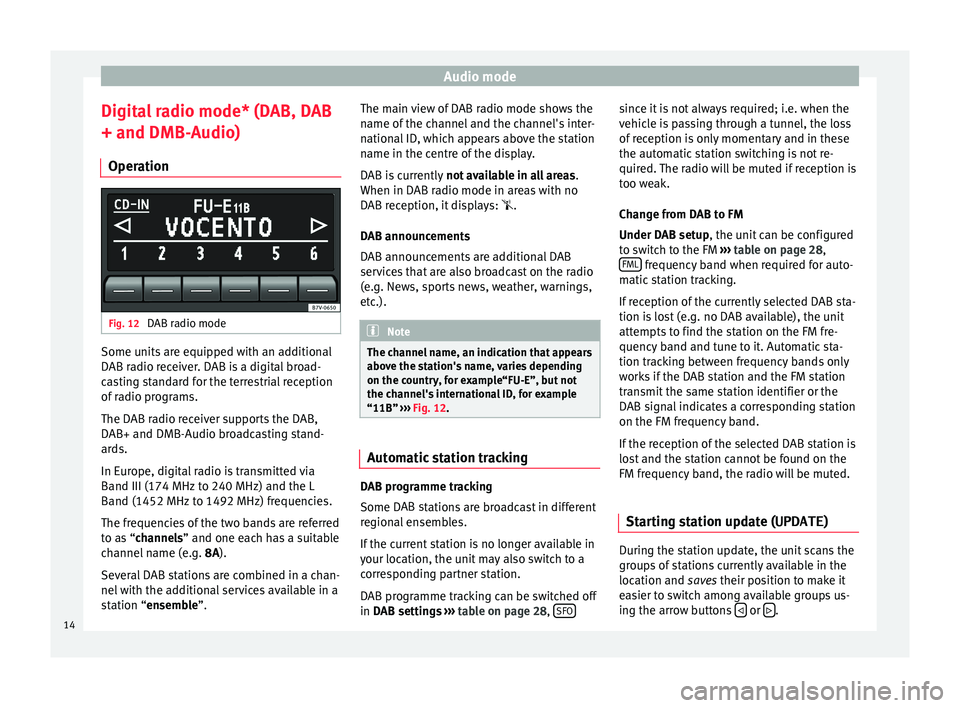
+ and DMB-Audio) Oper ation Fig. 12
DAB radio mode Some units are equipped with an additional
D
AB r
a
dio receiver. DAB is a digital broad-
casting standard for the terrestrial reception
of radio programs.
The DAB radio receiver supports the DAB,
DAB+ and DMB-Audio broadcasting stand-
ards.
In Europe, digital radio is transmitted via
Band III (174 MHz to 240 MHz) and the L
Band (1452 MHz to 1492 MHz) frequencies.
The frequencies of the two bands are referred
to as “channels” and one each has a suitable
channel name (e.g. 8A).
Several DAB stations are combined in a chan-
nel with the additional services available in a
station “ensemble”. The main view of DAB radio mode shows the
name of the c
hannel and the channel's inter-
national ID, which appears above the station
name in the centre of the display.
DAB is currently not available in all areas .
When in DAB radio mode in areas with no
DAB reception, it displays: .
DAB announcements
DAB announcements are additional DAB
services that are also broadcast on the radio
(e.g. News, sports news, weather, warnings,
etc.). Note
The channel name, an indication that appears
abov e the s
tation's name, varies depending
on the country, for example“FU-E”, but not
the channel's international ID, for example
“11B” ››› Fig. 12. Automatic station tracking
DAB programme tracking
Some D
AB s
t
ations are broadcast in different
regional ensembles.
If the current station is no longer available in
your location, the unit may also switch to a
corresponding partner station.
DAB programme tracking can be switched off
in DAB settings ›››
table on page 28, SFO since it is not always required; i.e. when the
v
ehic
l
e is passing through a tunnel, the loss
of reception is only momentary and in these
the automatic station switching is not re-
quired. The radio will be muted if reception is
too weak.
Change from DAB to FM
Under DAB setup, the unit can be configured
to switch to the FM ››› table on page 28,
FML frequency band when required for auto-
m atic
s
tation tracking.
If reception of the currently selected DAB sta-
tion is lost (e.g. no DAB available), the unit
attempts to find the station on the FM fre-
quency band and tune to it. Automatic sta-
tion tracking between frequency bands only
works if the DAB station and the FM station
transmit the same station identifier or the
DAB signal indicates a corresponding station
on the FM frequency band.
If the reception of the selected DAB station is
lost and the station cannot be found on the
FM frequency band, the radio will be muted.
Starting station update (UPDATE ) During the station update, the unit scans the
gr
oup
s
of stations currently available in the
location and saves their position to make it
easier to switch among available groups us-
ing the arrow buttons or
.
14
Page 17 of 36
Audio mode
● Pr e
s
s the MENU
› ››
Fig. 1
unit button in Ra-
dio mode.
● Press the UPD unit button to update the
s t
ation
s. The top line of the display will show
UPDATE as the channel, whereas the interna-
tional IDs are shown in the centre line (e.g.
“11B”).
● The station update ends when UPDATE is
no long
er shown in the top line of the dis-
play.
The radio will be muted during station up-
date. The update can take a few seconds.
Tuning to a channel/station manually
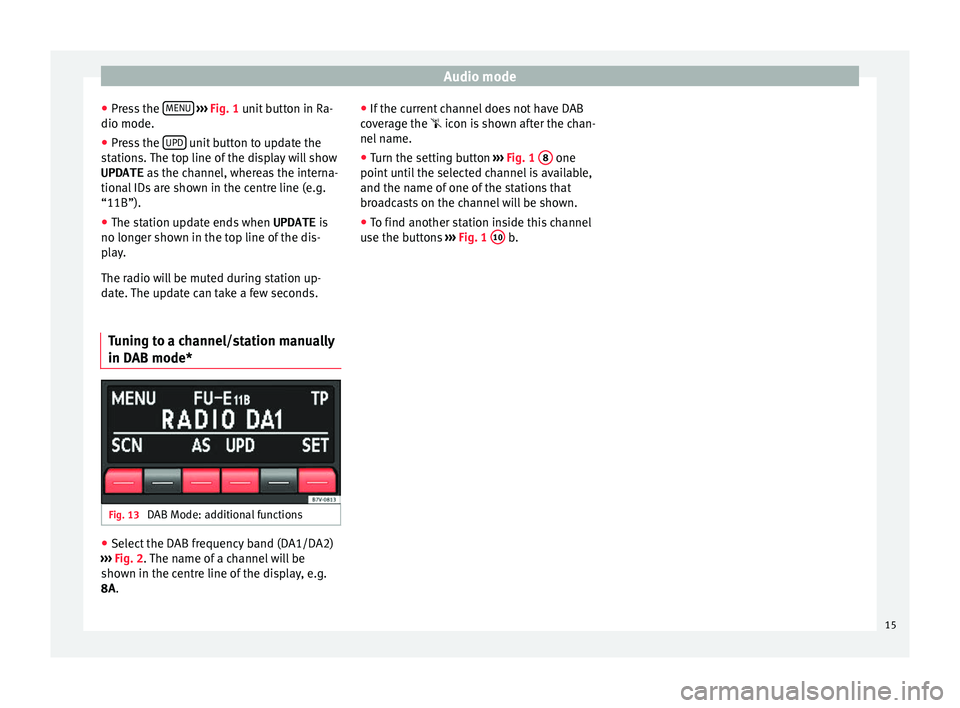
in DAB mode* Fig. 13
DAB Mode: additional functions ●
Select the DAB frequency band (DA1/DA2)
› ›
›
Fig. 2. The name of a channel will be
shown in the centre line of the display, e.g.
8A. ●
If the curr
ent channel does not have DAB
coverage the icon is shown after the chan-
nel name.
● Turn the setting button ›››
Fig. 1 8 one
point u
nti
l the selected channel is available,
and the name of one of the stations that
broadcasts on the channel will be shown.
● To find another station inside this channel
use the butt
ons ››› Fig. 1 10 b.
15
Page 18 of 36
Audio mode
TP (Traffic Program) function Intr oduction The TP function is an RDS radio data service.
Whil
e tr
affic news monitoring is on (display:
TP ), traffic announcements will interrupt the
current Audio mode.
On the AM frequency band, traffic news mon-
itoring is not possible.
Additional information and warnings: ● Safety notes ››
›
page 4
● Unit overview ›››
page 6
● Basic information on use ›››
page 8
● Radio mode ›››
page 10
Monitoring traffic news stations using
the TP fu
nction Fig. 14
TP function active. Traffic news monitoring with the TP function
i
s
on
ly possible if the TP station is available.
Some stations that do not have their own
traffic news support the TP function by broad-
casting traffic reports from other stations
(EON). Traffic announcements broadcast by
the linked traffic news stations interrupt the
current audio mode.
Switching the TP function on and off
● Press the unit button TP
› ››
Fig. 1 7 .
If the s
t
ation that is currently selected in FM
mode does not support the TP function, the
unit will automatically search for a TP station
(display: TP SEEK ).
● Press the TP unit button to switch the TP
f u
nction off
again.
When in areas without TP coverage the TP
function is activated, and search is begun for
a traffic news station, ending in the failure to
find a station. The search then returns to the
station to which it was originally tuned. The
TP function remains switched on (display: No
TP ). It is necessary to deactivate the TP func-
tion, otherwise no stations will be found in
the subsequent search using the arrow but-
tons.
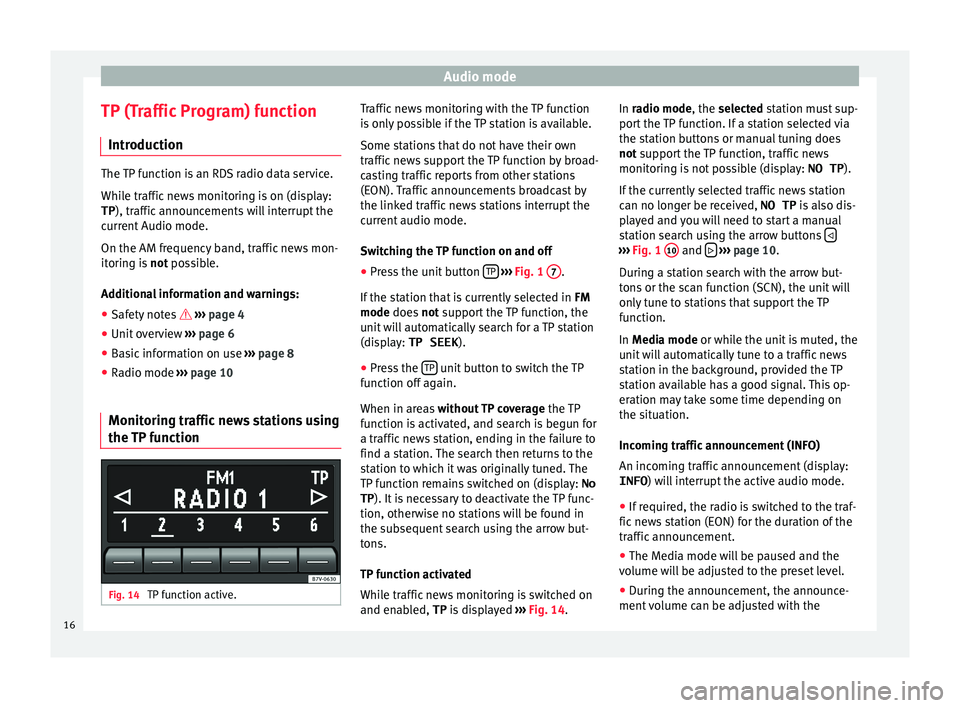
TP function activated
While traffic news monitoring is switched on
and enabled, TP is displayed ››› Fig. 14. In radio mode, the selected station must sup-
port
the TP function. If a station selected via
the station buttons or manual tuning does
not support the TP function, traffic news
monitoring is not possible (display: NO TP).
If the currently selected traffic news station
can no longer be received, NO TP is also dis-
played and you will need to start a manual
station search using the arrow buttons ›››
Fig. 1 10 and
› ››
p
age 10.
D
uring a station search with the arrow but-
tons or the scan function (SCN), the unit will
only tune to stations that support the TP
function.
In Media mode or while the unit is muted, the
unit will automatically tune to a traffic news
station in the background, provided the TP
station available has a good signal. This op-
eration may take some time depending on
the situation.
Incoming traffic announcement (INFO)
An incoming traffic announcement (display: INFO ) will interrupt the active audio mode.
● If required, the radio is switched to the traf-
fic news
station (EON) for the duration of the
traffic announcement.
● The Media mode will be paused and the
volume w
ill be adjusted to the preset level.
● During the announcement, the announce-
ment v
olume can be adjusted with the
16
Page 19 of 36
Audio mode
volume control ››
› Fig. 1 1 . The adjusted
settin g w
i
ll be applied to subsequent an-
nouncements.
● Interruption by a traffic announcement can
be stop
ped by pressing the TP unit button.
The TP f
u
nction remains active and the next
traffic announcement will again interrupt the
current Audio mode. 17
Page 20 of 36
Audio mode
Media mode Intr oduction “Media sources” are audio sources contain-
in g audio fi
les on various different data me-
dia (e.g. CD, external MP3 player). These au-
dio files can be played by the respective data
media or by the radio input sockets.
Additional information and warnings:
● Safety notes ›››
page 4
● Unit overview ›››
page 6
● Basic information on use ›››
page 8
Requirements for media sources and
audio file
sFactory-fitted CD players conform to safety
c
l
a
ss 1 according to DIN IEC 76 (CO)
6/ VDE 0837.
The unit only accepts 12-cm standard CDs.
Media sourceRequirements for playing in
the unit
Audio CDs (up to
80 min).– CD Digital Audio specification.
Media sourceRequirements for playing in
the unit
CD-ROM, CD-R,
CD-RW up to max.
700 MB (megabyte)
according to ISO
9660 or on the Joliet
data system.MP3 files (.mp3) with bitrates of
between 48 and 320 kbit/s or
with variable bitrates
– Playlists in formats PLS and
M3U
– Playlists no larger than 20 KB
and containing no more than
250 links.
– Max. 32 playlists on a data
medium.
– File names no longer than 64
characters.
– Folder structures with a maxi-
mum of ten levels.
– Max.120 folders and max. 500
files on a data medium.
AUX : External audio
source.– A 3.5 mm jack plug can be
used for audio output
››› page 23. Restrictions and notes
C
ont
amin
ation, exposure to high tempera-
tures and mechanical damage may render a
data medium unusable. Observe the manu-
facturer's instructions on the data medium.
Variations in the quality of data media pro-
duced by different manufacturers may lead to
problems during playback.
Please observe copyright laws. CDs recorded in UDF or Direct CD format can-
not be pl
ayed. Under Windows Vista ®
ensure
that the correct format is selected.
The unit may be unable to read individual
tracks or the entire data medium due to the
data medium configuration or the devices
and programs used for recording. Compatibil-
ity with all encoding/recording software, re-
cording devices and recording media cannot
be guaranteed. Information can be found on
the internet regarding the best ways to create
audio files and data media (compression
rate, ID3 tag etc.).
Due to the larger quantity of data, the unit
takes longer to read a data medium contain-
ing compressed audio files (MP3) than a
“normal” audio CD. Complex folder struc-
tures can also slow down the reading of a da-
ta medium.
Playlists only determine a certain playing or-
der. There are no files stored in a playlist. The
unit will not play a playlist if the files are not
stored on the data medium at the locations
referred to by the playlist (relative file paths).
18
Page 21 of 36
Audio mode
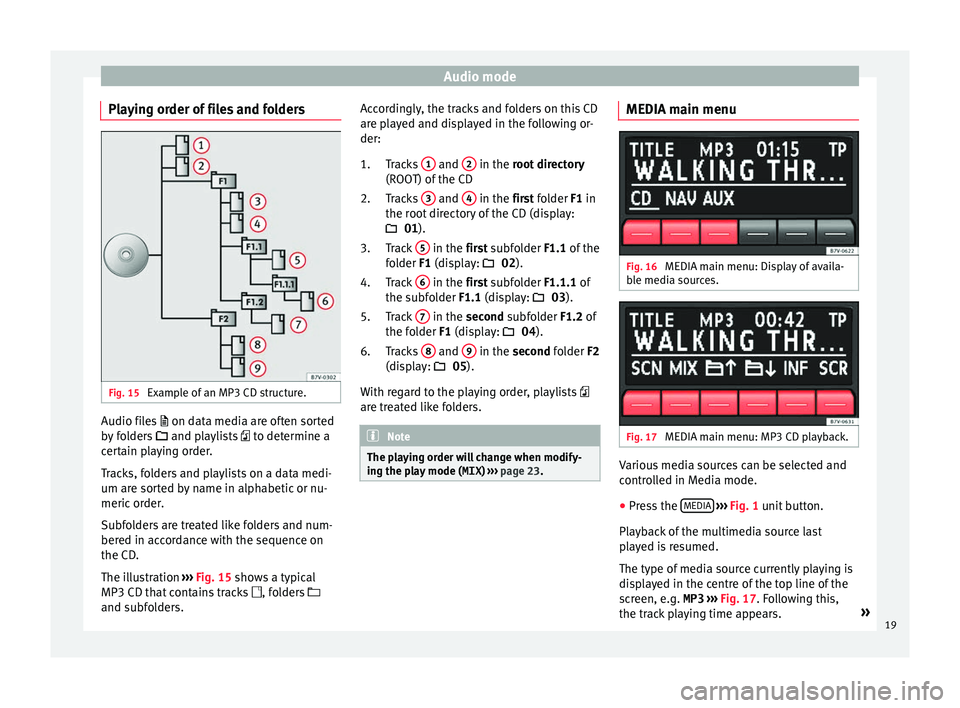
Playing order of files and folders Fig. 15
Example of an MP3 CD structure. Audio files
on dat
a medi a are often sorted
by folders and playlists to determine a
certain playing order.
Tracks, folders and playlists on a data medi-
um are sorted by name in alphabetic or nu-
meric order.
Subfolders are treated like folders and num-
bered in accordance with the sequence on
the CD.
The illustration ›››
Fig. 15 shows a typical
MP3 CD that contains tracks , folders
and subfolders. Accordingly, the tracks and folders on this CD
are pl
ayed and displayed in the following or-
der:
Tracks 1 and
2 in the r
oot directory
(ROO T) of
the CD
Tracks 3 and
4 in the fir
st folder F1 in
the r oot
directory of the CD (display:
01 ).
Track 5 in the fir
st subfolder F1.1 of the
f o
lder F1 (display: 02).
Track 6 in the fir
st subfolder F1.1.1 of
the s ubf
older F1.1 (display: 03).
Track 7 in the sec
ond subfolder F1.2 of
the f o
lder F1 (display: 04).
Tracks 8 and
9 in the sec
ond folder F2
(di s
play: 05).
With regard to the playing order, playlists
are treated like folders. Note
The playing order will change when modify-
ing the p l
ay mode ( MIX) ››› page 23. 1.
2.
3.
4.
5.
6.
MEDIA main menu Fig. 16
MEDIA main menu: Display of availa-
b l
e medi
a sources. Fig. 17
MEDIA main menu: MP3 CD playback. Various media sources can be selected and
c
ontr
o
lled in Media mode.
● Press the MEDIA
› ›
›
Fig. 1 unit button.
Playback of the multimedia source last
played is resumed.
The type of media source currently playing is
displayed in the centre of the top line of the
screen, e.g. MP3 ›››
Fig. 17. Following this,
the track playing time appears. »
19
Page 22 of 36
Audio mode
The track currently playing is normally dis-
p l
a
yed in the centre line of the screen
››› page 21.
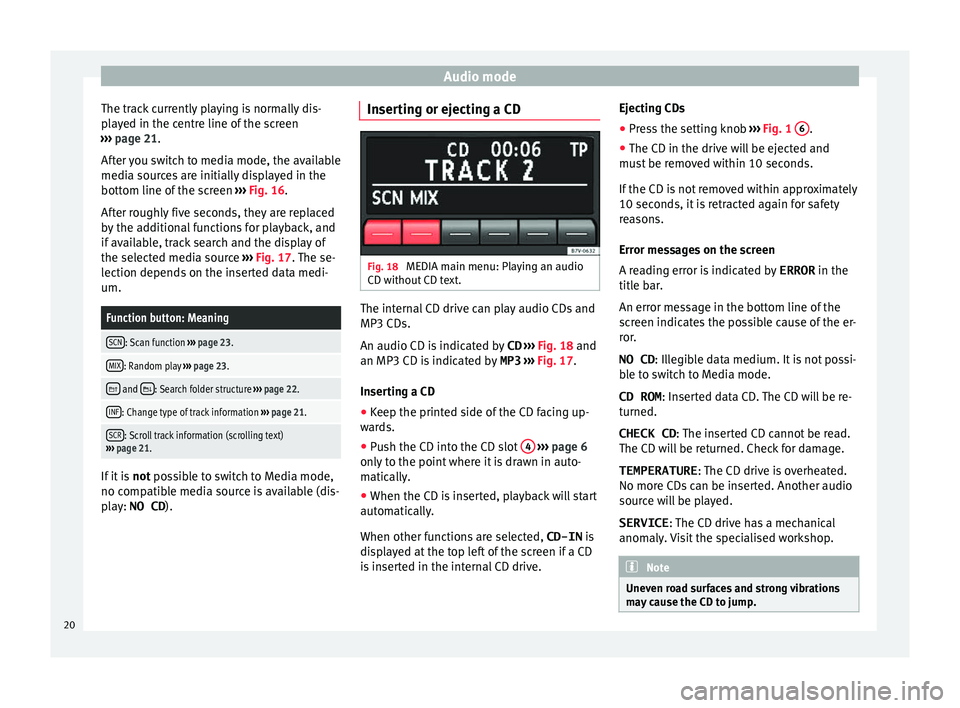
After you switch to media mode, the available
media sources are initially displayed in the
bottom line of the screen ››› Fig. 16.
After roughly five seconds, they are replaced
by the additional functions for playback, and
if available, track search and the display of
the selected media source ››› Fig. 17. The se-
lection depends on the inserted data medi-
um.
Function button: Meaning
SCN: Scan function ››› page 23.
MIX: Random play ››› page 23.
and : Search folder structure
››› page 22.
INF: Change type of track information ››› page 21.
SCR: Scroll track information (scrolling text)
››› page 21. If it is
not po s
s
ible to switch to Media mode,
no compatible media source is available (dis-
play: NO CD ). Inserting or ejecting a CD
Fig. 18
MEDIA main menu: Playing an audio
CD w ithout
CD t
ext. The internal CD drive can play audio CDs and
MP3 CD
s.
An audio CD i s
indicated by CD ››› Fig. 18 and
an MP3 CD is indicated by MP3 ››› Fig. 17.
Inserting a CD
● Keep the printed side of the CD facing up-
ward
s.
● Push the CD into the CD slot 4
› ›
› p
age 6
only to the point where it is drawn in auto-
matically.
● When the CD is inserted, playback will start
automatic
ally.
When other functions are selected, CD-IN is
displayed at the top left of the screen if a CD
is inserted in the internal CD drive. Ejecting CDs
● Press the setting knob ›››
Fig. 1 6 .
● The CD in the drive will be ejected and
mu s
t
be removed within 10 seconds.
If the CD is not removed within approximately
10 seconds, it is retracted again for safety
reasons.
Error messages on the screen
A reading error is indicated by ERROR in the
title bar.
An error message in the bottom line of the
screen indicates the possible cause of the er-
ror.
NO CD : Illegible data medium. It is not possi-
ble to switch to Media mode.
CD ROM : Inserted data CD. The CD will be re-
turned.
CHECK CD: The inserted CD cannot be read.
The CD will be returned. Check for damage. TEMPERATURE : The CD drive is overheated.
No more CDs can be inserted. Another audio
source will be played.
SERVICE : The CD drive has a mechanical
anomaly. Visit the specialised workshop. Note
Uneven road surfaces and strong vibrations
ma y
cause the CD to jump.20
Page 23 of 36
Audio mode
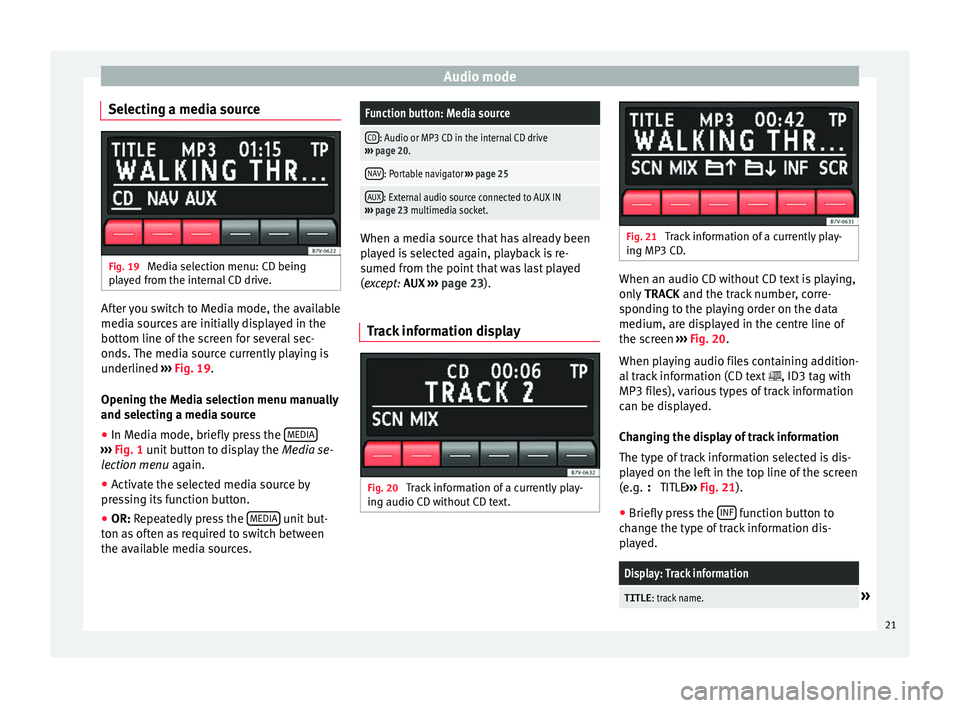
Selecting a media source Fig. 19
Media selection menu: CD being
p l
a
yed from the internal CD drive. After you switch to Media mode, the available
medi
a sour
c
es are initially displayed in the
bottom line of the screen for several sec-
onds. The media source currently playing is
underlined ››› Fig. 19.
Opening the Media selection menu manually
and selecting a media source
● In Media mode, briefly press the MEDIA›››
Fig. 1 unit b
utton to display the Media se-
lection menu again.
● Activate the selected media source by
pre s
sing its function button.
● OR: Repeatedly press the MEDIA unit but-
t on a
s
often as required to switch between
the available media sources.
Function button: Media source
CD: Audio or MP3 CD in the internal CD drive
››› page 20.
NAV: Portable navigator ››› page 25
AUX: External audio source connected to AUX IN
››› page 23 multimedia socket. When a media source that has already been
pl
a
yed is selected again, playback is re-
sumed from the point that was last played
(except: AUX ››› page 23).
Track information display Fig. 20
Track information of a currently play-
in g audio CD w
ithout
CD text. Fig. 21
Track information of a currently play-
in g MP3 CD
. When an audio CD without CD text is playing,
only
TRACK and the tr
ack number, corre-
sponding to the playing order on the data
medium, are displayed in the centre line of
the screen ››› Fig. 20.
When playing audio files containing addition-
al track information (CD text , ID3 tag with
MP3 files), various types of track information
can be displayed.
Changing the display of track information
The type of track information selected is dis-
played on the left in the top line of the screen
(e.g. : TITLE ››› Fig. 21).
● Briefly press the INF function button to
c h
an
ge the type of track information dis-
played.
Display: Track information
TITLE : track name.» 21
Page 24 of 36
Audio modeDisplay: Track information
ARTIST
: artist.
ALBUM: album title.
FILE: file name (MP3 mode only).
FOLDER : folder name (MP3 mode only).
OR: PLAYL : Name of playlist (MP3 mode only).
CD-IN: Storage location corresponding to playing order
››› page 19 If the selected track information is too long
f
or the c
entr
e line of the screen, the SCRfunction button appears at the bottom right
› ›
›
Fig. 21.
● When you briefly press the SCR function
b utt
on, the di
splayed track information
scrolls across the screen once.
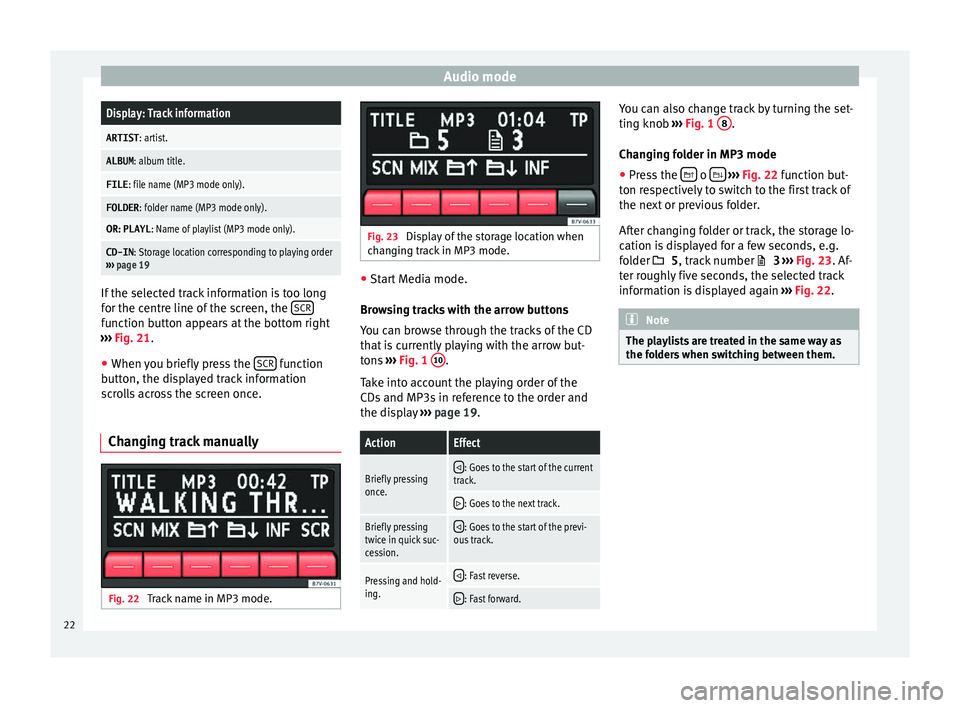
Changing track manually Fig. 22
Track name in MP3 mode. Fig. 23
Display of the storage location when
c h
an
ging track in MP3 mode. ●
Start Media mode.
Bro w
sing tracks with the arrow buttons
You can browse through the tracks of the CD
that is currently playing with the arrow but-
tons ››› Fig. 1 10 .
T ak
e int
o account the playing order of the
CDs and MP3s in reference to the order and
the display ››› page 19.
ActionEffect
Briefly pressing
once. : Goes to the start of the current
track.
: Goes to the next track.
Briefly pressing
twice in quick suc-
cession.
: Goes to the start of the previ-
ous track.
Pressing and hold-
ing. : Fast reverse.
: Fast forward. You can also change track by turning the set-
tin
g kno
b ›
›› Fig. 1 8 .
Ch an
gin
g folder in MP3 mode
● Press the o
› ››
Fig. 22
f
unction but-
ton respectively to switch to the first track of
the next or previous folder.
After changing folder or track, the storage lo-
cation is displayed for a few seconds, e.g.
folder 5, track number 3 ››› Fig. 23. Af-
ter roughly five seconds, the selected track
information is displayed again ››› Fig. 22. Note
The playlists are treated in the same way as
the fo l
ders when switching between them.22
Page 25 of 36
Audio mode
Changing playback mode (SCN and
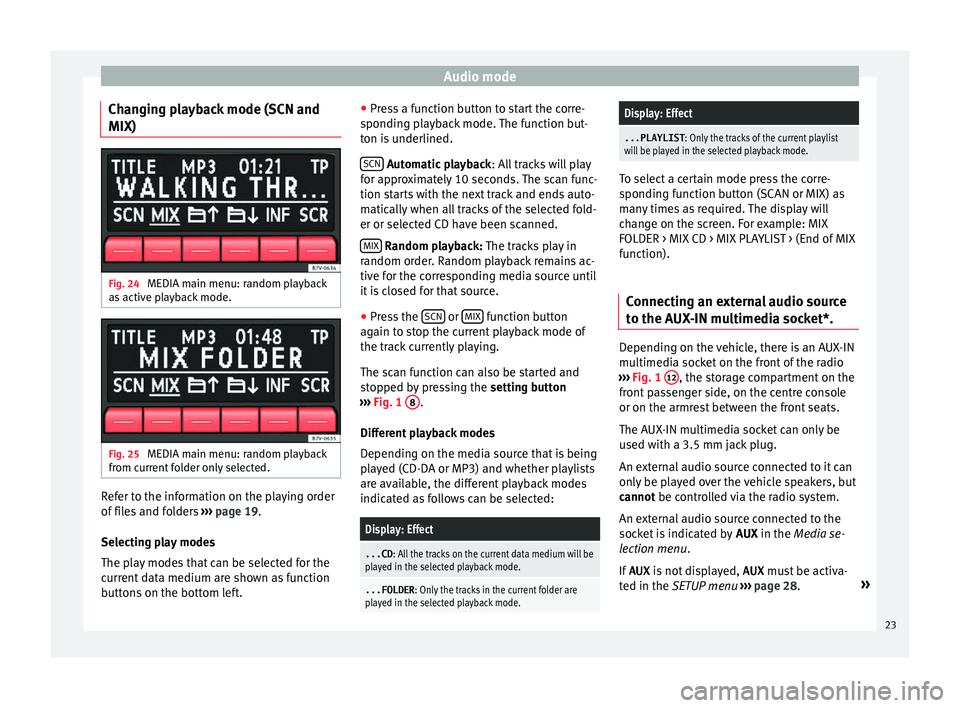
MIX) Fig. 24
MEDIA main menu: random playback
a s
activ
e playback mode. Fig. 25
MEDIA main menu: random playback
fr om c
urr
ent folder only selected. Refer to the information on the playing order
of
fi
l
es and folders ›››
page 19.
Selecting play modes
The play modes that can be selected for the
current data medium are shown as function
buttons on the bottom left. ●
Pres
s a function button to start the corre-
sponding playback mode. The function but-
ton is underlined.
SCN Aut
omatic playback
: A
l
l tracks will play
for approximately 10 seconds. The scan func-
tion starts with the next track and ends auto-
matically when all tracks of the selected fold-
er or selected CD have been scanned.
MIX R
andom playback: The tracks play in
r andom or
der. Random playback remains ac-
tive for the corresponding media source until
it is closed for that source.
● Press the SCN or
MIX function button
ag ain t
o s
top the current playback mode of
the track currently playing.
The scan function can also be started and
stopped by pressing the setting button
››› Fig. 1 8 .
Diff er
ent
playback modes
Depending on the media source that is being
played (CD-DA or MP3) and whether playlists
are available, the different playback modes
indicated as follows can be selected:
Display: Effect
...CD : All the tracks on the current data medium will be
played in the selected playback mode.
...FOLDER : Only the tracks in the current folder are
played in the selected playback mode.
Display: Effect
...PLAYLIST : Only the tracks of the current playlist
will be played in the selected playback mode. To select a certain mode press the corre-
spondin
g f
unction button (SCAN or MIX) as
many times as required. The display will
change on the screen. For example: MIX
FOLDER > MIX CD > MIX PLAYLIST > (End of MIX
function).
Connecting an external audio source
to the A UX
-IN multimedia socket*. Depending on the vehicle, there is an AUX-IN
mu
ltimedi
a soc
ket on the front of the radio
››› Fig. 1 12 , the storage compartment on the
fr ont
p
assenger side, on the centre console
or on the armrest between the front seats.
The AUX-IN multimedia socket can only be
used with a 3.5 mm jack plug.
An external audio source connected to it can
only be played over the vehicle speakers, but
cannot be controlled via the radio system.
An external audio source connected to the
socket is indicated by AUX in the Media se-
lection menu.
If AUX is not displayed, AUX must be activa-
ted in the SETUP menu ›››
page 28. »
23