steering Seat Toledo 2014 User Guide
[x] Cancel search | Manufacturer: SEAT, Model Year: 2014, Model line: Toledo, Model: Seat Toledo 2014Pages: 200, PDF Size: 4.37 MB
Page 37 of 200

Instruments and warning lamps
Coolant level and temperature If the warning lamp
(blue) is lit up, the en-
gine h a
s not yet reached its operating tem-
perature 1)
. Avoid high engine speeds, hard
acceleration and subjecting the engine to
high loads.
If the warning lamp (red) is lit up or flash-
ing, the c
oolant temperature is too high or its
level is too low.
The informative display indicates:
Check coolant! Instruction Manual!
Stop the vehicle, switch off the engine, check
the coolant level ›››
page 138 and refill if
nec e
ssary ››› page 138.
If the c
oolant is situated in the prescribed
area, the high temperature may be due to a
fault in the cooling system fan. Check the ra-
diator fan fuse and replace it if necessary
››› page 165, Changing fuses in the engine
compartment
.
If the warning lamp (red) remains lit up,
despite both the coolant level and the radia-
tor fan fuse being in correct condition,
stop the vehicle!
Go to a technical service. WARNING
● Take care when opening the coolant reser-
voir. When the engine is warm or hot, the
system is pressurised – Danger of burns!
Wait for the engine to cool before opening
the cover.
● Do not touch the fan. The fan can switch on
automatically regardless of whether the igni-
tion is switched on. Power steering
If the
warning lamp is illuminated, there is
a fault in the power steering.
The power steering system functions with re-
duced power steering effect.
Go to a technical service.
Stability Control (ESC) If the control lamp
flashes, the ESC is
working.
If the warning lamp illuminates on igni-
tion, the ESC system may have switched off
due to technical reasons. Turn off the ignition
and turn it on again. Upon switching on the
ignition again, if the warning lamp has switched off, this means the ESC is function-
ing correctly again.
If the
warning lamp is illuminated there is
a f au
lt in the ESC.
The informative display indicates: Report No.: electronic stability control (ESC)
or Report No.: Traction control system (ASR)
Go to a technical service.
Further information ››› page 108, Stability
system (ESC). Note
If the battery is disconnected and connected
again, the yellow warning lamp lights up
when the ignition i s
switched on. This warn-
ing lamp must switch off after covering a
short distance. Traction control system (ASR)
If the control lamp
flashes, the ASR is
working.
If the
warning lamp illuminates on igni-
tion, the TCS system may have switched off
due to technical reasons. Turn off the ignition »1)
This does not apply to vehicles equipped with an
informative display. 35
Technical specifications
Advice
Operation
Safety
Page 41 of 200
Information system
Information system
Multi-function display* (on
board computer) Introduction The multifunction display can only be operat-
ed when the ignition is switched on. When
the ignition is switched on the last function
selected before it was switched off is dis-
played.
The multifunction display data is shown on
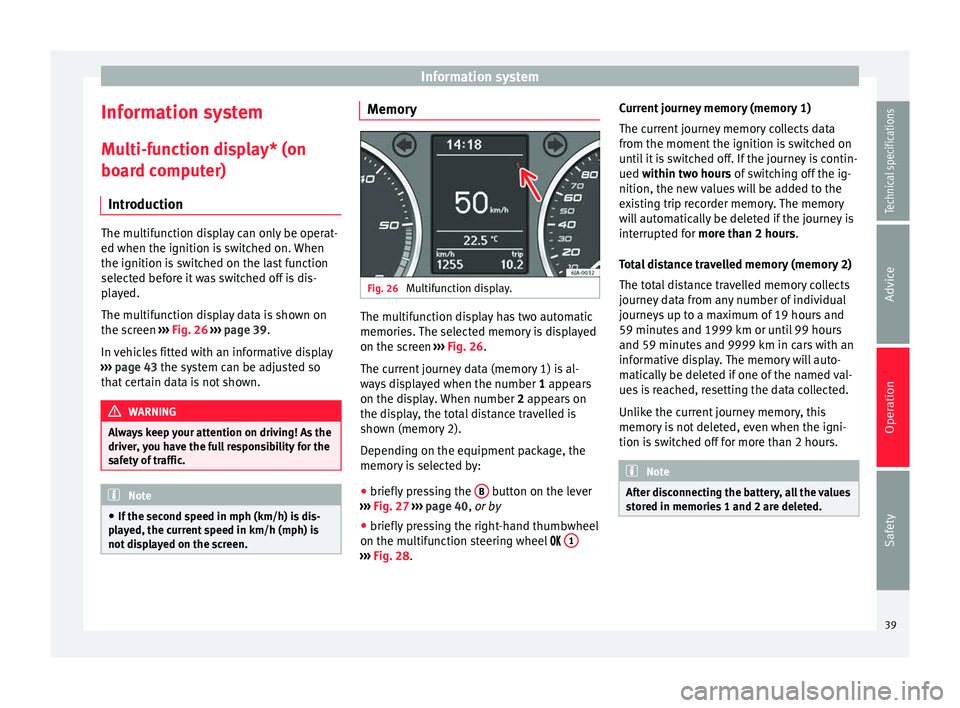
the screen
›››
Fig. 26 › › ›
page 39.
In vehicles fitted with an informative display
››› page 43 the system can be adjusted so
that
certain data is not shown. WARNING
Always keep your attention on driving! As the
driver, you have the full responsibility for the
safety of traffic. Note
● If the second speed in mph (km/h) is dis-
played, the current speed in km/h (mph) is
not displayed on the screen. Memory
Fig. 26
Multifunction display. The multifunction display has two automatic
memories. The selected memory is displayed
on the screen
››› Fig. 26 .
The c urr
ent journey data (memory 1) is al-
ways displayed when the number 1
appears
on the display. When number 2 appears on
the display, the total distance travelled is
shown (memory 2).
Depending on the equipment package, the
memory is selected by:
● briefly pressing the B button on the lever
››› Fig. 27 ›
›
›
page 40, or by
● briefly pressing the right-hand thumbwheel
on the multifunction steering wheel 1 ›››
Fig. 28 . C
urr
ent journey memory (memory 1)
The current journey memory collects data
from the moment the ignition is switched on
until it is switched off. If the journey is contin-
ued
within two hours of switching off the ig-
nition, the new values will be added to the
existing trip recorder memory. The memory
will automatically be deleted if the journey is
interrupted for
more than 2 hours.
Total distance travelled memory (memory 2)
The total distance travelled memory collects
journey data from any number of individual
journeys up to a maximum of 19 hours and
59 minutes and 1999 km or until 99 hours
and 59 minutes and 9999 km in cars with an
informative display. The memory will auto-
matically be deleted if one of the named val-
ues is reached, resetting the data collected.
Unlike the current journey memory, this
memory is not deleted, even when the igni-
tion is switched off for more than 2 hours. Note
After disconnecting the battery, all the values
stored in memories 1 and 2 are deleted. 39
Technical specifications
Advice
Operation
Safety
Page 42 of 200
Operation
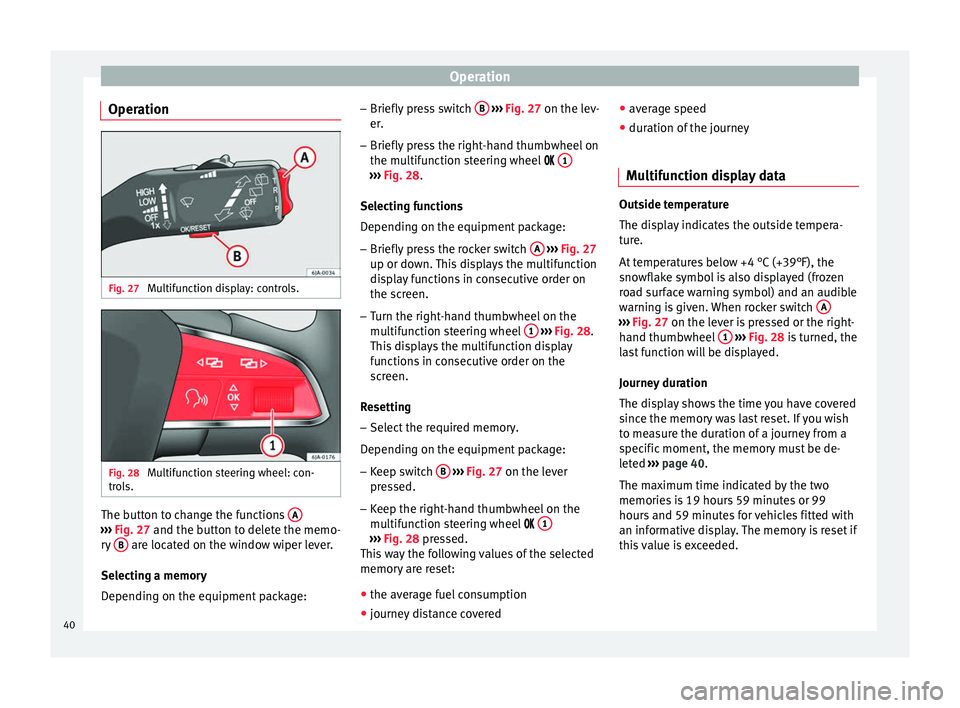
Operation Fig. 27
Multifunction display: controls. Fig. 28
Multifunction steering wheel: con-
trols. The button to change the functions
A›››
Fig. 27 and the button to delete the memo-
r y
B are located on the window wiper lever.
Selecting a memory
Depending on the equipment package: –
Briefly press switch B
››› Fig. 27 on the lev-
er .
– Briefly
press the right-hand thumbwheel on
the multifunction steering wheel 1 ›››
Fig. 28 .
Sel ectin
g functions
Depending on the equipment package:
– Briefly press the rocker switch A
››› Fig. 27
up or down. This displays the multifunction
display functions in consecutive order on
the screen.
– Turn the right-hand thumbwheel on the
multifunction steering wheel 1
››› Fig. 28.
This displays the multifunction display
functions in consecutive order on the
screen.
Resetting
– Select the required memory.
Depending on the equipment package: – Keep switch B
››› Fig. 27 on the lever
pr e
ssed.
– Keep the right-hand thumbwheel on the
multifunction steering wheel 1 ›››
Fig. 28 pressed.
Thi s
way the following values of the selected
memory are reset:
● the average fuel consumption
● journey distance covered ●
average speed
● duration of the journey
Multifunction display data Outside temperature
The display indicates the outside tempera-
ture.
At temperatures below +4 °C (+39°F), the
snowflake symbol is also displayed (frozen
road surface warning symbol) and an audible
warning is given. When rocker switch
A ›››
Fig. 27 on the lever is pressed or the right-
h and thumb
wheel 1
›››
Fig. 28 is turned, the
l a
st function will be displayed.
Journey duration
The display shows the time you have covered
since the memory was last reset. If you wish
to measure the duration of a journey from a
specific moment, the memory must be de-
leted ›››
page 40
.
The maximum time indicated by the two
memories is 19 hours 59 minutes or 99
hours and 59 minutes for vehicles fitted with
an informative display. The memory is reset if
this value is exceeded.
40
Page 44 of 200
Operation
WARNING
Do not rely only on the outside temperature
indicator to verify whether the road surface is
frozen. This is because with an outside tem-
perature of +4 °C (+39 °F) ice can form on the
road - Warning of frozen road surface! Speed warning
Adjust the speed limit while the vehicle is
stopped
Depending on the equipment package:
– Press button A
›››
Fig. 27 on the lever to
select Speed warning
.
– Press button B on the lever to activate the
possibility of adjusting the speed limit.
– Press button A on the lever to select the
desired speed limit, i.e. 50 km/h. The
speed can be adjusted in steps of 5 km/h.
– Press button B on the lever to confirm the
selected speed or wait several seconds un-
til the adjustment is automatically stored.
or – Turn the right-hand thumbwheel on the
multifunction steering wheel 1
›››
Fig. 28
and select Speed warning
.
– Press the thumbwheel on the multifunction
steering wheel to activate the possibility of
adjusting the speed limit. –
Turn the thumbwheel on the multifunction
steering wheel to adjust the desired speed,
i.e. 50 km/h. The speed can be adjusted in
steps of 5 km/h.
– Press the thumbwheel on the multifunction
steering wheel to confirm the selected
speed or wait several seconds until the ad-
justment is automatically stored.
Adjust the speed limit while driving
Depending on the equipment package: – Press button A
››› Fig. 27 on the lever to
select Speed warning.
– Drive at the desired speed, i.e. 50 km/h
(31 mph).
– Press button B on the lever to set the cur-
rent driving speed as the speed limit. If you
want to change the speed limit, this will be
regulated in 5 km/h (mph) intervals (i.e.
the speed set at 47 km/h increases to 50
km/h or decreases to 45 km/h).
– Press button B on the lever once again to
confirm the selected speed or wait several
seconds until the adjustment is automati-
cally stored.
or – Turn the right-hand thumbwheel on the
multifunction steering wheel 1
››› Fig. 28
and select Speed warning. –
Drive at the desired speed, i.e. 50 km/h
(31 mph).
– Press the thumbwheel on the multifunction
steering wheel to set the current driving
speed as the speed limit. If you want to
change the speed limit, this will be regula-
ted in 5 km/h (mph) intervals (i.e. the
speed set at 47 km/h increases to 50 km/h
or decreases to 45 km/h).
– Press the thumbwheel on the multifunction
steering wheel once again to confirm the
selected speed or wait several seconds un-
til the adjustment is automatically stored.
Changing or resetting the speed limit
Depending on the equipment package: – Press button A
››› Fig. 27 on the lever to
select Speed warning.
– Press button B to reset the speed limit.
– Press the button, B again to activate the
possibility of adjusting the speed limit.
or – Turn the right-hand thumbwheel on the
multifunction steering wheel 1
››› Fig. 28
and select Speed warning.
– Keep the thumbwheel on the multifunction
steering wheel pressed to reset the speed
limit.
42
Page 45 of 200

Information system
– Press the thumbwheel on the multifunction
steering wheel once again to activate the
possibility of changing the speed limit.
If the indicated speed is exceeded at any
time, an audible warning is given. The mes-
sage Speed warning
appears simultaneously
on the di
splay with the imputed speed limit.
The speed limit stays in the memory even af-
ter switching the ignition off and on.
MAXI DOT* (Informative
display) Introduction The informative display informs about the
current operational status of your vehicle.
Additionally, the screen also displays infor-
mation for the radio, the multifunction dis-
play, the telephone, the navigation system,
the devices connected to the MDI input and
the automatic gearbox
››› page 100. WARNING
Always keep your attention on driving! As the
driver, you have the full responsibility for the
safety of traffic. Main menu
Fig. 29
Windscreen wiper lever: informative
display controls. Fig. 30
Multifunction steering wheel: controls
on the steering wheel. Depending on the equipment package:
– The Main menu is enabled by keeping rock-
er switch A
››› Fig. 29 on the multifunction
l ev
er pressed. –
The menu options can be selected with but-
ton A . Briefly press the button,
B to dis-
play the selected information.
or – The Main menu is enabled by pressing but-
t on
s A
››› Fig. 30 on the multifunction
s t
eering wheel.
– The menu options can be selected using
thumbwheel B on the multifunction steer-
ing wheel. Briefly press thumbwheel B on
the multifunction steering wheel to display
the selected information.
The following options can be selected:
■ MFD ››› page 39
■ Audio ››› Booklet Audio system Instruction
Manual
■ Navigation ››› Booklet Navigation system
Instruction Manual
■ Telephone ››› Booklet Audio system instruc-
tions manual or ››› Booklet Navigation sys-
tem instruction manual
■ Vehicle status ››› page 44
■ Settings ››› page 44
The Audio
and
Navigation options are only
displayed when these factory-fitted systems
are switched on. Note
● If the multifunction display is not operated
during 10 seconds, the menu automatically
returns to one of the higher levels. 43
Technical specifications
Advice
Operation
Safety
Page 48 of 200
Operation
Resetting service interval display
The service interval display can be reset only
after a service message or pre-warning has
been displayed in the general instrument
panel display.
To reset the display, it is advisable to visit a
technical service, to perform the following ac-
tions:
● reset the display memory after performing
the applicable inspection,
● record the information in the Maintenance
Programme,
● place a sticker on the side of the instru-
ment panel in the driver area indicating the
date of the next inspection.
The service interval display can be reset by
pressing the 6
››› Fig. 24
›
›› page 30 button.
In vehicles equipped with an informative dis-
play the service interval display can be reset
from the menu, Settings ››› page 44. CAUTION
We advise against resetting the service inter-
val display yourself, given that this action
could upset service intervals, and as a result,
lead to faults in the vehicle. Note
● Never reset the display between service in-
tervals as this could lead to erroneous indica-
tions.
● After disconnecting the battery of the vehi-
cle, the service interval display values remain
stored.
● If the general instrument panel is changed
after a repair, the correct values must be in-
put in the service interval display. This opera-
tion is carried out by a specialised service.
● After resetting the display with flexible
service intervals, the information will be indi-
cated in the same way as vehicles with fixed
service intervals. Therefore, we recommend
that a SEAT Authorised Service resets the
service interval display, who will do so cor-
rectly using diagnostics equipment.
● For more detailed information, please con-
sult the Maintenance Programme. Communication
Steering wheel controls* General information The vehicle includes a multifunction module
from where it is possible to control the audio,
telephone and radio/navigation functions
without needing to distract the driver.
There are two versions of the multifunction
module:
●
Audio version, to control the available au-
dio functions from the steering wheel (Radio,
audio CD, MP3 CD, iPod ®1)
, USB 1)
).
● Audio + telephone versions o control the
available audio functions from the steering
wheel (Radio, audio CD, MP3 CD, iPod ®1)
,
USB 1)
, SD 1)
) and the Bluetooth system. 1)
Depending on the vehicle equipment.
46
Page 49 of 200

Communication
Audio system operation Fig. 31
Controls on the steering wheel.ButtonRadioMedia (except AUX)AUX
A TurnUp/down volumeUp/down volumeUp/down volume
A PressNo functionNo functionNo function
BMutePauseMute
CSearch for last stationShort press: switch to the previous song
Hold down: quick rewindNo function
DSearch for the next stationShort press: switch to the next song
Hold down: fast forwardNo function
EPrevious presetPrevious folderNo function
FNext preset stationNext folderNo function
GChange sourceChange sourceChange source
H TurnSwitch MFA functionSwitch MFA functionSwitch MFA function
H PressActs on the MFAActs on the MFAActs on the MFA 47
Technical specifications
Advice
Operation
Safety
Page 50 of 200
Operation
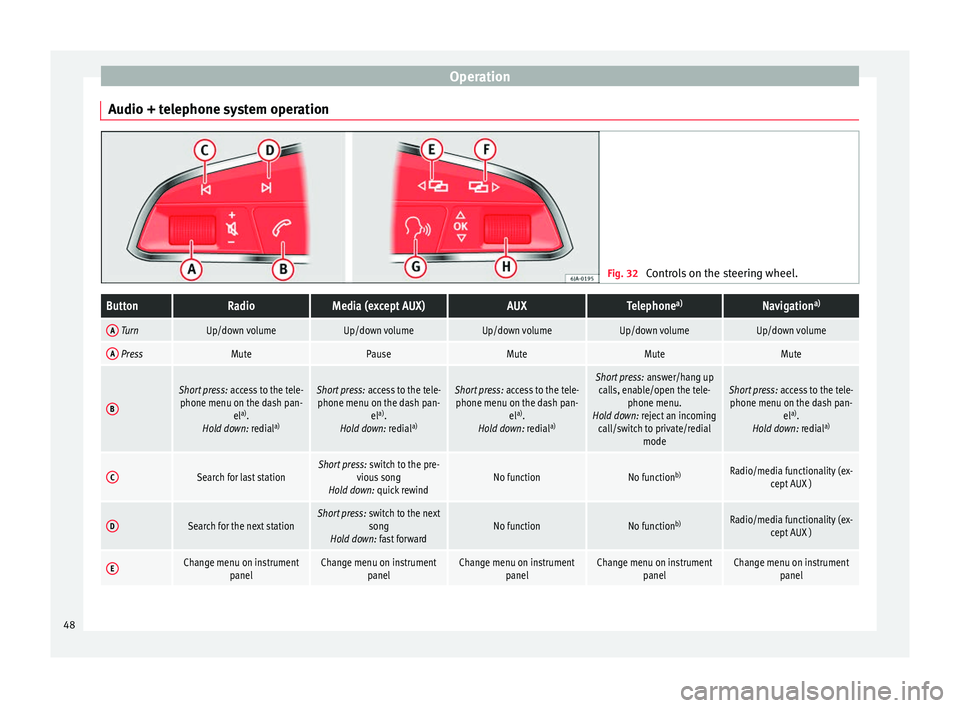
Audio + telephone system operation Fig. 32
Controls on the steering wheel.ButtonRadioMedia (except AUX)AUXTelephone a)Navigation a)
A TurnUp/down volumeUp/down volumeUp/down volumeUp/down volumeUp/down volume
A PressMutePauseMuteMuteMute
B
Short press:
access to the tele-
phone menu on the dash pan- ela)
.
Hold down: redial a)Short press:
access to the tele-
phone menu on the dash pan- ela)
.
Hold down: redial a)Short press:
access to the tele-
phone menu on the dash pan- ela)
.
Hold down: redial a)Short press:
answer/hang up
calls, enable/open the tele- phone menu.
Hold down: reject an incoming call/switch to private/redial modeShort press: access to the tele-
phone menu on the dash pan- ela)
.
Hold down: redial a)
CSearch for last stationShort press:
switch to the pre-
vious song
Hold down: quick rewindNo functionNo function b)Radio/media functionality (ex-
cept AUX )
DSearch for the next stationShort press: switch to the next
song
Hold down: fast forwardNo functionNo function b)Radio/media functionality (ex-
cept AUX )
EChange menu on instrument panelChange menu on instrumentpanelChange menu on instrumentpanelChange menu on instrumentpanelChange menu on instrumentpanel48
Page 51 of 200

CommunicationButtonRadioMedia (except AUX)AUXTelephone
a)Navigation a)
FChange menu on instrument
panelChange menu on instrumentpanelChange menu on instrumentpanelChange menu on instrumentpanelChange menu on instrumentpanel
GEnable/disable voice control a)Enable/disable voice controla)Enable/disable voice controla)No functionb)Enable/disable voice control
H TurnNext/previous preset station c)Next/previous songc)Acts upon the dash panel
menu depending on where it is locatedActs upon the dash panel
menu depending on where it is locatedActs upon the dash panel
menu depending on where it is located
H Press
Acts on the MFA or confirms
the menu option of the dash
panel depending on the menu optionActs on the MFA or confirms
the menu option of the dash
panel depending on the menu optionActs on the MFA or confirms
the menu option of the dash
panel depending on the menu optionActs on the MFA or confirms
the menu option of the dash
panel depending on the menu optionActs on the MFA or confirms
the menu option of the dash
panel depending on the menu option
a)According to the vehicle's equipment package.
b) When a call is being made, radio/media functionality (except AUX).
c) Only if the dash panel is in audio menu.
Voice control Fig. 33
Multifunction steering wheel: voice
control. The time during which the system is ready to
receive voice commands and execute them is
called dialogue. The system provides acous-
tic warnings and if necessary, will guide you
through the respective functions.
It is recommended to use the
Help menu the
first time that voice control is used in order to
familiarize yourself with this function.
Optimum operation of the voice commands
depends on several factors:
● Speak slowly and clearly, as far as possi-
ble. The system will not recognise words pro-
nounced unclearly, or words and numbers in
which syllables are omitted. ●
Speak with normal voice volume, without
exaggerated intonation or long pauses.
● Close the doors, windows and sunroof for
the purpose of dampening or insulating
against unwanted noise from the exterior. Do
not aim the air from the diffusers at the roof.
● If you are driving very fast, it is recommen-
ded that you speak a little louder.
● While talking, avoid making other noise in-
side the vehicle, i.e., occupants that are talk-
ing at the same time.
● Do not speak when the system is providing
information. »
49
Technical specifications
Advice
Operation
Safety
Page 52 of 200

Operation
The microphone for the voice control is loca-
ted in the headliner and is pointing at the
driver and the front passenger. Therefore, the
driver and the front passenger are the only
persons who can operate the device.
Enter the telephone number
The telephone number can be entered as a
straight row of memorized numbers in se-
quence (the whole number at once) or in
blocks (separated by brief pauses). After
each series of digits (separated by a brief
pause) the system repeats the digits that
have been recognised.
Digits 0 - -9 and symbols +, , #
are allowed.
The sy
stem does not recognise coherent
number combinations such as twenty-three.
Voice control activation
Briefly press button 1
››› Fig. 33 on the
mu ltif
unction steering wheel.
Disabling voice control
If the system is playing a message, end the
message by briefly pressing button 1 ›››
Fig. 33 on the multifunction steering
wheel .
If
the system is waiting for a voice command,
the dialogue may be completed as follows:
● use the CANCEL voice command; ●
briefly press button 1
››› Fig. 33 on the
mu ltif
unction steering wheel.
Basic voice commands
Voice com-
mandAction
HELPAfter this command, the system plays all
the possible commands.
CALL A [XYZ]This command is used to call a contact
in the phone book.
PHONE
BOOKFor example, after this command you
can play the phone book, correct or de-
lete a voice recording for a contact, etc.
CALL LISTList of selected numbers, lost calls, etc.
DIAL NUM-
BERAfter this command you can enter a
phone number to call the desired per-
son.
REDIALAfter this command the system dials the
last number that was selected.
MUSICMusic playback from the mobile phone
or other connected telephone.
OTHER OP-
TIONSAfter this command, the system offers
other commands depending on the con-
text.
SETTINGSSelection for adjusting the Bluetooth ®
,
dialogue, etc.
CANCELThe dialogue ends. Note
● An incoming call will immediately end the
dialogue.
● Voice control is only possible in vehicles
equipped with a multifunction steering wheel
with telephone control (High version). 50