key SKODA CITIGO 2017 Owner's Manual
[x] Cancel search | Manufacturer: SKODA, Model Year: 2017, Model line: CITIGO, Model: SKODA CITIGO 2017Pages: 172, PDF Size: 24.54 MB
Page 89 of 172
■If the ambient temperature is too high or too low, the CD playback may not
function properly.■
Damp (condensation) may affect the device in cold weather or high humidity.
This can cause the CD to jump or impair the play function. Once the moisture
has dissipated, playback is fully functional again.
Note
■ After pressing the button , there is a delay of a few seconds before the CD
is ejected.■
On uneven or unpaved roads, playback jumps may occur.
■
If the CD is damaged, is not readable or is inserted incorrectly, the following
message is displayed
CD is unreadable
.
■
It is possible that CDs protected by copyright cannot not be played back at all
or only in certain circumstances.
USB input
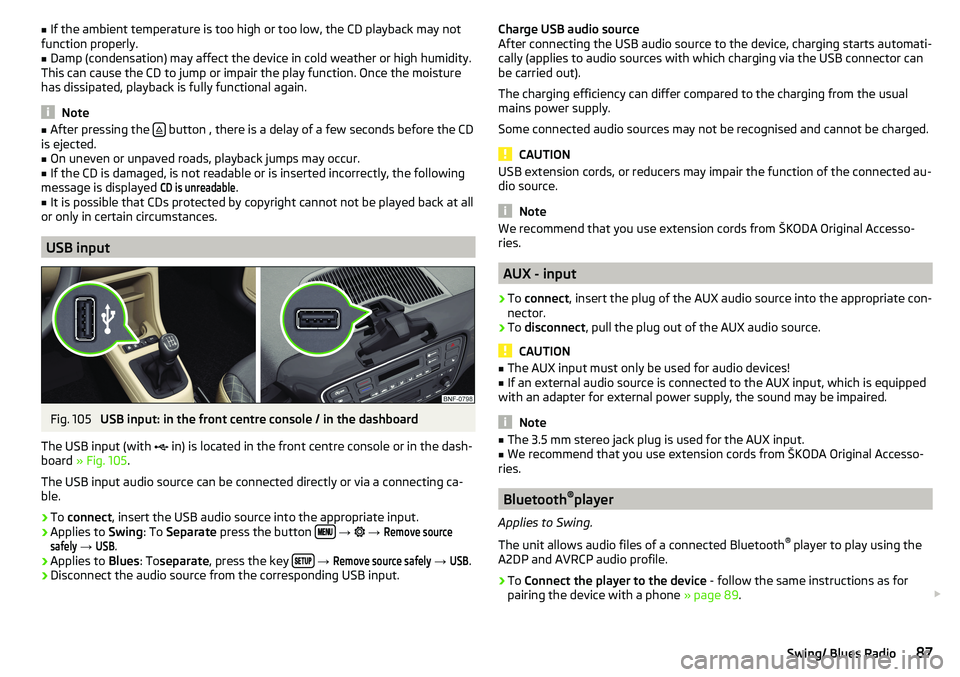
Fig. 105
USB input: in the front centre console / in the dashboard
The USB input (with in) is located in the front centre console or in the dash-
board » Fig. 105 .
The USB input audio source can be connected directly or via a connecting ca-
ble.
›
To connect , insert the USB audio source into the appropriate input.
›
Applies to Swing: To Separate press the button
→
→
Remove sourcesafely
→
USB
.
›
Applies to Blues: Toseparate , press the key
→
Remove source safely
→
USB
.
›
Disconnect the audio source from the corresponding USB input.
Charge USB audio source
After connecting the USB audio source to the device, charging starts automati-
cally (applies to audio sources with which charging via the USB connector can
be carried out).
The charging efficiency can differ compared to the charging from the usual
mains power supply.
Some connected audio sources may not be recognised and cannot be charged.
CAUTION
USB extension cords, or reducers may impair the function of the connected au-
dio source.
Note
We recommend that you use extension cords from ŠKODA Original Accesso-
ries.
AUX - input
›
To connect , insert the plug of the AUX audio source into the appropriate con-
nector.
›
To disconnect , pull the plug out of the AUX audio source.
CAUTION
■
The AUX input must only be used for audio devices!■If an external audio source is connected to the AUX input, which is equipped
with an adapter for external power supply, the sound may be impaired.
Note
■ The 3.5 mm stereo jack plug is used for the AUX input.■We recommend that you use extension cords from ŠKODA Original Accesso-
ries.
Bluetooth ®
player
Applies to Swing.
The unit allows audio files of a connected Bluetooth ®
player to play using the
A2DP and AVRCP audio profile.
›
To Connect the player to the device - follow the same instructions as for
pairing the device with a phone » page 89.
87Swing/ Blues Radio
Page 92 of 172
›Select the phone
» Fig. 107 - or an external Bluetooth ®
-Device » Fig. 115 on
page 93 - in the list shown.
Telephone
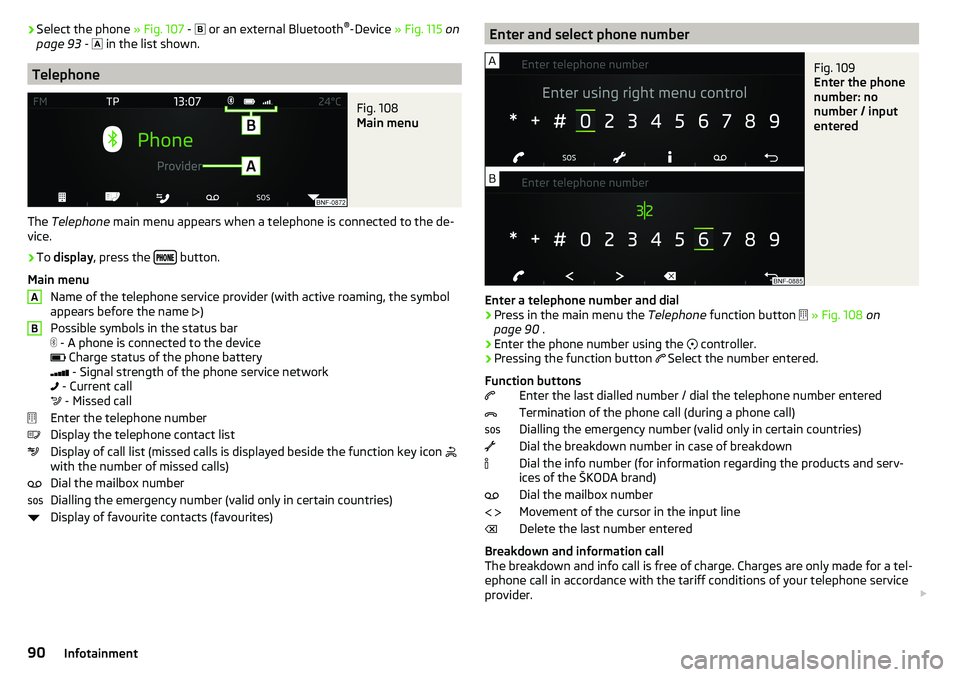
Fig. 108
Main menu
The Telephone main menu appears when a telephone is connected to the de-
vice.
›
To display , press the button.
Main menu Name of the telephone service provider (with active roaming, the symbol
appears before the name )
Possible symbols in the status bar
- A phone is connected to the device
Charge status of the phone battery
- Signal strength of the phone service network
- Current call
- Missed call
Enter the telephone number
Display the telephone contact list
Display of call list (missed calls is displayed beside the function key icon
with the number of missed calls)
Dial the mailbox number
Dialling the emergency number (valid only in certain countries)
Display of favourite contacts (favourites)
ABEnter and select phone numberFig. 109
Enter the phone
number: no
number / input
entered
Enter a telephone number and dial
›
Press in the main menu the Telephone function button
» Fig. 108 on
page 90 .
›
Enter the phone number using the
controller.
›
Pressing the function button
Select the number entered.
Function buttons Enter the last dialled number / dial the telephone number entered
Termination of the phone call (during a phone call)
Dialling the emergency number (valid only in certain countries)
Dial the breakdown number in case of breakdown
Dial the info number (for information regarding the products and serv-
ices of the ŠKODA brand)
Dial the mailbox number
Movement of the cursor in the input line
Delete the last number entered
Breakdown and information call
The breakdown and info call is free of charge. Charges are only made for a tel-
ephone call in accordance with the tariff conditions of your telephone service
provider.
90Infotainment
Page 93 of 172
The phone numbers are already set at the factory. If you want to change the
numbers, then consult a ŠKODA service partner.
If no breakdown or Info calls can be made then consult a ŠKODA service part-
ner.
List of telephone contacts
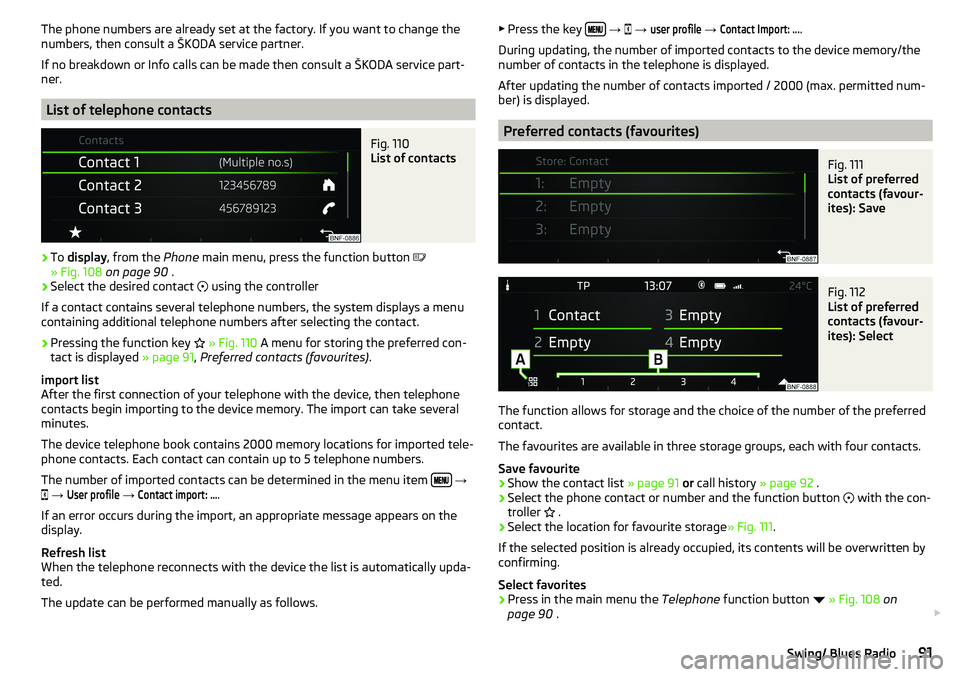
Fig. 110
List of contacts
›
To display , from the Phone main menu, press the function button
» Fig. 108 on page 90 .
›
Select the desired contact
using the controller
If a contact contains several telephone numbers, the system displays a menu
containing additional telephone numbers after selecting the contact.
›
Pressing the function key
» Fig. 110 A menu for storing the preferred con-
tact is displayed » page 91, Preferred contacts (favourites) .
import list
After the first connection of your telephone with the device, then telephone
contacts begin importing to the device memory. The import can take several
minutes.
The device telephone book contains 2000 memory locations for imported tele-
phone contacts. Each contact can contain up to 5 telephone numbers.
The number of imported contacts can be determined in the menu item
→
→
User profile
→
Contact import: ...
.
If an error occurs during the import, an appropriate message appears on the
display.
Refresh list
When the telephone reconnects with the device the list is automatically upda-
ted.
The update can be performed manually as follows.
▶ Press the key
→ → user profile → Contact Import: ....
During updating, the number of imported contacts to the device memory/the
number of contacts in the telephone is displayed.
After updating the number of contacts imported / 2000 (max. permitted num-
ber) is displayed.
Preferred contacts (favourites)
Fig. 111
List of preferred
contacts (favour-
ites): Save
Fig. 112
List of preferred
contacts (favour-
ites): Select
The function allows for storage and the choice of the number of the preferred
contact.
The favourites are available in three storage groups, each with four contacts.
Save favourite
›
Show the contact list » page 91 or call history » page 92 .
›
Select the phone contact or number and the function button
with the con-
troller .
›
Select the location for favourite storage
» Fig. 111.
If the selected position is already occupied, its contents will be overwritten by
confirming.
Select favorites
›
Press in the main menu the Telephone function button
» Fig. 108 on
page 90 .
91Swing/ Blues Radio
Page 94 of 172
›Press the function button A
» Fig. 112 repeatedly to select the desired
group.›
To start connection establishment press the function button of the desired
contact
B
» Fig. 112 .
›
To close the favourites list, press the function button
.
Delete favourite
›
Press the button
→
→
user profile
→
Clear favourites
.
›
Select the contact and confirm the deletion
with the controller.
All preferred contacts can be deleted by pressing the function button
Clear all
and confirm the deletion.
Call list
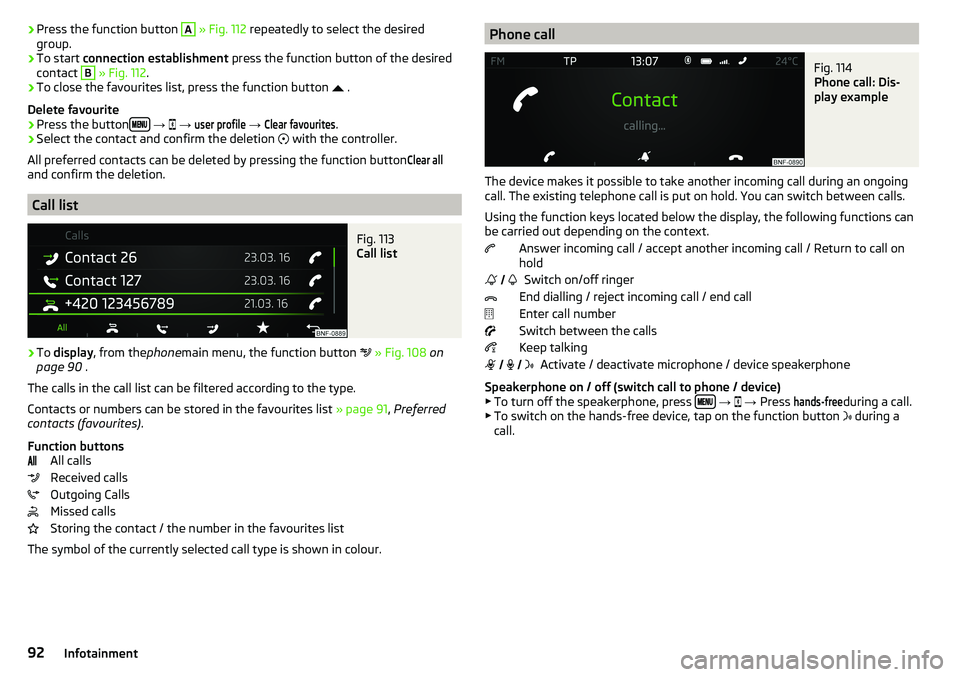
Fig. 113
Call list
›
To display , from the phonemain menu, the function button
» Fig. 108 on
page 90 .
The calls in the call list can be filtered according to the type.
Contacts or numbers can be stored in the favourites list » page 91, Preferred
contacts (favourites) .
Function buttons All calls
Received calls
Outgoing Calls
Missed calls
Storing the contact / the number in the favourites list
The symbol of the currently selected call type is shown in colour.
Phone callFig. 114
Phone call: Dis-
play example
The device makes it possible to take another incoming call during an ongoing
call. The existing telephone call is put on hold. You can switch between calls.
Using the function keys located below the display, the following functions can
be carried out depending on the context.
Answer incoming call / accept another incoming call / Return to call on
hold
Switch on/off ringer
End dialling / reject incoming call / end call
Enter call number
Switch between the calls
Keep talking Activate / deactivate microphone / device speakerphone
Speakerphone on / off (switch call to phone / device)
▶ To turn off the speakerphone, press
→
→ Press
hands-free
during a call.
▶ To switch on the hands-free device, tap on the function button during a
call.
92Infotainment
Page 95 of 172
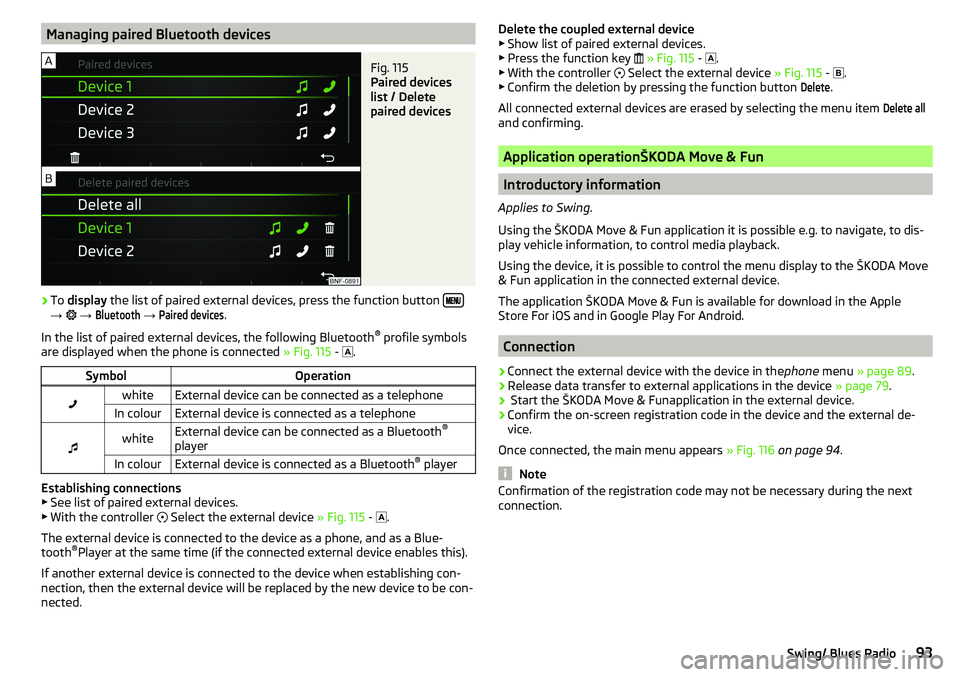
Managing paired Bluetooth devicesFig. 115
Paired devices
list / Delete
paired devices
›
To display the list of paired external devices, press the function button →
→
Bluetooth
→
Paired devices
.
In the list of paired external devices, the following Bluetooth ®
profile symbols
are displayed when the phone is connected » Fig. 115 -
.
SymbolOperationwhiteExternal device can be connected as a telephoneIn colourExternal device is connected as a telephone
whiteExternal device can be connected as a Bluetooth ®
playerIn colourExternal device is connected as a Bluetooth ®
player
Establishing connections
▶ See list of paired external devices.
▶ With the controller
Select the external device » Fig. 115 -
.
The external device is connected to the device as a phone, and as a Blue-
tooth ®
Player at the same time (if the connected external device enables this).
If another external device is connected to the device when establishing con-
nection, then the external device will be replaced by the new device to be con-
nected.
Delete the coupled external device ▶ Show list of paired external devices.
▶ Press the function key
» Fig. 115 -
.
▶ With the controller
Select the external device » Fig. 115 -
.
▶ Confirm the deletion by pressing the function button Delete
.
All connected external devices are erased by selecting the menu item
Delete all
and confirming.
Application operationŠKODA Move & Fun
Introductory information
Applies to Swing.
Using the ŠKODA Move & Fun application it is possible e.g. to navigate, to dis-
play vehicle information, to control media playback.
Using the device, it is possible to control the menu display to the ŠKODA Move
& Fun application in the connected external device.
The application ŠKODA Move & Fun is available for download in the Apple
Store For iOS and in Google Play For Android.
Connection
›
Connect the external device with the device in the phone menu » page 89 .
›
Release data transfer to external applications in the device » page 79.
›
Start the ŠKODA Move & Funapplication in the external device.
›
Confirm the on-screen registration code in the device and the external de-
vice.
Once connected, the main menu appears » Fig. 116 on page 94 .
Note
Confirmation of the registration code may not be necessary during the next
connection.93Swing/ Blues Radio
Page 97 of 172
Driving
Starting-off and Driving
Starting and stopping the engine
Introduction
This chapter contains information on the following subjects:
Electronic immobiliser and steering lock
95
Ignition on / off
96
Starting / Stopping the engine
96
It is possible, with the key in the ignition, to switch the ignition off and on and
start/stop the engine.
WARNING■ Never switch off the engine before the vehicle is stationary – risk of acci-
dent!■
While driving with the engine stopped the ignition must always be
switched on. Otherwise, the steering may lock - danger of an accident!
■
Do not withdraw the ignition key from the ignition lock until the vehicle
has come to a stop » page 99, Parking . Otherwise, the steering may lock -
danger of an accident!
■
Never leave the vehicle unattended with the engine running - risk of acci-
dent, theft or similar.
■
Never (e.g. in garages) run the engine in a closed place - there is the dan-
ger of poisoning and death!
CAUTION
■ Only start the engine when the engine and the vehicle are stationary - there
is a danger of starter and engine damage!■
Do not push-start the engine – risk of damaging the engine and the catalytic
converter. The battery from another vehicle can be used as a jump-start aid.
Note
Do not warm up the engine while the vehicle is stationary. If possible, start
your journey as soon as the engine has started. Through this, the engine rea-
ches its operating temperature faster.Electronic immobiliser and steering lock
Read and observe
and on page 95 first.
The electronic immobiliser (hereinafter referred to as immobiliser) makes thetheft or unauthorised use of your vehicle more difficult.
Immobiliser
The immobiliser allows the engine to start provided an original vehicle key only
is used.
Malfunction of the immobiliser
It is not possible to start the engine if there is a failure of the components in
the immobiliser key.
Use the other vehicle key to start the engine; if necessary, seek help from a
specialist garage.
Steering lock - lock
›
Remove the key and turn the steering wheel until the steering lock engages.
Steering lock - unlock
›
Insert the key into the ignition and turn on the ignition. If this is not possible,
then move the steering wheel slightly back and forth, as a result of which
the steering lock should unlock.
WARNINGNever let the vehicle roll with locked steering lock - danger of accident!95Starting-off and Driving
Page 98 of 172
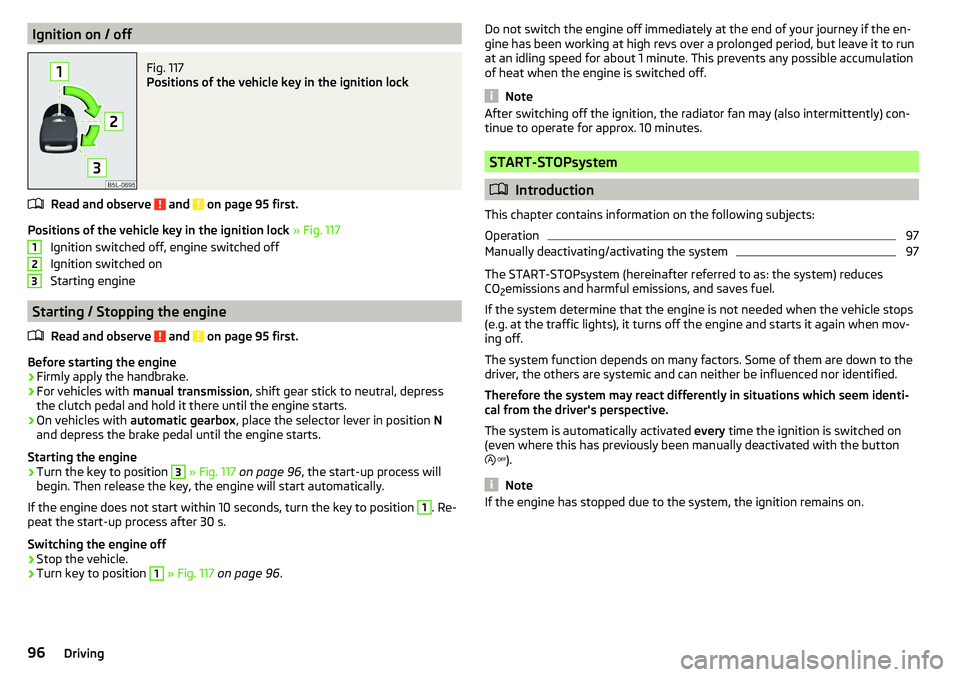
Ignition on / offFig. 117
Positions of the vehicle key in the ignition lock
Read and observe and on page 95 first.
Positions of the vehicle key in the ignition lock » Fig. 117
Ignition switched off, engine switched off
Ignition switched on
Starting engine
Starting / Stopping the engine
Read and observe
and on page 95 first.
Before starting the engine
›
Firmly apply the handbrake.
›
For vehicles with manual transmission , shift gear stick to neutral, depress
the clutch pedal and hold it there until the engine starts.
›
On vehicles with automatic gearbox , place the selector lever in position N
and depress the brake pedal until the engine starts.
Starting the engine
›
Turn the key to position
3
» Fig. 117 on page 96 , the start-up process will
begin. Then release the key, the engine will start automatically.
If the engine does not start within 10 seconds, turn the key to position
1
. Re-
peat the start-up process after 30 s.
Switching the engine off
›
Stop the vehicle.
›
Turn key to position
1
» Fig. 117 on page 96 .
123Do not switch the engine off immediately at the end of your journey if the en-
gine has been working at high revs over a prolonged period, but leave it to run
at an idling speed for about 1 minute. This prevents any possible accumulation
of heat when the engine is switched off.
Note
After switching off the ignition, the radiator fan may (also intermittently) con-
tinue to operate for approx. 10 minutes.
START-STOPsystem
Introduction
This chapter contains information on the following subjects:
Operation
97
Manually deactivating/activating the system
97
The START-STOPsystem (hereinafter referred to as: the system) reduces CO 2emissions and harmful emissions, and saves fuel.
If the system determine that the engine is not needed when the vehicle stops
(e.g. at the traffic lights), it turns off the engine and starts it again when mov-
ing off.
The system function depends on many factors. Some of them are down to the
driver, the others are systemic and can neither be influenced nor identified.
Therefore the system may react differently in situations which seem identi-
cal from the driver's perspective.
The system is automatically activated every time the ignition is switched on
(even where this has previously been manually deactivated with the button
).
Note
If the engine has stopped due to the system, the ignition remains on.96Driving
Page 108 of 172
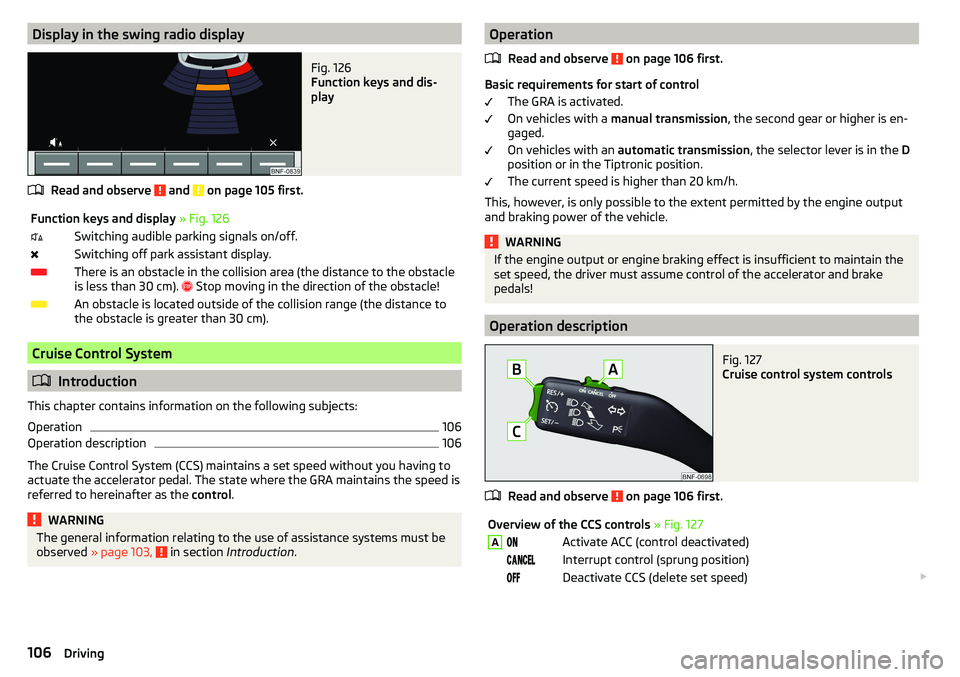
Display in the swing radio displayFig. 126
Function keys and dis-
play
Read and observe and on page 105 first.
Function keys and display » Fig. 126Switching audible parking signals on/off.Switching off park assistant display.There is an obstacle in the collision area (the distance to the obstacle
is less than 30 cm).
Stop moving in the direction of the obstacle!An obstacle is located outside of the collision range (the distance to
the obstacle is greater than 30 cm).
Cruise Control System
Introduction
This chapter contains information on the following subjects:
Operation
106
Operation description
106
The Cruise Control System (CCS) maintains a set speed without you having to
actuate the accelerator pedal. The state where the GRA maintains the speed is
referred to hereinafter as the control.
WARNINGThe general information relating to the use of assistance systems must be
observed » page 103, in section Introduction .Operation
Read and observe
on page 106 first.
Basic requirements for start of control The GRA is activated.
On vehicles with a manual transmission , the second gear or higher is en-
gaged.
On vehicles with an automatic transmission , the selector lever is in the D
position or in the Tiptronic position.
The current speed is higher than 20 km/h.
This, however, is only possible to the extent permitted by the engine output
and braking power of the vehicle.
WARNINGIf the engine output or engine braking effect is insufficient to maintain the
set speed, the driver must assume control of the accelerator and brake
pedals!
Operation description
Fig. 127
Cruise control system controls
Read and observe on page 106 first.
Overview of the CCS controls » Fig. 127AActivate ACC (control deactivated) Interrupt control (sprung position) Deactivate CCS (delete set speed) 106Driving
Page 111 of 172
The tyre pressure monitoring function (hereinafter referred to as: the system)
monitors the tyre pressure while driving.
If the tyre inflation pressure changes, the warning light
lights up in the in-
strument cluster and an audible signal is heard » page 34,
.
The system can only function properly if the tyres have the prescribed inflation pressure and these pressure values are stored in the system.WARNING■ The general information relating to the use of assistance systems must
be observed » page 103, in section Introduction .■
Having the correct tyre inflation pressure is always the driver's responsi-
bility. Tyre pressure should be checked regularly » page 129.
■
The system cannot warn in case of very rapid tyre inflation pressure loss,
e.g. in case of sudden tyre damage.
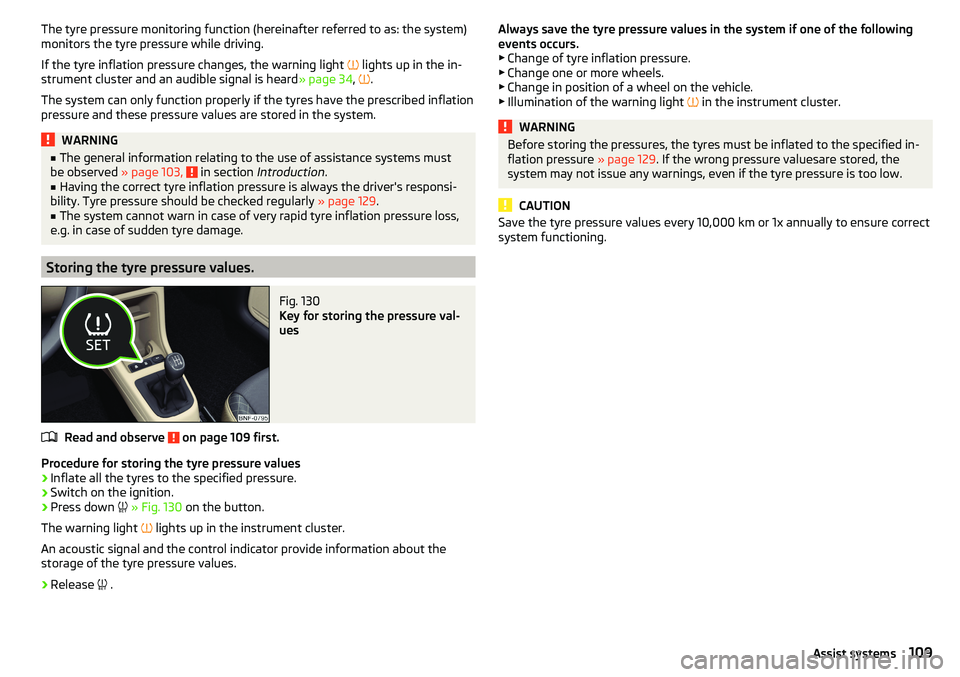
Storing the tyre pressure values.
Fig. 130
Key for storing the pressure val-
ues
Read and observe on page 109 first.
Procedure for storing the tyre pressure values
›
Inflate all the tyres to the specified pressure.
›
Switch on the ignition.
›
Press down
» Fig. 130 on the button.
The warning light
lights up in the instrument cluster.
An acoustic signal and the control indicator provide information about the
storage of the tyre pressure values.
›
Release
.
Always save the tyre pressure values in the system if one of the following
events occurs.
▶ Change of tyre inflation pressure.
▶ Change one or more wheels.
▶ Change in position of a wheel on the vehicle.
▶ Illumination of the warning light
in the instrument cluster.WARNINGBefore storing the pressures, the tyres must be inflated to the specified in-
flation pressure » page 129. If the wrong pressure valuesare stored, the
system may not issue any warnings, even if the tyre pressure is too low.
CAUTION
Save the tyre pressure values every 10,000 km or 1x annually to ensure correct
system functioning.109Assist systems
Page 120 of 172
CAUTION■Never drive until the fuel tank is completely empty! Irregular supply of fuel
can cause misfiring, which can result in damage to parts of the engine and the
exhaust system.■
Immediately remove any fuel that has spilled onto the vehicle's paintwork –
risk of paint damage.
■
If you would like to operate your vehicle in a country other than the one for
which it was intended, please talk to a ŠKODA Partner. They will tell you
whether the fuel specified by the manufacturer is offered in that country
and/or whether the manufacturer will sanction operating the vehicle with
another fuel.
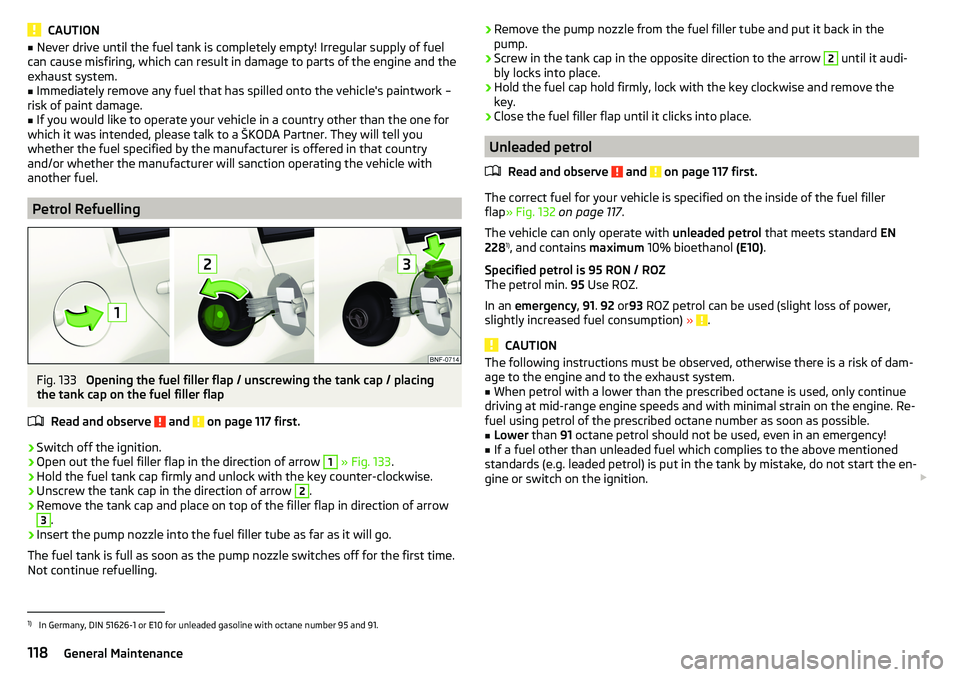
Petrol Refuelling
Fig. 133
Opening the fuel filler flap / unscrewing the tank cap / placing
the tank cap on the fuel filler flap
Read and observe
and on page 117 first.
›
Switch off the ignition.
›
Open out the fuel filler flap in the direction of arrow
1
» Fig. 133 .
›
Hold the fuel tank cap firmly and unlock with the key counter-clockwise.
›
Unscrew the tank cap in the direction of arrow
2
.
›
Remove the tank cap and place on top of the filler flap in direction of arrow
3
.
›
Insert the pump nozzle into the fuel filler tube as far as it will go.
The fuel tank is full as soon as the pump nozzle switches off for the first time.
Not continue refuelling.
› Remove the pump nozzle from the fuel filler tube and put it back in the
pump.›
Screw in the tank cap in the opposite direction to the arrow
2
until it audi-
bly locks into place.
›
Hold the fuel cap hold firmly, lock with the key clockwise and remove the
key.
›
Close the fuel filler flap until it clicks into place.
Unleaded petrol
Read and observe
and on page 117 first.
The correct fuel for your vehicle is specified on the inside of the fuel filler
flap » Fig. 132 on page 117 .
The vehicle can only operate with unleaded petrol that meets standard EN
228 1)
, and contains maximum 10% bioethanol (E10).
Specified petrol is 95 RON / ROZ
The petrol min. 95 Use ROZ.
In an emergency , 91 . 92 or 93 ROZ petrol can be used (slight loss of power,
slightly increased fuel consumption) »
.
CAUTION
The following instructions must be observed, otherwise there is a risk of dam-
age to the engine and to the exhaust system.■
When petrol with a lower than the prescribed octane is used, only continue
driving at mid-range engine speeds and with minimal strain on the engine. Re-
fuel using petrol of the prescribed octane number as soon as possible.
■
Lower than 91 octane petrol should not be used, even in an emergency!
■
If a fuel other than unleaded fuel which complies to the above mentioned
standards (e.g. leaded petrol) is put in the tank by mistake, do not start the en-
gine or switch on the ignition.
1)
In Germany, DIN 51626-1 or E10 for unleaded gasoline with octane number 95 and 91.
118General Maintenance