USB port SKODA KODIAQ 2016 1.G User Guide
[x] Cancel search | Manufacturer: SKODA, Model Year: 2016, Model line: KODIAQ, Model: SKODA KODIAQ 2016 1.GPages: 344, PDF Size: 58.96 MB
Page 174 of 344
›Observe the infotainment screen and if necessary, adjust the required net-
work of data service provider.›
If the SIM card is protected by a PIN code, then the PIN code of the SIM card
must be entered » Fig. 195 on page 162 ,
›
Confirm the entered PIN code.
or
›
If you would like to save the entered PIN code in the device memory, then
press the function key
Tap the PIN-code is stored and simultaneously con-
firmed.
The display of the signal strength, connection type and a possible data trans-
fer occurs in the status bar by the symbol left next to the time.
The parameters of the telephone service provider network can be set
» page 132 ,
CAUTION
When inserting an incorrectly sized SIM card, there is a risk of damage to the
CarStick device.
Note
The Internet connection may be chargeable based on the terms and conditions
of your data provider.SmartLink
Introductory information
Introduction to the subject
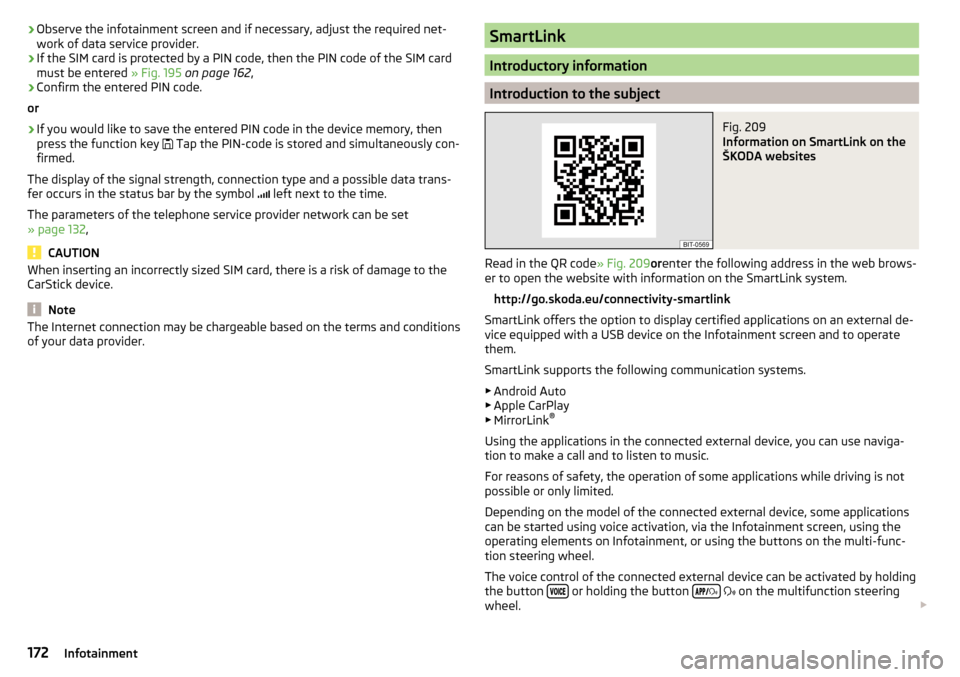
Fig. 209
Information on SmartLink on the
ŠKODA websites
Read in the QR code » Fig. 209orenter the following address in the web brows-
er to open the website with information on the SmartLink system.
http://go.skoda.eu/connectivity-smartlink
SmartLink offers the option to display certified applications on an external de-
vice equipped with a USB device on the Infotainment screen and to operate
them.
SmartLink supports the following communication systems. ▶ Android Auto
▶ Apple CarPlay
▶ MirrorLink ®
Using the applications in the connected external device, you can use naviga-
tion to make a call and to listen to music.
For reasons of safety, the operation of some applications while driving is not
possible or only limited.
Depending on the model of the connected external device, some applications
can be started using voice activation, via the Infotainment screen, using the
operating elements on Infotainment, or using the buttons on the multi-func-
tion steering wheel.
The voice control of the connected external device can be activated by holding
the button
or holding the button
on the multifunction steering
wheel.
172Infotainment
Page 175 of 344
CAUTIONTo establish the connection, it is necessary that the date and time in Infotain-
ment are set correctly. If the date and time setting is based on the GPS signal,
then problems may arise with establishing a connection with a poor GPS signal
reception.
Note
■ During the connection process, information messages may be displayed on
the Infotainment screen, and in the phone display. These messages must be
observed and confirmed if necessary (e.g. Release of data transfer, enabling
the contact import, release of text messages).■
We recommend that you use extension cords from ŠKODA Original Accesso-
ries.
■
With some connected devices, it is necessary that the connected external
device is unlocked over the entire duration of the connection for trouble-free
functioning of the SmartLink function“”.
Main menu
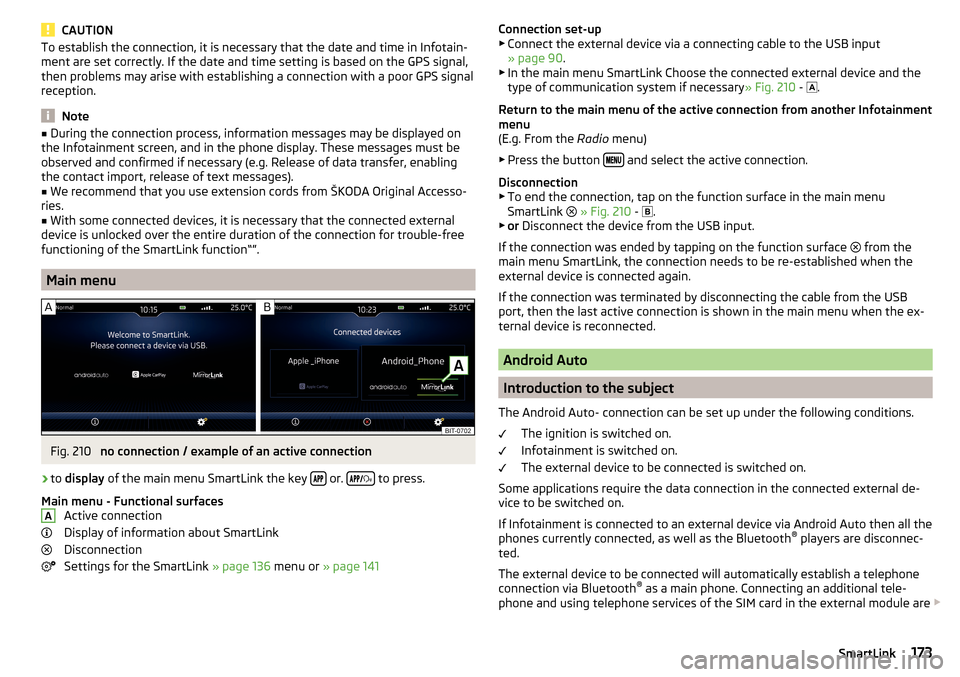
Fig. 210
no connection / example of an active connection
›
to display of the main menu SmartLink the key or.
to press.
Main menu - Functional surfaces Active connection
Display of information about SmartLink
Disconnection
Settings for the SmartLink » page 136 menu or » page 141
AConnection set-up
▶ Connect the external device via a connecting cable to the USB input
» page 90 .
▶ In the main menu SmartLink Choose the connected external device and the
type of communication system if necessary » Fig. 210 -
.
Return to the main menu of the active connection from another Infotainment
menu
(E.g. From the Radio menu)
▶ Press the button
and select the active connection.
Disconnection ▶ To end the connection, tap on the function surface in the main menu
SmartLink
» Fig. 210 -
.
▶ or Disconnect the device from the USB input.
If the connection was ended by tapping on the function surface from the
main menu SmartLink, the connection needs to be re-established when the
external device is connected again.
If the connection was terminated by disconnecting the cable from the USB
port, then the last active connection is shown in the main menu when the ex-
ternal device is reconnected.
Android Auto
Introduction to the subject
The Android Auto- connection can be set up under the following conditions. The ignition is switched on.
Infotainment is switched on.
The external device to be connected is switched on.
Some applications require the data connection in the connected external de-
vice to be switched on.
If Infotainment is connected to an external device via Android Auto then all the
phones currently connected, as well as the Bluetooth ®
players are disconnec-
ted.
The external device to be connected will automatically establish a telephone
connection via Bluetooth ®
as a main phone. Connecting an additional tele-
phone and using telephone services of the SIM card in the external module are
173SmartLink
Page 189 of 344
Import your own goals
Introduction to the subject
Fig. 230
MyDestination application on the
ŠKODA websites
Fig. 231
Websites ŠKODA Connect
In this chapter, destinations are described which can be imported into the Info-
tainment memory.
The own objectives by means of ŠKODA-Application “MyDestination”, In the
user profile on the website ŠKODA Connect Portal or in the application ŠKODA Connect to be created.
By reading the QR code » Fig. 230 or after typing the following address in the
web browser, more information on the “MyDestination”application is displayed.
http://go.skoda.eu/my-destination
Access to the ŠKODA Connect Portal is the website ŠKODA Connect refer to. This is carried out by reading the QR code » Fig. 231 or after entering the fol-
lowing address into the web browser.
http://go.skoda.eu/connectivity
Goals in vCard format
In the Infotainment memory, a custom destination can be imported in the
vCard format (*.vcf) from an SD card or a USB source.
Import›
Insert the SD card into the exernal module or connect a USB source with the
file of the custom destination.
›
In the Navigation main menu, tap the function surface
→
Manage memory
→
Import destinations (SD/USB)
.
›
Select the source and confirm the import.
Route guidance
›
In the Navigation main menu, tap the function surface
→
Destinations
→
→ .
›
Search for and select the desired imported destination.
Delete own destination
›
In the Navigation main menu, tap the function surface
→
Destinations
→
→ .
›
Tap the function surface
Tap on the desired own destination.
›
In the destination details, tap the function surface
Edit
→
Delete
and confirm
the deletion.
In the application “MyDestination” created POI categories
Import / update
›
Insert the SD card into the external module or connect a USB source with the
POI categories.
›
In the Navigation main menu, tap the function surface
→
Manage memory
→
Update "My POIs" (SD/USB)
Tap.
If there is already the same POI category name in the Infotainment memory,
then it will be overwritten during the import.
Show POIs in the map
›
In the Navigation main menu, tap the function surface
→
Map
→
Select cate-gories for POIs
→
My points of interest (Personal POI)
.
›
Select the desired POI category.
The insertion of the symbols of the POI categories in the Google Earth ™
Card is
not possible.
Guidance to an online destination
›
Tip on the traffic obstruction icon in the map.
187Navigation
Page 308 of 344
Fuses in the dashboard - RHDFig. 369
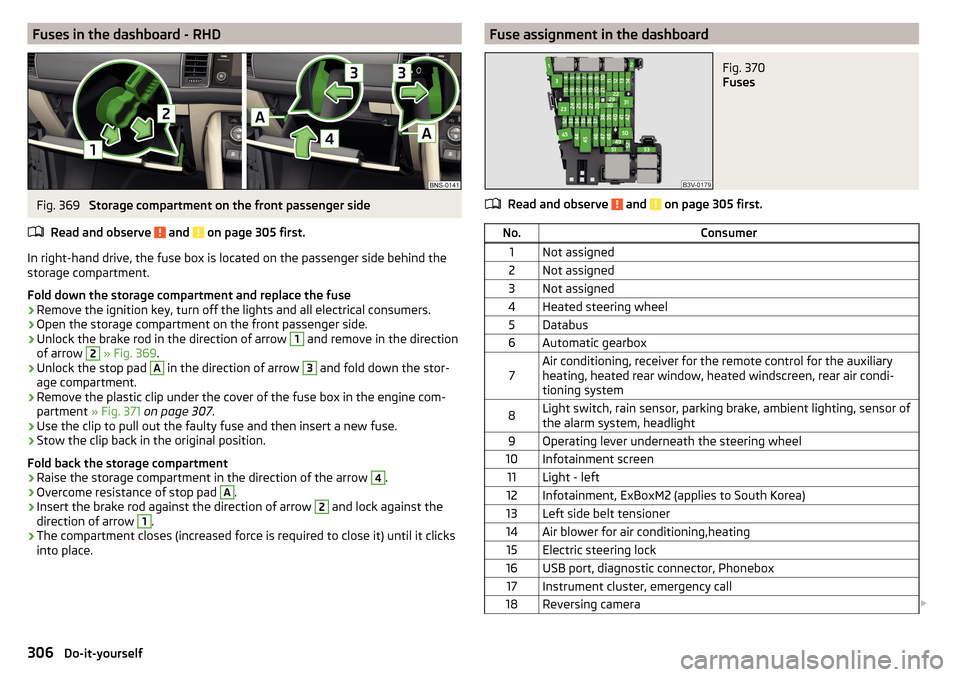
Storage compartment on the front passenger side
Read and observe
and on page 305 first.
In right-hand drive, the fuse box is located on the passenger side behind the storage compartment.
Fold down the storage compartment and replace the fuse
›
Remove the ignition key, turn off the lights and all electrical consumers.
›
Open the storage compartment on the front passenger side.
›
Unlock the brake rod in the direction of arrow
1
and remove in the direction
of arrow
2
» Fig. 369 .
›
Unlock the stop pad
A
in the direction of arrow
3
and fold down the stor-
age compartment.
›
Remove the plastic clip under the cover of the fuse box in the engine com-
partment » Fig. 371 on page 307 .
›
Use the clip to pull out the faulty fuse and then insert a new fuse.
›
Stow the clip back in the original position.
Fold back the storage compartment
›
Raise the storage compartment in the direction of the arrow
4
.
›
Overcome resistance of stop pad
A
.
›
Insert the brake rod against the direction of arrow
2
and lock against the
direction of arrow
1
.
›
The compartment closes (increased force is required to close it) until it clicks
into place.
Fuse assignment in the dashboardFig. 370
Fuses
Read and observe and on page 305 first.
No.Consumer1Not assigned2Not assigned3Not assigned4Heated steering wheel5Databus6Automatic gearbox7Air conditioning, receiver for the remote control for the auxiliary
heating, heated rear window, heated windscreen, rear air condi-
tioning system8Light switch, rain sensor, parking brake, ambient lighting, sensor of
the alarm system, headlight9Operating lever underneath the steering wheel10Infotainment screen11Light - left12Infotainment, ExBoxM2 (applies to South Korea)13Left side belt tensioner14Air blower for air conditioning,heating15Electric steering lock16USB port, diagnostic connector, Phonebox17Instrument cluster, emergency call18Reversing camera 306Do-it-yourself
Page 330 of 344
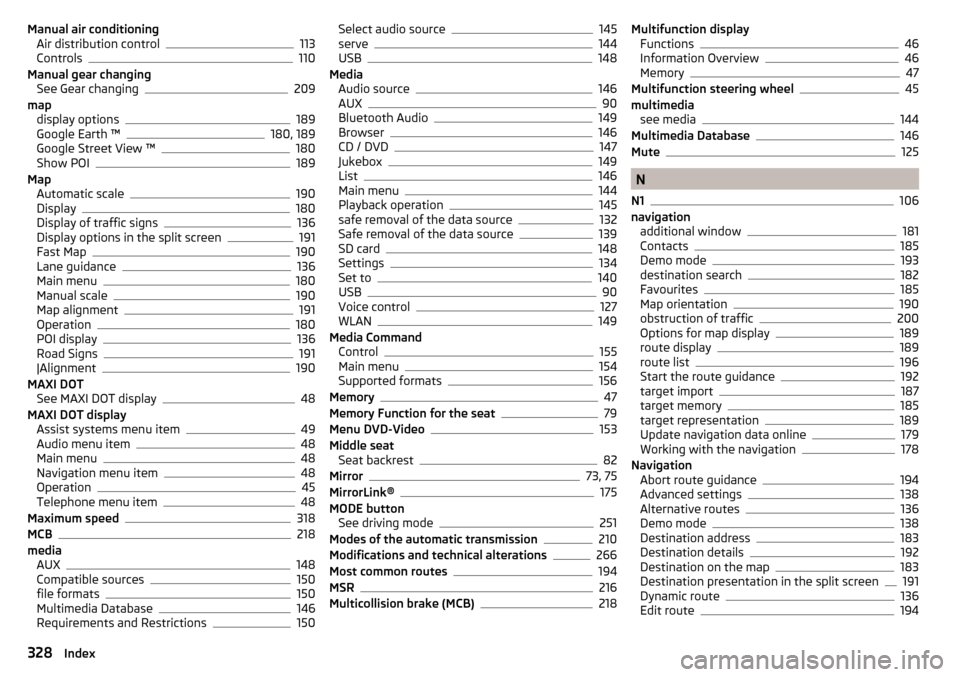
Manual air conditioningAir distribution control113
Controls110
Manual gear changing See Gear changing
209
map display options
189
Google Earth ™180, 189
Google Street View ™180
Show POI189
Map Automatic scale
190
Display180
Display of traffic signs136
Display options in the split screen191
Fast Map190
Lane guidance136
Main menu180
Manual scale190
Map alignment191
Operation180
POI display136
Road Signs191
|Alignment190
MAXI DOT See MAXI DOT display
48
MAXI DOT display Assist systems menu item
49
Audio menu item48
Main menu48
Navigation menu item48
Operation45
Telephone menu item48
Maximum speed318
MCB218
media AUX
148
Compatible sources150
file formats150
Multimedia Database146
Requirements and Restrictions150
Select audio source145
serve144
USB148
Media Audio source
146
AUX90
Bluetooth Audio149
Browser146
CD / DVD147
Jukebox149
List146
Main menu144
Playback operation145
safe removal of the data source132
Safe removal of the data source139
SD card148
Settings134
Set to140
USB90
Voice control127
WLAN149
Media Command Control
155
Main menu154
Supported formats156
Memory47
Memory Function for the seat79
Menu DVD-Video153
Middle seat Seat backrest
82
Mirror73, 75
MirrorLink®175
MODE button See driving mode
251
Modes of the automatic transmission210
Modifications and technical alterations266
Most common routes194
MSR216
Multicollision brake (MCB)218
Multifunction display Functions46
Information Overview46
Memory47
Multifunction steering wheel45
multimedia see media
144
Multimedia Database146
Mute125
N
N1
106
navigation additional window
181
Contacts185
Demo mode193
destination search182
Favourites185
Map orientation190
obstruction of traffic200
Options for map display189
route display189
route list196
Start the route guidance192
target import187
target memory185
target representation189
Update navigation data online179
Working with the navigation178
Navigation Abort route guidance
194
Advanced settings138
Alternative routes136
Demo mode138
Destination address183
Destination details192
Destination on the map183
Destination presentation in the split screen191
Dynamic route136
Edit route194
328Index