lane assist SKODA KODIAQ 2016 1.G User Guide
[x] Cancel search | Manufacturer: SKODA, Model Year: 2016, Model line: KODIAQ, Model: SKODA KODIAQ 2016 1.GPages: 344, PDF Size: 58.96 MB
Page 231 of 344
The distance between the side lines corresponds approximately to the vehicle
width including mirrors.
Lane
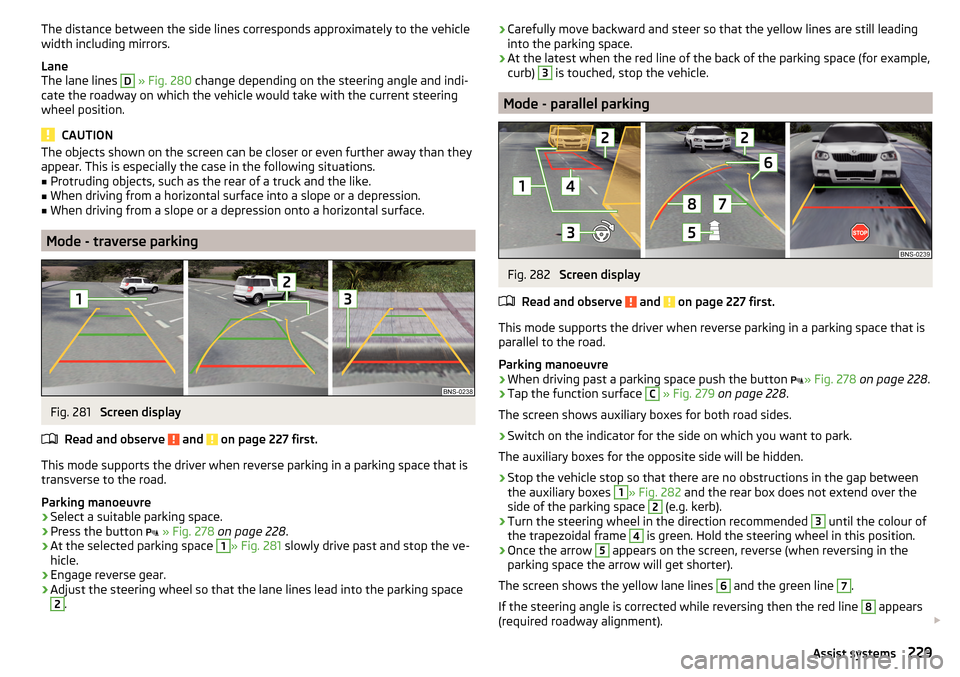
The lane lines D
» Fig. 280 change depending on the steering angle and indi-
cate the roadway on which the vehicle would take with the current steering
wheel position.
CAUTION
The objects shown on the screen can be closer or even further away than they
appear. This is especially the case in the following situations.■
Protruding objects, such as the rear of a truck and the like.
■
When driving from a horizontal surface into a slope or a depression.
■
When driving from a slope or a depression onto a horizontal surface.
Mode - traverse parking
Fig. 281
Screen display
Read and observe
and on page 227 first.
This mode supports the driver when reverse parking in a parking space that is
transverse to the road.
Parking manoeuvre
›
Select a suitable parking space.
›
Press the button
» Fig. 278 on page 228 .
›
At the selected parking space
1
» Fig. 281 slowly drive past and stop the ve-
hicle.
›
Engage reverse gear.
›
Adjust the steering wheel so that the lane lines lead into the parking space
2
.
› Carefully move backward and steer so that the yellow lines are still leading
into the parking space.›
At the latest when the red line of the back of the parking space (for example,
curb)
3
is touched, stop the vehicle.
Mode - parallel parking
Fig. 282
Screen display
Read and observe
and on page 227 first.
This mode supports the driver when reverse parking in a parking space that is
parallel to the road.
Parking manoeuvre
›
When driving past a parking space push the button » Fig. 278
on page 228 .
›
Tap the function surface
C
» Fig. 279 on page 228 .
The screen shows auxiliary boxes for both road sides.
›
Switch on the indicator for the side on which you want to park.
The auxiliary boxes for the opposite side will be hidden.
›
Stop the vehicle stop so that there are no obstructions in the gap between
the auxiliary boxes
1
» Fig. 282 and the rear box does not extend over the
side of the parking space
2
(e.g. kerb).
›
Turn the steering wheel in the direction recommended
3
until the colour of
the trapezoidal frame
4
is green. Hold the steering wheel in this position.
›
Once the arrow
5
appears on the screen, reverse (when reversing in the
parking space the arrow will get shorter).
The screen shows the yellow lane lines
6
and the green line
7
.
If the steering angle is corrected while reversing then the red line
8
appears
(required roadway alignment).
229Assist systems
Page 235 of 344
View of the rear cameraRead and observe
and on page 231 first.
The rear camera view is identical to the rear-view camera system » page 227.
View of the front camera
Fig. 287
Screen display
Read and observe and on page 231 first.
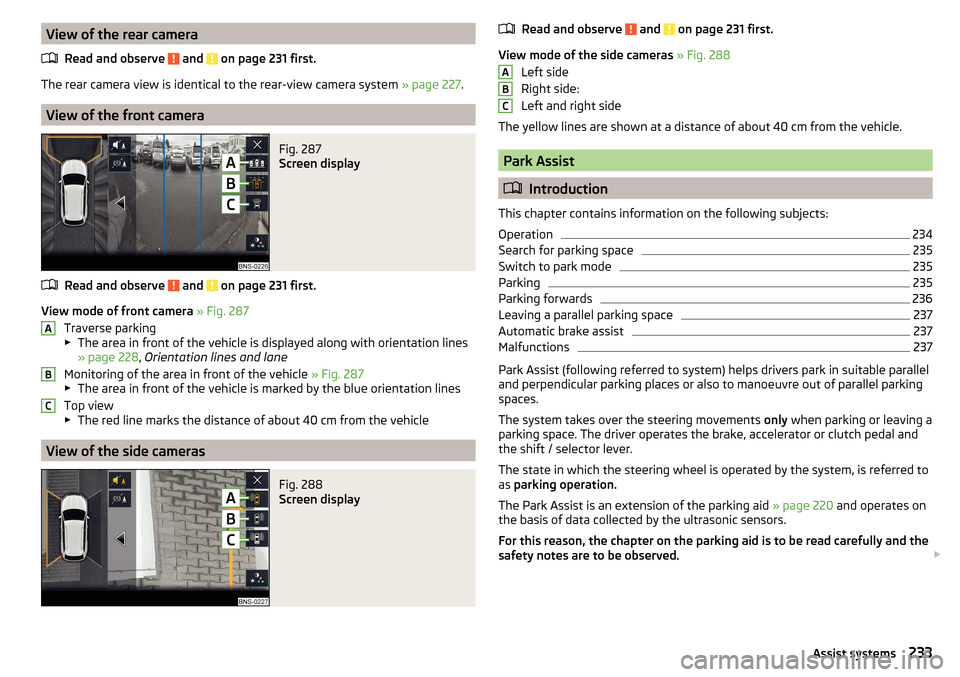
View mode of front camera » Fig. 287
Traverse parking
▶ The area in front of the vehicle is displayed along with orientation lines
» page 228 , Orientation lines and lane
Monitoring of the area in front of the vehicle » Fig. 287
▶ The area in front of the vehicle is marked by the blue orientation lines
Top view
▶ The red line marks the distance of about 40 cm from the vehicle
View of the side cameras
Fig. 288
Screen display
ABCRead and observe and on page 231 first.
View mode of the side cameras » Fig. 288
Left side
Right side:
Left and right side
The yellow lines are shown at a distance of about 40 cm from the vehicle.
Park Assist
Introduction
This chapter contains information on the following subjects:
Operation
234
Search for parking space
235
Switch to park mode
235
Parking
235
Parking forwards
236
Leaving a parallel parking space
237
Automatic brake assist
237
Malfunctions
237
Park Assist (following referred to system) helps drivers park in suitable parallel
and perpendicular parking places or also to manoeuvre out of parallel parking
spaces.
The system takes over the steering movements only when parking or leaving a
parking space. The driver operates the brake, accelerator or clutch pedal and
the shift / selector lever.
The state in which the steering wheel is operated by the system, is referred to
as parking operation.
The Park Assist is an extension of the parking aid » page 220 and operates on
the basis of data collected by the ultrasonic sensors.
For this reason, the chapter on the parking aid is to be read carefully and the safety notes are to be observed.
ABC233Assist systems
Page 245 of 344
Operation description - Variant with ACCFig. 303
Controls the speed limiter (version with ACC)
Read and observe
on page 241 first.
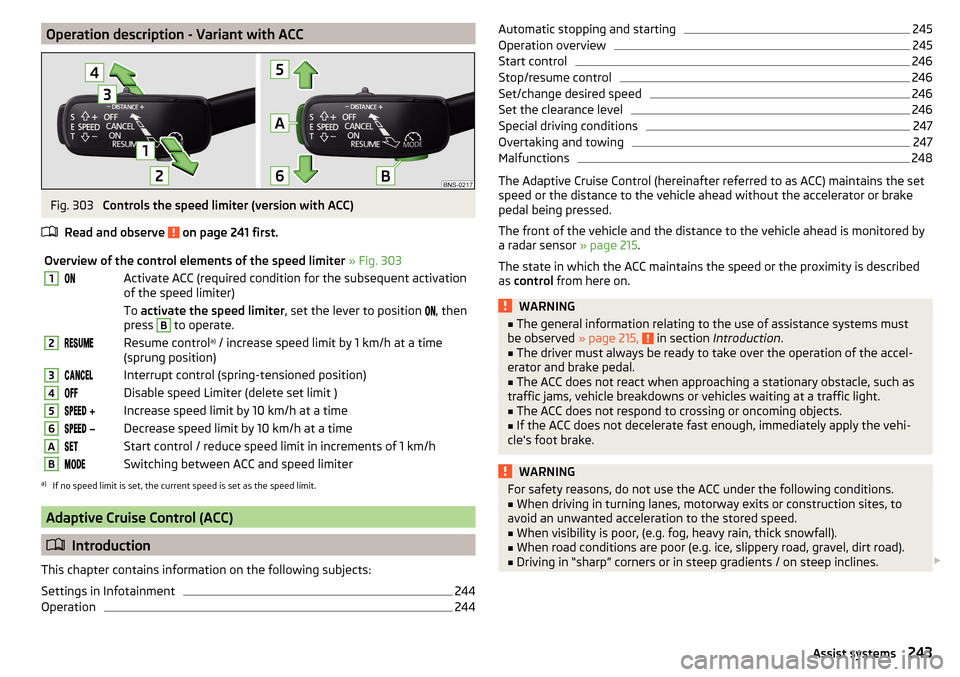
Overview of the control elements of the speed limiter » Fig. 3031Activate ACC (required condition for the subsequent activation
of the speed limiter) To activate the speed limiter , set the lever to position , then
press B
to operate.
2Resume control a)
/ increase speed limit by 1 km/h at a time
(sprung position)3Interrupt control (spring-tensioned position)4Disable speed Limiter (delete set limit )5 Increase speed limit by 10 km/h at a time6 Decrease speed limit by 10 km/h at a timeAStart control / reduce speed limit in increments of 1 km/hBSwitching between ACC and speed limitera)
If no speed limit is set, the current speed is set as the speed limit.
Adaptive Cruise Control (ACC)
Introduction
This chapter contains information on the following subjects:
Settings in Infotainment
244
Operation
244Automatic stopping and starting245Operation overview245
Start control
246
Stop/resume control
246
Set/change desired speed
246
Set the clearance level
246
Special driving conditions
247
Overtaking and towing
247
Malfunctions
248
The Adaptive Cruise Control (hereinafter referred to as ACC) maintains the set
speed or the distance to the vehicle ahead without the accelerator or brake
pedal being pressed.
The front of the vehicle and the distance to the vehicle ahead is monitored by
a radar sensor » page 215.
The state in which the ACC maintains the speed or the proximity is described
as control from here on.
WARNING■
The general information relating to the use of assistance systems must
be observed » page 215, in section Introduction .■
The driver must always be ready to take over the operation of the accel-
erator and brake pedal.
■
The ACC does not react when approaching a stationary obstacle, such as
traffic jams, vehicle breakdowns or vehicles waiting at a traffic light.
■
The ACC does not respond to crossing or oncoming objects.
■
If the ACC does not decelerate fast enough, immediately apply the vehi-
cle's foot brake.
WARNINGFor safety reasons, do not use the ACC under the following conditions.■When driving in turning lanes, motorway exits or construction sites, to
avoid an unwanted acceleration to the stored speed.■
When visibility is poor, (e.g. fog, heavy rain, thick snowfall).
■
When road conditions are poor (e.g. ice, slippery road, gravel, dirt road).
■
Driving in “sharp” corners or in steep gradients / on steep inclines.
243Assist systems
Page 247 of 344
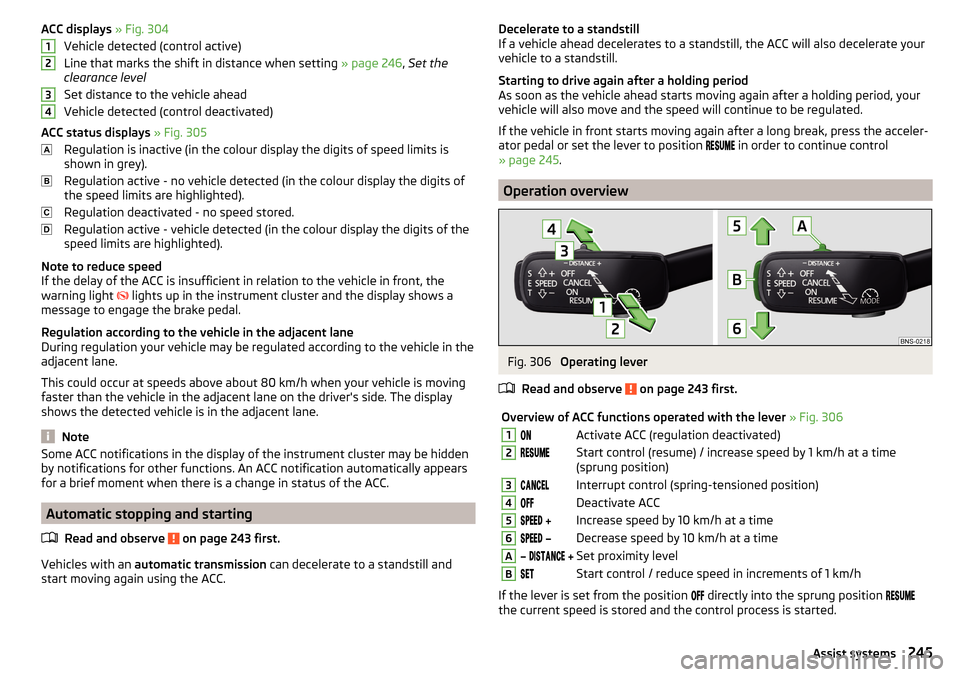
ACC displays » Fig. 304
Vehicle detected (control active)
Line that marks the shift in distance when setting » page 246, Set the
clearance level
Set distance to the vehicle ahead
Vehicle detected (control deactivated)
ACC status displays » Fig. 305
Regulation is inactive (in the colour display the digits of speed limits is
shown in grey).
Regulation active - no vehicle detected (in the colour display the digits of
the speed limits are highlighted).
Regulation deactivated - no speed stored.
Regulation active - vehicle detected (in the colour display the digits of the
speed limits are highlighted).
Note to reduce speed
If the delay of the ACC is insufficient in relation to the vehicle in front, the
warning light lights up in the instrument cluster and the display shows a
message to engage the brake pedal.
Regulation according to the vehicle in the adjacent lane
During regulation your vehicle may be regulated according to the vehicle in the
adjacent lane.
This could occur at speeds above about 80 km/h when your vehicle is moving
faster than the vehicle in the adjacent lane on the driver's side. The display
shows the detected vehicle is in the adjacent lane.
Note
Some ACC notifications in the display of the instrument cluster may be hidden
by notifications for other functions. An ACC notification automatically appears
for a brief moment when there is a change in status of the ACC.
Automatic stopping and starting
Read and observe
on page 243 first.
Vehicles with an automatic transmission can decelerate to a standstill and
start moving again using the ACC.
1234Decelerate to a standstill
If a vehicle ahead decelerates to a standstill, the ACC will also decelerate your
vehicle to a standstill.
Starting to drive again after a holding period
As soon as the vehicle ahead starts moving again after a holding period, your
vehicle will also move and the speed will continue to be regulated.
If the vehicle in front starts moving again after a long break, press the acceler-
ator pedal or set the lever to position
in order to continue control
» page 245 .
Operation overview
Fig. 306
Operating lever
Read and observe
on page 243 first.
Overview of ACC functions operated with the lever » Fig. 3061Activate ACC (regulation deactivated)2Start control (resume) / increase speed by 1 km/h at a time
(sprung position)3Interrupt control (spring-tensioned position)4Deactivate ACC5 Increase speed by 10 km/h at a time6 Decrease speed by 10 km/h at a timeA Set proximity levelBStart control / reduce speed in increments of 1 km/h
If the lever is set from the position
directly into the sprung position
the current speed is stored and the control process is started.
245Assist systems
Page 249 of 344
›Using the switch
on the lever, adjust the line 2 to the desired dis-
tance.
Note
■ If the proximity is changed in infotainment, the change will only come into
effect after a subsequent activation of the ACC.■
The higher the speed, the greater the proximity to the vehicle ahead.
■
The adjustment of the distance is stored (depending on Infotainment type) in
the active user account personalisation » page 50.
Special driving conditions
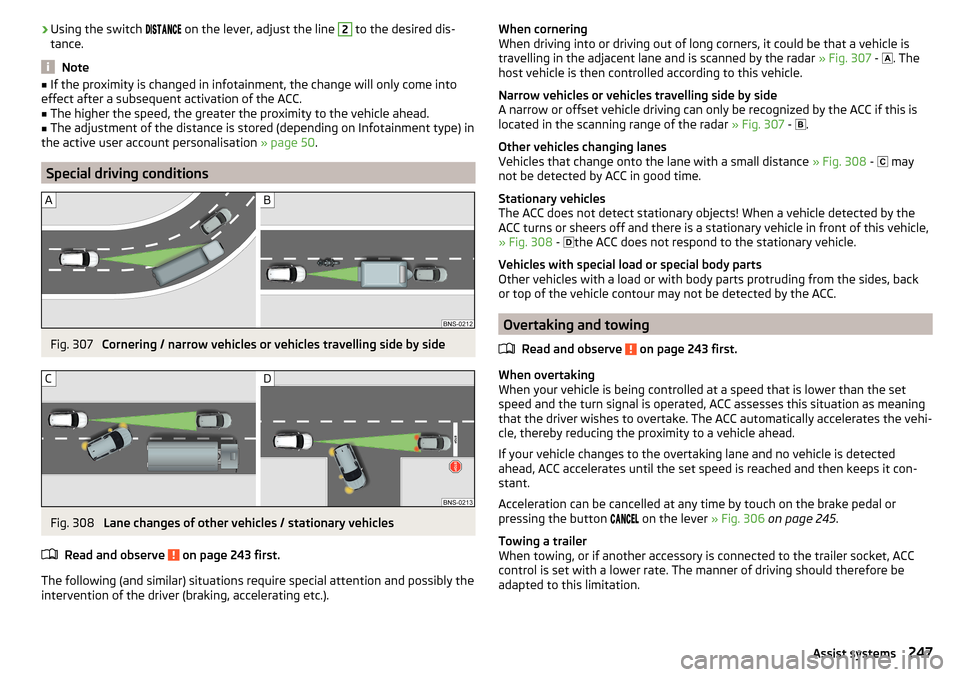
Fig. 307
Cornering / narrow vehicles or vehicles travelling side by side
Fig. 308
Lane changes of other vehicles / stationary vehicles
Read and observe
on page 243 first.
The following (and similar) situations require special attention and possibly the
intervention of the driver (braking, accelerating etc.).
When cornering
When driving into or driving out of long corners, it could be that a vehicle is
travelling in the adjacent lane and is scanned by the radar » Fig. 307 -
. The
host vehicle is then controlled according to this vehicle.
Narrow vehicles or vehicles travelling side by side
A narrow or offset vehicle driving can only be recognized by the ACC if this is
located in the scanning range of the radar » Fig. 307 -
.
Other vehicles changing lanes
Vehicles that change onto the lane with a small distance » Fig. 308 -
may
not be detected by ACC in good time.
Stationary vehicles
The ACC does not detect stationary objects! When a vehicle detected by the
ACC turns or sheers off and there is a stationary vehicle in front of this vehicle,
» Fig. 308 -
the ACC does not respond to the stationary vehicle.
Vehicles with special load or special body parts
Other vehicles with a load or with body parts protruding from the sides, back
or top of the vehicle contour may not be detected by the ACC.
Overtaking and towing
Read and observe
on page 243 first.
When overtaking
When your vehicle is being controlled at a speed that is lower than the set
speed and the turn signal is operated, ACC assesses this situation as meaning
that the driver wishes to overtake. The ACC automatically accelerates the vehi-
cle, thereby reducing the proximity to a vehicle ahead.
If your vehicle changes to the overtaking lane and no vehicle is detected
ahead, ACC accelerates until the set speed is reached and then keeps it con-
stant.
Acceleration can be cancelled at any time by touch on the brake pedal or
pressing the button on the lever
» Fig. 306 on page 245 .
Towing a trailer
When towing, or if another accessory is connected to the trailer socket, ACC
control is set with a lower rate. The manner of driving should therefore be
adapted to this limitation.
247Assist systems
Page 256 of 344
The first protection level can be deactivated in one of the following ways.
▶ in the menu Infotainment
→ →
Driver assistance
.
▶ Deactivating the TCS » page 217.
▶ By selecting the driving mode
Sport
» page 252 .
Provided that the driving mode
Sport
is not selected, the system is activated
over the two levels of protection after switching the ignition off and on again.
The second level of protection
The system intervenes only if the situation is evaluated as critical, such as
when panic braking at high speeds.
This level of protection cannot be deactivated.
Vehicles with the Front Assist system
Using this information, a system intervention may also occur when there is the danger of a collision with an obstacle detected in front of the vehicle.
Spurhalteassistent (Lane Assist)
Introduction
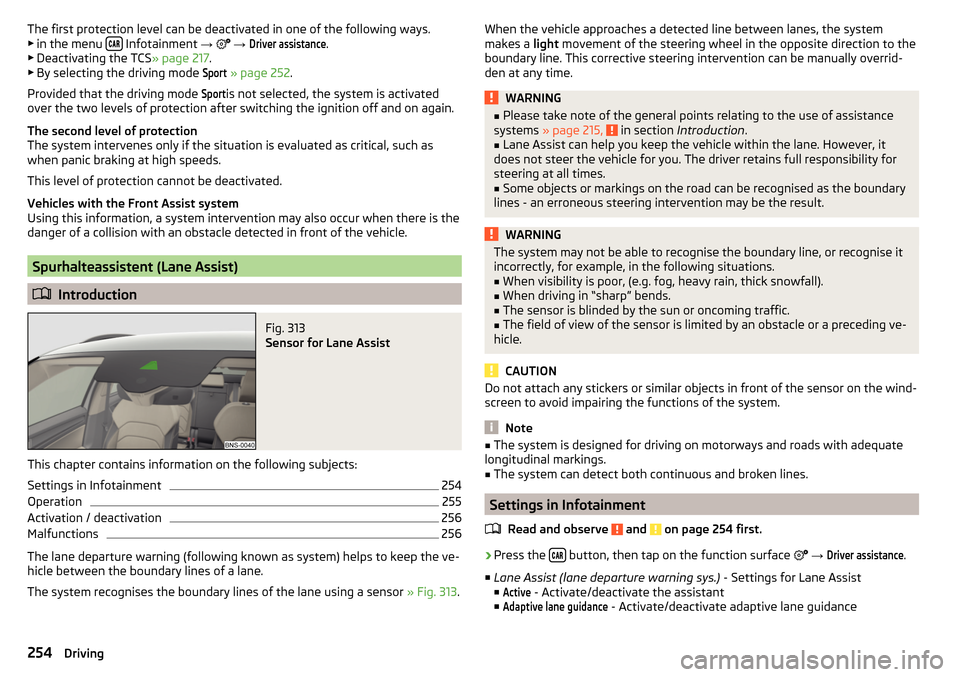
Fig. 313
Sensor for Lane Assist
This chapter contains information on the following subjects:
Settings in Infotainment
254
Operation
255
Activation / deactivation
256
Malfunctions
256
The lane departure warning (following known as system) helps to keep the ve-
hicle between the boundary lines of a lane.
The system recognises the boundary lines of the lane using a sensor » Fig. 313.
When the vehicle approaches a detected line between lanes, the system
makes a light movement of the steering wheel in the opposite direction to the
boundary line. This corrective steering intervention can be manually overrid-
den at any time.WARNING■ Please take note of the general points relating to the use of assistance
systems » page 215, in section Introduction .■
Lane Assist can help you keep the vehicle within the lane. However, it
does not steer the vehicle for you. The driver retains full responsibility for
steering at all times.
■
Some objects or markings on the road can be recognised as the boundary
lines - an erroneous steering intervention may be the result.
WARNINGThe system may not be able to recognise the boundary line, or recognise it
incorrectly, for example, in the following situations.■
When visibility is poor, (e.g. fog, heavy rain, thick snowfall).
■
When driving in “sharp” bends.
■
The sensor is blinded by the sun or oncoming traffic.
■
The field of view of the sensor is limited by an obstacle or a preceding ve-
hicle.
CAUTION
Do not attach any stickers or similar objects in front of the sensor on the wind-
screen to avoid impairing the functions of the system.
Note
■ The system is designed for driving on motorways and roads with adequate
longitudinal markings.■
The system can detect both continuous and broken lines.
Settings in Infotainment
Read and observe
and on page 254 first.
›
Press the button, then tap on the function surface
→
Driver assistance
.
■ Lane Assist (lane departure warning sys.) - Settings for Lane Assist
■
Active
- Activate/deactivate the assistant
■
Adaptive lane guidance
- Activate/deactivate adaptive lane guidance
254Driving
Page 257 of 344
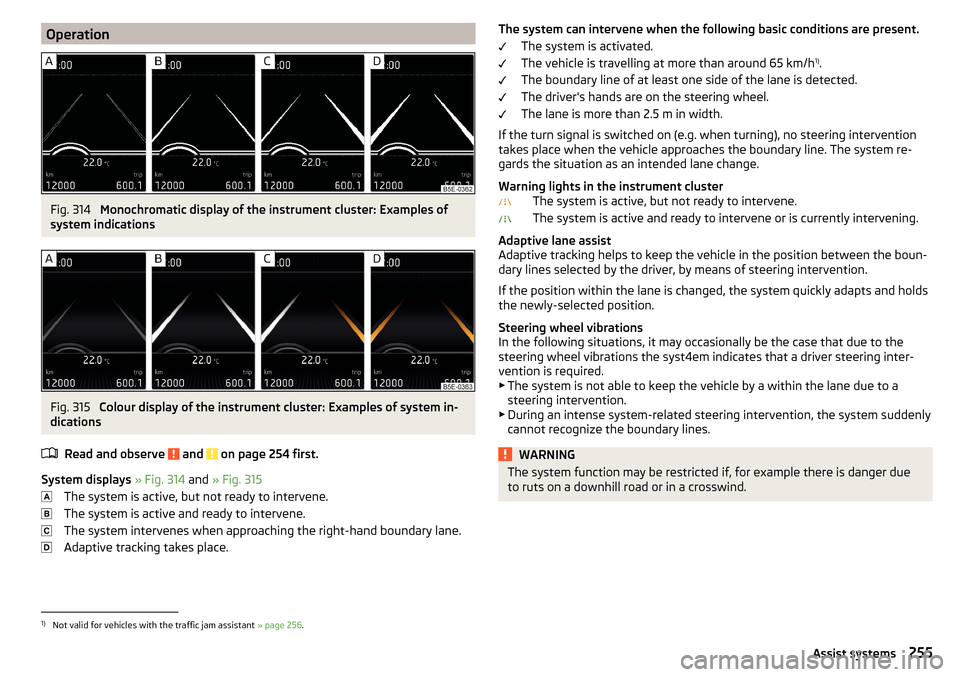
OperationFig. 314
Monochromatic display of the instrument cluster: Examples of
system indications
Fig. 315
Colour display of the instrument cluster: Examples of system in-
dications
Read and observe
and on page 254 first.
System displays » Fig. 314 and » Fig. 315
The system is active, but not ready to intervene.
The system is active and ready to intervene.
The system intervenes when approaching the right-hand boundary lane.
Adaptive tracking takes place.
The system can intervene when the following basic conditions are present. The system is activated.
The vehicle is travelling at more than around 65 km/h 1)
.
The boundary line of at least one side of the lane is detected.
The driver's hands are on the steering wheel.
The lane is more than 2.5 m in width.
If the turn signal is switched on (e.g. when turning), no steering intervention takes place when the vehicle approaches the boundary line. The system re-
gards the situation as an intended lane change.
Warning lights in the instrument cluster The system is active, but not ready to intervene.
The system is active and ready to intervene or is currently intervening.
Adaptive lane assist
Adaptive tracking helps to keep the vehicle in the position between the boun-
dary lines selected by the driver, by means of steering intervention.
If the position within the lane is changed, the system quickly adapts and holds
the newly-selected position.
Steering wheel vibrations
In the following situations, it may occasionally be the case that due to the
steering wheel vibrations the syst4em indicates that a driver steering inter-
vention is required.
▶ The system is not able to keep the vehicle by a within the lane due to a
steering intervention.
▶ During an intense system-related steering intervention, the system suddenly
cannot recognize the boundary lines.WARNINGThe system function may be restricted if, for example there is danger due
to ruts on a downhill road or in a crosswind.1)
Not valid for vehicles with the traffic jam assistant » page 256.
255Assist systems
Page 258 of 344
Activation / deactivationRead and observe
and on page 254 first.
The activation/deactivation of the system can be carried out in one of two
ways. ▶ In the instrument cluster display » page 49, Menu item
Assist systems
.
▶ In Infotainment » page 254, Settings in Infotainment .
Adaptive tracking can also be enabled or disabled In Infotainment.
After switching off and switching on the ignition, the system setting is re-
tained.
Note
The system setting is stored (depending on Infotainment type) in the active
user account personalisation » page 50.
Malfunctions
Read and observe
and on page 254 first.
If, for some unknown reason, the system is not available, an appropriate mes-
sage appears in the display of the instrument cluster.
Sensor covered / dirty
If the windscreen is dirty, iced or misted up in the sensor area, a message ap-
pears indicating that there is no sensor view. Clean the windscreen or remove
the obstacles from the sensor area.
System unavailable
If the system is currently unavailable, a message concerning the unavailability
appears. Try to re-activate the machine. If the system still is not available, seek
the assistance of a specialist garage.
System fault
In the case of a system fault, an error message appears. Seek help from a spe-
cialist garage.
Request to take over steering
If the system detects that there are no hands are on the steering wheel, this
will not work properly. You will be prompted to take over steering. Place your
hands on the steering wheel.
Traffic jam assistant
Introduction
This chapter contains information on the following subjects:
Function
256
Operating conditions
256WARNING■ Please take note of the general points relating to the use of assistance
systems » page 215, in section Introduction .■
The driver must always have hands on the steering wheel and be ready to
take over steering of the vehicle himself (accelerate or brake).
Note
The system is designed primarily for use on motorways.
Function
Read and observe
on page 256 first.
The traffic jam assistant (referred to as system) helps to keep the vehicle with-
in the lane at speeds below 65 km/h while keeping the distance to the vehicle
ahead.
The system is only available for vehicles with Automatic transmission.
The traffic jam assistant is an extension of the systems Lane Assist » page 254
and ACC » page 243 and works by using the functions of these two systems.
For this reason, the chapters on System Lane Assist and ACC are to be read
carefully and the safety notes are to be observed.
Operating conditions
Read and observe
on page 256 first.
The system activation occurs automatically whilst fulfilling the following ba-sic conditions.
Lane Assist with the adaptive tracking is enabled, the boundary lines on
both sides are recognized lane » page 254.
ACC is activated and the regulation » page 243 follows.
The vehicle speed is below 65 km/h.
256Driving
Page 259 of 344
Assistant for emergencies
Introduction
This chapter contains information on the following subjects:
Function
257
Operating conditions
257WARNING■ Please take note of the general points relating to the use of assistance
systems » page 215, in section Introduction .■
The system is intended for emergency situations when the driver is sud-
denly unable to take over the steering task. Therefore, never try to test out
the system - there is a risk of an accident!
Function
Read and observe
on page 257 first.
The assistant for emergencies (following known as system) detects inactivityof the driver, which for example can be caused by a sudden loss of conscious-
ness. The system then performs measures as safely as possible to decelerate
the vehicle to a stop.
The system is only available for vehicles with Automatic transmission.
The assistant for emergencies is an extension of the systems Lane Assist
» page 254 and ACC » page 243 and works by using the functions of these two
systems.
For this reason, the chapters on System Lane Assist and ACC are to be read
carefully and the safety notes are to be observed.
System intervention
If the system detects the driver's inactivity, it draws attention to this fact by a beep and a message on the display of the instrument cluster. It keeps the ve-
hicle in its lane.
If the driver does not take over the steering even after a repeated warning,
the system automatically brakes the vehicle and after it has come to a stand-
still the parking brake switch on.
With automatic braking, the hazard warning system is switched on.
The automatic braking interventions can be cancelled by pressing the acceler-
ator pedal or by means of a steering intervention.
Operating conditions
Read and observe
on page 257 first.
The system can intervene when the following basic conditions are present. Lane Assist is activated and the boundary line is detected at least on one
side of the lane » page 254.
ACC is activated and the regulation » page 243 follows.
Traffic sign recognition
Introduction
This chapter contains information on the following subjects:
Settings in Infotainment
258
Operation
258
Additional display
259
Malfunctions and information messages
259
The traffic sign recognition (following known as system) shows certain traffic
signs (e.g. speed limits) on the display of the instrument cluster and if necessa-
ry warns against excessive speeds.
WARNING■ Please take note of the general points relating to the use of assistance
systems » page 215, in section Introduction .■
Vertical traffic signs must always take precedence over the traffic signs
shown in the display. The driver is always responsible for correctly assess-
ing the traffic situation.
■
Speed specifications in the displayed road signs refer to the country-spe-
cific speed units. For example, the display
on the display can therefore
be country specific and refer to either km/h or mph.
257Assist systems
Page 329 of 344
L
L-band
134
Lamp failure41
Lamps Warning light
41
Lane Assist38, 254
Malfunctions256
Settings in Infotainment254
Lane Departure Warning Activation / deactivation
232, 256
Operation255
Lane recommendation193
Language characters131
Last destinations184
Latitude178
LEAVING HOME69
LED headlights68
Lever ACC
245
Cruise control240
Front Assist250
Operation of the information system45
Speed limiter with ACC243
Speed limiter with CCS242
Speed limiter with GRA242
Turn signal/main beam67
Windscreen wipers74, 75
Liability for defects5
Light65
Cockpit71
COMING HOME / LEAVING HOME69
Daytime running lights66
Flash67
Fog lights/rear fog light69
Fog lights with CORNER function69
Hazard warning light system70
Headlight cleaning system75
LED headlights68
Light Assist68
Parking light70
Replacing bulbs308
Turn signal/main beam67
Light Assist68
See Light Assist68
Lighting Ambient lighting
72
Entry space70
Interior lighting71
Luggage compartment100
Lights Automatic driving light control
67
Dipped beam66
Driving abroad70
Headlight range control66
Parking lights66
Switching on and off66
Warning lights33
List of available stations
142
of telephone contacts165
With folder / track list146
Liste gekoppelter externer Geräte160
List of traffic reports199
Load314
Lock Individual settings
54
KESSY53
Locking Central locking button
54
in case of emergency303
Remote control52
Lock steering lock202
Longitude178
Luggage compartment100
Cargo Elements105
Fastening elements101
Fastening the flooring103
Fixing nets101
Floor covering on both sides103
foldable hook102
Lighting100
Net partition104
Removable light106
Side pockets105
unlock manually303
Unlock the boot lid303
Variable loading floor106
Luggage compartment cover103
Luggage Storage Roll-up cover
103
M
Main beam
67
Warning light39
main menu Android car
174
Apple carplay174
Images151
infotainment online119
MirrorLink®175
radio141
Video DVD153
WIRELESS INTERNET ACCESS170
Main menu Media
144
Media Command154
Navigation179
SmartLink173
SMS168
Waypoint mode197
Make up mirror73
Manage favourites140
Manage Favourites134
Manage memory137
Management of online services ŠKODA Connect 133, 139
Managing saved routes
196
Manoeuvre Graphical driving recommendations
193
Nav. announcements194
327Index