buttons SKODA OCTAVIA 2006 Owner´s Manual
[x] Cancel search | Manufacturer: SKODA, Model Year: 2006, Model line: OCTAVIA, Model: SKODA OCTAVIA 2006Pages: 218, PDF Size: 5.48 MB
Page 113 of 218

Note
■ If a suitable adapter is available for your mobile phone, only use your mobile
phone in the adapter inserted in the telephone mount so that the radiation in the
vehicle drops to a minimum. ■ Placing the mobile phone in the adapter inserted in the telephone mount en-
sures optimum sending and receiving power. ÐInserting the mobile phone and adapter
Fig. 106
Universal telephone preinstalla-
tion
Only one telephone mount is factory-fitted. An adapter for the mobile phone can
be purchased from ŠKODA Original Accessories.
Inserting the adapter and mobile phone › First of all push the adapter A
in the direction of the arrow
» Fig. 106 up to the
stop into the mount. Then press the adapter slightly downwards, until it locks
securely into position.
› Insert the mobile phone into the adapter A
(as specified in the instructions
from the manufacturer of the adapter).
Removing the adapter and mobile phone
› Simultaneously press the locks on the mount
» Fig. 106 and remove the adapter
with the mobile phone. CAUTION
Taking the mobile phone out of the adapter during the call can lead to interrup-
tion of the connection. When removing the mobile phone, the connection to the
factory-fitted antenna is interrupted, which reduces the quality of the transmit-
ting and receiving signal. The charging of the mobile phone battery is also inter-
rupted. Ð Managing telephone calls with the help of the adapter
Fig. 107
Principle sketch: single-button adapter/two-button adapter
Function overview of the »
Fig. 107 (PTT - “push to talk”) button on the adapt-
er:
› Switch on/off voice control;
› Accept/end a call.
On some adapters include the button SOS » Fig. 107
A
in addition to the button
. After pressing this button for 2 seconds, the number 112 (Emergency call) is
dialled. Note
On vehicles fitted with the Columbus navigation system , the buttons and
SOS do not work.
Ð
111
Communication
Page 120 of 218
Multimedia
Music playback via Bluetooth
®
The universal telephone preinstallation makes it possible to play back music via
Bluetooth ®
from devices such as MP3 players, mobile phones or notebooks.
To ensure the music can be played back via Bluetooth ®
, it is necessary to connect
the terminal device with the hands-free system in the menu Phone - Bluetooth -
Media player. The music playback process is performed on the connected device.
The universal telephone preinstallation GSM II ensures that the music played back
via the hands-free system can be controlled with the remote control » page 117,
Voice commands - GSM II . Note
The device being connected must support the Bluetooth ®
A2DP profile; refer to
the operating instructions for the relevant device being connected. ÐOperating the radio and navigation system on the multifunction steering wheel
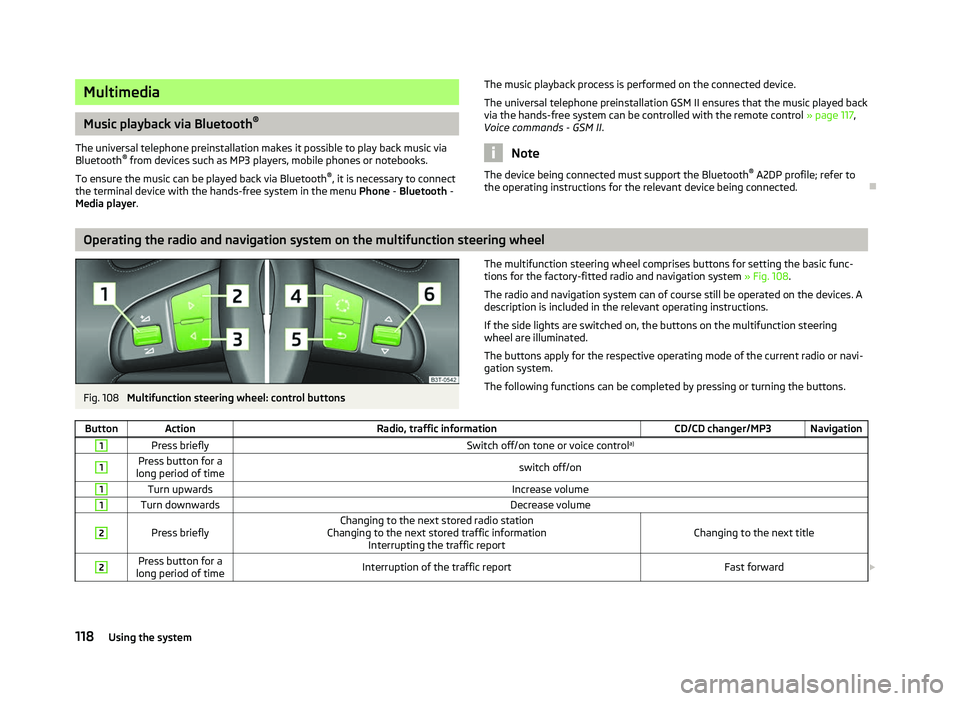
Fig. 108
Multifunction steering wheel: control buttons The multifunction steering wheel comprises buttons for setting the basic func-
tions for the factory-fitted radio and navigation system » Fig. 108.
The radio and navigation system can of course still be operated on the devices. A
description is included in the relevant operating instructions.
If the side lights are switched on, the buttons on the multifunction steering
wheel are illuminated.
The buttons apply for the respective operating mode of the current radio or navi-
gation system.
The following functions can be completed by pressing or turning the buttons.
Button Action Radio, traffic information CD/CD changer/MP3 Navigation1
Press briefly
Switch off/on tone or voice controla)1 Press button for a
long period of time switch off/on1
Turn upwards
Increase volume1
Turn downwards
Decrease volume2
Press briefly
Changing to the next stored radio station
Changing to the next stored traffic information Interrupting the traffic report Changing to the next title2 Press button for a
long period of time Interruption of the traffic report
Fast forward£118
Using the system
Page 122 of 218
Filling the CD changer with CDs
›
Press and hold the button C
» Fig. 109 for longer than 2
seconds and guide the
CDs one after the other (maximum 6 CDs) into the CD case B
. The warning
lights in the buttons D
stop flashing.
Inserting a CD at a specific position
› Press the button C
» Fig. 109. The warning lights in the buttons D
illuminate
the memory spaces that are already assigned and flash in the case of free mem-
ory spaces.
› Touch the desired button D
and guide the CD into the CD-case B
.
Ejecting a CD
› Press the button A
» Fig. 109 to eject a CD. For assigned memory spaces, the
warning lights now illuminate in the buttons D
.
› Press the corresponding button D
. The CD is ejected.
Ejecting all CDs
› Press and hold the button A
» Fig. 109 for more than 2
seconds to eject the
CDs. All CDs in the CD-changer are ejected consecutively. Note
■ Always guide the CD into the CD case B
» Fig. 109 with the printed side facing
upwards.
■ Never force the CD into the CD case as it is drawn in automatically.
■ After loading a CD into the CD changer, wait until the warning light of the corre-
sponding button D
is illuminated. Then the CD case B
is free to load the next
CD.
■ If a position is selected, on which a CD is already located, this CD is ejected. Re-
move the ejected CD and load the desired CD. Ð
120 Using the system