air condition SKODA OCTAVIA 2014 3.G / (5E) Bolero Car Radio Manual
[x] Cancel search | Manufacturer: SKODA, Model Year: 2014, Model line: OCTAVIA, Model: SKODA OCTAVIA 2014 3.G / (5E)Pages: 54, PDF Size: 3.15 MB
Page 33 of 54
Communication
Telephones and two-way radio systems
Introduction
This chapter contains information on the following subjects:
Introductory information
31
Main menu
32
Problems with the Telephone function
32
Phonebox
33
Settings
33
The Telephone menu is available when the following conditions are met.
The ignition is switched on.
The Bluetooth ®
function on the device is switched on.
After the device is switched on, the system attempts to connect to the most recently connected phone 1)
.
If a telephone is connected to the device and the device is turned off, the con-
nection is not dropped to the phone. The connection is lost after switching off
the ignition (for vehicles with the system KESSY after switching off the ignition
and opening the driver's door).
WARNING■ The national legal regulations for using a mobile phone in a vehicle must
be observed.■
If a mobile phone or a two-way radio system is operated in a vehicle with-
out an external aerial or with an incorrectly installed external aerial, this
can increase the strength of the electromagnetic field inside the vehicle.
■
Two-way radio systems, mobile phones or mounts must not be installed
on airbag covers or within the immediate deployment range of the airbags.
WARNING (Continued)■ Never leave a mobile phone on a seat in the airbag deployment area, on
the dash panel or in another area, from which it can be thrown during a
sudden braking manoeuvre, an accident or a collision - risk of injury. There
are multimedia storage compartments with lid holder to safely store
these, » vehicle Owner's Manual , chapter Practical equipment.■
Before transport of the vehicle by air, the Bluetooth ®
function must be
switched off by a specialist company.
CAUTION
■ In areas with no signal and possibly in tunnels, garages and subways a tele-
phone conversation can be interrupted and no telephone connection can be
established - not even in an emergency!■
The range of the Bluetooth ®
connection to the hands-free system is limited
to the vehicle interior. The range is dependent on local conditions, e.g. obsta-
cles between the devices and mutual interferences with other devices. If your
phone is in a jacket pocket, for example, this can lead to difficulties when es-
tablishing a connection with the device or transferring data.
Introductory information
Read and observe
and on page 31 first.
The device allows for a wireless connection to the phone. Your phone can be
operated from this unit.
ŠKODA permits the operation of phones and two-way radio systems with a
professionally installed external aerial and a maximum transmission power of
up to 10 watts.
Please ask at a specialist workshop about installing and operating phones and
two-way radio systems that have a transmission power of more than 10 W.
Operating phones or two-way radio systems may interfere with the functional-
ity of the electronic systems in your vehicle.
1)
With some phones, it is necessary to set the connection to the device as "authorised" in order for the
automatic connection to be successful. If this is not set, the system will prompt you for a confirmation
each time you attempt to connect to the phone.
31Communication
Page 36 of 54
■Select ring tone - Selects the ring tone if the connected phone does not sup-
port the in-band ringing function 1)
■ Show pictures for contacts - Switch on/off the display of the image assigned
to the contact in the telephone 2)
Connect the device with the mobile phone
Introduction
This chapter contains information on the following subjects:
Conditions for pairing
34
Connect device with your mobile phone
34
Pair the mobile phone with the device
35
Connection with another paired mobile phone
36
Switching on / off Bluetooth ®
profile
36
Clear mobile phone from the list of paired devices
36
Disconnection
37
First and foremost, pay attention to the safety instructions » page 4 , Impor-
tant notes .
The device is displayed in the telephone to be connected to as SKODA BT ...
... is replaced with the last four symbols of the VIN vehicle identification num-
ber of your vehicle.
You can change the name of the device » page 18.
WARNINGThe unit may require confirmation of certain features in the mobile phone
when pairing. Do not carry out the pairing process while driving - there is
danger of accidents!
Note
■ The maximum number of paired phones is 20. When the maximum number of
paired telephones has been reached, the next one will cause the paired tele-
phone that has not been used for the longest to be automatically deleted.■
In some countries, the use of the Bluetooth ®
function with phones can be
restricted. Further information can be obtained from local authorities.
■ The range of the Bluetooth ®
connection is restricted to the vehicle interior.
This depends on local conditions and interference with other devices.■
When pairing from the mobile phone, follow the instructions in the owner's
manual of the mobile phone.
Conditions for pairing
Read and observe
on page 34 first.
To connect a phone with the device, the two devices must be paired.
Prerequisites for successful pairing: The ignition is switched on.
The Bluetooth ®
function of the device » page 18 for the mobile phone is
switched on.
The visibility of the mobile phone is switched on » page 18.
The visibility of the mobile phone is switched on.
The mobile phone to be connected should not have an active connection
to another mobile phone.
The pairing can be initiated from the device as well as from the mobile phone.
Connect device with your mobile phone
Read and observe
on page 34 first.
A telephone is paired with the device
After switching on the ignition the device attempts to connect to the last con-
nected mobile phone.
During the connection process and depending on the phone type the mes-
sage ... may be shown on the device screen Would you like to connect? and a
menu will appear with the following function keys.
› Connect
- pairing confirmation
› Cancel
- end the pairing process
If the connection cannot be established, the device will then attempt to con-
nect to other previously paired phones one by one.
If there is also no connection possible, then a phone search is to be started.
1)
The in-band ringing function makes it possible to use the ring tone of your phone as the ring tone.
2)
This function is only supported by some phones.
34Communication
Page 37 of 54
No phone is paired with the device
After switching on the ignition, the following message appears in the device
screen Please search for and connect a mobile telephone. and a menu with
the following function keys appear.
›
Find telephone - search for available phones with activated Bluetooth ®
function and visibility
›
- open the settings menu » page 33, Settings
Press after the completion of the search Results the function key, it will dis-
play a list of discovered phones (the function key is also available during the
search).
Select the phone you want from the list.
If the search fails, check that the conditions for successful pairing are
met » page 34 , Conditions for pairing and repeat the whole process.
Pairing confirmation
Depending on the phone's Bluetooth ®
version the pairing is to be confirmed in
one of the following ways.
› In the device and the phone confirm within 30 seconds, the 6-digit PIN code
displayed on the device screen and the phone display 1)
.
› If necessary select in the phone the option for automatically connecting the
phone to the device.
or
› In the telephone confirm the connection request.
› Enter the 4 digit PIN code shown on the unit display into the phone within
30 seconds
› If necessary select in the phone the option for automatically connecting the
phone to the device.
Connection
After successful connection, the device will display the message ... user is con-
nected., and then the main phone menu » Fig. 21 on page 32 is displayed.NoteIf the phone supports the Bluetooth ®
profile A2DP or AVRCP, your telephone
display might prompt you to pair the phone as a Bluetooth ®
player.
Pair the mobile phone with the device
Read and observe
on page 34 first.
When pairing from the phone, follow the instructions in the owner's manual of
the phone.
›
Have the phone search for available Bluetooth ®
devices.
›
Select the device in the list of Bluetooth ®
devices 2)
.
While connecting, the message on the device screen ... Would you like to con-
nect?, is displayed along with the following function keys.
Cancel - end the pairing process
Connect - confirmation of the pairing process
Depending on the phone's Bluetooth ®
version the pairing is to be confirmed in
one of the following ways.
›
In the device and the phone confirm within 30 seconds, the 6-digit PIN code
displayed on the device screen and the phone display 3)
.
›
If necessary select in the phone the option for automatically connecting the
phone to the device.
or
›
Enter the device 4 - 16 digit PIN code.
›
Enter the PIN code shown on the unit display into the phone within 30 sec-
onds
›
If necessary acknowledge the confirmation request in the phone.
If the device is not connected to any another phone, the following message ...
user is connected is shown on the device screen after successful connection
and then the main phone menu » Fig. 21 on page 32 is displayed.
1)
For devices with Bluetooth ®
v2.1 and later the phone quick pairing procedure (SSP Secure Simple Pair-
ing) is used for pairing. This pairing method requires no PIN to be entered by the user.
2)
For the name of the device, refer to the Bluetooth ®
settings » page 18 .
3)
For devices with Bluetooth ®
v2.1 and later the device quick pairing procedure (SSP Secure Simple Pair-
ing) is used for pairing. This connection method requires no PIN to be entered by the user.
35Communication
Page 44 of 54
■Engine: - Set the engine (drive) characteristics
■ Normal - Normal
■ Sport - Sports
■ Eco - Economical
■ ACC: - Set the vehicle acceleration when adaptive cruise control is activa-
ted
■ Normal - Normal
■ Sport - Sports
■ Eco - Economical
■ Dynamic bend light.: - Set the characteristics of the adaptive headlights
■ Normal - Normal
■ Sport - Sports
■ Eco - Economical
■ Air conditioning: - Sets the Climatronic characteristics
■ Normal - Normal
■ Eco - Economical
■ Reset mode - Setting for all menu items in the Individual mode to Normal
■ Cancel - Keep the current settings
■ Reset - Set all menu items to Normal
Note
If you do not operate the unit for longer than approx. 10 seconds in the "Select
driving mode" menu, it will switch to the last selected menu or switch itself off.
Vehicle data
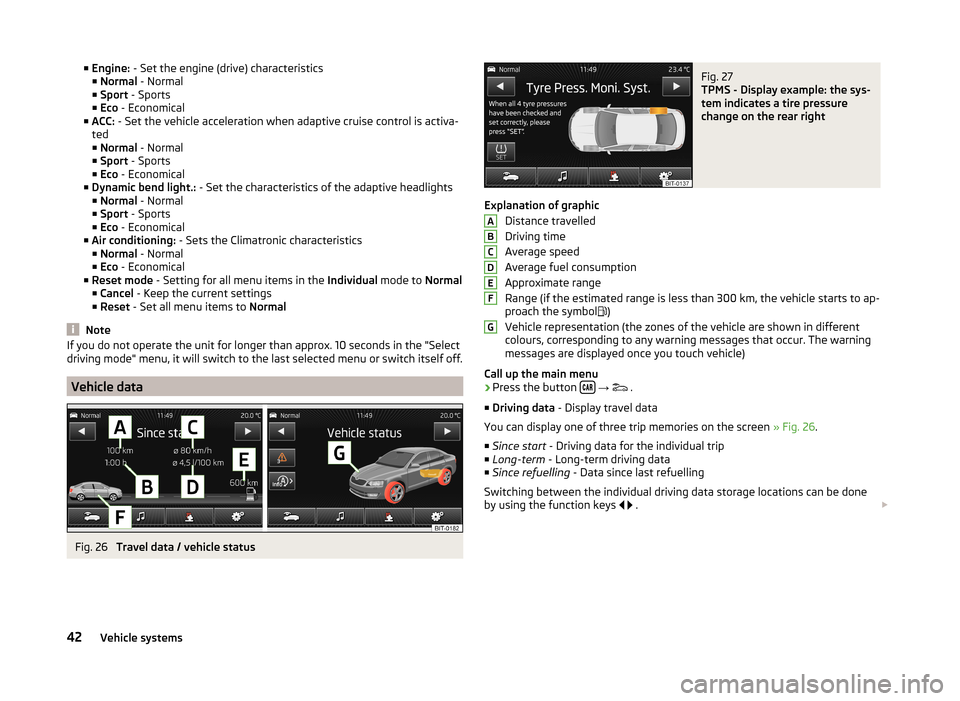
Fig. 26
Travel data / vehicle status
Fig. 27
TPMS - Display example: the sys-
tem indicates a tire pressure
change on the rear right
Explanation of graphic
Distance travelled
Driving time
Average speed
Average fuel consumption
Approximate range
Range (if the estimated range is less than 300 km, the vehicle starts to ap-
proach the symbol )
Vehicle representation (the zones of the vehicle are shown in different
colours, corresponding to any warning messages that occur. The warning
messages are displayed once you touch vehicle)
Call up the main menu
›
Press the button
→
.
■ Driving data - Display travel data
You can display one of three trip memories on the screen » Fig. 26.
■ Since start - Driving data for the individual trip
■ Long-term - Long-term driving data
■ Since refuelling - Data since last refuelling
Switching between the individual driving data storage locations can be done
by using the function keys
.
ABCDEFG42Vehicle systems