bluetooth SKODA OCTAVIA 2014 3.G / (5E) Bolero Car Radio Manual
[x] Cancel search | Manufacturer: SKODA, Model Year: 2014, Model line: OCTAVIA, Model: SKODA OCTAVIA 2014 3.G / (5E)Pages: 54, PDF Size: 3.15 MB
Page 5 of 54
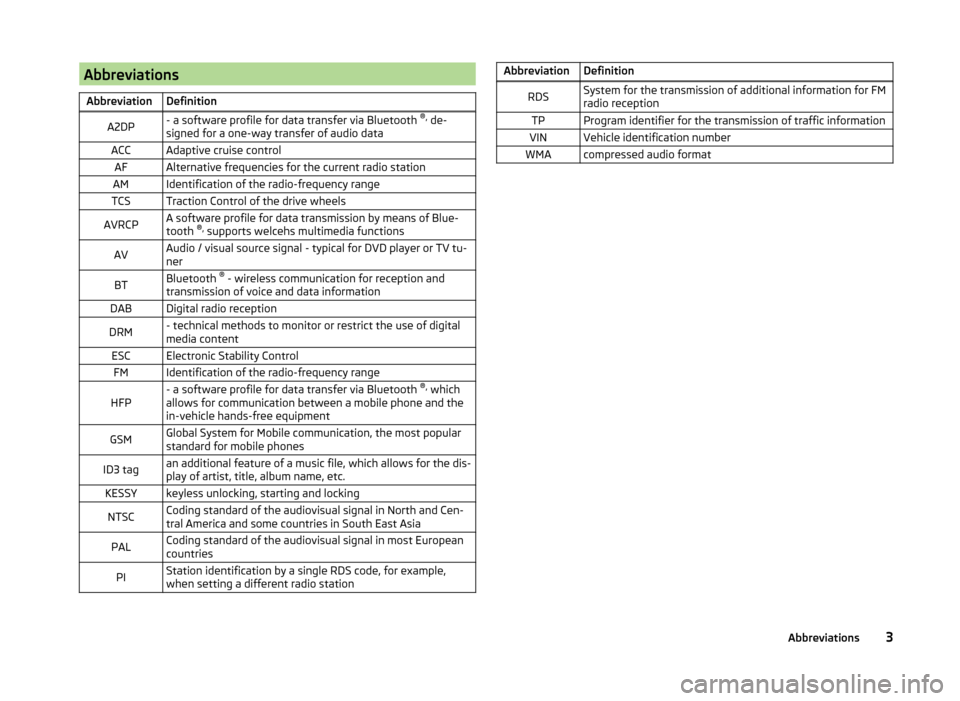
AbbreviationsAbbreviationDefinitionA2DP- a software profile for data transfer via Bluetooth ®,
de-
signed for a one-way transfer of audio dataACCAdaptive cruise controlAFAlternative frequencies for the current radio stationAMIdentification of the radio-frequency rangeTCSTraction Control of the drive wheelsAVRCPA software profile for data transmission by means of Blue-
tooth ®,
supports welcehs multimedia functionsAVAudio / visual source signal - typical for DVD player or TV tu-
nerBTBluetooth ®
- wireless communication for reception and
transmission of voice and data informationDABDigital radio receptionDRM- technical methods to monitor or restrict the use of digital
media contentESCElectronic Stability ControlFMIdentification of the radio-frequency rangeHFP- a software profile for data transfer via Bluetooth ®,
which
allows for communication between a mobile phone and the
in-vehicle hands-free equipmentGSMGlobal System for Mobile communication, the most popular
standard for mobile phonesID3 tagan additional feature of a music file, which allows for the dis-
play of artist, title, album name, etc.KESSYkeyless unlocking, starting and lockingNTSCCoding standard of the audiovisual signal in North and Cen-
tral America and some countries in South East AsiaPALCoding standard of the audiovisual signal in most European
countriesPIStation identification by a single RDS code, for example,
when setting a different radio stationAbbreviationDefinitionRDSSystem for the transmission of additional information for FM
radio receptionTPProgram identifier for the transmission of traffic informationVINVehicle identification numberWMAcompressed audio format3Abbreviations
Page 8 of 54
If Telephone mode was active before you switched off the unit and the igni-
tion and Bluetooth ®
function is not switched on, the screen displays the mes-
sage » page 32 . Switch on the ignition or the Bluetooth ®
function » page 18 .
If the vehicle key is pulled out of the ignition lock while the unit is switched on,
the unit will switch off automatically. After switching on the ignition, the unit
is turned on automatically.
If the device was switched off using the knob
, then the device will not
switch on automatically after switching on the ignition.
If your vehicle is fitted with the KESSY system, the device will switch off auto-
matically after the engine has been turned off and the door opened. If you
open the driver's door before switching off the engine, the device will also
switch off.
When the ignition is switched off, the device switches off automatically after
approx. half an hour (discharge protection of the vehicle battery).
Device menus
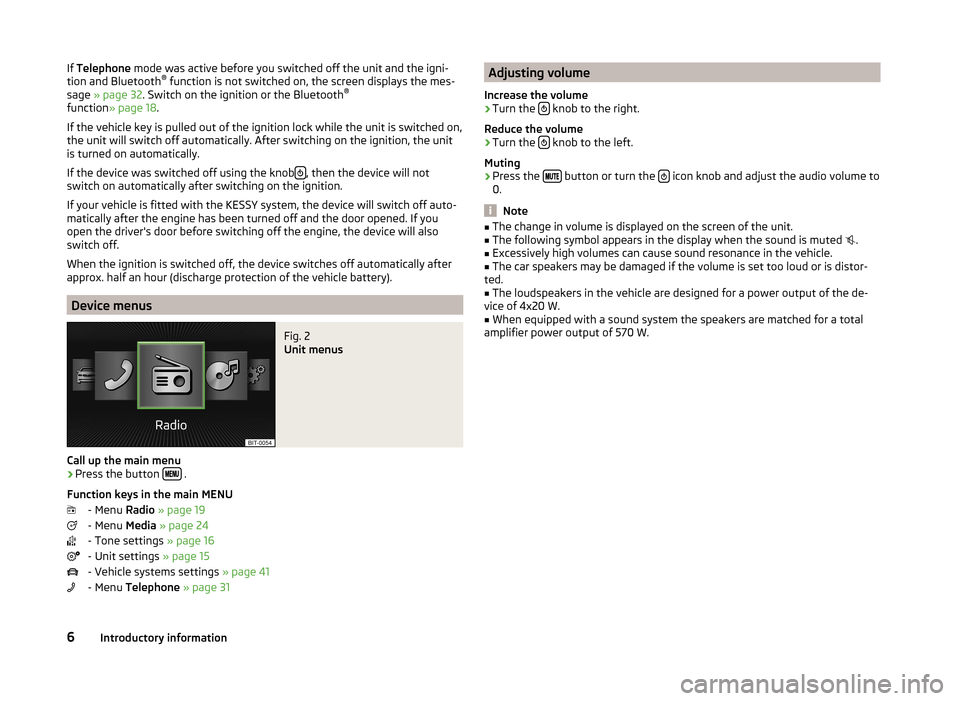
Fig. 2
Unit menus
Call up the main menu
›
Press the button .
Function keys in the main MENU - Menu Radio » page 19
- Menu Media » page 24
- Tone settings » page 16
- Unit settings » page 15
- Vehicle systems settings » page 41
- Menu Telephone » page 31
Adjusting volume
Increase the volume›
Turn the knob to the right.
Reduce the volume
›
Turn the knob to the left.
Muting
›
Press the button or turn the icon knob and adjust the audio volume to
0.
Note
■ The change in volume is displayed on the screen of the unit.■The following symbol appears in the display when the sound is muted .■
Excessively high volumes can cause sound resonance in the vehicle.
■
The car speakers may be damaged if the volume is set too loud or is distor-
ted.
■
The loudspeakers in the vehicle are designed for a power output of the de-
vice of 4x20 W.
■
When equipped with a sound system the speakers are matched for a total
amplifier power output of 570 W.
6Introductory information
Page 17 of 54
device settings
setup menu
Introduction
This chapter contains information on the following subjects:
Main Menu
15
Sound setup
16
Screen settings
16
time and date settings
17
keyboard settings
17
Additional keypad language settings
17
Unit setup
17
Voice control settings
17
restore factory settings
18
Bluetooth ®
-settings
18
First and foremost, pay attention to the safety instructions » page 4 , Impor-
tant notes .
This chapter covers the basic settings of the device.
Additional settings are described in the individual menus ■ Radio » page 22
■ Media » page 25
■ Phone » page 33
■ Vehicle system settings » page 41
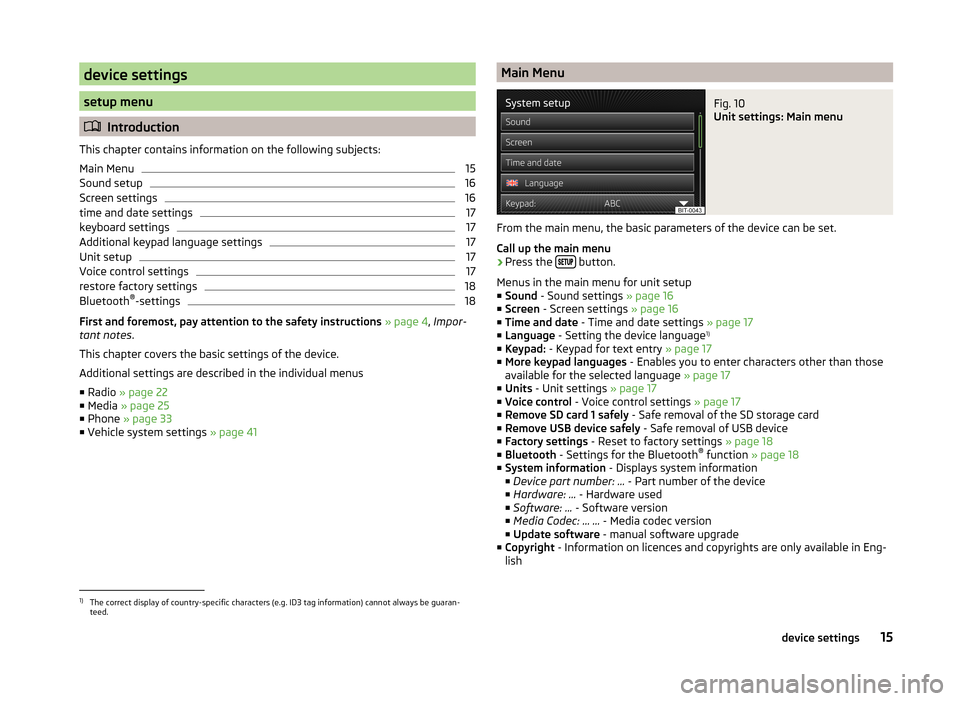
Main MenuFig. 10
Unit settings: Main menu
From the main menu, the basic parameters of the device can be set.
Call up the main menu
›
Press the button.
Menus in the main menu for unit setup
■ Sound - Sound settings » page 16
■ Screen - Screen settings » page 16
■ Time and date - Time and date settings » page 17
■ Language - Setting the device language 1)
■ Keypad: - Keypad for text entry » page 17
■ More keypad languages - Enables you to enter characters other than those
available for the selected language » page 17
■ Units - Unit settings » page 17
■ Voice control - Voice control settings » page 17
■ Remove SD card 1 safely - Safe removal of the SD storage card
■ Remove USB device safely - Safe removal of USB device
■ Factory settings - Reset to factory settings » page 18
■ Bluetooth - Settings for the Bluetooth ®
function » page 18
■ System information - Displays system information
■ Device part number: ... - Part number of the device
■ Hardware: ... - Hardware used
■ Software: ... - Software version
■ Media Codec: … ... - Media codec version
■ Update software - manual software upgrade
■ Copyright - Information on licences and copyrights are only available in Eng-
lish
1)
The correct display of country-specific characters (e.g. ID3 tag information) cannot always be guaran-
teed.
15device settings
Page 18 of 54
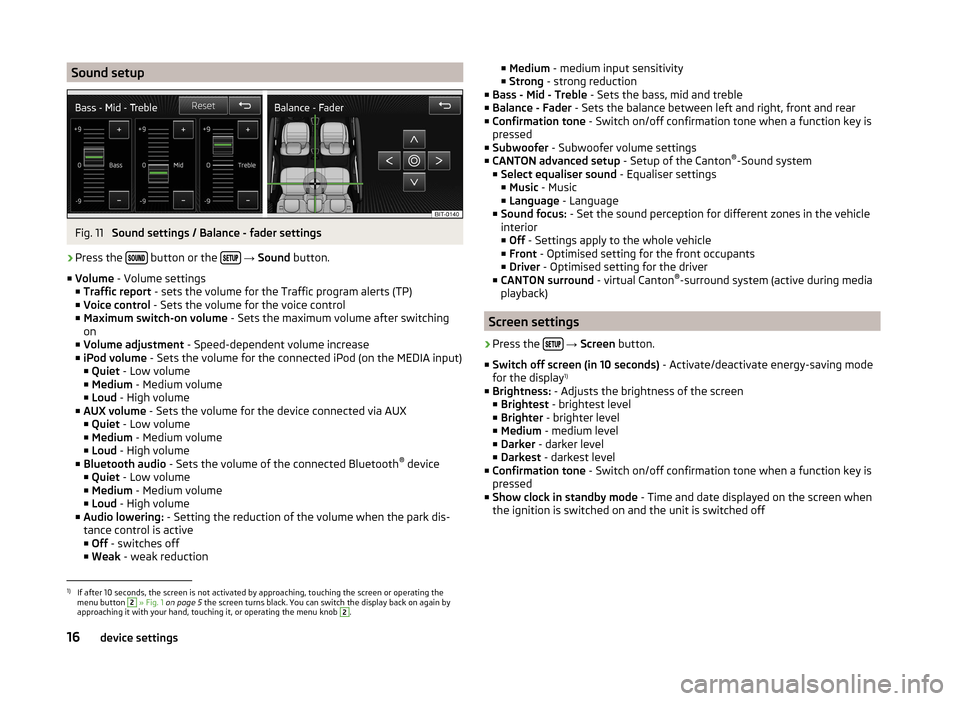
Sound setupFig. 11
Sound settings / Balance - fader settings
›
Press the button or the
→ Sound button.
■ Volume - Volume settings
■ Traffic report - sets the volume for the Traffic program alerts (TP)
■ Voice control - Sets the volume for the voice control
■ Maximum switch-on volume - Sets the maximum volume after switching
on
■ Volume adjustment - Speed-dependent volume increase
■ iPod volume - Sets the volume for the connected iPod (on the MEDIA input)
■ Quiet - Low volume
■ Medium - Medium volume
■ Loud - High volume
■ AUX volume - Sets the volume for the device connected via AUX
■ Quiet - Low volume
■ Medium - Medium volume
■ Loud - High volume
■ Bluetooth audio - Sets the volume of the connected Bluetooth ®
device
■ Quiet - Low volume
■ Medium - Medium volume
■ Loud - High volume
■ Audio lowering: - Setting the reduction of the volume when the park dis-
tance control is active ■ Off - switches off
■ Weak - weak reduction
■
Medium - medium input sensitivity
■ Strong - strong reduction
■ Bass - Mid - Treble - Sets the bass, mid and treble
■ Balance - Fader - Sets the balance between left and right, front and rear
■ Confirmation tone - Switch on/off confirmation tone when a function key is
pressed
■ Subwoofer - Subwoofer volume settings
■ CANTON advanced setup - Setup of the Canton®
-Sound system
■ Select equaliser sound - Equaliser settings
■ Music - Music
■ Language - Language
■ Sound focus: - Set the sound perception for different zones in the vehicle
interior
■ Off - Settings apply to the whole vehicle
■ Front - Optimised setting for the front occupants
■ Driver - Optimised setting for the driver
■ CANTON surround - virtual Canton®
-surround system (active during media
playback)
Screen settings
›
Press the
→ Screen button.
■ Switch off screen (in 10 seconds) - Activate/deactivate energy-saving mode
for the display 1)
■ Brightness: - Adjusts the brightness of the screen
■ Brightest - brightest level
■ Brighter - brighter level
■ Medium - medium level
■ Darker - darker level
■ Darkest - darkest level
■ Confirmation tone - Switch on/off confirmation tone when a function key is
pressed
■ Show clock in standby mode - Time and date displayed on the screen when
the ignition is switched on and the unit is switched off
1)
If after 10 seconds, the screen is not activated by approaching, touching the screen or operating the
menu button
2
» Fig. 1 on page 5 the screen turns black. You can switch the display back on again by
approaching it with your hand, touching it, or operating the menu knob
2
.
16device settings
Page 20 of 54
restore factory settings›
Press the
→ Factory settings button.
■ Restore factory settings - Reset all factory settings
■ Sound - Restore default settings for sound
■ Radio - Restore default settings for radio
■ Vehicle - Restore default settings for the vehicle systems
■ Telephone - Restore default settings for phone
■ Media - Restore default settings for media
■ Voice control - Restore default settings for voice control
■ Bluetooth - Restore default settings for the Bluetooth ®
function
■ System - Restore the system default settings
Bluetooth ®
-settings
›
Press the
→ Bluetooth button.
■ Bluetooth - Bluetooth ®
function on/off
■ Visibility: - Switch on/off the visibility of the Bluetooth ®
device for other de-
vices
■ Visible - Visibility is always on
■ Hidden - Visibility is off
■ At start-up - Turns on visibility for 5 minutes after switching on the ignition
or until the driving speed has exceeded 5 km/h
■ Name: - Open the input screen with keyboard - Chang the device name
■ Paired devices - Display the list of paired Bluetooth ®
devices; connect or de-
lete a paired device; delete the list of paired devices
■ Delete all - Delete all paired Bluetooth ®
devices
■ - Delete the paired Bluetooth ®
device
■ Find devices - Searches for available external devices with enabled Blue-
tooth ®
functions and activated visibility
■ Bluetooth audio (A2DP/AVRCP) - Switch on/off the connection option for
Bluetooth ®
profiles A2DP and AVRCP 1)
1)
A2DP and AVRCP are Bluetooth
®
profiles that support multimedia functions.
18device settings
Page 26 of 54
Media
Operation
Introduction
This chapter contains information on the following subjects:
Main menu
24
Track/folder list
24
Playback
25
Media settings
25
First and foremost, pay attention to the safety instructions » page 4 , Impor-
tant notes .
The device allows you to play audio files in various formats » page 26 from
different data carriers and to connect different source types.
When the signal source has been connected, the device starts to automatically play audio files in alphabetical order.
Types of device operation » page 7 .
› On the device with the operating elements.
› Using the function keys on the unit screen
› Via the Maxi DOT display.
Main menu
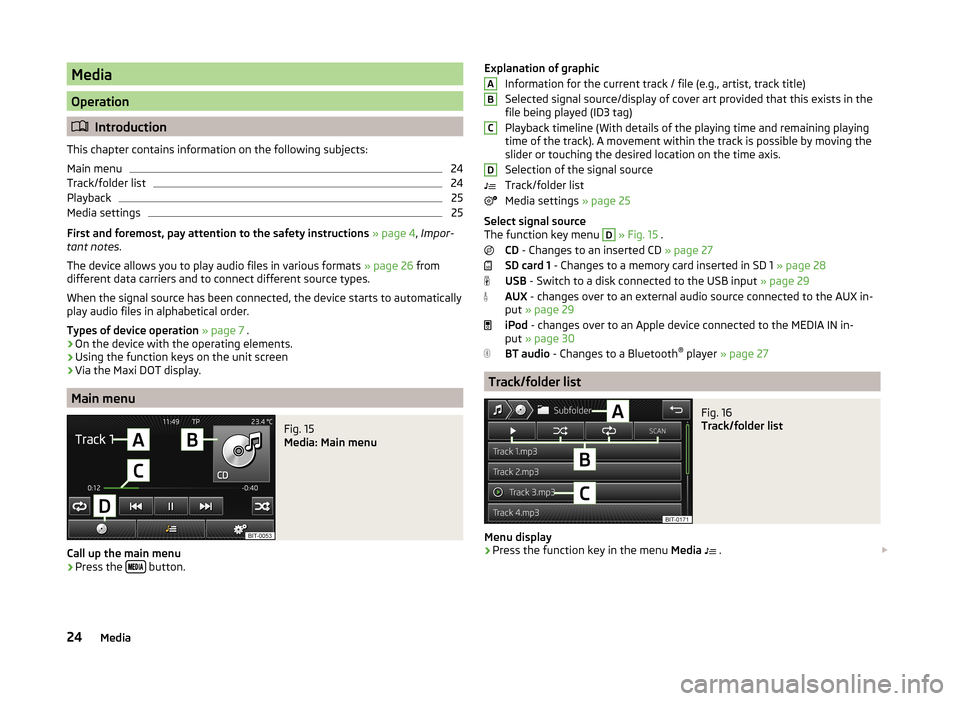
Fig. 15
Media: Main menu
Call up the main menu
›
Press the
button.
Explanation of graphic
Information for the current track / file (e.g., artist, track title)
Selected signal source/display of cover art provided that this exists in the
file being played (ID3 tag)
Playback timeline (With details of the playing time and remaining playing
time of the track). A movement within the track is possible by moving the
slider or touching the desired location on the time axis.
Selection of the signal source
Track/folder list
Media settings » page 25
Select signal source
The function key menu D
» Fig. 15 .
CD - Changes to an inserted CD » page 27
SD card 1 - Changes to a memory card inserted in SD 1 » page 28
USB - Switch to a disk connected to the USB input » page 29
AUX - changes over to an external audio source connected to the AUX in-
put » page 29
iPod - changes over to an Apple device connected to the MEDIA IN in-
put » page 30
BT audio - Changes to a Bluetooth ®
player » page 27
Track/folder list
Fig. 16
Track/folder list
Menu display
›
Press the function key in the menu Media
.
ABCD24Media
Page 27 of 54
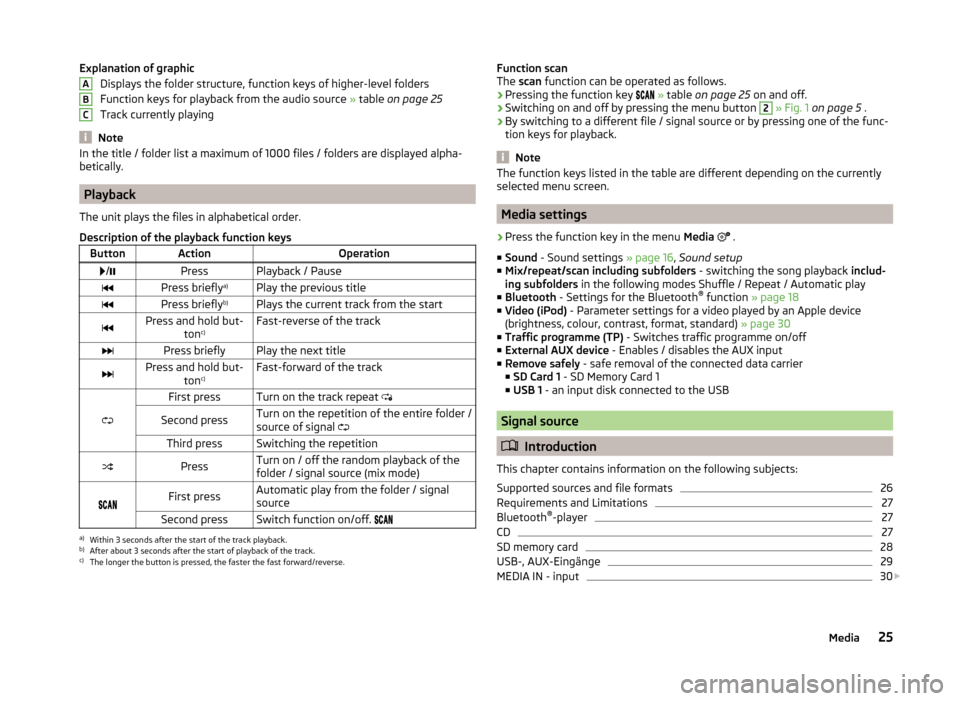
Explanation of graphicDisplays the folder structure, function keys of higher-level folders
Function keys for playback from the audio source » table on page 25
Track currently playing
Note
In the title / folder list a maximum of 1000 files / folders are displayed alpha-
betically.
Playback
The unit plays the files in alphabetical order.
Description of the playback function keys
ButtonActionOperation /PressPlayback / PausePress briefly a)Play the previous titlePress briefly b)Plays the current track from the startPress and hold but-
tonc)Fast-reverse of the trackPress brieflyPlay the next titlePress and hold but-
tonc)Fast-forward of the track
First pressTurn on the track repeat
Second pressTurn on the repetition of the entire folder /
source of signal Third pressSwitching the repetitionPressTurn on / off the random playback of the
folder / signal source (mix mode)
First pressAutomatic play from the folder / signal
sourceSecond pressSwitch function on/off. a)
Within 3 seconds after the start of the track playback.
b)
After about 3 seconds after the start of playback of the track.
c)
The longer the button is pressed, the faster the fast forward/reverse.
ABCFunction scan
The scan function can be operated as follows.
› Pressing the function key
» table on page 25 on and off.
› Switching on and off by pressing the menu button 2
» Fig. 1 on page 5 .
› By switching to a different file / signal source or by pressing one of the func-
tion keys for playback.
Note
The function keys listed in the table are different depending on the currently
selected menu screen.
Media settings
›
Press the function key in the menu Media
.
■ Sound - Sound settings » page 16, Sound setup
■ Mix/repeat/scan including subfolders - switching the song playback includ-
ing subfolders in the following modes Shuffle / Repeat / Automatic play
■ Bluetooth - Settings for the Bluetooth ®
function » page 18
■ Video (iPod) - Parameter settings for a video played by an Apple device
(brightness, colour, contrast, format, standard) » page 30
■ Traffic programme (TP) - Switches traffic programme on/off
■ External AUX device - Enables / disables the AUX input
■ Remove safely - safe removal of the connected data carrier
■ SD Card 1 - SD Memory Card 1
■ USB 1 - an input disk connected to the USB
Signal source
Introduction
This chapter contains information on the following subjects:
Supported sources and file formats
26
Requirements and Limitations
27
Bluetooth ®
-player
27
CD
27
SD memory card
28
USB-, AUX-Eingänge
29
MEDIA IN - input
30
25Media
Page 28 of 54
First and foremost, pay attention to the safety instructions » page 4 , Impor-
tant notes .WARNING■
Never place external signal sources close to the airbags. Loose objects
could hit a deployed airbag and injure occupants – danger of death!■
Never place external signal sources on the console panel. Loose objects
can be thrown forward during a sudden manoeuvre or in case of an acci-
dent and can injure the occupants.
■
Do not place external signal sources while driving in your hand or on your
knees. Loose objects can be thrown forward during a sudden manoeuvre or
in case of an accident and can injure the occupants.
■
Always route the connection cable of the external signal source such that
is does not in any way restrict you when driving.
CAUTION
We recommend that you do not store any important data on CD media, Blue-
tooth ®
players, to an SD memory card or connected external devices. The
ŠKODA Partner is not responsible for damage due to the loss of data stored on
these storage devices.
Note
For some external devices, the setting of the output volume can be changed.
Supported sources and file formats
Read and observe
and on page 26 first.
Supported audio sources
SD memory cardSD, SDHC, SDXCCD driveAudio CD (up to 80 min), CD-R and CD-RW (with a capacity
of up to 700 MB)USB devicesUSB stick, USB MP3 player, HDD (without special soft-
ware)Specifications for USB devicesUSB 1.x and 2.x or higher, supported by USB 2.x (the
speed of data transmission corresponds to the maximum
speed of USB 2.x )
Max. speed of 480 Mb/sSpecification Bluetooth ®
-
PlayerBluetooth protocolsA2DPand AVRCP (1.0 - 1.3)Other external sourcesPortable player (e.g., iPod ®
, iPad ®
, iPhone ®
, MTP player,
(MSC))
Formats of audio files
File system
SD memory card
FAT16, VFAT, FAT32
USB flashdriveCDISO9660, joliet (Level 1,2,3), UDF 1.x, UDF
2.xCodec type
(File formats)MPEG-1/2 (Layer-3)Windows
Media Audio 7, 8 and 9MPEG -2/4WAVFile suffixmp3wmaasfaacwavPlaylistsm3u, pls, wpl, m3u8; asxFile
propertiesbit ratemax. 320 kb/ssampling ratemax. 48 kHzPictures on thealbum coversImage resolution up to 500 x 500 pixels (200 kb) (jpg,
jpeg, png, bmp, gif), depending on the availability of al-
bum covers they are displayed on the respective media
CAUTION
■ At the time of publication, the device has been tested with most products
and media available in the various markets up to a size of max. 32 GB. Howev-
er, it is possible that some external devices, media or files are unreadable or
unplayable.■
The GPT Standards (GUID Partition Table) method structured signal sources
are not supported by the device.
26Media
Page 29 of 54
Requirements and LimitationsRead and observe
and on page 26 first.
The name of the artist, the album and the title of the played file can be dis-
played if the information is available as a so-called ID3 tag. If no ID3 tag is
available, only the folder name is displayed.
For good playback, we recommend, at a bit rate of at least 160 kb/s using com-
pressed MP3 files.
For audio files with variable bitrates, the indicated remaining playback time
does not correspond to the actual remaining playback time.
Files that are protected by Digital Rights Management (DRM) technology can-
not be played back by the device.
Bluetooth ®
-player
Read and observe
and on page 26 first.
The device makes a wireless connection (pairing) to the Bluetooth ®
player pos-
sible.
›
For connecting follow the same instructions as for pairing the device with a
telephone » page 34.
Note
■
We recommend adjusting the volume on the portable player to the maximum
level.■
The volume can also be adjusted by setting the input sensitivity of the unit
for Bluetooth ®
player » page 16 , Sound setup .
■
The supported media functions are dependent on the type of Bluetooth ®
player used.
CDFig. 17
CD slot
Read and observe
and on page 26 first.
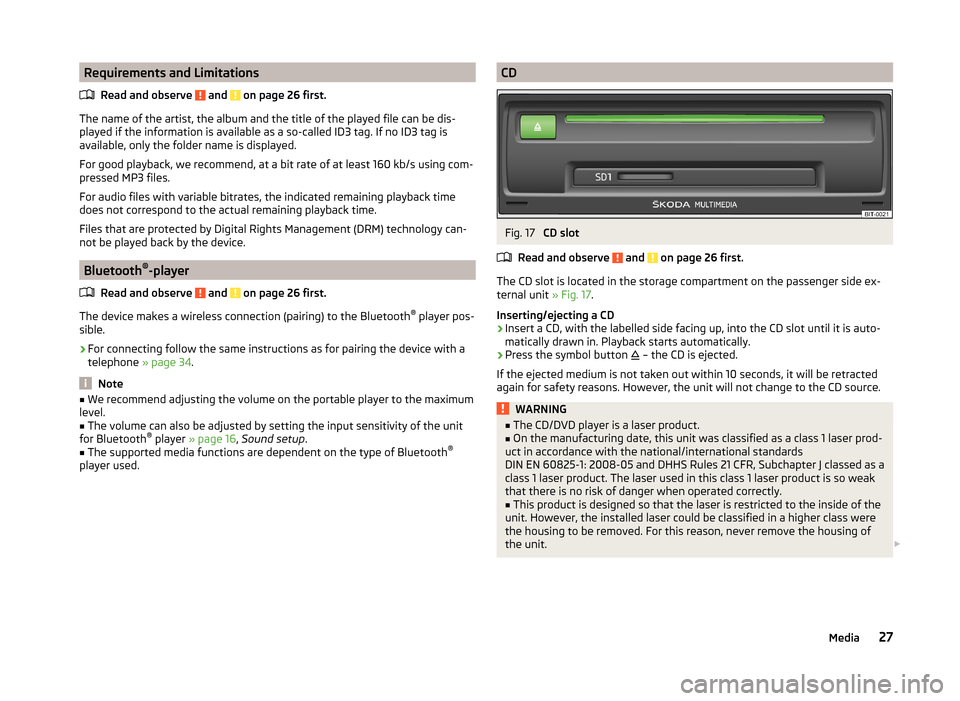
The CD slot is located in the storage compartment on the passenger side ex-
ternal unit » Fig. 17.
Inserting/ejecting a CD
›
Insert a CD, with the labelled side facing up, into the CD slot until it is auto-
matically drawn in. Playback starts automatically.
›
Press the symbol button – the CD is ejected.
If the ejected medium is not taken out within 10 seconds, it will be retracted again for safety reasons. However, the unit will not change to the CD source.
WARNING■ The CD/DVD player is a laser product.■On the manufacturing date, this unit was classified as a class 1 laser prod-
uct in accordance with the national/international standards
DIN EN 60825-1: 2008-05 and DHHS Rules 21 CFR, Subchapter J classed as a class 1 laser product. The laser used in this class 1 laser product is so weak
that there is no risk of danger when operated correctly.■
This product is designed so that the laser is restricted to the inside of the
unit. However, the installed laser could be classified in a higher class were
the housing to be removed. For this reason, never remove the housing of
the unit.
27Media
Page 33 of 54
Communication
Telephones and two-way radio systems
Introduction
This chapter contains information on the following subjects:
Introductory information
31
Main menu
32
Problems with the Telephone function
32
Phonebox
33
Settings
33
The Telephone menu is available when the following conditions are met.
The ignition is switched on.
The Bluetooth ®
function on the device is switched on.
After the device is switched on, the system attempts to connect to the most recently connected phone 1)
.
If a telephone is connected to the device and the device is turned off, the con-
nection is not dropped to the phone. The connection is lost after switching off
the ignition (for vehicles with the system KESSY after switching off the ignition
and opening the driver's door).
WARNING■ The national legal regulations for using a mobile phone in a vehicle must
be observed.■
If a mobile phone or a two-way radio system is operated in a vehicle with-
out an external aerial or with an incorrectly installed external aerial, this
can increase the strength of the electromagnetic field inside the vehicle.
■
Two-way radio systems, mobile phones or mounts must not be installed
on airbag covers or within the immediate deployment range of the airbags.
WARNING (Continued)■ Never leave a mobile phone on a seat in the airbag deployment area, on
the dash panel or in another area, from which it can be thrown during a
sudden braking manoeuvre, an accident or a collision - risk of injury. There
are multimedia storage compartments with lid holder to safely store
these, » vehicle Owner's Manual , chapter Practical equipment.■
Before transport of the vehicle by air, the Bluetooth ®
function must be
switched off by a specialist company.
CAUTION
■ In areas with no signal and possibly in tunnels, garages and subways a tele-
phone conversation can be interrupted and no telephone connection can be
established - not even in an emergency!■
The range of the Bluetooth ®
connection to the hands-free system is limited
to the vehicle interior. The range is dependent on local conditions, e.g. obsta-
cles between the devices and mutual interferences with other devices. If your
phone is in a jacket pocket, for example, this can lead to difficulties when es-
tablishing a connection with the device or transferring data.
Introductory information
Read and observe
and on page 31 first.
The device allows for a wireless connection to the phone. Your phone can be
operated from this unit.
ŠKODA permits the operation of phones and two-way radio systems with a
professionally installed external aerial and a maximum transmission power of
up to 10 watts.
Please ask at a specialist workshop about installing and operating phones and
two-way radio systems that have a transmission power of more than 10 W.
Operating phones or two-way radio systems may interfere with the functional-
ity of the electronic systems in your vehicle.
1)
With some phones, it is necessary to set the connection to the device as "authorised" in order for the
automatic connection to be successful. If this is not set, the system will prompt you for a confirmation
each time you attempt to connect to the phone.
31Communication