USB SKODA OCTAVIA 2016 3.G / (5E) User Guide
[x] Cancel search | Manufacturer: SKODA, Model Year: 2016, Model line: OCTAVIA, Model: SKODA OCTAVIA 2016 3.G / (5E)Pages: 324, PDF Size: 48.85 MB
Page 142 of 324
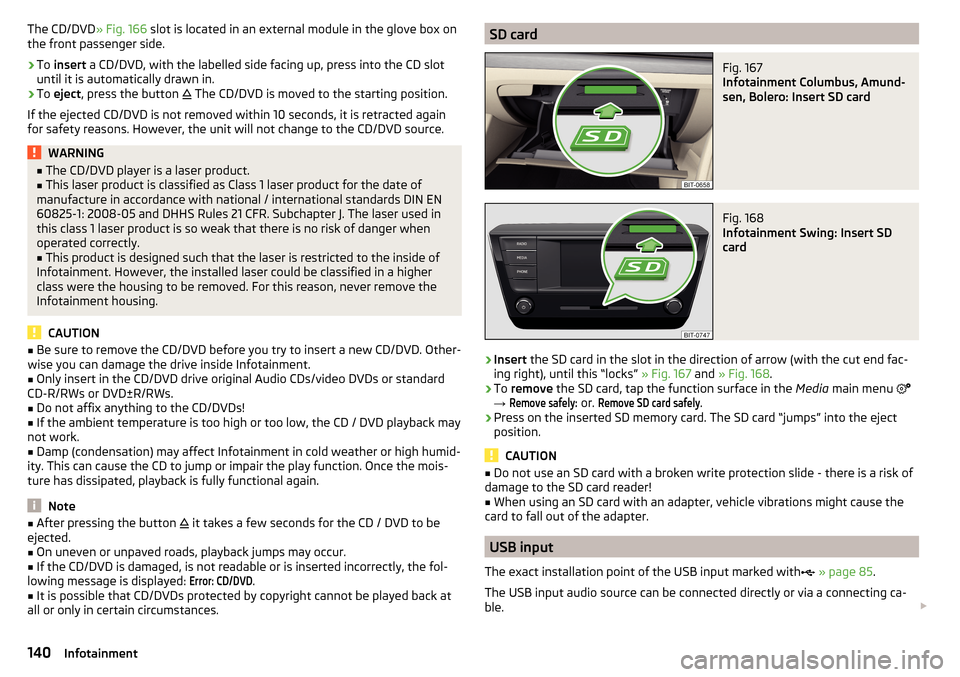
The CD/DVD» Fig. 166 slot is located in an external module in the glove box on
the front passenger side.›
To insert a CD/DVD, with the labelled side facing up, press into the CD slot
until it is automatically drawn in.
›
To eject , press the button
The CD/DVD is moved to the starting position.
If the ejected CD/DVD is not removed within 10 seconds, it is retracted again
for safety reasons. However, the unit will not change to the CD/DVD source.
WARNING■ The CD/DVD player is a laser product.■This laser product is classified as Class 1 laser product for the date of
manufacture in accordance with national / international standards DIN EN 60825-1: 2008-05 and DHHS Rules 21 CFR. Subchapter J. The laser used in
this class 1 laser product is so weak that there is no risk of danger when
operated correctly.■
This product is designed such that the laser is restricted to the inside of
Infotainment. However, the installed laser could be classified in a higher
class were the housing to be removed. For this reason, never remove the
Infotainment housing.
CAUTION
■ Be sure to remove the CD/DVD before you try to insert a new CD/DVD. Other-
wise you can damage the drive inside Infotainment.■
Only insert in the CD/DVD drive original Audio CDs/video DVDs or standard
CD-R/RWs or DVD±R/RWs.
■
Do not affix anything to the CD/DVDs!
■
If the ambient temperature is too high or too low, the CD / DVD playback may
not work.
■
Damp (condensation) may affect Infotainment in cold weather or high humid-
ity. This can cause the CD to jump or impair the play function. Once the mois-
ture has dissipated, playback is fully functional again.
Note
■ After pressing the button it takes a few seconds for the CD / DVD to be
ejected.■
On uneven or unpaved roads, playback jumps may occur.
■
If the CD/DVD is damaged, is not readable or is inserted incorrectly, the fol-
lowing message is displayed:
Error: CD/DVD
.
■
It is possible that CD/DVDs protected by copyright cannot be played back at
all or only in certain circumstances.
SD cardFig. 167
Infotainment Columbus, Amund-
sen, Bolero: Insert SD card
Fig. 168
Infotainment Swing: Insert SD
card
›
Insert the SD card in the slot in the direction of arrow (with the cut end fac-
ing right), until this “locks” » Fig. 167 and » Fig. 168 .
›
To remove the SD card, tap the function surface in the Media main menu
→
Remove safely:
or.
Remove SD card safely
.
›
Press on the inserted SD memory card. The SD card “jumps” into the eject
position.
CAUTION
■ Do not use an SD card with a broken write protection slide - there is a risk of
damage to the SD card reader!■
When using an SD card with an adapter, vehicle vibrations might cause the
card to fall out of the adapter.
USB input
The exact installation point of the USB input marked with
» page 85 .
The USB input audio source can be connected directly or via a connecting ca-
ble.
140Infotainment
Page 143 of 324
›To
connect , insert the USB audio source into the appropriate input.›To disconnect the USB, tap on the Media main menu function surface →
Remove safely:
or.
Remove USB Safely
.
›
Disconnect the audio source from the corresponding USB input.
Load USB audio source
With Infotainment on after connecting the USB audio source, the charging
process is automatically started (applies for audio sources where charging via
the USB connector is possible).
The charging efficiency can differ compared to charging from the usual mains
power supply.
Depending on the type of the connected external device and the frequency of
use, the charging current may not be sufficient to charge the battery of the
connected device.
Some connected audio sources may not be recognised and cannot be charged.
CAUTION
USB extension cords, or reducers may impair the function of the connected au-
dio source.
Note
We recommend that you use extension cords from ŠKODA Original Accesso-
ries.
AUX - input
The exact installation point of the AUX input
marked with » page 85.
›
To connect , insert the plug of the AUX audio source into the appropriate con-
nector.
›
To disconnect , pull the plug out of the AUX audio source.
CAUTION
■
The AUX input must only be used for audio devices!■If an external audio source is connected to the AUX input, which is equipped
with an adapter for external power supply, the sound may be impaired.
Note
■ The 3.5 mm stereo jack plug is used for the AUX input.■We recommend that you use extension cords from ŠKODA Original Accesso-
ries.Bluetooth ®
player
Infotainment allows audio files of a connected Bluetooth ®
player to play using
the A2DP and AVRCP audio profile.
With Infotainment, multiple devices can be paired using Bluetooth ®
, but only
one of them can be used as a Bluetooth ®
player.
Connect / disconnect›
To connect the Bluetooth ®
player with Infotainment- follow the same in-
structions as for pairing Infotainment with a telephone » page 153.
›
To disconnect the Bluetooth ®
player, end the connection in the list of paired
external devices » page 153.
Replace Bluetooth ®
player (applies to Infotainment Amundsen, Bolero)
If you would like to replace a Bluetooth ®
-Player which is connected to Info-
tainment as a phone at the same time, , then a relevant information message
appears on the Infotainment screen.
›
End the connection to the currently connected Bluetooth ®
player and repeat
the pairing procedure » page 153, Managing paired external devices .
CAUTION
If an external device is connected to Infotainment using Apple CarPlay or
Android Auto, then it cannot be connected using Bluetooth ®
.
Jukebox
Only valid for Infotainment Columbus.
In the Jukebox (in the Infotainment internal memory), supported audio / video files can be imported from connected external devices.
Import files
›
Tap the function surface in the Media main menu
→
Manage jukebox
→
Im-port
.
›
Select the desired source.
›
Select the desired folders or files.
›
Tap on the function surface
.
Delete files
›
Tap the function surface in the Media main menu
→
Manage jukebox
→
De-lete
.
›
Select the desired folder or files in the selected category.
›
Tap the function surface
→
Delete
.
141Media
Page 144 of 324
Show level of Infotainment memory›Tap the function surface in the Media main menu →
Manage jukebox
.
information about the occupied and free space of the Infotainment memory
and the number of files that cannot be imported is displayed.
Note
■ Files that have already been copied are recognised and cannot be copied
again (shown in grey).■
It is not possible to copy files while simultaneously playing back audio/video
files in the CD/DVD drive.
WLAN
Applies to Infotainment Columbus, Amundsen.
Infotainment allows you to play audio files from one of the external devices
connected to the Infotainment WLAN.
›
Connect an external device that supports the DLNA (Digital Living Network
Alliance), with Infotainment WLAN » page 163.
›
If necessary use the UPnP application (Universal Plug and Play) in the con-
nected device, which allows playback to start.
›
Select the audio source Select
WLAN
.
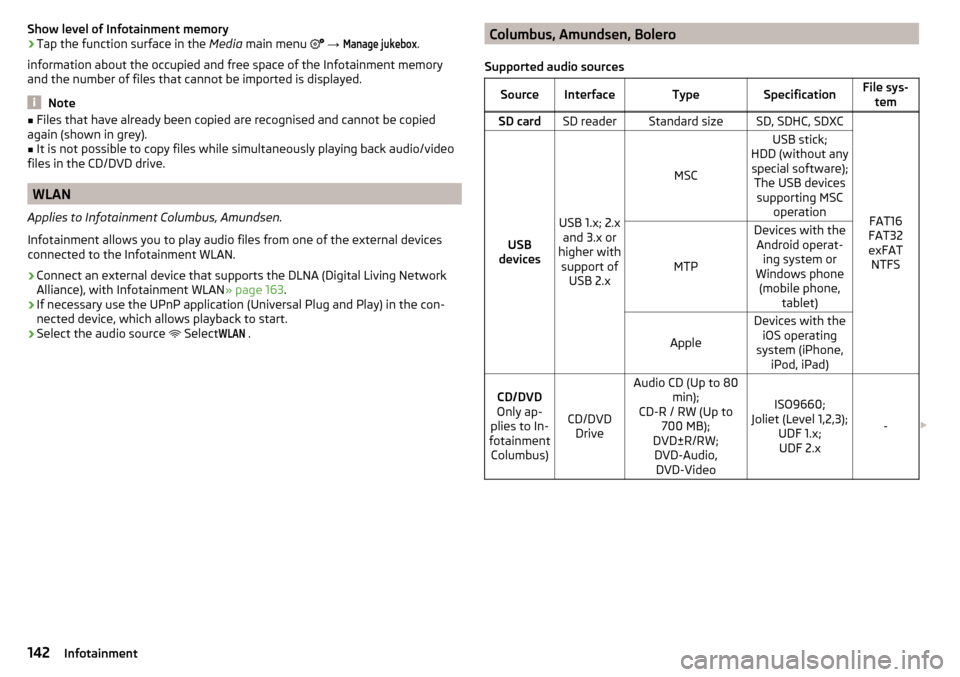
Columbus, Amundsen, Bolero
Supported audio sourcesSourceInterfaceTypeSpecificationFile sys- temSD cardSD readerStandard sizeSD, SDHC, SDXC
FAT16
FAT32
exFAT NTFSUSB
devices
USB 1.x; 2.x and 3.x or
higher with support of USB 2.x
MSC
USB stick;
HDD (without any special software); The USB devicessupporting MSC operation
MTP
Devices with theAndroid operat- ing system or
Windows phone (mobile phone, tablet)
Apple
Devices with theiOS operating
system (iPhone, iPod, iPad)CD/DVD
Only ap-
plies to In-
fotainment Columbus)
CD/DVD Drive
Audio CD (Up to 80 min);
CD-R / RW (Up to 700 MB);
DVD±R/RW; DVD-Audio, DVD-Video
ISO9660;
Joliet (Level 1,2,3); UDF 1.x;UDF 2.x
-
142Infotainment
Page 145 of 324

Supported audio file formatsCodec type
(File formats)File suffixMax bit rateMaximumsampling rateMulti
channels a)PlaylistsWindows Media
Audio
9 and 10wma384 kbit / s
96 kHz
no
m3upls
wpl
m3u8 asx
WAVwav
Defined bythe format (approx.
1.5 Mbit/s)MPEG-1; 2 and 2.5
Layer 3mp3320 kbit / s
48 kHz
MPEG-2 and 4aac; mp4;m4a
yes
FLAC;
Vorbisflac; ogg
Defined by the format (approx.
5.5 Mbit/s)a)
Applies to the CANTON sound system.
The GPT standards (GUID partition table) method structured audio sources are
not supported by Infotainment.
Files that are protected by Digital Rights Management (DRM) technology can-
not be played back by Infotainment.
Supported audio sources and file formats - Swing
Supported audio sourcesSourceInterfaceTypeSpecificationFile systemSD cardSD readerStandard sizeSD, SDHC, SDXC
FAT16VFAT
FAT32
exFATUSB
devices
USB 1.x; 2.x and 3.x or
higher with support of USB 2.x
MSC
USB stick;
HDD (without any spe- cial software);
The USB devices sup-
porting MSC operation
MTP
Devices with the An-
droid operating system or Windows mobile
(mobile phone, tablet)AppleDevices with the iOS operating system
(iPhone, iPod, iPad)Bluetooth ®
Player--Bluetooth protocols
A2DP and AVRCP (1.0 - 1.4)-
Supported audio file formats
Codec type
(File formats)File suffixMax bit rateMaximum sampling ratePlaylistsWindows MediaAudio 9 and 10wma384 kbit / s96 kHzm3u pls
wpl asxMPEG-1; 2 and 2.5 (Layer-3)mp3320 kbit / s48 kHz
The GPT standards (GUID partition table) method structured audio sources are
not supported by Infotainment.
Files that are protected by Digital Rights Management (DRM) technology can-
not be played back by Infotainment.
143Media
Page 147 of 324

Supported image file formats and sources
Supported image sourcesSourceTypeSpecificationFile systemSD cardStandard sizeSD, SDHC, SDXCFAT16 VFAT
FAT32
exFAT NTFS
USB devicesUSB stick;
HDD (without
special software)USB 1.x; 2.x and
3.x or higher with support of USB 2.xCD / DVD (Applies
to Infotainment Co- lumbus)CD-R / RW (Up to700 MB);
DVD±R/RWISO9660;
Joliet (Level 1,2,3); UDF 1.x;UDF 2.x
-
Supported file formats
Codec type
(File formats)File suffixMax. resolution (Megapixels)BMPbmp4JP (E) Gjpg; jpeg4; 64GIFgif4PNGpng4
Note
■ The max. supported image size is 20 MB.■The GPT standards (GUID partition table) method structured images sources
are not supported by Infotainment.Video DVD
Video player
Main menu
Only valid for Infotainment Columbus.
Fig. 170
DVD: Main menu
›
to display the main menu, insert a CD / DVD in the corresponding slot in the
external module.
›
or: In the main menu Media, select the video source, display the folder / track
list and start the video file.
Main menu » Fig. 170
Select a video source
Playback timeline
Information for the selected video file (e.g., video title, chapter)
Display the DVD menu
Video DVD menu settings
Note
For safety reasons, the image display is switched off at speeds over 5 km/h.
Only the sound continues. The respective message appears on the screen.
Control playback
OperationActionPlay / PauseTap /Play the previous videoTap within 3 s from the start of the
track playback ABC145Video DVD
Page 148 of 324
OperationActionPlay the current video from the startTap after 3 s after the start of the
playbackFast rewindPress and hold a)Play the next videoTap
Fast forwardPress and hold a)Forward / rewind the video at the de-
sired timeTapping the reproduction timelineB
» Fig. 170 on page 145
a)
The longer the function surface is held, the faster the fast forward/reverse.
DVD menu
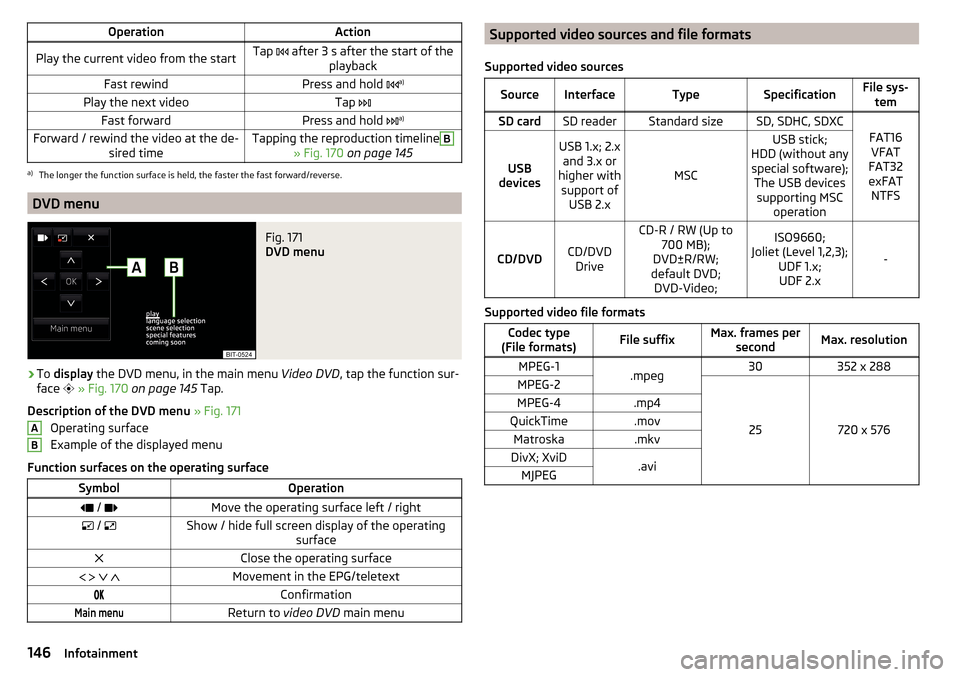
Fig. 171
DVD menu
›
To display the DVD menu, in the main menu Video DVD, tap the function sur-
face
» Fig. 170 on page 145 Tap.
Description of the DVD menu » Fig. 171
Operating surface
Example of the displayed menu
Function surfaces on the operating surface
SymbolOperation / Move the operating surface left / right / Show / hide full screen display of the operating
surfaceClose the operating surface Movement in the EPG/teletextConfirmationMain menuReturn to video DVD main menuABSupported video sources and file formats
Supported video sourcesSourceInterfaceTypeSpecificationFile sys- temSD cardSD readerStandard sizeSD, SDHC, SDXC
FAT16VFAT
FAT32
exFAT NTFSUSB
devices
USB 1.x; 2.x and 3.x or
higher with support of USB 2.x
MSC
USB stick;
HDD (without any special software); The USB devicessupporting MSC operation
CD/DVDCD/DVDDrive
CD-R / RW (Up to 700 MB);
DVD±R/RW;
default DVD; DVD-Video;ISO9660;
Joliet (Level 1,2,3); UDF 1.x;UDF 2.x
-
Supported video file formats
Codec type
(File formats)File suffixMax. frames per secondMax. resolutionMPEG-1.mpeg30352 x 288MPEG-2
25720 x 576
MPEG-4.mp4QuickTime.movMatroska.mkvDivX; XviD.aviMJPEG146Infotainment
Page 167 of 324
SmartLink
Introductory information
Introduction to the subject
Applies to Infotainment Columbus, Amundsen, Bolero.
Fig. 195
Information on SmartLink on the
ŠKODA websites
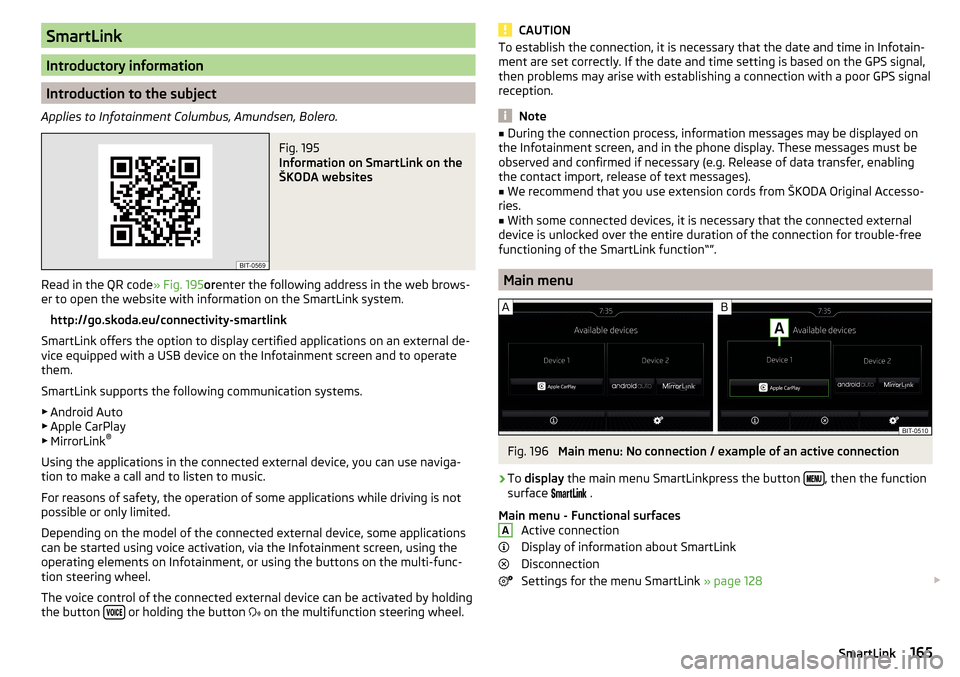
Read in the QR code » Fig. 195orenter the following address in the web brows-
er to open the website with information on the SmartLink system.
http://go.skoda.eu/connectivity-smartlink
SmartLink offers the option to display certified applications on an external de-
vice equipped with a USB device on the Infotainment screen and to operate
them.
SmartLink supports the following communication systems. ▶ Android Auto
▶ Apple CarPlay
▶ MirrorLink ®
Using the applications in the connected external device, you can use naviga-
tion to make a call and to listen to music.
For reasons of safety, the operation of some applications while driving is not
possible or only limited.
Depending on the model of the connected external device, some applications
can be started using voice activation, via the Infotainment screen, using the
operating elements on Infotainment, or using the buttons on the multi-func-
tion steering wheel.
The voice control of the connected external device can be activated by holding
the button
or holding the button
on the multifunction steering wheel.
CAUTIONTo establish the connection, it is necessary that the date and time in Infotain-
ment are set correctly. If the date and time setting is based on the GPS signal,
then problems may arise with establishing a connection with a poor GPS signal
reception.
Note
■ During the connection process, information messages may be displayed on
the Infotainment screen, and in the phone display. These messages must be
observed and confirmed if necessary (e.g. Release of data transfer, enabling
the contact import, release of text messages).■
We recommend that you use extension cords from ŠKODA Original Accesso-
ries.
■
With some connected devices, it is necessary that the connected external
device is unlocked over the entire duration of the connection for trouble-free
functioning of the SmartLink function“”.
Main menu
Fig. 196
Main menu: No connection / example of an active connection
›
To display the main menu SmartLinkpress the button , then the function
surface
.
Main menu - Functional surfaces Active connection
Display of information about SmartLink
Disconnection
Settings for the menu SmartLink » page 128
A165SmartLink
Page 168 of 324
Connection set-up▶ Connect the external device via a connecting cable to the USB input
» page 85 .
▶ In the main menu SmartLink Choose the connected external device and the
type of communication system if necessary » Fig. 196 -
.
Return to the main menu of the active connection from another Infotainment
menu
(E.g. From the Radio menu)
▶ Press the button
and select the active connection.
Disconnection
▶ To end the connection, tap on the function surface in the main menu
SmartLink
» Fig. 196 -
.
▶ or Disconnect the device from the USB input.
If the connection was ended by tapping on the function surface from the
main menu SmartLink, the connection needs to be re-established when the
external device is connected again.
If the connection was terminated by disconnecting the cable from the USB
port, then the last active connection is shown in the main menu when the ex-
ternal device is reconnected.
Android Auto
Introduction to the subject
The Android Auto- connection can be set up under the following conditions. The ignition is switched on.
Infotainment is switched on.
The external device to be connected is switched on.
Some applications require the data connection in the connected external de-
vice to be turned on.
If Infotainment is connected to an external device via Android Auto then all the
phones currently connected, as well as the Bluetooth ®
players are disconnec-
ted.
The external device to be connected will automatically establish a telephone
connection via Bluetooth ®
as a main phone. Connecting an additional tele-
phone and using telephone services of the SIM card in the external module are
not possible for the duration of the connection. A possible data connection us-
ing the SIM card inserted in the external module remains operational
» page 164 .
An external device connected using Android Auto cannot be used as an audio source in the menu Media.
If route guidance is taking place at this moment in Infotainment, then there is
the option to start the route guidance in the Android Auto application. This is
also true reciprocally.
A list of devices and applications that the Android Autoconnection supports
can be found on the Google websites. Functionality is not guaranteed outside
of the supported regions.
Home Page
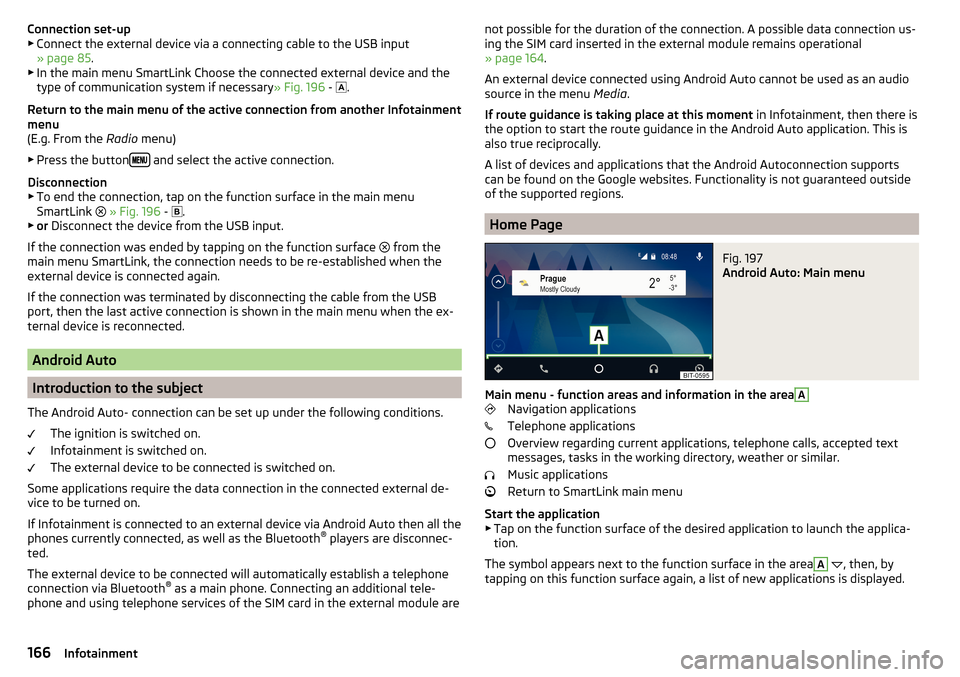
Fig. 197
Android Auto: Main menu
Main menu - function areas and information in the area
A
Navigation applications
Telephone applications
Overview regarding current applications, telephone calls, accepted text
messages, tasks in the working directory, weather or similar.
Music applications
Return to SmartLink main menu
Start the application ▶ Tap on the function surface of the desired application to launch the applica-
tion.
The symbol appears next to the function surface in the area
A
, then, by
tapping on this function surface again, a list of new applications is displayed.
166Infotainment
Page 177 of 324
Delete home address›In the Navigation main menu, tap on the function surface →
Manage memo-ry
→
Delete user data
→
Home address
.
›
Tap the function surface
Delete
and confirm the deletion.
Import my destinations
Introduction to the subject
Fig. 209
MyDestination application on the
ŠKODA websites
In this chapter, destinations are described which can be imported into the Info-
tainment memory.
Custom destinations can be created using the ŠKODA application
“MyDestination”.
By reading the QR code » Fig. 209 or after typing the following address in the
web browser, more information on the “MyDestination”application is displayed.
http://go.skoda.eu/my-destination
Custom destination in vCard-format
In the Infotainment memory, a custom destination can be imported in the
vCard format (*.vcf) from an SD card or a USB source.
Import
›
Insert the SD card into the exernal module or connect a USB source with the
file of the custom destination.
›
In the Navigation main menu, tap on the function surface
→
Manage memo-ry
→
Import destinations (SD/USB)
.
›
Select the source and confirm the import.
Route guidance›In the Navigation main menu, tap on the function surface →
Destinations
→
→
.›
Search for and select the desired imported destination.
Delete own destination
›
In the Navigation main menu, tap on the function surface
→
Destinations
→
→
.
›
Tap on the function surface
Tap on the desired own destination.
›
In the destination details, tap the function surface
Edit
→
Delete
and confirm
the deletion.
Own POI categories (My POIs)
Import / update
›
Insert the SD card into the external module or connect a USB source with the
POI categories.
›
In the Navigation main menu, tap on the function surface
→
Manage memo-ry
→
Update My POIs (SD / USB)
→
Update
.
›
Select the source and confirm the import.
If there is already the same POI category name in the Infotainment memory,
then it will be overwritten during the import.
Show own category destinations in the map
›
In the Navigation main menu, tap on the function surface
→
Map
→
Selectcategories for POIs
→
My points of interest (Personal POI)
.
Clear all own POI categories
›
In the Navigation main menu, tap on the function surface
Tap on
→
Managememory
→
Delete my POIs
→ Delete.
›
Tap the function surface
Delete
and confirm the deletion.
175Navigation
Page 310 of 324
Road sign178
Show POI176
|Alignment177
MAXI DOT See MAXI DOT display
46
MAXI DOT display Assist systems menu item
47
Audio menu item46
Lap timer47
Main menu46
Navigation menu item46
Operation43
Stop watch47
Telephone menu item47
Maximum speed296
MCB202
Mechanical window lifter open/close
59
media Compatible sources
142, 143
file formats142, 143
Requirements and Restrictions142, 143
Media Audio source
139
AUX85, 141
Bluetooth Audio141
Browser138
CD / DVD139
Foreword136
Jukebox141
List138
Main menu136
Multimedia database139
Operation136
Playback operation137
safe removal of the data source124
Safe removal of the data source130
SD card140
Select audio source137
Settings126
Set to132
USB85, 140
Voice control119
WLAN142
Media Command Control
148
Main menu147
Supported formats148
Memory45
Memory Function for the seat77
Menu Setup
122, 130
Mirror73
Vanity71
MirrorLink®167
Connection establishment168
Disconnection168
Function issues168
Main menu168
Operation168
MODE button See driving mode
221
Modes of the automatic transmission194
Modifications and technical alterations240
Most common routes181
MSR201
Multi-function pocket100
Multi-media AUX
141
Multicollision brake (MCB)202
Multifunction display Data
44
Functions44
Memory45
Multifunction pocket95
Multifunction steering wheel43
Multimedia USB
140
Multimedia database139
Multimedia holder86
Mute118
My destinations175
My POIs175
N
N1
100
Nameplate288
Natural gas operation Warning light
37
navigation Map orientation
177
Start the route guidance179
Navigation Abort route guidance
181
Advanced settings129
Alternative routes128
Contacts174
Demo mode129, 180
Destination address172
Destination details179
Destination memory174
Destination on the map173
Destination presentation in the split screen178
Destination representation176
Dynamic route128
Edit route181
Favourites174
Final destinations173
Finish route guidance181
Foreword169
Fuel options129
GPS169
Graphical driving recommendations180
Home address174
Image with GPS176
Import destination175
Imported destinations128
Intermediate target179
Main menu170
308Index