Service SKODA OCTAVIA 2016 3.G / (5E) Owner's Guide
[x] Cancel search | Manufacturer: SKODA, Model Year: 2016, Model line: OCTAVIA, Model: SKODA OCTAVIA 2016 3.G / (5E)Pages: 324, PDF Size: 48.85 MB
Page 130 of 324

■Forward calls - Setting forwarding of incoming calls (valid for Infotainment Co-
lumbus with the SIM card slot in the external module) ■All calls
- Forward all incoming calls
■
If engaged
- Forwarding incoming calls during a telephone call
■
If not available
- Forwarding the incoming calls when the vehicle is outside
the reach of the telephone service provider signal
■
If no answer
- Redirecting incoming calls when the incoming call is not an-
swered
SmartLink menu settings
›
In the SmartLink main menu, tap on the function surface
.
■
Activate data transfer for ŠKODA apps
- Turning data transfer on and off for ŠKODA
applications
■ MirrorLink® - Settings of the system MirrorLink ®
■
Screen orientation:
- Setting the screen orientation
■
Landscape
- Width display
■
Portrait
- Height display
■
Rotated 180 degrees
- Turn on / off the 180 ° inversion
■
Allow MirrorLink® notification to be shown
- Turn on / off the display of messages
of Mirror link ®
applications on the Infotainment screen
Navigation menu settings
Route options
›
In the Navigation main menu, tap on the function surface
Tap on
→
routeoptions
.
■
Suggest 3 alternative routes
- Switch on/off the menu for alternative routes (eco-
nomical, fast, short)
■
Route:
- Setting the preferred route
■
Most frequent routes
- Show/hide the menu of the most frequent routes in the
split screen
■
Dynamic route
- Switch on/off dynamic route recalculation due to TMC traffic
reports
■
Avoid motorways
- Switch on/off the non-use of motorways in the route cal-
culation
■
Avoid ferries and motorail trains
- Switch on/off the non-use of ferries and mo-
torail trains in the route calculation
■
Avoid toll roads
- Switch on/off use of toll roads for route calculation
■
Avoid tunnels
- Switch on/off use of tunnels for route calculation
■
Avoid routes requiring toll stickers - Switch use of routes requiring toll stickers
on/off for route calculation
■Show available toll stickers
- Selection of countries for which a valid toll sticker is
required (routes requiring toll stickers are used for route calculation)
■
Include trailer
- Turn on / off the setting to take a trailer into account for
route calculation » page 180
Map
›
In the Navigation main menu, tap on the function surface
Tap on →
Map
.
■
Show road signs
- Switch on/off the display of traffic signs
■
Lane guidance
- Display of lane guidance on/off
■
Show favourites
- Switch on/off the display of favourites
■
Show POIs
- Switch on/off the display of POIs
■
Select categories for POIs
- Selection of the displayed category POIs
■
Show brands for POIs
- Switch on/off the company logos available for the POIs
shown
Manage memory
›
In the Navigation main menu, tap on the function surface
→
Manage memo-ry
.
■
Sort Contacts:
- Setting the arrangement of the phonebook
■
By surname
- Sorting by the contact surname
■
By first name
- Sorting by the contact first name
■
Define home address
- Enter the home address
■
Delete My POIs
- Deleting own POI categories (Personal POI)
■
Update My POIs (SD / USB)
- Import / update your own POI categories (Personal
POI)
■
Import destinations (SD/USB)
- Import destinations in vCard format
■
Delete user data
- Delete user data (by pressing the function surface
Delete
and
confirm the deletion) ■
Last destinations
- Delete the last destinations
■
Dest. memory
- Delete the stored destinations
■
Routes
- Delete saved routes
■
My points of interest (Personal POI)
- Delete the custom POIs
■
Entered cities
- Delete the history of places already entered via the address
■
Home address
- Delete the stored home address
■
Flagged destination
- Delete the flagged destination
128Infotainment
Page 153 of 324

Telephone
Applies to Infotainment Columbus, Amundsen, Bolero.Fig. 175
Telephone: Main menu
The Telephone main menu is displayed if a phone or a SIM card with activated
phone service on the external module is connected to Infotainment.
›
To display , press the button.
If another, menu id displayed which was open last, to display the Telephone
main menu, press the button again
.
Home page - information and function surfaces » Fig. 175
Name of the telephone service provider (with active roaming, the symbol
appears before the name )
Function surfaces of preferred contacts
Choice of storage group for the preferred contact
Emergency number dialling 1)
or function surface of the preferred contact
» page 159
Display the list of paired phones ( the name of the main phone / SIM card
inserted in the external module with activated telephone services ap-
pears in the function surface)
Change the main telephone with the auxiliary telephone (the name of
the auxiliary telephone appears in the function surface)
Display the list of paired phones that are available as a source of tele-
phone contacts - no phone for phone contacts is connected
Display the list of paired phones that are available as a source of tele- phone contacts - a phone for phone contacts is connected
ABC DEEnter the telephone number
Display the phone contact list, depending on the connection type
» page 158
Displays a menu with text messages (SMS) / option to use a SIM card or
a telephone for calling up the menu with text messages (SMS) (with new
text messages, the number of messages appears in the function sur-
face)
Display the call list (missed calls, in addition to the function surface, the
number of calls when absent is displayed)
Settings for the Telephone menu » page 126
Symbols in the status bar Signal strength of the phone service network with existing SIM card inthe external module or rSAP connection and connection type and data
transfer
Signal strength of the data service network (applies to infotainment Co-
lumbus)
Charge status of the telephone battery
Missed call
Current call
Incoming SMS
Ongoing data transfer
The PIN code of the SIM card inserted in the external module has not
been entered
Telephone
Applies to Infotainment Swing.
Fig. 176
Telephone: Main menu
FG1)
In some countries, the function may not be available.
151Telephone
Page 154 of 324
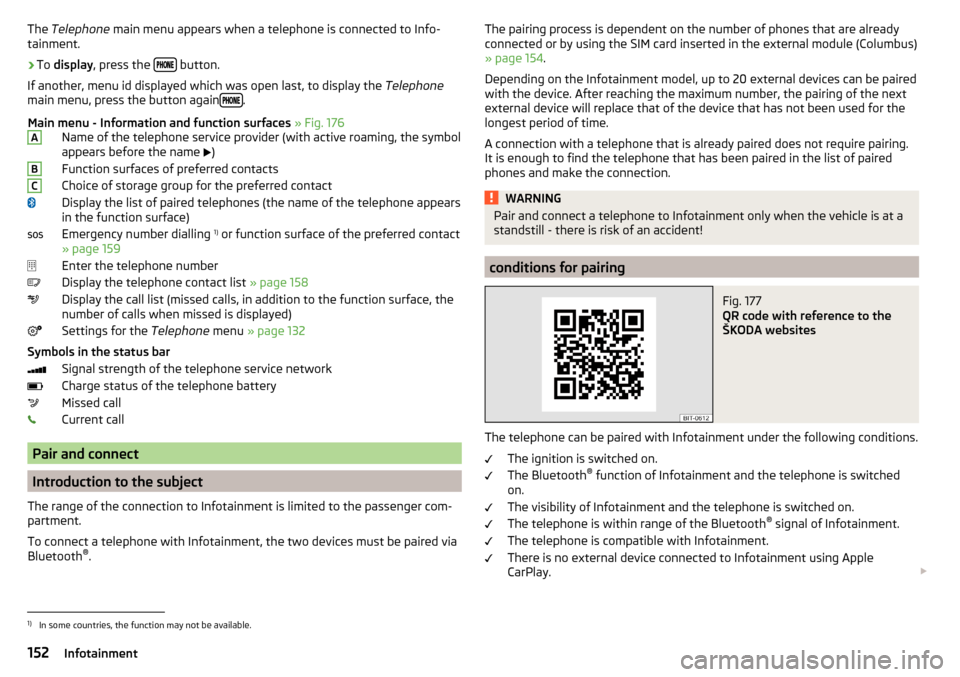
The Telephone main menu appears when a telephone is connected to Info-
tainment.›
To display , press the button.
If another, menu id displayed which was open last, to display the Telephone
main menu, press the button again
.
Main menu - Information and function surfaces » Fig. 176
Name of the telephone service provider (with active roaming, the symbol
appears before the name
)
Function surfaces of preferred contacts
Choice of storage group for the preferred contact
Display the list of paired telephones (the name of the telephone appears
in the function surface)
Emergency number dialling 1)
or function surface of the preferred contact
» page 159
Enter the telephone number
Display the telephone contact list » page 158
Display the call list (missed calls, in addition to the function surface, the
number of calls when missed is displayed)
Settings for the Telephone menu » page 132
Symbols in the status bar Signal strength of the telephone service network
Charge status of the telephone battery
Missed call
Current call
Pair and connect
Introduction to the subject
The range of the connection to Infotainment is limited to the passenger com-
partment.
To connect a telephone with Infotainment, the two devices must be paired via
Bluetooth ®
.
ABCThe pairing process is dependent on the number of phones that are already
connected or by using the SIM card inserted in the external module (Columbus)
» page 154 .
Depending on the Infotainment model, up to 20 external devices can be paired
with the device. After reaching the maximum number, the pairing of the next
external device will replace that of the device that has not been used for the
longest period of time.
A connection with a telephone that is already paired does not require pairing.
It is enough to find the telephone that has been paired in the list of paired
phones and make the connection.WARNINGPair and connect a telephone to Infotainment only when the vehicle is at a
standstill - there is risk of an accident!
conditions for pairing
Fig. 177
QR code with reference to the
ŠKODA websites
The telephone can be paired with Infotainment under the following conditions.
The ignition is switched on.
The Bluetooth ®
function of Infotainment and the telephone is switched
on.
The visibility of Infotainment and the telephone is switched on.
The telephone is within range of the Bluetooth ®
signal of Infotainment.
The telephone is compatible with Infotainment.
There is no external device connected to Infotainment using Apple
CarPlay.
1)
In some countries, the function may not be available.
152Infotainment
Page 155 of 324

The pairing can be initiated from Infotainment or from the telephone.
During the pairing and connection process, information messages are dis-
played on the Infotainment screen and the telephone screen. These messages
must be observed and if necessary confirmed (e.g. enabling the contact import,
connecting the Bluetooth ®
player among others).
Compatibility and update
By reading the QR code » Fig. 177 or after typing the following address into the
web browser, information about the compatibility of phones and updates are
available for Infotainment Bluetooth ®
can be displayed.
http://go.skoda.eu/compatibility
Pairing and connection process
Pair the telephone with Infotainment
›
Search available Bluetooth ®
devices in your telephone.
›
Select Infotainment (name of Infotainment
→
Bluetooth
→
Name:
).
›
Confirm or enter the PIN code to confirm the pairing.
The phone is connected to the infotainment or merely coupled, depending on
the number of already connected external devices and using the SIM card in-
serted in the external module (Columbus).
Pair Infotainment with the telephone
›
If there is no telephone connected to Infotainment, then press the but-
ton then tap the function surface
Find telephone
.
›
or If Infotainment is connected to a phone, then in the main menu Telephone
tap on the function surface
→
Search phone
.
›
or: If a SIM card with activated telephone services is inserted in the external
module of infotainment Columbus, then, in the main menu Telephone, tap on
the function surface
→
Find telephone
.
›
Select the desired telephone from the list of visited external Bluetooth ®
de-
vices.
›
Confirm the PIN code (enter and confirm if necessary to confirm the pairing.
If external Bluetooth ®
devices are already connected to Infotainment, then
during the Infotainment pairing and connection process, messages and op-
tions for the possible connection type (e.g. replacement of the connected ex-
ternal Bluetooth ®
device) are displayed.
Possible connection types for phones, if required, for the SIM card in the exter- nal module » page 149.
Managing paired external devicesFig. 178
Infotainment Columbus: list of paired external devices / list of
available Bluetooth® profiles
Fig. 179
Infotainment Swing: list of paired external devices / list of avail-
able Bluetooth® profiles
›
In the Telephone main menu, tap on the function surface,
Tap →
Bluetooth
→
Paired devices
.
In the list of paired external devices, the following symbols of the Bluetooth ®
profile may appear for the individual external devices » Fig. 178 and » Fig. 179
.
Applies to Infotainment Columbus, Amundsen, Bolero
SymbolSymbol colourOperationgreyExternal device can be connected as telephoneGreenExternal device is connected as telephone 153Telephone
Page 156 of 324
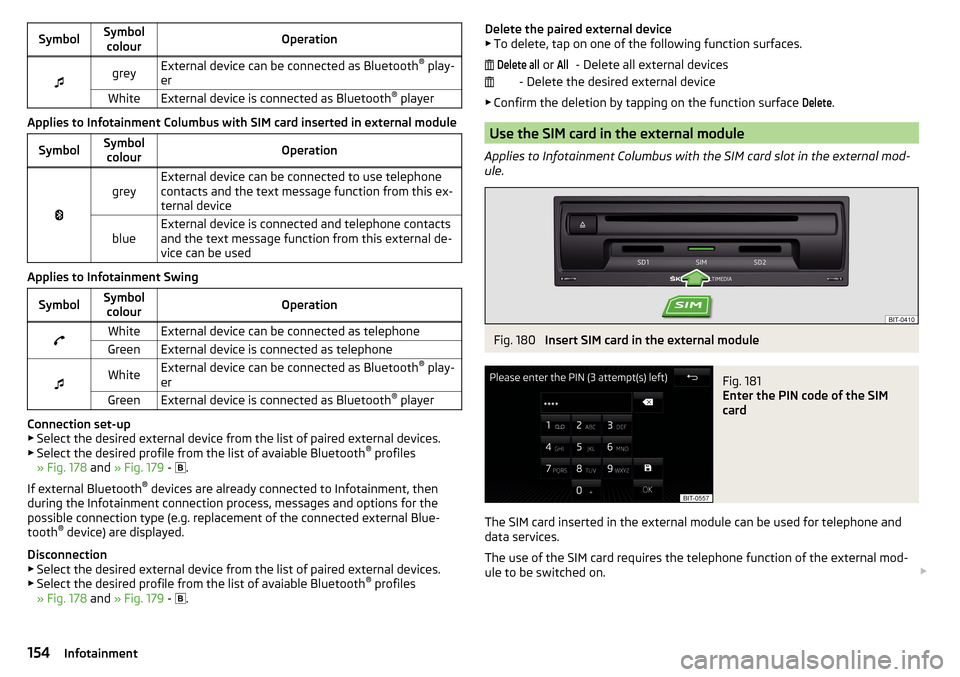
SymbolSymbolcolourOperationgreyExternal device can be connected as Bluetooth ®
play-
erWhiteExternal device is connected as Bluetooth ®
player
Applies to Infotainment Columbus with SIM card inserted in external module
SymbolSymbol
colourOperation
greyExternal device can be connected to use telephone
contacts and the text message function from this ex-
ternal deviceblueExternal device is connected and telephone contacts
and the text message function from this external de-
vice can be used
Applies to Infotainment Swing
SymbolSymbol colourOperationWhiteExternal device can be connected as telephoneGreenExternal device is connected as telephone
WhiteExternal device can be connected as Bluetooth ®
play-
erGreenExternal device is connected as Bluetooth ®
player
Connection set-up
▶ Select the desired external device from the list of paired external devices.
▶ Select the desired profile from the list of avaiable Bluetooth ®
profiles
» Fig. 178 and » Fig. 179 -
.
If external Bluetooth ®
devices are already connected to Infotainment, then
during the Infotainment connection process, messages and options for the
possible connection type (e.g. replacement of the connected external Blue-
tooth ®
device) are displayed.
Disconnection
▶ Select the desired external device from the list of paired external devices.
▶ Select the desired profile from the list of avaiable Bluetooth ®
profiles
» Fig. 178 and » Fig. 179 -
.
Delete the paired external device
▶ To delete, tap on one of the following function surfaces.
- Delete all external devices
- Delete the desired external device
▶ Confirm the deletion by tapping on the function surface Delete
.
Use the SIM card in the external module
Applies to Infotainment Columbus with the SIM card slot in the external mod-
ule.
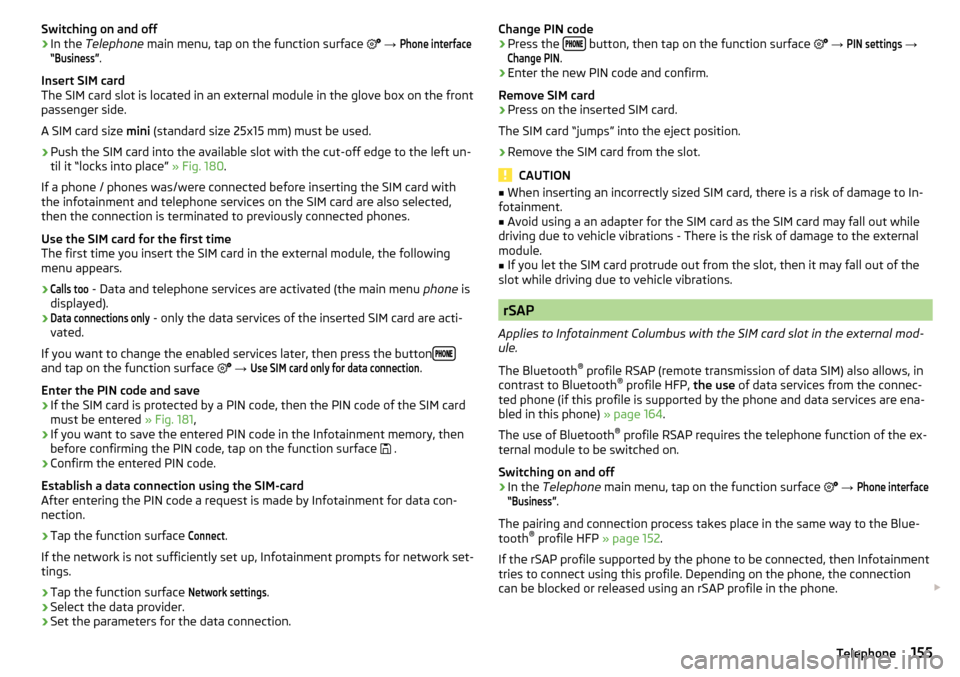
Fig. 180
Insert SIM card in the external module
Fig. 181
Enter the PIN code of the SIM
card
The SIM card inserted in the external module can be used for telephone and
data services.
The use of the SIM card requires the telephone function of the external mod-
ule to be switched on.
Delete all or All154Infotainment
Page 157 of 324
Switching on and off›In the Telephone main menu, tap on the function surface →
Phone interface“Business”
.
Insert SIM card
The SIM card slot is located in an external module in the glove box on the front
passenger side.
A SIM card size mini (standard size 25x15 mm) must be used.
›
Push the SIM card into the available slot with the cut-off edge to the left un-
til it “locks into place” » Fig. 180.
If a phone / phones was/were connected before inserting the SIM card with
the infotainment and telephone services on the SIM card are also selected,
then the connection is terminated to previously connected phones.
Use the SIM card for the first time
The first time you insert the SIM card in the external module, the following
menu appears.
›Calls too
- Data and telephone services are activated (the main menu phone is
displayed).
›Data connections only
- only the data services of the inserted SIM card are acti-
vated.
If you want to change the enabled services later, then press the button
and tap on the function surface
→
Use SIM card only for data connection
.
Enter the PIN code and save
›
If the SIM card is protected by a PIN code, then the PIN code of the SIM card
must be entered » Fig. 181,
›
If you want to save the entered PIN code in the Infotainment memory, then
before confirming the PIN code, tap on the function surface .
›
Confirm the entered PIN code.
Establish a data connection using the SIM-card
After entering the PIN code a request is made by Infotainment for data con-
nection.
›
Tap the function surface
Connect
.
If the network is not sufficiently set up, Infotainment prompts for network set-
tings.
›
Tap the function surface
Network settings
.
›
Select the data provider.
›
Set the parameters for the data connection.
Change PIN code›Press the button, then tap on the function surface
→
PIN settings
→
Change PIN
.
›
Enter the new PIN code and confirm.
Remove SIM card
›
Press on the inserted SIM card.
The SIM card “jumps” into the eject position.
›
Remove the SIM card from the slot.
CAUTION
■ When inserting an incorrectly sized SIM card, there is a risk of damage to In-
fotainment.■
Avoid using a an adapter for the SIM card as the SIM card may fall out while
driving due to vehicle vibrations - There is the risk of damage to the external
module.
■
If you let the SIM card protrude out from the slot, then it may fall out of the
slot while driving due to vehicle vibrations.
rSAP
Applies to Infotainment Columbus with the SIM card slot in the external mod-
ule.
The Bluetooth ®
profile RSAP (remote transmission of data SIM) also allows, in
contrast to Bluetooth ®
profile HFP, the use of data services from the connec-
ted phone (if this profile is supported by the phone and data services are ena-
bled in this phone) » page 164.
The use of Bluetooth ®
profile RSAP requires the telephone function of the ex-
ternal module to be switched on.
Switching on and off
›
In the Telephone main menu, tap on the function surface
→
Phone interface“Business”
.
The pairing and connection process takes place in the same way to the Blue-
tooth ®
profile HFP » page 152.
If the rSAP profile supported by the phone to be connected, then Infotainment
tries to connect using this profile. Depending on the phone, the connection
can be blocked or released using an rSAP profile in the phone.
155Telephone
Page 159 of 324

Telephone functions
Enter telephone number and select
Fig. 182
Infotainment Columbus, Amundsen, Bolero: Numeric keypad /
editing the phone numbers
Fig. 183
Infotainment Swing: Numeric keypad / editing the phone num-
ber
Enter a telephone number and dial
›
In the Telephone main menu, tap on the function surface
.
›
Enter the telephone number using the numeric keypad » Fig. 182 or.
» Fig. 183 -
.
›
Select the number entered by tapping on the function surface
.
Function surfaces of the numerical keyboard Enter the last dialled number / dial the telephone number entered
Emergency call (Only applies to some countries)
Breakdown call in case of breakdown
Information call (for information regarding the products and services of
the brand ŠKODA )
Choosing the mailbox number (the function is not supported for Info-
tainment Swing)
Delete the last number entered Display of function surfaces
/
for the movement of the cursor in the
input line » Fig. 182 - » Fig. 183
Breakdown and info numbers
The breakdown and info numbers are free of charge. Charges are only made
for a telephone call in accordance with the fare conditions of your telephone
service provider.
The phone numbers are already set at the factory. If you want to change the
numbers, then consult a ŠKODA service partner.
If no breakdown or info calls can be made then a ŠKODA service partner should
be consulted.
Search for a contact using the numeric keypad
The numeric keypad can also be used for a contact search.
If e.g the digits 32 are entered, then, contacts are displayed in the letter se-
quence DA, FA, EB etc. in addition to the numeric keypad in the area A
» Fig. 182 and » Fig. 183 .
Voicemail box (does not apply to Infotainment Swing)
If not import the voicemail number or was not imported or entered, then this
can be entered or changed as follows.
▶ In the Telephone main menu, tap on the function surface
→
User profile
→
Mailbox number:
.
▶ To select the voice mailbox number, tap the function surface Or on the
numeric keypad, tap on the function surface
.
Note
The numeric keyboard can also be displayed during a telephone call.
157Telephone
Page 160 of 324
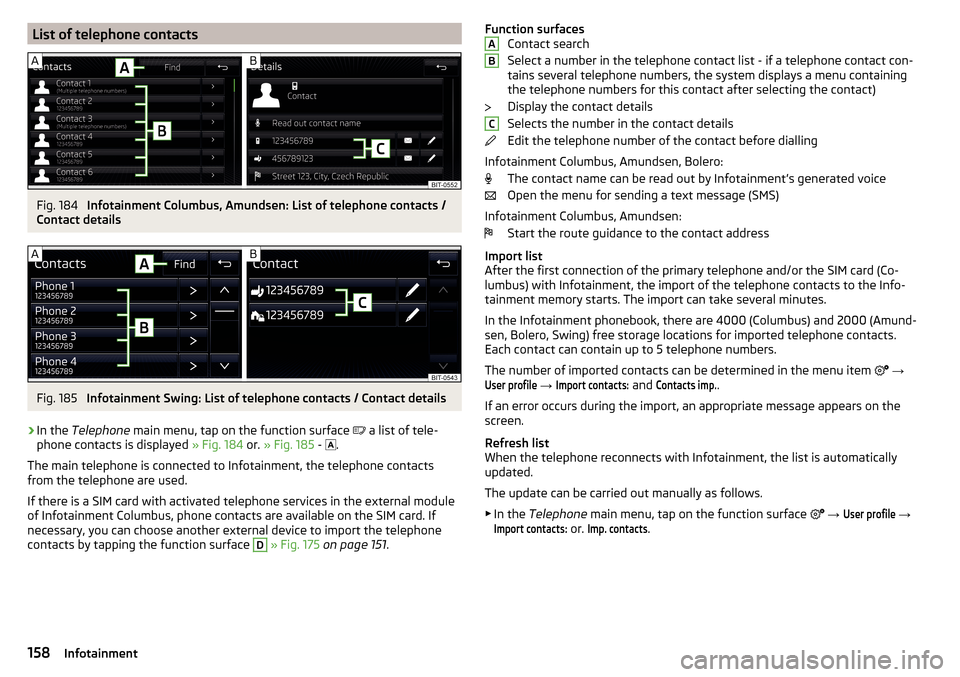
List of telephone contactsFig. 184
Infotainment Columbus, Amundsen: List of telephone contacts /
Contact details
Fig. 185
Infotainment Swing: List of telephone contacts / Contact details
›
In the Telephone main menu, tap on the function surface
a list of tele-
phone contacts is displayed » Fig. 184 or. » Fig. 185 -
.
The main telephone is connected to Infotainment, the telephone contacts
from the telephone are used.
If there is a SIM card with activated telephone services in the external module
of Infotainment Columbus, phone contacts are available on the SIM card. If
necessary, you can choose another external device to import the telephone
contacts by tapping the function surface
D
» Fig. 175 on page 151 .
Function surfaces
Contact search
Select a number in the telephone contact list - if a telephone contact con-
tains several telephone numbers, the system displays a menu containing
the telephone numbers for this contact after selecting the contact)
Display the contact details
Selects the number in the contact details
Edit the telephone number of the contact before dialling
Infotainment Columbus, Amundsen, Bolero: The contact name can be read out by Infotainment’s generated voice
Open the menu for sending a text message (SMS)
Infotainment Columbus, Amundsen: Start the route guidance to the contact address
Import list
After the first connection of the primary telephone and/or the SIM card (Co-
lumbus) with Infotainment, the import of the telephone contacts to the Info-
tainment memory starts. The import can take several minutes.
In the Infotainment phonebook, there are 4000 (Columbus) and 2000 (Amund-
sen, Bolero, Swing) free storage locations for imported telephone contacts.
Each contact can contain up to 5 telephone numbers.
The number of imported contacts can be determined in the menu item
→User profile
→
Import contacts:
and
Contacts imp.
.
If an error occurs during the import, an appropriate message appears on the
screen.
Refresh list
When the telephone reconnects with Infotainment, the list is automatically
updated.
The update can be carried out manually as follows. ▶ In the Telephone main menu, tap on the function surface
→
User profile
→
Import contacts:
or.
Imp. contacts
.
ABC158Infotainment
Page 163 of 324
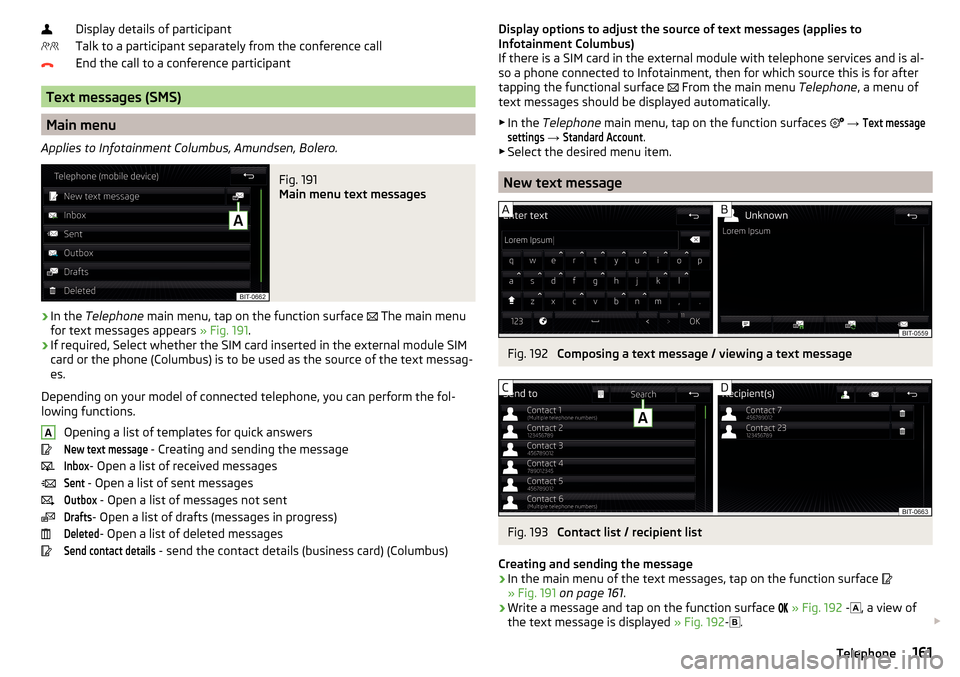
Display details of participant
Talk to a participant separately from the conference call
End the call to a conference participant
Text messages (SMS)
Main menu
Applies to Infotainment Columbus, Amundsen, Bolero.
Fig. 191
Main menu text messages
›
In the Telephone main menu, tap on the function surface
The main menu
for text messages appears » Fig. 191.
›
If required, Select whether the SIM card inserted in the external module SIM
card or the phone (Columbus) is to be used as the source of the text messag-
es.
Depending on your model of connected telephone, you can perform the fol-
lowing functions.
Opening a list of templates for quick answers
New text message
- Creating and sending the message
Inbox
- Open a list of received messages
Sent
- Open a list of sent messages
Outbox
- Open a list of messages not sent
Drafts
- Open a list of drafts (messages in progress)
Deleted
- Open a list of deleted messages
Send contact details
- send the contact details (business card) (Columbus)
ADisplay options to adjust the source of text messages (applies to
Infotainment Columbus)
If there is a SIM card in the external module with telephone services and is al-
so a phone connected to Infotainment, then for which source this is for after
tapping the functional surface
From the main menu Telephone, a menu of
text messages should be displayed automatically.
▶ In the Telephone main menu, tap on the function surfaces
→ Text messagesettings
→
Standard Account
.
▶ Select the desired menu item.
New text message
Fig. 192
Composing a text message / viewing a text message
Fig. 193
Contact list / recipient list
Creating and sending the message
›
In the main menu of the text messages, tap on the function surface
» Fig. 191 on page 161 .
›
Write a message and tap on the function surface
» Fig. 192 -
, a view of
the text message is displayed » Fig. 192-
.
161Telephone
Page 165 of 324
Hotspot (WLAN) and data connection
Hotspot (WLAN)
Introduction to the subject
Applies to Infotainment Columbus, Amundsen.
WLAN can be used to connect to the Internet, to playback audio files in the menu media (if the connected external device allows this) or for operating the
device using an application in the external device (e.g. ŠKODA Media Command).
The requirement for the WLAN function is that the ignition is switched on. Af-
ter switching on the ignition, the last-used WLAN connection appears.
It is possible to connect up to 8 external devices to the Infotainment hotspot
and at the same time to connect Infotainment to the hotspot of other external
devices.
If there is a SIM card with activated data services in the external module of In-
fotainment Columbus or there is a connection to the phone via Bluetooth ®
profile RSAP, a connection cannot be established to the external device hot-
spot.
connect an external device to the Infotainment hotspot (WLAN)
Switch Infotainment hotspot on / off
›
Press the button, then tap on the function surface
Tap on
→
WLAN
→
Mobile hotspot
→
Mobile hotspot
.
Set infotainment hotspot
▶ Press the
button, then tap on the function surface
Tap on
→
WLAN
→
Mobile hotspot
→
Hotspot (WLAN) settings
.
▶ Setting required menu items from the following menu.
■
Security level:
- Setting the connection security
■
Network key
- Entering the access password
■
SSID: ...
- Name of the Infotainment hotspot
■
Do not send network name (SSID)
-Turn Infotainment hotspot visibility on/off
▶ Tap the function surface Store to save the parameters of the Infotainment
hotspot.
Connect ▶ Enable the Wi-Fi in the external device and search for any available hotspots.
▶ Select the Infotainment hotspot (if necessary, enter the required password).
▶ Confirm the connection.
Establish secure connection using WPS (applies to Infotainment Amundsen) ▶ Turn on Infotainment in the device.
▶ Press the
button, then tap on the function surface
→
WLAN
→
Portablehotspot
→
WPS Quick Connection (WPS button)
.
▶ Turn on the option to connect to Infotainment hotspot using WPS.
Note
If the external device is connected to the Infotainment hotspot (WLAN), then
the data connection to the external device cannot be used.
Connect Infotainment to the hotspot (WLAN) of the external
device
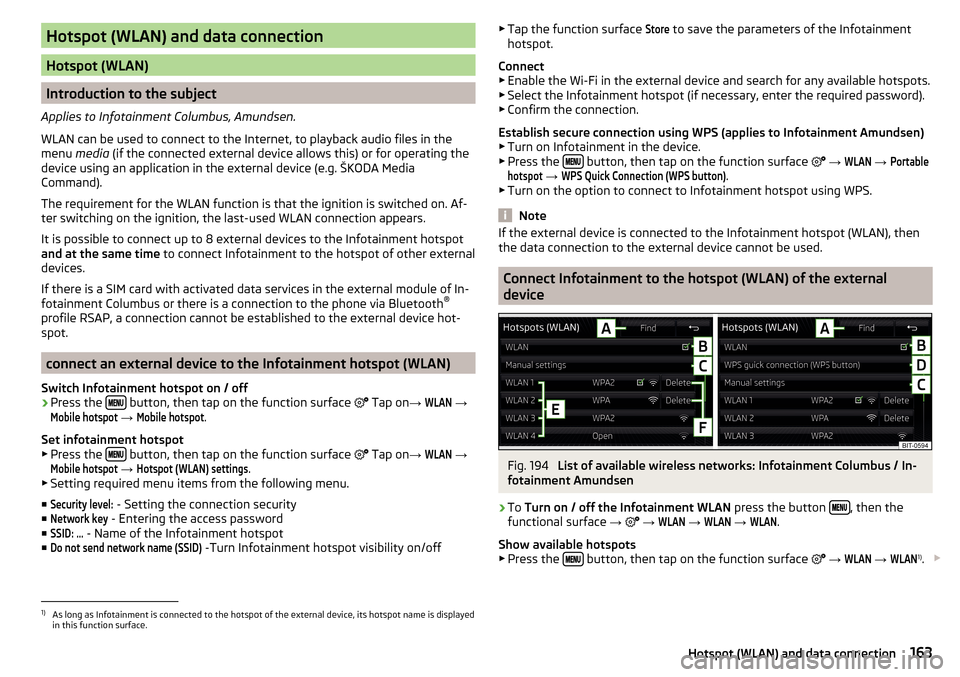
Fig. 194
List of available wireless networks: Infotainment Columbus / In-
fotainment Amundsen
›
To Turn on / off the Infotainment WLAN press the button , then the
functional surface →
→
WLAN
→
WLAN
→
WLAN
.
Show available hotspots
▶ Press the
button, then tap on the function surface
→
WLAN
→
WLAN
1)
.
1)
As long as Infotainment is connected to the hotspot of the external device, its hotspot name is displayed
in this function surface.
163Hotspot (WLAN) and data connection