phone SKODA RAPID 2013 1.G User Guide
[x] Cancel search | Manufacturer: SKODA, Model Year: 2013, Model line: RAPID, Model: SKODA RAPID 2013 1.GPages: 226, PDF Size: 15.16 MB
Page 90 of 226
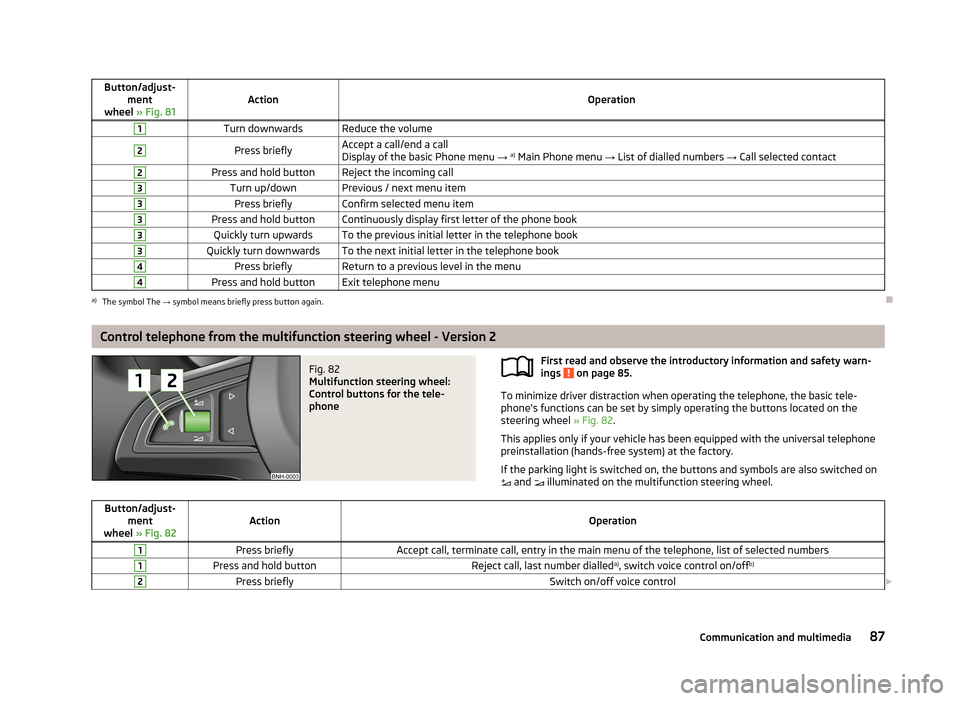
Button/adjust-ment
wheel » Fig. 81ActionOperation
1Turn downwardsReduce the volume2Press brieflyAccept a call/end a call
Display of the basic Phone menu → a)
Main Phone menu → List of dialled numbers → Call selected contact2Press and hold buttonReject the incoming call3Turn up/downPrevious / next menu item3Press brieflyConfirm selected menu item3Press and hold buttonContinuously display first letter of the phone book3Quickly turn upwardsTo the previous initial letter in the telephone book3Quickly turn downwardsTo the next initial letter in the telephone book4Press brieflyReturn to a previous level in the menu4Press and hold buttonExit telephone menua)
The symbol The → symbol means briefly press button again.
Control telephone from the multifunction steering wheel - Version 2
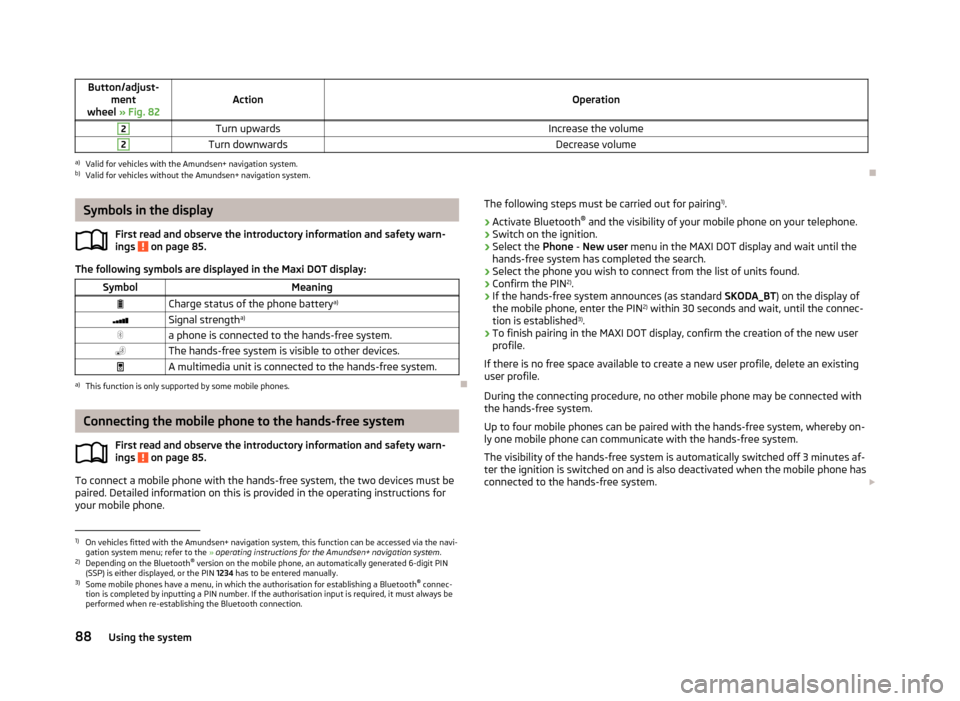
Fig. 82
Multifunction steering wheel:
Control buttons for the tele-
phone
First read and observe the introductory information and safety warn-
ings on page 85.
To minimize driver distraction when operating the telephone, the basic tele- phone's functions can be set by simply operating the buttons located on the
steering wheel » Fig. 82.
This applies only if your vehicle has been equipped with the universal telephone preinstallation (hands-free system) at the factory.
If the parking light is switched on, the buttons and symbols are also switched on and illuminated on the multifunction steering wheel.
Button/adjust-
ment
wheel » Fig. 82ActionOperation
1Press brieflyAccept call, terminate call, entry in the main menu of the telephone, list of selected numbers1Press and hold buttonReject call, last number dialled a)
, switch voice control on/off b)2Press brieflySwitch on/off voice control
87Communication and multimedia
Page 91 of 226
Button/adjust-ment
wheel » Fig. 82ActionOperation
2Turn upwardsIncrease the volume2Turn downwardsDecrease volumea)
Valid for vehicles with the Amundsen+ navigation system.
b)
Valid for vehicles without the Amundsen+ navigation system.
Symbols in the display
First read and observe the introductory information and safety warn-
ings
on page 85.
The following symbols are displayed in the Maxi DOT display:
SymbolMeaningCharge status of the phone battery a)Signal strengtha)a phone is connected to the hands-free system.The hands-free system is visible to other devices.A multimedia unit is connected to the hands-free system.a)
This function is only supported by some mobile phones.
Connecting the mobile phone to the hands-free system
First read and observe the introductory information and safety warn-
ings
on page 85.
To connect a mobile phone with the hands-free system, the two devices must be paired. Detailed information on this is provided in the operating instructions for
your mobile phone.
The following steps must be carried out for pairing 1)
.›
Activate Bluetooth ®
and the visibility of your mobile phone on your telephone.
›
Switch on the ignition.
›
Select the Phone - New user menu in the MAXI DOT display and wait until the
hands-free system has completed the search.
›
Select the phone you wish to connect from the list of units found.
›
Confirm the PIN 2)
.
›
If the hands-free system announces (as standard SKODA_BT) on the display of
the mobile phone, enter the PIN 2)
within 30 seconds and wait, until the connec-
tion is established 3)
.
›
To finish pairing in the MAXI DOT display, confirm the creation of the new user
profile.
If there is no free space available to create a new user profile, delete an existing
user profile.
During the connecting procedure, no other mobile phone may be connected with the hands-free system.
Up to four mobile phones can be paired with the hands-free system, whereby on- ly one mobile phone can communicate with the hands-free system.
The visibility of the hands-free system is automatically switched off 3 minutes af-
ter the ignition is switched on and is also deactivated when the mobile phone has connected to the hands-free system.
1)
On vehicles fitted with the Amundsen+ navigation system, this function can be accessed via the navi-
gation system menu; refer to the » operating instructions for the Amundsen+ navigation system .
2)
Depending on the Bluetooth®
version on the mobile phone, an automatically generated 6-digit PIN
(SSP) is either displayed, or the PIN 1234 has to be entered manually.
3)
Some mobile phones have a menu, in which the authorisation for establishing a Bluetooth ®
connec-
tion is completed by inputting a PIN number. If the authorisation input is required, it must always be
performed when re-establishing the Bluetooth connection.
88Using the system
Page 92 of 226
Restoring the visibility of the hands-free system
If you have not managed to connect your mobile phone with the hands-free sys-
tem within 3 minutes of switching on the ignition, the visibility of the hands-free
system can be re-established for 3 minutes in one of the following ways.
› By turning the ignition off and on.
› By turning voice control off and on.
› In the MAXI DOT display under menu item
Bluetooth - Visibility .
Creating a connection with an already paired mobile phone
After switching on the ignition, the connection is automatically established for
the already paired mobile phone 1)
. Check on your mobile phone if the automatic
connection has been established.
Disconnecting the connection
The connection to a connected mobile phone can be ended in the following ways. › By withdrawing the ignition key.
› By disconnecting the hands-free system in the mobile phone.
› By disconnecting from the user in the MAXI DOT display under the menu item
Bluetooth - User .
Solving connection problems
If the hands-free system reports No paired phone found, check the operating
status of the mobile phone.
› Is the mobile phone switched on?
› Is the PIN code entered?
› Is Bluetooth ®
active?
› Is the visibility of the mobile phone active?
› Has the mobile phone already been paired with the hands-free system?
Telephone operation in the MAXI DOT display
First read and observe the introductory information and safety warn-ings
on page 85.
The following menu items can be selected from the Phone menu.
› Telephone book
› Dial number 2)
› Call lists
› Voice mailbox
› Bluetooth 2)
› Settings 3)
› Back
Telephone book
The Phone book menu item lists the contacts downloaded from the telephone
memory and the mobile phone SIM card.
Dial number
Any telephone number can be entered in the Dial number menu item. The re-
quired numbers must be selected one after the other using adjustment wheel
and confirmed by pressing the adjustment wheel. You can select digits 0-9, sym-
bols
,
, # and the Cancel, Call and Delete functions.
Call lists
The following menu items can be selected in the Call list menu item.
■ Missed calls
■ Dialled numbers
■ Received calls
Voice mailbox
In the Voice mailbox menu item, you can set the number of the voice mailbox 2)
and then dial the number.
1)
Some mobile phones have a menu, in which the authorisation for establishing a Bluetooth®
connec-
tion is completed by inputting a PIN number. If the authorisation input is required, it must always be
performed when re-establishing the Bluetooth connection.
2)
On vehicles fitted with the Amundsen+ navigation system, this function can be accessed via the navi-
gation system menu; refer to the » operating instructions for the Amundsen+ navigation system .
3)
This function is not available in vehicles fitted with the Amundsen+ navigation system.
89Communication and multimedia
Page 93 of 226
Bluetooth
The following menu items can be selected from the Bluetooth menu item.
■ User - Overview of the stored telephones
■ New user - Search for new mobile phones that are in the reception range
■ Visibility - Switches on the visibility of the hands-free system for other devices
■ Media player - Playback via Bluetooth ®
■ Active device - Connected device
■ Paired devices - List of paired devices
■ Search - Device search
■ Phone name - option to change the name of the phone (default SKODA_BT)
Settings
The following menu items can be selected from the Settings menu item.
■ Telephone book - Phonebook
■ Update - Update the phone book 1)
■ List - Arrange the entries in the phone book
■ Surname - Arrange according to surname
■ First name - Arrange according to first name
■ Ring tone - Ring tone setting
Back
Return in the Start menu of the telephone.
Voice control
Introduction
This chapter contains information on the following subjects:
Dialogue – version 1
90
Dialogue – version 2
91
Voice commands
92
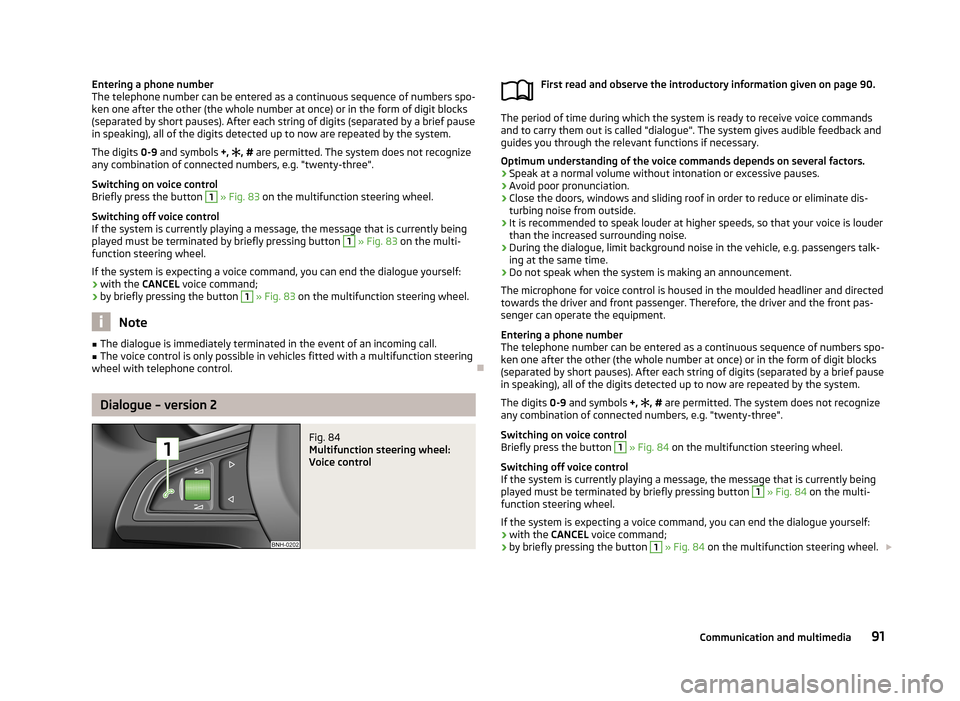
Dialogue – version 1Fig. 83
Multifunction steering wheel: Voice control
First read and observe the introductory information given on page 90.
The period of time during which the system is ready to receive voice commands and to carry them out is called "dialogue". The system gives audible feedback and
guides you through the relevant functions if necessary.
Optimum understanding of the voice commands depends on several factors.
› Speak at a normal volume without intonation or excessive pauses.
› Avoid poor pronunciation.
› Close the doors, windows and sliding roof in order to reduce or eliminate dis-
turbing noise from outside.
› It is recommended to speak louder at higher speeds, so that your voice is louder
than the increased surrounding noise.
› During the dialogue, limit background noise in the vehicle, e.g. passengers talk-
ing at the same time.
› Do not speak when the system is making an announcement.
The microphone for voice control is housed in the moulded headliner and directed
towards the driver and front passenger. Therefore, the driver and the front pas-
senger can operate the equipment.
1)
On vehicles fitted with the Amundsen+ navigation system, this function can be accessed via the navi-
gation system menu; refer to the » operating instructions for the Amundsen+ navigation system .
90Using the system
Page 94 of 226
Entering a phone number
The telephone number can be entered as a continuous sequence of numbers spo-
ken one after the other (the whole number at once) or in the form of digit blocks
(separated by short pauses). After each string of digits (separated by a brief pause
in speaking), all of the digits detected up to now are repeated by the system.
The digits 0-9 and symbols +, , # are permitted. The system does not recognize
any combination of connected numbers, e.g. "twenty-three".
Switching on voice control
Briefly press the button 1
» Fig. 83 on the multifunction steering wheel.
Switching off voice control
If the system is currently playing a message, the message that is currently being
played must be terminated by briefly pressing button
1
» Fig. 83 on the multi-
function steering wheel.
If the system is expecting a voice command, you can end the dialogue yourself:
› with the
CANCEL voice command;
› by briefly pressing the button
1
» Fig. 83 on the multifunction steering wheel.
Note
■
The dialogue is immediately terminated in the event of an incoming call.■The voice control is only possible in vehicles fitted with a multifunction steering
wheel with telephone control.
Dialogue – version 2
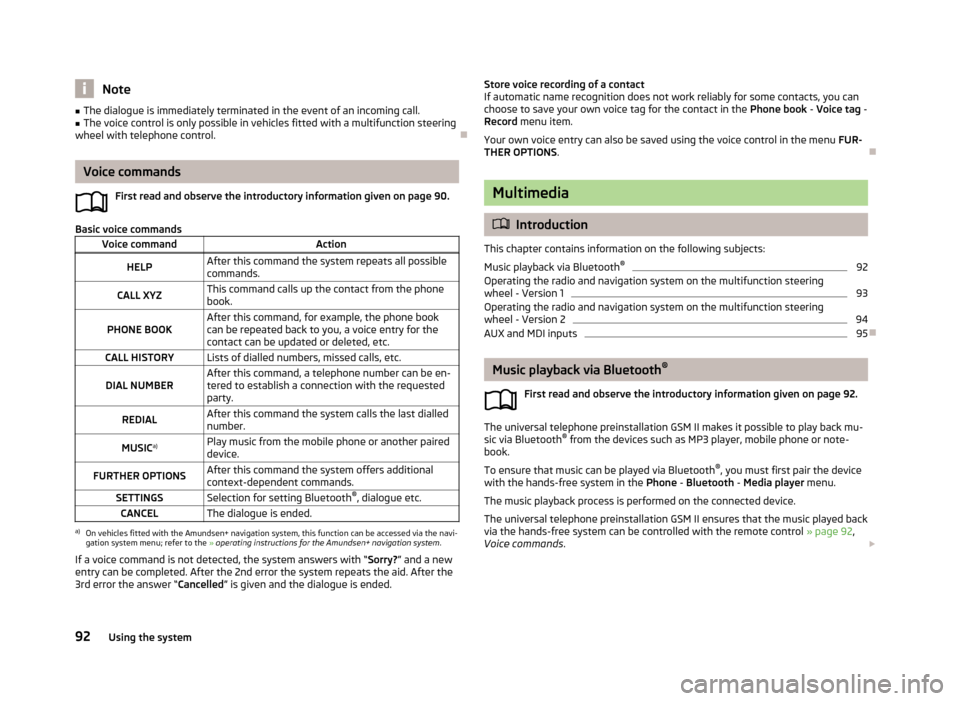
Fig. 84
Multifunction steering wheel:
Voice control
First read and observe the introductory information given on page 90.
The period of time during which the system is ready to receive voice commands and to carry them out is called "dialogue". The system gives audible feedback and
guides you through the relevant functions if necessary.
Optimum understanding of the voice commands depends on several factors. › Speak at a normal volume without intonation or excessive pauses.
› Avoid poor pronunciation.
› Close the doors, windows and sliding roof in order to reduce or eliminate dis-
turbing noise from outside.
› It is recommended to speak louder at higher speeds, so that your voice is louder
than the increased surrounding noise.
› During the dialogue, limit background noise in the vehicle, e.g. passengers talk-
ing at the same time.
› Do not speak when the system is making an announcement.
The microphone for voice control is housed in the moulded headliner and directed towards the driver and front passenger. Therefore, the driver and the front pas-
senger can operate the equipment.
Entering a phone number
The telephone number can be entered as a continuous sequence of numbers spo-
ken one after the other (the whole number at once) or in the form of digit blocks
(separated by short pauses). After each string of digits (separated by a brief pause
in speaking), all of the digits detected up to now are repeated by the system.
The digits 0-9 and symbols +,
, # are permitted. The system does not recognize
any combination of connected numbers, e.g. "twenty-three".
Switching on voice control
Briefly press the button
1
» Fig. 84 on the multifunction steering wheel.
Switching off voice control
If the system is currently playing a message, the message that is currently being
played must be terminated by briefly pressing button
1
» Fig. 84 on the multi-
function steering wheel.
If the system is expecting a voice command, you can end the dialogue yourself:
› with the
CANCEL voice command;
› by briefly pressing the button
1
» Fig. 84 on the multifunction steering wheel.
91Communication and multimedia
Page 95 of 226
Note■The dialogue is immediately terminated in the event of an incoming call.■The voice control is only possible in vehicles fitted with a multifunction steering
wheel with telephone control.
Voice commands
First read and observe the introductory information given on page 90.
Basic voice commands
Voice commandActionHELPAfter this command the system repeats all possible
commands.CALL XYZThis command calls up the contact from the phone book.PHONE BOOKAfter this command, for example, the phone book
can be repeated back to you, a voice entry for the
contact can be updated or deleted, etc.CALL HISTORYLists of dialled numbers, missed calls, etc.DIAL NUMBERAfter this command, a telephone number can be en- tered to establish a connection with the requested
party.REDIALAfter this command the system calls the last dialled number.MUSIC a)Play music from the mobile phone or another paired
device.FURTHER OPTIONSAfter this command the system offers additional
context-dependent commands.SETTINGSSelection for setting Bluetooth ®
, dialogue etc.CANCELThe dialogue is ended.a)
On vehicles fitted with the Amundsen+ navigation system, this function can be accessed via the navi-
gation system menu; refer to the » operating instructions for the Amundsen+ navigation system .
If a voice command is not detected, the system answers with “ Sorry?” and a new
entry can be completed. After the 2nd error the system repeats the aid. After the
3rd error the answer “ Cancelled” is given and the dialogue is ended.
Store voice recording of a contact
If automatic name recognition does not work reliably for some contacts, you can choose to save your own voice tag for the contact in the Phone book - Voice tag -
Record menu item.
Your own voice entry can also be saved using the voice control in the menu FUR-
THER OPTIONS .
Multimedia
Introduction
This chapter contains information on the following subjects:
Music playback via Bluetooth ®
92
Operating the radio and navigation system on the multifunction steering
wheel - Version 1
93
Operating the radio and navigation system on the multifunction steering
wheel - Version 2
94
AUX and MDI inputs
95
Music playback via Bluetooth ®
First read and observe the introductory information given on page 92.
The universal telephone preinstallation GSM II makes it possible to play back mu-
sic via Bluetooth ®
from the devices such as MP3 player, mobile phone or note-
book.
To ensure that music can be played via Bluetooth ®
, you must first pair the device
with the hands-free system in the Phone - Bluetooth - Media player menu.
The music playback process is performed on the connected device.
The universal telephone preinstallation GSM II ensures that the music played back
via the hands-free system can be controlled with the remote control » page 92,
Voice commands .
92Using the system
Page 98 of 226
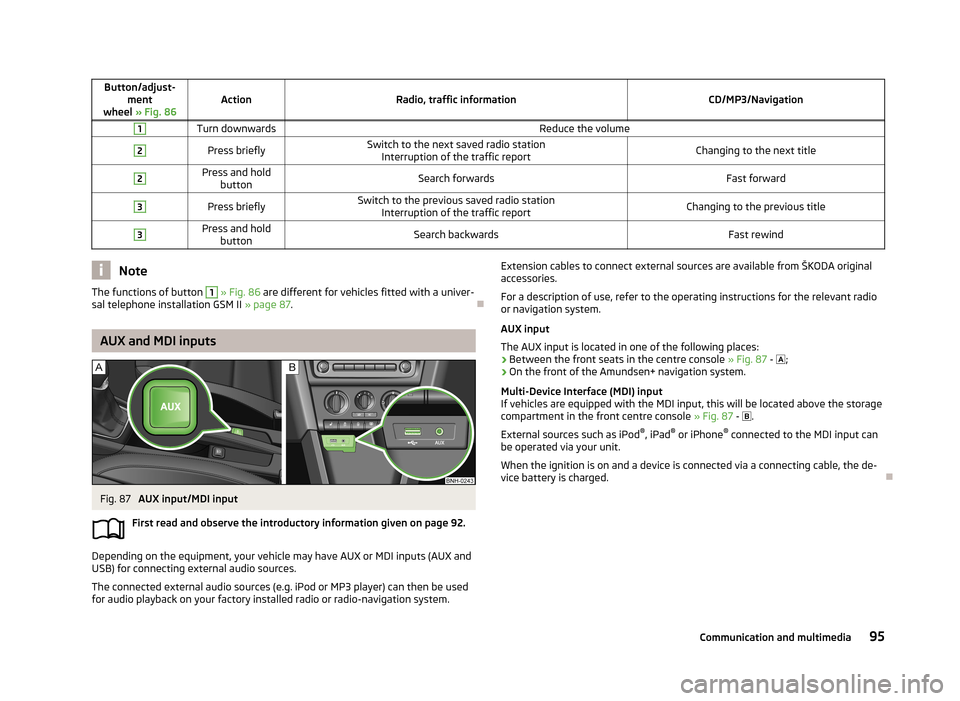
Button/adjust-ment
wheel » Fig. 86ActionRadio, traffic informationCD/MP3/Navigation
1Turn downwardsReduce the volume2Press brieflySwitch to the next saved radio station
Interruption of the traffic reportChanging to the next title2Press and hold buttonSearch forwardsFast forward3Press brieflySwitch to the previous saved radio station Interruption of the traffic reportChanging to the previous title3Press and holdbuttonSearch backwardsFast rewindNoteThe functions of button 1 » Fig. 86 are different for vehicles fitted with a univer-
sal telephone installation GSM II » page 87.
AUX and MDI inputs
Fig. 87
AUX input/MDI input
First read and observe the introductory information given on page 92.
Depending on the equipment, your vehicle may have AUX or MDI inputs (AUX and
USB) for connecting external audio sources.
The connected external audio sources (e.g. iPod or MP3 player) can then be used
for audio playback on your factory installed radio or radio-navigation system.
Extension cables to connect external sources are available from ŠKODA original
accessories.
For a description of use, refer to the operating instructions for the relevant radio or navigation system.
AUX input
The AUX input is located in one of the following places:
› Between the front seats in the centre console
» Fig. 87 - ;
› On the front of the Amundsen+ navigation system.
Multi-Device Interface (MDI) input
If vehicles are equipped with the MDI input, this will be located above the storage compartment in the front centre console » Fig. 87 -
.
External sources such as iPod ®
, iPad ®
or iPhone ®
connected to the MDI input can
be operated via your unit.
When the ignition is on and a device is connected via a connecting cable, the de-
vice battery is charged.
95Communication and multimedia
Page 130 of 226
›Adjust the mirrors, the front seat and head restraint to your body size.
› Advise your passengers to adjust the head restraints to their body size.
› Protect children in suitable child seats with correctly fastened seat
belts » page 142 , Transporting children safely .
› Adopt the correct seated position
» page 127. Tell your passengers to assume
the correct seated position.
› Correctly fasten the seat belt. Also inform passengers to fasten the seat belt
correctly » page 130 .
What influences the driving safety?
First read and observe the introductory information and safety warn-ings
on page 126.
The driver is fully responsible for himself and his occupants. If your driving safety
is effected, you place yourself and the oncoming traffic at risk.
The following guidelines must therefore be observed. › Do not become distracted from concentrating on the traffic situation, e.g. by
your passengers or mobile phone calls.
› Never drive when your driving ability is impaired, e.g. due to medication, alcohol
or drugs.
› Keep to the traffic regulations and the permissible speed limit.
› Always adjust the driving speed to the road, traffic and weather conditions.
› Take regular breaks on long journeys – at least every two hours.
Correct seated position
Introduction
This chapter contains information on the following subjects:
Correct seated position for the driver
128
Correct seated position for the front passenger
128
Correct seated position for the passengers in the rear seats
128
Examples of incorrect seated positions
129WARNINGGeneral information■The front seats and head restraints must be adjusted to match the body
size at all times and the seat belt must always be fastened properly to provide the most effective levels of protection to the passengers.■
If the occupant adopts an incorrect seated position, he is exposed to life-
threatening injuries, in case he is hit by a deployed airbag.
■
If the occupants on the rear seats are not sitting upright, the risk of injury is
increased due to incorrect routing of the seat belt.
■
The seat backrests must not be tilted too far back when driving, as this will
impair the function of the seat belts and of the airbag system – risk of injury!
WARNINGInformation for the driver■Always assume the correct seated position before setting off and do not
change this position while driving. Also advise your passengers to adopt the
correct seated position and not to change this position while the car is mov-
ing.■
Maintain a distance of at least 25 cm to the steering wheel. Not maintaining
this minimum distance will mean that the airbag system will not be able to
properly protect you - hazard!
■
When driving, hold the steering wheel with both hands firmly on the outer
edge in the 9 o'clock and 3 o'clock position. Never hold the steering wheel in
the 12 o'clock position or in any other way (e.g. in the middle or inner edge of
the steering wheel). In such cases, you could severely injure the arms, hands
and head when the driver airbag is deployed.
■
Ensure that there are no objects in the driver's footwell as they may get
caught behind the pedals when driving or applying the braking. You would then no longer be able to operate the clutch, brake or accelerate.
127Passive Safety
Page 140 of 226
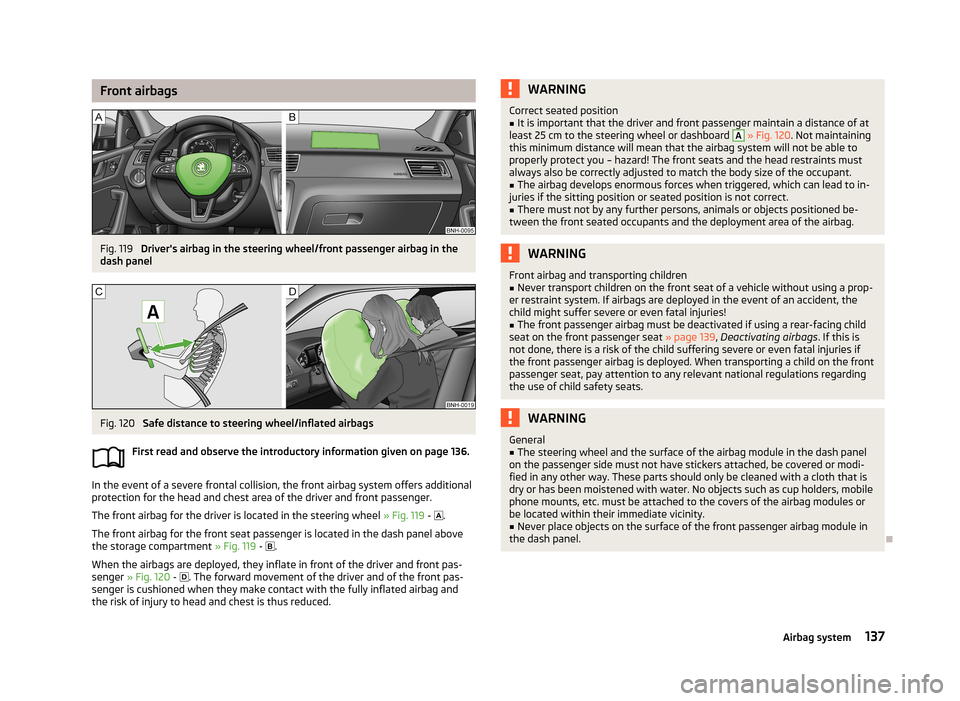
Front airbagsFig. 119
Driver's airbag in the steering wheel/front passenger airbag in the
dash panel
Fig. 120
Safe distance to steering wheel/inflated airbags
First read and observe the introductory information given on page 136.
In the event of a severe frontal collision, the front airbag system offers additional
protection for the head and chest area of the driver and front passenger.
The front airbag for the driver is located in the steering wheel » Fig. 119 -
.
The front airbag for the front seat passenger is located in the dash panel above
the storage compartment » Fig. 119 -
.
When the airbags are deployed, they inflate in front of the driver and front pas- senger » Fig. 120 -
. The forward movement of the driver and of the front pas-
senger is cushioned when they make contact with the fully inflated airbag and
the risk of injury to head and chest is thus reduced.
WARNINGCorrect seated position■It is important that the driver and front passenger maintain a distance of at
least 25 cm to the steering wheel or dashboard A
» Fig. 120 . Not maintaining
this minimum distance will mean that the airbag system will not be able to
properly protect you – hazard! The front seats and the head restraints must always also be correctly adjusted to match the body size of the occupant.
■
The airbag develops enormous forces when triggered, which can lead to in-
juries if the sitting position or seated position is not correct.
■
There must not by any further persons, animals or objects positioned be-
tween the front seated occupants and the deployment area of the airbag.
WARNINGFront airbag and transporting children■Never transport children on the front seat of a vehicle without using a prop-
er restraint system. If airbags are deployed in the event of an accident, the
child might suffer severe or even fatal injuries!■
The front passenger airbag must be deactivated if using a rear-facing child
seat on the front passenger seat » page 139, Deactivating airbags . If this is
not done, there is a risk of the child suffering severe or even fatal injuries if
the front passenger airbag is deployed. When transporting a child on the front
passenger seat, pay attention to any relevant national regulations regarding
the use of child safety seats.
WARNINGGeneral■The steering wheel and the surface of the airbag module in the dash panel
on the passenger side must not have stickers attached, be covered or modi-
fied in any other way. These parts should only be cleaned with a cloth that is
dry or has been moistened with water. No objects such as cup holders, mobile
phone mounts, etc. must be attached to the covers of the airbag modules or
be located within their immediate vicinity.■
Never place objects on the surface of the front passenger airbag module in
the dash panel.
137Airbag system
Page 201 of 226
›Reinsert the cover into the dash panel in the opposite direction to the arrow
such that the guide pins are guided into the dash panel openings.
Carefully push the cover in.
Assignment of the fuses in the dash panel
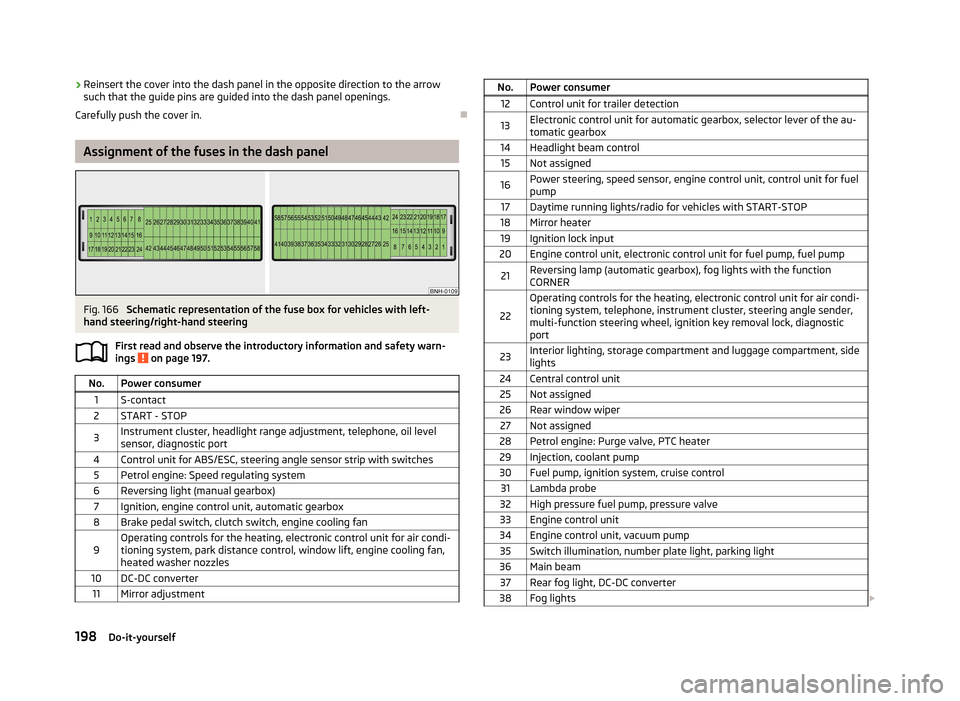
Fig. 166
Schematic representation of the fuse box for vehicles with left-
hand steering/right-hand steering
First read and observe the introductory information and safety warn-ings
on page 197.
No.Power consumer1S-contact2START - STOP3Instrument cluster, headlight range adjustment, telephone, oil level
sensor, diagnostic port4Control unit for ABS/ESC, steering angle sensor strip with switches5Petrol engine: Speed regulating system6Reversing light (manual gearbox)7Ignition, engine control unit, automatic gearbox8Brake pedal switch, clutch switch, engine cooling fan9Operating controls for the heating, electronic control unit for air condi-
tioning system, park distance control, window lift, engine cooling fan, heated washer nozzles10DC-DC converter11Mirror adjustmentNo.Power consumer12Control unit for trailer detection13Electronic control unit for automatic gearbox, selector lever of the au-tomatic gearbox14Headlight beam control15Not assigned16Power steering, speed sensor, engine control unit, control unit for fuel
pump17Daytime running lights/radio for vehicles with START-STOP18Mirror heater19Ignition lock input20Engine control unit, electronic control unit for fuel pump, fuel pump21Reversing lamp (automatic gearbox), fog lights with the function
CORNER
22
Operating controls for the heating, electronic control unit for air condi- tioning system, telephone, instrument cluster, steering angle sender,
multi-function steering wheel, ignition key removal lock, diagnostic
port23Interior lighting, storage compartment and luggage compartment, side
lights24Central control unit25Not assigned26Rear window wiper27Not assigned28Petrol engine: Purge valve, PTC heater29Injection, coolant pump30Fuel pump, ignition system, cruise control31Lambda probe32High pressure fuel pump, pressure valve33Engine control unit34Engine control unit, vacuum pump35Switch illumination, number plate light, parking light36Main beam37Rear fog light, DC-DC converter38Fog lights 198Do-it-yourself